

Introduction
Welcome to wordpressissuefix.com. If you are currently staring at a blank screen, an endless spinning wheel, or a browser timeout message, you are likely experiencing the frustrating WordPress site not loading error.
This issue simply means your website is completely inaccessible to your visitors, and in many cases, you cannot even log into your own wp-admin dashboard. You will encounter this error directly in your web browser whenever you try to visit any page on your site’s domain.
But why does it appear? Most commonly, this error is triggered behind the scenes by a sudden plugin conflict, a broken theme file, an exhausted PHP memory limit, or a sudden failure to connect to your database. Take a deep breath—your website’s data is likely still safe. This guide is for educational troubleshooting purposes to help you systematically identify and resolve the root cause of this specific loading failure.
Table of Contents
Understanding the Symptoms
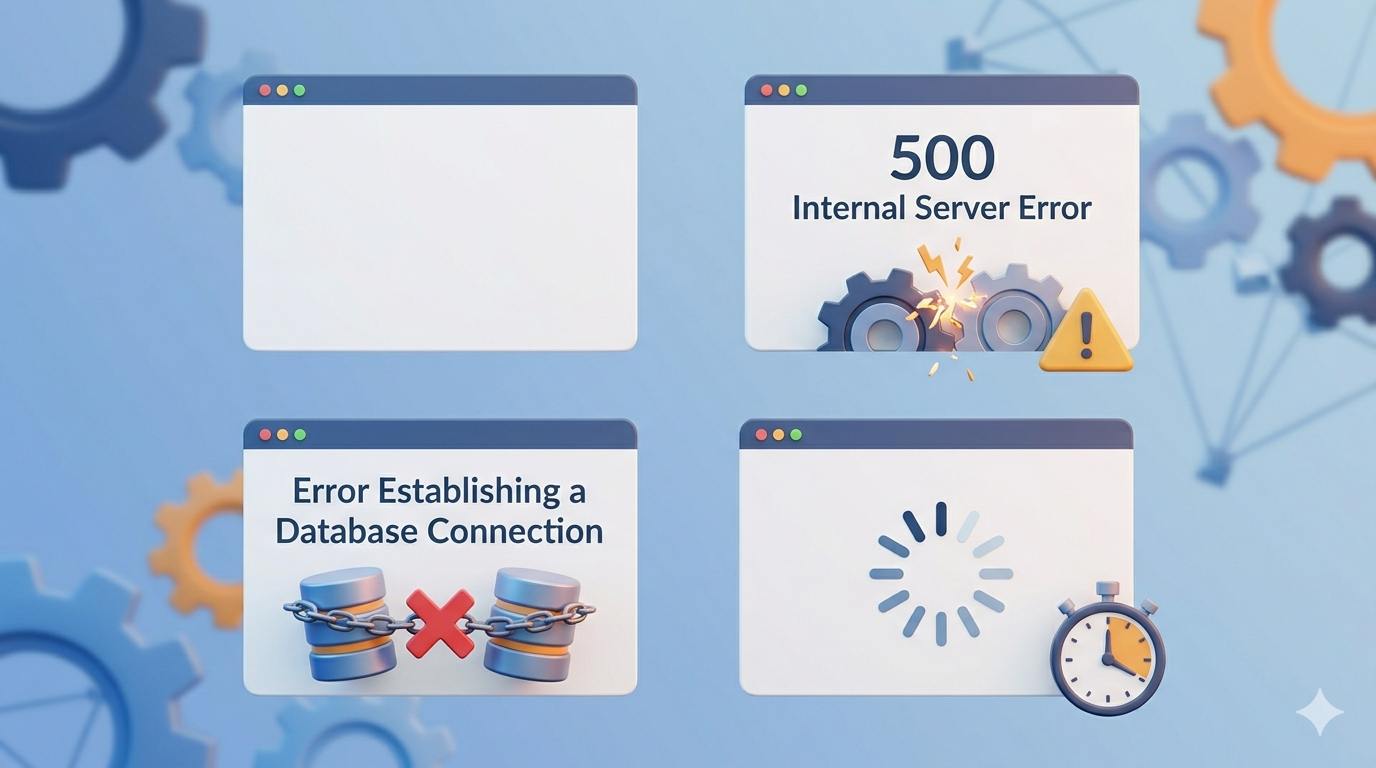
Before we dive into the solutions, it is helpful to recognize that the WordPress site not loading error rarely spells out its name perfectly on your screen. Because WordPress is a dynamic system, a failure to load usually masks itself as one of the following symptoms:
- The White Screen of Death (WSoD): A completely blank, white browser window with no text or error codes whatsoever.
- 500 Internal Server Error: A generic server message indicating something is broken at the code level.
- Error Establishing a Database Connection: A specific message indicating WordPress cannot communicate with its database to fetch your site’s content.
- Connection Timed Out: Your browser tried to load the site, but the server took too long to respond and gave up.
Regardless of the “face” the error wears, the core problem is identical: an underlying technical bottleneck is preventing WordPress from generating your web pages. Let’s walk through the most reliable, beginner-safe fixes to get your site back online.
Step-by-Step Fixes for the WordPress Site Not Loading Error
When your site refuses to load entirely, you usually cannot rely on the WordPress admin dashboard to fix it. We will need to use your web hosting control panel (like cPanel) or an FTP client.
1. Verify Your Web Hosting Server Status
Sometimes, the WordPress site not loading error has nothing to do with your specific website and everything to do with your web hosting provider. If your host’s servers are experiencing downtime or emergency maintenance, your site cannot load.
How to check:
- Log into your web hosting account portal.
- Look for any system status alerts or maintenance banners.
- Reach out to your host’s live chat support and simply ask: “My WordPress site is not loading. Are there any current server outages on my shared server?”
- If they confirm an outage, you just need to wait for them to fix it. If the server is fine, move on to Step 2.
2. Deactivate All WordPress Plugins
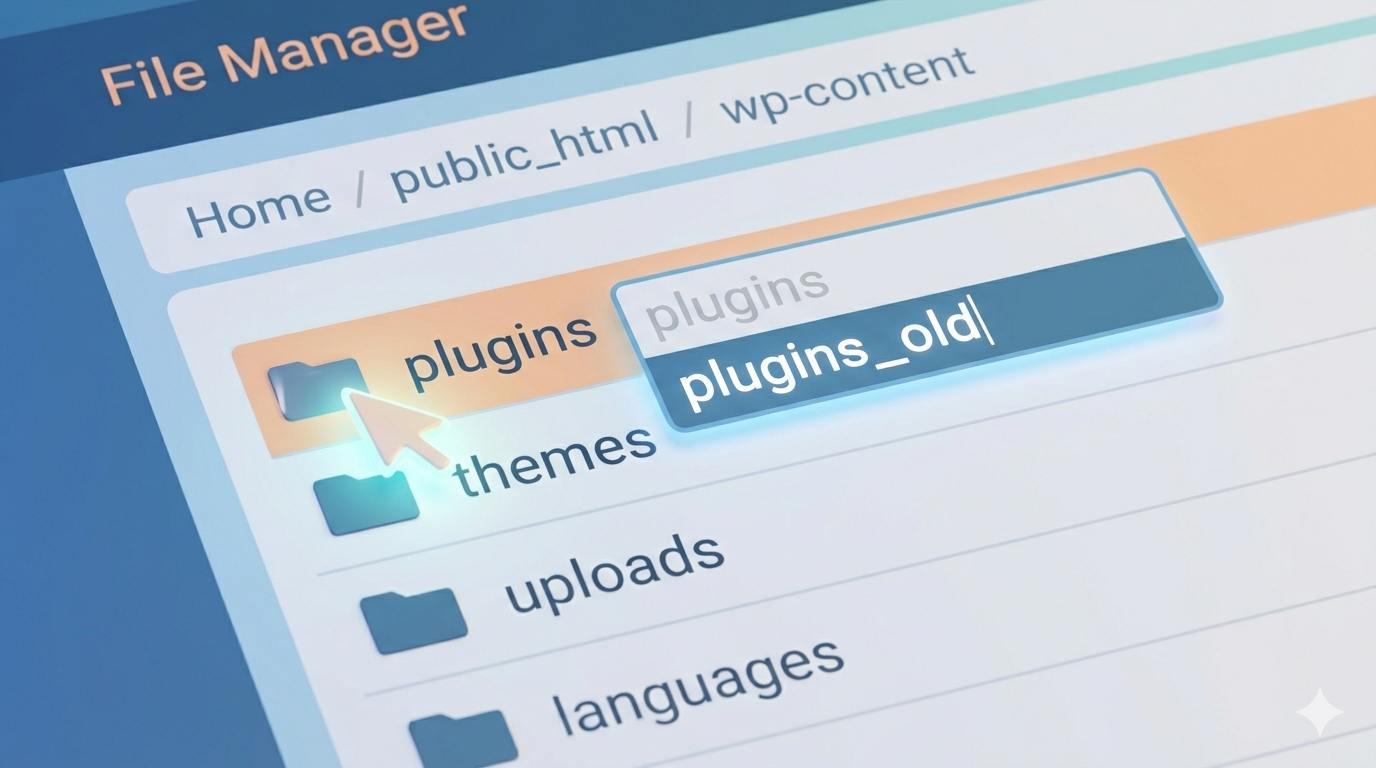
The number one culprit behind the WordPress site not loading error is a rogue, outdated, or conflicting plugin. Because you likely cannot access your dashboard to click “Deactivate,” we have to turn them off manually.
How to safely deactivate plugins via File Manager:
- Log into your web hosting account and open the File Manager (usually found in cPanel).
- Navigate to your site’s root folder (often named
public_html). - Open the
wp-contentfolder. - Inside, you will see a folder named
plugins. - Right-click the
pluginsfolder and select Rename. - Rename it to
plugins_oldorplugins_deactivated.
By changing this folder’s name, WordPress can no longer find your plugins, forcing them all to deactivate instantly. Now, open a new browser tab and try visiting your website. If it loads, congratulations—a plugin was causing the error! You can now rename the folder back to exactly plugins, log into your WordPress dashboard, and reactivate your plugins one by one until the site crashes again, revealing the exact culprit.
3. Temporarily Switch to a Default Theme
If plugins were not the issue, a poorly coded theme update or a corrupted theme file might be causing the WordPress site not loading error. We can force WordPress to fall back to a safe, default theme (like Twenty Twenty-Four) to test this.
How to test your theme:
- Go back to your hosting File Manager.
- Navigate to
public_html>wp-content>themes. - Find the folder containing your currently active theme.
- Right-click your active theme’s folder and Rename it (e.g.,
mytheme_broken). - Ensure there is a default WordPress theme folder (like
twentytwentytwoortwentytwentyfour) sitting in the themes directory.
Check your website again. If WordPress detects the active theme is missing, it will automatically load a default theme. If your site suddenly loads, you know your original theme is the root cause of the error and may need to be reinstalled or updated.
4. Increase the WordPress PHP Memory Limit
WordPress requires a certain amount of server memory (PHP memory) to run heavy scripts. If a process demands more memory than your server allows, it will abruptly stop working, resulting in a blank screen and the WordPress site not loading error.
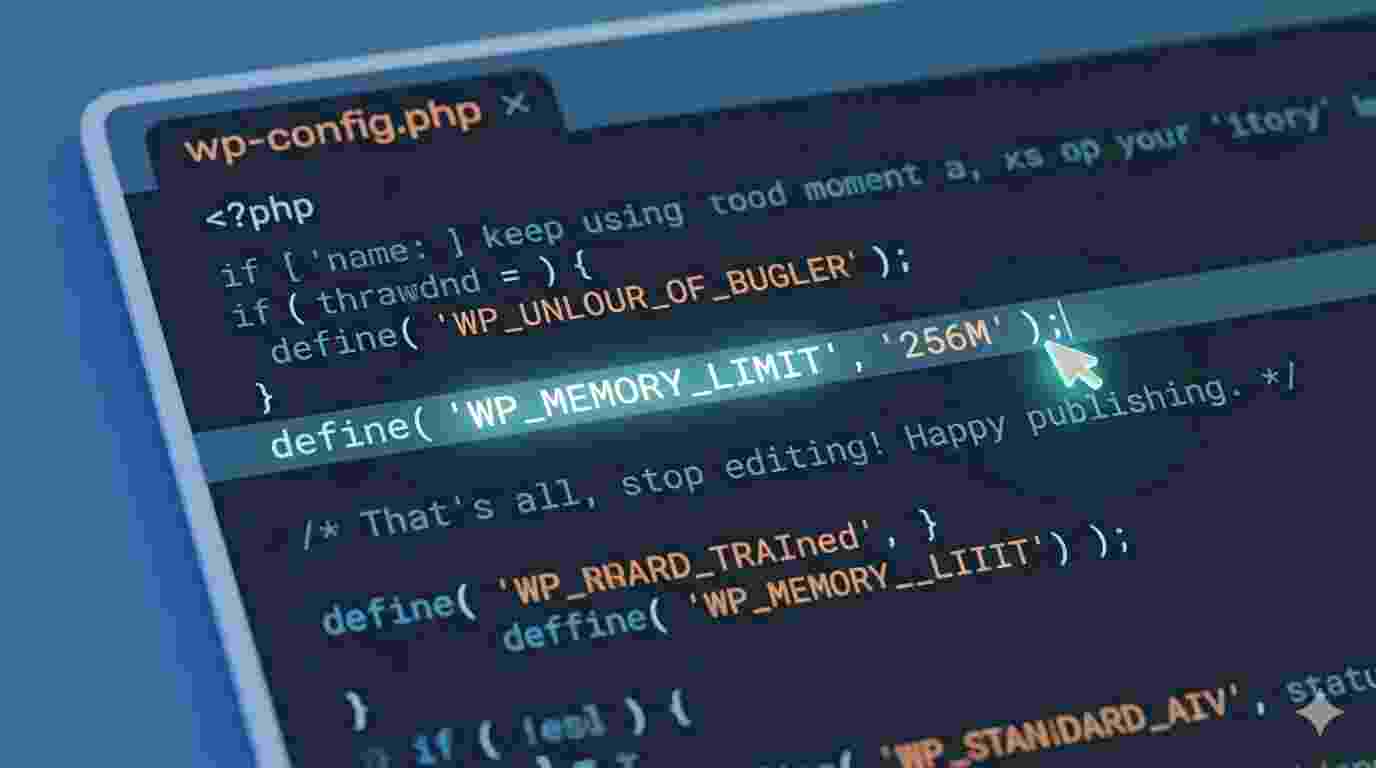
How to safely increase memory:
- In your File Manager, locate the
wp-config.phpfile inside your mainpublic_htmlfolder. - Right-click it and select Edit.
- Scroll down until you find the line that says:
/* That's all, stop editing! Happy publishing. */ - Just above that line, paste the following code exactly:
define( 'WP_MEMORY_LIMIT', '256M' ); - Save your changes.
This tells your server to allow WordPress to use up to 256 Megabytes of memory, which is usually more than enough to resolve memory-exhaustion crashes.
5. Check Your Database Credentials
If your specific version of the WordPress site not loading error displays the text “Error Establishing a Database Connection,” your website files cannot talk to your website database. This almost always means the passwords or usernames in your configuration file are wrong.
How to verify credentials:
- Open the same
wp-config.phpfile mentioned in Step 4. - Look for the following lines:
DB_NAMEDB_USERDB_PASSWORDDB_HOST
- You must ensure these values perfectly match the database details provided by your web host. If you recently migrated your site or your host updated their server settings, these might be outdated. Contact your host’s support team to verify the correct database credentials.
How to Fix the Astra Demo Import Error in WordPress: Complete Guide
Preventing the Error in the Future
Once you have successfully fixed the WordPress site not loading error, it is crucial to implement a few preventive measures to keep your website stable:
- Implement Automated Backups: Always use a reliable backup tool. If your site ever crashes again, you can restore a working version with one click rather than troubleshooting from scratch.
- Update Safely: Never update all your plugins, themes, and WordPress core at the exact same time. Update them one by one. This way, if an update triggers a loading error, you instantly know which item caused it.
- Keep PHP Updated: Ensure your web host is running a modern, supported version of PHP (at least 8.0 or higher) to guarantee better performance and compatibility with new plugins.
Encountering a complete site crash is stressful, but by remaining calm and following these systematic steps, you can reliably isolate the problem. By ruling out plugins, themes, memory limits, and server issues one by one, you will have your WordPress site loading smoothly again in no time.
Frequently Asked Questions (FAQs)
1. Will I lose all my website content if I get the WordPress site not loading error? No, it is highly unlikely that you have lost your content. Your blog posts, pages, and user data are safely stored in your WordPress database. The loading error simply means there is a technical bottleneck preventing your browser from displaying that data. Once you fix the bottleneck, your site will return exactly as it was.
2. How can I fix the error if I cannot log into my wp-admin dashboard? Because this error usually breaks the dashboard as well, you will need to bypass it using your web hosting control panel (like cPanel) or an FTP client like FileZilla. From there, you can access your File Manager to manually deactivate plugins, switch themes, or edit your wp-config.php file as described in our troubleshooting steps above.
3. My site was working fine yesterday. Why did this happen so suddenly? The most common reason for a sudden crash is an automatic background update. If WordPress automatically updated a plugin or your core software overnight, and that new version conflicts with another tool on your site, it can trigger the WordPress site not loading error instantly. It can also be caused by a sudden spike in traffic that drains your server’s PHP memory.
4. Should I reinstall WordPress completely to fix this? No, reinstalling WordPress should only be an absolute last resort. In 99% of cases, the error is caused by a single conflicting plugin, a minor theme issue, or a database typo. Follow the diagnostic steps first; a full reinstallation is rarely necessary and can complicate things if not done correctly.
Conclusion
Encountering the WordPress site not loading error is a rite of passage for almost every website owner. While being locked out of your site and seeing a blank screen can feel like a disaster, it is usually just a temporary traffic jam caused by a rogue plugin, an outdated theme, or a strict memory limit.
By staying calm and following the step-by-step troubleshooting methods outlined in this guide—checking your server, isolating plugins, testing your theme, and verifying your database—you can methodically eliminate the culprits. Remember, the best defense against future downtime is a strong offense: always maintain regular, automated backups and keep your themes and plugins safely updated.








