

Introduction
Welcome to wordpressissuefix.com. If your website looks visually stunning but your organic search traffic has suddenly flatlined after a theme update, you are likely facing the web design seo conflict. This structural issue means your WordPress theme’s visual design is actively breaking your site’s search engine optimization. You typically encounter this problem within your SEO plugin warnings (like Rank Math or Yoast) or in Google Search Console as indexing and mobile usability errors.
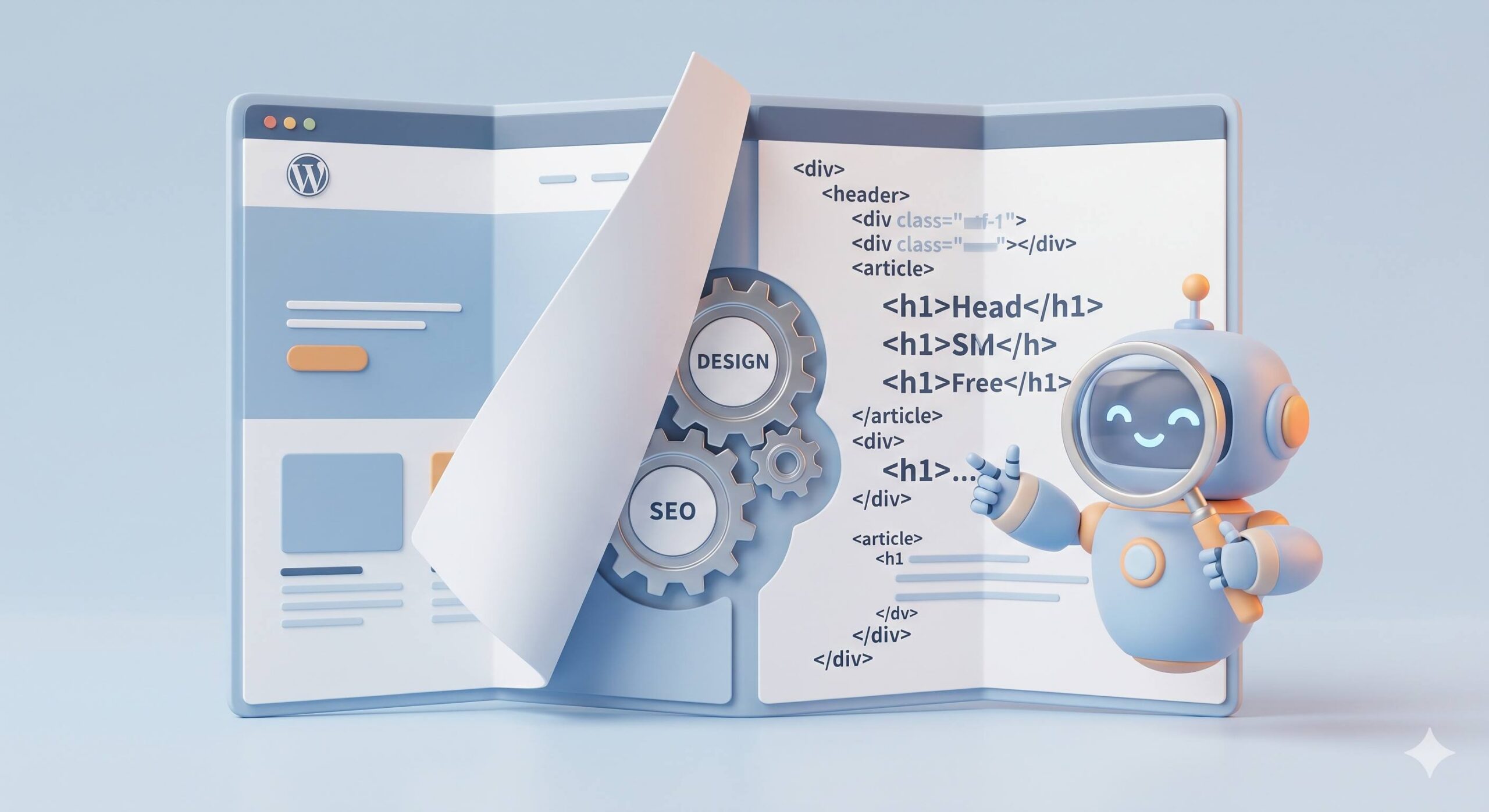
Why does it appear? It happens when an unoptimized WordPress theme or flashy page builder generates bloated code, strips essential HTML tags, or blocks search bots from crawling your content. This guide is for educational troubleshooting purposes to help you resolve this exact conflict quickly and safely.
Table of Contents
Understanding the Symptoms
It is incredibly frustrating to spend hours perfecting the look of your website, only to realize the design itself is hurting your traffic. Because the web design seo issue is a structural conflict behind the scenes, your site will usually look perfectly fine to a human visitor. However, to a search engine bot, it looks broken.
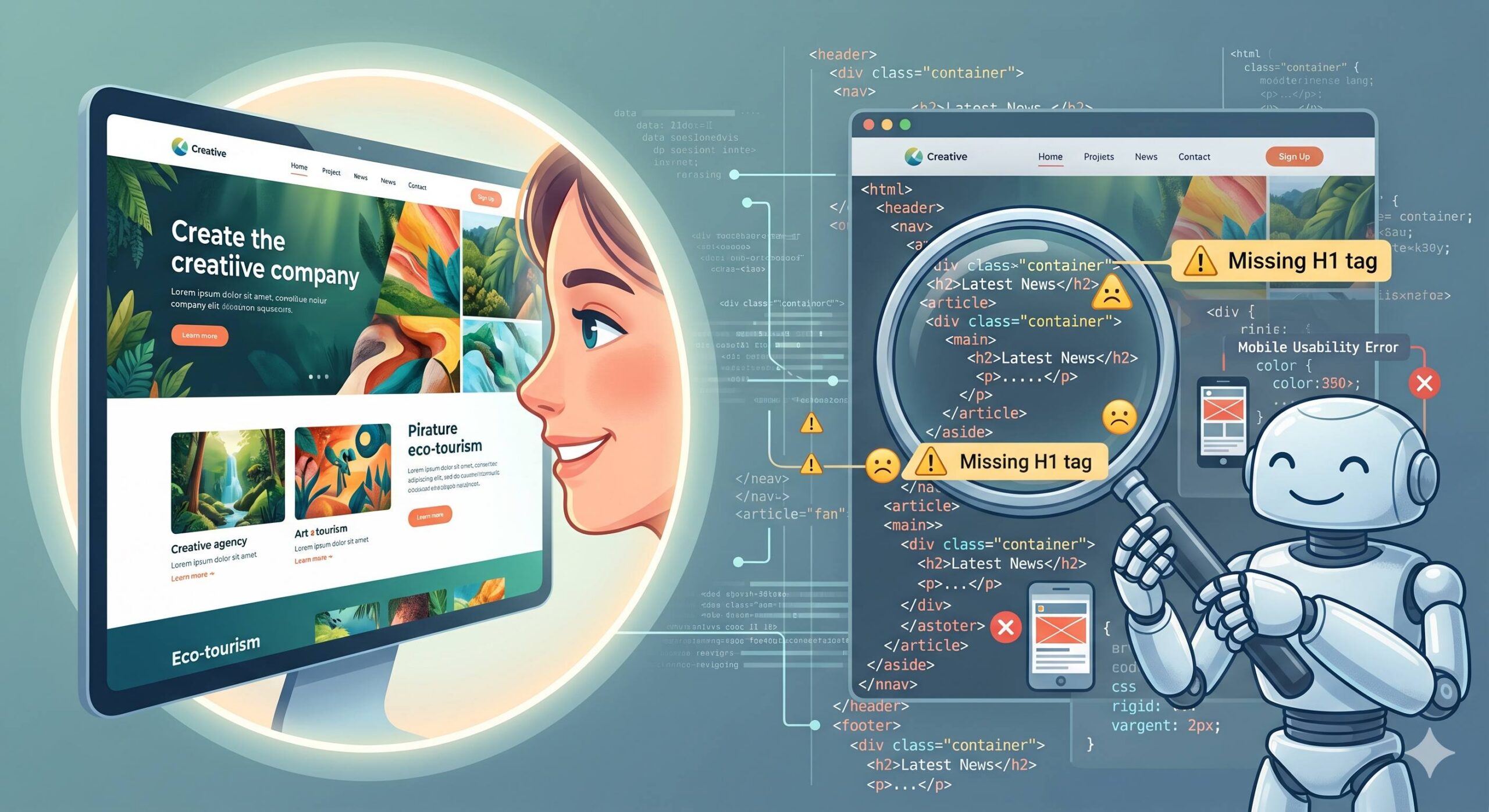
You are experiencing this specific error if you notice the following symptoms:
- Missing Core Tags: Your SEO plugin flashes a red warning stating, “No H1 tag found,” even though your page has a visible title at the top.
- Mobile Usability Warnings: Google Search Console sends you emails about “Content wider than screen” or “Clickable elements too close together.”
- Invisible Content: Text that is visible on your screen does not show up when you inspect the page’s source code or view Google’s cached text-only version.
Imagine you recently built a landing page to promote a local business—such as an eatery like THE ROOFTOP on DK Road—and you added a beautiful, full-screen image slider. If that slider pushes your main text out of the code structure or breaks the mobile layout, you have triggered a web design seo error. Let’s walk through the exact steps to untangle your design from your SEO.
Step-by-Step Fixes for the Web Design SEO Issue
To resolve this, we do not need to delete your design. We simply need to adjust how WordPress and your theme communicate that design to search engines.
1. Restore Stripped H1 Heading Tags
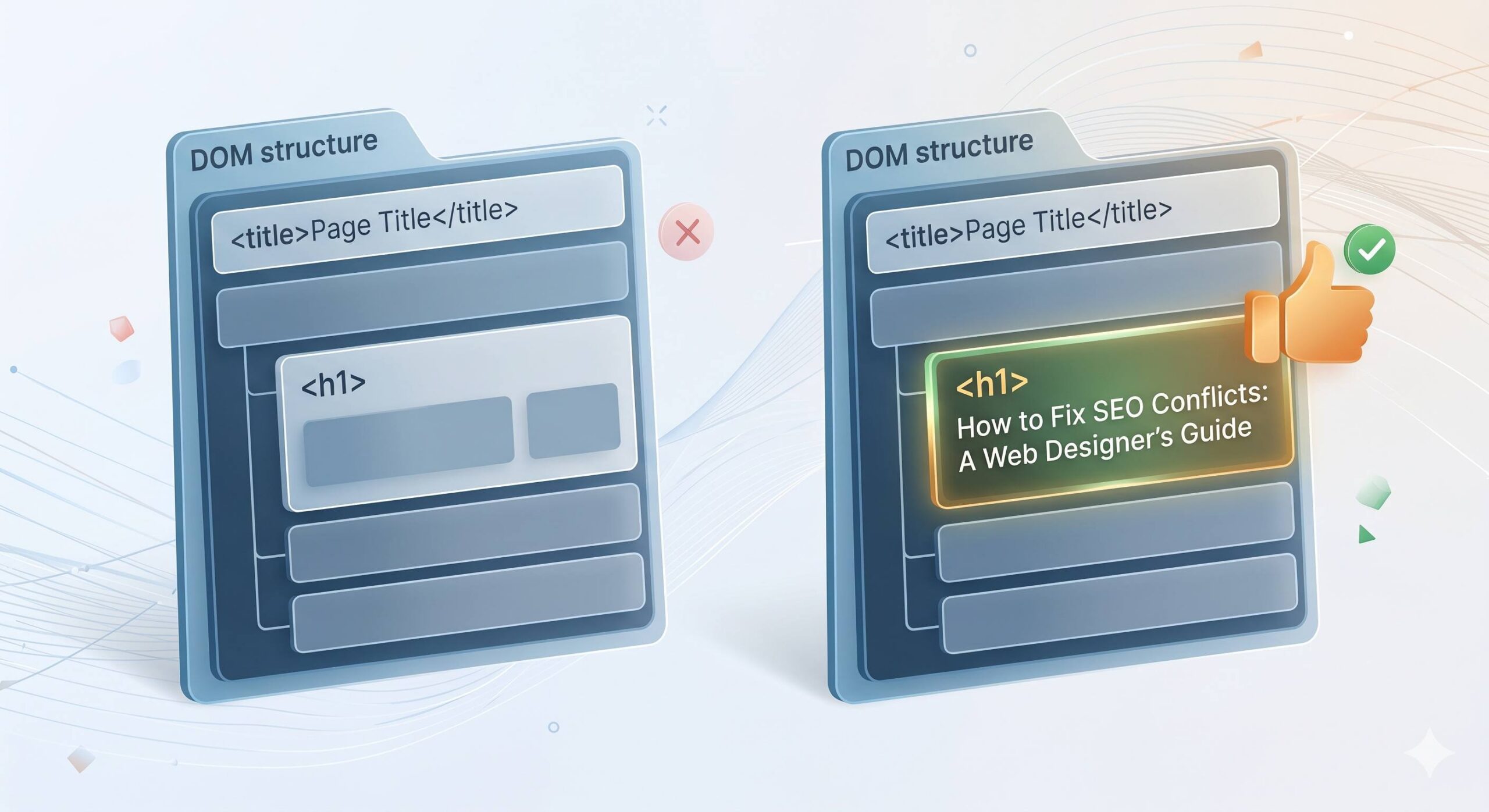
The most common web design seo problem occurs when a page builder (like Elementor, Divi, or WPBakery) or a custom theme accidentally disables the default WordPress page title to allow for a “full-width” design. When the title is disabled, the page loses its <h1> tag, which is critical for search engines to understand the main topic.
How to fix this:
- Open the problematic page or post in your WordPress editor.
- If you are using the default Gutenberg editor, ensure the main “Add Title” block at the top is filled out.
- If you are using a page builder, edit the page visually. Drag a new “Heading” widget to the very top of your content.
- Look at the settings panel for that specific heading widget. You will see an option labeled “HTML Tag.”
- Change this setting from the default (which is usually H2) to H1.
- Update and save the page. Ensure there is only one H1 tag per page to maintain a healthy structure.
2. Correct Mobile Viewport and Layout Shifts
Search engines prioritize mobile-friendly design. If your desktop design forces mobile browsers to scroll horizontally, it triggers a severe web design seo penalty in Google’s eyes, severely limiting your visibility.
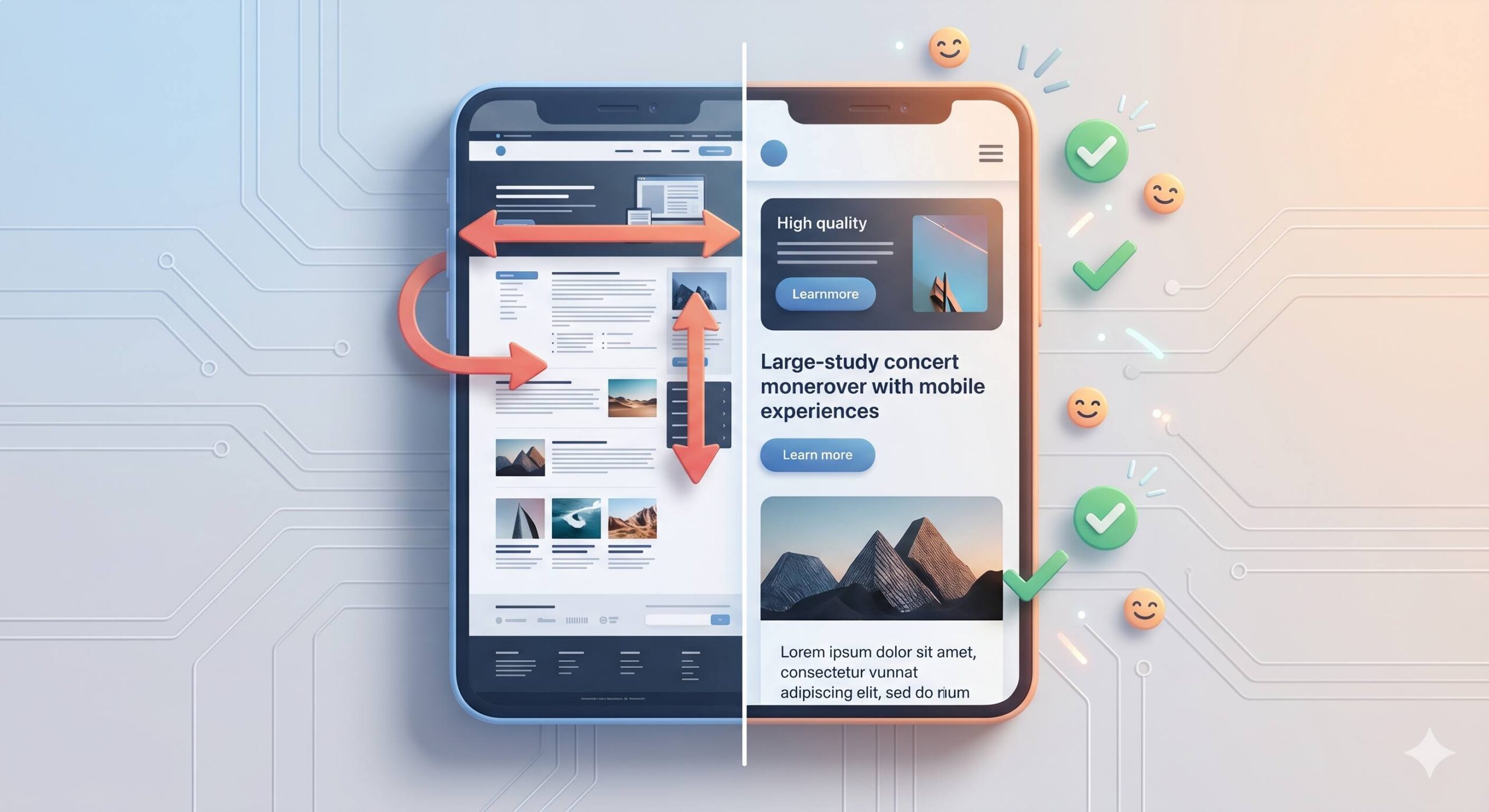
How to safely adjust mobile layouts:
- Navigate to your WordPress dashboard and go to Appearance > Customize.
- At the bottom of the Customizer menu, click the Mobile Icon (it looks like a smartphone) to preview your site exactly as a mobile bot sees it.
- Look for any elements—usually wide images, embedded videos, or long, unbroken text strings (like URLs)—that push past the edge of the screen.
- Click the pencil icon next to the offending element.
- In the block or widget settings, set the width to 100% or
max-width: 100%rather than a fixed pixel width (like800px). This forces the design to scale down automatically, instantly resolving the mobile usability error.
3. Eliminate Render-Blocking Visual Elements
Sometimes, a theme uses so much heavy JavaScript to load visual animations (like fading text, parallax scrolling, or pop-ups) that search engines experience a “timeout” before they can even read your written content.
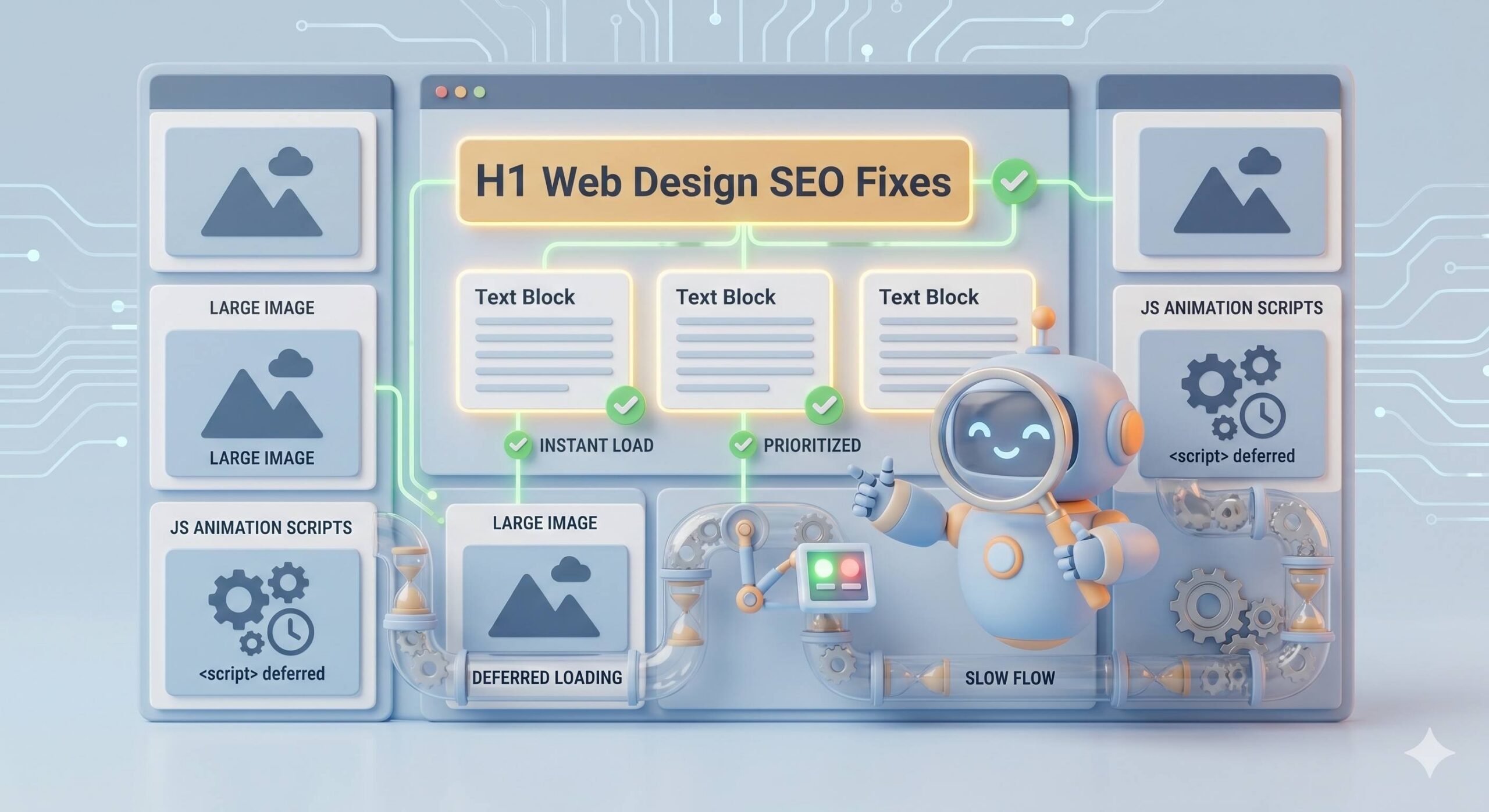
How to optimize visual loading:
- Log into your WordPress dashboard and navigate to your active caching or performance plugin (such as WP Rocket, LiteSpeed Cache, or Autoptimize).
- Locate the File Optimization or JavaScript Settings tab.
- Find the setting labeled “Load JavaScript Deferred” or “Delay JavaScript Execution” and toggle it on.
- Save your changes and purge your site cache.
By delaying the heavy visual scripts, you allow the core text and SEO structure of your site to load first. This satisfies search engine bots and completely removes the technical bottleneck caused by your design.
4. Fix Hidden Text and Contrast Errors
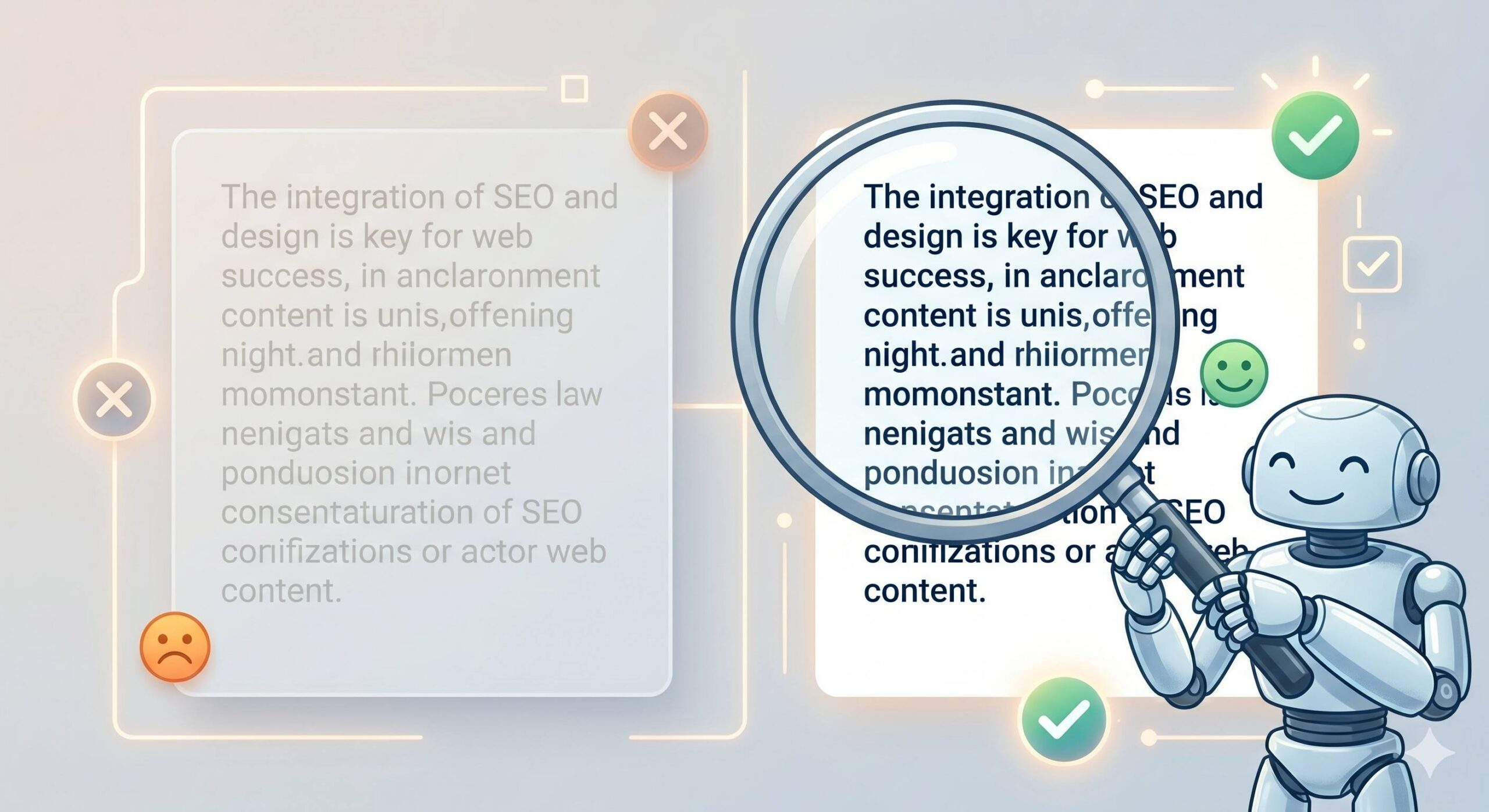
To prevent spam, search engines strictly penalize sites that feature text matching the background color (e.g., white text on a white background). Occasionally, importing a pre-made theme template accidentally causes your paragraphs to inherit the wrong color codes, creating a web design seo violation without you realizing it.
How to resolve text contrast:
- Open your page in the WordPress editor.
- Highlight the text that is difficult to read or blending into the background.
- In the right-hand block settings menu, go to Color > Text.
- Ensure you select a high-contrast color (like dark gray or black for light backgrounds). Avoid relying on background images to provide contrast, as bots do not “see” images the way humans do; they read the raw CSS values.
Preventing the Error in the Future
Once you have restored your site’s structure, you can prevent this conflict from returning by adopting a few healthy WordPress habits:
- Always Check Mobile First: Whenever you build a new page, view it on your phone before hitting publish. If you have to zoom in or scroll sideways to read the text, fix the layout immediately.
- Use SEO-Friendly Themes: Stick to lightweight, well-coded themes (like GeneratePress, Astra, or default WordPress themes). These are specifically engineered to keep design and SEO code separated cleanly.
- Audit After Redesigns: Every time you significantly change your site’s appearance, run the URL through Google’s free Rich Results Test or Mobile-Friendly Test tool to catch structural errors before they impact your traffic.
Balancing aesthetics with technical performance can feel overwhelming. However, by calmly auditing your heading tags, ensuring mobile responsiveness, and prioritizing clean text rendering, you can successfully solve the web design seo error and ensure your beautiful website ranks exactly where it deserves to be.
How to Fix the “Best Search Engine Optimization Company” Spam in WordPress
Frequently Asked Questions (FAQs)
1. Will fixing my web design SEO change how my site looks to visitors? In most cases, no. Resolving this error usually involves adjusting the background code—such as defining an H1 tag or delaying how JavaScript loads. Your website will still look visually appealing to your human visitors, but its underlying structure will be much easier for Google to understand and rank.
2. Do I need to uninstall my page builder (like Elementor or Divi) to fix this? Not necessarily. While heavy page builders are a common cause of the web design seo conflict when not configured correctly, you do not have to delete them. You can usually fix the issue by manually adding the correct heading widgets and optimizing the responsive mobile view directly within the builder’s settings.
3. How long does it take for Google to notice I fixed my design errors? Once you apply the troubleshooting steps above and clear your WordPress cache, you should log into Google Search Console and request a “Validate Fix” or request re-indexing for your specific pages. It typically takes anywhere from a few days to a couple of weeks for Google to recrawl your site and remove the penalty.
4. Can an outdated WordPress theme cause SEO problems? Absolutely. If a theme is poorly coded or hasn’t been updated in years, it likely lacks the modern HTML5 structure needed for today’s search algorithms. If you are constantly battling design-related SEO errors, it might be time to switch to a modern, lightweight theme that is explicitly engineered to be SEO-friendly.
Conclusion
Fixing a web design seo conflict does not mean you have to sacrifice a beautiful website to appease search engines. It simply requires creating a healthy balance between what your human visitors see and what search engine bots read behind the scenes.
By systematically restoring your missing heading tags, optimizing your mobile viewport layouts, and ensuring your text is perfectly legible to crawlers, you can resolve these hidden structural errors safely. Remember, the most successful WordPress websites use clean, lightweight themes that prioritize both stunning aesthetics and readable, search-friendly code.








