

Introduction
Stumbling upon the message “Briefly unavailable for scheduled maintenance. Check back in a minute” is a common rite of passage for WordPress users. However, if this screen remains on your site for longer than a few minutes, congratulations, your site has engaged in Maintenance Mode. This problem happens when updating a theme, plugin, or core software is interrupted leaving a temporary script running that locks your front-end as well as the admin dashboard.
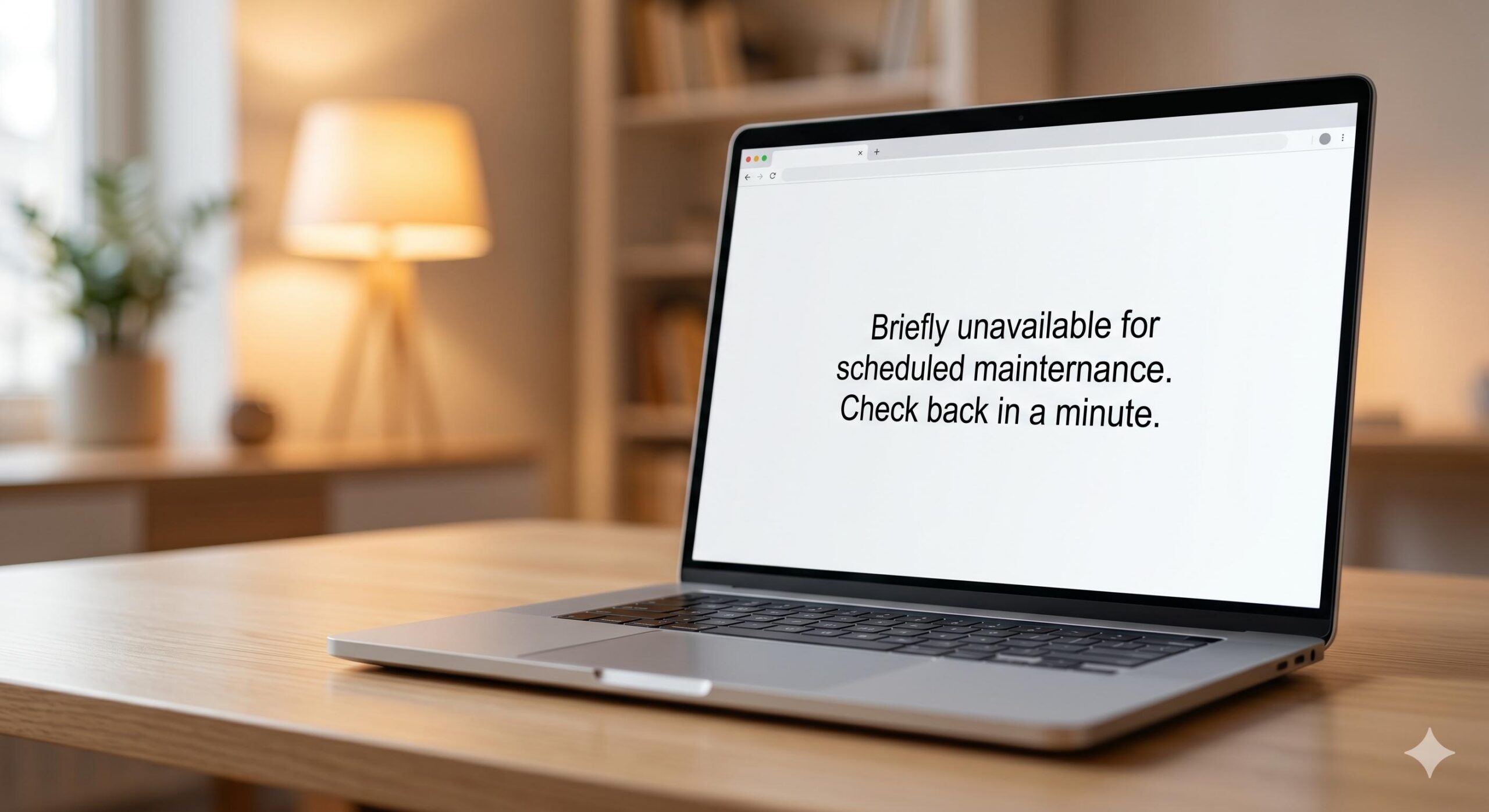
Like WordPress itself has simply “forgotten” to switch the lights back on after a regular health check. WhyCare About Knowing How to Fix WordPress Stuck in Maintenance Mode? Because you can manually restore the accessibility of your site and bypass the dashboard lock.This guide is for educational troubleshooting purposes. Let’s get your site back online at WordPressIssueFix.com.
Table of Contents
Why the WordPress Maintenance Mode Error Appears
But to effectively implement the correct How to Fix WordPress Stuck in Maintenance Mode strategy residesn, it is useful where we understand precisely what your website does behind the scenes. The meaning here is that whenever you update a plugin or theme, WordPress automatically creates a temporary, hidden file called. maintenance from the root folder of your website. That little file, it’s a bouncer that redirects traffic (you included) to the “Briefly unavailable” screen. Normally, the update completes within a few seconds and WordPress afterwards immediately removes the. maintenance file.
The process usually breaks down due to:
- Browser Interruption: Closing your browser tab while an update is actively processing.
- Server Timeouts: Updating too many heavy plugins simultaneously, which overwhelms your server resources.
- Compatibility Issues: A clash between a new plugin version and your current WordPress setup that causes the script to crash before it can clean itself up.
Core Troubleshooting Methods
Since you are locked out of your WordPress dashboard, you cannot fix this issue from your normal settings. You must access your website’s backend files directly.
1. Using cPanel File Manager (Easiest for Beginners)
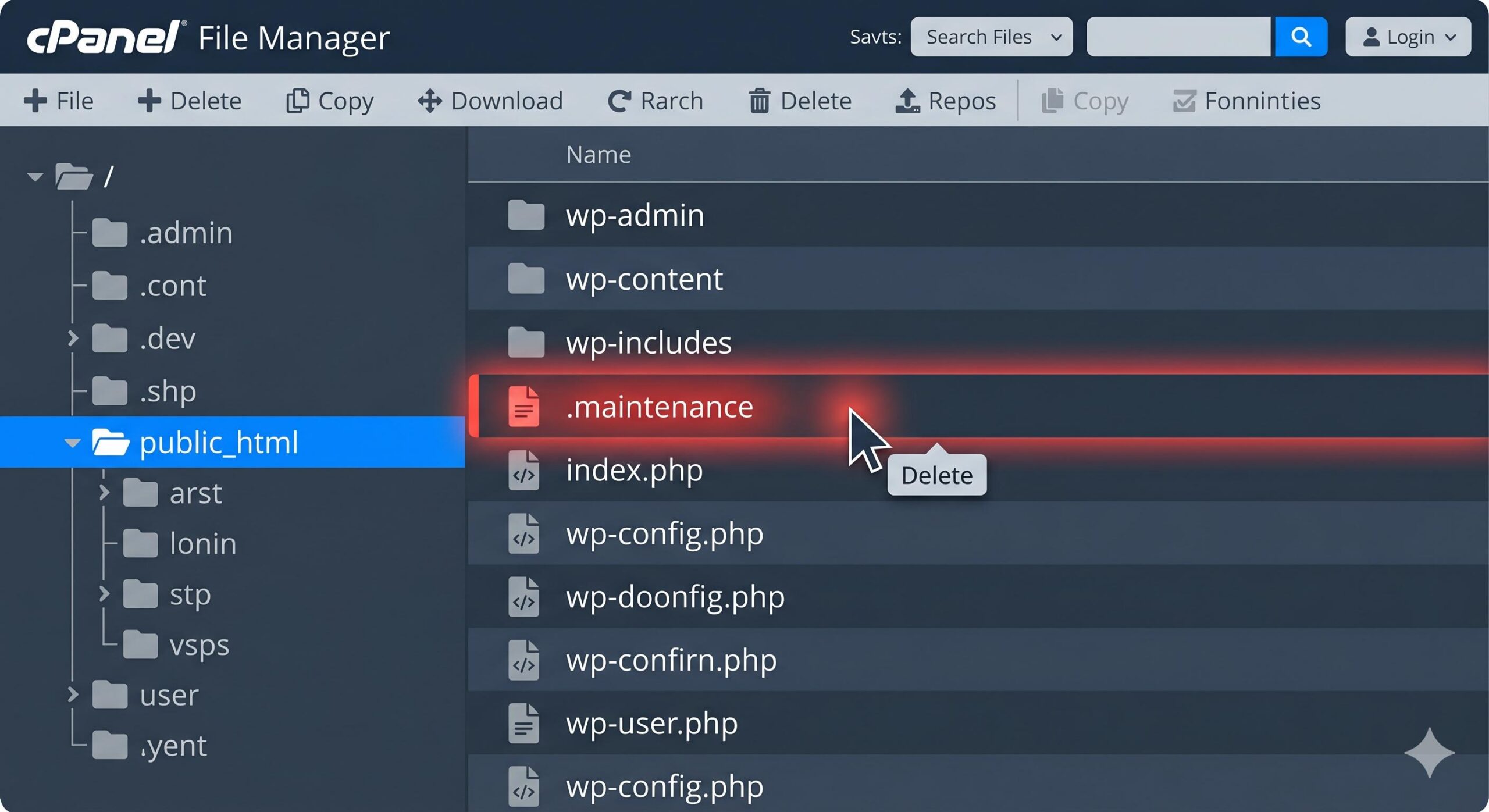
If your hosting provider offers cPanel, this is the fastest way to apply the How to Fix WordPress Stuck in Maintenance Mode solution.
- Log in to your hosting account and click on File Manager.
- Navigate to your main website folder, usually named public_html.
- Look for a file named .maintenance.
- Important: If you don’t see it, click Settings (top right) and check “Show Hidden Files (dotfiles)”.
- Right-click the
.maintenancefile and select Delete.
2. Using an FTP Client
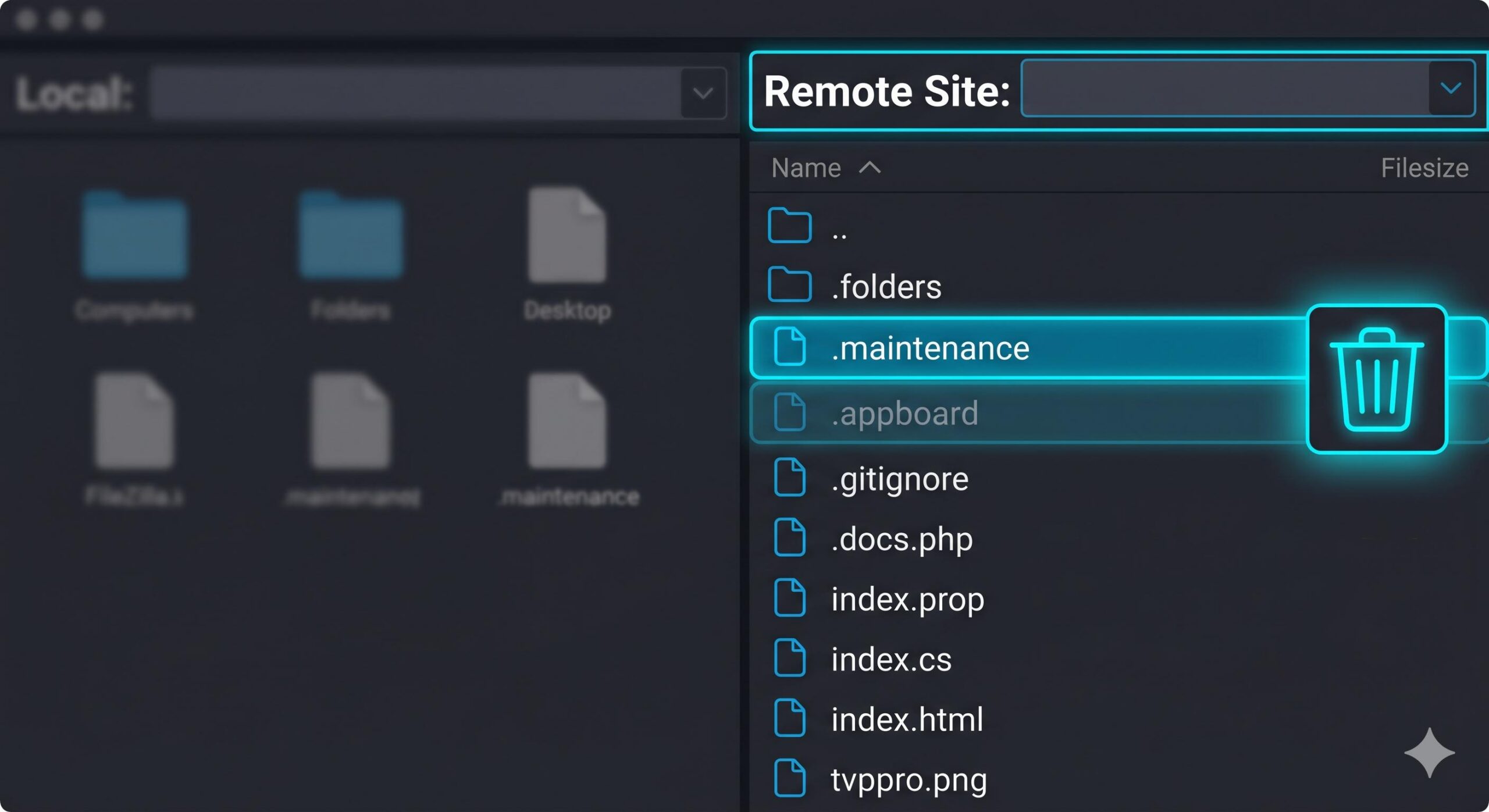
If you prefer using FTP (like FileZilla), follow these steps to resolve the issue:
- Connect to your server using your FTP credentials.
- Open the public_html folder.
- Find the .maintenance file in the root directory.
- Right-click and Delete the file.
- Refresh your website to confirm it is back to normal.
3. Handling a Broken “Maintenance.php” Customization
In rare cases, a developer or theme might have created a custom maintenance.php file in your wp-content folder. If deleting the .maintenance file doesn’t work, check for this file and temporarily rename it to maintenance.php.old. This is a secondary but effective How to Fix WordPress Stuck in Maintenance Mode step for customized sites.
The Ultimate Elementor Not Loading Problem Fix: A Beginner’s Guide
Conclusion
Learn How to fix WordPress site stuck in maintenance mode is one of the essential skills of any website owner. The error looks scary because it locks you out of your dashboard, but it’s one of the most straightforward WordPress issues to fix. By manually removing the. maintenance file on your server and restore your site is a matter of seconds. Going forward, the best way to avoid this is to update plugins separately, not all at once, and only press that update button if we have a good internet connection in place. A fast secure site is a well-tended site — and now you have the tools to tackle this common roadblock with confidence.
Frequently Asked Questions (FAQ)
Why is my site still stuck in maintenance mode after I deleted the file?
Only once you have managed to do this, If your website is not in “maintenance” while viewing it with a browser, but if you visit an error page and it looks like the same as before trying to reset the database, maybe the cache is returning version saved previously of this error page (caused by browsers or caching plugins such as WP Rocket or LiteSpeed). Use “Incognito” window or clear your browser cache to view the live version of your site.
Is the .maintenance file a virus or a hack?
No. The. maintenance file is a regular component of the core WordPress update routine. It is expected to protect your website data in upgrades. Nice to be Stuck in Maintenance Mode: not a security breach but bug
Can I fix this error without cPanel or FTP access?
No. As this error locks you out of the WordPress admin dashboard, you will need some kind of access to the server at “File Level” in order to delete the offending file. If you don’t have these logins, the only option left would be contacting your host provider’s support staff and asking them to remove the maintenance file for you.
Will I lose any data when I delete the .maintenance file?
Not at all. This file does not affect your posts, pages or images. Its just to remove the Bouncer script which is blocking you from accessing your site. Since at least one of the plugins updating when the crash occurred may have an earlier version or be broken in part, reapply that update as soon as you are back inside.
What is the best way to prevent this in the future?
Always update your plugins individually if you want to never look for a How to Fix WordPress Stuck in Maintenance Mode guide ever again. Also, make sure your chosen hosting plan has enough PHP memory (at least 256MB) given the processing power required by the up to date workings of WordPress.








