

Introduction
Seeing a code warning on your screen is alarming, but the wordpress trigger_error is actually trying to help. What does this mean? It refers to a built-in PHP function (trigger_error) that WordPress uses to generate educational warnings or notices for developers. Where do you encounter it? You will usually see this message printed at the very top of your public website, inside your admin dashboard, or logged in your debug.log file. Why does it appear? It triggers when a plugin or theme uses outdated code, calls a function incorrectly, or clashes with a new PHP version.
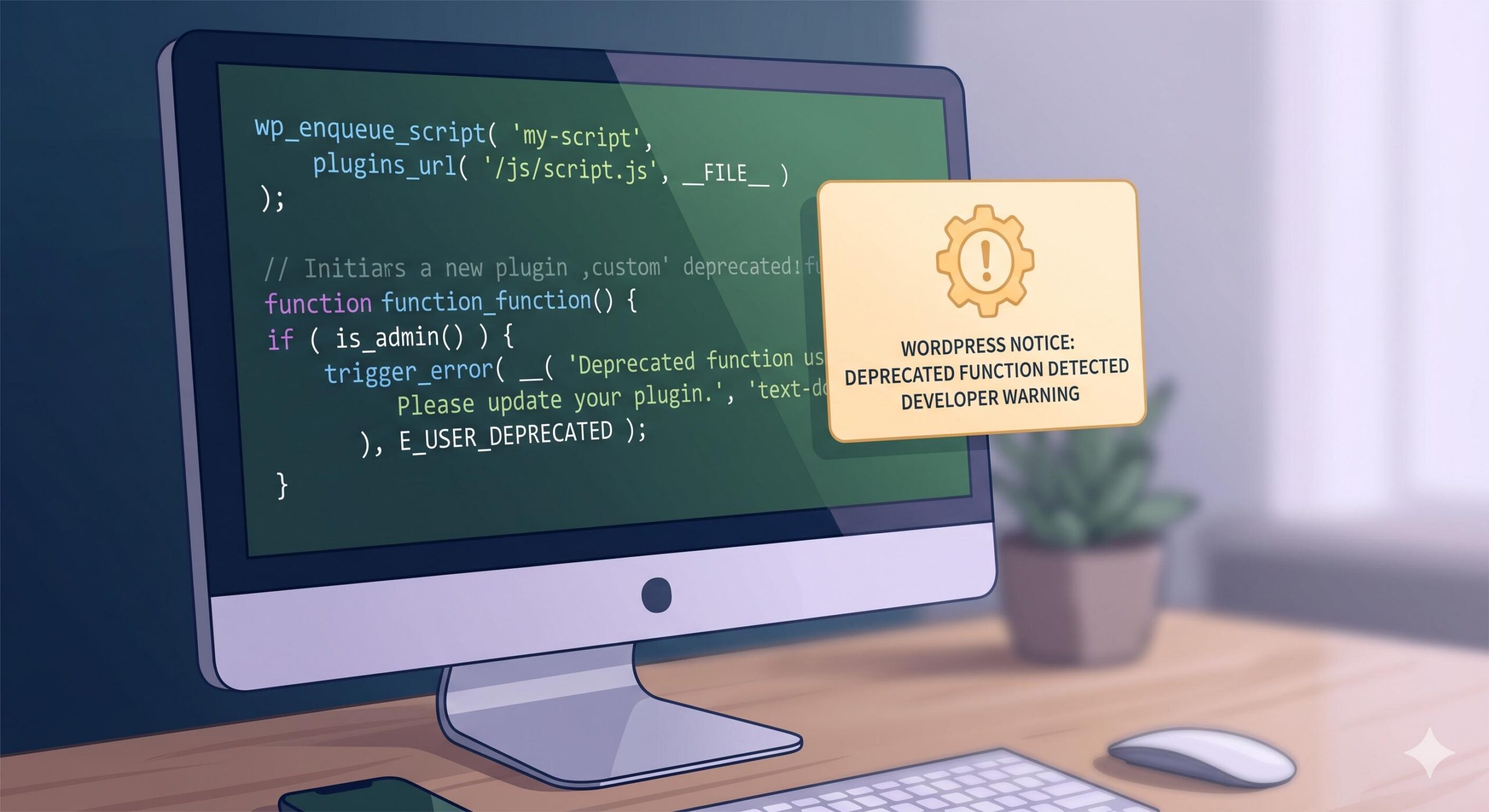
Note: This guide is for educational troubleshooting purposes and will walk you through safe, beginner-friendly steps to fix this exact issue.
Table of Contents
What Does a wordpress trigger_error Look Like?
Because trigger_error is a background function, you will rarely see a warning that just says “trigger error.” Instead, this function generates specific text on your screen known as a PHP Notice or Warning.
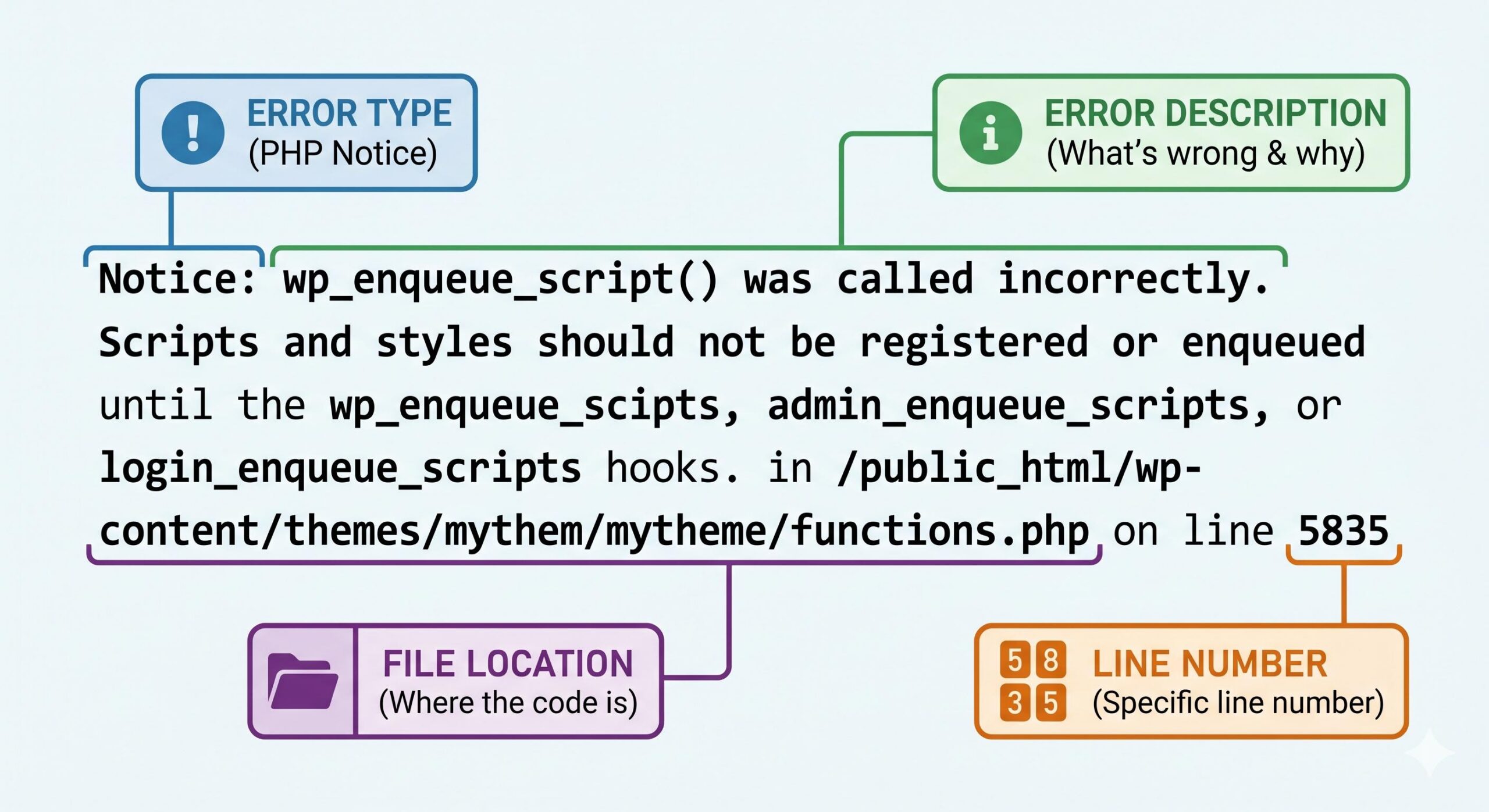
If your site is experiencing a wordpress trigger_error, the text at the top of your screen will usually look something like this:
Notice: wp_enqueue_script was called incorrectly. Scripts and styles should not be registered or enqueued until the wp_enqueue_scripts... Please see Debugging in WordPress for more information. (This message was added in version 4.6.0.) in /public_html/wp-includes/functions.php on line 5835
While the exact wording will change depending on the mistake your theme or plugin made, the underlying cause is the trigger_error function firing off to tell you that something on your site is poorly coded.
Why is Your Website Showing a wordpress trigger_error?
WordPress is constantly evolving. When the core WordPress team updates the software, they sometimes change how certain features work. If a plugin or theme developer does not update their code to match these new rules, WordPress uses the trigger_error function to flag it.
The most common culprits include:
- Deprecated Functions: A plugin is trying to use an old WordPress command that has been retired.
- Doing It Wrong: A theme is loading scripts, styles, or menus in the wrong order.
- PHP Incompatibilities: Your web hosting provider recently updated your server’s PHP version, and an older plugin on your site cannot understand the new PHP rules.
How to Fix the wordpress trigger_error (Beginner-Friendly Steps)
When dealing with a wordpress trigger_error, there are two phases to fixing it: hiding the ugly error message from your visitors, and then finding the broken plugin causing it.
Step 1: Hide the Error from the Public (The Quick Fix)
A trigger_error notice is not meant to be seen by your website visitors. It is only supposed to be visible in a developer environment. If you are seeing it on your live website, it means your WordPress “Debug Mode” is accidentally displaying errors publicly.
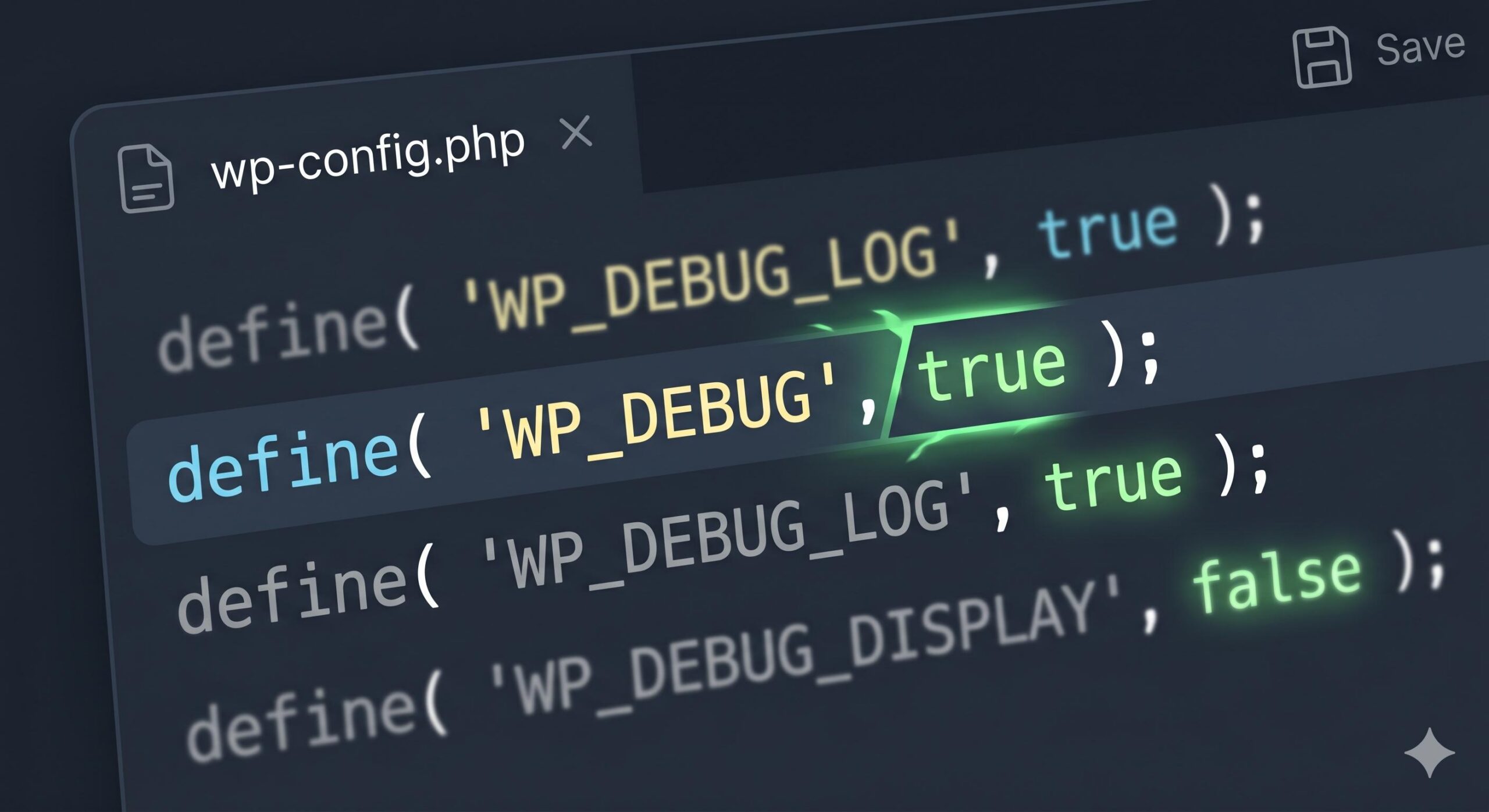
You can safely hide this error by making a small edit to your wp-config.php file.
- Log into your web hosting control panel (cPanel) or use an FTP client to access your website files.
- Locate the
wp-config.phpfile in your root folder (usuallypublic_html). - Right-click and choose Edit.
- Scroll down until you find the line that says:
define( 'WP_DEBUG', true ); - Change that line to:
define( 'WP_DEBUG', false ); - Look directly below it. If you see
define( 'WP_DEBUG_DISPLAY', true );, change it tofalseas well. - Save the file. Refresh your website. The wordpress trigger_error notice should now be completely hidden from your visitors, making your site look professional again.
Step 2: Read the Error to Find the Culprit
Even though the error is hidden, it is still happening in the background. To actually resolve the conflict, you need to find out which plugin or theme triggered it.
Look closely at the error message you copied (or check your debug.log file if you have logging enabled). Pay attention to the file path listed at the very end of the message.
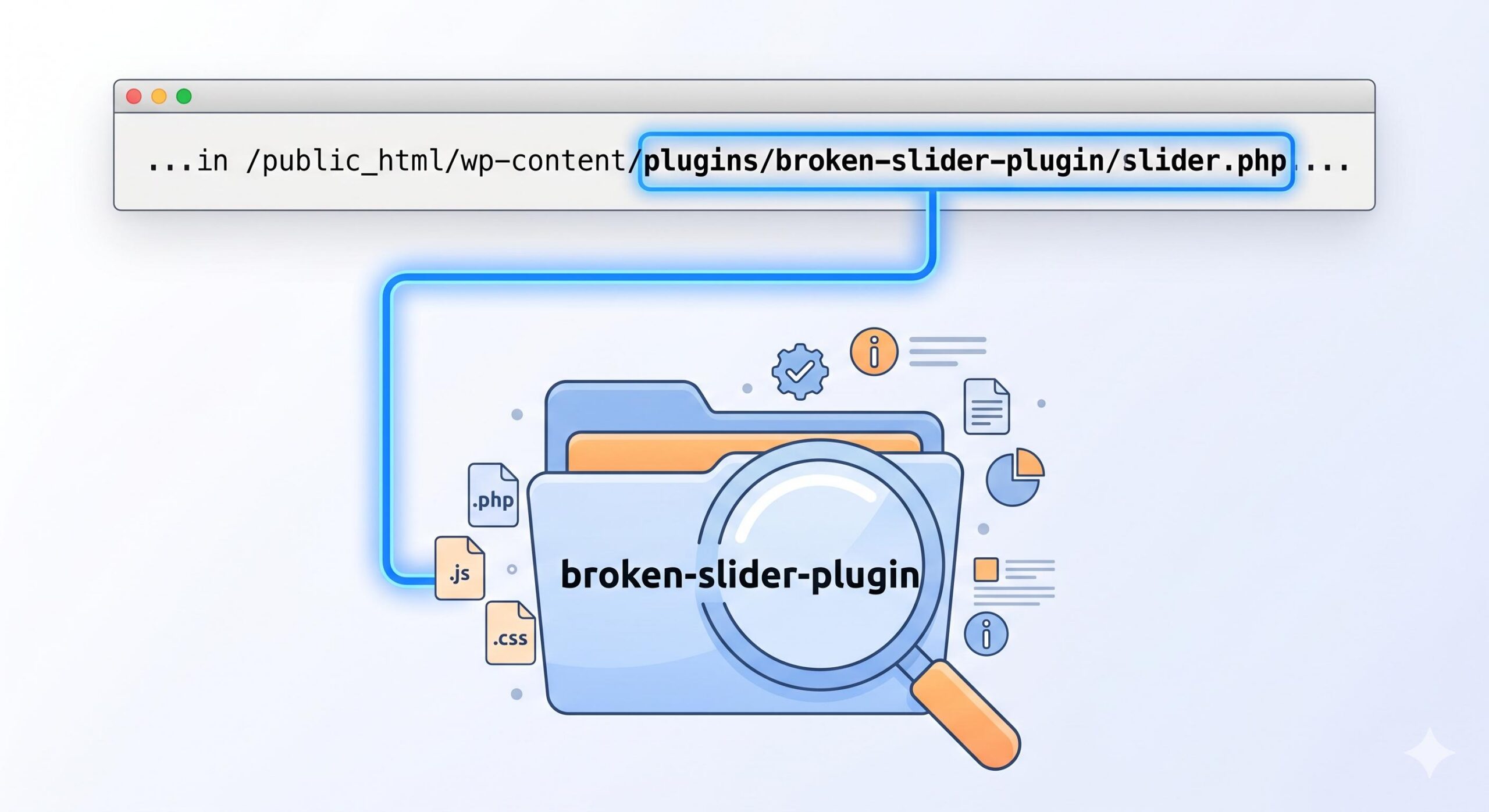
- If the path says
/wp-content/plugins/broken-slider-plugin/slider.php, you immediately know that the “broken-slider-plugin” is causing the wordpress trigger_error. - If the path says
/wp-content/themes/your-theme-name/header.php, you know your active theme is responsible.
Note: Sometimes the error points to /wp-includes/functions.php. If it points to wp-includes, it means a plugin is doing something wrong, but WordPress is catching the error in its core files. In this case, proceed to Step 3.
Step 3: Isolate and Update the Problematic Plugin
Once you know (or suspect) which plugin is causing the issue, you have a few simple options to permanently resolve it.
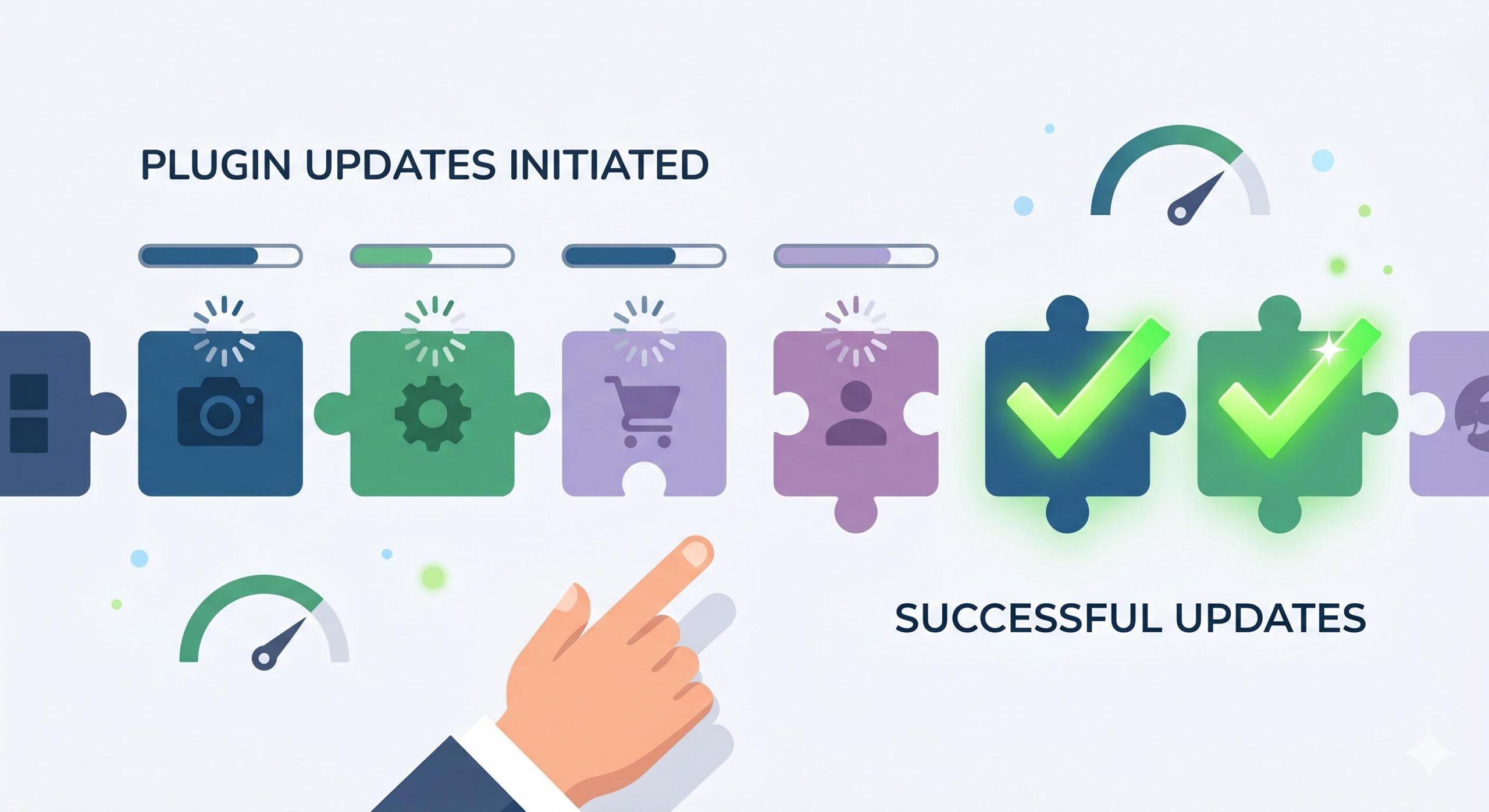
- Update Everything: Go to Dashboard > Updates. The developer of the plugin or theme has likely already released a patch to fix the
trigger_errorcode. Update all of your plugins and themes to their latest versions. - Test for Conflicts: If the error persists and you aren’t sure which plugin is at fault, temporarily deactivate all your plugins. Reactivate them one by one, checking your site after each activation. When the error returns, the last plugin you activated is the broken one.
- Replace the Plugin: If a plugin is outdated, causing a wordpress trigger_error, and hasn’t been updated by its developer in over a year, it is time to delete it. Search the WordPress repository for a modern, well-supported alternative to take its place.
How to Fix the REST API Error in WordPress: A Complete Troubleshooting Guide
Is the wordpress trigger_error Dangerous?
For site administrators and small business owners, technical warnings can induce panic. However, you can breathe easy: a wordpress trigger_error is almost never dangerous.
Unlike a “Fatal Error” or the “White Screen of Death” which will completely crash your website, a trigger_error is classified as a “Notice” or a “Warning.” It simply means the code is sloppy or outdated, but WordPress is still able to process it and keep your website running. It does not mean your site has been hacked, and you have not lost any data.
Summary
The wordpress trigger_error is a built-in communication tool used by the WordPress core to warn developers about outdated code. By turning off WP_DEBUG_DISPLAY in your configuration file, you can instantly hide these unsightly messages from your readers. From there, keeping your themes and plugins up-to-date is the best preventative measure to ensure these educational warnings stay out of your dashboard for good.








