

Introduction
Welcome to wordpressissuefix.com. WordPress Recovery Mode is a built-in safety net designed to give you dashboard access when a fatal error breaks your website. However, when you need a WordPress Recovery Mode Not Working Fix, it means this very safety net has completely failed you.
You usually encounter this problem when you click the special recovery link sent to your admin email, only to be met with an “expired link” message, a blank white screen, or another server error instead of your wp-admin dashboard. Why does this happen?
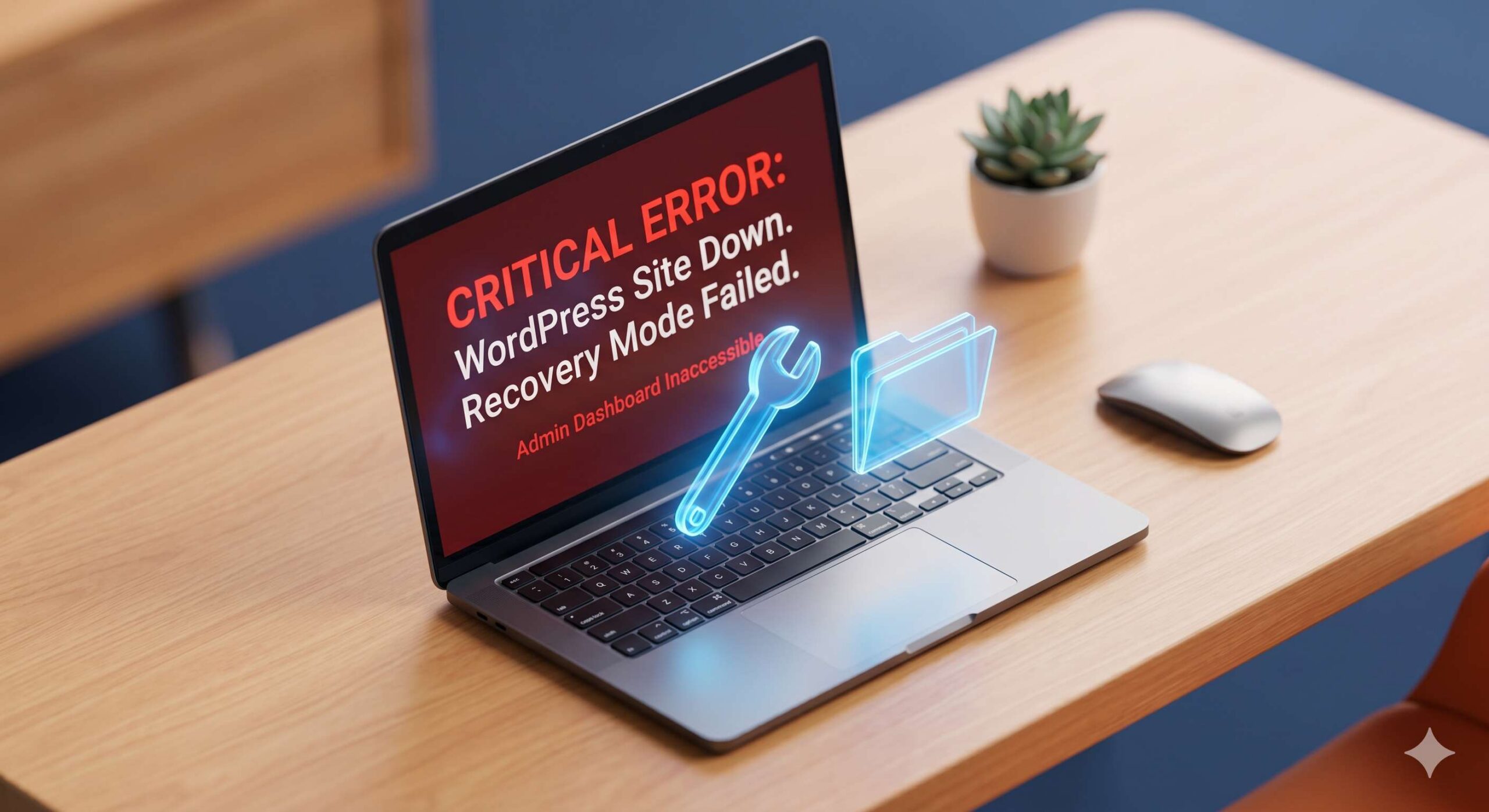
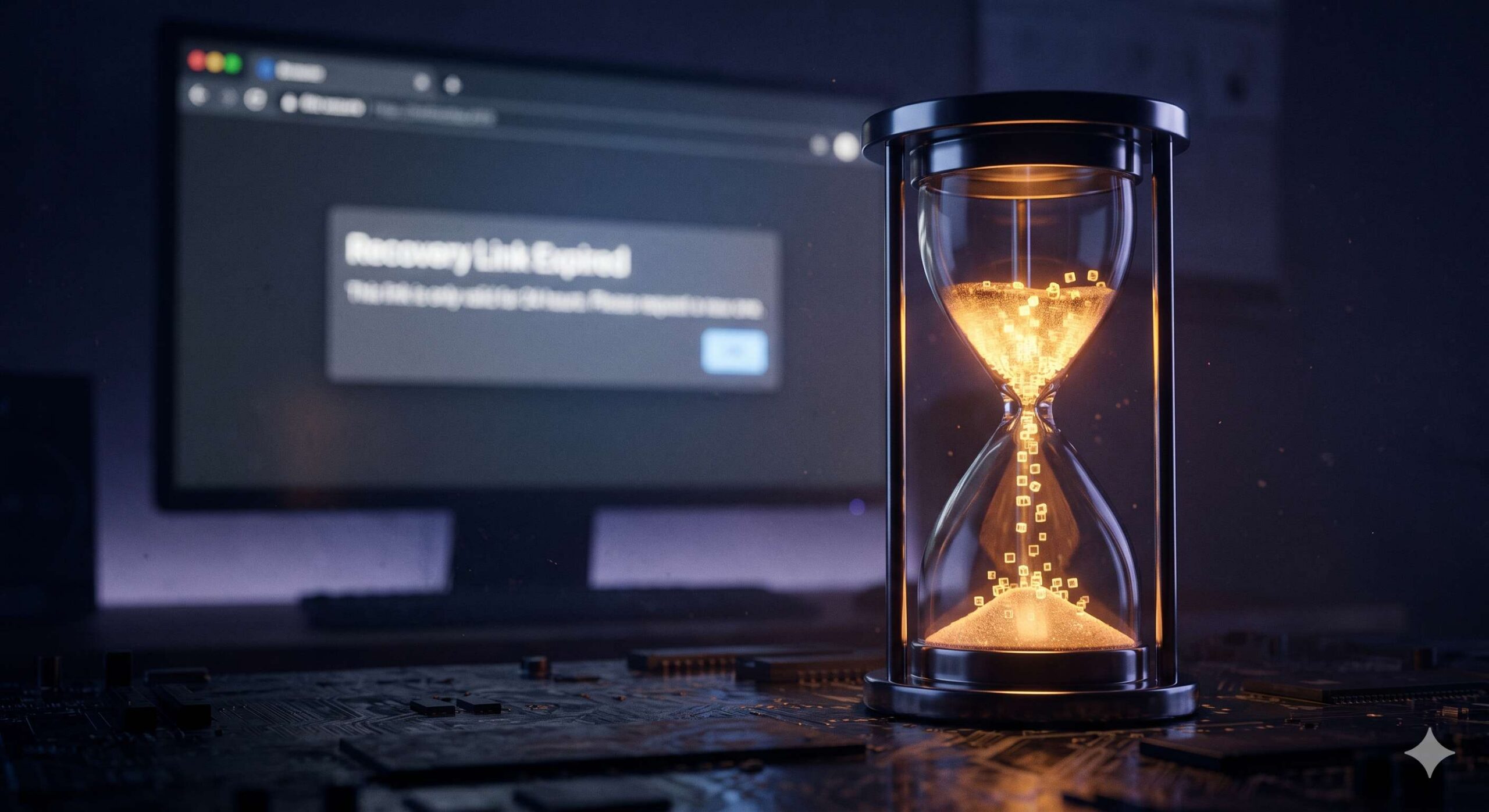
It typically appears because the recovery link (which expires after 24 hours) is invalid, your site’s caching is blocking the recovery page, or the underlying fatal error is so severe—such as complete memory exhaustion—that it breaks the recovery system itself.
This guide is for educational troubleshooting purposes to help you safely bypass this failed system and manually regain control of your website.
Table of Contents
Understanding Why the Recovery Link Fails
When your site experiences a fatal error (often caused by a poorly coded plugin or theme update), WordPress tries to send an email with a unique link. Clicking this link is supposed to pause the broken plugin and let you log in.
If you are looking for a WordPress Recovery Mode Not Working Fix, your site is likely experiencing one of these secondary roadblocks:
- The 24-Hour Expiration: Recovery links are temporary. If you click it a day late, it will not work.
- Caching Conflicts: Aggressive server caching might serve you a cached version of the broken site instead of the dynamic recovery login screen.
- Total Resource Exhaustion: Recovery Mode requires a small amount of server memory to run. If a rogue plugin has consumed 100% of your PHP memory, the recovery script cannot physically execute.
- Email Delivery Failure: You might not even get the email because your WordPress installation is failing to send outgoing mail properly.
Since the automated system is broken, we must perform the exact same job manually. Do not panic—your website data is safe. We will use your web hosting control panel to bypass the failed recovery mode.
Step-by-Step WordPress Recovery Mode Not Working Fixes
Because you cannot rely on the automated email link, you must use your hosting account’s File Manager or an FTP client (like FileZilla) to manually pause the errors.
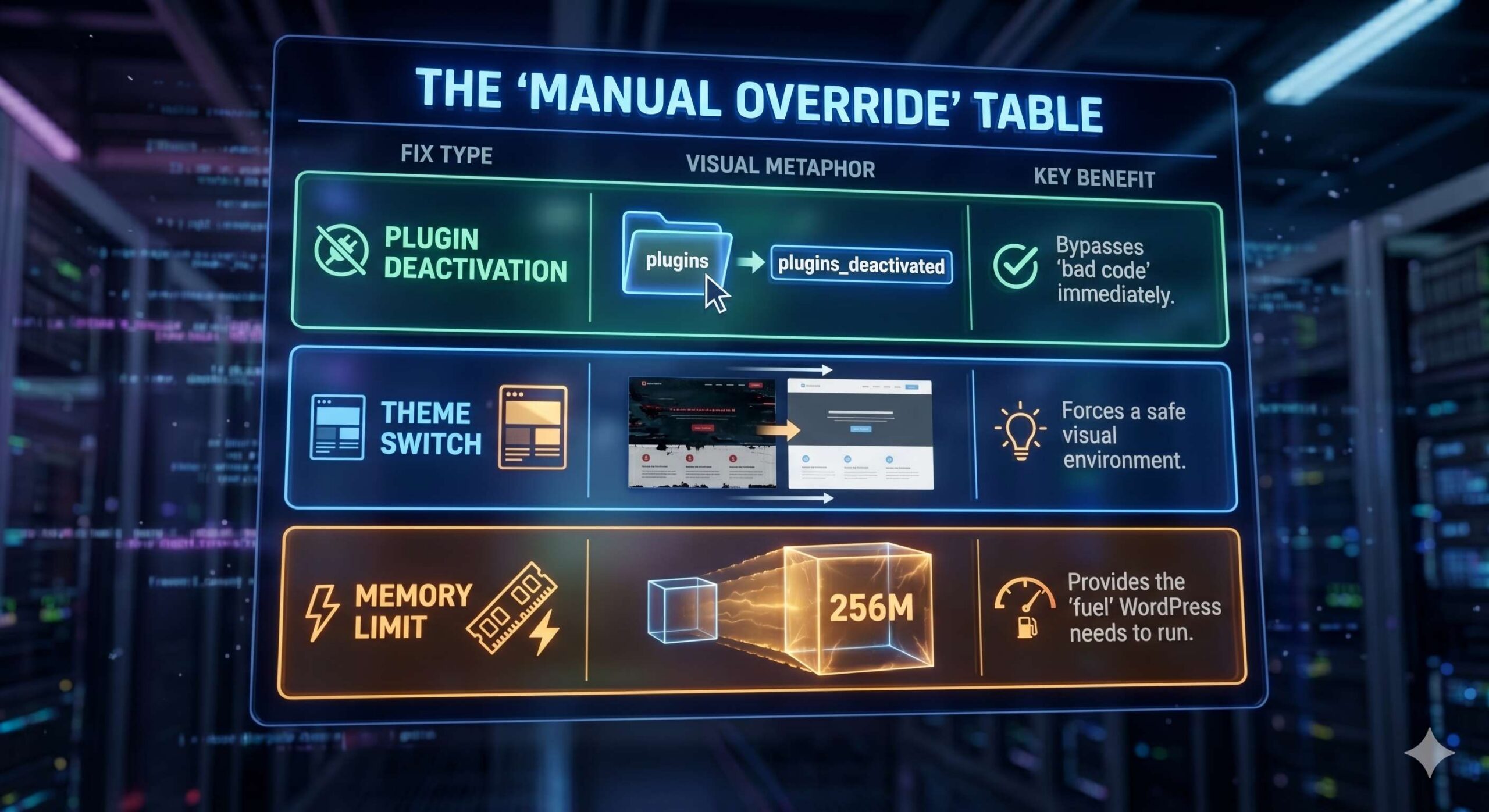
Fix 1: Manually Deactivate Plugins via File Manager
The primary job of Recovery Mode is to deactivate the specific plugin causing the fatal error. Since the mode is not working, we will manually deactivate all plugins to force the website back online.
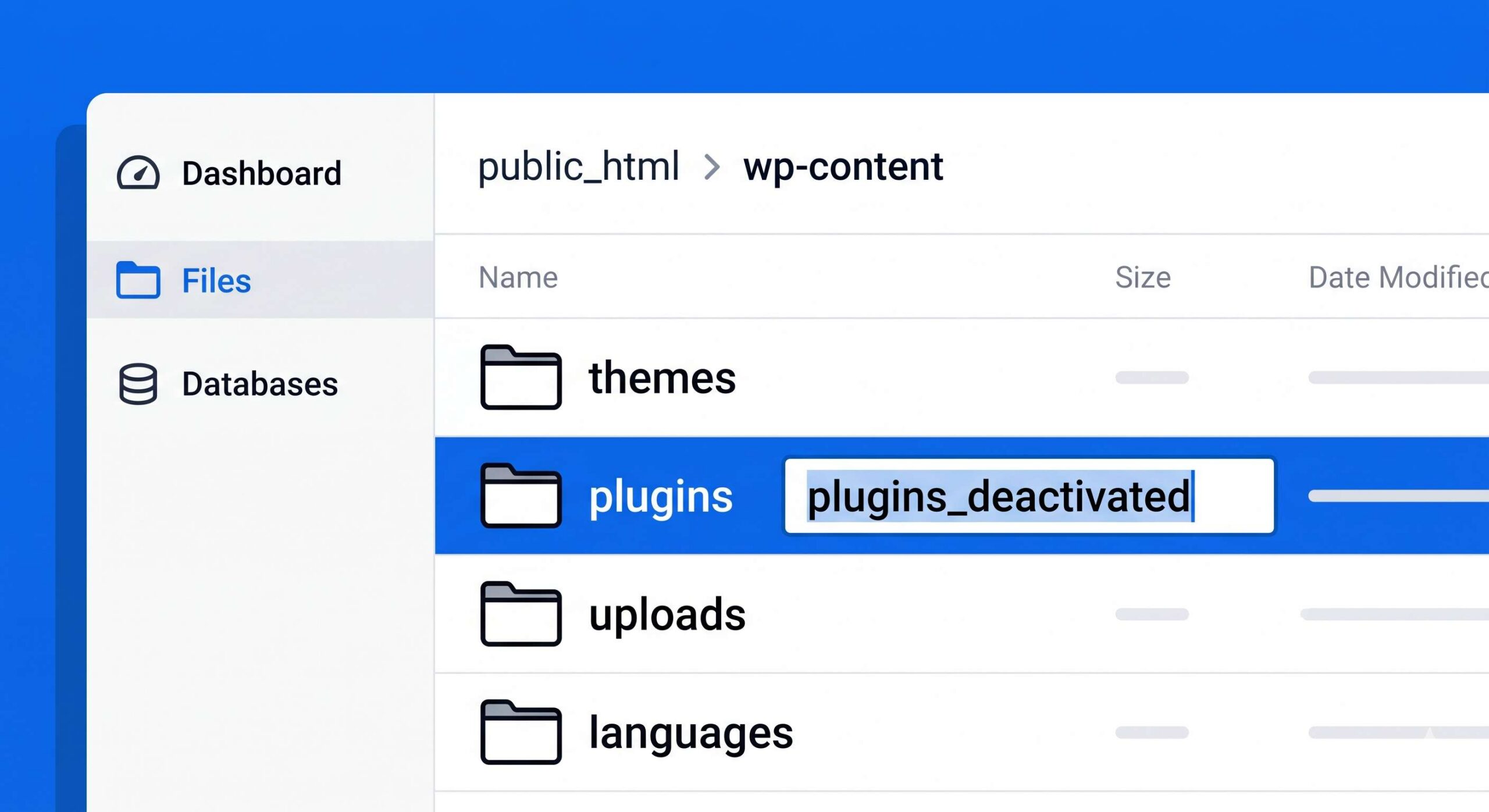
How to safely bypass the plugins:
- Log into your web hosting account portal (such as cPanel, SiteGround Site Tools, or Hostinger hPanel).
- Open the File Manager application.
- Navigate to your website’s main directory, usually named
public_html. - Open the
wp-contentfolder. - Inside, locate the folder named
plugins. - Right-click the
pluginsfolder and select Rename. Change the name toplugins_deactivated.
By renaming this folder, you have instantly disabled every plugin on your site. Open a new tab in your browser and visit your standard login page (yourdomain.com/wp-admin). If the login screen appears, you have successfully bypassed the broken recovery mode! Log in, rename the folder back to exactly plugins inside your File Manager, and activate your plugins one by one inside your dashboard until the site breaks again—revealing the exact culprit.
Fix 2: Switch to a Default Theme Manually
If plugins were not the issue, a corrupted theme is likely causing the fatal error and simultaneously blocking the recovery tools. We need to force WordPress to use a safe, default theme.
How to override your active theme:
- Return to your hosting File Manager.
- Navigate to
public_html>wp-content>themes. - Find the folder that belongs to your currently active theme (e.g.,
astra,divi, orgeneratepress). - Right-click your active theme’s folder and Rename it to something like
mytheme_broken. - Check to make sure you have a default theme folder (like
twentytwentytwoortwentytwentyfour) still sitting in the directory.
When you try to load your website, WordPress will realize the active theme is “missing” and automatically switch to the default theme. If your site and dashboard load successfully, you have bypassed the error without needing the recovery link.
Fix 3: Increase the PHP Memory Limit
If your site is suffering from a severe lack of memory, even the core WordPress files required to launch Recovery Mode will fail to load. Increasing your server memory manually can act as an instant WordPress Recovery Mode Not Working Fix.

How to safely allocate more memory:
- In your File Manager, locate the
wp-config.phpfile inside the mainpublic_htmlfolder. - Right-click the file and choose Edit.
- Scroll down until you see the line:
/* That's all, stop editing! Happy publishing. */ - Just above that line, paste this exact code:
define( 'WP_MEMORY_LIMIT', '256M' ); - Save your changes and close the editor.
This command tells your web host to allocate 256 Megabytes of memory to WordPress. Try accessing your wp-admin dashboard again. If memory starvation was blocking the recovery process, your site should now load properly.
How to Fix the WordPress Site Not Loading Error: A Beginner-Friendly Troubleshooting Guide
Fix 4: Generate a New Recovery Link via wp-config (Advanced)
If you know for a fact that your plugins and themes are perfectly fine, but your recovery link simply expired before you could click it, you can force WordPress to stop suppressing the error on the front end so you can see exactly what is broken.
How to view the hidden error:
- Open the
wp-config.phpfile in your File Manager again. - Find the line that says:
define( 'WP_DEBUG', false ); - Change
falsetotrue. - Save the file and visit your broken website.
Instead of a generic screen, you will now see lines of code detailing exactly which file is crashing the site. Once you identify the file, be sure to change WP_DEBUG back to false to keep your site secure.
Frequently Asked Questions (FAQs)
1. Why didn’t I receive the WordPress recovery email in the first place? If you never received the email containing the recovery link, your WordPress site is likely failing to send outgoing mail correctly. This usually happens because your hosting server does not support PHP mail or your emails are landing in the spam folder. To prevent this in the future, you should install an SMTP plugin to route your site’s emails through a secure provider like Gmail.
2. Will I lose my website content if Recovery Mode is completely broken? No, your content is perfectly safe. The fatal error and the broken recovery mode are simply code bottlenecks preventing your browser from loading the dashboard. All of your blog posts, pages, and customer data are safely stored in your website’s database. Once you apply the manual fixes via your File Manager, your site will load exactly as it was.
3. Can I request a new recovery link to be sent to my email? WordPress automatically generates and sends the link only when it detects a new fatal error. There is no simple “resend button” in the core software. If the link has expired or the email was lost, it is much faster and safer to use the manual File Manager troubleshooting steps outlined in this guide rather than trying to trigger a new email.
4. Can I use FTP instead of the cPanel File Manager to apply these fixes? Absolutely. If you prefer using an FTP client like FileZilla, the process is identical. Simply connect to your server, navigate to the public_html/wp-content/ directory, and rename your plugins or themes folders exactly as you would in the web-based File Manager.
Preventing Future Recovery Mode Failures
Once you have regained access to your wp-admin dashboard, you should take immediate steps to ensure you are never permanently locked out again.
- Configure an SMTP Plugin: If you never received the recovery email in the first place, your server is likely failing to send PHP emails. Install a free SMTP plugin (like WP Mail SMTP) to route your site’s emails securely through a real email provider like Gmail or SendGrid.
- Keep Your Admin Email Updated: Ensure the email address listed under Settings > General is one you check daily. If the recovery link goes to a dead inbox, the system is useless.
- Maintain Independent Backups: Never rely solely on automated WordPress features. Use a backup plugin to store daily copies of your website on a third-party service like Google Drive or Dropbox.
Experiencing a complete site crash is incredibly stressful, especially when the automated safety tools fail. However, by remaining calm and understanding how to apply a manual WordPress Recovery Mode Not Working Fix via your File Manager, you can safely override the broken system and get your website back online.
Conclusion
When the automated safety tools fail, it is easy to feel locked out of your own website permanently. However, needing a WordPress Recovery Mode Not Working Fix is a common scenario that simply requires a manual approach rather than an automated one.
By staying calm and using your web hosting File Manager to systematically deactivate your plugins, temporarily switch your theme, or increase your PHP memory limit, you can safely bypass the broken recovery link and get your site back online. Once you have regained access to your wp-admin dashboard, remember to set up a reliable backup system and configure an SMTP plugin so you are better protected against future fatal errors.








