

Introduction
Landing on your login page only to be sent right back to the empty login screen is one of the most frustrating experiences for a site owner. This specific issue, WordPress login page redirect loop fix also known as the WordPress login page redirect loop to , occurs when you enter your correct username and password, but instead of entering the dashboard, the page simply refreshes.
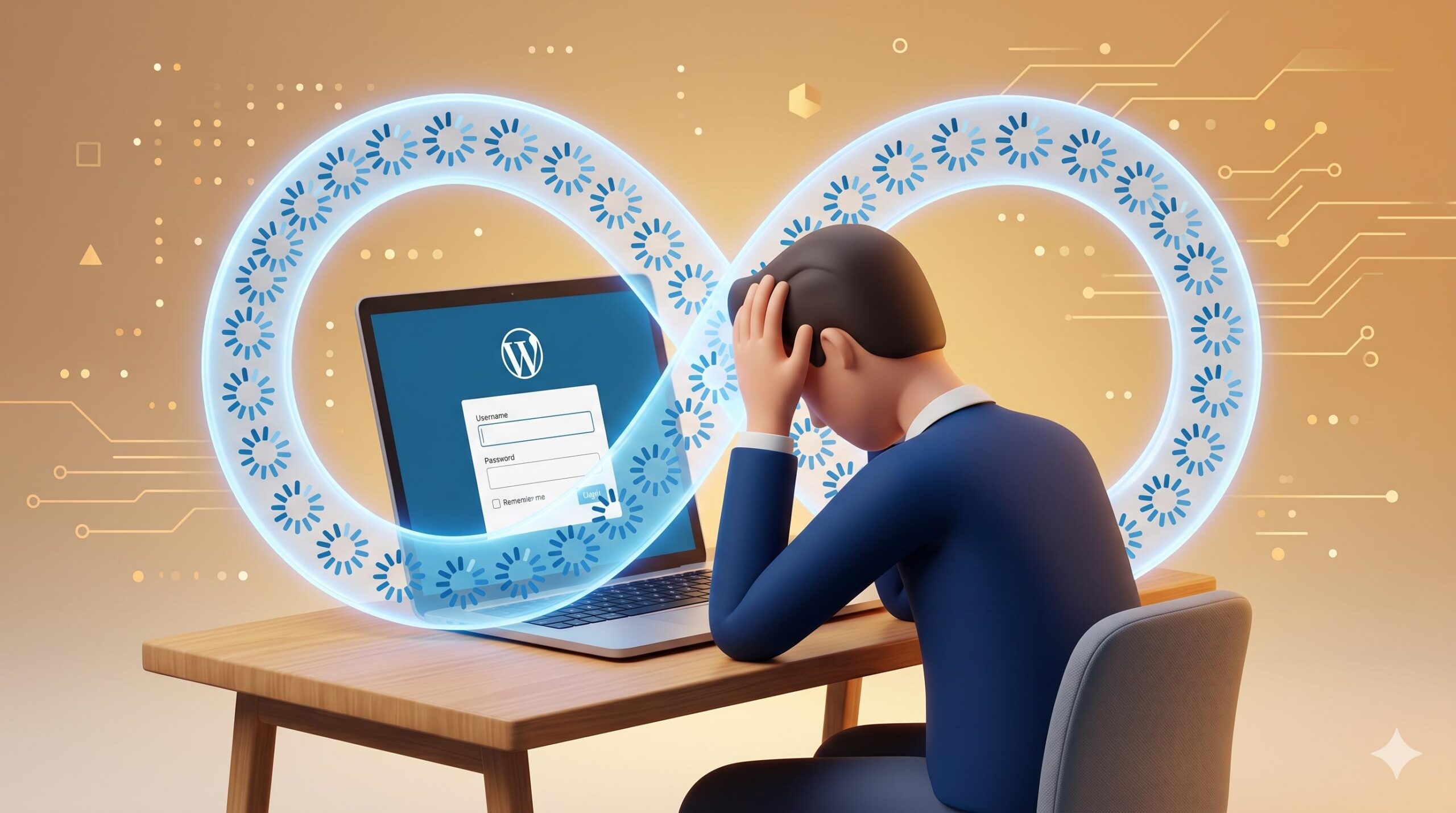
Users typically encounter this error when attempting to access /wp-admin or wp-login.php. It appears because WordPress is unable to validate your session cookies or is being misdirected by incorrect site settings. Essentially, your server and your browser are having a “communication breakdown” regarding your identity. This guide provides a comprehensive WordPress login page redirect loop fix to help you regain control of your site safely.
This guide is for educational troubleshooting purposes.
Table of Contents
What Causes the Login Redirect Loop?
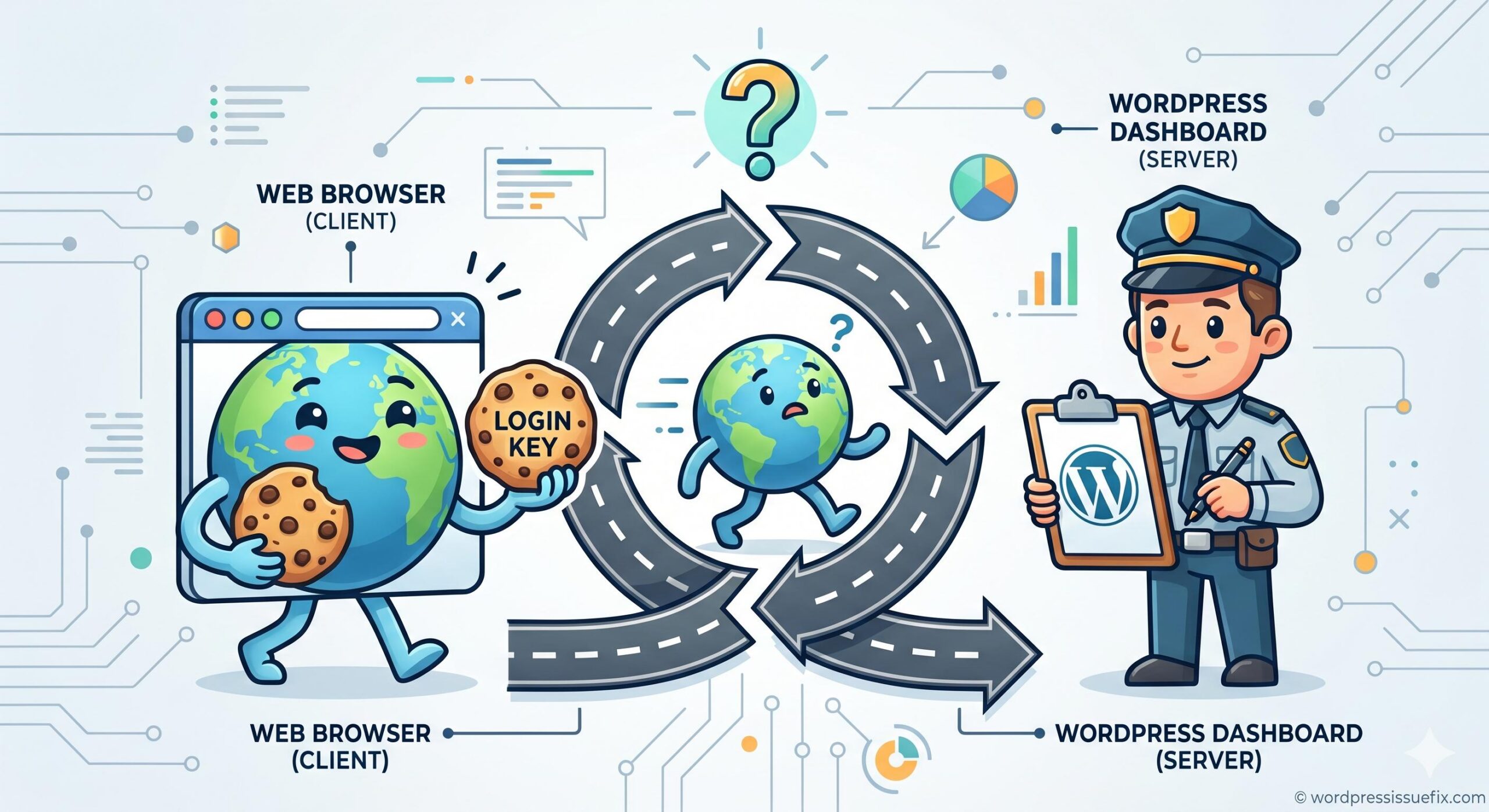
Before we dive into the technical steps, it is important to understand that this isn’t usually a sign of a “broken” website, but rather a configuration conflict. The most common reasons include:
- Corrupted Browser Data: Old cookies or cache interfering with new login attempts.
- Plugin Conflicts: Security or caching plugins blocking the authentication process.
- Incorrect Site URLs: A mismatch between your site address and your WordPress installation address.
- Corrupted .htaccess File: Broken server instructions that force unnecessary redirects.
Step-by-Step WordPress Login Page Redirect Loop Fix
1. Clear Browser Cache and Cookies
The first step in any WordPress login page redirect loop fix is to ensure your browser isn’t the problem.
- Go to your browser settings.
- Clear “Cookies and other site data” and “Cached images and files.”
- Restart your browser and try logging in again.
2. Deactivate All Plugins via FTP or File Manager
Since you cannot access the dashboard, you must disable plugins from the back end.
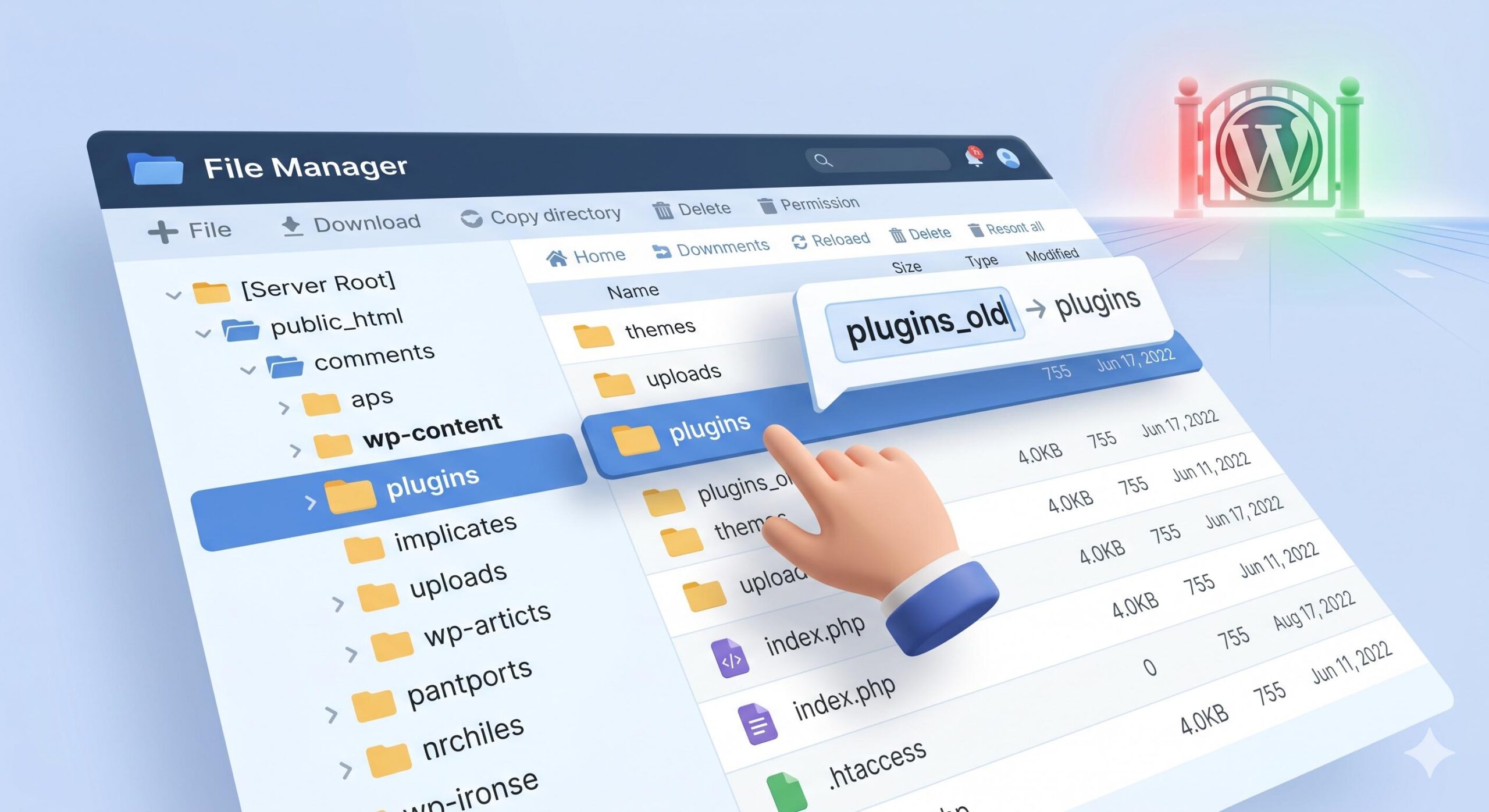
- Log in to your hosting account’s File Manager or use an FTP client.
- Navigate to
/wp-content/. - Rename the
pluginsfolder toplugins_old. - Try to log in. If it works, one of your plugins was the cause. Rename the folder back to
pluginsand activate them one by one in the dashboard to find the culprit.
3. Reset the .htaccess File
A corrupted .htaccess file can trap your login page in a loop.
- In your root directory (
public_html), find the.htaccessfile. - Rename it to
.htaccess_backup. - Try logging in. If successful, go to Settings > Permalinks and click Save Changes to generate a new, clean file.
4. Update Site URLs in wp-config.php
Mismatched URLs are a frequent cause of redirect loops. You can manually set them to ensure accuracy.
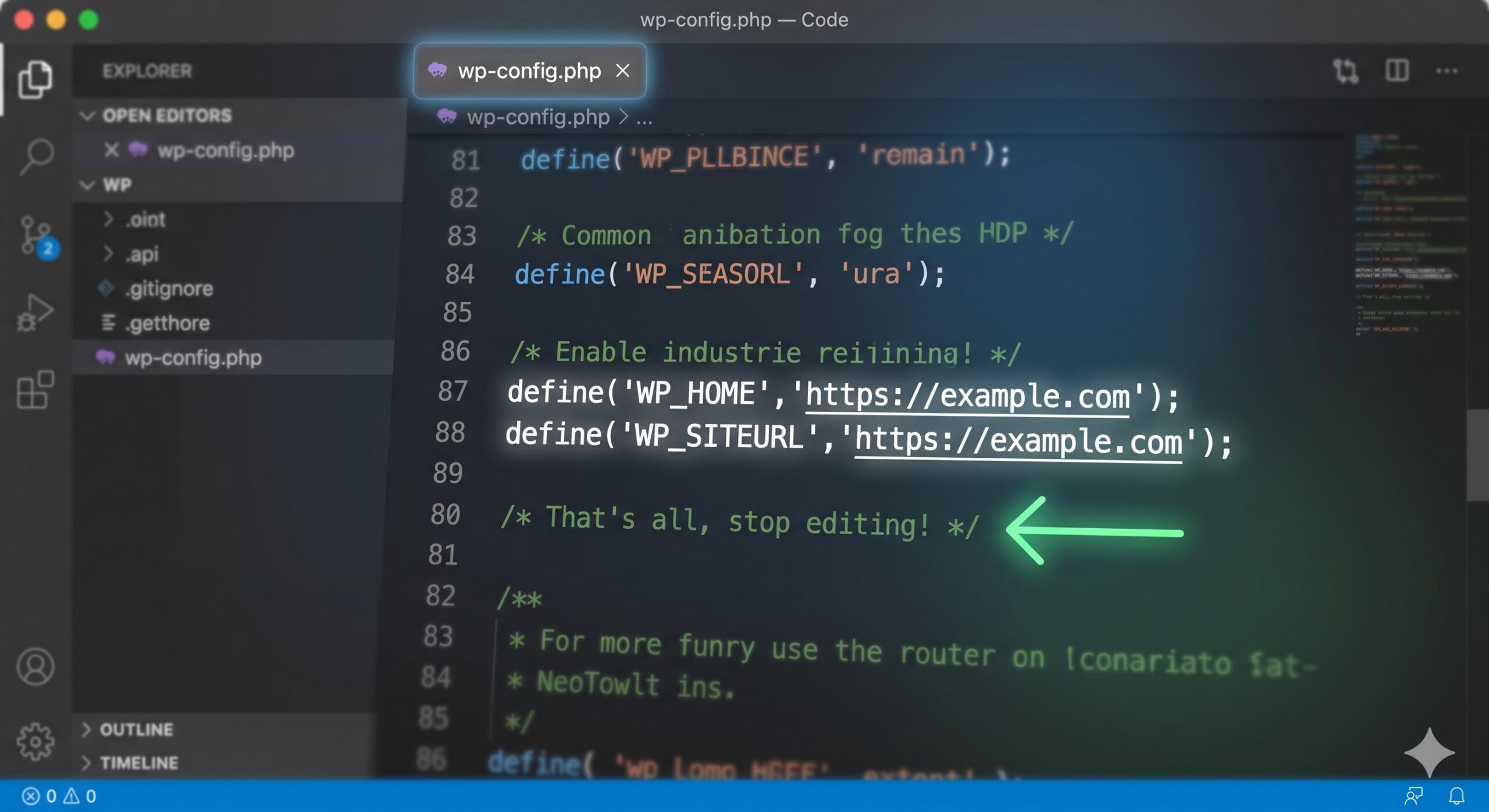
- Open your
wp-config.phpfile in the root directory. - Add these lines just above the “That’s all, stop editing!” line:
define('WP_HOME','https://example.com');define('WP_SITEURL','https://example.com');
(Replaceexample.comwith your actual domain).
How to Fix the WordPress trigger_error Notice: A Complete Guide
Frequently Asked Questions (FAQ)
| Question | Answer |
|---|---|
| Why doesn’t WordPress show an error message? | Because the credentials are often correct; the server simply fails to set the “session cookie” that keeps you logged in, causing a refresh rather than an error. |
| Can my hosting provider cause this loop? | Yes. Sometimes server-side caching (like Varnish or NGINX FastCGI) can cache the login page incorrectly. Contacting support to clear server cache can help. |
| Will I lose my data if I rename the plugins folder? | No. Renaming the folder only stops the plugins from running. Your settings and data remain safe in the database. |
| Does “Clear Cache” apply to my site or my browser? | Both. You should clear your browser cache first. If you use a plugin like WP Rocket, renaming the plugin folder (Step 2) clears the site cache. |
| Why did this happen suddenly? | It often happens after installing an SSL certificate, changing a domain name, or updating a security plugin that has “Hardened Login” features. |
Conclusion
Resolving a WordPress login page redirect loop fix requires a methodical approach. By starting with the simplest solution—clearing your browser cache—and moving toward server-side adjustments like editing the .htaccess or wp-config.php files, you can identify the conflict without risking your site’s data.
In most cases, the issue stems from a simple cookie mismatch or a plugin conflict. Once you regain access, remember to keep your WordPress core and plugins updated and avoid using multiple security plugins simultaneously to prevent future loops. If you have followed all these steps and are still locked out, it may be time to contact your hosting provider’s technical support to check for deeper server-level configuration errors.








