

Introduction
If you recently checked your Site Health dashboard or tried publishing a post and saw a REST API error WordPress notice, you are in the right place.
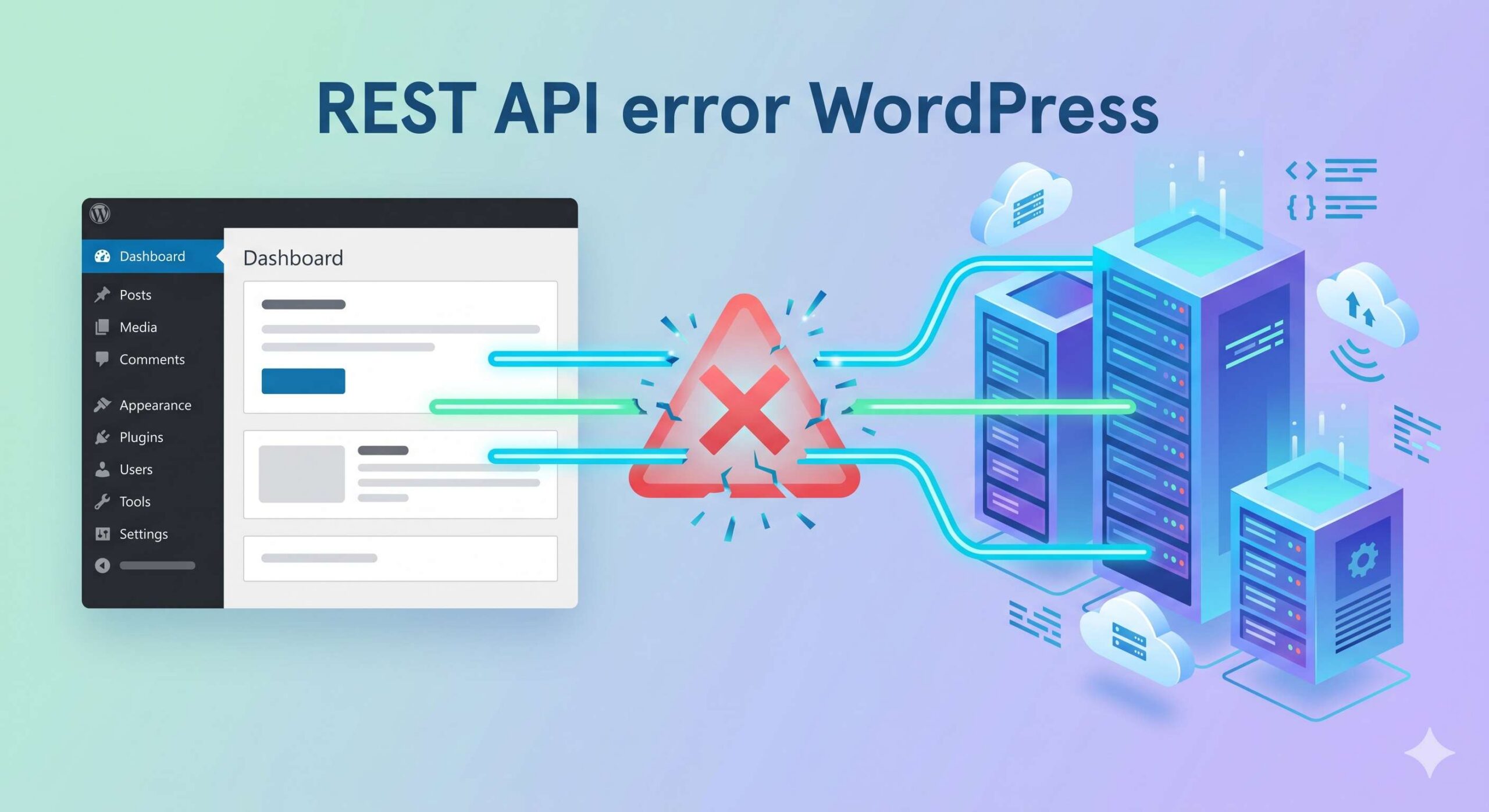
What does this mean? The REST API is a communication system allowing your WordPress website to talk to plugins, themes, and the block editor seamlessly. Where do you encounter it? Users usually see this issue in the Site Health screen or as a frustrating “JSON response” failure when saving content. Why does it appear? It happens when this background communication is blocked by strict security plugins, broken permalinks, server misconfigurations, or caching conflicts.
Note: This guide is for educational troubleshooting purposes and will walk you through safe, beginner-friendly steps to fix the REST API error in WordPress.
Table of Contents
Recognizing the Symptoms
Before diving into the solutions, it helps to confirm that you are actually experiencing a REST API block. Because this system works entirely in the background, you will usually only notice it when a dependent feature fails.
You likely have a REST API error in WordPress if you experience the following:
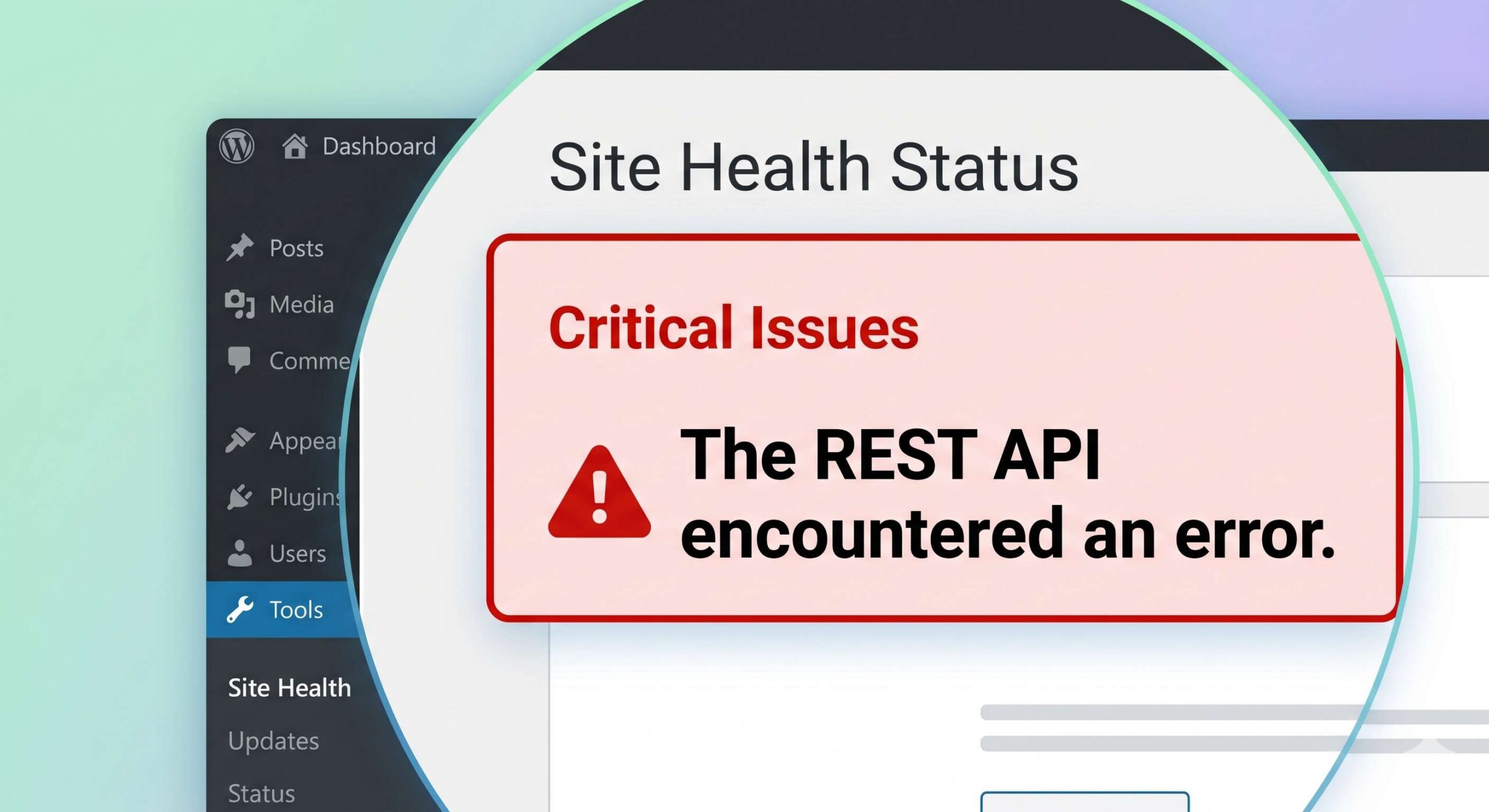
- Site Health Warnings: You see a critical issue in Tools > Site Health stating, “The REST API encountered an error” or “The REST API did not process the context query parameter correctly.”
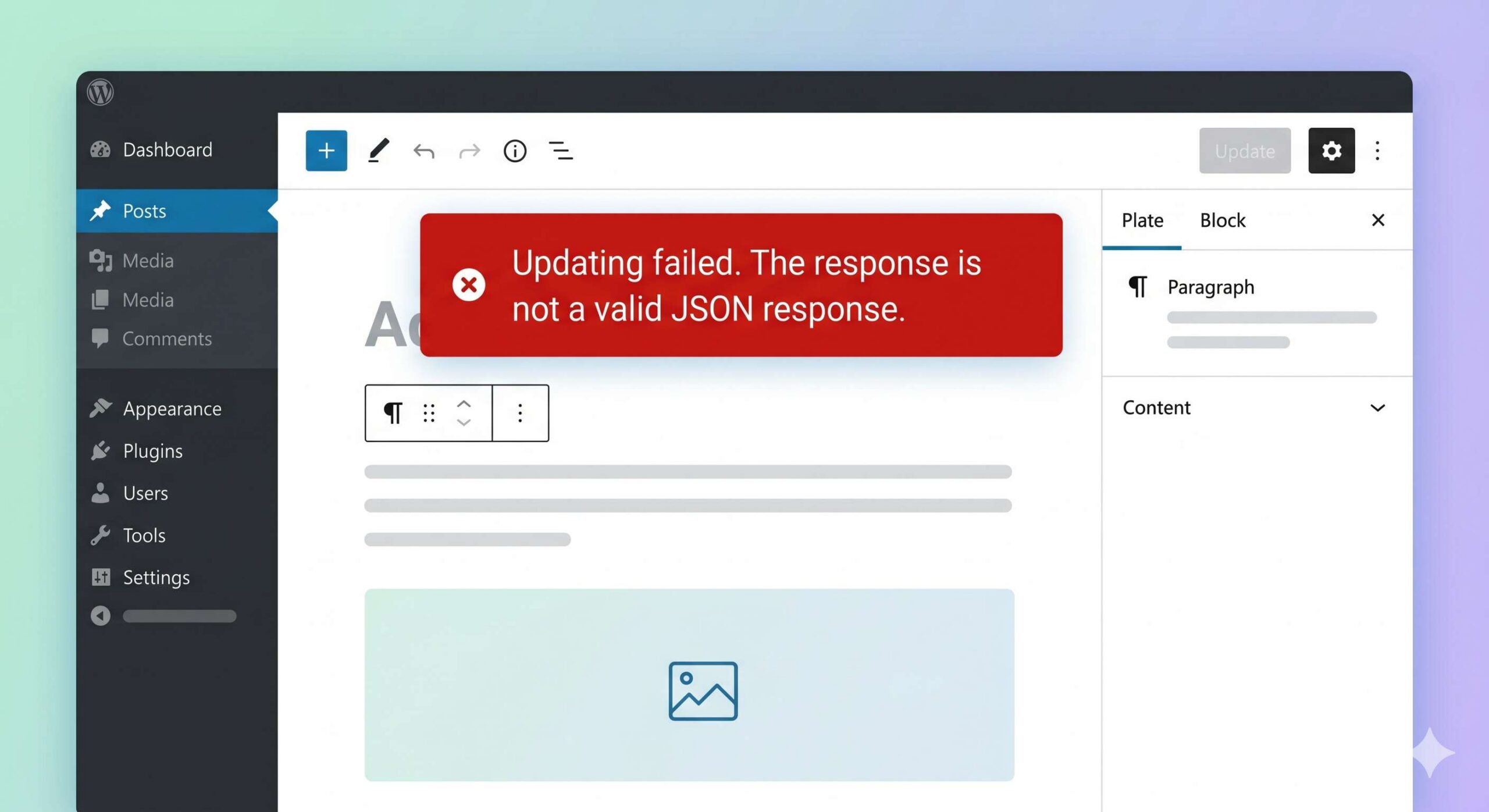
- Block Editor Failures: When you try to save, update, or publish a post in the Gutenberg block editor, you receive a red banner reading, “Updating failed. The response is not a valid JSON response.”
- Broken Plugin Interfaces: Modern plugins that rely on the API to load their settings pages may appear blank or refuse to save your changes.
Why Does the REST API Error in WordPress Occur?
Your website uses the REST API endpoint (usually located at yourdomain.com/wp-json/) to send and receive data. When that endpoint returns an unexpected result, WordPress flags it as an error.
The most common culprits include:
- Corrupted Rewrite Rules: Your website’s URL structure (permalinks) is confused and cannot route the API requests to the right place.
- Overzealous Security Plugins: Firewalls sometimes mistake legitimate REST API requests for malicious automated attacks and block them.
- Cloudflare or CDN Blocks: Content Delivery Networks with strict bot protection can accidentally block your server’s own API calls.
- Plugin Conflicts: A poorly coded or outdated plugin may be generating PHP errors that interfere with the API’s required JSON output.
Step-by-Step Fixes for the REST API Error WordPress
Please follow these beginner-safe troubleshooting steps in order, as we will start with the easiest and most common solutions.
1. Resave Your Permalinks (The 60-Second Fix)
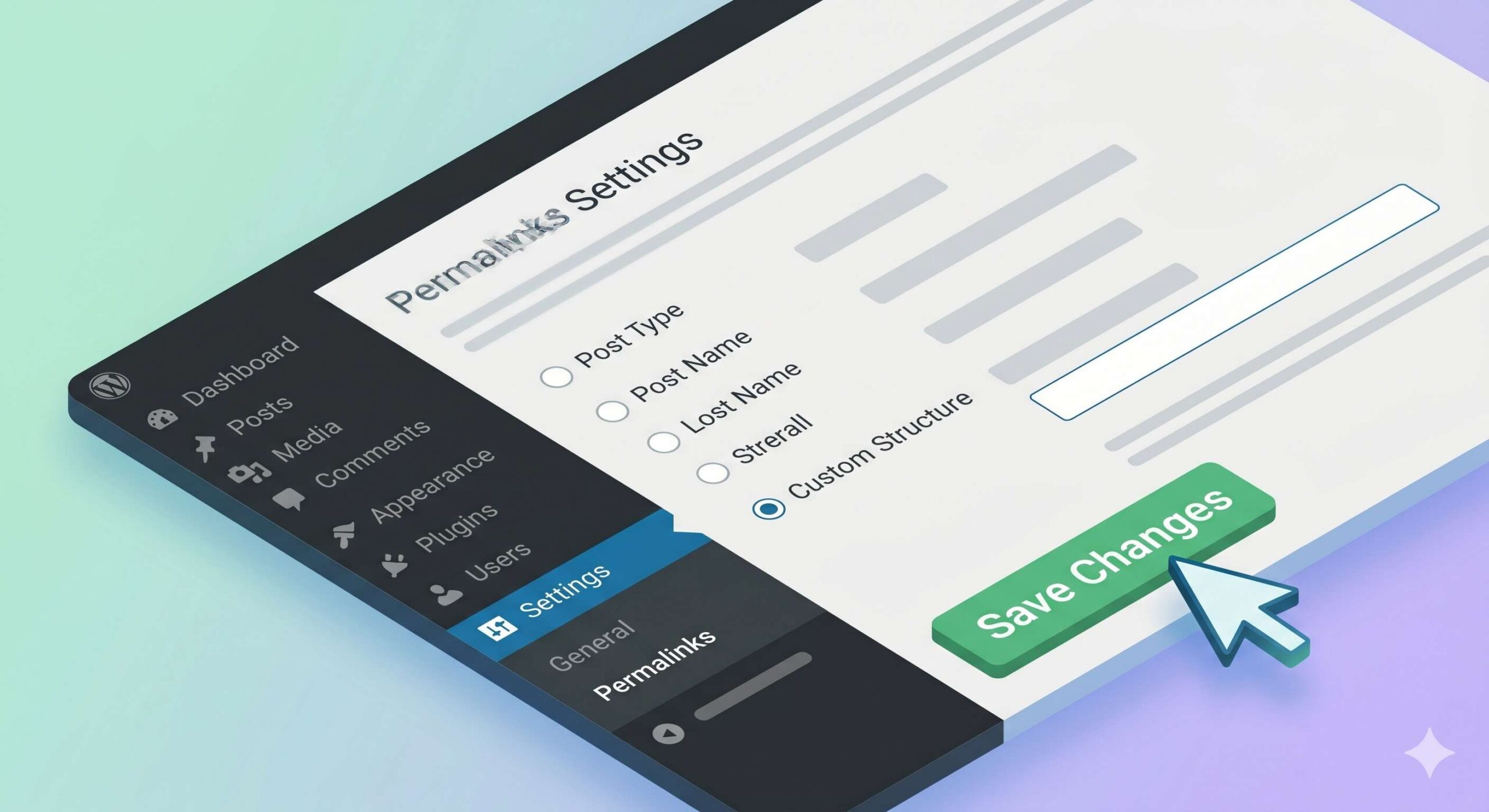
The most common cause of a REST API error in WordPress is a temporary glitch in your website’s .htaccess file or routing rules. Resaving your permalinks forces WordPress to flush and rebuild these rules.
- Log in to your WordPress dashboard.
- Navigate to Settings > Permalinks.
- Do not change any of your current settings. Simply scroll straight to the bottom of the page.
- Click the Save Changes button.
- Go back to your Site Health page or the post you were trying to edit and check if the error is resolved.
2. Check Your Security Plugins and Firewalls
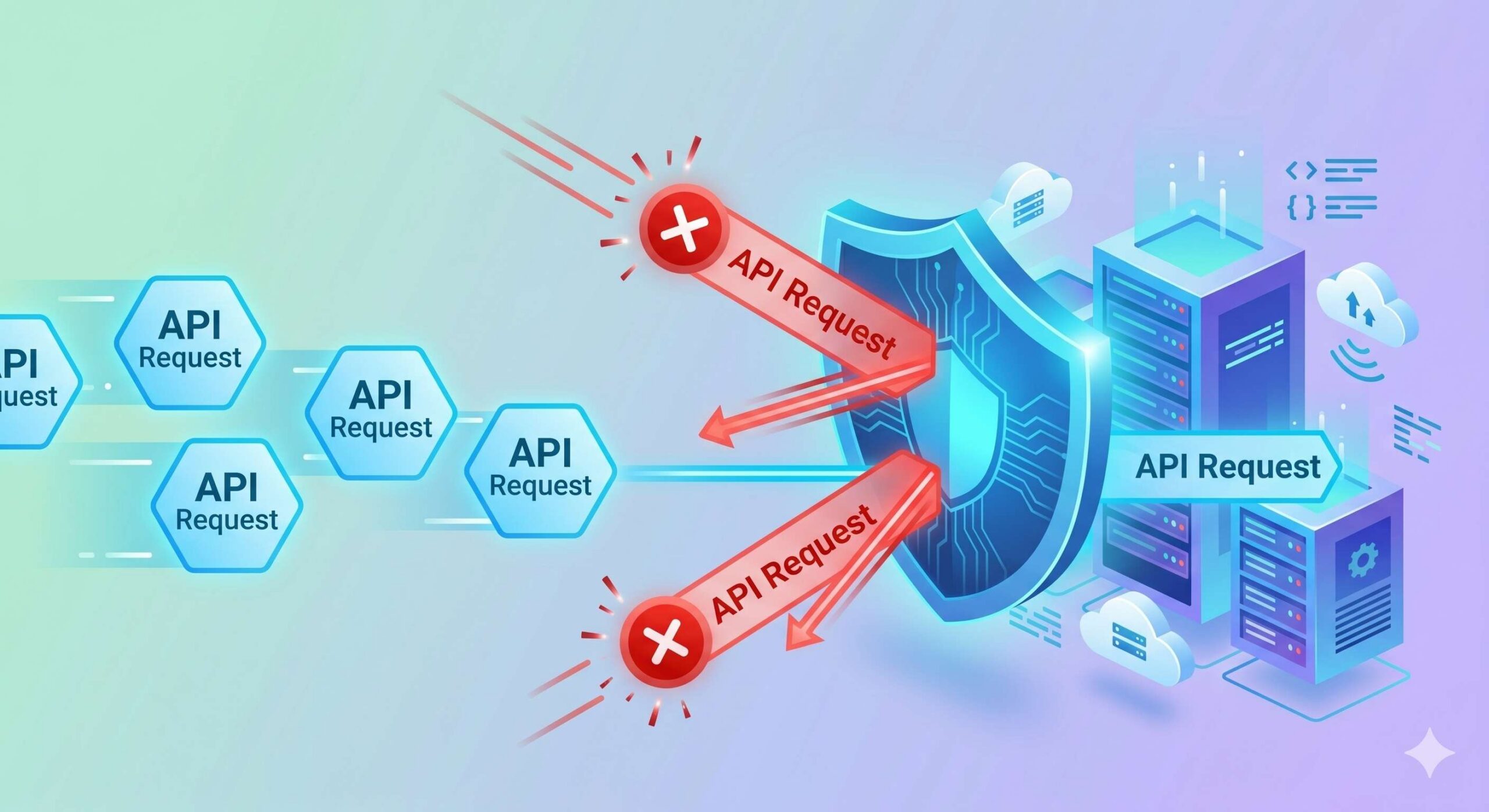
Security plugins like Wordfence, iThemes Security, or Sucuri are excellent for protecting your site, but they can sometimes be too strict. If they block access to the /wp-json/ endpoint, you will immediately trigger a REST API error.
- How to test: Temporarily deactivate your security plugin from the Plugins > Installed Plugins menu.
- Check the API: Once deactivated, check your Site Health tool. If the REST API error WordPress notice disappears, you have found the culprit.
- The Solution: Do not leave your security plugin deactivated. Reactivate it, go into its specific settings, and look for options related to “REST API Restriction” or “Endpoint Blocking.” Ensure that the REST API is set to default or allowed for authorized users.
3. Clear Website Caches and CDN Rules
Caching plugins (like LiteSpeed Cache or WP Rocket) speed up your site by storing static versions of your pages. However, if they cache a broken API response, WordPress will continue to report an error even after the underlying issue is fixed.
- Clear your cache using the “Purge All” option in your caching plugin’s top menu bar.
- If you use Cloudflare, log in to your Cloudflare dashboard and clear your cache there as well.
- Important Cloudflare Note: If you use Cloudflare’s “Bot Fight Mode,” it frequently triggers the REST API error in WordPress. Try temporarily disabling Bot Fight Mode in Cloudflare (under Security > Bots) to see if your Site Health improves. If it does, you may need to add a Page Rule bypassing security for the
/wp-json/*URL path.
4. Isolate Plugin Conflicts
If the steps above haven’t cleared the error, a different plugin might be outputting extra code (like blank spaces or PHP notices) that breaks the API’s formatting.
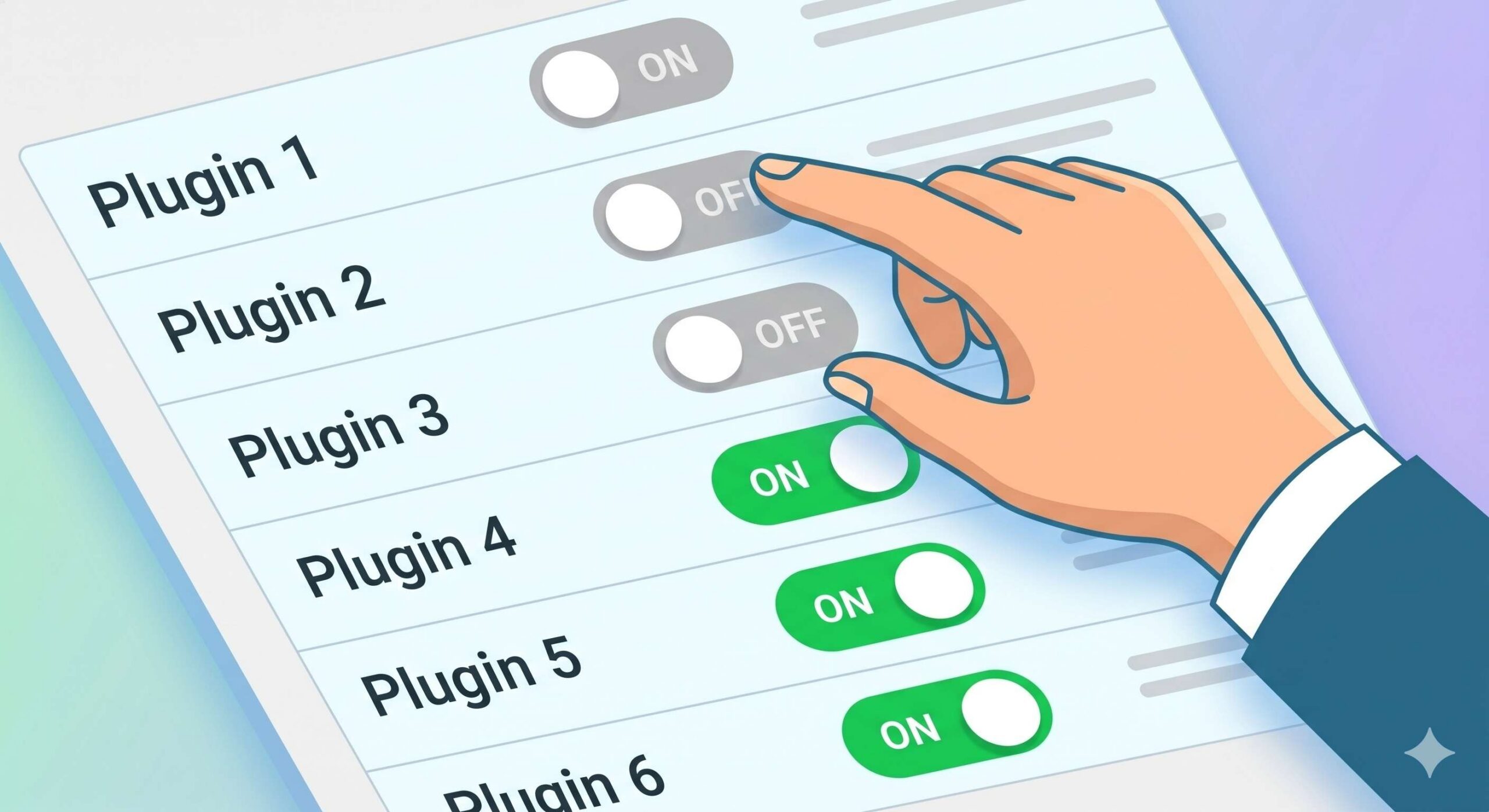
- Go to Plugins > Installed Plugins.
- Check the box next to all plugins and select Deactivate from the Bulk Actions dropdown (keep your caching and security plugins deactivated for now, too).
- Check your Site Health dashboard. If the REST API error is gone, one of your plugins is causing it.
- Reactivate your plugins one by one. After activating a plugin, refresh your Site Health page.
- When the error returns, the last plugin you activated is the broken one. You will need to keep it deactivated, contact its developer for a fix, or find an alternative plugin.
How to Apply a WordPress Recovery Mode Not Working Fix: A Beginner’s Guide
When to Contact Your Hosting Provider
If you have tried all the beginner-safe fixes above and the REST API error WordPress warning is still present, the issue is likely at the server level.
Reach out to your web hosting support team and ask them to check the following:
- Server Firewalls (ModSecurity): Your host’s firewall might be blocking the
wp-jsonloopback requests. - Missing PHP Extensions: The REST API requires specific PHP modules to function, such as the
cURLextension. If your host recently updated your PHP version, they may have forgotten to enable it. - Loopback Requests: Ask your host to ensure that “loopback requests” are fully enabled and functioning on your server environment.
By systematically checking your permalinks, security settings, and plugins, you can easily resolve this communication breakdown and get your WordPress dashboard running smoothly again.
Frequently Asked Questions (FAQ)
Is the REST API error dangerous for my WordPress site? No, this error is not dangerous and does not mean your website has been hacked or infected with malware. It simply indicates a communication breakdown between your website’s database and its software (like the Gutenberg block editor or your plugins). However, it should be fixed promptly so you can continue publishing content and saving site settings.
Can I just disable the REST API to make the error go away? No, disabling the REST API is highly discouraged. Modern WordPress relies heavily on the REST API to function properly. Without it, the block editor will fail to save posts, and many modern plugins will completely break. The goal is to find out what is blocking it, not to disable it.
Will updating WordPress fix the REST API error? Sometimes, yes. If the error is being caused by outdated core files or an incompatibility with a newer plugin, updating your WordPress core, themes, and plugins to their latest versions can restore the proper JSON response. Always remember to back up your site before running bulk updates.
Why do I only see the REST API error when I try to publish a post? The WordPress block editor uses the REST API in real-time to save your text and images to the database. If a security plugin, caching rule, or server firewall blocks that specific request, the editor cannot complete the save process, resulting in the dreaded “JSON response” failure exactly when you hit publish.
Conclusion
Encountering a REST API error WordPress notice can completely halt your content creation, but as we have covered, it is usually just a temporary communication block. By taking a calm, step-by-step approach—starting with refreshing your permalinks, checking your security firewall, and testing for plugin conflicts—you can easily pinpoint the exact cause of the breakdown.
Remember, WordPress is designed to tell you when something is wrong so you can fix it before it becomes a larger issue. Always ensure you keep a recent backup of your website before making technical changes, and do not hesitate to reach out to your hosting provider if the problem lies at the server level. With these troubleshooting steps, your block editor and plugins will be communicating perfectly once again.








