

Introduction
Seeing an Astra demo import error WordPress message can quickly halt your website-building excitement. What does this error mean? It is a specific technical notice indicating that your WordPress installation failed to successfully download and install the pre-designed website files (images, text, and layouts) from Astra’s cloud servers.
You will encounter this error directly inside your WordPress admin dashboard while using the Starter Templates plugin to import a “Complete Site.” Why does it appear? Most often, your web hosting server has low resource limits that restrict heavy downloads, or a security plugin is actively blocking the data transfer.

This guide is for educational troubleshooting purposes to help you safely resolve this roadblock, fix your server communication, and successfully launch your new design.
Table of Contents
Why the Astra Demo Import Fails
To effectively fix the problem, it helps to understand what is happening behind the scenes. When you click “Import Complete Site” in the Starter Templates plugin, your WordPress installation acts like a client. It reaches out to Astra’s external servers and requests a massive package of data, including XML files, images, customizer settings, and sometimes even required plugins.
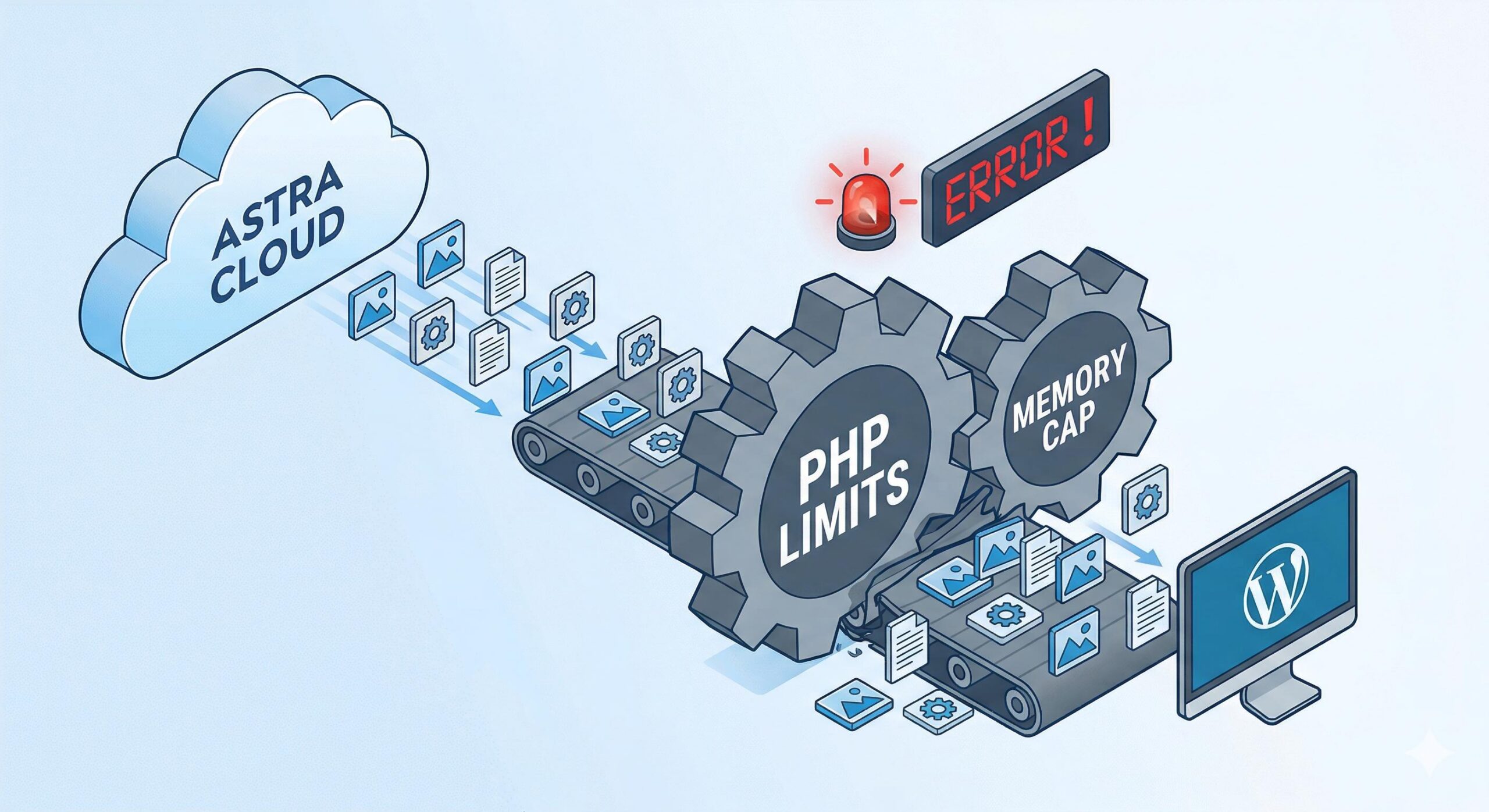
Your web host’s server must receive this package, unpack it, and write the new data into your WordPress database. If your web host heavily restricts how much memory your site can use, or limits how long a background process can run, the server will forcefully stop the download halfway through. When the server gives up, you are met with the Astra demo import error WordPress screen. Because this is a server communication issue, generic fixes like clearing your browser cache will not help.
Here is exactly how to fix the server environment so your Astra demo imports smoothly.
Step 1: Increase Your PHP Memory Limit
The most frequent culprit behind an Astra demo import error WordPress warning is a low PHP memory limit. WordPress needs dedicated server memory to execute heavy tasks like downloading and writing hundreds of demo files. Many shared hosting providers set this limit to a very low 64MB or 128MB by default.
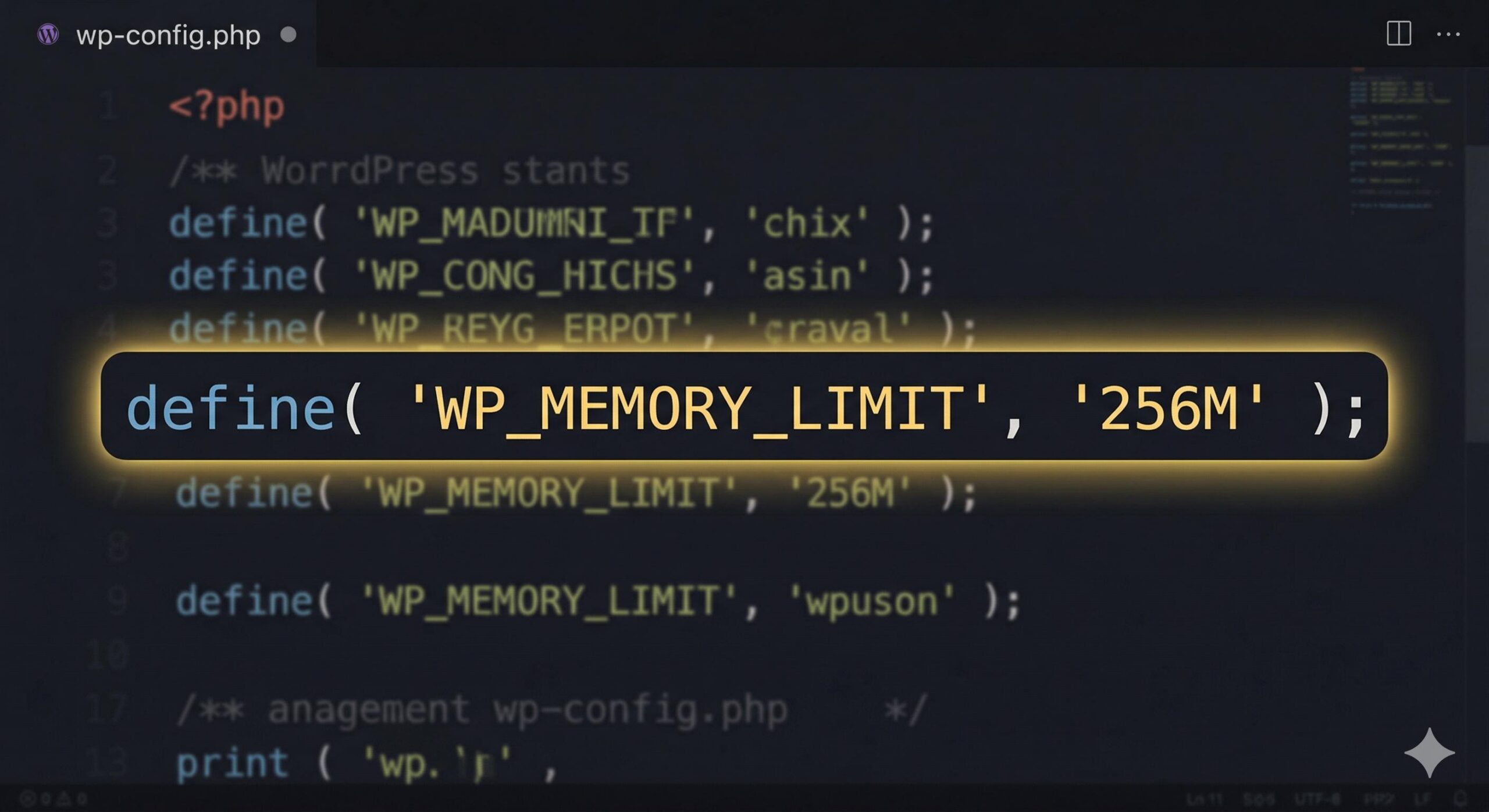
To fix this, you need to increase your WordPress memory limit to at least 256MB.
How to safely adjust your memory limit:
- Log into your web hosting control panel (such as cPanel) and open the File Manager, or connect to your site via an FTP client.
- Locate the
wp-config.phpfile, which is located in the root directory of your WordPress installation. - Right-click the file and select Edit.
- Scroll down until you see a line of text that reads:
/* That's all, stop editing! Happy publishing. */ - Just above that line, paste the following exact code:
define( 'WP_MEMORY_LIMIT', '256M' ); - Save your changes and try the Astra demo import again.
Note: If you are not comfortable editing core WordPress files, you can easily open a chat with your hosting support and ask them to “increase my WordPress PHP memory limit to 256MB.”
Step 2: Extend the Maximum Execution Time
Even if your site has enough memory, downloading an entire website template takes time. If your server is configured to automatically terminate any script that runs longer than 30 seconds, the Astra download will be abruptly cut off. This timeout results directly in an import failure.
For a complete Astra starter site import, you need a higher maximum execution time, ideally set to 300 seconds.
How to fix execution time timeouts:
This specific setting is usually controlled at the server level within a file called php.ini or via your .htaccess file. Because editing these files can sometimes cause a site to crash if done incorrectly, the safest beginner-friendly route is to contact your web host.
Open a support ticket and state:
“Hello, I am experiencing an Astra demo import error in WordPress because the import script is timing out. Could you please increase my server’s max_execution_time to 300?”
Once they confirm the update, refresh your dashboard and restart the import process.
Step 3: Temporarily Deactivate Conflicting Plugins
Sometimes your server has plenty of power, but another plugin on your WordPress site is actively treating the demo import as a threat. Strict security plugins or aggressive caching tools often interpret the sudden, massive influx of files from Astra’s external servers as a malicious attack. When the security firewall blocks the connection, the import fails.

How to resolve plugin conflicts during import:
- In your WordPress dashboard menu, navigate to Plugins > Installed Plugins.
- Look for any active security plugins (such as Wordfence, Sucuri, or iThemes Security) and performance/caching plugins (such as WP Rocket, LiteSpeed Cache, or W3 Total Cache).
- Click Deactivate on these specific plugins.
- Ensure your only active plugins are your core essentials and the Starter Templates plugin.
- Attempt to import the Astra demo site again.
Once the demo content finishes downloading and your new design is successfully applied, you can safely reactivate your security and caching plugins. The conflict only occurs during the active data transfer.
How to Fix WordPress Error 500 Internal Server Error (A Beginner’s Guide)
Step 4: Verify Your Server Extensions (cURL and ZipArchive)
If you have increased your limits and turned off security plugins but still face the Astra demo import error WordPress issue, your server might be missing the basic software tools required to communicate with the Astra cloud.
To fetch the demo, WordPress relies on a PHP extension called cURL. Once the template arrives, it needs another extension called ZipArchive to unzip the bundled files. If either tool is disabled on your hosting plan, the import cannot physically process.
How to check your extensions:
- In your WordPress dashboard, go to Tools > Site Health.
- Click on the Info tab at the top.
- Scroll down and click to expand the Server section.
- Look through the list for PHP extensions and ensure both cURL and ZipArchive are active.
If they are missing, check your hosting cPanel for a “Select PHP Version” or “PHP Extensions” icon to turn them on, or ask your host to enable them for you.
Step 5: Clean Up Previous Failed Attempts
If you have tried to import the demo multiple times, your WordPress database is likely cluttered with half-downloaded images, broken XML files, and partial menus. This leftover junk data can actually block new import attempts, trapping you in a frustrating loop.
How to start with a clean slate:
When you go to the Starter Templates interface to try your import one last time, look closely at the advanced import settings before you click the final button. Check the box labeled “Delete Previously Imported Site.” This tells the Astra plugin to wipe away the broken files from your previous failed attempts before it starts fresh. By clearing the clutter and ensuring your server limits are raised, your demo import should now complete without a hitch.
Frequently Asked Questions (FAQs)
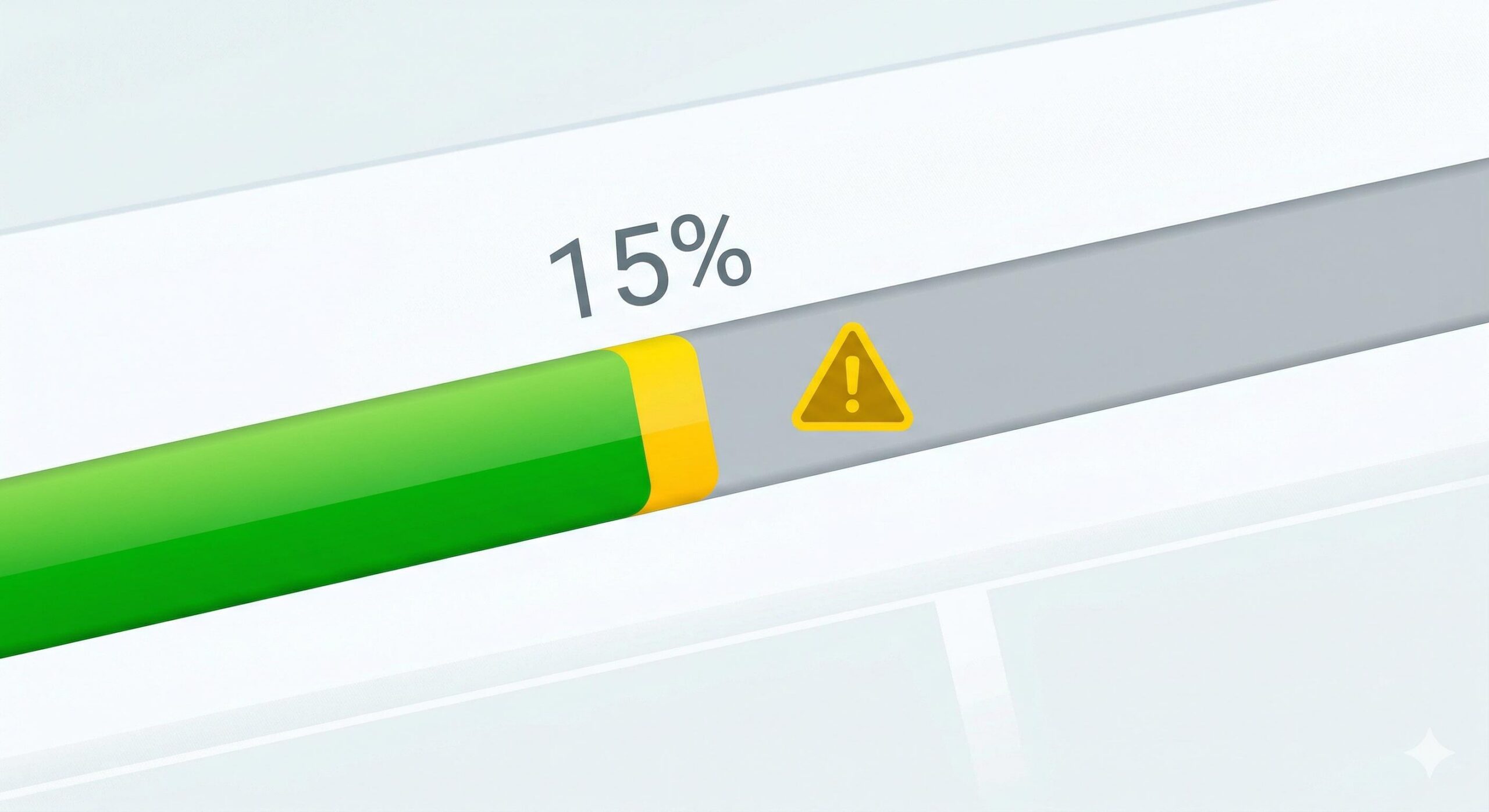
Why does my Astra demo import stop exactly at 15% or 33%?
If your progress bar freezes at these specific percentages, it almost always points to a server timeout during the XML processing phase. This is the exact moment the script attempts to generate heavy data into actual pages and posts. You must complete Step 2 (increasing max_execution_time to 300) to fix this.
Do I need to buy Astra Pro to fix import errors?
No. The Astra demo import error WordPress trigger is related entirely to your web hosting environment (server limits and firewalls), not your theme license level. It happens on both the free and Pro versions of Astra. Upgrading will not bypass a low server memory limit.
Will checking “Delete Previously Imported Site” delete my current blog posts?
If you have an existing website with blog posts you want to keep, do not check this box without taking a full website backup first. This feature is intended to clean up a brand-new WordPress installation that failed an initial import. It will overwrite theme settings and can delete existing content to make room for the new demo.
Can I import the Astra demo manually without the cloud?
Because Astra’s Starter Templates are complex and dynamically pull the latest versions of plugins and images, they are designed to be imported via their cloud API using the Starter Templates plugin. Fixing your server’s cURL connection (Step 4) is usually mandatory, rather than relying on an offline manual upload.
What does a “JSON Error” mean during import?
A JSON error during the demo import usually indicates that a security plugin, a firewall on your server, or a caching mechanism is blocking the WordPress REST API from communicating properly. Deactivating your security and caching plugins (Step 3) will typically clear this error.
Conclusion
Running into an Astra demo import error WordPress notice can feel like hitting a brick wall, but it is a highly common and completely fixable technical issue. By understanding that this is simply a communication and resource limit issue between Astra’s cloud and your hosting server, you can take the exact steps needed to fix it.

Increase your PHP memory limit, give your server more execution time, and temporarily disable overzealous security plugins. Once you give your WordPress environment the breathing room it needs to process large files, your beautiful new Astra starter site will import flawlessly, allowing you to move forward with building your website.








