

Introduction
Seeing your website suddenly go down can be alarming, but take a deep breath. You are in the right place. To fix WordPress error 500 internal server error, you first need to understand exactly what you are dealing with.
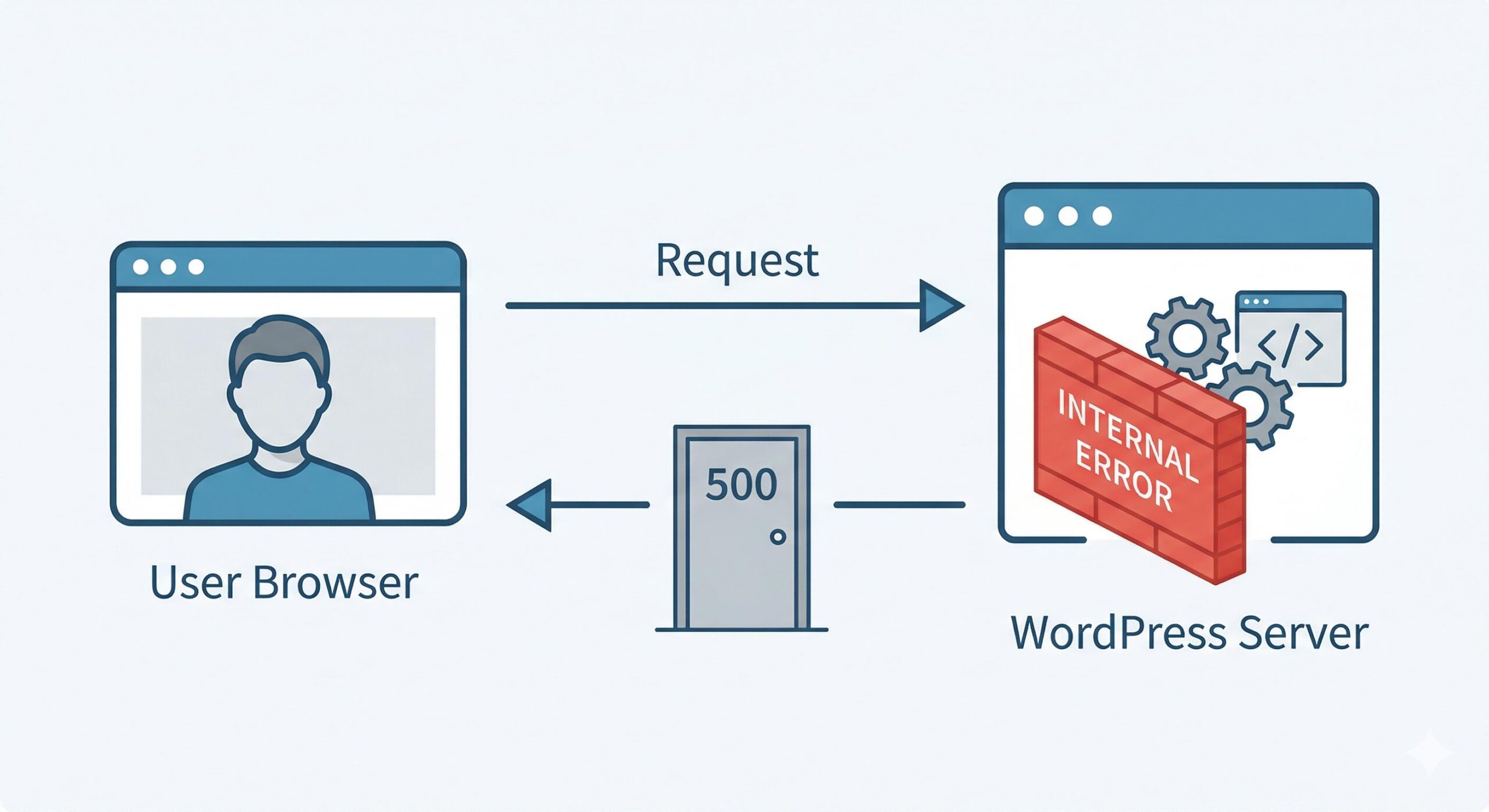
This specific error means your web server encountered an unexpected condition that prevented it from displaying your page. You will typically encounter this issue as a completely blank white screen, or a generic “500” text message, when trying to load your homepage or access your WordPress admin dashboard. Why does it appear?
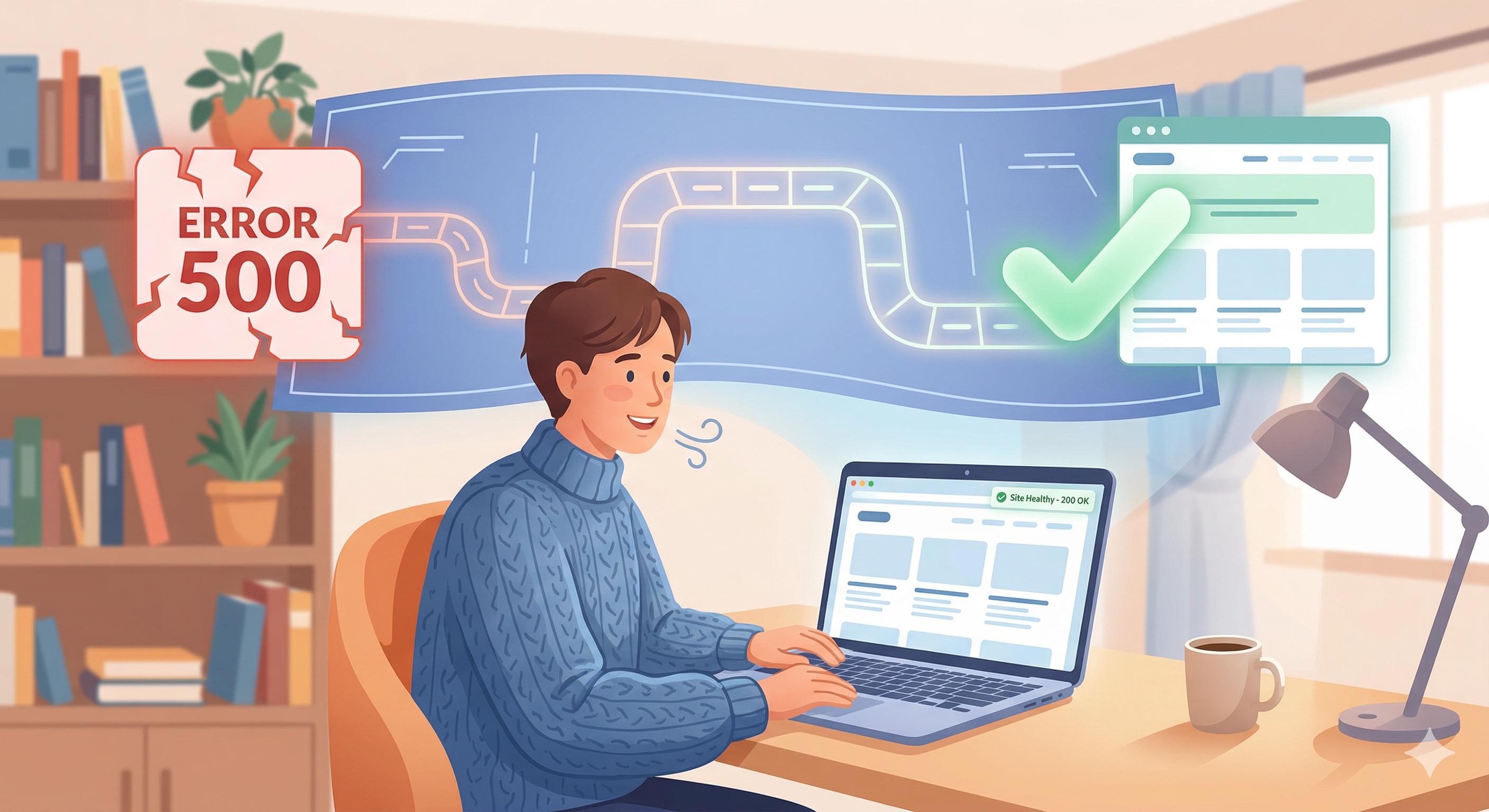
Unlike an error 404 (which means a page is missing), a 500 error is a server-side issue. It almost always appears due to a corrupt .htaccess file, a conflicting plugin, or an exhausted PHP memory limit on your server.
Note: This guide is for educational troubleshooting purposes and will walk you through safe, beginner-friendly steps to understand and resolve the issue.
Table of Contents
Why the 500 Internal Server Error is Frustrating
The most difficult part of the 500 Internal Server Error is that it does not tell you exactly what went wrong. It is a general catch-all error. Because the server does not know precisely what triggered the failure, it simply throws a “500” code and stops loading.
However, because this is a very common WordPress issue, the underlying causes are well-known. By following a logical process of elimination, you can safely identify the root cause and restore your website.
Important First Step: Before attempting to fix WordPress error 500 internal server error, always ensure you have a recent backup of your website. If you do not have a recent backup, check with your hosting provider, as many hosts create automatic daily backups.
Step 1: Check for Plugin Conflicts
A misbehaving plugin is one of the most common reasons for a 500 error. Sometimes, a recent plugin update conflicts with your current WordPress version, or two active plugins clash with one another, causing the server to crash.
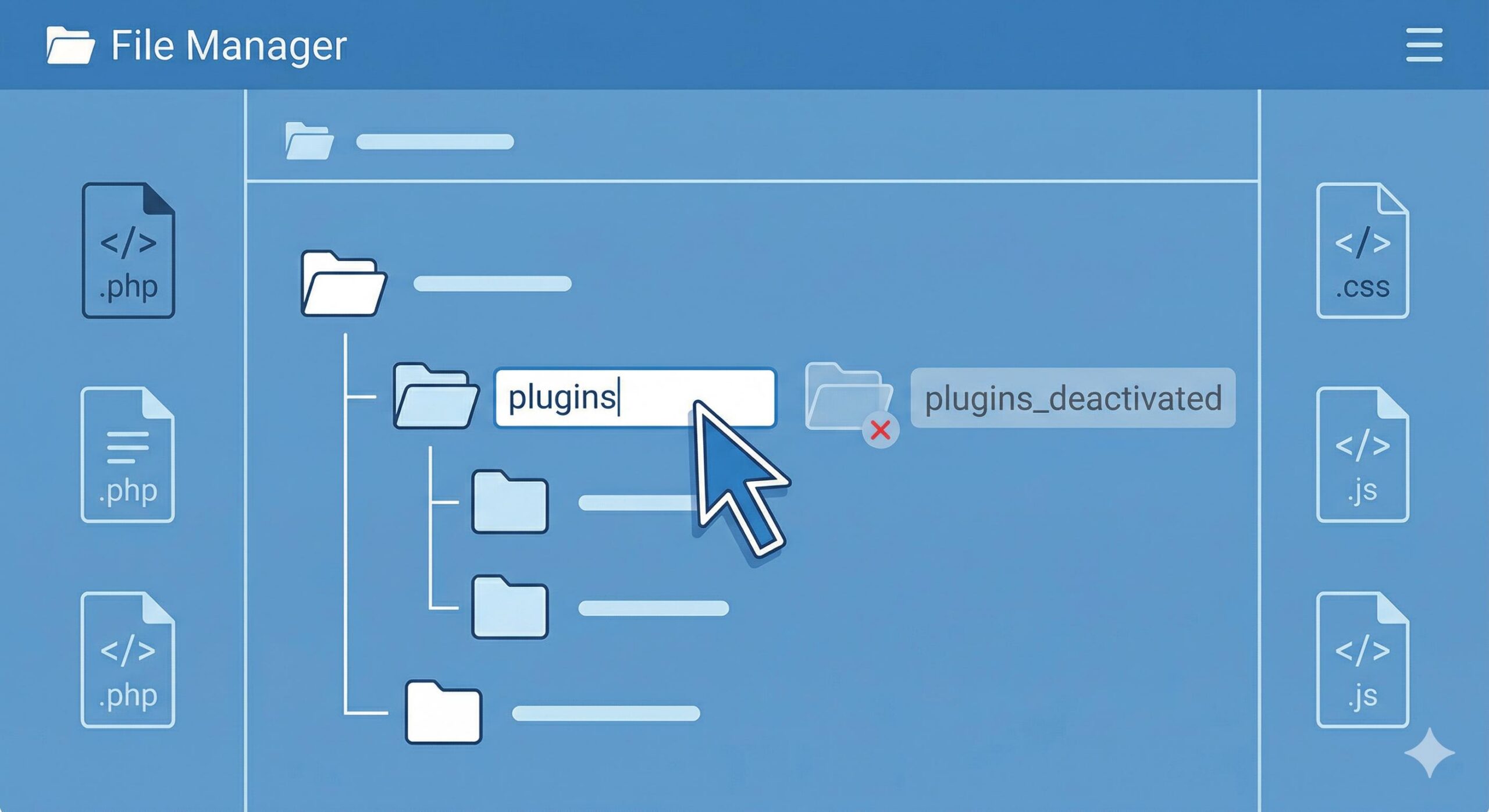
Because the 500 error often blocks access to your WordPress dashboard, you may need to disable your plugins using an FTP client (like FileZilla) or the File Manager in your web hosting control panel (cPanel).
How to disable plugins via File Manager:
- Log into your hosting account dashboard and open the File Manager.
- Navigate to your website’s root folder (often named
public_html). - Open the wp-content folder.
- Locate the folder named plugins.
- Right-click the plugins folder and select Rename.
- Rename it to something like plugins_deactivated.
Renaming this folder tricks WordPress into thinking you have no plugins installed, which instantly deactivates all of them. Now, refresh your website.
- If your site loads correctly: You have found the problem! A plugin was causing the 500 error. Go back to your File Manager, rename the folder back to plugins, and then log into your WordPress dashboard. Activate your plugins one by one, refreshing your site after each activation. When the 500 error returns, the last plugin you activated is the culprit. Keep it deactivated and contact the plugin developer for support.
- If the 500 error is still there: Plugins are not the issue. Rename the folder back to plugins and move on to the next step.
Step 2: Fix a Corrupt .htaccess File
The .htaccess file is a core configuration file used by your web server to manage permalinks, redirects, and security. If this file becomes corrupted—often due to a poorly coded plugin or a server glitch—it will immediately cause a 500 Internal Server Error.
To fix this, you will need to create a fresh, uncorrupted .htaccess file.
How to generate a new .htaccess file:
- Open your hosting File Manager or FTP client and navigate to your root directory (
public_html). - Look for the
.htaccessfile. (Note: If you do not see it, ensure that “Show Hidden Files” is enabled in your File Manager settings). - Right-click the
.htaccessfile and select Rename. Change it to .htaccess_old. - Refresh your website.
If your website loads normally, the corrupt file was the issue. To finish fixing the problem, you need to generate a new, clean .htaccess file:
- Log into your WordPress admin dashboard.
- Go to Settings > Permalinks.
- Do not change anything on the page; simply scroll down and click Save Changes.
Clicking save forces WordPress to automatically generate a brand-new, correctly formatted .htaccess file in your root folder.
How to Find and Read the WordPress Email Error Log (Beginner’s Guide)
Step 3: Increase Your PHP Memory Limit
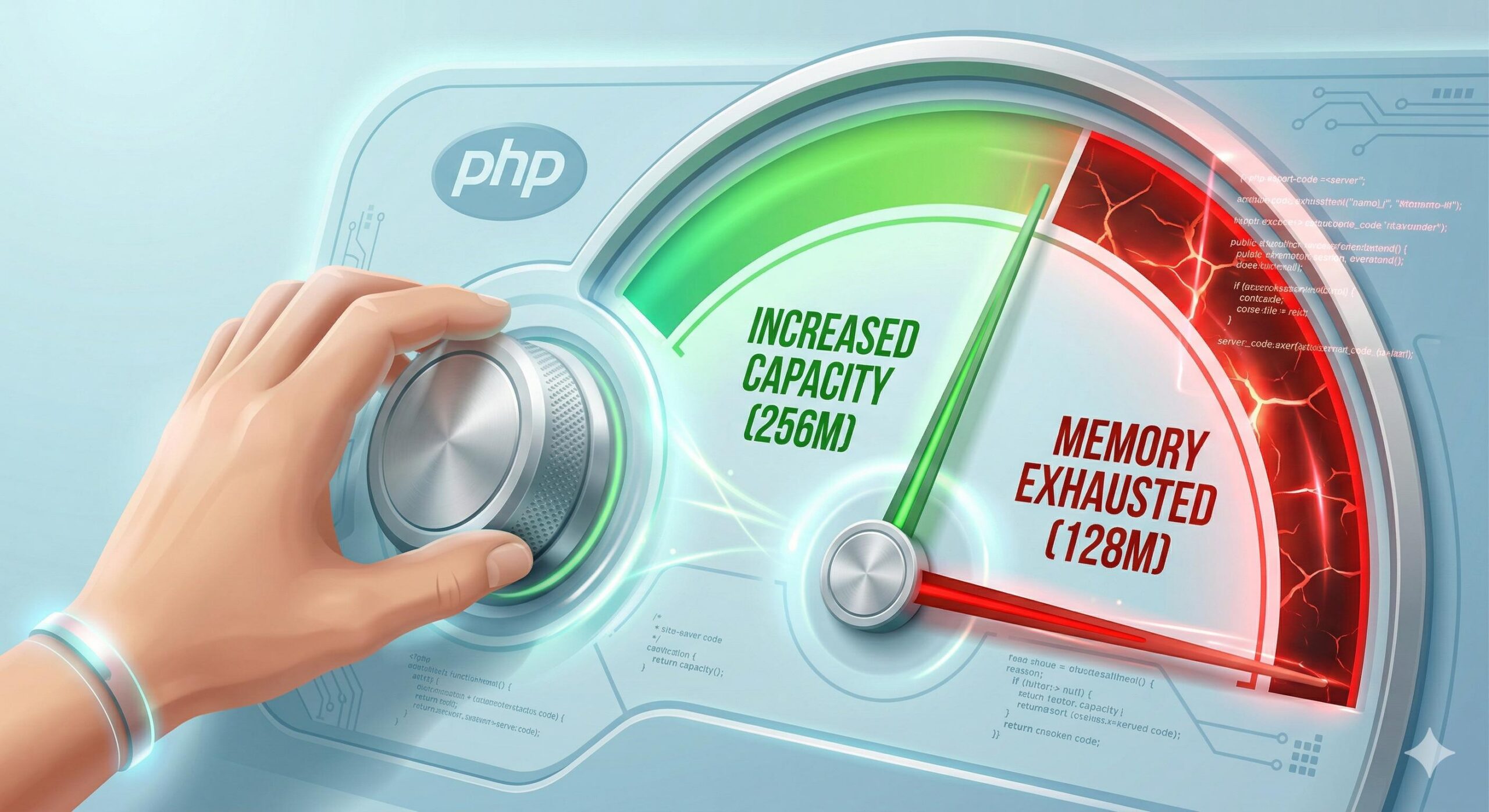
Your web server allocates a specific amount of memory (RAM) to run PHP, the programming language WordPress is built on. If a script on your website requires more memory than the server allows, it will time out and trigger the 500 error.
You can attempt to increase this memory limit manually by editing your wp-config.php file.
How to increase PHP memory:
- Open your File Manager or FTP client and locate the wp-config.php file in your root directory.
- Right-click the file and select Edit.
- Scroll down until you find the line that says:
/* That's all, stop editing! Happy publishing. */ - Just above that line, paste the following code:
define( 'WP_MEMORY_LIMIT', '256M' ); - Save the file and close the editor.
Refresh your website. If increasing the memory limit resolves the issue, you have successfully learned how to fix WordPress error 500 internal server error. However, be aware that a permanently exhausted memory limit might indicate a poorly coded theme or plugin that is draining your resources.
Step 4: Re-upload Core WordPress Files
If plugins, the .htaccess file, and the PHP memory limit are not to blame, there is a chance that a core WordPress file was corrupted during an update.
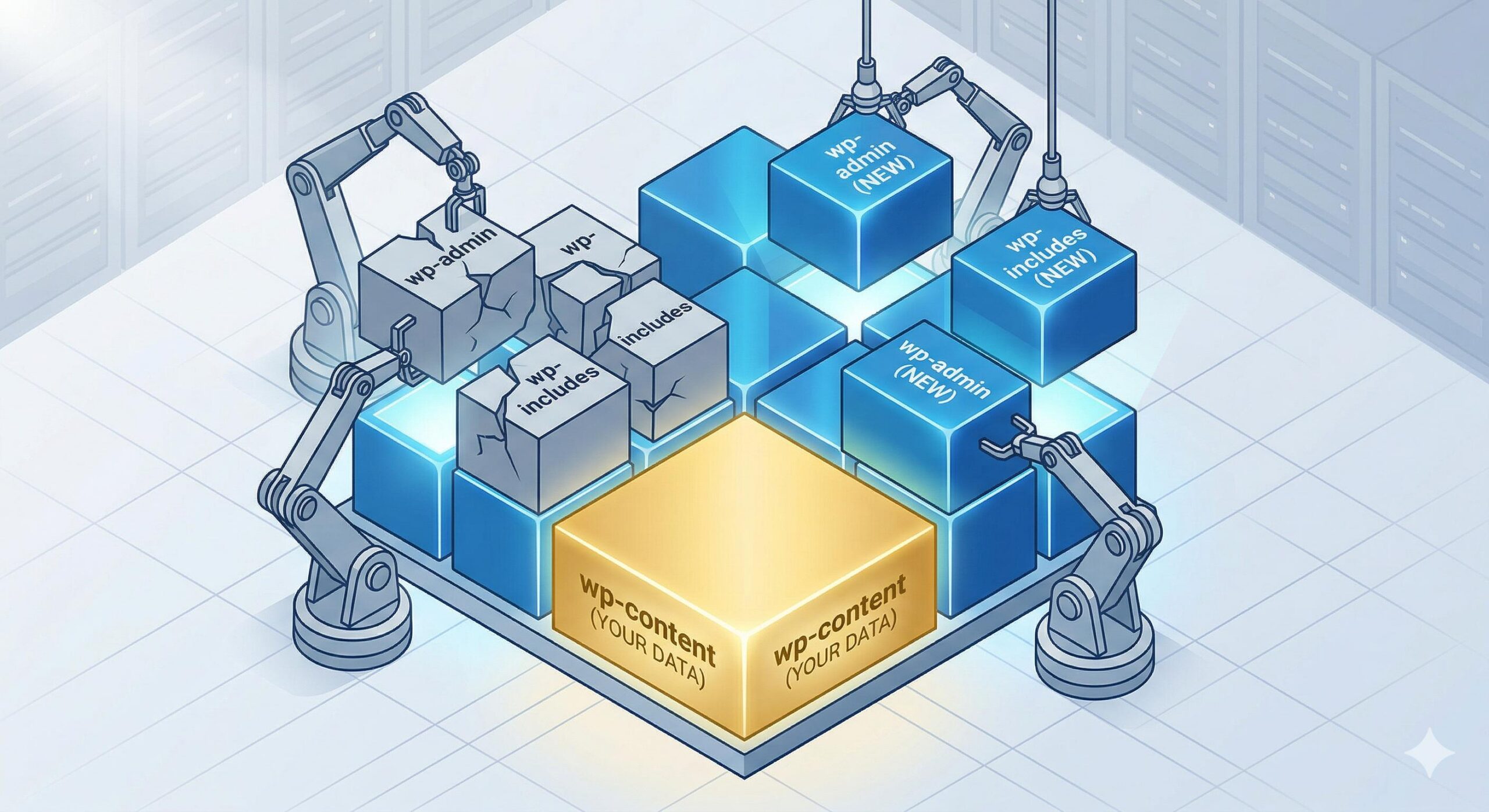
You can resolve this by replacing the core files without affecting your content (which is safely stored in your database and wp-content folder).
- Go to WordPress.org and download a fresh copy of WordPress.
- Extract the downloaded ZIP file on your computer.
- Open the extracted folder and delete the
wp-contentfolder and thewp-config-sample.phpfile. (You do not want to overwrite your existing theme and plugin files). - Using an FTP client, upload the remaining files to your website’s root folder, choosing to overwrite the existing files.
This process replaces any damaged core files with fresh, working versions.
When to Contact Your Web Host
If you have followed all the educational troubleshooting steps above and the 500 Internal Server Error is still locking you out of your site, it is time to reach out to your web hosting provider.
Sometimes, the 500 error is caused by a genuine server issue on their end, such as a hardware failure, a misconfigured server firewall, or an issue with the server’s PHP version. Your host’s technical support team has access to detailed server error logs that will pinpoint the exact line of code or server process that is failing, allowing them to resolve the issue for you quickly.
Frequently Asked Questions (FAQs)
Will I lose my website data or content because of a 500 Internal Server Error? No, your data is highly likely safe. A 500 error is a delivery issue, meaning the server is struggling to display the site, but your actual content (posts, pages, images) remains safely stored in your WordPress database and hosting files.
How long does it usually take to fix this error? If the issue is a simple plugin conflict or a corrupt .htaccess file, you can often resolve it yourself in under 15 minutes by following the troubleshooting steps in this guide. If the issue is related to server hardware or complex PHP limits, you may need to wait for your hosting provider to assist you.
Can installing a new WordPress theme cause a 500 error? Yes. Just like plugins, a poorly coded theme or a theme that is incompatible with your current version of WordPress or PHP can trigger an internal server error. You can troubleshoot this by accessing your File Manager, navigating to wp-content/themes, and renaming your active theme’s folder to force WordPress to revert to a default theme (like Twenty Twenty-Four).
Why am I only seeing the 500 error when trying to log into my wp-admin dashboard? If the front end of your website loads perfectly but your admin dashboard shows a 500 error, it is almost always due to an exhausted PHP memory limit. The WordPress dashboard requires significant memory to load, especially if you have heavy plugins installed. Follow Step 3 in this guide to increase your memory limit, or contact your host to increase it for you.
Is there a way to prevent the 500 Internal Server Error from happening again? While you cannot prevent all server errors, you can drastically reduce the chances by practicing good website hygiene. Keep your WordPress core, themes, and plugins updated, delete any plugins you no longer use, and invest in a high-quality web hosting provider with generous PHP memory limits.
Conclusion
Encountering a server crash is a stressful rite of passage for almost every website owner. However, as you have learned, you do not need to be an expert developer to fix WordPress error 500 internal server error.
By calmly following the process of elimination—starting with plugin conflicts, generating a fresh .htaccess file, and checking your PHP memory limits—you can resolve the vast majority of these server-side issues on your own. Always remember that your website’s data is usually safe and intact behind the scenes. Keep a routine backup schedule, only install trusted plugins, and never hesitate to reach out to your web hosting provider’s support team if an issue requires advanced technical intervention.








