

Introduction
If you are building a website with the Astra theme, few things are as frustrating as seeing an “Import Failed” message just when you’re ready to launch. Astra template import errors occur when the Starter Templates plugin is unable to successfully download or process the demo data—including images, layouts, and settings—from Astra’s cloud servers to your local WordPress database.
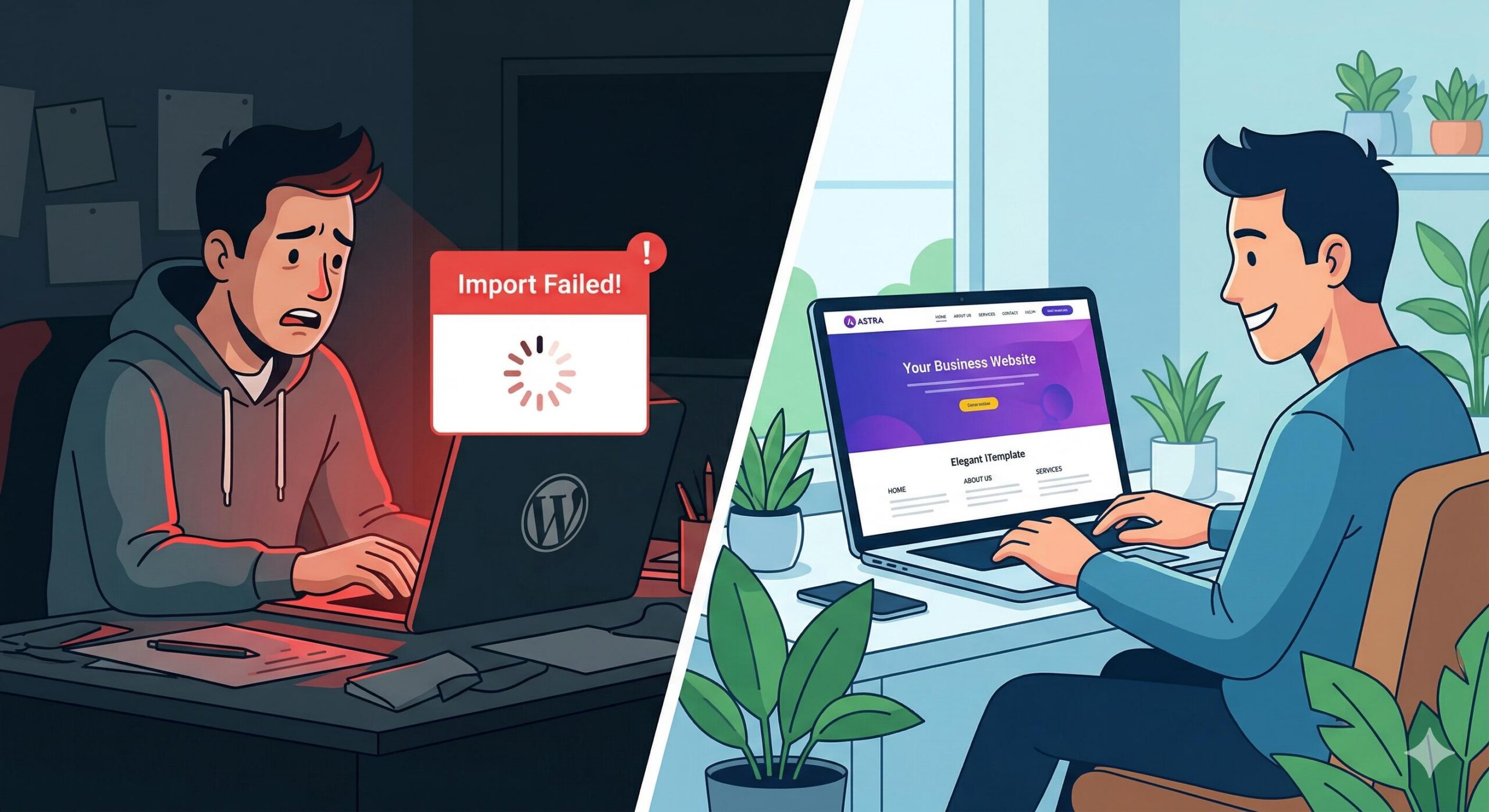
Users typically encounter this issue within the WordPress dashboard while trying to import a “Starter Template.” It often appears as a spinning wheel that never ends or a specific error popup mentioning XML files, cURL, or PHP limits. These errors usually stem from restrictive server configurations, low memory limits, or security firewalls blocking the connection. This guide is for educational troubleshooting purposes to help you get your site back on track.
Table of Contents
Why Do Astra Template Import Errors Happen?
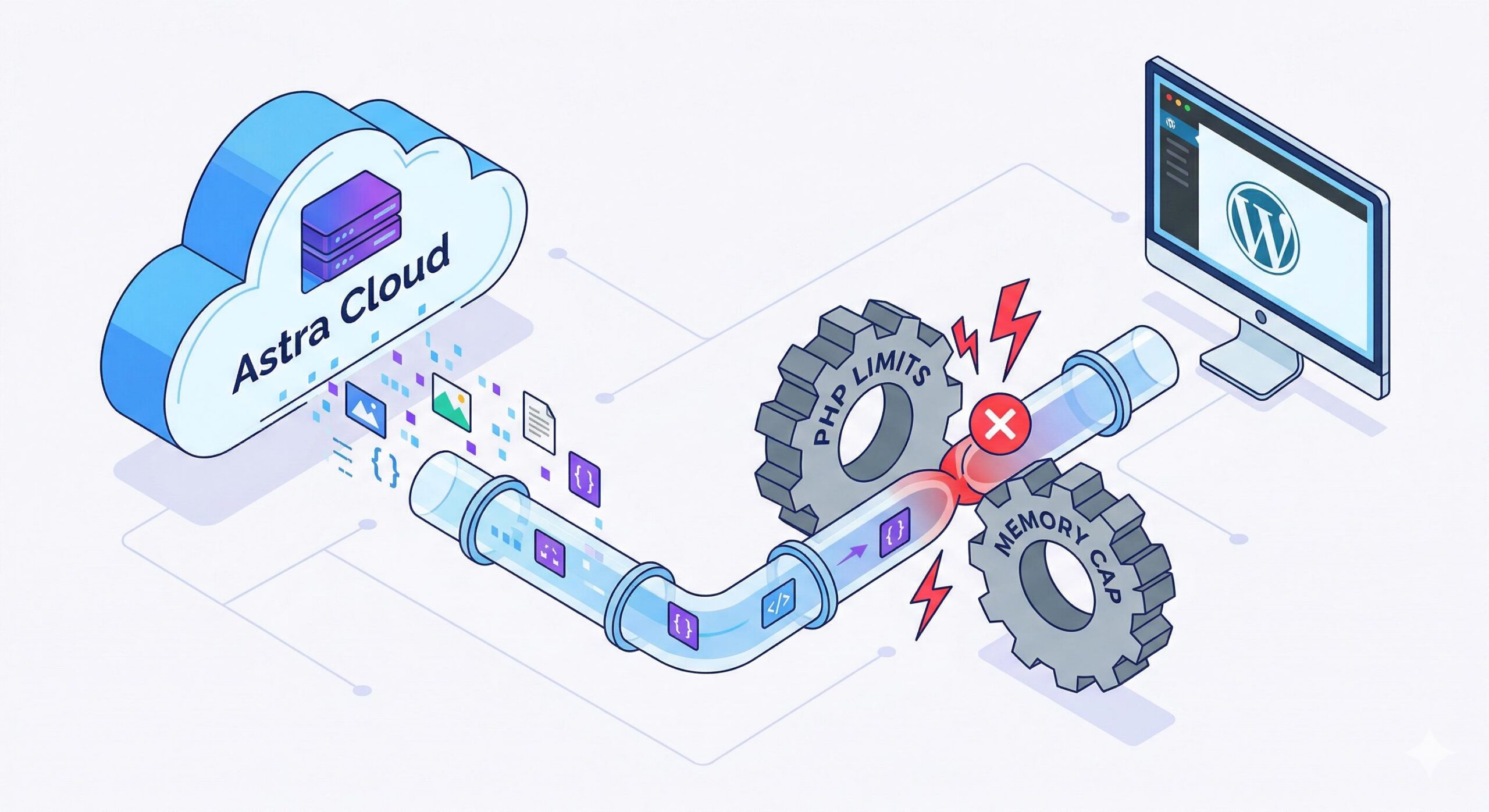
Before we dive into the solutions, it is helpful to understand the technical side of the problem. When you click “Import,” your website initiates a series of requests. It asks Astra’s server for files, downloads them to your “uploads” folder, and then writes data into your database.
If your hosting environment is too “tight”—meaning it has low resource limits—the process will time out. Similarly, if your server’s security settings are too strict, it might view the incoming template data as a security threat and block the import entirely.
Step 1: Verify Your System Requirements
The most common reason for Astra template import errors is a server that does not meet the minimum requirements for heavy data transfers. Astra is lightweight, but the import process requires a bit of “muscle.”
Check your WordPress site’s “Site Health” (under Tools > Site Health > Info > Server) to ensure you meet these benchmarks:
- PHP Version: 7.4 or higher (8.0+ is recommended).
- Memory Limit: 256MB or higher.
- Max Execution Time: 300 seconds or more.
- PHP Post Max Size: 32MB or higher.
How to Increase Memory Limit
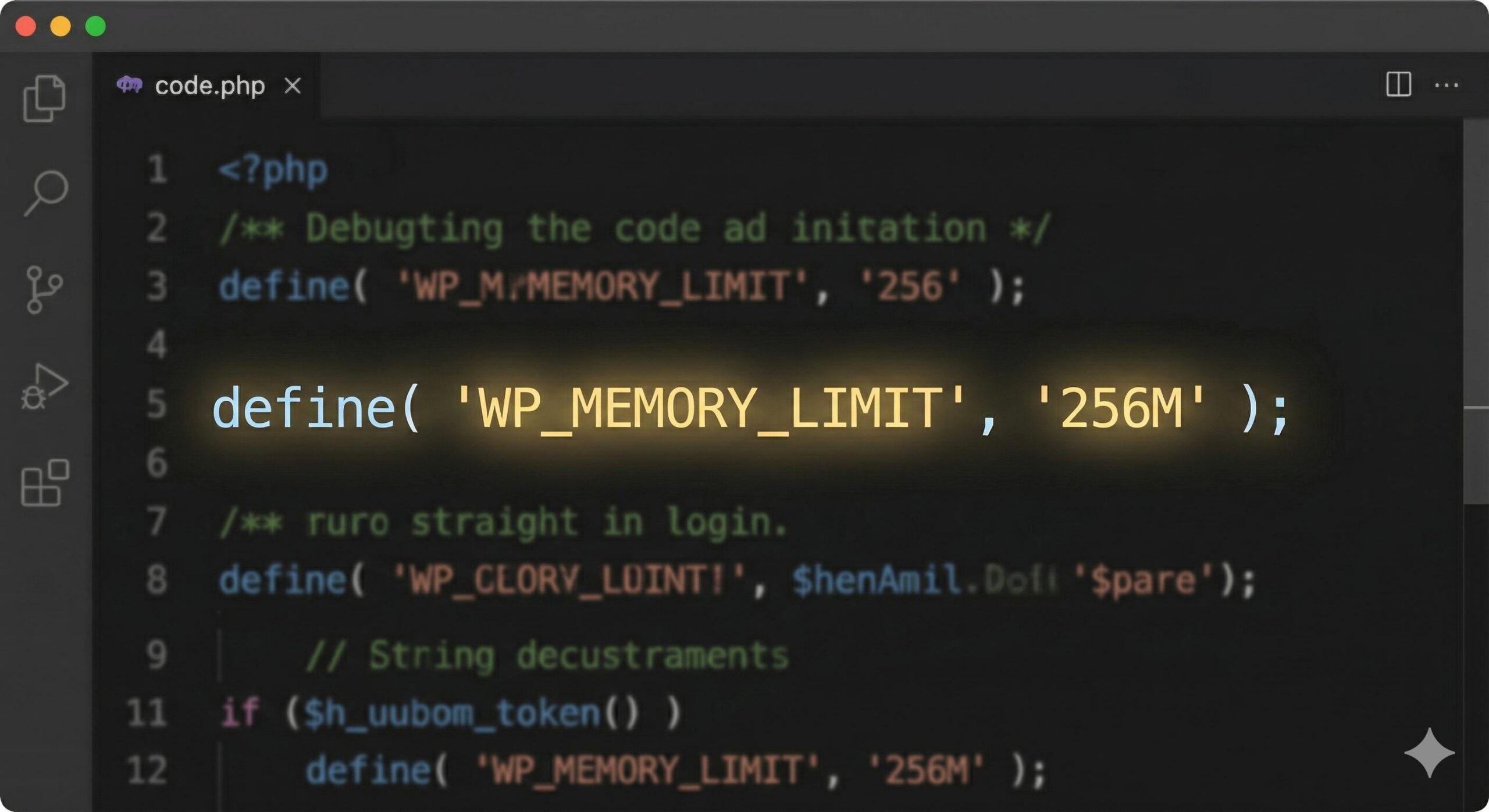
If your memory limit is set to 64MB or 128MB, you will likely face import failures. You can try to increase this by editing your wp-config.php file. Add the following line before the “That’s all, stop editing!” comment:
define( 'WP_MEMORY_LIMIT', '256M' );
Step 2: Check for Plugin Conflicts
Sometimes, other active plugins interfere with the Astra Starter Templates plugin. Security plugins (like Wordfence) or caching plugins (like WP Rocket) might perceive the import process as suspicious activity or interfere with the script execution.
To fix Astra template import errors caused by conflicts:
- Navigate to Plugins > Installed Plugins.
- Temporarily Deactivate all plugins except for “Astra Pro” (if you have it) and “Starter Templates.”
- Attempt the import again.
- Once the import is successful, you can reactivate your other plugins one by one.
Step 3: Resolve cURL and API Connection Issues

Astra templates are hosted on external servers. To bring them to your site, your server uses a tool called cURL. If you see an error mentioning “cURL error” or “API Connection,” it means your server is struggling to talk to Astra’s library.
Common cURL Fixes:
- Contact your host: Ask them if
cURLis enabled and if there are any outgoing firewall restrictions on port 80 or 443. - SSL Issues: Ensure your site has a valid SSL certificate. Sometimes, an expired or improperly configured SSL prevents the “handshake” between your site and the template library.
Step 4: Handle XML and “Import Failed” Specific Errors
If the progress bar reaches a certain percentage (usually around 15% or 33%) and then stops, the issue is likely related to the XML Import process. This is where WordPress tries to generate the actual pages and posts from the template.
The ZipArchive Extension
WordPress needs to “unzip” the template files once they arrive. If your server is missing the ZipArchive PHP extension, the process will fail. You can ask your hosting provider to enable this via the cPanel PHP Version selector.
Clear the “Uploads” Folder Permissions
Ensure that your /wp-content/uploads/ folder is “writable.” If the folder permissions are set incorrectly (they should generally be 755), Astra cannot save the images it downloads, resulting in an import error.
Step 5: Troubleshooting Browser-Based Issues
Surprisingly, your web browser or local internet connection can also cause Astra template import errors. If your browser’s “timeout” setting is shorter than the time it takes to import the site, the connection will drop.
- Try a different browser: Switch from Chrome to Firefox or vice-versa.
- Incognito Mode: Sometimes browser extensions (like ad blockers) interfere with the WordPress admin interface. Try the import in an Incognito/Private window.
- Disable VPN: If you are using a VPN, your server might flag the IP change or the connection might be too slow for large file transfers.
How to Find and Read the WordPress Email Error Log (Beginner’s Guide)
FAQs: Frequently Asked Questions

Why does my Astra import stop at 15% or 33%?
This usually happens during the “XML data import” phase. It indicates that your server’s Max Execution Time is too low, causing the script to time out before it can finish creating the pages and posts. Increasing this value to 300 or higher usually fixes this.
Can I import Astra templates manually?
Currently, Astra does not offer a direct “manual upload” file for Starter Templates in the same way some other themes do. You must use the Starter Templates plugin. If the cloud import fails, you must resolve the server-side connection issues described above.
Do I need Astra Pro to fix import errors?
No. Astra template import errors happen on both the free and Pro versions. The fix is almost always related to your hosting environment (PHP limits or file permissions) rather than the license level of the theme.
What should I do if I see a “JSON” error?
A JSON error often means there is a conflict with a security plugin or a “Rest API” restriction on your server. Deactivating security plugins like Wordfence during the import process often resolves this immediately.
Conclusion
Learning how to fix Astra template import errors is mostly a matter of ensuring your hosting environment is friendly to the Astra Starter Templates plugin. Most issues are resolved by simply increasing the PHP memory limit, ensuring the ZipArchive extension is active, or temporarily deactivating security plugins.
By following these steps, you can move past the technical hurdles and get back to what matters most: designing your beautiful new website. If you have tried all the steps above and still face issues, reaching out to your hosting provider’s support team with the specific error message is usually the best next step. They can check server-side logs that aren’t visible in the WordPress dashboard and ensure your site has the “muscle” it needs to complete the import.








