

Introduction: The Post-Update Panic
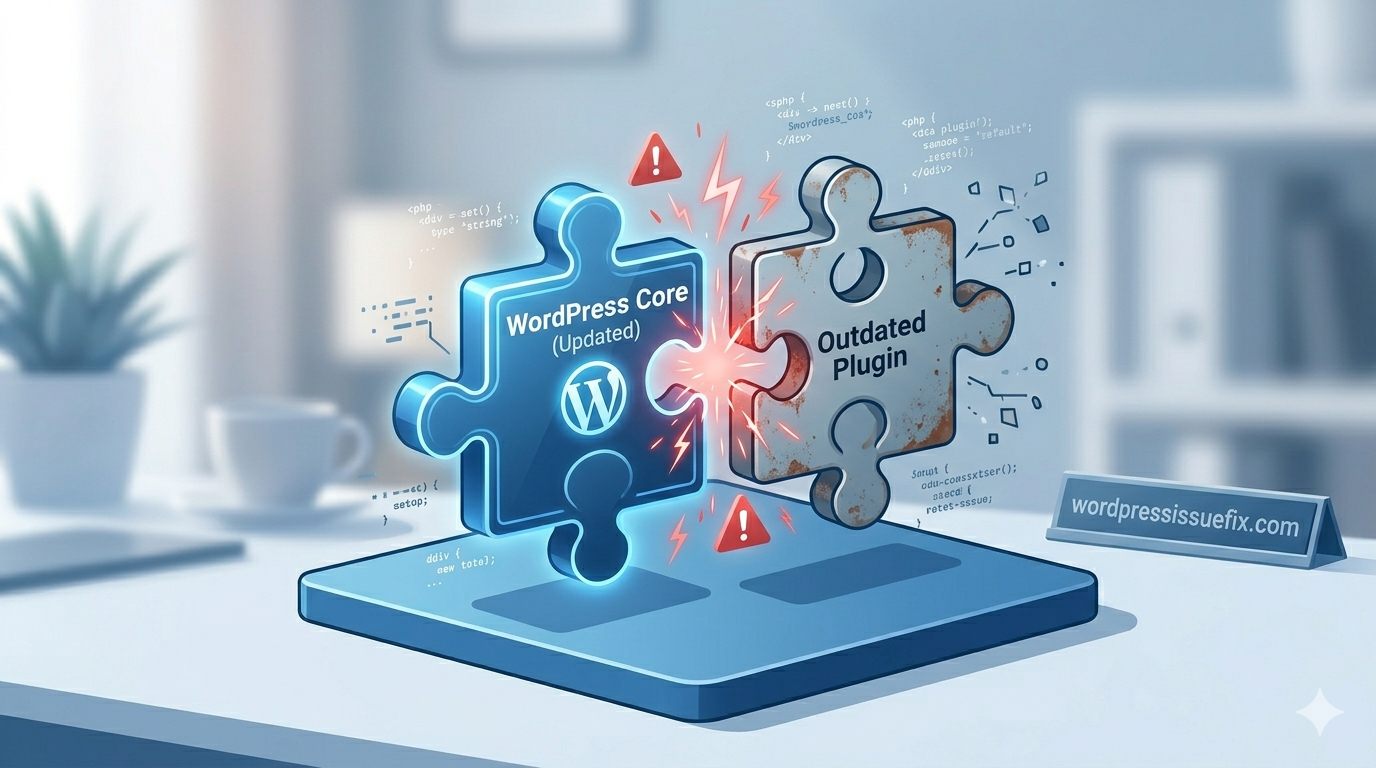
The worst feeling among website owners is pressing the ‘Update’ button, only for it to go white or for some mysterious error message to appear. If your WordPress Site Crashed After Update, You are not alone. Its a highly technical failure that happens whenever the last delivered batch of code through an update to WordPress core, an installed plugin or newly discovered theme comes in conflict with any other parts of your environment.
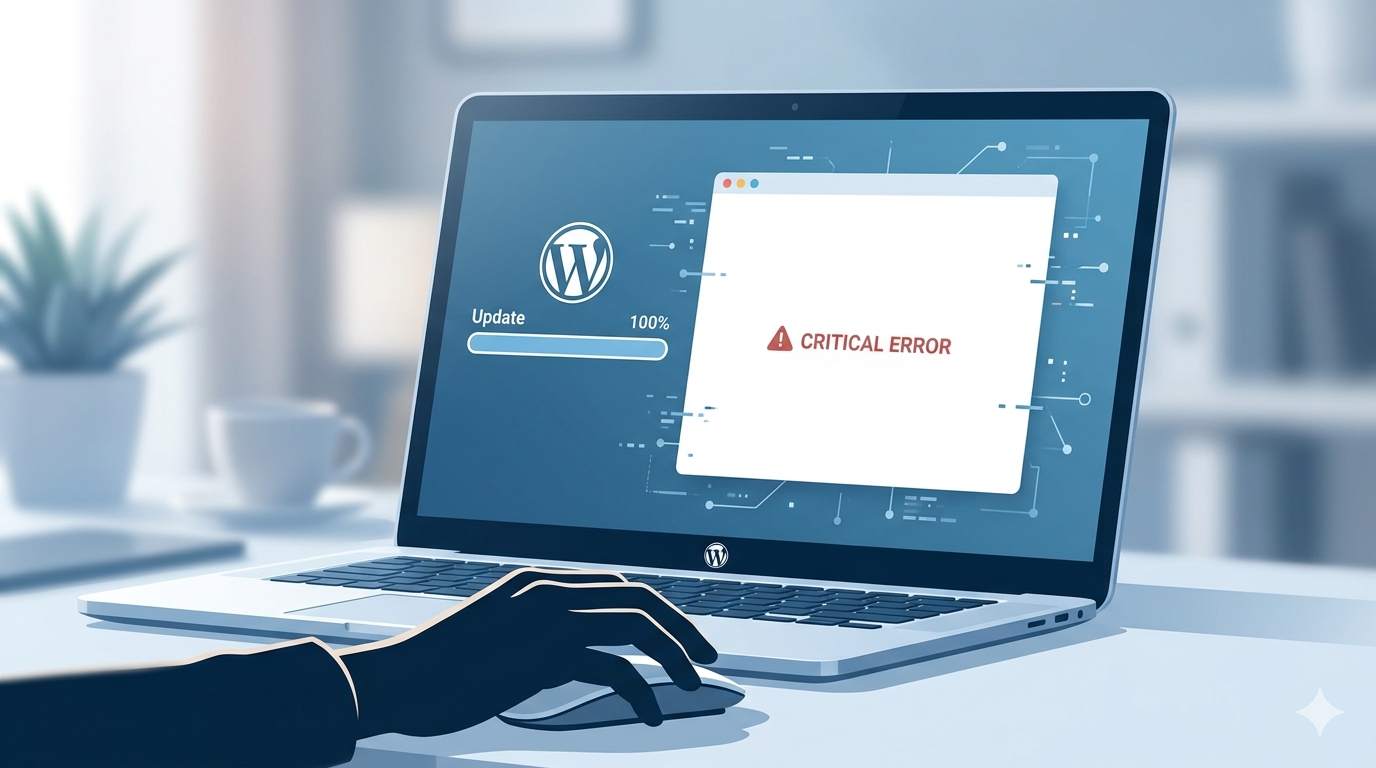
But, right after finishing the update process an error occurs like “White Screen of Death” or “Critical Error”. This also occurs due to unexpected code incompatibilities, server resource timeouts, or incompatible PHP versions. Now the whole website is seemingly gone with your database and content most likely still out there → they are just being stopped by a software conflict. This is where this guide comes in, as we go through the steps you need to take to find the functionality that is malfunctioning, and get your site back on track.
Table of Contents
Symptoms of a Post-Update Crash
When a WordPress site crashes after an update, it rarely deletes your content. Instead, it blocks access to it. You will typically see one of the following symptoms:
- The White Screen of Death (WSoD): Your website loads a completely blank, white page.
- The Critical Error Message: A plain gray screen displaying the text, “There has been a critical error on this website.”
- Stuck in Maintenance Mode: A message reading, “Briefly unavailable for scheduled maintenance.”
Step-by-Step Fixes for a WordPress Site Crashed After Update
1. Clear Stuck Maintenance Mode
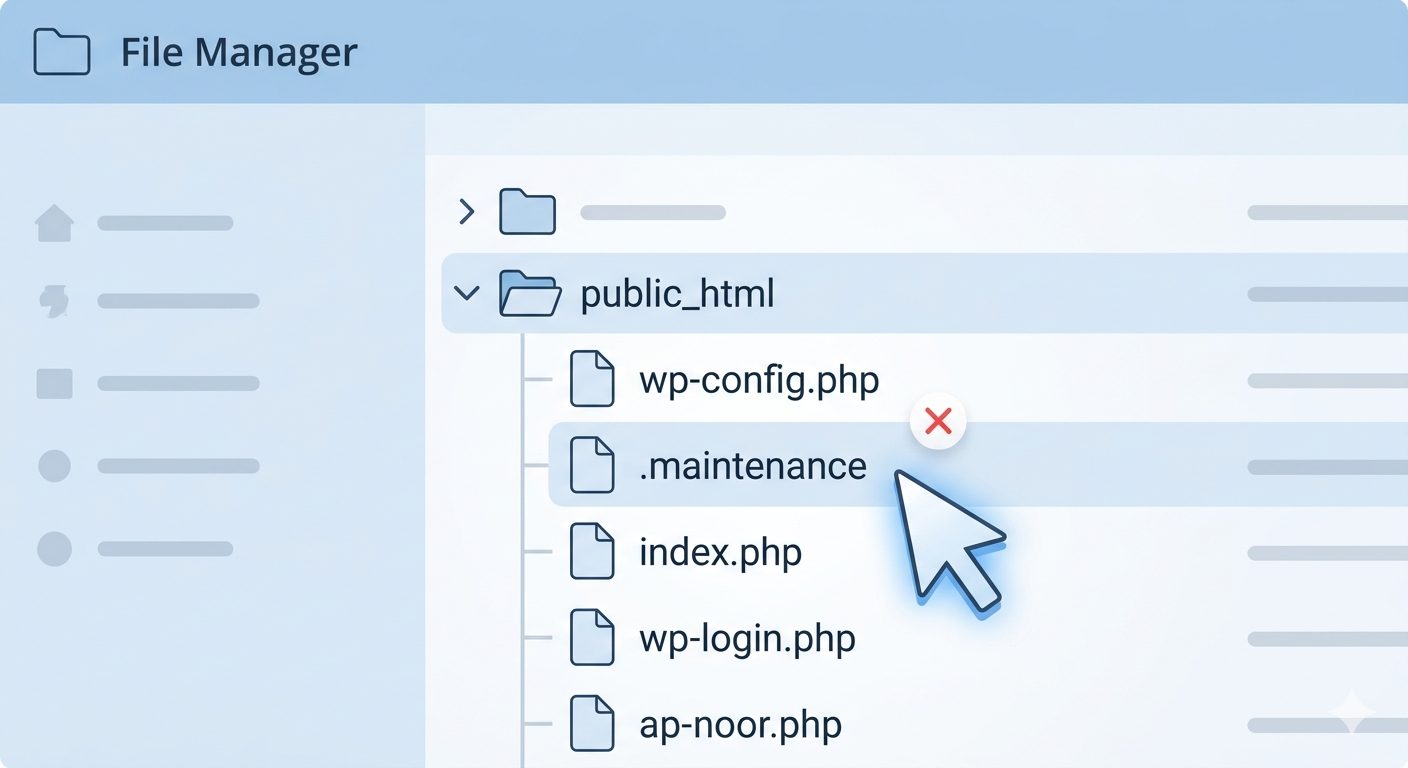
When WordPress starts an update, it creates a temporary file named .maintenance. If the update fails, this file stays behind and “crashes” the view for your visitors.
- Log into your hosting File Manager.
- Navigate to your root directory (
public_html). - Delete the
.maintenancefile. - Refresh your website.
2. Utilize the Recovery Mode Email
WordPress often detects when a plugin or theme causes a fatal error and sends an email to the site admin.
- Check your admin email for a subject line like “Your Site is Experiencing a Technical Issue.”
- Click the unique recovery link provided.
- Enter your dashboard and deactivate the specific plugin WordPress has flagged as the cause.
3. Deactivate All Plugins Manually
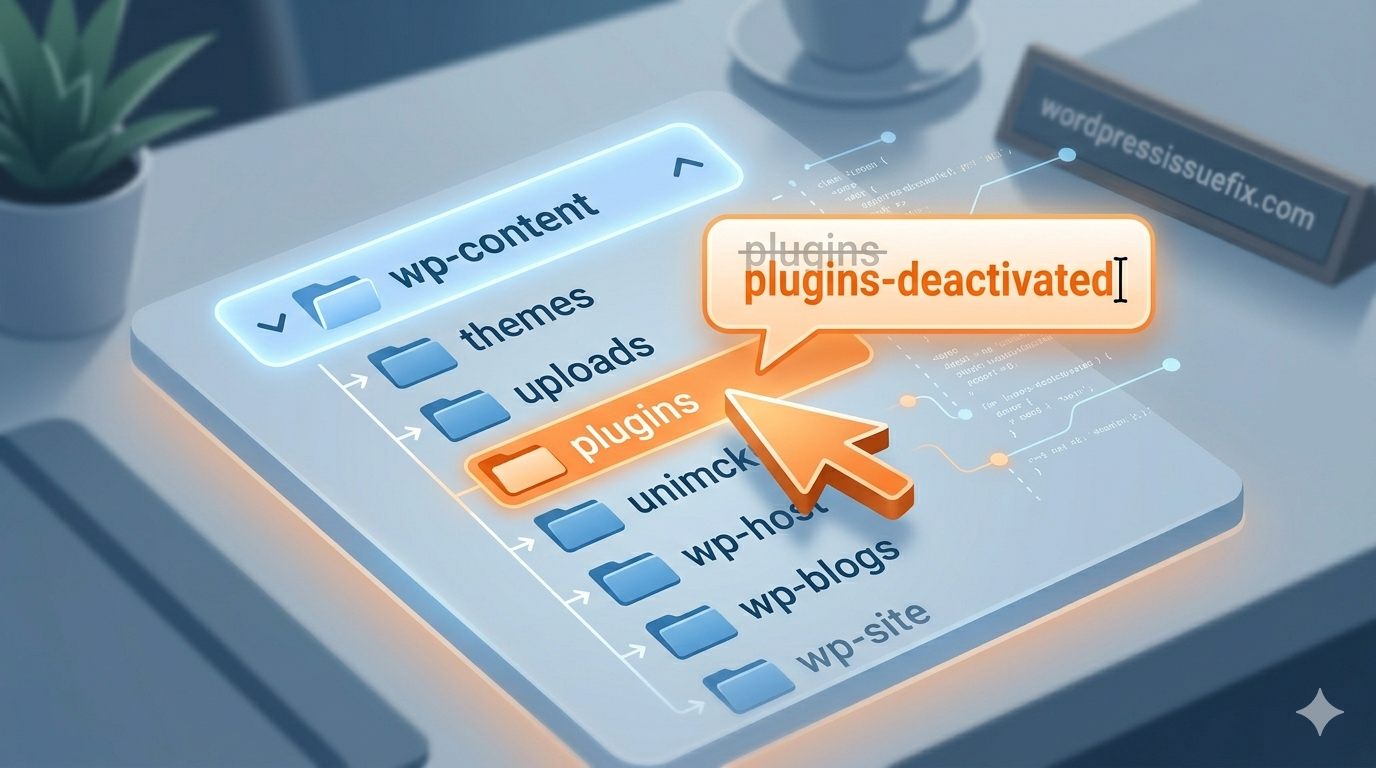
If you can’t reach your dashboard and your WordPress Site Crashed After Update, you must disable your plugins via FTP or File Manager.
- In your File Manager, go to
wp-content. - Rename the
pluginsfolder toplugins-deactivated. - Check your site. If it works, a plugin was the cause. Rename the folder back to
pluginsand reactivate them one by one to find the “broken” one.
4. Switch to a Default Theme
If plugins aren’t the issue, your theme might be incompatible with the new update.
- In
wp-content/themes, rename your active theme’s folder. - WordPress will automatically switch to a default theme (like Twenty Twenty-Four).
- If the site loads, you know your theme needs an update or a fix from the developer.
5. Restore from a Backup
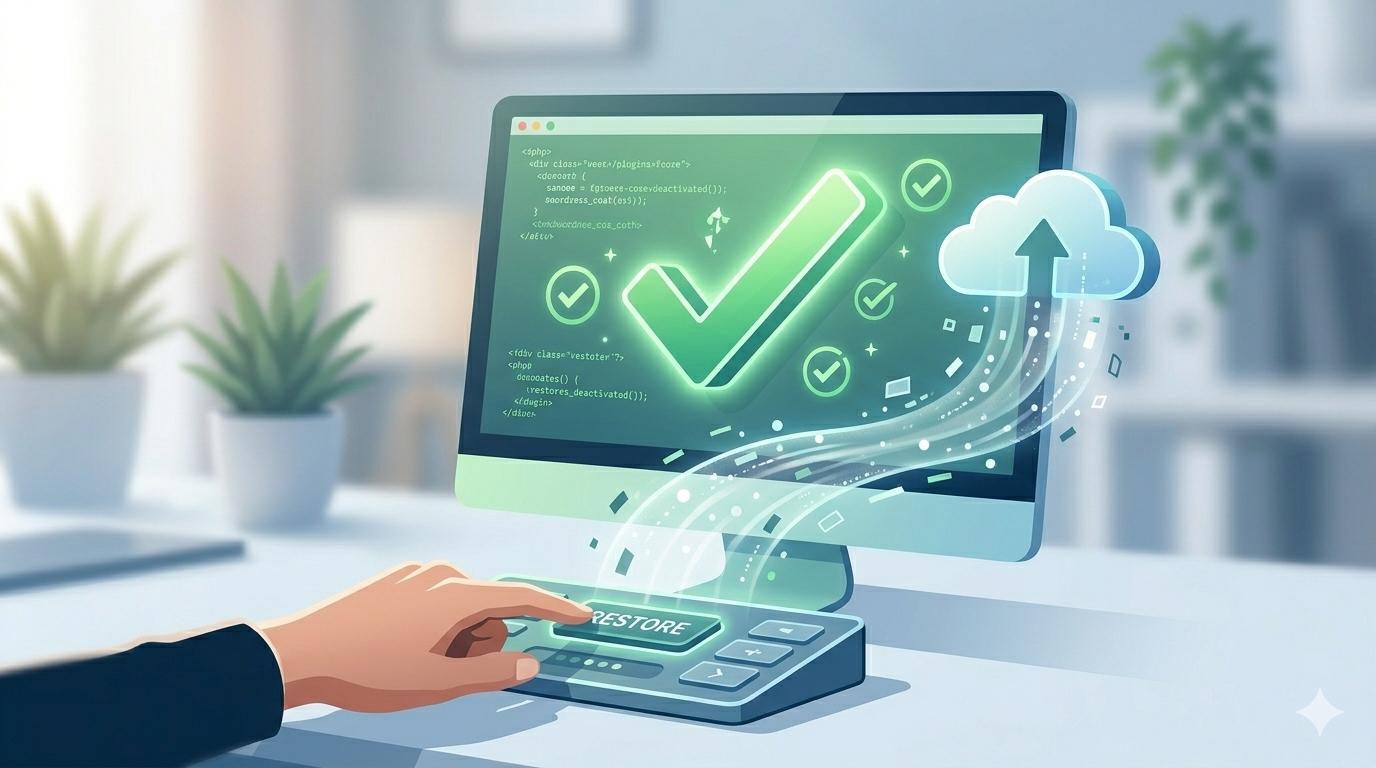
If the update corrupted core files, restoring a backup is the fastest way to get back online. Most hosts offer a one-click restore tool in their control panel. Choose a backup date from just before you clicked “Update.”
How to Prevent Future Update Crashes
Troubleshooting a WordPress site crashed after an update takes time and effort. Once your site is back online, follow these best practices to ensure smooth updates in the future.
- Always Backup Before Updating: Never click the update button without generating a fresh, full backup of your files and database first.
- Update One at a Time: Do not bulk-update all your plugins, themes, and WordPress core at the same exact moment. Update them individually so that if a crash occurs, you know exactly which piece of software caused the issue.
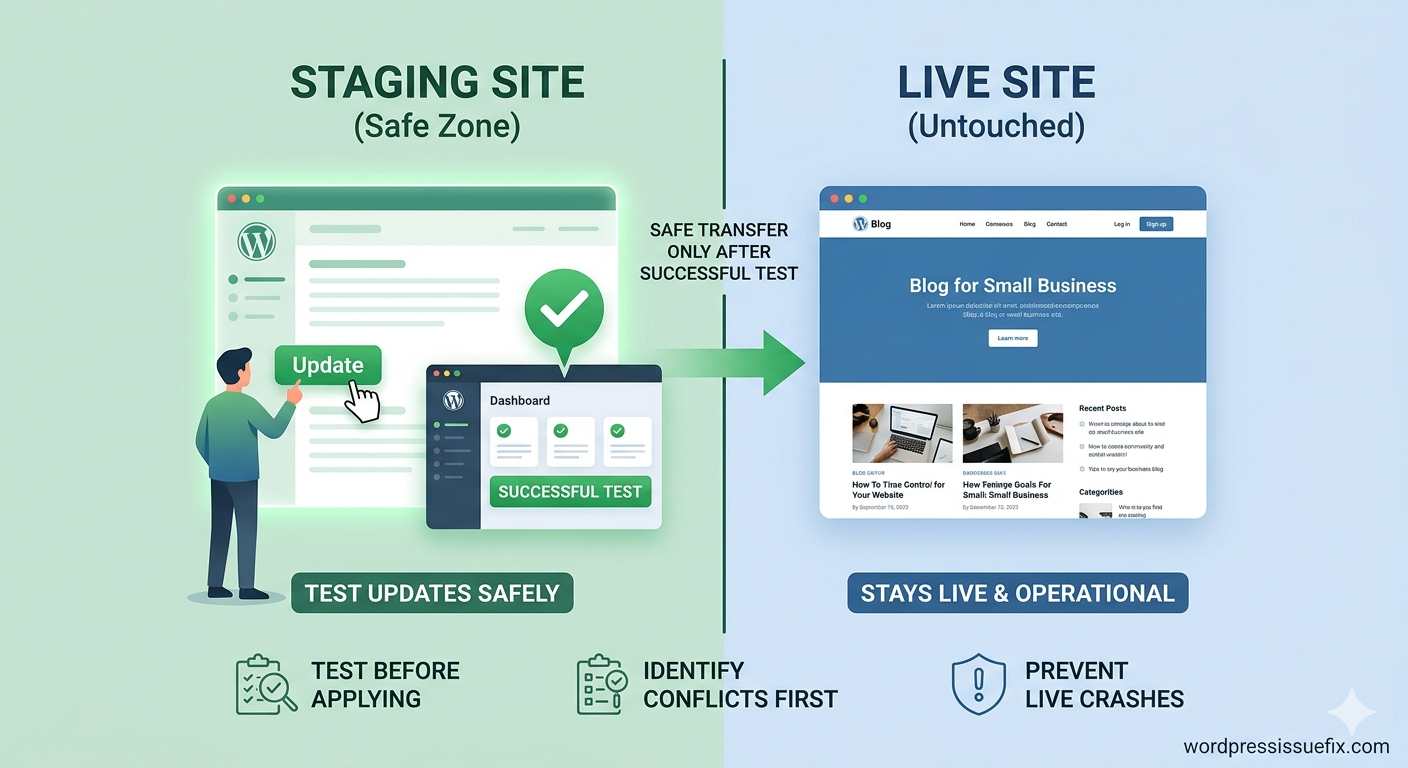
- Use a Staging Site: Most reliable web hosts offer a “staging” feature. This creates a private clone of your website where you can safely test updates. If the staging site crashes after an update, your live website remains completely unaffected.
How to Fix WordPress Stuck in Maintenance Mode: A Beginner’s Guide
Conclusion: Staying Proactive with Updates
One of the most common rites of passage among many a blogger and WordPress site administrator is dealing with this situation: A successfully updated site that cannot be accessed afterwards. As annoying as that is, the solution is usually pretty cut-and-dry so troubleshooting which plugin or theme actually creates the conflict should be done and deactivated.
Always ensure that you have a backup before clicking on the update button so we will not be repeating this mistake again. Plus, I suggest updating your plugins one by one, not in bulk; this means that you immediately know which plugin update caused the crash. If you follow the troubleshooting guidelines, you can keep your WordPress site working correctly and securely.
FAQ: Frequently Asked Questions
1. Will I lose my blog posts if my WordPress site crashed after an update?
No. Your blog posts, pictures and pages are by default, are all stored safely in your website’s own database, in just about every case you’ll ever find. The crash’s are often a “front-end” or “code-level”, meaning the files aren’t communicating, but the data itself is still there.
2. Can I prevent a “WordPress site crashed after update” error?
While you can’t prevent every conflict, you can minimize the risk by:
- Keeping your PHP version updated.
- Only using reputable, frequently updated plugins and themes.
- Testing updates on a “Staging Site” before applying them to your live website.
3. What should I do if I can’t find the recovery email?
In case you didn’t get an email, probably your server’s mail function is not well configured. In that case, apply the Manual Deactivation method referenced in Step 3 of this guide to determine the culprit of the crash.
4. Is it safe to keep using a plugin that crashed my site?
A plugin incompatible with your WordPress version or theme The other error is if any plugin causes a crash. Keep it deactivated and look for a new update from the plugin developer entirely. In the absence of such an update, it is best to find a replacement plugin that provides equivalent functionality.
5. Should I turn off automatic updates to avoid crashes?
Many experts prefer manual updates for the major core ones so that the site can be monitored immediately. However, some sources recommend leaving automatic updates for “minor” security releases enabled to keep your site safe from hackers.








