

Introduction
Moving to a new web host is an exciting step for your website, but seeing a “Not Secure” warning right after the move can cause immediate panic. If you need to know exactly how to fix SSL not working after WordPress migration, this article is written specifically for you.
What it means: Your website is failing to load over a secure, encrypted HTTPS connection after transferring your files and database to a new server environment.
Where it appears: Browsers will show a “Not Secure” message or a broken padlock icon to your visitors. Additionally, your WordPress admin dashboard might look broken or lack styling.
Why it happens: This specific issue triggers because your new hosting account lacks an active SSL certificate, your domain’s DNS is still pointing to the old server, or your migrated database contains outdated “http://” URLs.
This guide is for educational troubleshooting purposes to help you safely restore your site’s secure connection.
Table of Contents
Before You Begin: Secure a Fresh Backup
Whenever you are troubleshooting a post-migration error, safety comes first. Even if you just migrated your site, create a fresh backup of your WordPress files and database using a trusted plugin or your new host’s control panel. This ensures that if you make a mistake while fixing your SSL settings, you have a safe restore point.

Step 1: Verify the SSL Certificate on Your New Server
The most common misunderstanding about website migrations is assuming that your SSL certificate automatically moves with your website files. In most cases, it does not. SSL certificates are tied to the server environment.
When you point your domain name to your new web host, the new server needs its own SSL certificate.
- Log into your new hosting account control panel (like cPanel, Plesk, or a custom dashboard).
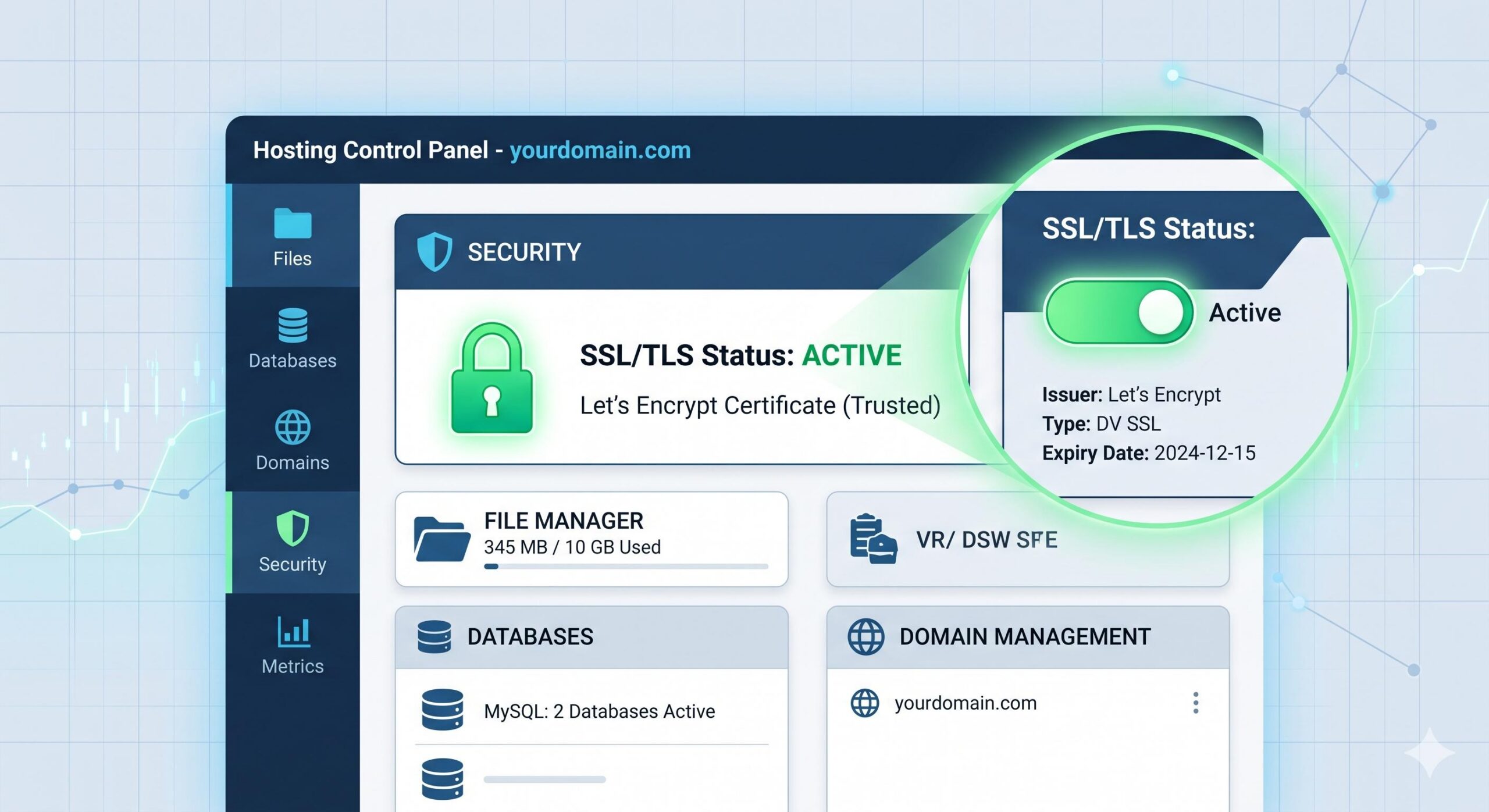
- Look for the SSL/TLS Status or Security section.
- Check if a certificate (like Let’s Encrypt or AutoSSL) is active for your domain.
- If it says “Unsecured” or “Pending,” manually click the button to Run AutoSSL or Issue a New Certificate.
Note: Free SSL certificates usually require your domain’s DNS to fully point to the new server before they can activate. If you changed your nameservers less than 24 hours ago, you may need to wait for DNS propagation to finish before the certificate can be applied.
Step 2: Update Your WordPress Site URLs
Once the server-level certificate is active, WordPress needs to know that it should be using it. During a migration, WordPress sometimes retains the settings from the old environment, especially if the migration was done manually.
If you can still log into your WordPress dashboard:
- Go to Settings > General.
- Look at the WordPress Address (URL) and Site Address (URL) fields.
- If they begin with
http://, carefully change both tohttps://. - Scroll down and click Save Changes. You will likely be asked to log in again.
If you are locked out of your dashboard due to the SSL error, you can force the update via your wp-config.php file. Access your site files via FTP or your host’s File Manager, open wp-config.php, and add these two lines just above the “That’s all, stop editing!” line:
define( 'WP_HOME', '[https://yourdomain.com](https://yourdomain.com)' );
define( 'WP_SITEURL', '[https://yourdomain.com](https://yourdomain.com)' );
Step 3: Resolve “Mixed Content” Errors in Your Database
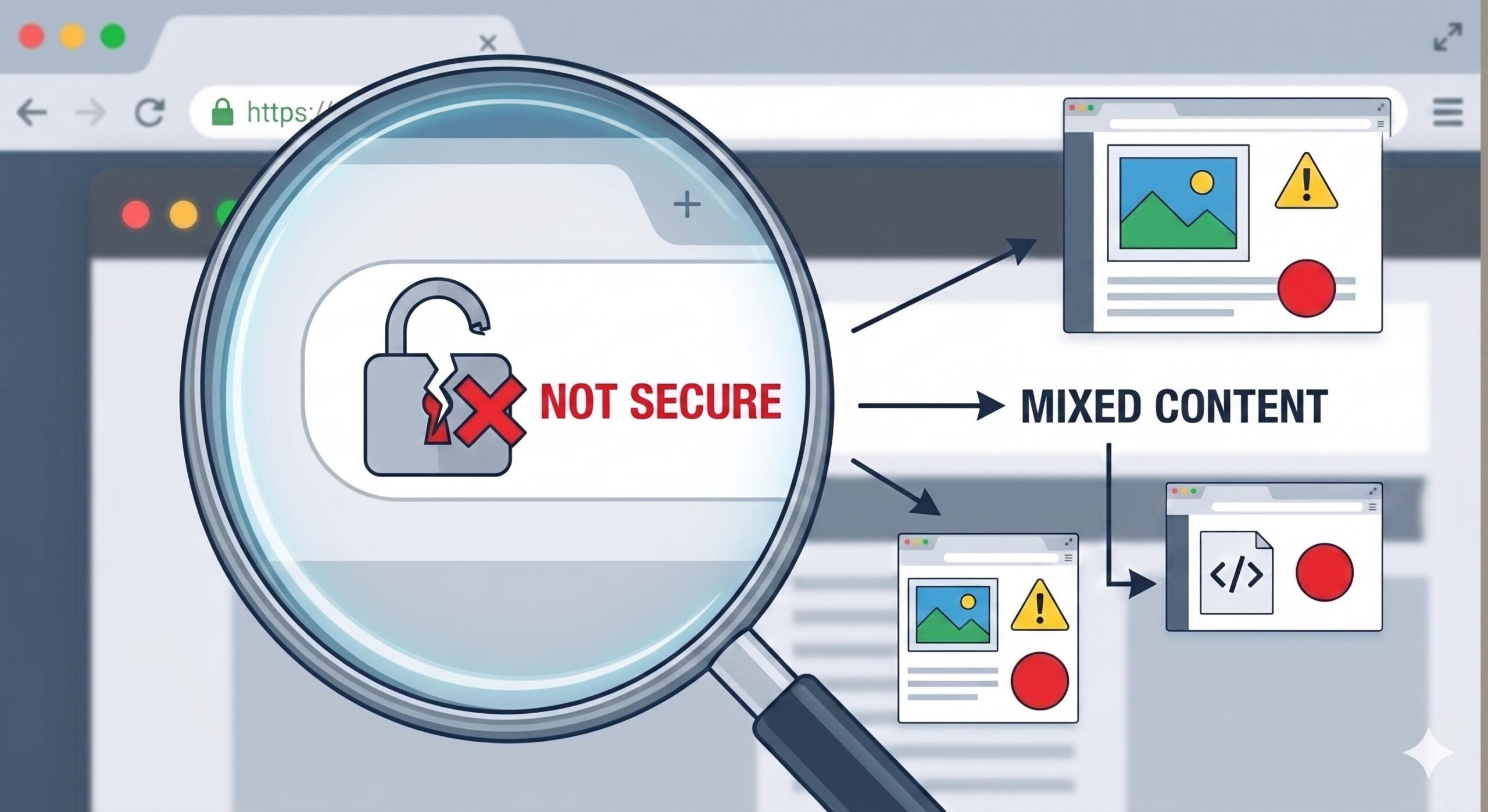
If you have a green padlock but your browser still says “Parts of this page are not secure,” or if your images are broken, you are experiencing a “Mixed Content” error. This is a very frequent hurdle when learning how to fix SSL not working after WordPress migration.
It happens because your database still has hardcoded links pointing to the old http:// versions of your images, internal links, and scripts.
To fix this safely:
- Install and activate a beginner-friendly plugin like Better Search Replace.
- Go to Tools > Better Search Replace.
- In the “Search for” field, type your old insecure URL:
[http://yourdomain.com](http://yourdomain.com) - In the “Replace with” field, type the secure URL:
[https://yourdomain.com](https://yourdomain.com) - Select all your database tables.
- Check the “Run as dry run” box first to see how many changes will be made safely.
- Uncheck the dry run box and run the replacement.
Step 4: Force HTTPS Redirects via .htaccess
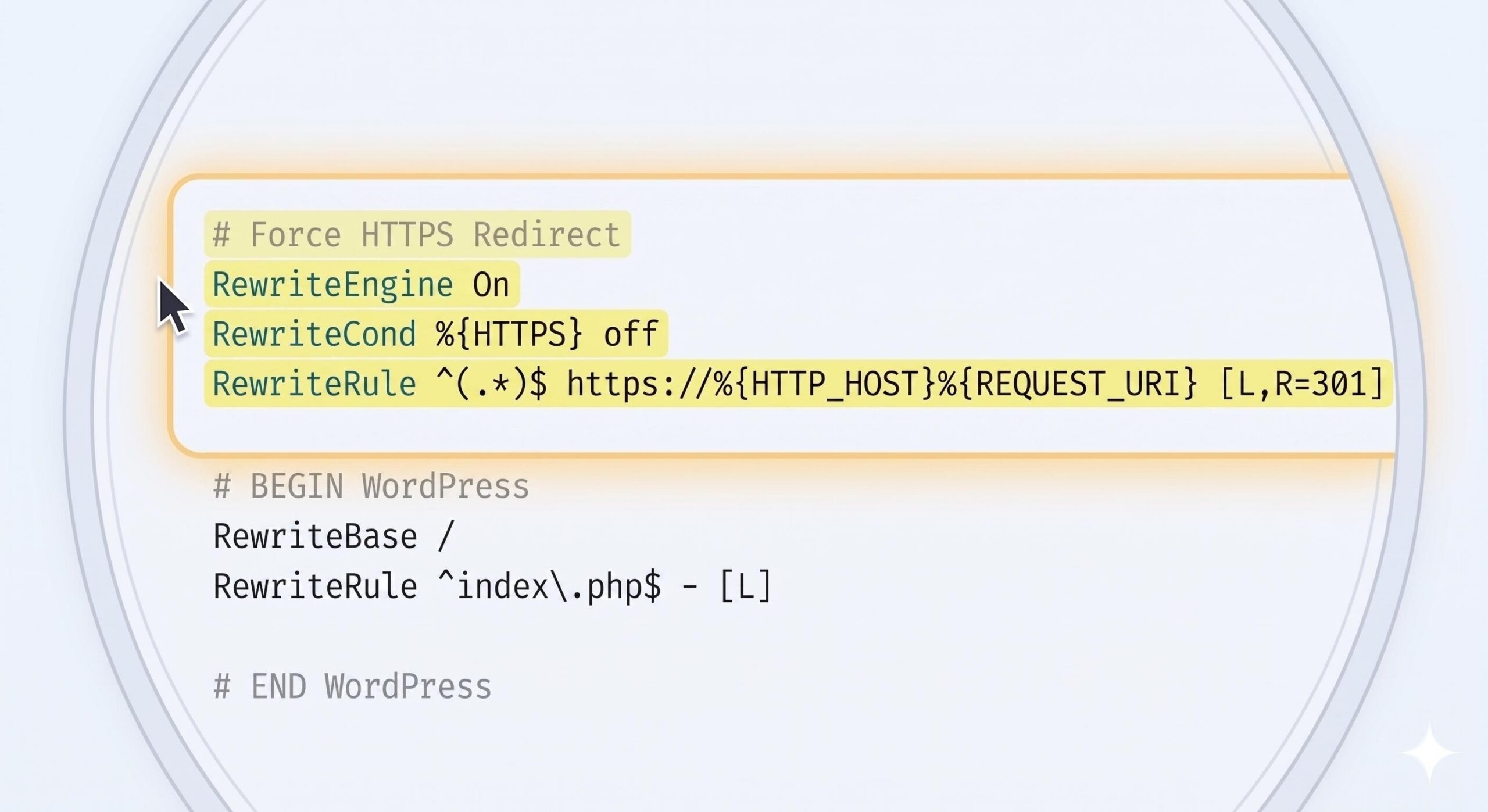
Now that your certificate is installed and your database is cleaned up, you need to ensure that any visitor who tries to visit the old HTTP version of your site is automatically bounced to the secure HTTPS version.
To do this, you must update your server’s .htaccess file (for Apache servers, which power most WordPress sites).
- Go to your hosting File Manager.
- Ensure “Show Hidden Files” is turned on.
- Locate the
.htaccessfile in your root folder (public_html) and edit it. - Add the following standard redirect rules at the very top of the file:
RewriteEngine On
RewriteCond %{HTTPS} off
RewriteRule ^(.*)$ https://%{HTTP_HOST}%{REQUEST_URI} [L,R=301]
Save the file. This tells web browsers to permanently redirect all insecure traffic to your protected site.
Step 5: Clear All Caches
If you have followed every step above but the SSL is still not working, your browser or server might be showing you a saved, outdated version of your website from before the migration.
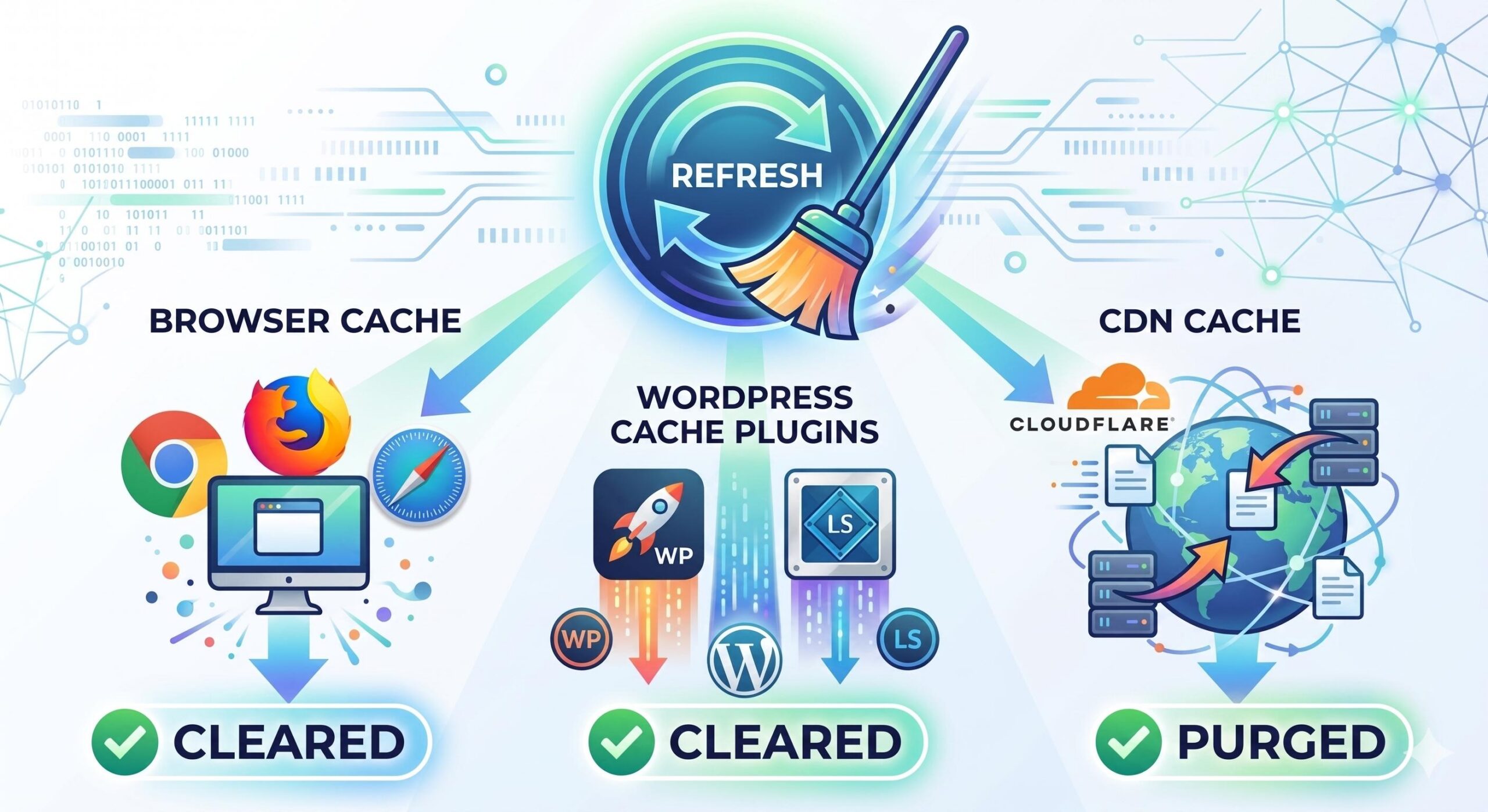
- Browser Cache: Clear your Chrome, Safari, or Firefox browsing history and cached images. Better yet, check your site in an “Incognito” or “Private Browsing” window.
- WordPress Cache: If you migrated caching plugins (like WP Rocket or LiteSpeed Cache), clear the cache from the plugin settings.
- CDN Cache: If you use a Content Delivery Network like Cloudflare, log into your CDN dashboard and purge the entire cache. Also, ensure your Cloudflare SSL/TLS encryption mode is set to “Full” or “Strict.”
The Best Way to Identify Conflicting Plugins Fast in WordPress
Frequently Asked Questions (FAQ)
To help you further navigate the technical hurdles of a site move, here are the most common questions regarding how to fix SSL not working after WordPress migration.
1. Why did my SSL certificate stop working as soon as I moved to a new host? When you migrate your website, the security certificate does not always transfer with your files and database. SSL certificates are typically issued by a specific server or host environment. Once you point your domain to a new server, that server must issue its own certificate to validate the secure connection. If the new host hasn’t auto-generated one yet, your browser will display the “Not Secure” warning.
2. I have an active SSL, but my site still says “Not Secure.” What is wrong? This is usually caused by “Mixed Content” errors. Even if your site has a secure certificate, some of your internal URLs for images or scripts might still be using the old http:// format in your database. To fix this, you must update your site URLs or use a plugin to perform a bulk search-and-replace to ensure every file and link uses https://.
3. I followed all the steps, but I still see the broken padlock. What should I do? If your settings are correct but the error persists, you are likely seeing a cache issue. Your browser, your WordPress caching plugin, or your CDN (like Cloudflare) may be storing an outdated, insecure version of your page. You must perform a full cache refresh—clearing the browser cache, flushing your plugin data, and purging your CDN—to see the live, secure version of your site.
4. Can I fix SSL errors by editing my WordPress files directly? Yes, if you are locked out of your dashboard, you can force your site URLs to be secure by editing your wp-config.php file. Additionally, adding specific redirect rules to your .htaccess file ensures that the server automatically pushes all visitors toward the encrypted version of your website. Always ensure you have a secure backup before making these changes.
Final Thoughts
Resolving post-migration connection errors simply requires matching your new server’s security settings with your WordPress database. By generating a new certificate on your new host, updating your internal URLs, and forcing a secure redirect, you have successfully learned how to fix SSL not working after WordPress migration. Your website is now secure, encrypted, and ready for your visitors.








