

Introduction
Welcome to WordPressIssueFix.com. Are you suddenly blocked from your website by a frustrating ERR_TOO_MANY_REDIRECTS error message? Don’t panic; your website data is safe. You are in exactly the right place to learn how to fix HTTPS redirect loop in WordPress.
What it means: An HTTPS redirect loop is an endless cycle where your server pushes a browser to the secure HTTPS version of your site, but a conflicting setting instantly forces it back to the insecure HTTP version. The browser eventually gives up and displays an error.
Where you encounter it: You will see this error directly in your web browser when trying to load your live website’s homepage or when attempting to log into your wp-admin dashboard.
Why it appears: This loop is caused by conflicting SSL configurations. It almost always appears immediately after installing a new SSL certificate, activating a Content Delivery Network (CDN) like Cloudflare, or using a third-party SSL plugin that clashes with your core WordPress settings.
Below, we will walk you through the most effective, beginner-friendly methods to resolve this exact error and get your website back online safely.
Table of Contents
Understanding the HTTPS Redirect Loop
Before jumping into the fixes, it helps to understand what is happening behind the scenes. When you install an SSL certificate, your website moves from http:// to https://. To make sure visitors use the secure version, you (or a plugin) set up a rule to redirect all HTTP traffic to HTTPS.
However, if your WordPress database or your CDN still thinks your site should be on HTTP, it tries to redirect the traffic back. The result is a tug-of-war. Your browser gets caught in the middle, bouncing back and forth until it crashes, resulting in the dreaded HTTPS redirect loop.
Because you likely cannot access your WordPress dashboard right now, the following troubleshooting steps will require you to access your site files using a File Manager (via your hosting control panel, like cPanel) or an FTP client (like FileZilla).
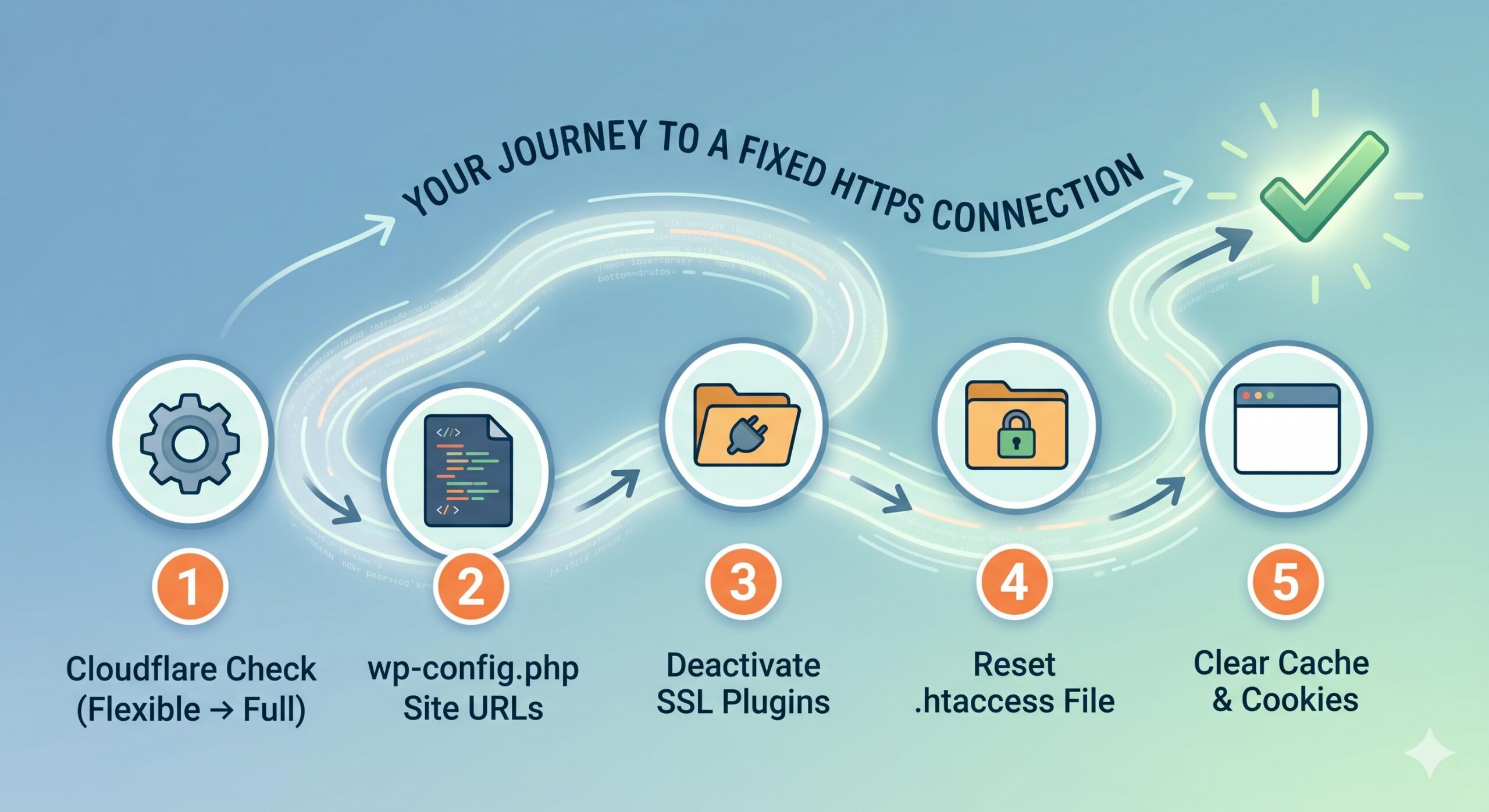
Step 1: Fix Cloudflare SSL/TLS Settings (Most Common Cause)
If you recently connected your WordPress website to Cloudflare, this is almost certainly why your site is trapped in an HTTPS redirect loop.
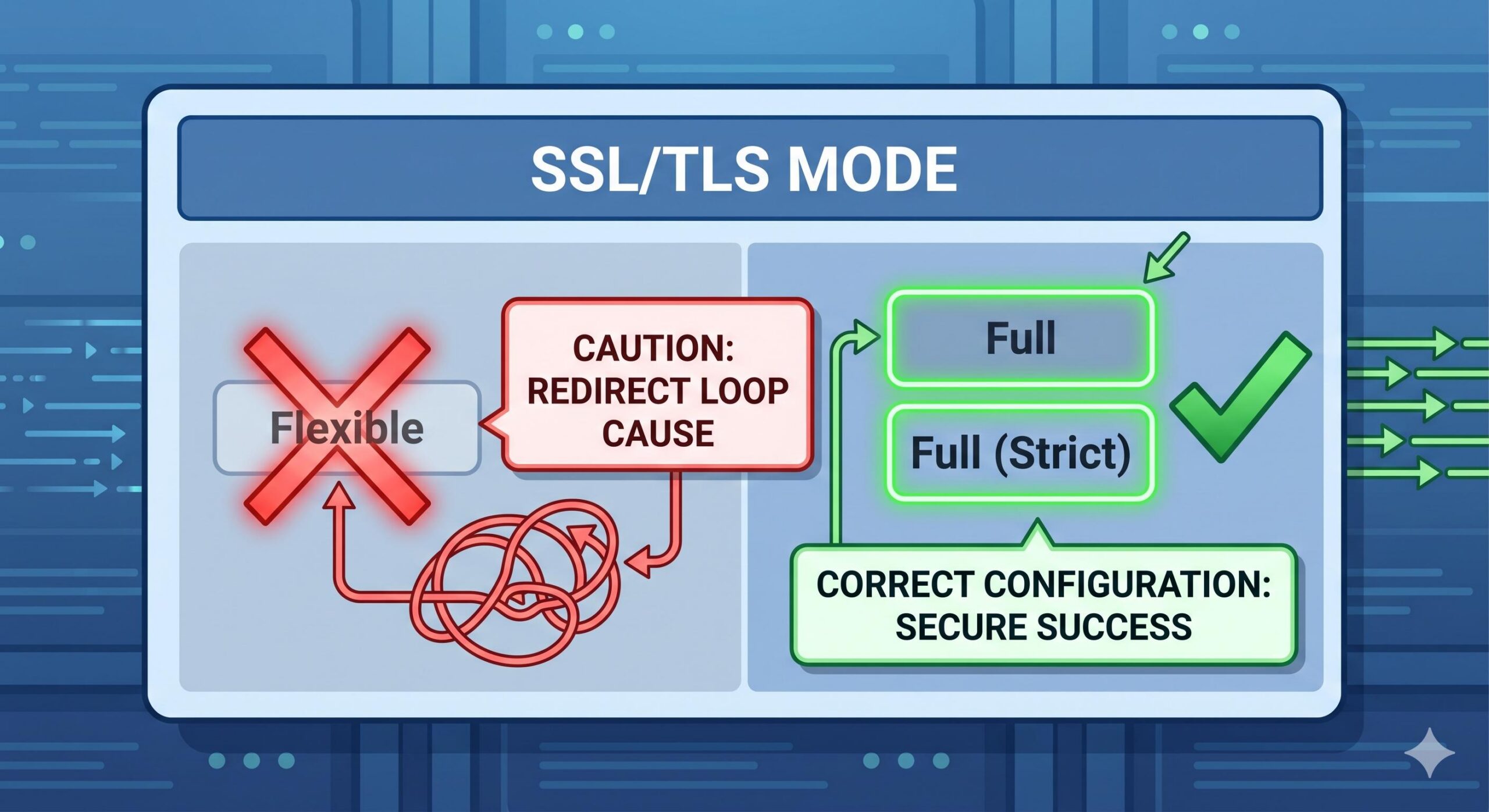
Cloudflare offers different levels of SSL encryption. If your web host already provides a free SSL certificate (like Let’s Encrypt), and your Cloudflare SSL is set to “Flexible,” it creates a massive conflict. The “Flexible” setting connects to your server over HTTP, but your server forces it back to HTTPS, triggering the loop.
How to fix it:
- Log into your Cloudflare Dashboard.
- Select your website.
- Click on the SSL/TLS tab in the left-hand menu.
- Under the Overview section, look at your encryption mode.
- Change the setting from Flexible to Full or Full (Strict).
Clear your browser cache and reload your website. In many cases, this instantly fixes the HTTPS redirect loop in WordPress.
Step 2: Correct Your WordPress URLs in wp-config.php
If Cloudflare isn’t the issue, your core WordPress settings might be pointing to the wrong URL scheme. Since you are locked out of your wp-admin dashboard due to the loop, you will need to force the correct HTTPS settings directly into your site’s configuration file.
How to fix it:
- Log into your web hosting account and open the File Manager (or use FTP).
- Locate your
public_htmlfolder (the root directory of your site). - Find the file named
wp-config.php. - Right-click the file and select Edit.
- Scroll down until you see the line that says:
/* That's all, stop editing! Happy publishing. */. - Just above that line, paste the following code, replacing
yoursite.comwith your actual domain name:
PHP
define( 'WP_HOME', 'https://yoursite.com' );
define( 'WP_SITEURL', 'https://yoursite.com' );
- Save your changes and check your website. This forces WordPress to strictly use the HTTPS version, cutting off the redirect loop at the source.
Step 3: Temporarily Deactivate Conflicting SSL Plugins
Many WordPress beginners use plugins like “Really Simple SSL” to force an HTTPS connection. While helpful, these plugins can sometimes conflict with your server’s native redirect rules, causing an endless HTTPS redirect loop.
How to fix it:
- Open your hosting File Manager or FTP client.
- Navigate to
public_html>wp-content>plugins. - Find the folder of your SSL plugin (e.g.,
really-simple-ssl). - Right-click the folder and Rename it to something like
really-simple-ssl-deactivated.
Renaming the folder instantly deactivates the plugin without deleting any of your data. If your site loads normally after doing this, you know the plugin was causing the loop. You can generally leave it deactivated if your web host already handles your SSL redirects automatically.
Step 4: Reset Your .htaccess File
Your .htaccess file controls how your server handles links and redirects. If a faulty redirect rule was written into this file during an SSL migration, it will force your site into an HTTPS redirect loop. Resetting it to the WordPress default will clear any bad rules.
How to fix it:
- In your File Manager, ensure you have “Show Hidden Files” turned on (usually found in the Settings at the top right of cPanel).
- Locate the
.htaccessfile in yourpublic_htmlfolder. - Right-click and Rename it to
.htaccess_old(this acts as a safe backup). - Now, check if you can log into your
wp-admindashboard. - If you can log in, go to Settings > Permalinks in your WordPress dashboard.
- Scroll down to the bottom and click Save Changes. You do not need to change any options; simply clicking the button forces WordPress to generate a brand new, clean
.htaccessfile.
Step 5: Clear Your Browser Cache and Cookies
Sometimes, you may have successfully applied the correct fix from the steps above, but your web browser has memorized the error. Browsers heavily cache redirects to load pages faster. If your browser remembers the HTTPS redirect loop, it will display the ERR_TOO_MANY_REDIRECTS page even if your website is actually fixed.
How to fix it:
- Press
Ctrl + Shift + Delete(Windows) orCmd + Shift + Delete(Mac) in your web browser. - Select Cookies and other site data and Cached images and files.
- Click Clear Data.
- Alternatively, try opening your website in an “Incognito” or “Private Browsing” window to see if it loads successfully.
Resolving Site Errors: The Best Way to Identify Conflicting Plugins Fast
Frequently Asked Questions (FAQ)
Will fixing the HTTPS redirect loop delete my website data?
No. Adjusting your Cloudflare settings, URL configurations, or .htaccess file will not erase your posts, pages, or images. Please note: This guide is for educational troubleshooting purposes. It is always highly recommended to take a full backup of your website before editing core files.
Why doesn’t my ERR_TOO_MANY_REDIRECTS error go away after deactivating plugins?
If you deactivated your plugins and the error persists, the loop is likely happening at the server or CDN level. Revisit Step 1 (Cloudflare settings) and Step 4 (resetting your .htaccess file), as these dictate redirects before WordPress even loads.
Can my hosting provider fix this for me?
Yes! If you are a beginner and feel uncomfortable editing your wp-config.php or .htaccess files, reach out to your web hosting support team. Mention that you are experiencing an “HTTPS redirect loop in WordPress,” and they can usually adjust your server’s SSL settings for you in a matter of minutes.
By following the steps outlined above, you should now understand exactly how to fix an HTTPS redirect loop in WordPress. Keep your SSL settings streamlined, avoid overlapping redirect plugins, and your website will remain secure and accessible for all your visitors!








