

Introduction
If you use a WordPress website, it could happen that your security scanner, hosting provider or Site Health dashboard suddenly tells you to remove dangerous plugins. What exactly does this mean? In short, this warning shows up when your site is using a plugin that has potentially serious security issues within it, either desupported by its publish or been removed from the official WordPress repository.
Usually you will see this notification in your WordPress admin; it is usually reported by some security plugin (like words) or an urgent email sent from your web host. It shows up because leaving these compromised tools turned on exposes your website to malware infections, data leaks, or surprise performance failures. Fortunately, the resolution is relatively easy and only requires intentional steps — a few of them actually.
Table of Contents
Why Do Plugins Receive This Critical Warning?
WordPress is a highly secure platform, but its ecosystem relies on thousands of third-party developers. When a plugin is flagged as a threat, it is usually due to one of the following technical reasons:
- Unpatched vulnerabilities: Researchers find bugs in plugin code regularly. Security firewalls will mark the extension as a critical risk if no patch is made available by developers to fix this bug.
- Blacklisted by Repository : You will violate the WordPress community guidelines when you are trying to embed invisible tracking code, scams scripts or spam links in your plugins. In such cases, WordPress forces the plugin to be removed from its directory.
- Not Currently Supported: The Internet changes too fast. An outdated plugin (and potentially its associated theme) will likely not work with the latest core version of WordPress and recent versions of PHP, which means you have a naturally unstable product that can contain CVE vulnerabilities.
- If You Downloaded Nulled Software: This is a premium plugin, but you got it at no cost from an unofficial third-party site. Such are invariably classified as high-risk threats.
How to Spot Dangerous Plugins on Your Website
You don’t have to be a cybersecurity genius to spot bad extensions. Your WordPress environment offers multiple clues when it is time to tidy up.
1. Security Plugin Alerts
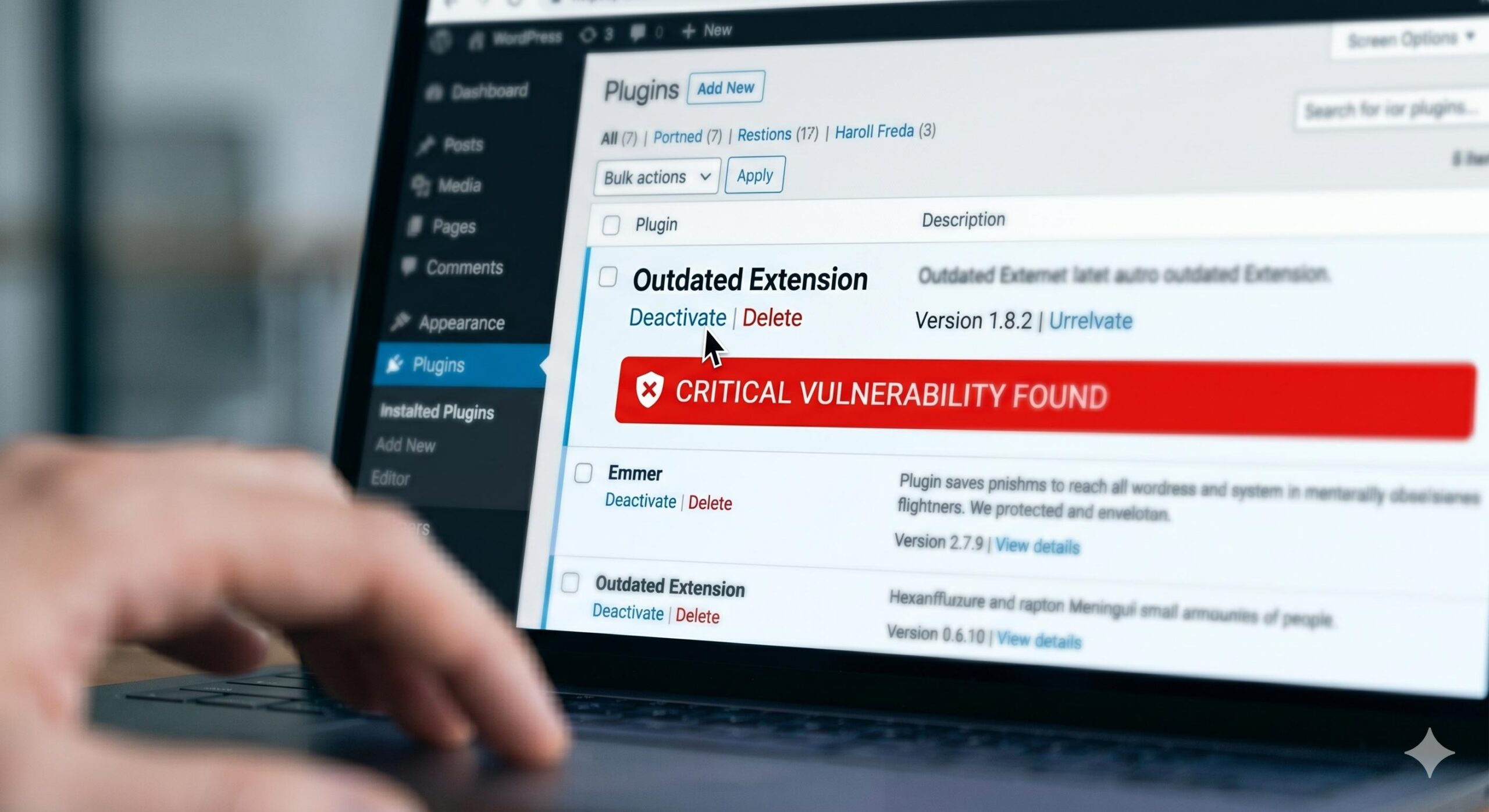
If you have a firewall or scanner, (Wordfence, Sucuri and Solid Security to name just three) then there is going to be an oversized red warning message on your dashboard. The scanning results will specify the dangerous plugins to be remove immediately and, in general, along with a CVE (Common Vulnerabilities And Exposures) tracking number.
2. The WordPress Site Health Tool
Go To Tools > Site Health from your WordPress dashboard. This native diagnostic tool will notify you when a plugin is inactive, ask if there are any extensions pending urgent updates, or that requires deprecated versions of PHP to run.
3. Missing Plugin Pages
And if, after clicking “View Details” on a plugin in your dashboard you receive the error: Error: The following plugins are missing from your WordPress installation. Plugin not found., even it will be removed them at all by WordPress from their official repository (for WP less 5.2). That’s a big red flag that the plugin can’t be trusted anymore.
Characteristics: Safe vs. Dangerous Plugins
To help you audit your current WordPress setup, here is a quick reference table comparing safe extensions with those you should eliminate.
| Feature | Safe Plugins | Dangerous Plugins |
| Last Updated | Within the last 1–6 months | Over 2 years ago |
| Support Forum | Active responses from developers | Unanswered, filled with error reports |
| Source | Official WP Repository or Trusted Developer | Shady third-party “free premium” sites |
| Compatibility | Tested with your version of WordPress | Untested with the current WP version |
Step-by-Step Guide: How to Safely Remove the Threat
Do not panic when your dashboard tells you to remove some dangerous plugins immediately. Agility rather than sloppy motions makes your way to maintain the vitality of your site.
Step 1: Create a Full Website Backup
Always backup your site structure before modifying it. Backup your database and files with a trusted backup tool (such as UpdraftPlus) or the built-in feature of your hosting provider.
Step 2: Deactivate the Plugin
In your WordPress dashboard, go to Plugins > Installed plugins. Locate the flagged software. Click the Deactivate button. This immediately prevents the plugin code from running on your site, protecting you right away.
Step 3: Delete the Plugin Completely
Deactivating is doesn’t do enough, as the inactive files sit on your server and are open for malicious bots to target you. When deactivated, a red Delete button shows up. Click it, and confirm the deletion which will delete files completely from your hosting environment.
Step 4: Run a Fresh Security Scan
Now, delete the files and perform a new scan with your security plugin. So we check to make sure that the plugin did not create any backdoor files or admin accounts before it was deleted.
Step 5: Find a Reputable Alternative
If the plugin you just deleted provided a critical function for your business (like contact forms or SEO tools), search in the official WordPress repository to find an updated and well-reviewed alternative.
How to Prevent Installing Risky Plugins in the Future
The best way to handle WordPress issues is to prevent them from happening in the first place. You can keep your website running smoothly by adopting these simple administrative habits:
- Only Download from Trusted Sources: Do not use nulled versions of premium plugins Always download directly from the WordPress. org repo pod, or from trusted premium dev libraries.
- Check the “Last Updated” Date: Before hitting install, glance at right-hand sidebar of plugin page. If it says — Last updated: 3 years ago, please do not install.
- Enable Auto-Updates Strategically: Enable auto-updates whilst for protective plugins that handle security and upkeep, which allows you to receive patches inside the second they exit out.
- Keep Your Plugin Count Low: Only install plugins you absolutely need. The fewer extensions you have, the smaller your website’s attack surface becomes.
How to Detect Hidden Malware in WordPress: A Complete Troubleshooting Guide
Frequently Asked Questions (FAQ)
What happens if I ignore the warning to remove these plugins?
Neglecting its warning leaves your site vulnerable to the attacks of automated bots. Hackers are scanning the internet for sites with known vulnerable plugins running — and they will find your site. Keeping them installed may result in your site getting defaced, customer data being stolen or your domain being blacklisted by Google for distributing malware.
Will deleting a dangerous plugin break my website?
If the plugin controlled a major visual element (like a page builder or slider), that specific element will disappear or look broken. However, the core WordPress site will remain functional. It is always better to have a temporarily broken layout than a completely compromised website.
Can I just deactivate the plugin instead of deleting it?
No. Deactivating a plugin only stops it from running on the front end. The physical files remain on your web server, meaning hackers can still execute those files directly to gain unauthorized access. Complete deletion is required.
Disclaimer: This guide is for educational troubleshooting purposes. Always ensure you have recent, complete backups of your website before modifying your server files or plugin directory.








