

Introduction
Have you recently updated a tool on your website, only to find a broken layout or a White Screen of Death? You are experiencing a plugin clash. The best way to identify conflicting plugins fast is a systematic troubleshooting method used to pinpoint exactly which software is breaking your WordPress site. Users typically encounter this issue on their live website frontend or inside the WordPress admin dashboard. It appears because two plugins, or a plugin and your active theme, contain incompatible code, conflicting JavaScript, or duplicate PHP functions. Finding the culprit quickly saves your site’s functionality and reputation.
Note: This guide is for educational troubleshooting purposes.
Why Speed Matters When Troubleshooting Plugin Conflicts
The signs are rarely subtle when you have a conflict on your WordPress site. You may have missing checkout buttons in your WooCommerce store, a stuck admin dashboard, endless loading screens or fatal error messages. Your website is your digital shop front, and a broken site means lost traffic, unhappy visitors and possibly lower SEO rankings for every minute they are down. With no time to waste, you cant guess what tool is actually the one that causing it. You have got the fastest way to find conflicting plugins right so that you can get back your site to 100% working order with all permanent down time.
Table of Contents
Method 1: The Safest and Best Way to Identify Conflicting Plugins Fast (Using Troubleshooting Mode)
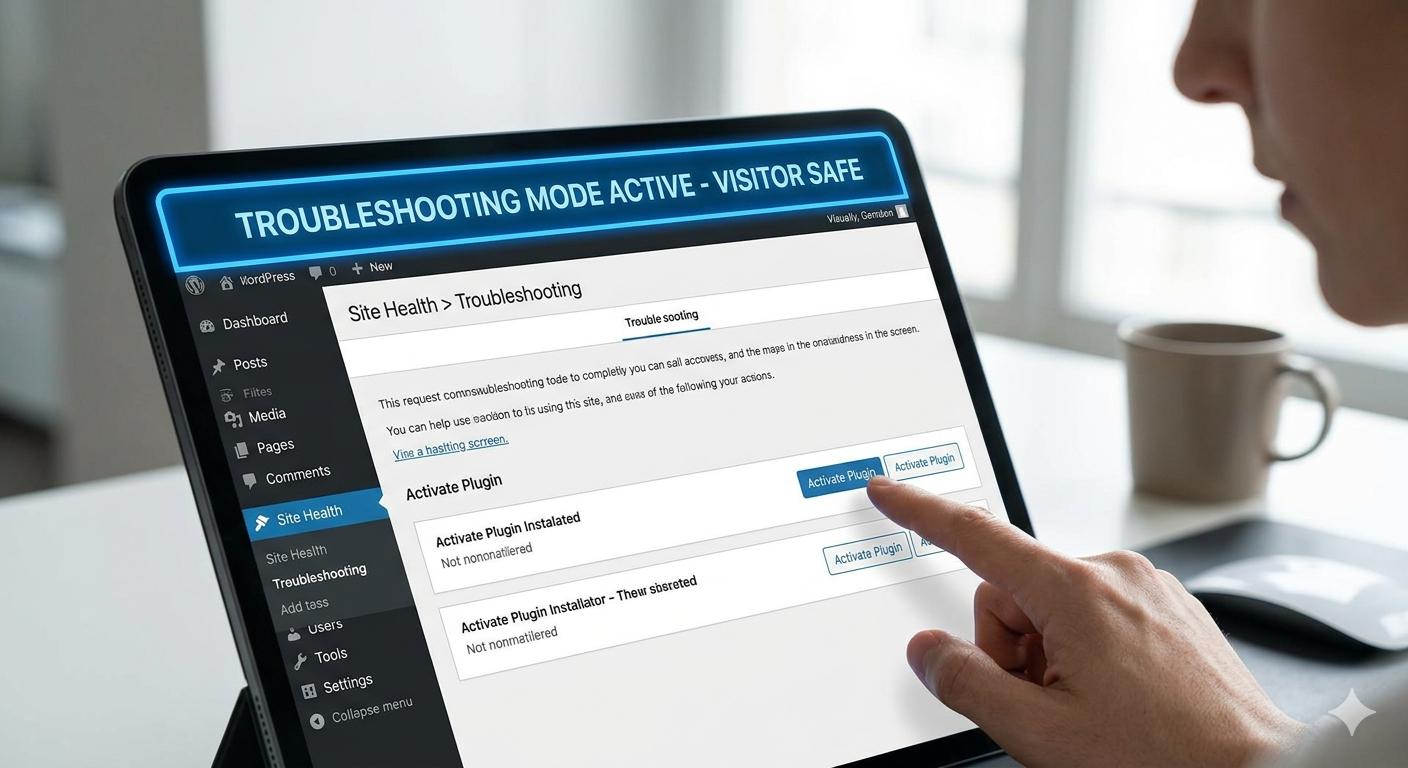
If you’re like most WordPress beginners and site administrators, the single best way to rapidly identify conflicting plugins is with the official Health Check & Troubleshooting plugin. This is the most recommended method because you can test your plugins safely in background without affecting what will be visible to live visitors. Whilst you search for what is wrong, your customers will still see your usual, functioning web site.
Step-by-Step Instructions:
- Install the Tool: Install the Plugin and go to WordPress Dashboard. Check that, navigate to plugins > Add New and search the Health Check & Troubleshooting (by WordPress. org community). Install and activate it.
- Inspect Troubleshooting Mode: Go over to Tools->Site Health, and push the Troubleshooting tab. Click the button that says Enable TroubleShooting mode.
- See the Blank Slate: Your WordPress dashboard will have all plugins disabled and a default theme (such as Twenty Twenty-Four) activated. Now fall this way, only for you; your visitors see the normal site.
- Confirm the Problem: Attempt to reproduce the error that you were facing If the error is no longer present, you have confirmed that a theme or plugin conflict exists.
- Reactivate One at a time: From the top admin bar go to Troubleshooting > Plugins. Toggle the plugins on one by one after which.
- Quick on the Culprit: Test your site after activating each individual plugin Repeat this process. Soon as your site breaks again, Bingo The plugin is the culprit for causing a conflict!
Method 2: The Classic Manual Way to Identify Conflicting Plugins Fast
If you cannot access your WordPress admin dashboard at all (such as during a White Screen of Death), you cannot install a troubleshooting plugin. In this scenario, the best way to identify conflicting plugins fast is the classic manual deactivation method using your web host’s File Manager or an FTP client.
Step-by-Step Instructions:
- Access Your Site Files: Login into web hosting account (cPanel) and find File Manager, or use FTP client such as FileZilla to connect your site.
- Locate the Plugins Folder: Go to public_html and open wp-content. The folder named plugins is located inside you.
- Deactivate All Plugins Instantly: You can rename, for example, plugins-deactivated the whole folder! This literally disables every single plugin on your site right this second.
- Check Your Website: Return to your website and reload the page If your site is functional again, you know a plugin conflict was the culprit.
- Restore the Folder Name: Head over to your File Manager and rename plugins-deactivated back to its original:plugins. (These plugins will still be turned off in the WordPress panel).
- Isolate the Error: Go to your WordPress admin dashboard. Go to the Plugins screen. Enable them one by one and test your live site after every click. The plugin you install that crashes the site right after activating is your conflicting software.
Method 3: Using Error Logs to Spot the Conflict Immediately
If you are slightly more technical, the absolute fastest way to pinpoint a bad plugin without deactivating anything is to read what WordPress is telling you.
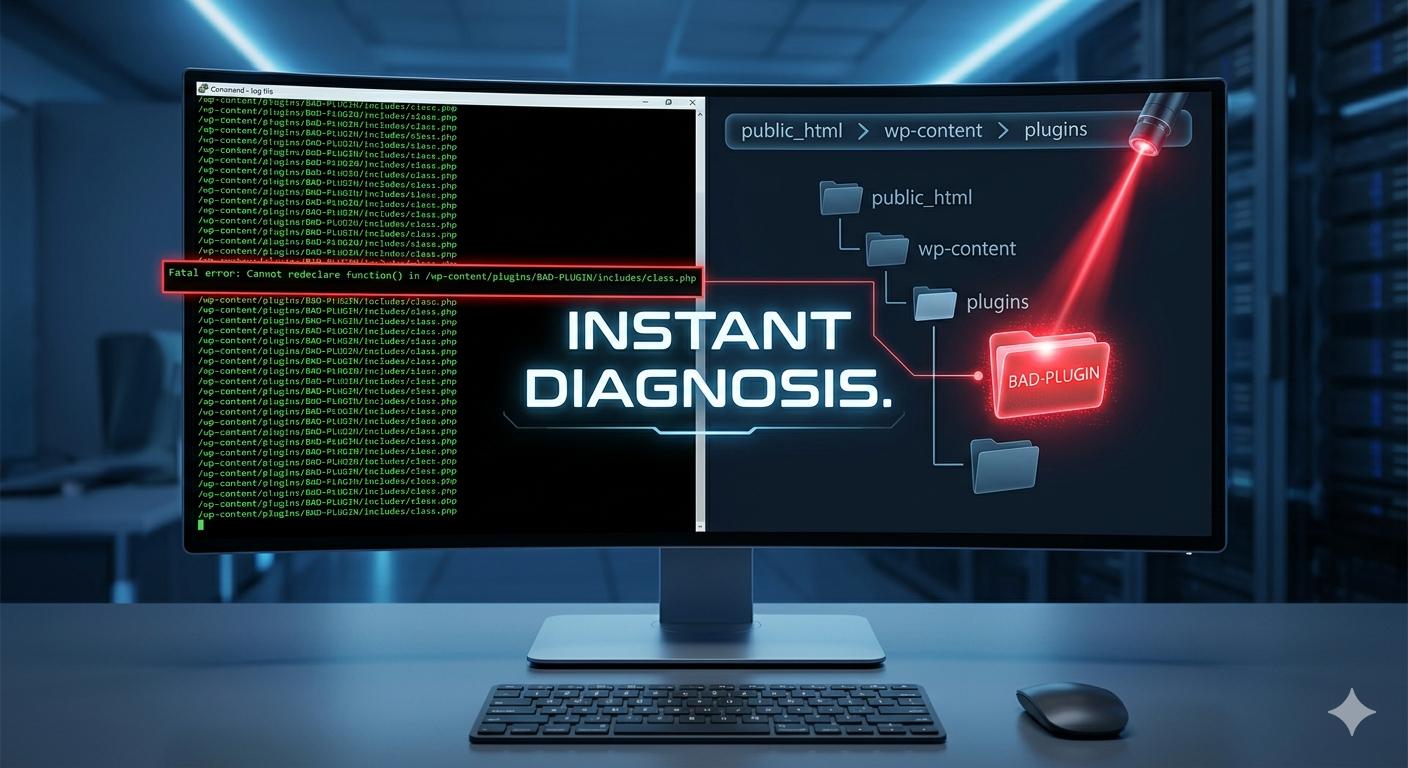
When a plugin breaks, WordPress often records the exact name of the failing plugin in a secret text file called an error log.
How to Reveal the Error:
- Access your site via FTP or File Manager.
- Locate the
wp-config.phpfile in your main directory and choose Edit. - Scroll down until you find the line that says:
define( 'WP_DEBUG', false ); - Change the word
falsetotrue. - Save the file and refresh your broken website.
Instead of a blank white screen, WordPress will now print a specific error message. Look closely at the text. It will almost always display a file path, such as:
Fatal error: Cannot redeclare function() in /wp-content/plugins/bad-plugin-name/includes/file.php
By reading that path, you can instantly see bad-plugin-name. You have just executed the most direct and best way to identify conflicting plugins fast. You can now delete or disable that specific folder via FTP to restore your site. (Be sure to change WP_DEBUG back to false when you are done!)
What to Do After Finding the Conflicting Plugin
Once you have utilized the best way to identify conflicting plugins fast and isolated the problem, you have a few safe options to fix your website:
- Rollback the Update: If the conflict started after a recent update, use a tool like WP Rollback to safely revert the conflicting plugin to its previous, stable version.
- Contact the Developer: Go to the plugin’s support forum on WordPress.org and report the conflict. Include the names of the two tools that are clashing. Developers are often quick to release a patch.
- Find an Alternative: The WordPress repository contains nearly 60,000 plugins. If a developer abandons a conflicting plugin, simply search for a highly-rated alternative that performs the same function.
How to Prevent Future Plugin Clashes
Troubleshooting takes time. To avoid needing to identify conflicting plugins in the future, follow these beginner-friendly best practices:
- Keep Everything Updated: Outdated software is the number one cause of conflicts. Keep your WordPress core, theme, and plugins on their latest versions.
- Minimize Your Plugin Count: Only keep plugins you actively need. If a tool isn’t serving a critical business purpose, delete it. Fewer plugins mean less chance of overlapping code.
- Use a Staging Site: Many modern web hosts offer a one-click staging environment. This is a private clone of your website where you can safely test new plugins and updates before applying them to your live site.
How to Fix AI Content Plugin Conflicts in WordPress
Frequently Asked Questions
Will deactivating plugins delete my website data or settings?
No, deactivating a plugin for troubleshooting purposes does not delete the settings associated with it or your site data. All of your configurations, forms and saved details are securely stored in your WordPress database. Which means that, once the plugin is re-activated, your settings will automatically be restored to where you left it.
How long does it typically take to find a plugin clash?
Using the Health Check & Troubleshooting method is often around 10 minutes to isolate an issue (and it’s definitely my recommended way of doing this for conflicting plugins). Your precise time will depend on how many plugins you have installed, but this systemised approach to working through your list makes it a ridiculously fast process.
Can having two plugins that do the same thing cause an error?
Yes this is amongst the most common reason for website crash. Two caching plugins running at the same time, two security firewalls working in sync or even two SEO tools usually end up duplicating codes and things that do work opposite causing WordPress to hrefbreak. To avoid these kinds of clashing, you should always use one dedicated tool per task.
Is it possible for a plugin to conflict with my WordPress theme?
Absolutely. Like plugins, themes also include complex PHP and JavaScript code. In case you have turned off all your tools if your website still exhibits a problem, the fixation might be between a particular module and also dynamic theme. For us to check if this error goes away, we can switch back to a default WordPress theme (such as Twenty Twenty-Four).








