

Introduction
How to Fix WordPress SSL After Domain Transfer, Do you Transfer Your Domain to Another Hosting and Now Looking For How To Fix Messed Up WordPress ssl domain Move? You are not alone. What is Mixed Content Error: The mixed content error indicates that after migrating your website with a new domain name or changing the hosting provider, the secure HTTPS connection of your site gets broken.
This particular issue is especially encountered directly by users when they visit your frontend, with the web browser displaying a frightening “Not Secure” message. You may also face login loops or mixed content warnings when you try to access the WordPress dashboard.
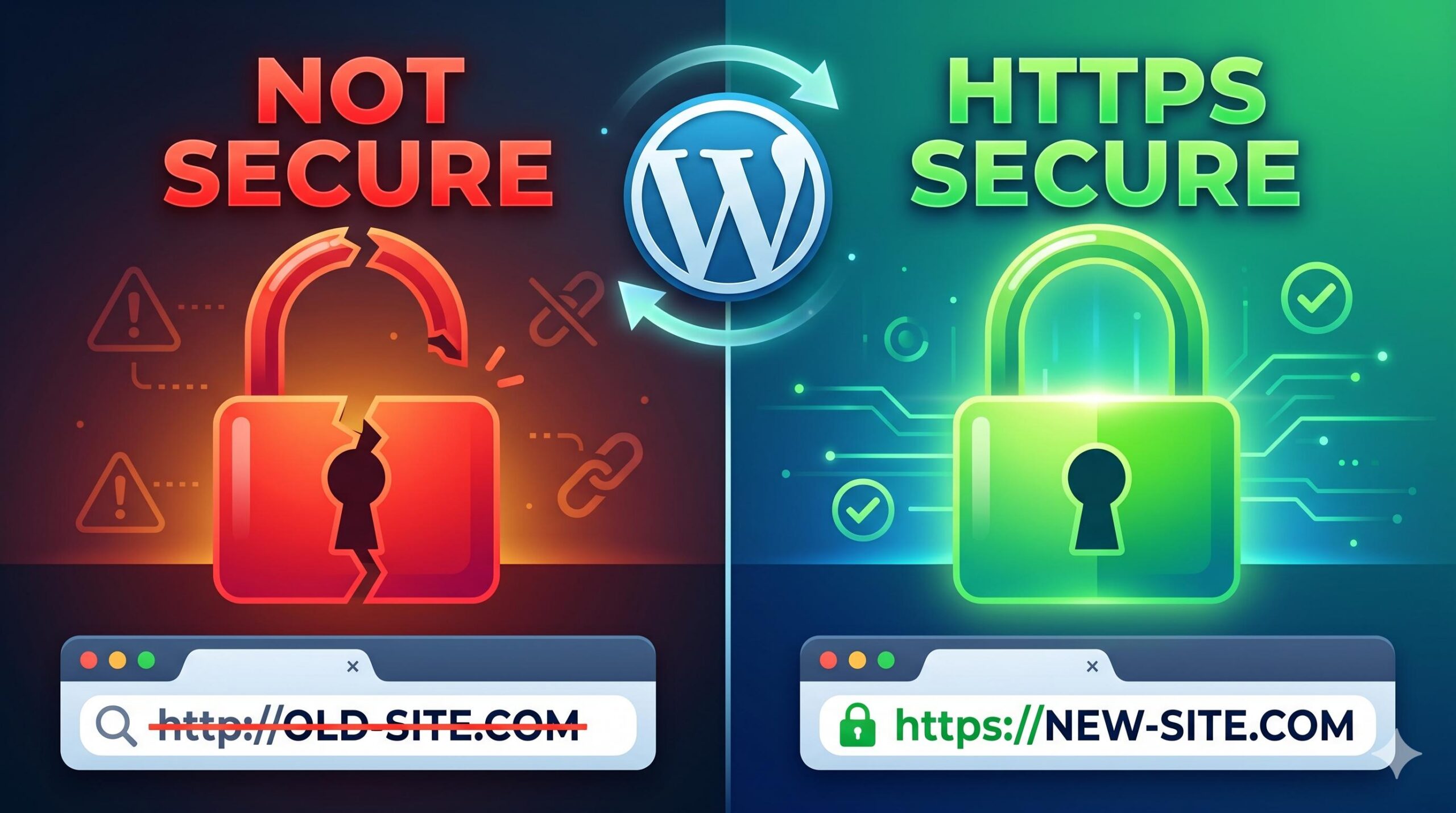
Why does this appear? SSL certificates are like a digital ID card, strictly tied to the exact domain names and server IP addresses. For example, when moving your domain to a new server — the previous certificate does not match that setting anymore or possibly you still have old HTTP links in database on WordPress?
Welcome to wordpressissuefix. com. This post will take you through the exact steps needed to restore your padlock in a nice simple beginner way.
Table of Contents
Why SSL Errors Happen After a Domain Transfer
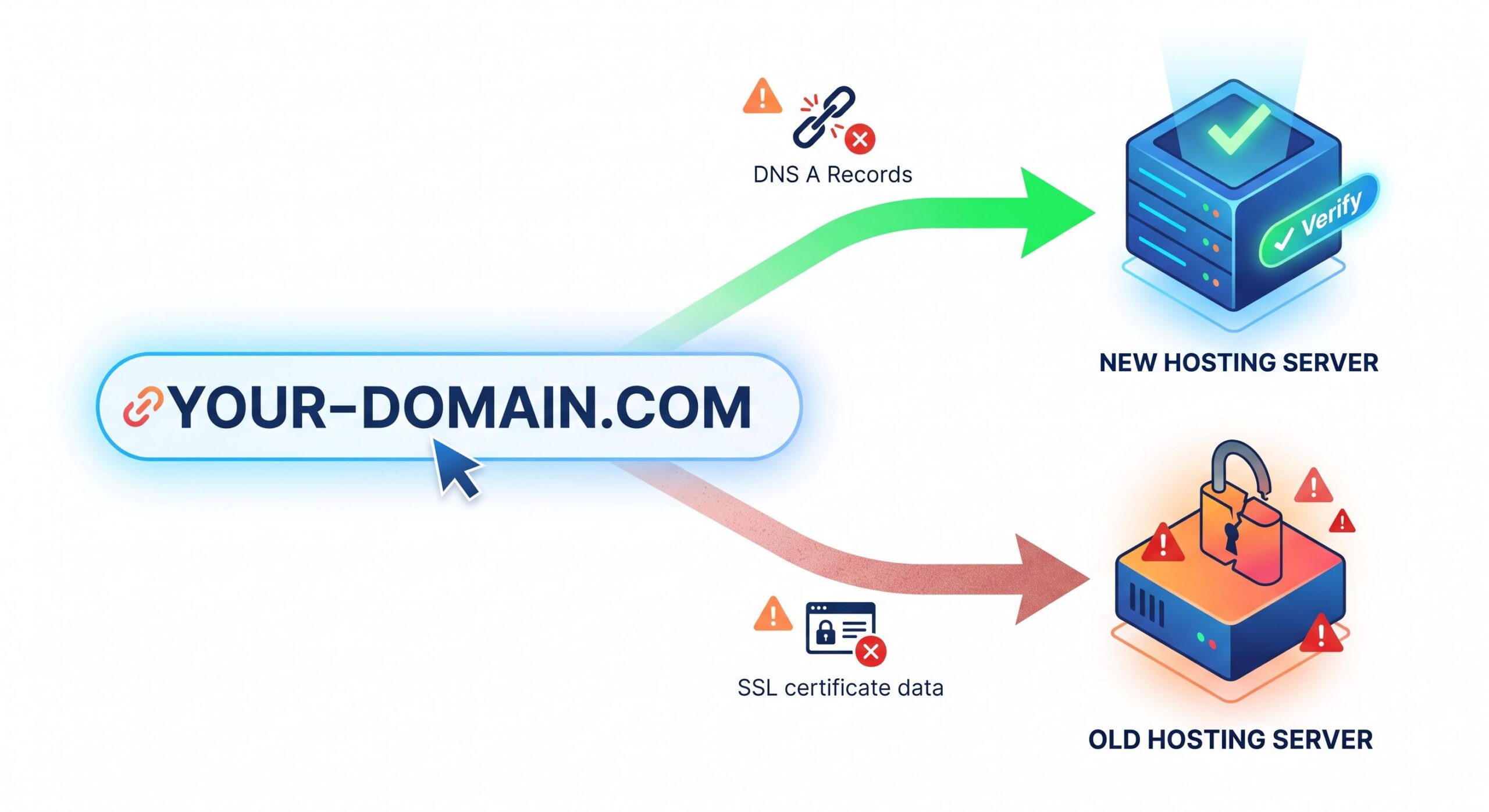
Now without wasting time in the resolution, knowing the reason behind this problem makes its troubleshooting much easier.!! Any typical walk through the negotiation about problem WordPress SSL after domain transfer, you are negotiating one of these three basic technical disagreements:
Propagation: After you update the DNS records of your domain to direct it to a different host, global Internet directories take time to refresh with this information. If the domain is still pointing to the old server, the new server will not be able to validate your SSL as it wont serve any traffic.
Invalid, Expired, or Non-Existent Certificates: Note that an SSL certificate from your old hosting account is not transferred to your new one automatically. You have to generate a different one for the server where it will be used.
Hardcoded Database URLs (Mixed Content): Although after having a new SSL working on your site WordPress might try to load images, CSS or scripts from the old domain name or insecure http:// method.
Here is the step-by-step process to resolve these errors and secure your site.
Step 1: Verify DNS Propagation
You cannot install a new SSL certificate until your domain successfully points to your new hosting provider.
- What to do: Use a free online tool like a DNS Checker to verify your domain’s A Record.
- What to look for: Ensure the IP address showing up globally matches the IP address provided by your new WordPress host.
- Note: If the records have not updated yet, you must wait. DNS propagation can take anywhere from a few hours to 48 hours. Attempting to fix the SSL before this completes will result in errors.
Step 2: Install a New SSL Certificate on Your New Host
Once your domain is pointed to the right server, you will issue a new certificate. Free Let’s Encrypt SSL certificates are standard among modern WordPress hosts.
- Access your hosting control panel (cPanel, Site Tools or custom host dashboard).
- Go to the Security or SSL /TLS section.
- Find an option that will say: Let’s Encrypt, Manage SSL or AutoSSL.
- In the dropdown menu, select your domain you transferred to and click Issue or Install.
- Allow some time for server to create the certificate and apply it.
Step 3: Update WordPress Address Settings
Your SSL certificate may be installed, but your site is still loading over regular HTTP – which means WordPress might be confused about its own address.
- Get on your WordPress dashboard.
- Go to Settings > General.
- Locate two fields that are labeled WordPress Address (URL) Site Address (URL).
- Make sure both URLs starts with https:// instead of http:// Make them show your proper domain name.
Scroll all the way down and hit Save Changes You may have to log-in again.
Step 4: Fix Mixed Content Errors
Normally, fixing mixed content is what you want to deal with when fixing WordPress SSL upon transferring your domain. This occurs when the primary site loads over HTTPS but older images or scripts are still attempting to load through insecure HTTP connections.
The safest method here for beginners would be to use a trusted plugin:
Option A: Really Simple SSL — this plugin detects your settings and configures your site to run over HTTPS automatically. All you have to do is install the plugin, activate it and click “Activate SSL”.
Option B: Better Search Replace (Recommended only if you want to update your database permanently. Install this plugin when running it for the first time.) Look for http:// old identifier and replace all it with https:// new identifier. Always take a complete database backup before applying search and replace tools.
Step 5: Force HTTPS Redirects via .htaccess
To ensure that no visitor ever accidentally lands on the insecure version of your site, you should force an HTTPS redirect. If you used the Really Simple SSL plugin, it usually handles this for you.
If you prefer to do it manually, you can edit your .htaccess file (found in your root WordPress folder via your host’s File Manager):
Add the following lines of code at the top of the file:
Apache
<IfModule mod_rewrite.c>
RewriteEngine On
RewriteCond %{HTTPS} off
RewriteRule ^(.*)$ https://%{HTTP_HOST}%{REQUEST_URI} [L,R=301]
</IfModule>
Save the file. This tells web browsers that your site now permanently lives on a secure connection.
Preventive Guidance: Avoiding SSL Issues in the Future
While knowing how to fix WordPress SSL after domain transfer is valuable, preventing the issue is even better. Next time you migrate a site:
- Lower your domain’s TTL (Time to Live) settings a few days before the move to speed up DNS propagation.
- Keep your old hosting account active until the SSL on the new server is fully functional to prevent downtime.
- Always back up your WordPress database before making broad URL changes.
How to Fix the Web Design SEO Conflict in WordPress: A Beginner’s Guide
Frequently Asked Questions (FAQ)
My SSL is installed, but my browser shows Not Secure?
The reasons for this are almost always mixed content. An HTTP image, a font you build a custom font with, or a document whose source is a plugin. Use the Inspect tool on your page elements or a free mixed content scanner to look for the exact file causing the warning.
How long does it take for an SSL to activate after a transfer?
Usually, a Let’s Encrypt SSL will be issued from your host within under 5 minutes if your DNS has fully propagated. DNS may then fail until the global records settle if DNS is still updating.
Disclaimer:
This guide is for educational purposes and troubleshooting. The WordPress environments are not the same by the hosting provider or theme or even a server type. Backing up Your WordPress Site Prior to Performing a Search-Replace OperationNever perform any action on system settings or search-and-replace operations without taking their complete backup of your website files and database.








