


Introduction: Understanding Feedzy RSS Errors
If you are managing a WordPress site that relies on content curation, you have likely installed Feedzy. Known formally as “Feedzy RSS Feeds,” this plugin is a powerhouse for fetching, displaying, and even importing external RSS feeds as WordPress posts. It is the go-to solution for bloggers who want to keep their sites dynamic with fresh news, affiliate products, or social media updates.
However, users often encounter moments where Feedzy stops working as expected. You might see a “Feed not found” message, thumbnails that refuse to load, or a feed that hasn’t updated in days. These issues typically appear when you are configuring a new shortcode or when your server’s communication with the source feed is interrupted. Understanding the root cause—whether it’s a broken source URL, a caching conflict, or a server-side “Cron” failure—is the first step to a permanent fix.
This guide is for educational troubleshooting purposes, designed to help you master Feedzy and ensure your automated content remains seamless and professional.
Table of Contents
Why Is Feedzy Not Working? Common Causes
Before diving into the fixes, it is important to understand why Feedzy might be failing. RSS technology relies on a constant handshake between your website and the source website. If that handshake is interrupted, the feed breaks.
| Common Symptom | Potential Cause |
| Feeds not updating | WordPress Cron job issues or aggressive caching. |
| “Invalid RSS Feed” error | The source URL is broken or not a valid RSS format. |
| Missing Images/Thumbnails | The source feed doesn’t provide <enclosure> tags. |
| Blank Content | Firewall or security plugin blocking the connection. |
Step 1: Validate Your Source RSS Feed
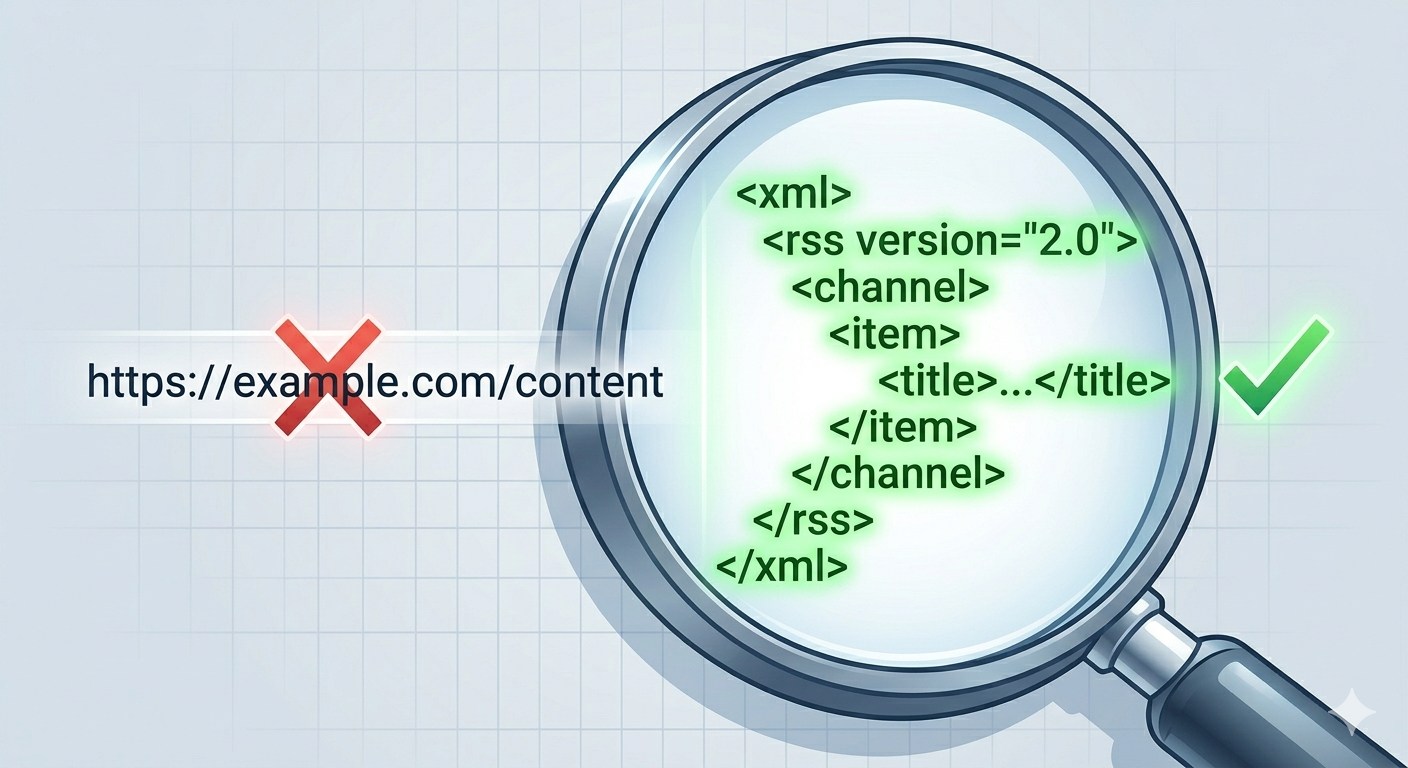
The most frequent issue users face with Feedzy is an “Invalid Feed” error. If the source URL you provided to the plugin is not properly formatted, it cannot “read” the data.
- Copy the URL you have entered into your Feedzy settings.
- Visit an RSS Validator (like the W3C Feed Validation Service).
- Paste your URL. If the validator returns errors, the problem lies with the source website, not your plugin.
- The Fix: Ensure you are using the direct RSS link (usually ending in
/feed/or.xml) rather than just the homepage URL.
Step 2: Clear the Feedzy Cache
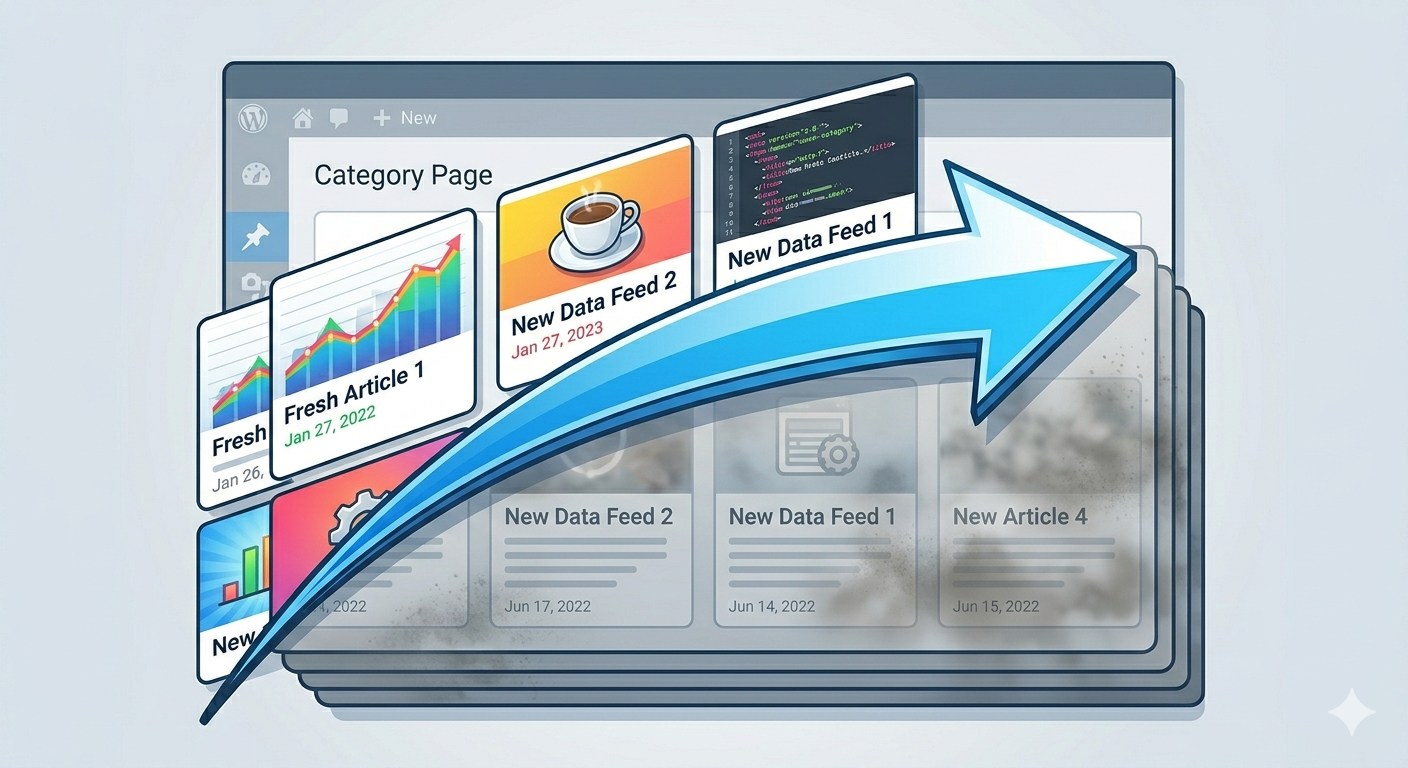
To improve performance, Feedzy stores feed data in your WordPress database. If that cache becomes “stuck,” the plugin will display old information even if the source has updated.
- Navigate to Feedzy > Import or Feedzy > Categories.
- Look for the “Clear Cache” or “Refresh” button.
- If you use plugins like WP Rocket or W3 Total Cache, clear your entire site cache as well.
- Check the feed again; in many cases, force-refreshing the data is all that’s required.
Step 3: Troubleshoot WordPress Cron Jobs
Feedzy relies on WP-Cron (WordPress’s internal scheduling system) to check for new content. If your site has low traffic or your host limits cron jobs, Feedzy will stop fetching new posts.
Testing your Cron:
- Install the WP Control plugin.
- Navigate to Tools > Cron Events and search for hooks containing “feedzy”.
- Look at the “Next Run” column. If the time has passed and the task hasn’t run, your server’s cron system is failing.
- The Fix: Contact your host and ask them to enable a “System Cron” to ensure Feedzy can execute its updates regardless of site traffic.
Step 4: Resolve Missing Images and Thumbnails
If your Feedzy feed imports text but skips images, the issue is usually the source feed’s structure.
- Check Enclosure Tags: Feedzy looks for
<enclosure>or<media:content>tags. If the source site doesn’t include these, Feedzy has no image to pull. - Use Feedzy Pro Features: If you have the premium version, ensure “Full Content” or “Image Extraction” is toggled on. This allows the plugin to “scrape” the source page for the featured image.
- SSL Mismatch: If your site is HTTPS but the source image is HTTP, browsers may block the “mixed content,” making images appear broken.
Step 5: Check for Plugin and Theme Conflicts
Sometimes, security plugins or optimization tools view Feedzy‘s constant external data fetching as suspicious activity and block it.
- Switch to a Default Theme: Temporarily use “Twenty Twenty-Four” to see if the issue persists.
- The Plugin Test: Deactivate all plugins except Feedzy. If the feed starts working, reactivate them one by one until it breaks to find the culprit.
Frequently Asked Questions (FAQ)
1. Is Feedzy RSS Feeds free to use?
Yes, there is a powerful free version available on the WordPress.org repository. It allows you to display feeds using shortcodes. However, advanced features like “Feed to Post” (importing RSS items as actual WordPress posts) and keyword filtering usually require the Pro version.
2. How do I change the update frequency in Feedzy?
In the free version, the update frequency is often tied to the general WordPress settings. In the Pro version, you can go to the Import settings and set a specific interval (e.g., every 1 hour, every 12 hours). Be careful not to set it too low (like every 5 minutes), as this can strain your server.
3. Why are some characters showing up as weird symbols in my feed?
This is usually an encoding issue. Ensure your WordPress site and the source feed are both using UTF-8 encoding. If the source site uses a different character set, Feedzy might struggle to translate special characters like smart quotes or emojis correctly.
4. Can I filter posts by keywords with Feedzy?
Yes, but this is primarily a Pro feature. It allows you to “Include” or “Exclude” certain items based on keywords in the title or content. This is essential for maintaining a high-quality, niche-specific curated site.
5. Does Feedzy impact my website’s loading speed?
Because Feedzy uses caching, the impact on your visitors is minimal. The heavy lifting (fetching the feed) happens in the background. However, displaying too many feeds with large images on a single page can slow down that specific page. Always limit the number of items per feed to 10 or 15.
How to Troubleshoot the Search for Truly Simple WordPress Themes
Conclusion: Keeping Your Feeds Running Smoothly
Feedzy is an invaluable tool for any WordPress administrator looking to automate their content strategy. While technical glitches like “Invalid Feeds” or “Cron” failures can be annoying, they are almost always solvable with a systematic troubleshooting approach.
By validating your source URLs, managing your cache effectively, and ensuring your server resources (like PHP memory and Cron jobs) are optimized, you can maintain a robust, automated website. Remember that a healthy Feedzy setup requires periodic monitoring—check your feeds at least once a week to ensure the source links are still active and your images are displaying correctly.
For more deep dives into WordPress technical fixes and plugin guides, keep visiting wordpressissuefix.com. We are here to help you turn technical headaches into simple, manageable solutions.








