

Introduction
What exactly does it mean to troubleshoot Google Analytics for website performance? In the WordPress ecosystem, this refers to the critical process of using Google’s tracking scripts to monitor your site’s loading speed, user engagement, bounce rates, and traffic metrics. However, WordPress beginners often encounter a frustrating issue: the tracking suddenly stops working, shows zero data, or ironically, the tracking script itself causes your site to load slowly.
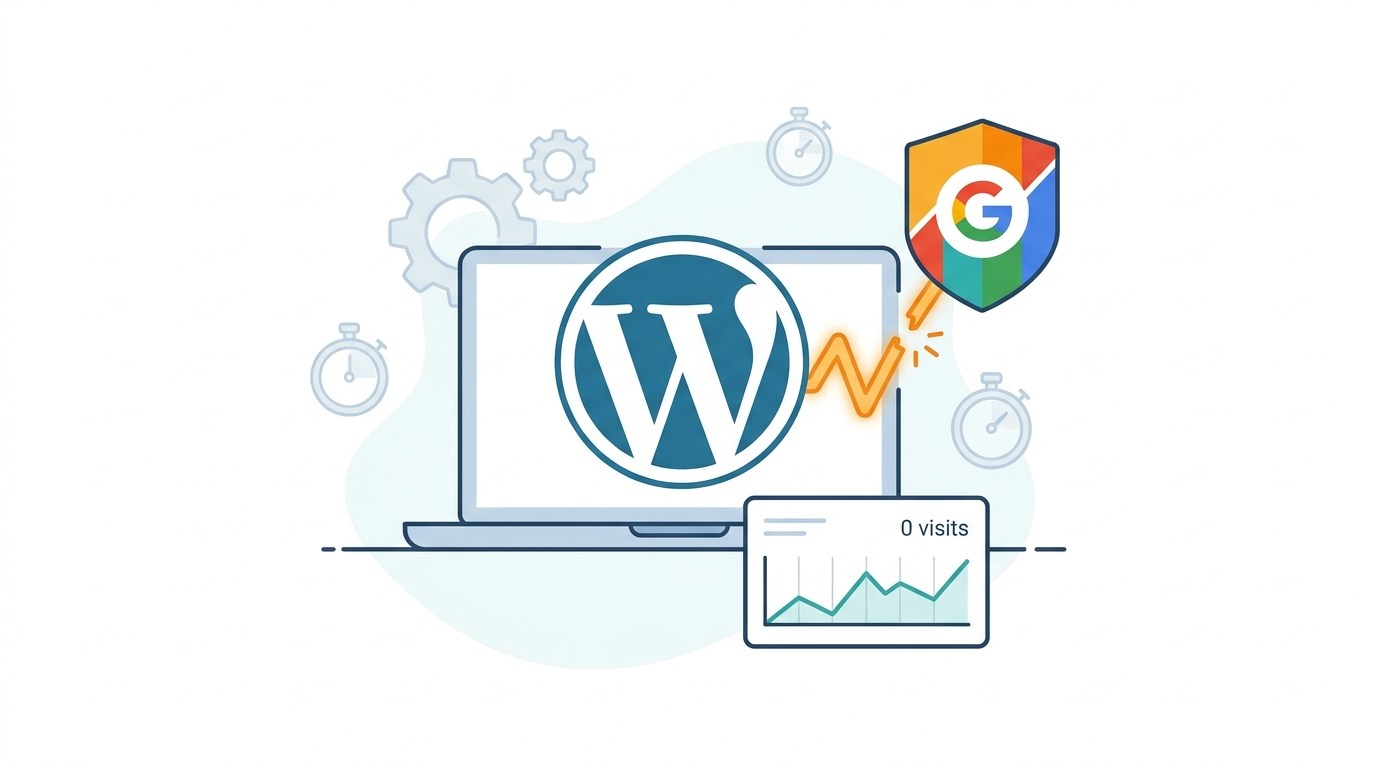
You will typically encounter this problem inside your analytics dashboard (where visitor data flatlines) or on performance testing tools (which flag the script as a speed bottleneck). This issue appears due to broken tracking codes, caching plugin conflicts, or duplicate script injections. This guide is for educational troubleshooting purposes to help you correctly diagnose and repair your tracking setup.
Table of Contents
Symptoms of a Broken Tracking Setup
Before diving into the fixes, you need to understand how this problem manifests. When your configuration of Google Analytics for website performance fails, it usually presents one of the following specific symptoms:
- The “Zero Traffic” Flatline: You know people are visiting your site, but your analytics dashboard shows 0 active users for several days. This means the connection between your WordPress site and Google has been severed.
- The 0% or 1% Bounce Rate Anomaly: If your dashboard shows an impossibly low bounce rate, it means the tracking script is firing twice on your WordPress site.
- Core Web Vitals Warnings: When testing your site on Google PageSpeed Insights, you might see a warning that “third-party code” (specifically
analytics.jsorgtag.js) is blocking the main thread and slowing down your WordPress site.
Step 1: Resolve Duplicate Tracking Codes
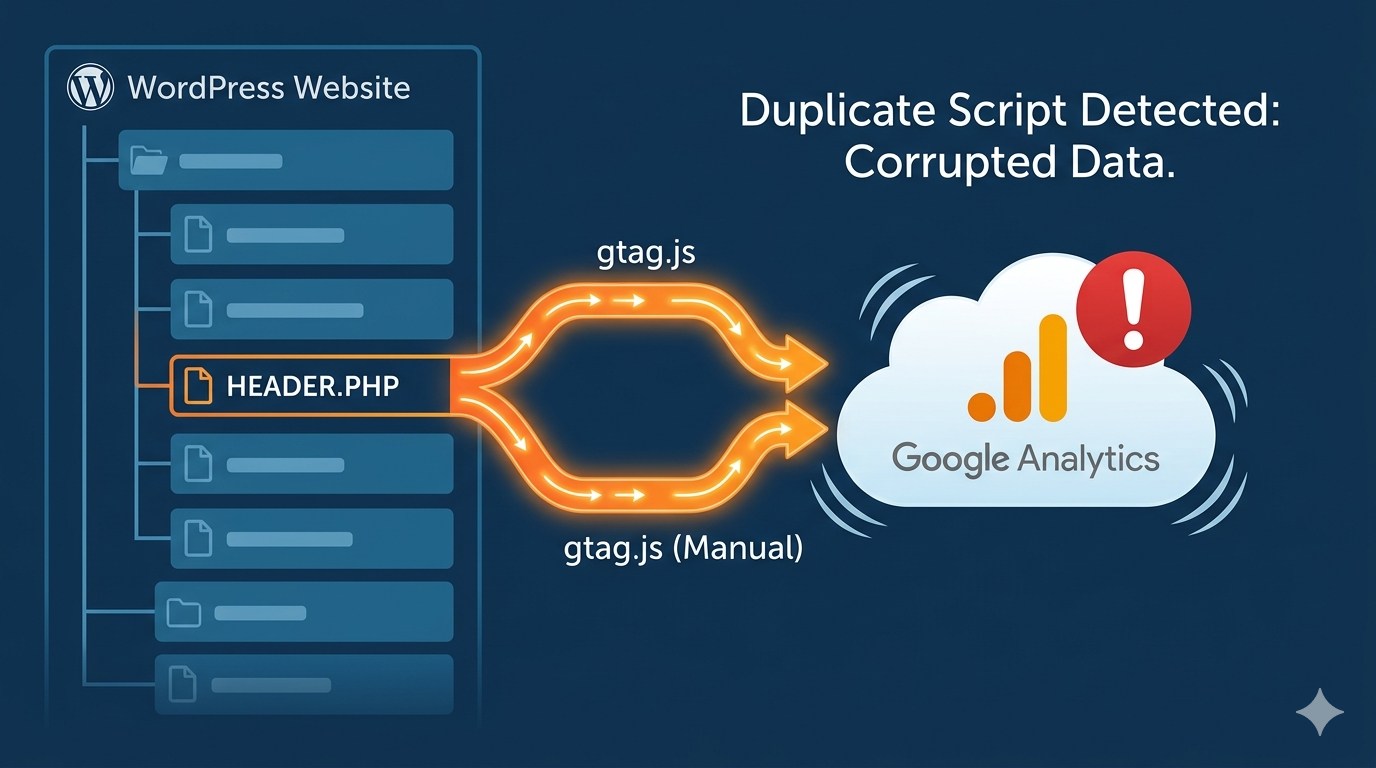
The most common reason Google Analytics for website performance records corrupted data (like the 0% bounce rate anomaly) is having the tracking code installed multiple times. WordPress makes it very easy to accidentally duplicate scripts.
For example, you might have pasted the tracking code into your theme’s settings when you first launched your site. Months later, you might have installed a plugin like Google Site Kit or MonsterInsights, forgetting that the code was already there. When both the theme and the plugin inject the script, the data gets counted twice, ruining your performance metrics.
How to fix it:
- Log into your WordPress dashboard.
- Check your active plugins. If you are using an official analytics plugin (like Site Kit by Google), you must remove manual codes.
- Go to Appearance > Customize or check your theme’s specific “Integration” settings to see if a raw tracking code is pasted there.
- Check if you have a plugin like “WPCode” or “Insert Headers and Footers.” Open it and ensure the Google tag is not pasted inside the
<head>section if another plugin is already handling it.
Choose one method to inject your tracking code and delete the rest.
Step 2: Clear and Configure Caching Plugins
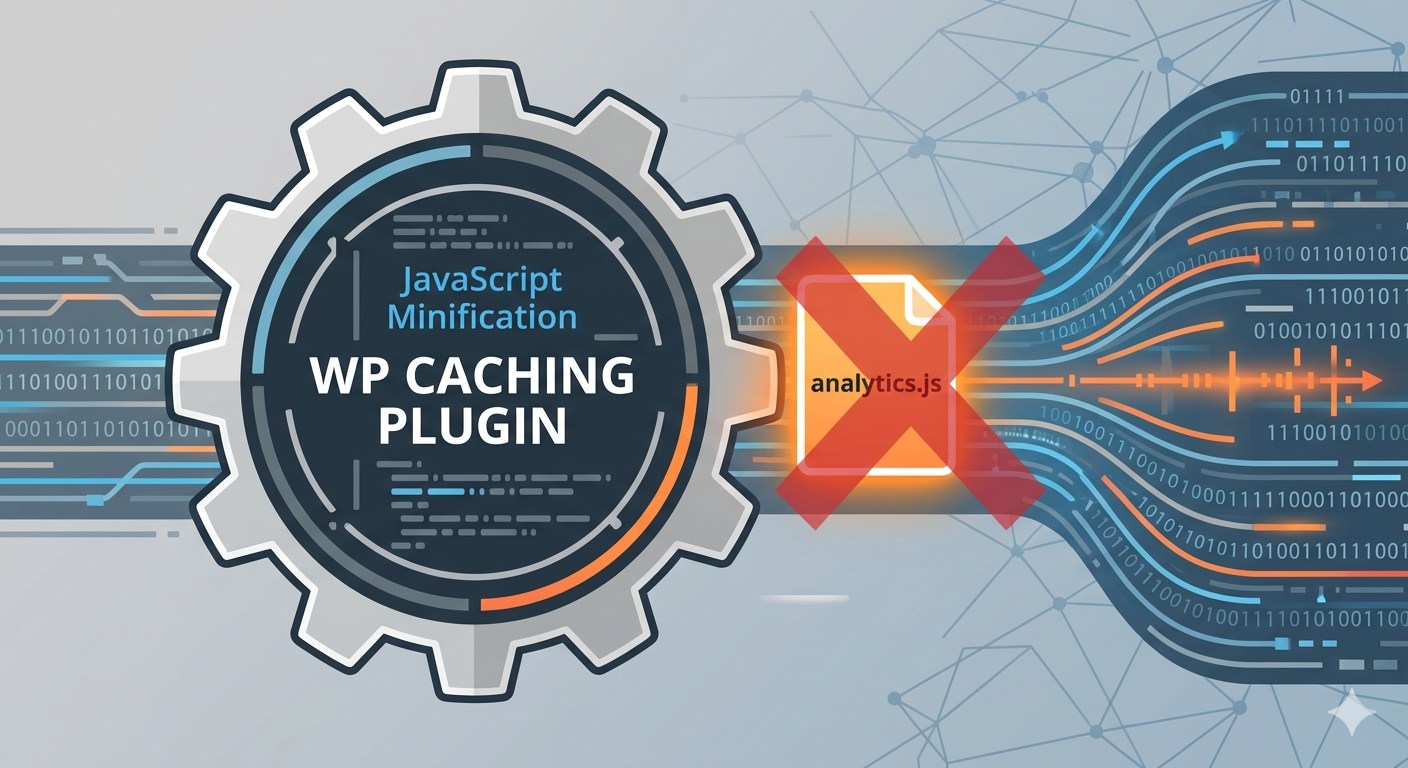
Caching plugins are essential for WordPress speed, but they are notorious for breaking Google Analytics for website performance. Plugins like LiteSpeed Cache, WP Rocket, or W3 Total Cache work by creating a static HTML copy of your site.
If you installed your analytics tracking code after your site was cached, the live version of your website will still be serving the old, untracked pages to visitors. Furthermore, aggressive JavaScript minification settings in these caching plugins can sometimes break the analytics script entirely, preventing it from sending data back to Google.
How to fix it:
- Navigate to your caching plugin’s settings in the top admin bar of your WordPress dashboard.
- Click Purge All Cache (or “Clear Cache”). This forces WordPress to generate fresh pages that include your new tracking script.
- If data is still not tracking, go into your caching plugin’s File Optimization settings.
- Look for “JavaScript Minification” or “Combine JavaScript.” Temporarily disable these features, purge the cache again, and see if your analytics start working. If they do, you will need to add the
gtag.jsscript to your caching plugin’s exclusion list.
Step 3: Fix Site Speed Drops Caused by Analytics
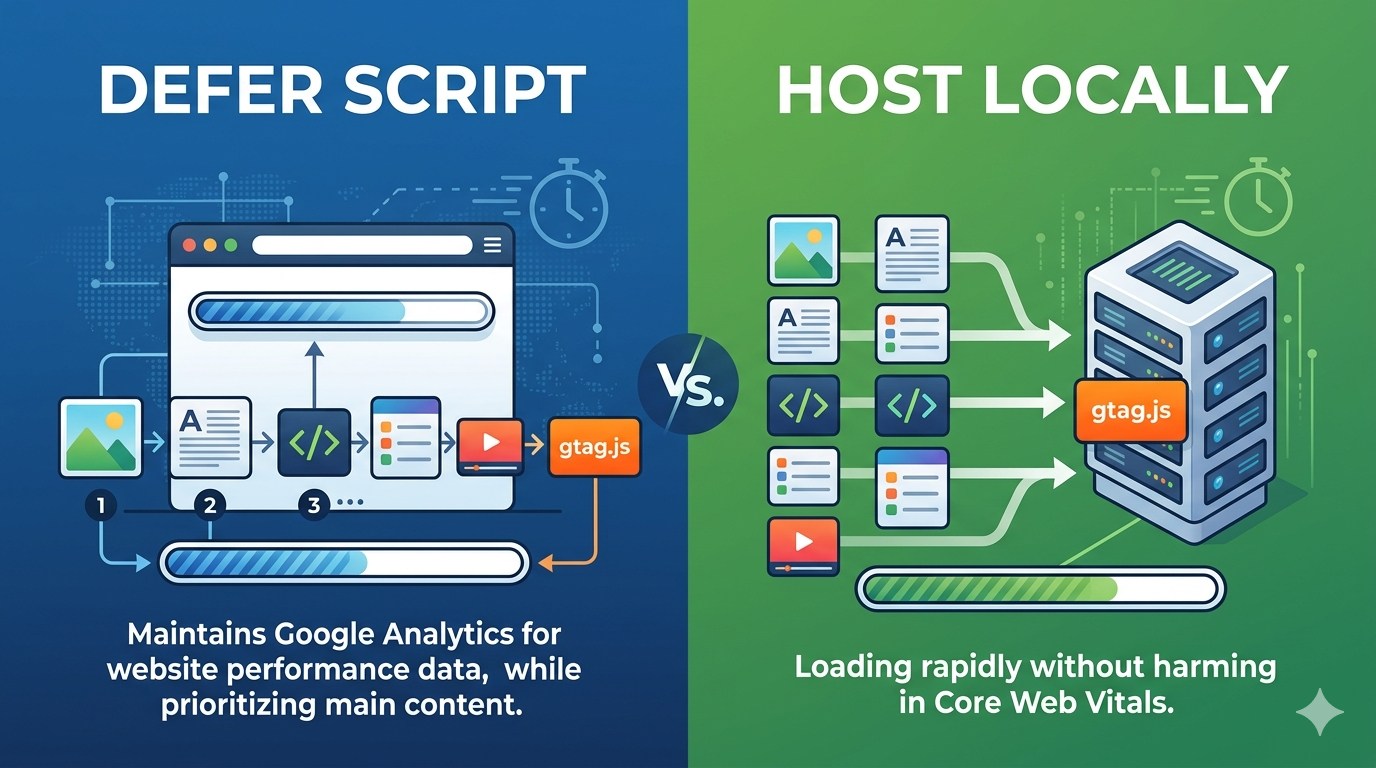
A major part of utilizing Google Analytics for website performance is monitoring how fast your pages load. Ironically, the external request to Google’s servers to fetch the tracking script can actually slow down your WordPress site, negatively impacting your Core Web Vitals.
When a user visits your site, their browser has to stop loading your content, connect to Google, download the analytics script, and then resume loading your site.
How to fix it:
To prevent the tracking script from hurting your site speed, you should defer the script or host it locally.
- Deferring the Script: If you inserted the code manually, you can add the
deferattribute to the script tag. This tells the browser to load your WordPress content first, and only load the tracking script after the visible content is finished. - Hosting Locally: Advanced optimization plugins like WP Rocket or Flying Analytics have a feature called “Local Google Analytics.” This feature downloads the tracking script from Google once a day and saves it directly on your WordPress server. This eliminates the external request, drastically speeding up your site while still perfectly maintaining your Google Analytics for website performance data.
Step 4: Verify Your Fix with the Realtime Report
Once you have removed duplicate codes, cleared your cache, and optimized the script delivery, you must verify that the issue is fully resolved. You do not need to wait 24 hours to see if your fix worked.

- Open a new incognito window in your web browser.
- Navigate to your WordPress website and click on a few different blog posts.
- In a separate standard browser window, log into your Google Analytics dashboard.
- Navigate to Reports > Realtime.
If your troubleshooting steps were successful, you should immediately see “1 User” (which is you) navigating the site, along with the exact pages you are clicking on in your incognito window.
If the Realtime report successfully registers your clicks, your configuration is officially fixed, and you can get back to accurately monitoring your site’s performance.
How to Check Web Page Traffic: A Due Diligence Guide for Beginners
Frequently Asked Questions (FAQs)
Why did my Google Analytics data suddenly drop to zero?
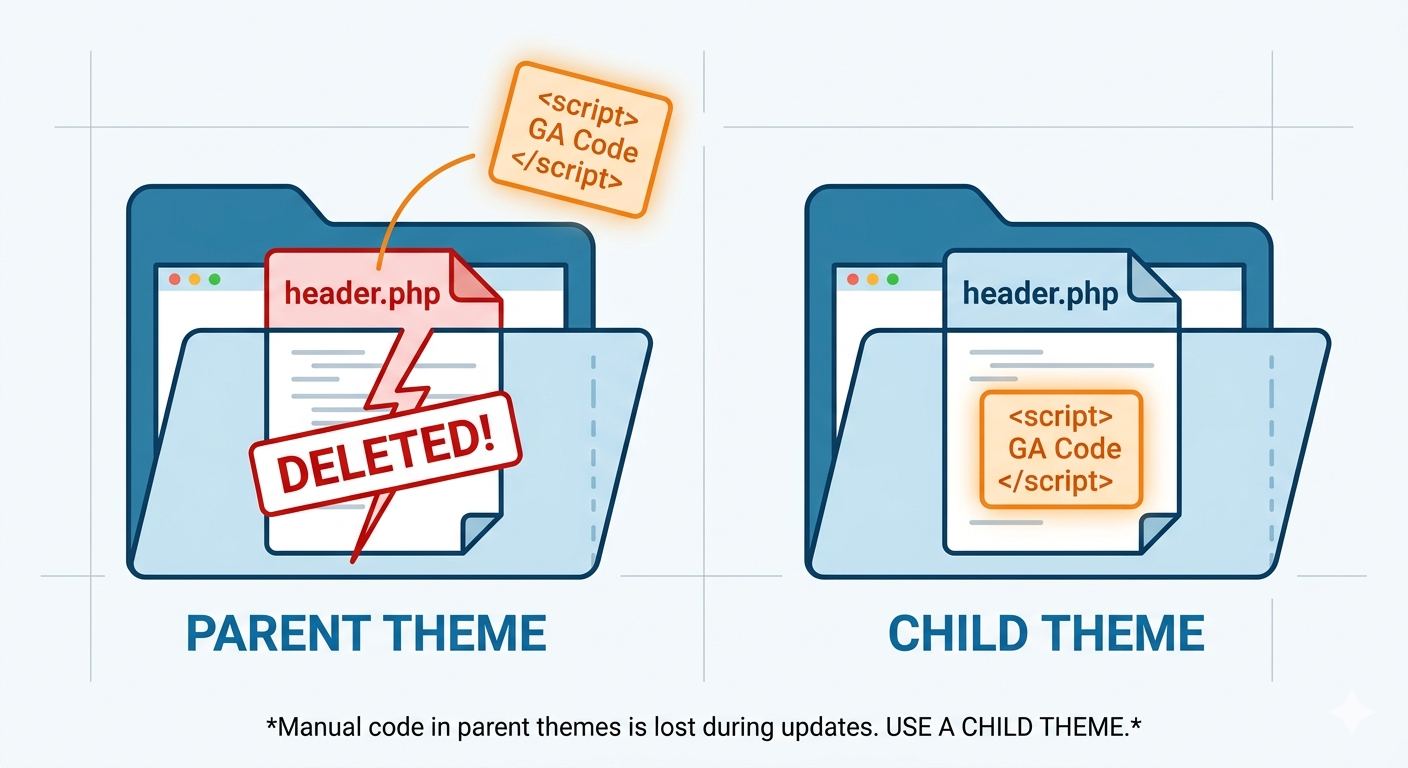
This is a very common WordPress issue. It usually happens if your active WordPress theme was recently updated and your tracking code was placed directly inside the theme’s header.php file. Theme updates overwrite core files, wiping out custom code. Using a dedicated plugin (like Google Site Kit) or a child theme prevents this error.
Can my caching plugin completely block analytics tracking?
Yes. Aggressive JavaScript minification or “Delay JavaScript Execution” settings in caching plugins can prevent the tracking script from firing before the user leaves the page. Always clear your cache after adding or modifying your tracking setup, and exclude analytics scripts from deferral if necessary.
How do I know if my analytics tracking code is working without waiting?
The fastest and most reliable way to verify your setup is by checking the “Realtime” report in your Google Analytics dashboard while actively browsing your own site in a private or incognito browser window.
Should I install analytics via a plugin or manually in the header?
For most WordPress beginners, using a trusted, lightweight plugin is the safest route because it prevents the script from being deleted during theme updates. Manual installation is slightly faster for page speed but requires more technical management.
Conclusion
Dealing with broken data or sudden drops in site speed can be stressful, but troubleshooting Google Analytics for website performance in WordPress is a logical, step-by-step process. By methodically verifying your script placement, eliminating duplicate codes, reconfiguring your caching plugins, and optimizing how the script loads, you can restore perfectly accurate tracking without sacrificing your site’s load times. Keep this troubleshooting guide handy for future audits, and remember that maintaining a clean tracking setup is a fundamental part of healthy WordPress management.








