

Introduction
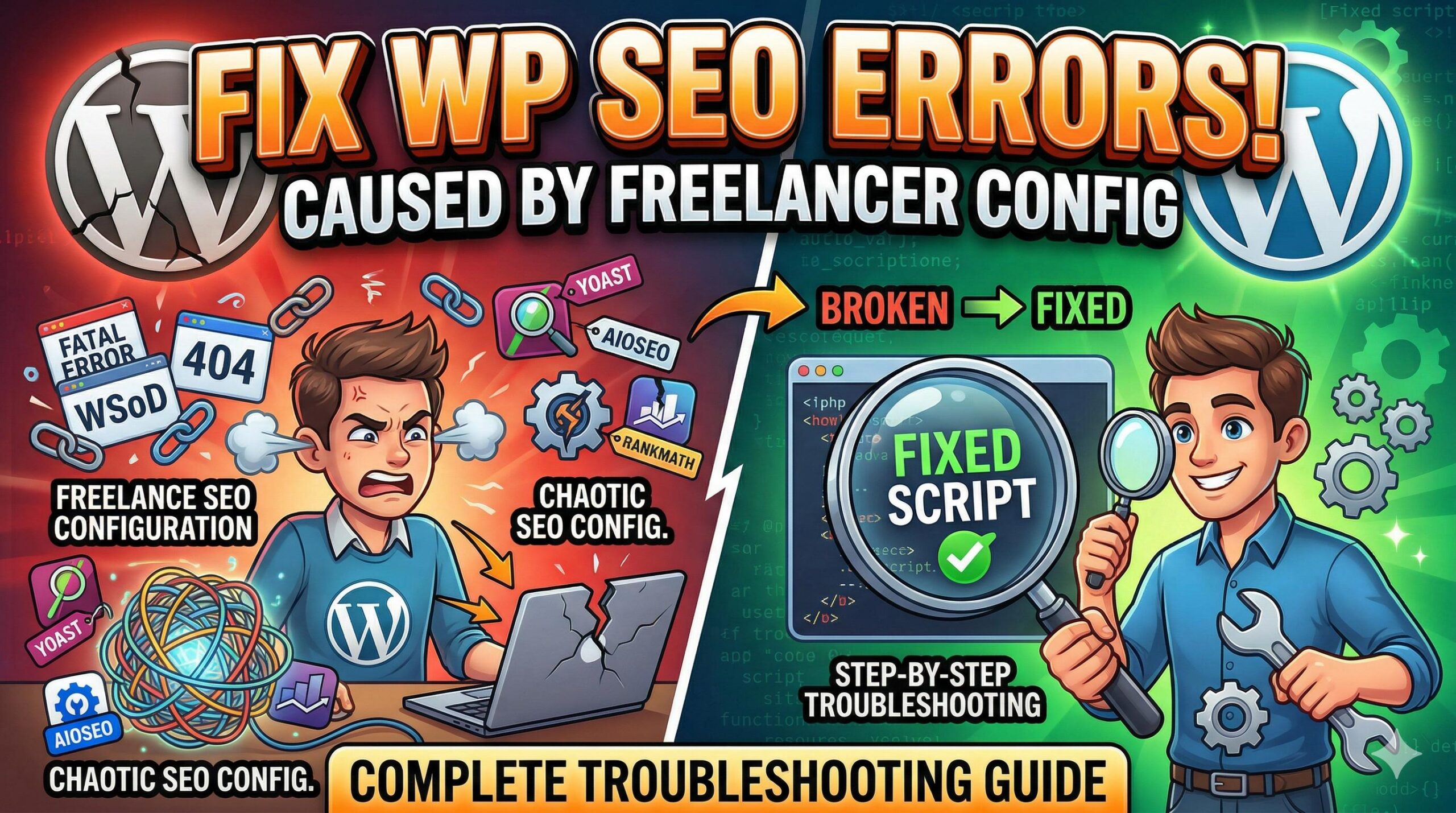
Have you recently outsourced your website optimization, only to log into your dashboard and find unexpected site errors, broken pages, or a sluggish backend? If so, you are likely dealing with the technical fallout of a freelance SEO implementation.
In a WordPress troubleshooting context, a “freelance SEO” issue refers to the specific technical footprint, misconfigurations, and software conflicts left behind by an external contractor. You typically encounter this problem shortly after handing over admin access or when taking back control of your site to review your site health.
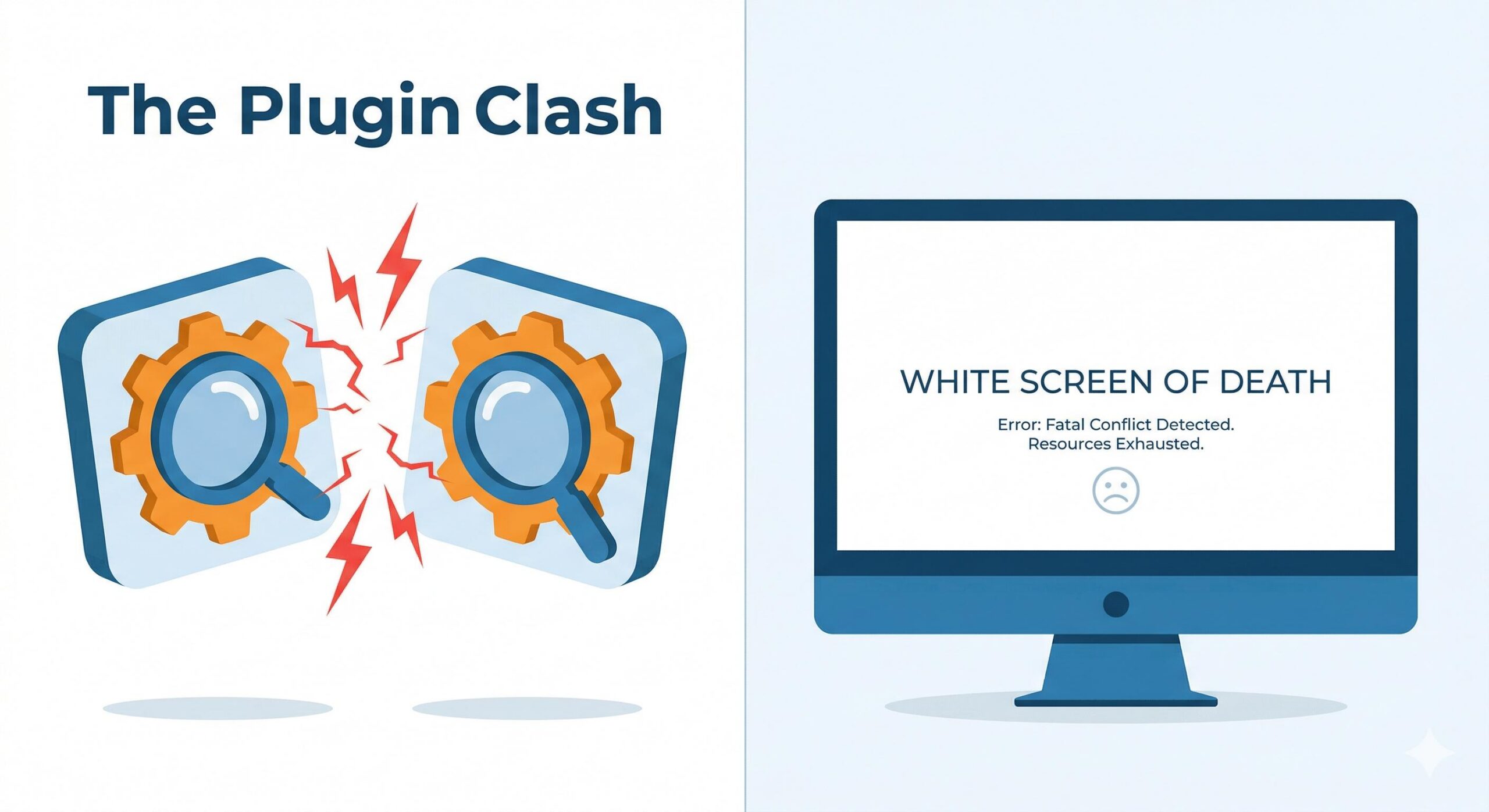
It appears because third-party optimizers often install overlapping plugins, alter delicate permalink structures, or inject unverified scripts into your core theme files without proper documentation or compatibility testing.
This guide is for educational troubleshooting purposes, designed to help you safely identify, audit, and fix the technical mess a freelance SEO configuration may have caused on your WordPress website.
Table of Contents
Identifying the “Freelance SEO” Technical Footprint
When a freelance SEO works on your site, they manipulate your database, plugin architecture, and server files to satisfy search engine algorithms. While the goal is better rankings, the execution often results in technical chaos.
You cannot fix your site until you understand exactly what was changed. The symptoms of a botched freelance SEO handover usually include:
- The “White Screen of Death” (WSoD): Often caused by incompatible caching plugins installed by the contractor.
- Widespread 404 Page Not Found Errors: Occurs when URL structures are altered without setting up proper server-level redirects.
- Dashboard Extreme Lag: Caused by overlapping SEO plugins constantly running database queries in the background.
To begin resolving your freelance SEO issue, you must systematically audit and reverse these specific technical changes.
1. Resolving Freelance SEO Plugin Conflicts
The most common cause of site crashes following a freelance SEO campaign is plugin duplication. Many contractors have a preferred “stack” of tools. Instead of configuring the SEO plugin you already have (like Yoast), they might forcefully install their preferred tool (like Rank Math or All in One SEO) without deactivating the old one.
Running two major SEO plugins simultaneously forces your WordPress database to write duplicate metadata for every single post, causing severe performance drops and conflicting XML sitemaps.
How to troubleshoot and fix this:
- Navigate to Plugins > Installed Plugins in your WordPress admin dashboard.
- Scan the list for overlapping functionalities. Look for multiple SEO plugins, multiple caching plugins (e.g., W3 Total Cache running alongside WP Rocket), or duplicate image compression tools.
- Choose the one plugin you wish to keep.
- Deactivate the plugins installed by the freelance SEO that overlap with your core stack.
- Check your live site. If the site speed improves and dashboard errors disappear, you have successfully resolved the conflict. You can now safely Delete the deactivated plugins.
2. Fixing Permalink Errors and 404s

A critical step in many freelance SEO strategies is restructuring URLs to include more keywords. For example, changing yourdomain.com/p=123 to yourdomain.com/category/post-title/.
While this is a good SEO practice, a careless freelance SEO will make this change in the WordPress settings without updating your .htaccess file or creating 301 redirects. This immediately results in a site-wide 404 error for anyone clicking your old links on Google or social media.
How to troubleshoot and fix this:
- First, attempt a soft reset of your permalink structure. Go to Settings > Permalinks.
- Without changing any radio buttons, simply scroll to the bottom and click Save Changes. This forces WordPress to flush its rewrite rules and regenerate your
.htaccessfile, which often fixes immediate 404 errors. - If pages are still broken, you need to implement redirects for the URLs the freelance SEO changed. Install a lightweight redirect plugin (like “Redirection”).
- Map your old URLs to the new structures created during the freelance SEO campaign to ensure visitors and search engine bots land on the correct pages.
3. Cleaning Up Rogue Code and Scripts
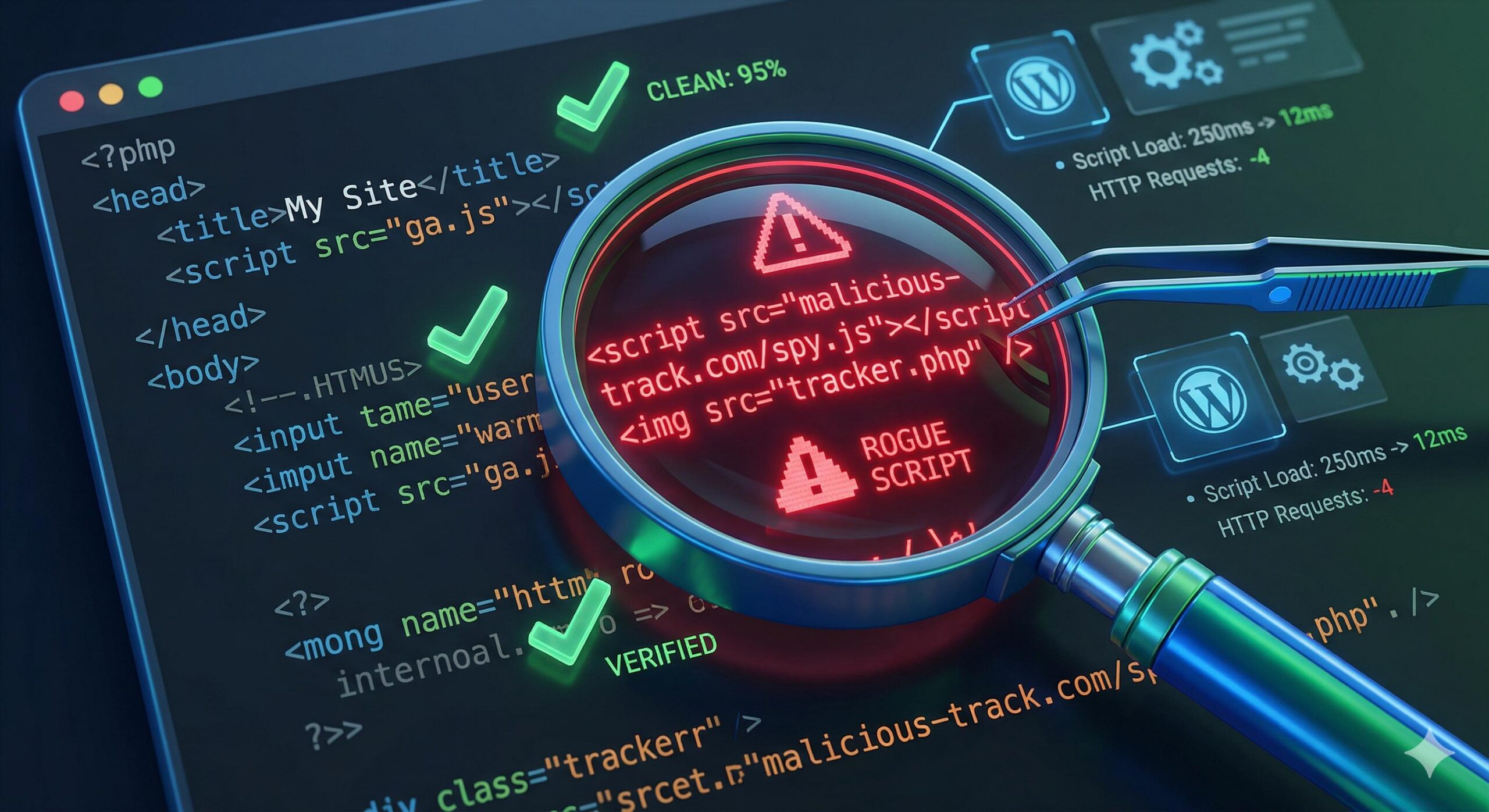
To track their progress, a freelance SEO will frequently insert tracking codes (like Google Analytics, Facebook Pixels, or heatmaps) directly into your active theme’s header.php or footer.php files.
If they used a poorly coded script, or if you later update your theme, these manual injections can break your site’s visual layout or cause critical PHP errors.
How to troubleshoot and fix this:
- Never edit theme files directly. Instead, go to Appearance > Theme File Editor and carefully inspect your
header.phpfile. - Look for any unfamiliar
<script>tags placed right before the closing</head>tag. - If you find messy code left behind by the freelance SEO, back up the file text to your computer, then carefully delete the script from the theme file and save.
- Beginner-safe fix: Moving forward, strictly manage all third-party scripts using a dedicated plugin like “WPCode” or “Google Site Kit.” This completely isolates external tracking scripts from your core WordPress files, preventing the freelance SEO’s code from breaking your theme.
How to Fix the “Best Search Engine Optimization Company” Spam in WordPress
4. Securing Your Site: Auditing User Roles
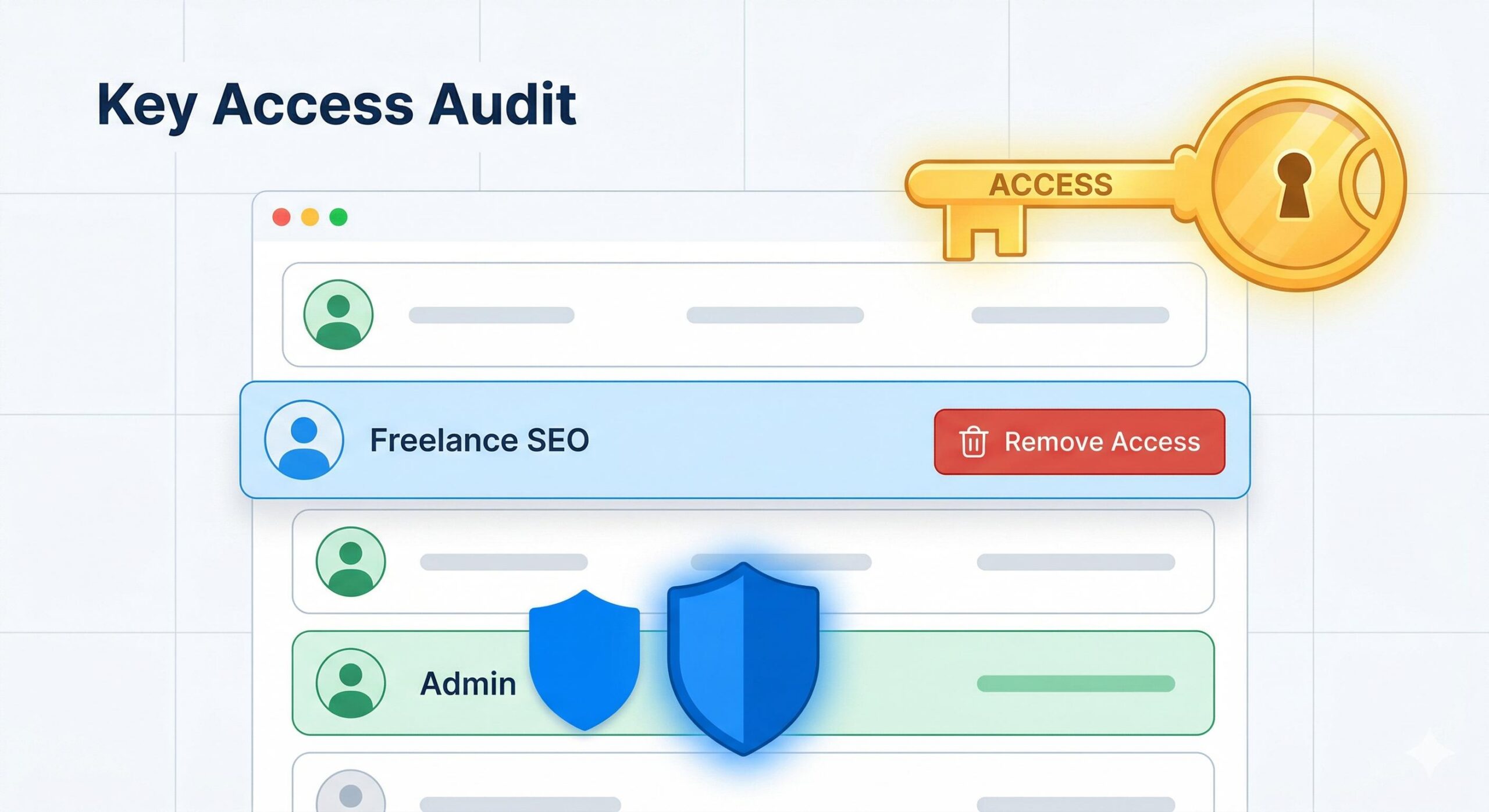
The final troubleshooting step involves securing your WordPress database. To do their job, the freelance SEO required an Administrator or Editor account. Leaving these high-level accounts active after the contract ends poses a massive security and data integrity risk.
How to troubleshoot and fix this:
- Navigate to Users > All Users.
- Locate the account created for the freelance SEO.
- Hover over their username and click Delete.
- Crucial Step: WordPress will ask what you want to do with the content created by this user. Always select the option to attribute all content to your own Administrator account. If you choose to delete all content associated with the user, you will permanently erase any blog posts or pages the freelance SEO published during their time on your site.
Preventive Guidance
Recovering from a messy freelance SEO handover can be stressful. To prevent these technical issues from recurring, never give external contractors direct access to your live website.
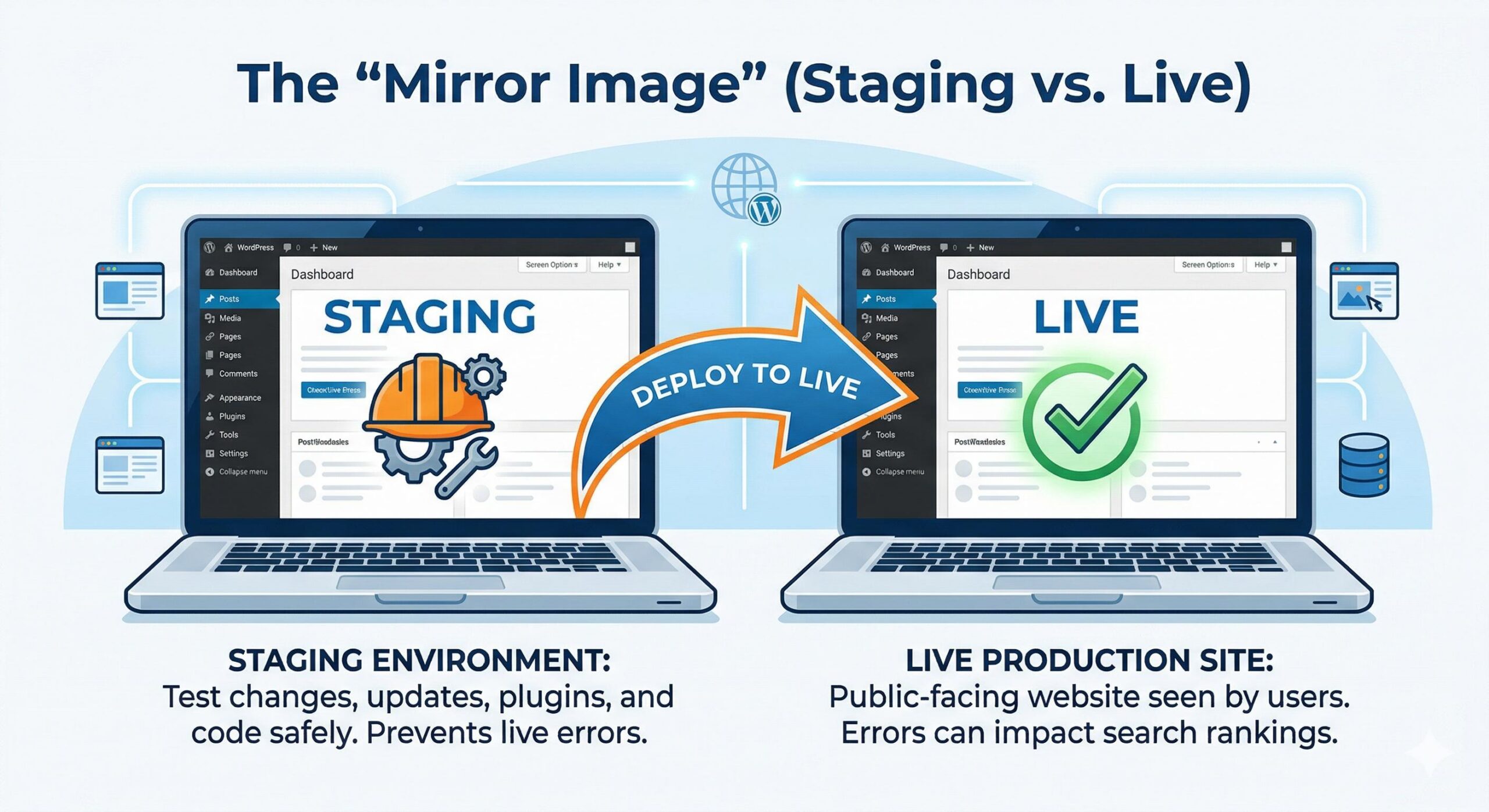
Instead, ask your web host to set up a Staging Environment. A staging site is an exact, hidden clone of your live website. The freelance SEO can install their plugins, restructure URLs, and edit code on the staging site. Once they are finished, you can safely review their work for errors before pushing the optimized version to your live, public-facing domain.
Frequently Asked Questions (FAQs)
Will deleting the freelance SEO’s plugins ruin my current search rankings? No, in fact, it will likely help your site’s performance. If the contractor installed a second SEO plugin (like Rank Math) while you were already using another (like Yoast), they are causing database conflicts. Consolidating down to a single, well-configured SEO plugin is a crucial website performance optimization tip that prevents your site from generating duplicate XML sitemaps and conflicting meta tags.
How do I know if the freelance SEO permanently altered my theme code? If you suspect rogue scripts were added to your site but are afraid to check the header.php file manually, you can use a free security plugin like Wordfence. It can scan your current theme files and compare them against the official, clean versions in the WordPress repository, highlighting any unauthorized code injections for you to safely remove.
Why am I getting 404 “Page Not Found” errors after they promised to optimize my URLs? Changing URL structures (permalinks) to include better keywords is a common SEO tactic. However, a careless freelance SEO will change the URLs without setting up 301 redirects. This means search engines are still sending visitors to the old, now-deleted link. You must install a redirection plugin to map the old URLs to the newly created ones to fix this error.
Should I delete the freelance SEO’s user account immediately? Yes, for security purposes, you should remove their access as soon as the contract ends. However, when you click “Delete” on their account in the WordPress dashboard, you must select the option to attribute all their created content to your own Administrator account. If you do not do this, WordPress will permanently delete any blog posts or pages they published while working on your site.
Ready to Play? Experience the Ultimate Gaming Thrill Today
Conclusion
Recovering your WordPress site from a poorly executed freelance SEO configuration might feel overwhelming, but it is entirely fixable when approached systematically. By auditing your plugin stack for duplicates, resetting your permalink structure, safely removing injected tracking scripts, and securing your administrator roles, you directly troubleshoot the root causes of the instability. Remember, website optimization should never come at the cost of your site’s technical health. By applying these beginner-safe fixes, you take back complete control of your WordPress environment, ensuring it remains secure, fast, and ready for sustainable growth.








