

Introduction
Are you seeing broken layouts on your site, duplicate content or bizarre backend errors followed by a White Screen of Death? For example, if your site worked flawlessly yesterday and stopped working today then you are probably wondering what is the quickest way to check for conflicting plugins.

A plugin conflict occurs when two or more tools on your site are competing for the same resources, executing incompatible code. Users often see the symptoms of this issue on their site’s frontend — where buttons stop functioning or menus disappear from view—or in WordPress Admin dashboard right after applying a core, theme, or plugin update. Why does it appear? This occurs because WordPress code is written differently by thousands of different developers, overlapping JavaScript scripts sometimes crash into one another and identical PHP functions will collide. No need to stress if your site is (even slightly) broken.
Disclaimer: This guide is for educational troubleshooting purposes to help you safely restore your site’s functionality.
Table of Contents
Why Speed Matters When Finding a Plugin Conflict
Every minute matters when your website breaks – a helper keeps an eye on things for you. If search engines crawl a broken site, visitors may bounce away and sales could dwindle while Google or Saagreespholgb understandably demote your pages for one reason. A standard WordPress site can have anywhere between 10 to 50 plugins running and so it’s not worth trying to guess which one is the culprit.
You need a systematic approach. Isolate the problem quickly without permanently damaging your live site or impacting what shows to current visitors is probably the best way of identifying conflicting plugins.
Method 1: The Absolute Best Way to Identify Conflicting Plugins Fast (For Beginners)
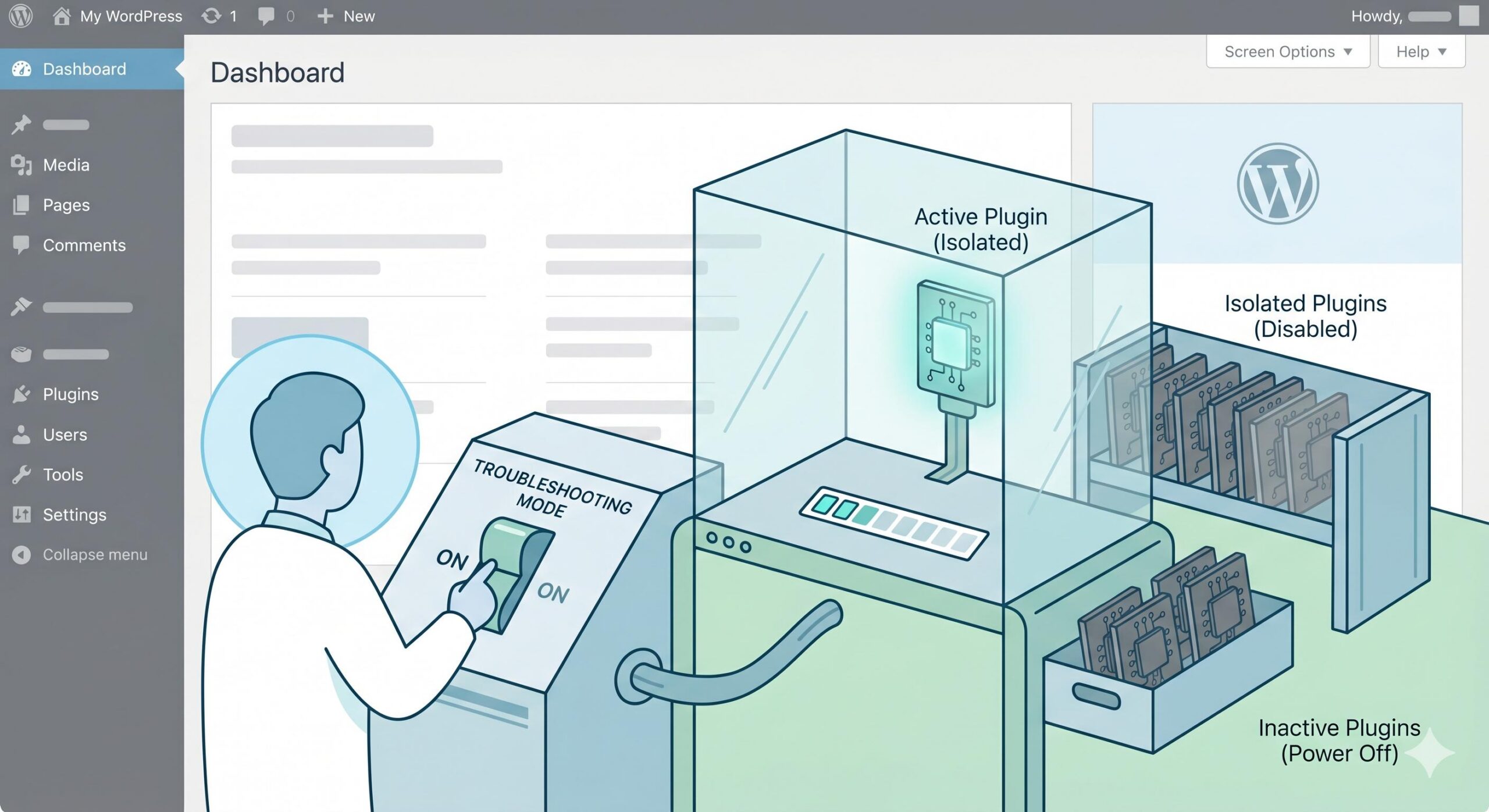
Site Admins & Bloggers: The safest and fastest way does not involve writing a single line of code. This requires the use of an official built-in solution — a plugin called Health Check & Troubleshooting.
That’s the irony of all: no other solution can be faster than simply disabling ALL plugin for YOUR user session only so you avoid conflict with either WP or Theme. Your live visitors will still be seeing the standard site, while you work off-screen to track down the error.
Step-by-Step Instructions:
- Install the Tool: Go to your WordPress Dashboard. Navigate to Plugins > Add New. Search for “Health Check & Troubleshooting.” Install and activate it.
- Enter Troubleshooting Mode: Go to Tools > Site Health > Troubleshooting. Click the button that says Enable Troubleshooting Mode.
- Observe the Changes: Your WordPress dashboard will now act as if every single plugin is deactivated and a default WordPress theme (like Twenty Twenty-Four) is active. Remember: Your live visitors are not seeing this!
- Check the Error: Open your website in a new tab. Is the error still there?
- If yes: The issue is not a plugin conflict. It is likely a server or core WordPress issue.
- If no: You have successfully confirmed a plugin or theme conflict. Proceed to the next step.
- The Process of Elimination: Inside the WordPress admin bar at the top of your screen, click Plugins. Begin activating your plugins one by one.
- Identify the Culprit: After activating a single plugin, refresh your website tab. If the site still works, that plugin is safe. Keep activating them one by one until the error suddenly returns.
- Disable Troubleshooting: The very last plugin you activated right before the site broke is your conflicting plugin! You can now disable Troubleshooting Mode and keep only the broken plugin deactivated.
Method 2: The Best Way to Identify Conflicting Plugins Fast (If You Cannot Access WP-Admin)
Sometimes, a plugin conflict is so severe that it locks you completely out of your WordPress dashboard. In this scenario, the Health Check plugin won’t help because you can’t log in to use it.
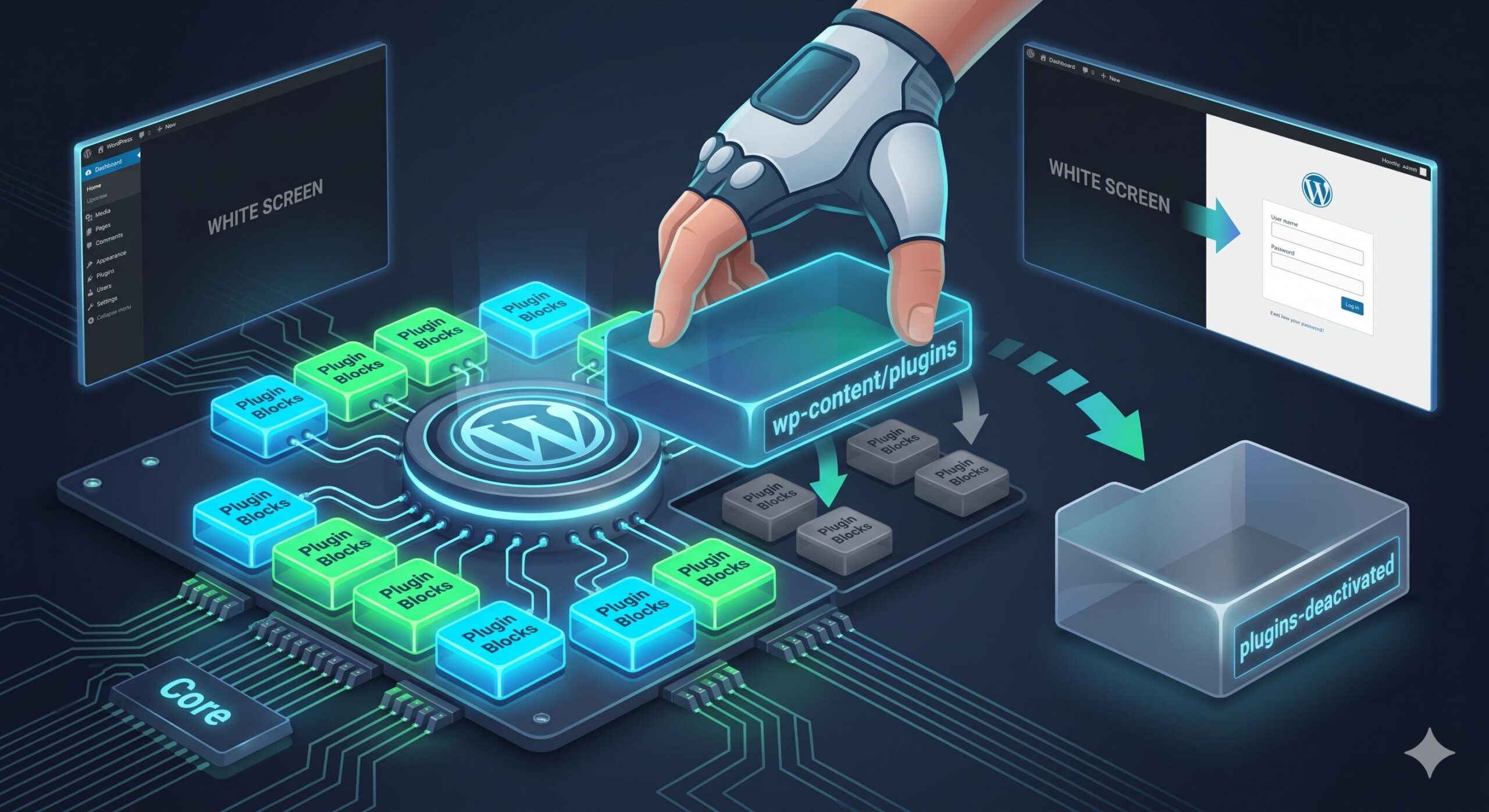
The fastest workaround is the Bulk Deactivation Method via File Manager or FTP.
Step-by-Step Instructions:
- Log into your Web Host: Open your hosting control panel (like cPanel) and find the File Manager.
- Locate your Plugins Folder: Navigate to
public_html/wp-content/. Here, you will see a folder namedplugins. - Rename the Folder: Right-click the
pluginsfolder and rename it toplugins-deactivated. - Test Your Site: Try logging into your WordPress dashboard again. By renaming the folder, WordPress instantly disables all plugins. If you can log in, you know a conflicting plugin was locking you out.
- Restore the Folder Name: Go back to your File Manager and rename
plugins-deactivatedback to its original name:plugins. - Activate One by One: Go to your WordPress dashboard. All your plugins will currently be deactivated. Simply activate them one by one, checking your site after each click, until the site crashes again. The last activated plugin is your conflict.
Comparing the Troubleshooting Methods
To help you choose the right path, here is a quick comparison of the methods used to find conflicting tools quickly:
| Troubleshooting Method | Best Used When… | Risk to Live Traffic | Speed of Finding Conflict |
| Health Check Plugin | You have full access to WP-Admin. | Zero Risk (Visitors see normal site) | Very Fast |
| FTP / File Manager | You are locked out of the dashboard (White Screen). | Medium Risk (Visitors see missing features temporarily) | Fast |
| Staging Site | You have a highly complex WooCommerce or enterprise site. | Zero Risk (Done on a hidden clone site) | Slower, but safest |
What to Do Once You Find the Conflicting Plugin
One half battle is identifying the faulty tool. Once you know which software is crashing, there are usually 3 methods that we can use:
- Rollback the Plugin: If you pressed on “Update”, and right after there was an inconsistency then it can be assumed that something in the new version is malfunctioning. In case a plugin A is responsible, utilize something like WP Rollback to revert the plugin back to its stable version until it releases patch by developer.
- Find an Alternative: If the plugin you are using conflicts with your theme and it has not been updated by its developer, the best thing to do is to delete that plugin from your site and look for other plugins doing similar work.
- Contact Support: Get in touch with support forum for the plugin developer. Let them know the details of what error you are seeing and which other plugin it is conflicting with.
How SHGs Improve Rural Economy: Financial Growth and Safety Guide
Frequently Asked Questions (FAQ)
How long does the best way to identify conflicting plugins fast actually take?
Using the Health Check & Troubleshooting plugin, you should be able to discover a conflict in as little time as 5 minutes (and sometime up to 10-15 mins depending on how many plugins are installed) All you do is hit activate and refresh your page.
Will finding a conflicting plugin delete my website data?
No, when you deactivate plugins either in the WordPress dashboard (you can do it individually), Troubleshooting Mode or FTP your database information, posts and pages will not be deleted. This sends the settings to be stored in your WordPress database and when you safely reactivate one plugin it will come back.
Can I automate the process of finding conflicting plugins?
There is currently no guaranteed way to completely automate this process without the risk of your site breaking. Since a conflict becomes visible (ex: broken button) or structural such as due to database timeout, someone needs to click the page again and check if that actual error was resolved when isolating.








