

Introduction
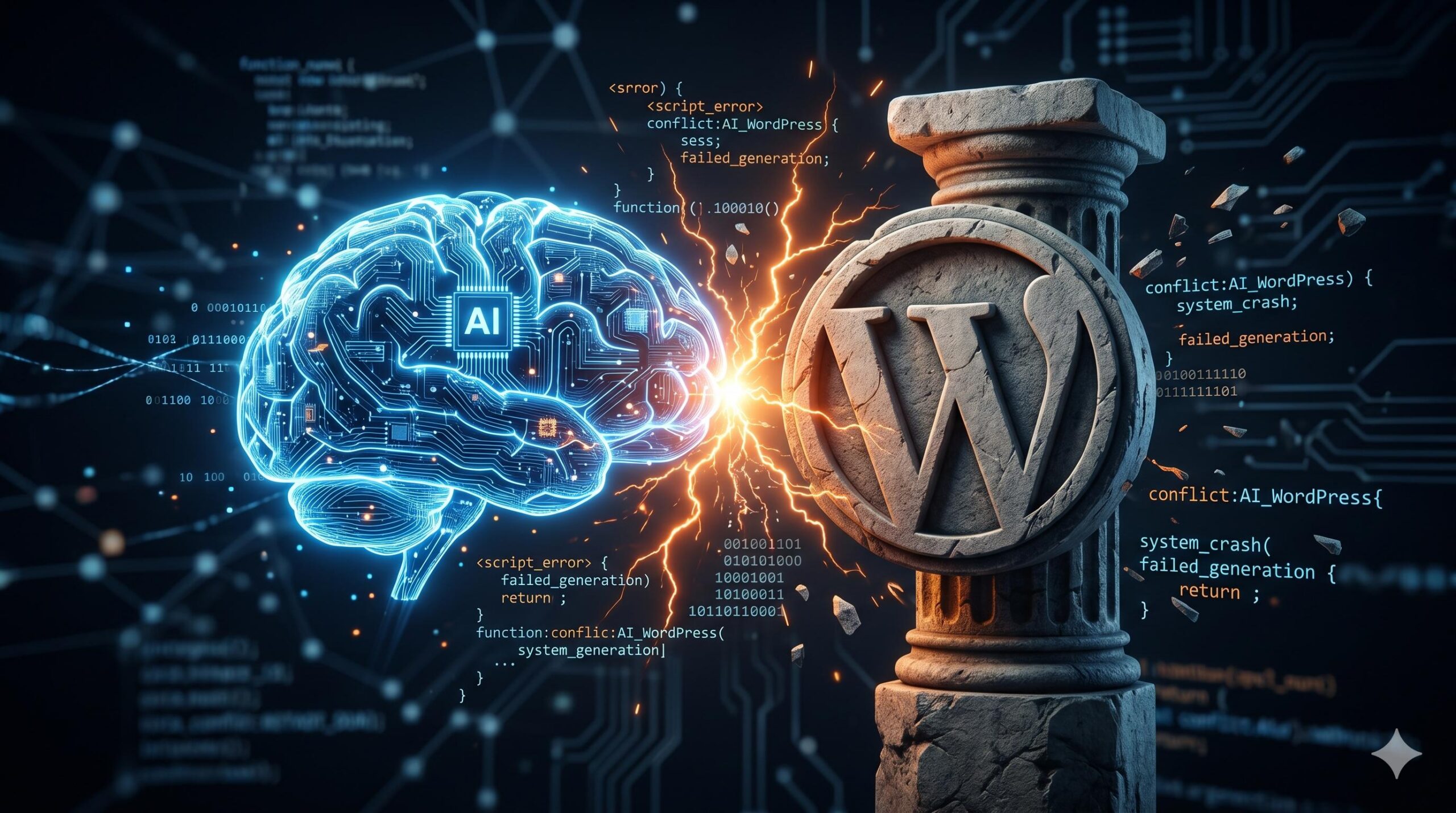
If your site recently broke after adding a smart writing tool, you are likely facing AI Content Plugin Conflicts in WordPress. What does this mean? It is a code clash where your new Artificial Intelligence generator interferes with existing plugins. You will usually encounter this directly inside the WordPress block editor or on the AI tool’s settings page. Why does it appear? AI plugins rely on heavy JavaScript and external API calls to fetch generated text. When page builders, security firewalls, or SEO tools try to control the exact same editing space or block these external requests, their scripts collide. This results in frozen screens, broken layouts, or failed generation.
Welcome to wordpressissuefix.com. In this guide, we will walk you through a calm, beginner-friendly process to resolve this specific problem so you can get back to creating content smoothly.
Table of Contents
Common Symptoms of AI Content Plugin Conflicts

Before we dive into the solutions, it helps to confirm that an AI plugin is actually the root cause of your website’s strange behavior. Because these plugins operate directly inside your post editor, the symptoms are usually very distinct.
If you are experiencing AI Content Plugin Conflicts in WordPress, you will likely notice one or more of the following issues:
- The “Generate” Button is Unresponsive: You click the button to generate a new paragraph or headline and it spins forever or does absolutely nothing.
- The Editor Turns Blank (White Screen of Death): Opening an existing post or creating a new one loads a completely white screen instead of your usual writing interface.
- SEO Meta Boxes Disappear: Popular SEO plugins suddenly vanish from the bottom of your post editor because the AI plugin’s code is overriding the display.
- API Connection Errors: You see a red warning banner stating that the plugin cannot connect to the OpenAI API or its host server.
Step-by-Step Guide to Resolving the Conflict
If you are seeing the symptoms above, do not panic. Your website is not broken permanently. Follow these technical but beginner-safe steps to isolate and fix the problem.
Step 1: Safely Isolate the Conflicting Plugin
The most common cause of AI Content Plugin Conflicts in WordPress is a direct disagreement between your AI tool and a page builder (like Elementor or Divi) or a classic editor plugin.
Instead of deactivating all your plugins and breaking your live site, use the official Health Check & Troubleshooting plugin built by the WordPress community.
- Install and activate “Health Check & Troubleshooting” from your plugin repository.
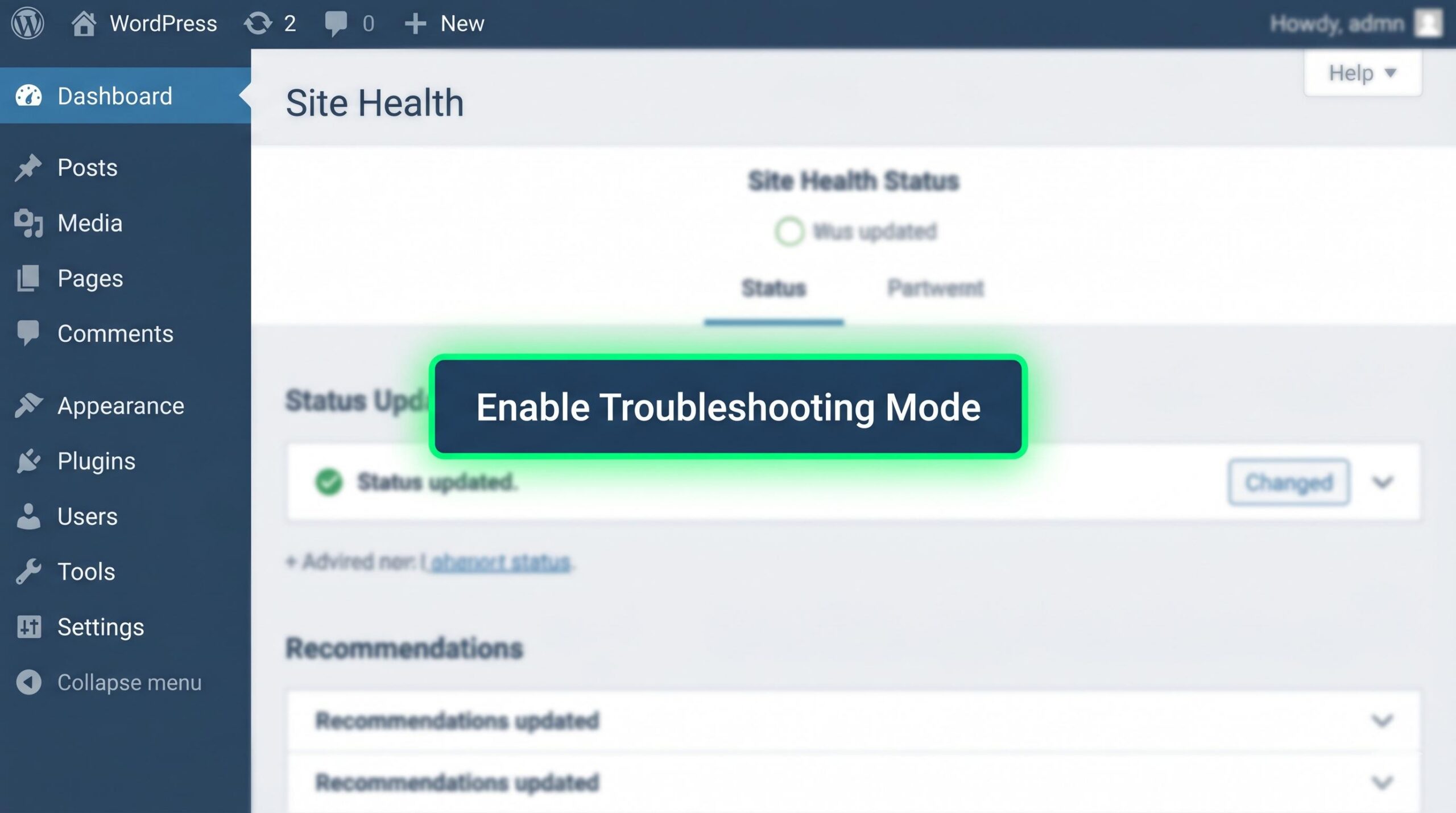
- Go to Tools > Site Health > Troubleshooting and enable Troubleshooting Mode. This temporarily disables all plugins for you only, leaving your live site untouched for visitors.
- Enable your AI content plugin first. Test the generation feature.
- Enable your other plugins one by one, testing the AI tool after each activation.
- The moment the AI generation breaks, you have found the exact plugin causing the conflict.
Step 2: Whitelist AI API Requests in Your Security Plugin
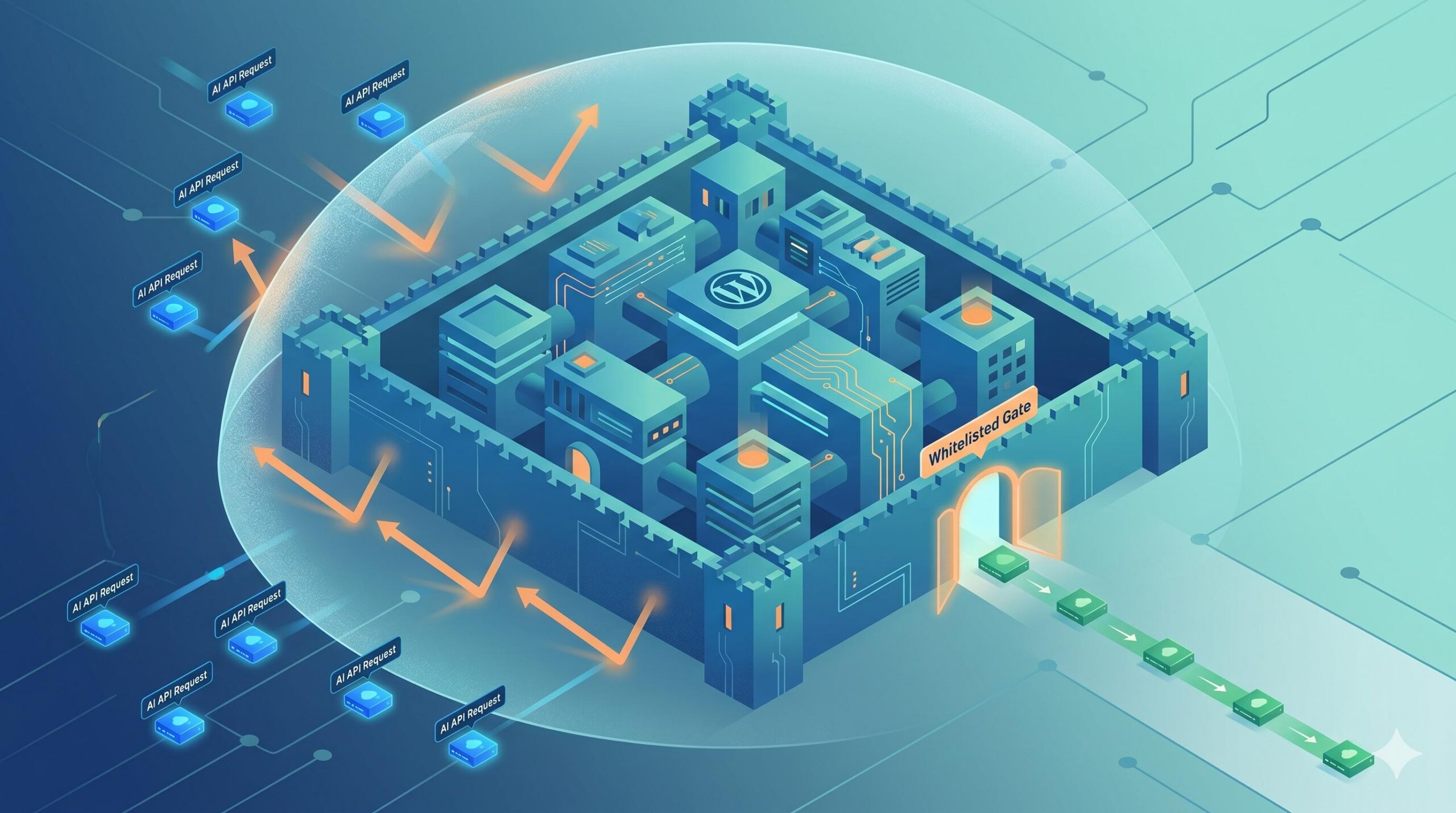
AI tools do not generate content on your actual server; they send a request to an external brain (like OpenAI) and pull the text back to your site. Security plugins and firewalls often see this automated incoming text as a threat and block it.
If your AI plugin gives you an “API Connection Failed” error:
- Open your WordPress security plugin settings (e.g., Wordfence, Solid Security).
- Look for the Firewall or Web Application Firewall (WAF) section.
- Check the “Live Traffic” or “Blocked Requests” log.
- If you see your AI plugin’s processes being blocked, mark them as “Safe” or “Whitelist” the specific REST API route the AI tool uses.
Step 3: Clear Aggressive Caching
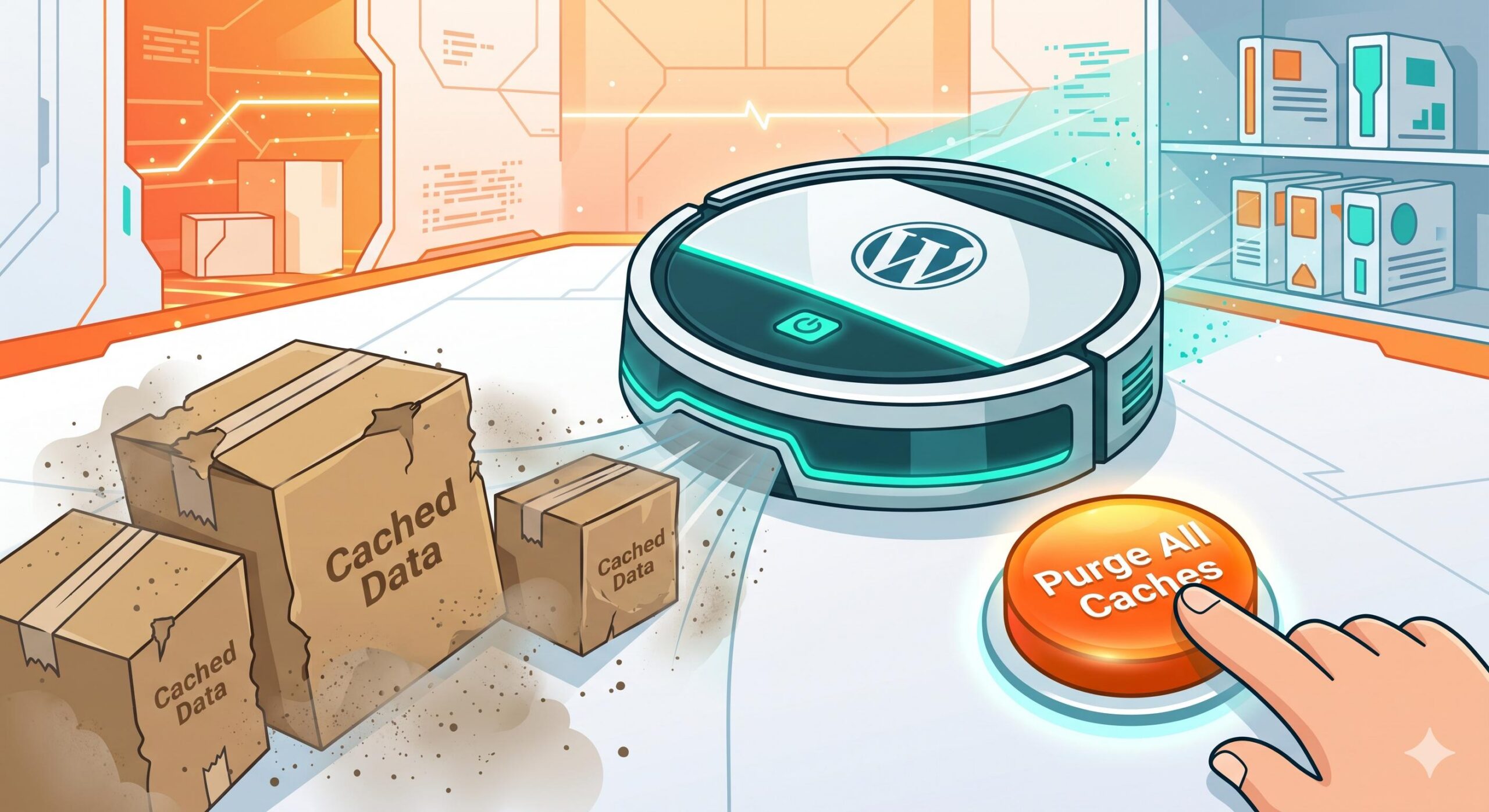
Caching plugins speed up your website by saving a static version of your pages. However, they also cache the WordPress admin dashboard behind the scenes. If you update or install an AI writing tool, your browser might be trying to load an old, cached version of the editing script, resulting in immediate AI Content Plugin Conflicts in WordPress.
- Navigate to your caching plugin (like WP Rocket, W3 Total Cache, or LiteSpeed Cache).
- Click Purge All Caches.
- Clear your browser cache or open the WordPress admin dashboard in a private/incognito window to see if the AI generation works normally.
Step 4: Check for REST API Incompatibilities
Modern AI plugins rely heavily on the WordPress REST API to communicate between the dashboard and the database. If you have a plugin that disables the REST API to stop spam, your AI content generator will completely fail to save text. Ensure that any “Disable REST API” plugins are turned off, or specifically configure them to allow your AI tool’s endpoints.
How to Prevent Future AI Plugin Issues
Once you have your site running smoothly again, a few best practices will help you avoid running into these frustrating clashes in the future.
- Stick to One AI Tool: Do not install three different AI writing assistants at the same time. Having multiple AI plugins fighting for control of the Gutenberg block editor is a guaranteed way to trigger errors.
- Keep Everything Updated: AI technology moves incredibly fast. Plugin developers push updates frequently to patch JavaScript errors. Always keep your AI plugin, WordPress core, and theme updated to the latest versions.
- Avoid Outdated Page Builders: If you use a page builder that hasn’t been updated in over a year, it will almost certainly struggle to process the modern code injected by AI assistants.
How to Apply a Fatal Error After Plugin Update Fix in WordPress
Frequently Asked Questions (FAQ)
Can I run an AI writing plugin and the Classic Editor together?
Often, no. Many modern AI plugins are built exclusively for the Gutenberg block editor. Trying to force an AI block generator to work inside the Classic Editor is a primary cause of AI Content Plugin Conflicts in WordPress. Check your plugin’s documentation for compatibility.
Will deactivating the conflicting plugin delete my previously generated AI content?
No. Once the AI tool generates the text and you save the post, that text becomes a permanent part of your WordPress database. Deactivating the plugin will only stop you from generating new content.
Is this a security threat to my website?
No. A plugin conflict simply means two pieces of software are speaking different languages at the same time. It is a functional error, not a virus.
Disclaimer: This guide is for educational troubleshooting purposes. Always ensure you take a complete backup of your WordPress database and files before making significant changes to your active plugins.








