


Introduction
Comprehensive Guide to the WordPress Database Connection Error Fix, If you are a webmaster operating a WordPress site and you suddenly encounter a database connection error, do not panic. Many webmasters who run into this situation for the first time fall into anxiety. The fundamental cause
of this error is that your site’s files have lost communication with the MySQL database. This error will appear on both your site’s front end and its backend login page, leaving you completely unable to access the admin backend. It usually arises from three core types of problems: incorrect database login credentials in the wp-config.php file, an unresponsive or overloaded host server, and a corrupted WordPress database. In the following sections, I will
guide you through a step-by-step process to safely troubleshoot and fix this issue.
Table of Contents
What Exactly is the WordPress Database Connection Error?
To execute a successful wordpress database connection error fix, you first need to understand how WordPress works. WordPress is built using two main components:
- Files: The core code, themes, plugins, and images.
- Database: A MySQL system that stores your text content, settings, user accounts, and passwords.
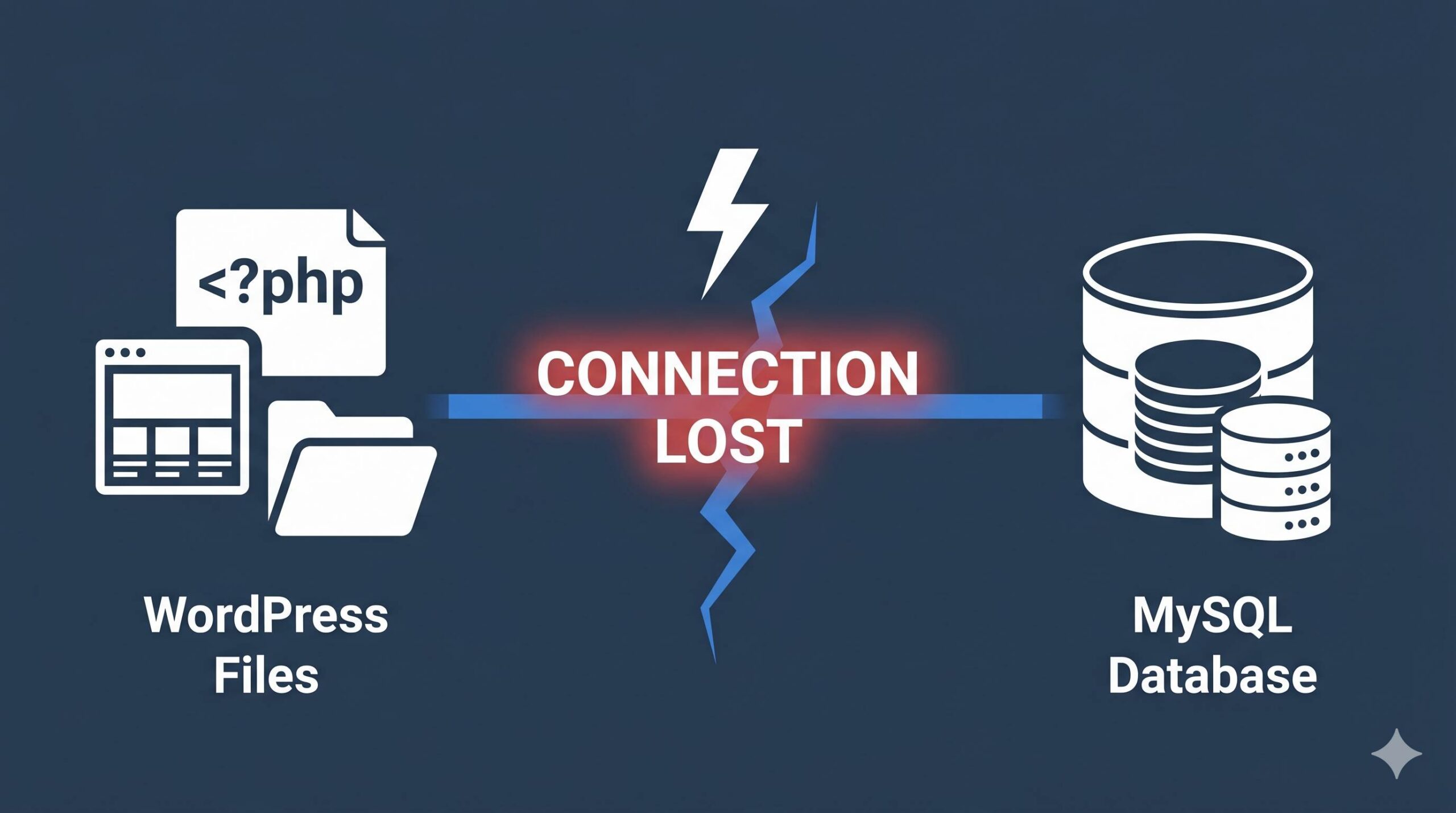
Every time a visitor lands on your website, WordPress uses the PHP code in your files to query the database and assemble the page. If the code cannot log into the database, it cannot fetch your content. As a result, WordPress stops working entirely and displays the “Error establishing a database connection” message.
Before You Begin: Protect Your Site
Before making any technical changes to your website’s core files, it is highly recommended that you take a backup. Even though you cannot access your WordPress dashboard right now, you can still back up your site using your hosting control panel (like cPanel) or by downloading your files via an FTP client. Always secure your current data before attempting a wordpress database connection error fix.
Step-by-Step: WordPress Database Connection Error Fix
Here are the most effective, beginner-friendly methods to troubleshoot and resolve this exact database communication failure.
1. Check Your wp-config.php Credentials
The absolute most common reason for this error is incorrect login credentials. WordPress connects to your database using a specific file named wp-config.php. If you recently moved your site to a new host, changed your password, or accidentally altered a setting, this file will fail to connect.
How to verify your credentials:
- Log into your web hosting account and open the File Manager (or use an FTP client like FileZilla).
- Navigate to the root directory of your website (often called
public_html). - Locate the
wp-config.phpfile. Right-click and select Edit or View. - Look for the following lines of code:
PHP
define( 'DB_NAME', 'database_name_here' );
define( 'DB_USER', 'username_here' );
define( 'DB_PASSWORD', 'password_here' );
define( 'DB_HOST', 'localhost' );
You must ensure that these four values are 100% correct. To verify them, go back to your hosting dashboard, open the MySQL Databases section, and cross-reference the database name and username. If you are unsure about the password, you can reset the database user password in your hosting panel and then update the wp-config.php file to match the new password.
2. Verify the Status of Your Database Server
If your wp-config.php credentials are correct but you still see the error, the problem might not be your files. The database server at your web hosting provider might be down.
This frequently happens on shared hosting plans if your website experiences a sudden spike in traffic. The server gets overwhelmed, and the MySQL database simply stops responding to requests.
How to check this:
- Test other websites hosted on the same server (if you have any).
- Try accessing phpMyAdmin from your hosting dashboard. If phpMyAdmin fails to load or shows a connection timeout, your host’s database server is currently down.
- Contact your web hosting provider’s technical support. Tell them you are attempting a wordpress database connection error fix and ask them to verify if the MySQL server is active and running properly.
3. Repair a Corrupted WordPress Database

Sometimes, the database server is running, and your credentials are correct, but the database tables themselves have become corrupted. This can happen due to a failed plugin update, an unexpected server crash, or an interrupted database operation.
WordPress actually has a built-in feature to repair corrupted databases, but it is disabled by default.
How to safely run the database repair tool:
- Open your
wp-config.phpfile again via your hosting File Manager. - Scroll to the very bottom of the file, just before the line that says
/* That's all, stop editing! Happy publishing. */. - Paste the following line of code:
PHP
define( 'WP_ALLOW_REPAIR', true );
- Save the file.
- Now, in your web browser, navigate to this exact URL:
[yoursite.com/wp-admin/maint/repair.php](https://yoursite.com/wp-admin/maint/repair.php)(replace yoursite.com with your actual domain). - You will see a screen with two buttons. Click the button that says Repair Database.
- Wait for the process to finish and check your website.
Important: Once the repair is complete, you must immediately go back into your wp-config.php file and delete the define( 'WP_ALLOW_REPAIR', true ); line. Leaving it active is a security risk because anyone can access the repair page if it remains enabled.
How to Prevent This Error in the Future
Once you have successfully applied the wordpress database connection error fix, you should take steps to ensure your site remains stable:
- Upgrade your hosting: If your database crashed due to traffic overload, it might be time to move from shared hosting to a VPS or managed WordPress hosting plan.
- Use a caching plugin: Caching reduces the number of times WordPress has to query the database, significantly lowering the strain on your server resources.
- Keep automated backups: Always have a daily backup system in place so you can instantly restore your database if corruption occurs again.
How to Fix HTTPS Redirect Loop in WordPress: A Step-by-Step Guide
Frequently Asked Questions
Does a database connection error mean my site was hacked?
Not necessarily. While a malicious attack can corrupt a database, this error is most commonly caused by innocent misconfigurations, server outages, or routine traffic spikes.
Why did this error happen suddenly when I didn’t change anything?
If you did not touch the wp-config.php file, the error is almost certainly due to your web host’s database server going offline or hitting a resource limit. Reaching out to your host is the best immediate step.
Disclaimer: This guide is for educational troubleshooting purposes. Website environments vary, and you should always create a backup before modifying core server files or databases.







