

Introduction
Want to customize the style of your WordPress website how to create a child theme in WordPress? Have you heard the advice that you must use a child theme? Are you worried that all your modifications will be erased after the site is updated? Many new WordPress site builders who want to customize their website’s design receive the suggestion to use a child theme.
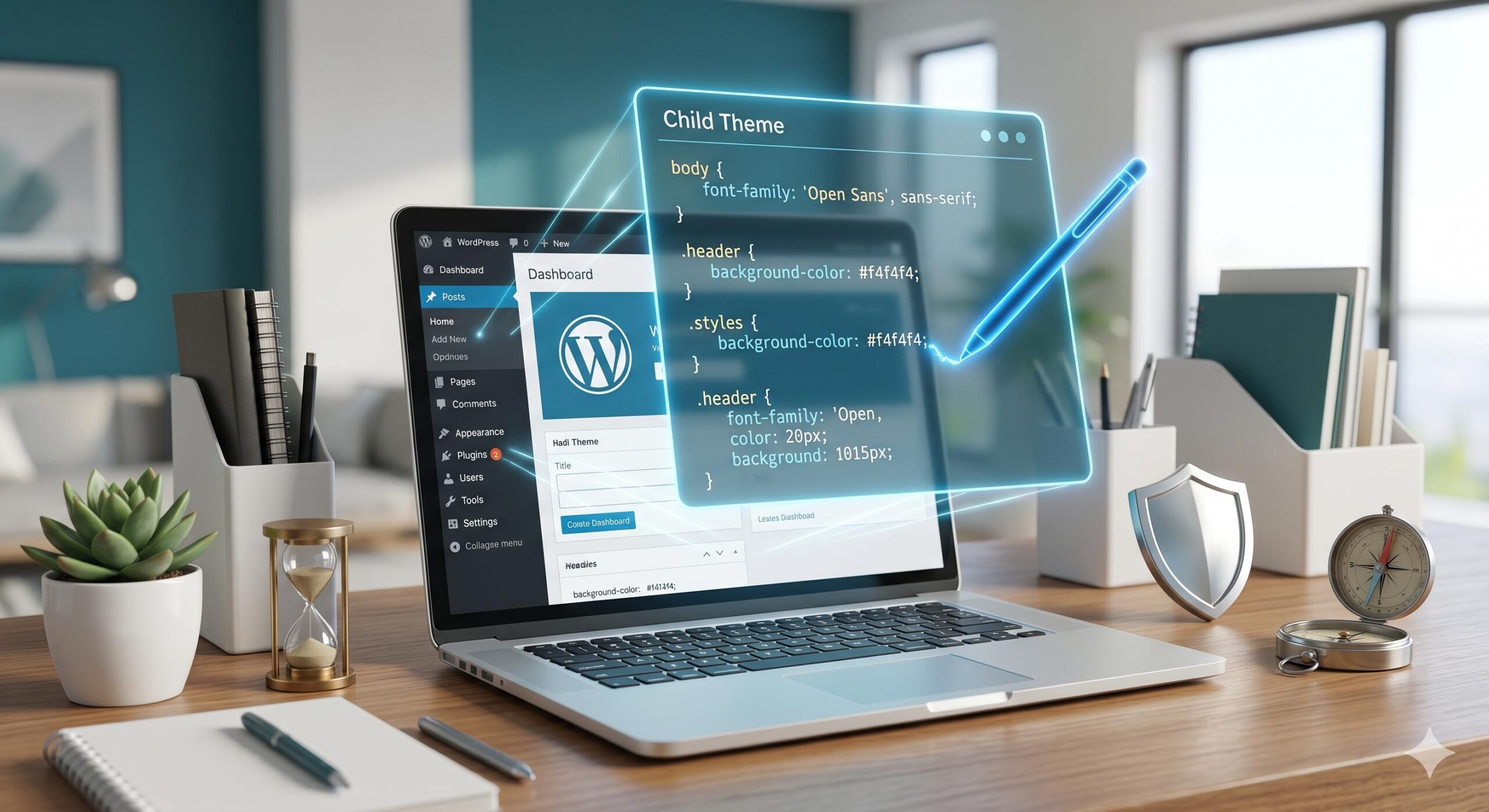
A child theme is an add-on theme that inherits all the functions and styling of its parent theme, and it is mostly used to add custom CSS or edit backend PHP files. If you modify the parent theme directly, you will lose all your custom content when the theme developer pushes out an update, but creating a child theme can permanently protect those modifications.
Table of Contents
Why You Must Use a Child Theme for Customizations
Before diving into the technical steps, it is important to understand why WordPress experts consider child themes mandatory for website modifications.
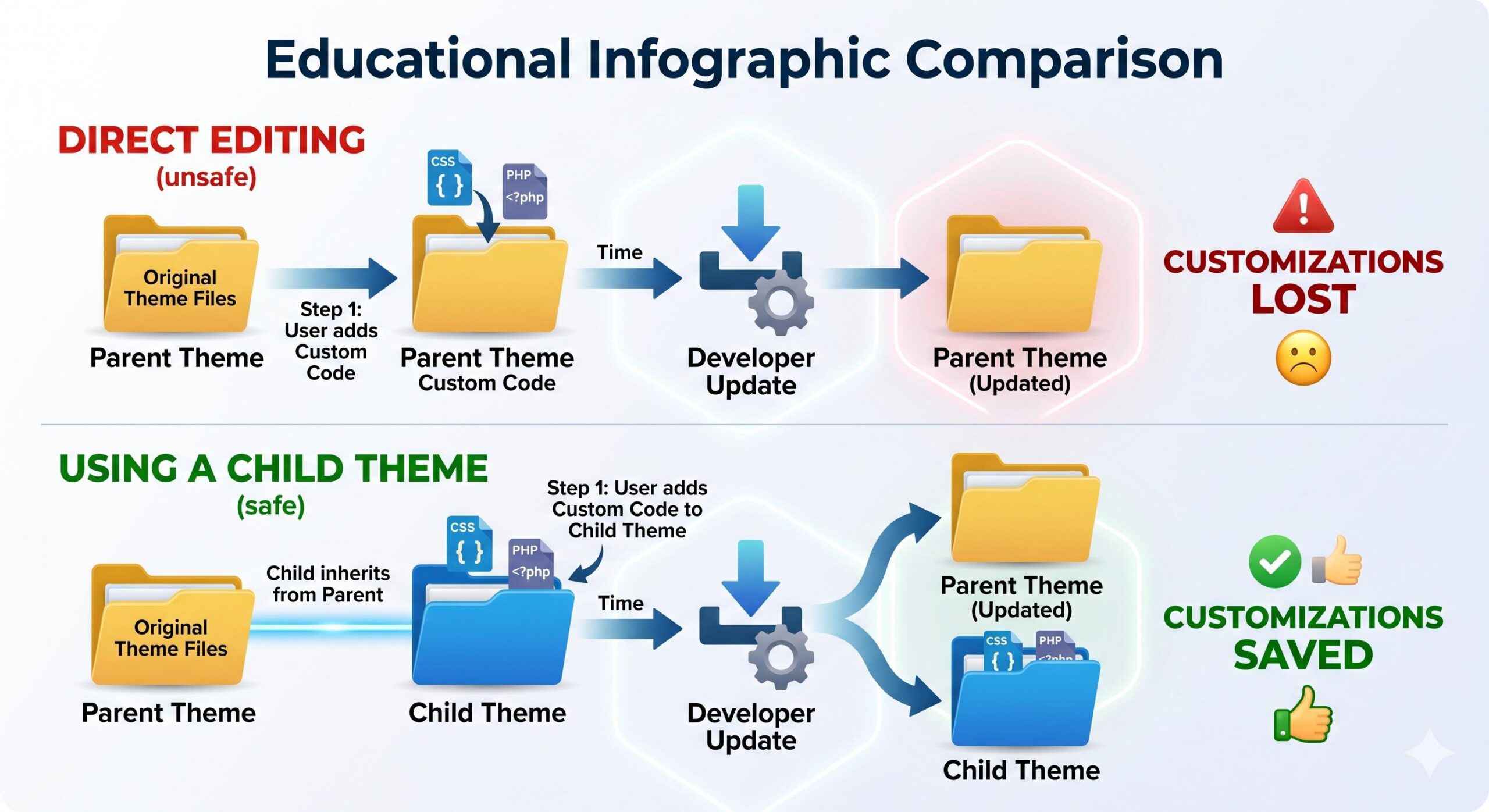
- Update Protection: Theme developers release regular theme updates to patch vulnerabilities and add new functions, while child themes can isolate code to prevent updates to the parent theme from overwriting users’ custom modifications.
- Safe Fallback: child theme mechanism, most coding errors occurring in child themes are easy to fix. At worst, users can simply deactivate the child theme to revert to the unmodified original parent theme.
- Faster Development: Child themes help developers build websites faster. Relying on the parent theme framework, they remove the need to write all code from scratch. Developers only need to create the customized parts of the code, which cuts down on redundant work.
Parent Theme vs. Child Theme
| Feature | Parent Theme | Child Theme |
| Functionality | Contains all core files and assets | Inherits core files from the parent |
| Customization | Should never be edited directly | Safe to edit and customize |
| Updates | Can be safely updated anytime | Rarely needs updating unless you change your own code |
Prerequisites: What You Need to Get Started
To learn how to create a child theme in WordPress, you will need to access your website’s files. You cannot do this securely from the standard WordPress dashboard. Ensure you have one of the following:
- Control Panel Access: Access to your web hosting account’s cPanel or hPanel (specifically the File Manager tool).
- FTP Client: An FTP program like FileZilla and your FTP login credentials.
- A Simple Text Editor: A basic code editor like Notepad (Windows), TextEdit (Mac), or Visual Studio Code.
Note: Always create a full backup of your WordPress website before modifying theme files.
Step-by-Step: How to Create a Child Theme in WordPress
Follow these beginner-friendly steps to create your child theme securely. In this example, we will assume you are creating a child theme for the default Twenty Twenty-Four theme.
Step 1: Create the Child Theme Folder
First, navigate to the folder where WordPress stores all of its themes.
- Log in to your hosting File Manager or connect via FTP.
- Navigate to your WordPress directory:
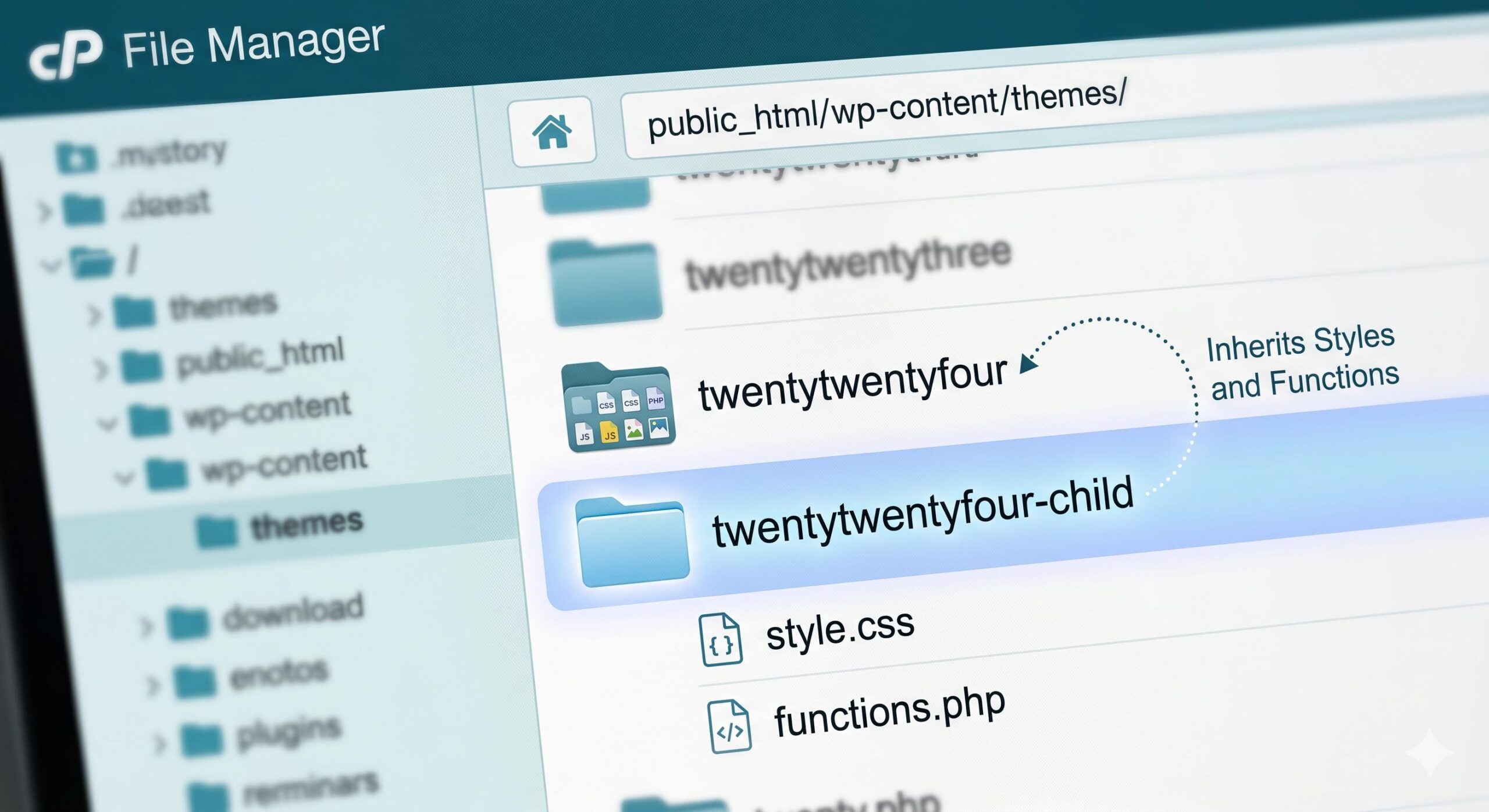
public_html/wp-content/themes/. - Create a new folder inside the
themesdirectory. - Name the folder after your parent theme, appending
-childto the end. For example, if your parent theme folder is namedtwentytwentyfour, name your new foldertwentytwentyfour-child.
Step 2: Create the Stylesheet (style.css)
Next, you need to tell WordPress that this folder is actually a theme. You do this by creating a stylesheet with a specific header comment.
- Open your new
twentytwentyfour-childfolder. - Create a new file and name it exactly
style.css. - Open the file and paste the following code into it:
CSS
/*
 Theme Name:   Twenty Twenty-Four Child
 Theme URI:    http://example.com/twenty-twenty-four-child/
 Description:  Twenty Twenty-Four Child Theme
 Author:       Your Name
 Author URI:   http://example.com
 Template:     twentytwentyfour
 Version:      1.0.0
*/
Crucial Step: The Template: line is the most important part. It must exactly match the folder name of your parent theme (case-sensitive). Save the file when you are done.
Step 3: Enqueue the Parent and Child Styles (functions.php)
Now, you need to tell your child theme to load the design rules (CSS) from the parent theme. If you skip this, your website will look completely unstyled and broken.
- Inside your
twentytwentyfour-childfolder, create another new file. - Name it exactly
functions.php. - Add the following PHP code to properly enqueue the styles:
PHP
<?php
add_action( 'wp_enqueue_scripts', 'enqueue_parent_styles' );
function enqueue_parent_styles() {
   wp_enqueue_style( 'parent-style', get_template_directory_uri() . '/style.css' );
}
?>
Save the file. Your child theme now has the two mandatory files required to function correctly.
Step 4: Activate Your New Child Theme
You have successfully built the child theme. Now it is time to turn it on.
- Log in to your WordPress admin dashboard.
- Navigate to Appearance > Themes.
- You should now see your newly created “Twenty Twenty-Four Child” theme listed alongside your other themes.
- Click Activate.
Your website will look exactly as it did before, but you are now safely running a child theme! You can confidently add custom CSS to your child’s style.css file or modify core behaviors in the child’s functions.php file.
How to Fix Feedzy RSS Feeds Not Working in WordPress: A Complete Guide
Troubleshooting Common Child Theme Issues
Sometimes things do not go exactly as planned. If you are experiencing issues after following the steps on how to create a child theme in WordPress, check these common fixes:
- The theme is not showing up in the dashboard: When building a website, if your theme fails to display in the admin dashboard, first verify the header comments in the style.css file, then confirm that the name of the Template field exactly matches the folder name of the parent theme.
- The website looks completely broken (missing styles): In PHP-powered website building systems such as WordPress, if a site loses all its styling and breaks down, this issue is most often caused by parent theme styles not being correctly enqueued in the functions.php file. It is necessary to verify the code and check for any missing semicolons or brackets.
- White Screen of Death (Critical Error): In the practical operation and maintenance scenarios of this platform, after a site is activated, it triggers the White Screen of Death white screen fault. The core cause of this fault is a syntax error in the functions.php file of the child theme, and the fault can be fully repaired by following the standard process via FTP.
Frequently Asked Questions
Can I create a child theme of a child theme?
No, WordPress does not support “grandchild” themes. A child theme can only inherit from a parent theme.
Will I lose my WordPress menu or widgets when switching to a child theme?
Sometimes, WordPress resets menus and widgets when switching themes—even to a child theme. Simply go to Appearance > Menus and Appearance > Widgets to reassign them to their proper locations.
Is this guide safe for my live website?
Yes, but always use caution. This guide is for educational troubleshooting purposes. We highly recommend testing theme creation on a staging site or a local WordPress installation before applying changes to your live, production website.








