


Introduction
Have you ever been a website administrator who encountered a site failure immediately after clicking the update button for a WordPress plugin? Do not panic—this type of problem is very common.
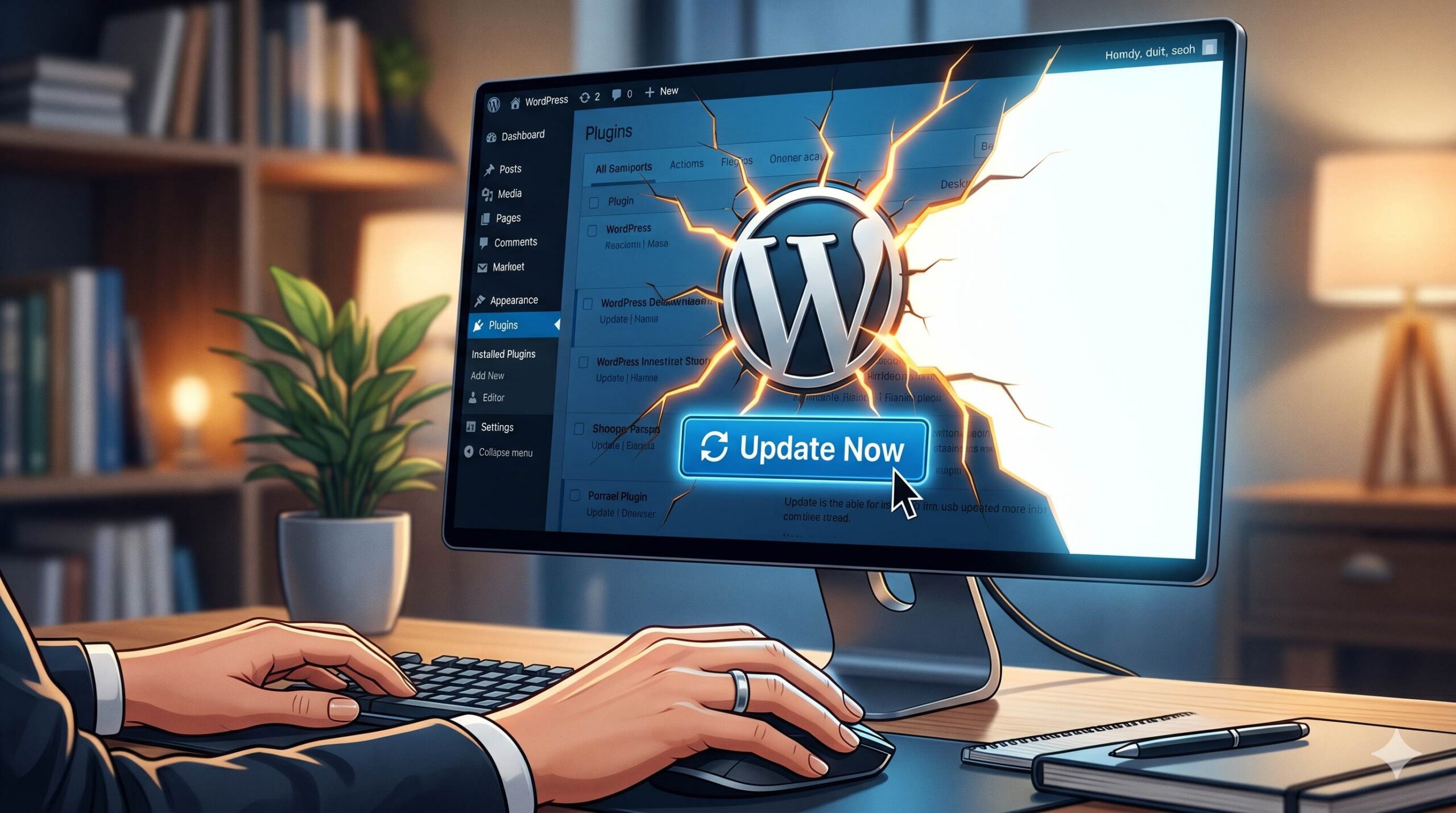
You may face a blank white screen on your site’s backend or frontend, a pop-up “critical error” alert, or a page with completely messed up visual layout. Most cases stem from incompatibility between the new plugin’s code and the WP core version, your current theme, or other plugins, while a small number of cases are triggered by an outdated server PHP version. This guide will introduce a step-by-step, beginner-friendly solution to help you restore your data without any losses and bring your site back online.
Table of Contents
Symptoms: How Do You Know a Plugin is the Culprit?
When a plugin update broke a WordPress site, the signs are usually immediate. Right after the update bar finishes loading, you might experience one of the following:
- The White Screen of Death (WSoD): Your website simply loads a completely blank white page with no text or errors.
- The Critical Error Message: You see a plain white screen displaying the text: “There has been a critical error on this website. Please check your site admin email inbox for instructions.”
- Broken Layouts: The site loads, but the design is shattered, menus are missing, or text overlaps.
- Admin Lockout: You are suddenly logged out of your
wp-admindashboard and cannot log back in.
If any of these happened exactly after updating a plugin, you know exactly what caused the problem. Here is how to fix it.
Step-by-Step Fixes: When a Plugin Update Broke WordPress Site
Depending on whether you can still access your WordPress dashboard, choose the method below that fits your situation.
Method 1: Use WordPress Recovery Mode (If Locked Out)
Since WordPress 5.2, the system has a built-in safety net for fatal errors. If a broken plugin update takes down your site, WordPress will attempt to pause the plugin and send you an email.
- Check the email address associated with your WordPress admin account.
- Look for an email with the subject line: “Your Site is Experiencing a Technical Issue.”
- Inside, it will tell you exactly which plugin caused the crash.
- Click the special Recovery Mode link provided in the email.
- Once logged in via Recovery Mode, navigate to Plugins > Installed Plugins.
- Deactivate the problematic plugin.
- Exit Recovery Mode. Your site should now load normally.
Method 2: Deactivate the Plugin via File Manager or FTP (If No Email Arrives)
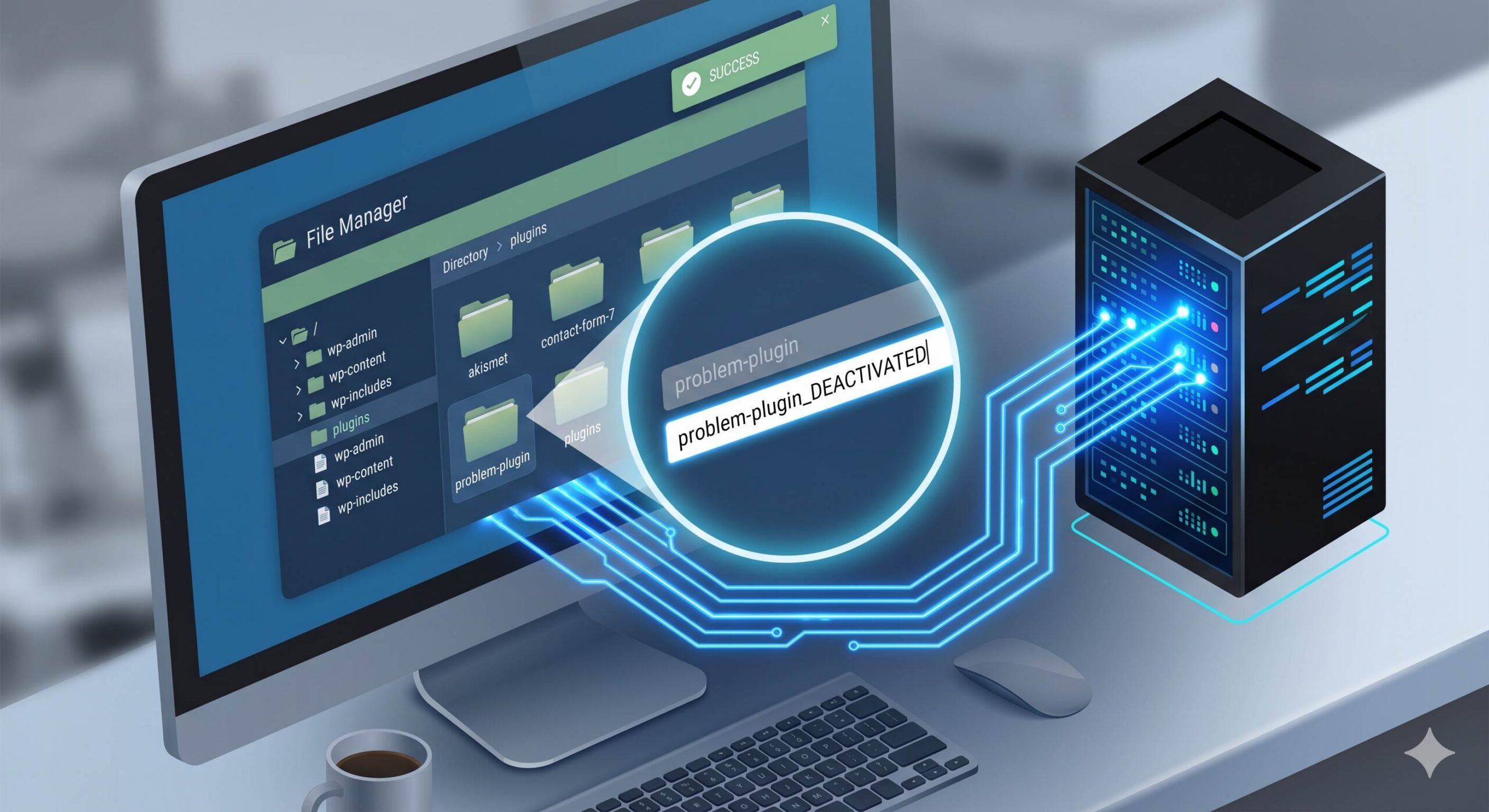
If you did not receive a recovery email and you cannot access your dashboard, you must manually deactivate the plugin from your web hosting server. This sounds technical, but it is highly beginner-safe.
- Log in to your web hosting account (e.g., Bluehost, SiteGround, HostGator).
- Open the cPanel and click on File Manager. (Alternatively, connect via an FTP client like FileZilla).
- Navigate to your website’s root folder (often named
public_html). - Open the
wp-contentfolder, and then open thepluginsfolder. - Find the folder of the plugin you just updated.
- Right-click on that specific plugin’s folder and select Rename.
- Change the name slightly. For example, change
elementortoelementor-deactivated. - Go back to your website and refresh the page.
By renaming the folder, WordPress can no longer find the plugin files, so it forcefully deactivates it. Your site will instantly come back to life. You can now log into your dashboard safely.
Method 3: Rollback to the Previous Plugin Version
Now that your site is online again, what do you do about the broken plugin? You likely still need its features, but the new version is broken. The safest solution is to “roll back” to the previous, stable version.
- If you renamed the folder in Method 2, rename it back to its original name now that you are inside the WordPress dashboard. (WordPress will keep it deactivated).
- Go to Plugins > Add New and search for a free plugin called WP Rollback. Install and activate it.
- Go to your Installed Plugins list.
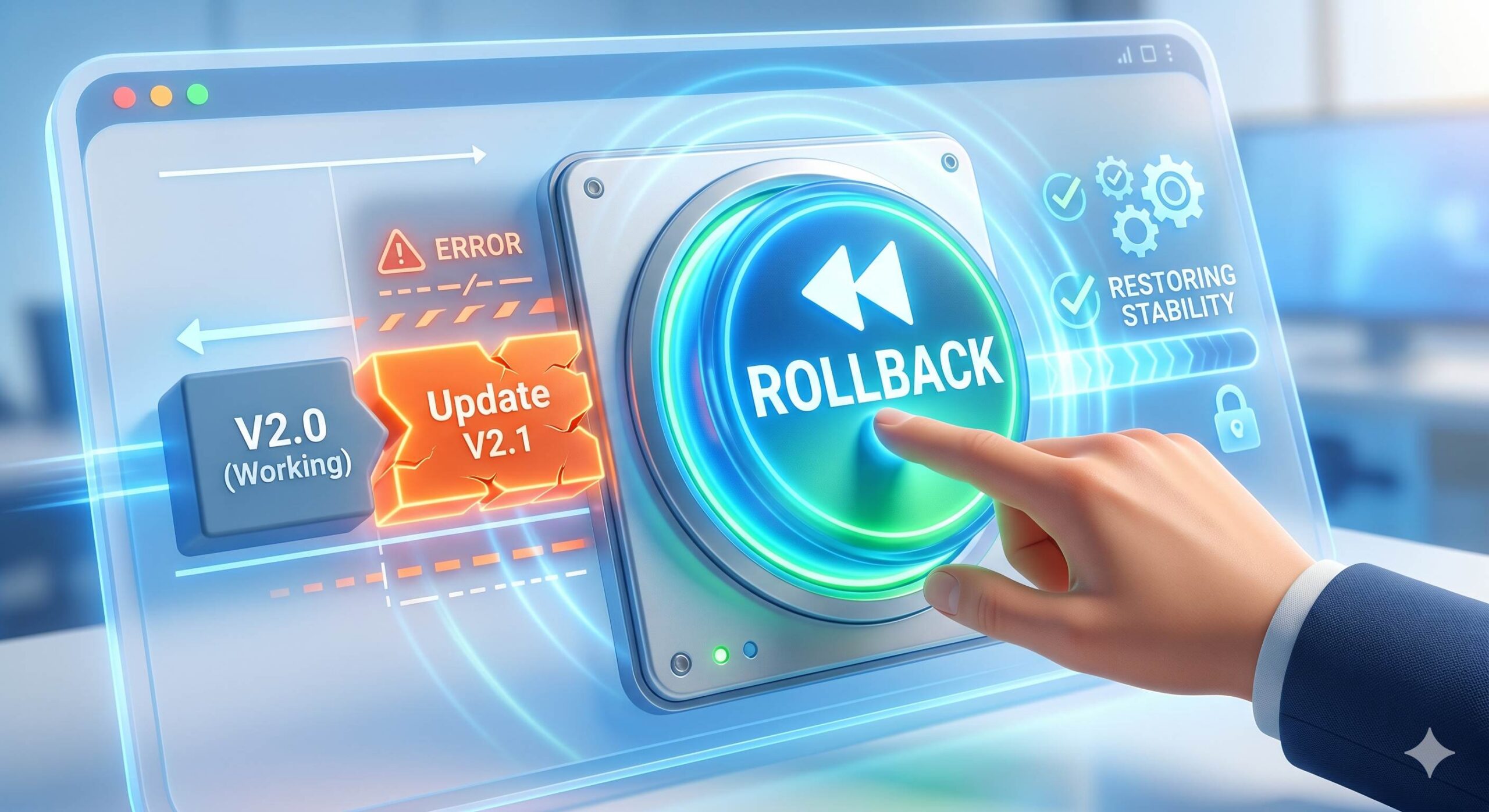
- Under the broken plugin, you will now see a Rollback button. Click it.
- Select the version number you were previously using (usually one step down from the newest version).
- Click Rollback and let WordPress reinstall the older, working code.
- Activate the plugin. Your site and the plugin should now work perfectly together again.
Why Did This Specific Update Break Your Site?
Understanding why a plugin update broke a WordPress site helps you prevent it from happening again. The root cause usually falls into one of these categories:
- Code Conflicts: The developer changed how the plugin operates, and the new code directly fights with code inside your active theme or another plugin.
- Outdated PHP: The new plugin update requires a newer version of PHP (the coding language WordPress runs on), but your hosting server is running an older, unsupported version.
- Timeout During Update: If your server connection dropped while the update was downloading, the plugin files may have corrupted halfway through, causing an instant crash.
How to Prevent Plugin Updates from Breaking Your Site
Troubleshooting is stressful. To avoid dealing with a broken WordPress site after a plugin update in the future, follow these best practices:
- Always Backup First: Never update plugins without a fresh backup. Use free tools like UpdraftPlus to take a quick backup of your database and files before clicking update.
- Avoid Bulk Updating: Do not check all the boxes and click “Update All.” Update plugins one by one and check your live site after each update. If the site breaks, you immediately know which plugin did it.
- Wait a Few Days: Unless it is a critical security patch, wait a week before updating a plugin. Let other users test the new version. If there are bugs, the developer will usually release a quick fix (like a version 2.0.1) a few days later.
Comprehensive Guide to the WordPress Database Connection Error Fix
Frequently Asked Questions (FAQ)
Will I lose my website data if a plugin breaks my site?
No. Your posts, pages, and images are safely stored in your WordPress database. A plugin crash is almost always a front-end display issue or a temporary PHP error. Disabling the plugin restores access to all your content.
Should I delete the broken plugin completely?
If rolling back to an older version does not work, or if the developer has abandoned the plugin, you should delete it and look for an alternative plugin that offers the same functionality.
Can my hosting provider fix this for me?
Yes. If you are nervous about using File Manager or FTP, reach out to your web host’s live chat support. Tell them exactly which plugin you updated, and they can usually rename the folder for you in minutes.
Disclaimer: This guide is for educational troubleshooting purposes. Always ensure you have a backup of your site before making changes to server files or databases.







