

Introduction
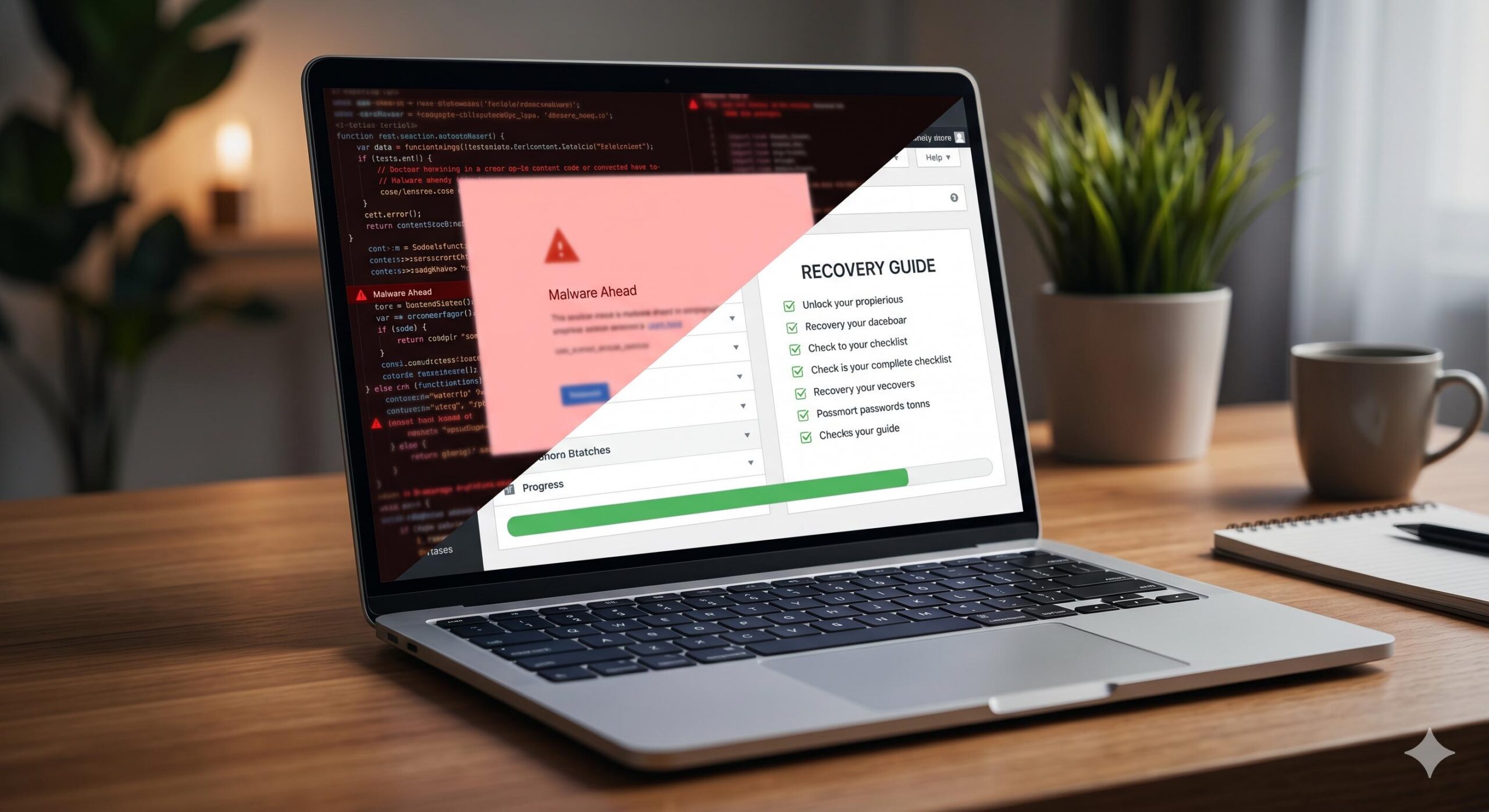
Are you suddenly seeing bizarre pop-ups, malicious redirects, Japanese text in your search results, or a giant red “The site ahead contains malware” warning from Google? If so, you are likely searching for a WordPress Site Hacked? Step-by-Step Recovery Guide. You typically encounter this alarming situation on your live website’s front end, within your Google Search Console alerts, or when you find yourself mysteriously locked out of your own WP-admin dashboard.
Why does this happen? Cyber attackers use automated bots to scour the internet, exploiting outdated plugins, weak administrator passwords, or vulnerable hosting environments to inject malicious code into your files. Take a deep breath—panic leads to rushed mistakes. This guide is for educational troubleshooting purposes to help you calmly understand the situation and walk through a safe, methodical recovery process. Welcome to WordPressIssueFix.com; let’s clean up your digital property.
Table of Contents
Step 1: Stay Calm and Quarantine Your Website
When you realize a security breach has occurred, your first instinct might be to start deleting files randomly. Do not do this. You need to isolate the issue to protect your visitors and your server.
If you still have access to your WordPress dashboard, immediately install a maintenance mode plugin or put up a simple “Under Maintenance” HTML page via your hosting control panel (cPanel). This prevents visitors from interacting with malicious links and protects your brand reputation while you work on the WordPress Site Hacked? Step-by-Step Recovery Guide.
If your host allows it, take a full backup of the hacked site right now. It sounds counterintuitive, but if you accidentally break your site during the cleanup process, you will need a restore point to try again.
Step 2: Contact Your Hosting Provider
Before you dive into technical database fixes, reach out to your web hosting provider’s support team. Most reputable WordPress hosts have automated malware scanners and security protocols.
Explain your situation calmly and ask if they can identify the malicious files. In many cases, shared hosting environments will automatically suspend a hacked site to protect other users on the server. Your host may be able to provide a detailed report of the infected files, and some premium hosts will even clean the hack for you as part of their service. If you are a beginner, this is the safest and most efficient way to start your recovery.
Step 3: Restore Your Site from a Clean Backup
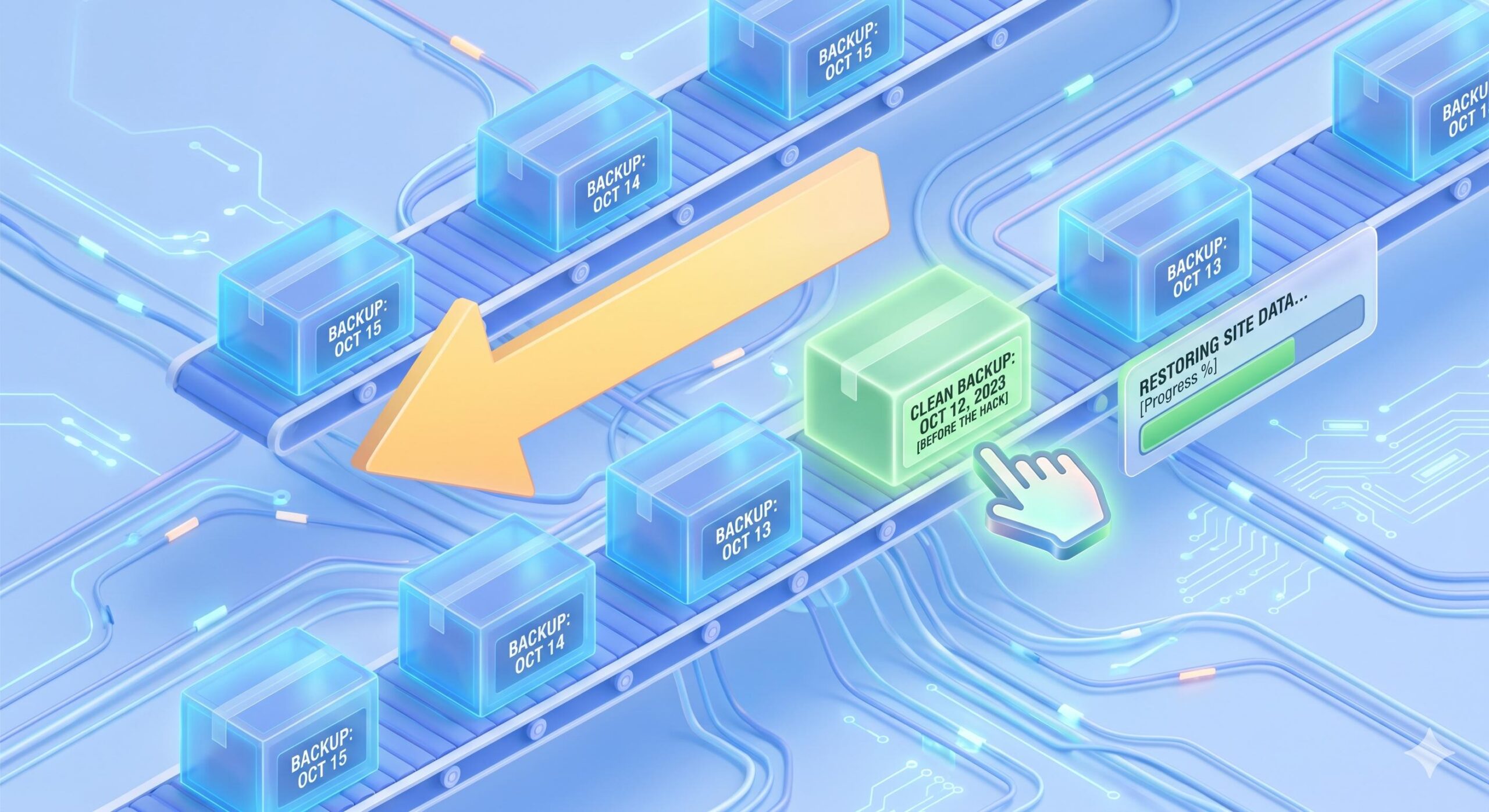
If your hosting provider cannot fix the issue, the easiest DIY method is restoring your website to a point before the hack occurred.
- Locate your backups: Check your hosting panel, your WordPress backup plugin (like UpdraftPlus or BackupBuddy), or your remote storage (Google Drive, Dropbox).
- Find a clean date: Look for a backup dated before you started noticing the strange redirects or Google warnings.
- Restore the files and database: Follow your backup tool’s instructions to overwrite your current (infected) site with the clean backup.
Important note: If you run an e-commerce store or a highly active blog, restoring an old backup means you might lose recent orders or comments. Weigh the data loss against the necessity of a clean site.
Step 4: Scan and Remove the Malicious Code
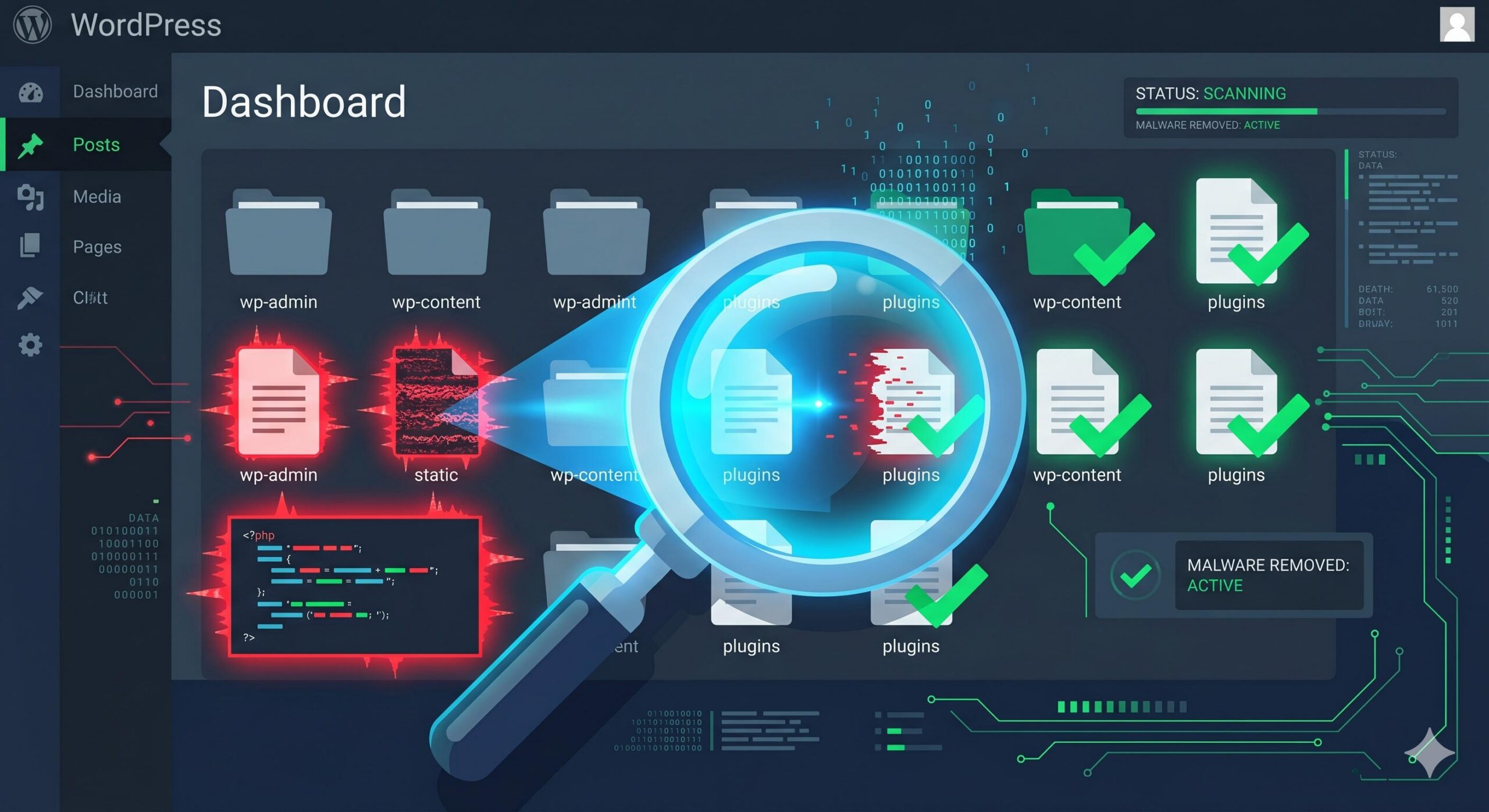
If you do not have a clean backup, you will need to identify and remove the malware manually or with the help of dedicated security tools.
Since this is a beginner-friendly WordPress Site Hacked? Step-by-Step Recovery Guide, we strongly recommend using established security plugins rather than editing core PHP files by hand.
- Install a Malware Scanner: If you can access your dashboard, install a trusted security plugin like Wordfence, MalCare, or Sucuri Security.
- Run a Comprehensive Scan: Set the plugin to scan your core files, themes, plugins, and database for malicious code or unexpected file changes.
- Follow the Plugin’s Instructions: The scanner will flag infected files. Often, it will offer a one-click option to repair the file (replacing it with the official, clean version from the WordPress repository) or delete the rogue file entirely.
If your core WordPress files (wp-includes and wp-admin) are heavily infected, you can download a fresh, clean copy of WordPress from WordPress.org and manually overwrite those specific folders using an FTP client like FileZilla. Never overwrite your wp-content folder or wp-config.php file during this step, as they hold your unique site data.
What is WordPress Hardening? A Security Guide for Forex Bloggers in Nigeria
Step 5: Reset All Passwords and Security Keys
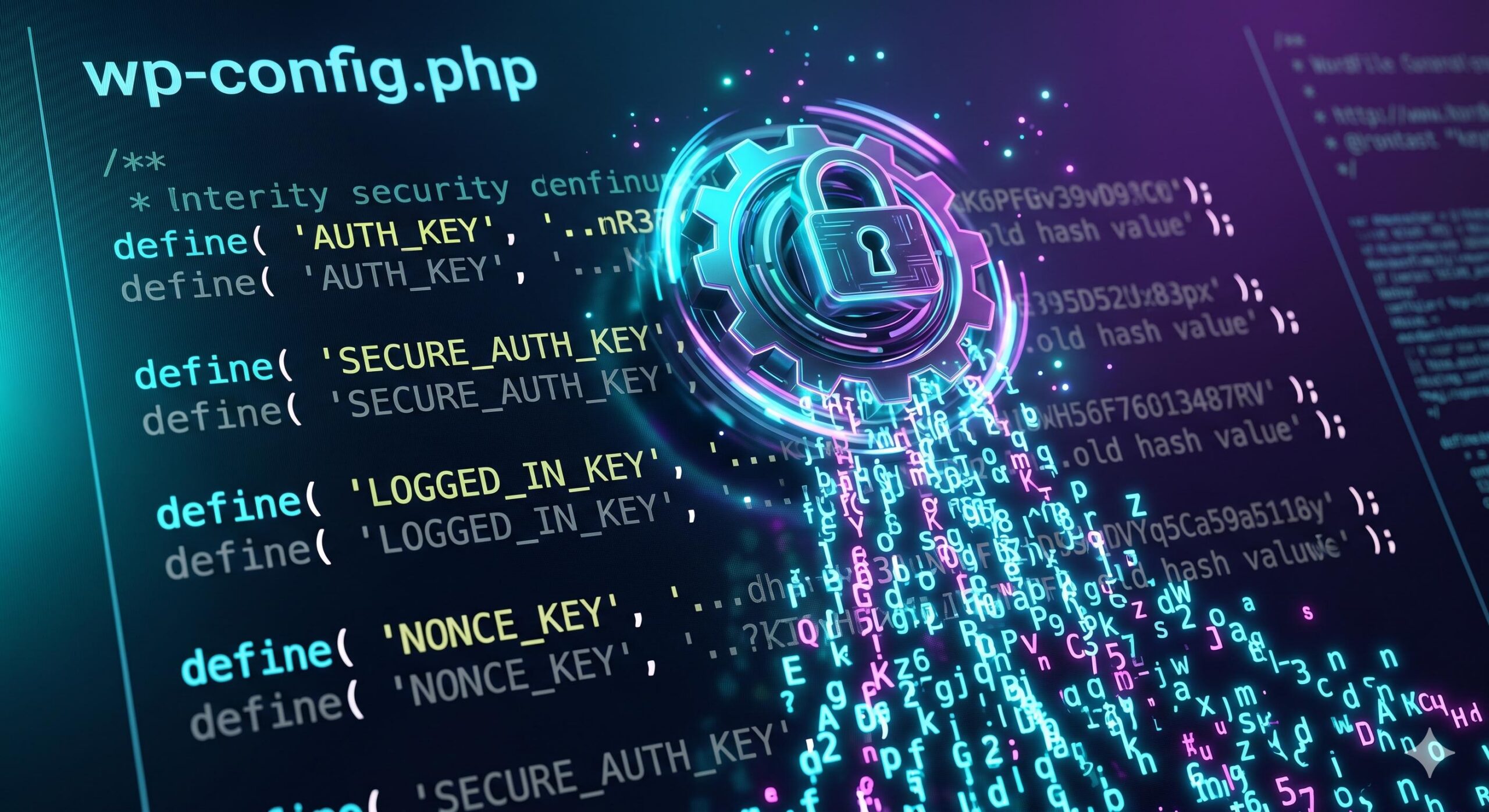
A hacker got into your site somehow, and if you don’t close the door behind them, they will simply log back in. Once your site is clean, you must reset every single access point.
- WordPress Admin Accounts: Go to your Users tab. Delete any unrecognized administrator accounts. Change the password for your own account to something incredibly strong (use a password manager).
- Hosting and FTP/SFTP: Log into your hosting account and change your main control panel password, as well as any FTP user passwords.
- Database Password: Change your MySQL database password in your hosting panel, and remember to update your
wp-config.phpfile with the new password so your site can still connect. - WordPress Security Keys (Salts): Hackers use stored cookies to stay logged in. By changing your security keys in your
wp-config.phpfile (you can generate new ones using the official WordPress Salt Generator), you force all users—including the hacker—to log out immediately.
Preventive Guidance: Securing Your Site for the Future
Completing a WordPress Site Hacked? Step-by-Step Recovery Guide is stressful, and you never want to do it again. To prevent future automated attacks, implement these beginner-safe security measures immediately:
- Keep Everything Updated: Outdated plugins and themes are the number one cause of WordPress hacks. Turn on auto-updates for trusted plugins, and log in weekly to manually update the rest.
- Limit Login Attempts: Install a plugin that blocks IP addresses after three failed login attempts. This stops “brute force” bots from guessing your password.
- Implement Two-Factor Authentication (2FA): Require a code from your smartphone in addition to your password to log into the WP-admin dashboard.
- Delete Unused Plugins and Themes: If you aren’t using a tool, delete it. Deactivated plugins can still contain exploitable vulnerabilities.
By understanding how unauthorized code enters your site and following these methodical troubleshooting steps, you can regain control of your WordPress dashboard, protect your SEO rankings, and build a much stronger defense against future digital threats.








