


Introduction
Welcome to wordpressissuefix. com. If you want to know exactly how to optimize the WordPress site performance, this is where you should stay!
Simply put, site speed optimization is nothing but lowering the time to load your web pages completely on a visitor’s browser. Usually you need this when testing your domain through speed tools like Google PageSpeed Insights or GTmetrix, or if you are refreshing in a browser and don’t see the response time as quick to resolve.
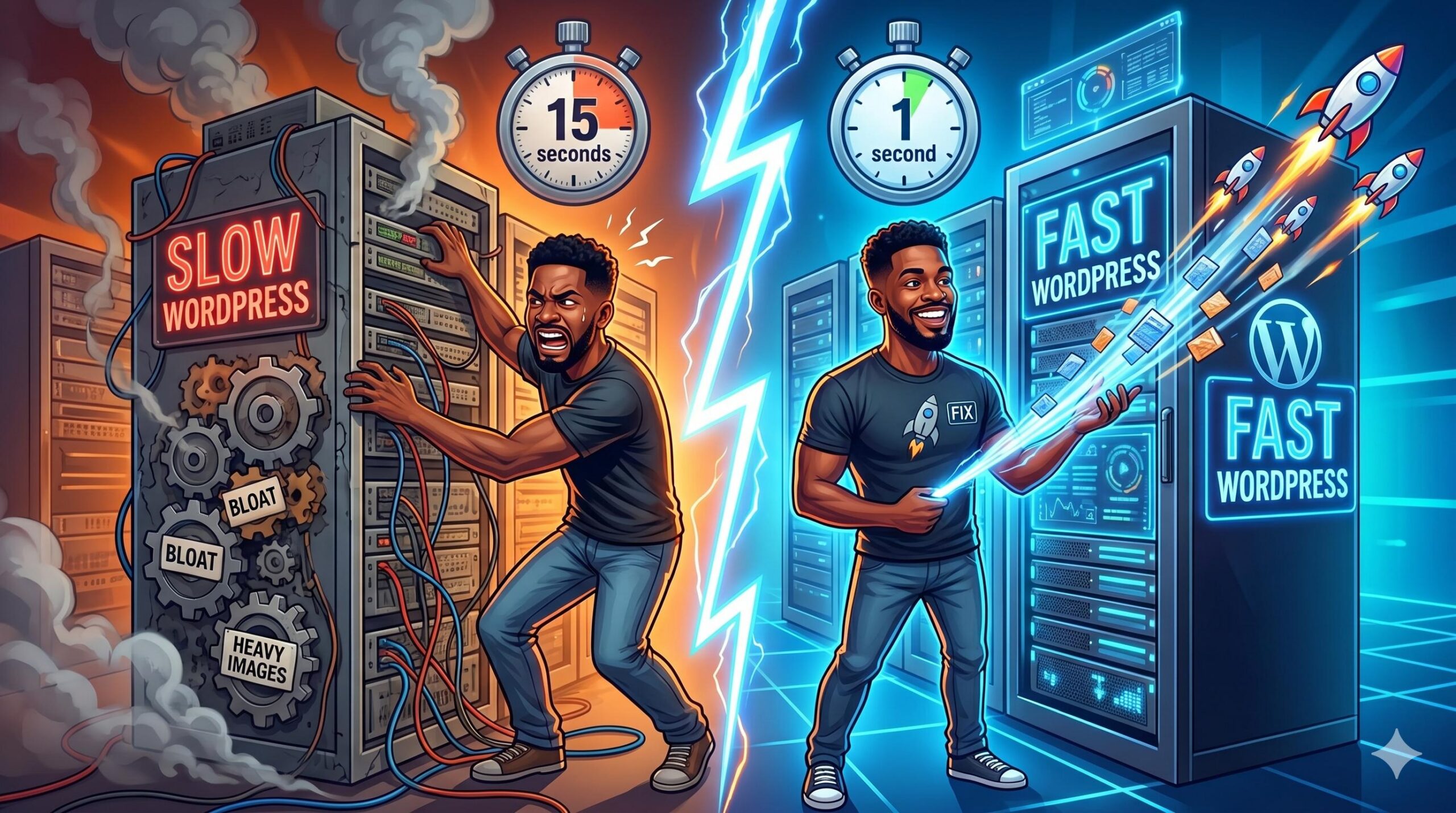
Why does this happen? In general a WordPress site becomes slow because of the unoptimized and heavy images, lack of page caching, bloated themes or running it on non-suitable web hosting servers. Here in this tutorial, we are going to walk you through exactly how can one troubleshot and fix these slow loading times.
Table of Contents
Why Is Your WordPress Website Slow?
In order so we know how to speed up our WordPress website environments — first, let see how WordPress as a whole works. With all that said, WordPress is a dynamic Content Management System (CMS). What this means is that each time a visitor clicks on one of your pages, PHP goes as far back to the server and runs code there which queries MySQL database so basically it has to “build” those page from scratch every time.
Your site is being held up if there are too many complicated instructions for you to process or the files that need sending over can not be sent because they are simply just far too big.
So here is a brief overview of some common speed bottlenecks and their solutions:
| The Problem (Bottleneck) | Why It Slows You Down | The Solution |
| Heavy Images | Large file sizes take longer to download. | Compress and resize images. |
| No Caching | The server builds the page from scratch every time. | Install a caching plugin. |
| Bloated Plugins | Too much background code runs simultaneously. | Deactivate unnecessary plugins. |
| Poor Hosting | Your server lacks the memory to process requests. | Upgrade your hosting plan. |
Step-by-Step Fixes: How to Speed Up WordPress Website
If you are dealing with a slow website, follow these beginner-friendly troubleshooting steps.
1. Install and Configure a Caching Plugin
Enabling caching is the single best step you can take to learn how to speed up your WordPress website load times.
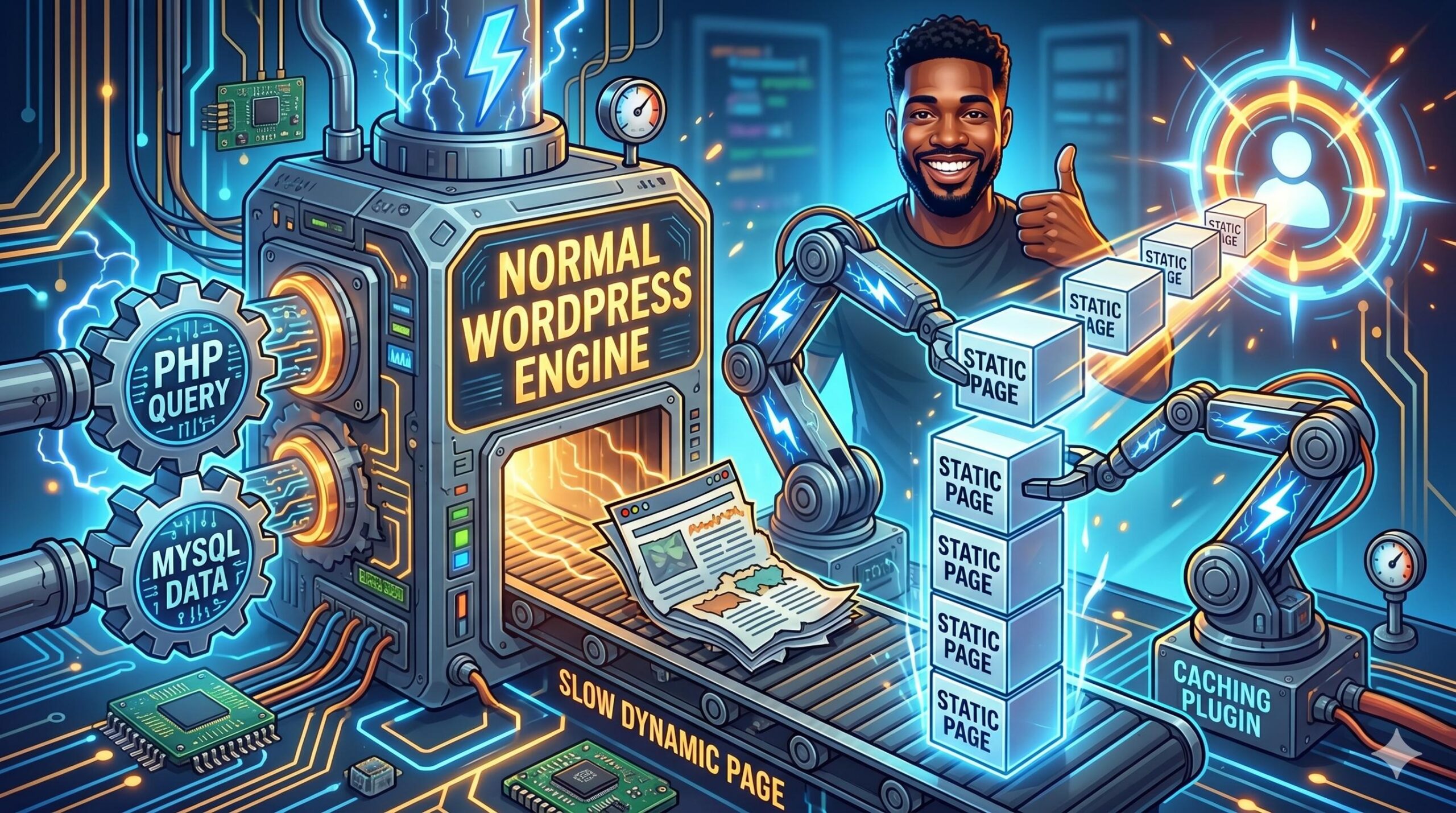
When you are using the caching plugin then it created static HTML copy of your pages for your website. Your server just serves them the static page that you built whilst not having to run heavy database queries each time someone visits. This offloads a lot of heavy lifting from your server and serves requests quicker.
- Action Step: Go to Plugins > Add New in your WordPress dashboard.
- Recommendation: Search for lightweight caching tools like WP Super Cache or LiteSpeed Cache.
- Setup: Activate the plugin and turn on the basic page caching feature.
Important Note: Always clear your cache after making design changes to your website, otherwise, you might not see your updates live!
2. Compress and Optimize Your Images
Uploading images straight from your phone or camera is a guaranteed way to slow down your site. A single high-resolution photo can be 5MB or larger, which takes a long time for a mobile browser to download.
To properly address how to speed up WordPress website loading, you must optimize your media.
- Resize: Never upload an image wider than your website’s maximum width (usually around 1200px to 1920px).
- Compress: Use an image optimization plugin (like Smush or Imagify) to automatically compress your images upon upload. This reduces the file size without sacrificing visible quality.
- WebP Format: Consider converting your standard JPEGs and PNGs to WebP, a modern image format that provides superior compression.
3. Choose a Lightweight Theme
The problem is not always your content; it could be the structure of how their site runs. Most multipurpose themes just come with sliders, complicated widgets and a huge amount of scripts which you probably will not even be using. This additional code leads to slower loading on your site.
If you really want to learn how to optimise your WordPress website, then it is worth changing and going with a lightweight performance theme like Generate Press or Astra. They are based on code that is designed to be light, all while making fewer requests for the server and decreasing load times.
4. Clean Up Your WordPress Database
As time passes, thousands of lines of data are created in your WordPress database. WordPress creates a revision every time you save a post. Additionally, it backs up trashed comments, spam as well as other transient options still hanging around after a plugin was deleted.
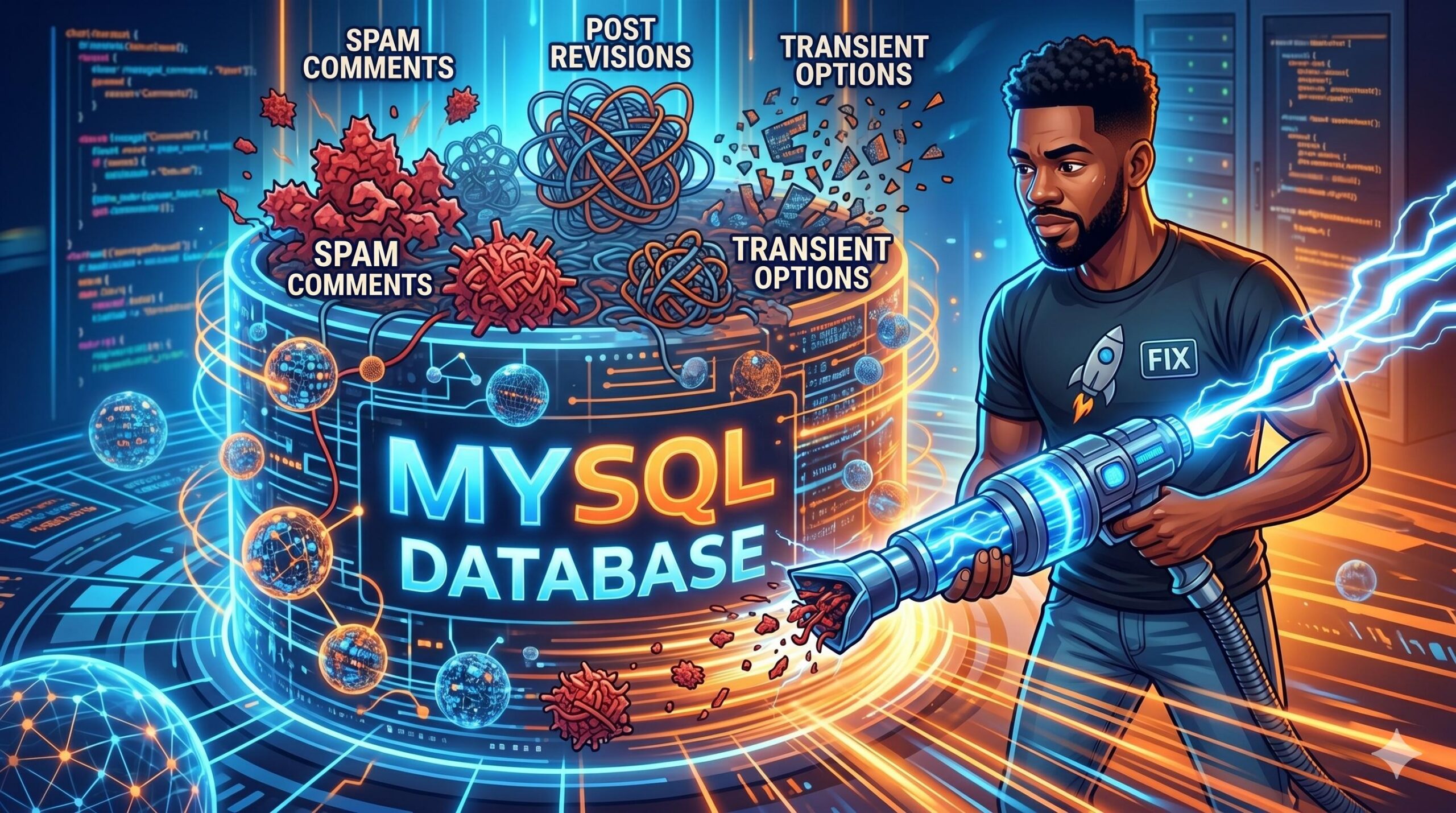
A large database is slow for your server to query when you’re trying to load a page.
- Action Step: Utilize a database optimization plugin (e.g. WP-Optimize) to efficiently clean up orphaned post revisions, spam comments and unused data safely!
5. Minify CSS and JavaScript Files
When you test your site on Google PageSpeed Insights, there might be a warning to “Minify CSS and JavaScript.” Minifying is what it sounds like: minification takes out all superfluous spaces, line breaks and comments from your site’s code to reduce its file size as much as possible (which makes them easier to read).
The majority of caching plugins also have an option to enable CSS and HTML minification with a simple click.
How to Troubleshoot and Fix Google Analytics for Website Performance Errors in WordPres
Preventive Measures: Keep Your Site Loading Fast
As you settle your speed problems, it is a matter of holding the line. Some of the following best practices:
- Keep Everything Updated: Always use latest version of WordPress, theme and plugins. Updates that improve performance and patch slow code are a common thing being released by developers.
- Limit Your Plugins: Only keep the plugins that are absolutely necessary for your business. For anything that does not use you as a service, deactivate and delete it.
- Monitor Your Hosting: Shared hosting may no longer be enough if you escalate the traffic If all other aspects are optimized and your site refuses to speed up, you might need an upgrade in terms of managed WordPress web-hosting or a Virtual Private Server (VPS).
Frequently Asked Questions (FAQ)
Why is my WordPress admin dashboard so slow?
Most of the time this is due to: 1) a large database, 2) numerous active plugins running background tasks or 3) server resources are insufficient (PHP memory limit). Disable plugins individually to find out the issue.
Does a slow website affect my SEO?
Yes. Page speed is a factor in the google ranking. Faster websites provide a better user experience with possibilities to score higher in search rankings.
Are these fixes guaranteed to make my site score 100 on PageSpeed Insights?
There is no one-size-fits-all solution to get it 100% as site speed relies on an intricate blend of your hosting, theme, content and third-party scripts. Still, doing all of these will make your real world loading times much better.
This guide is for educational technologies troubleshooting. For example, we always recommend a complete backup of your WordPress site before installing any new performance plugins or modifying your database.








