

Introduction
Welcome to WordPressIssueFix.com. If your website crashed immediately after installing a new community template, you are experiencing the infamous buddy boss theme white screen error.
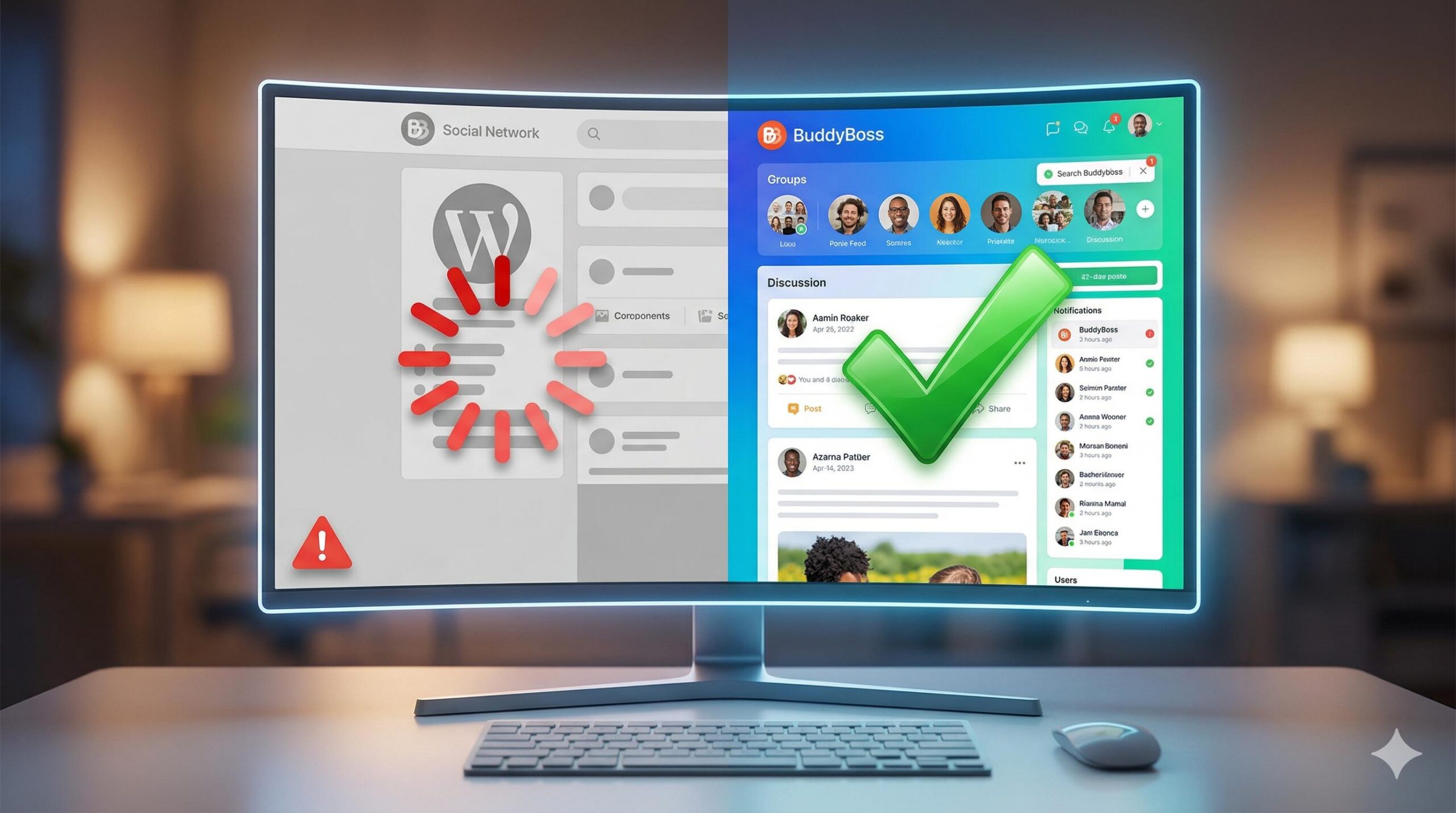
What exactly does this mean? It is a fatal server timeout or memory exhaustion issue. You typically encounter this error directly in your WordPress admin dashboard right after clicking “Activate,” resulting in a completely blank page. Why does it appear? This specific social networking framework is massive and demands significantly more PHP memory than standard shared hosting plans allocate by default, causing your server to choke during installation.
Note: This guide is for educational troubleshooting purposes to help you safely adjust your server limits, resolve the crash, and restore your site.
Table of Contents
Why the Buddy Boss Theme Triggers This Specific Error
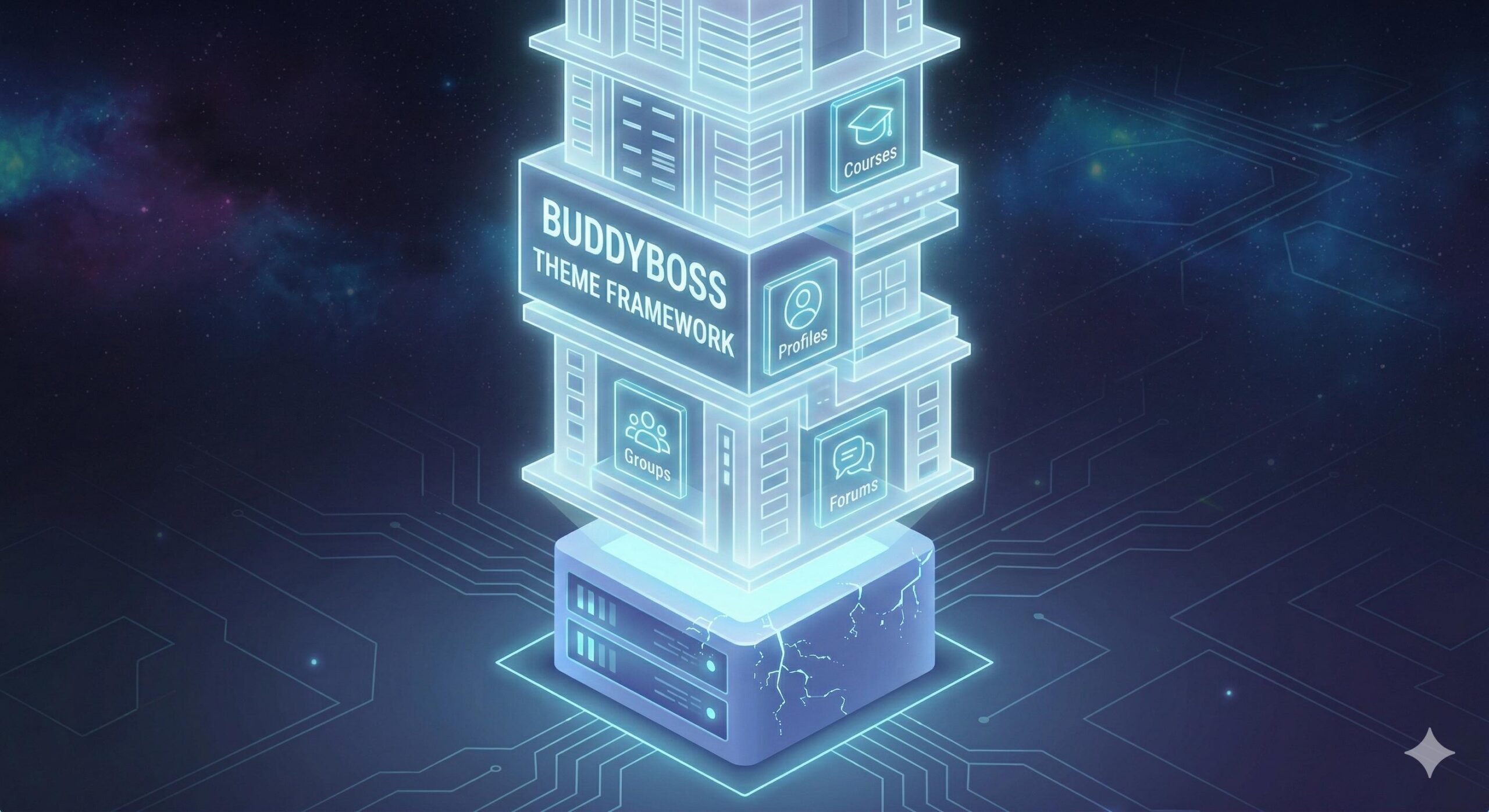
Unlike simple blog templates, the buddy boss theme is not just a cosmetic skin. It is a highly advanced, complex framework designed to process dynamic social feeds, private messaging, forum discussions, and heavy e-learning integrations (like LearnDash).
Because it transforms WordPress from a static blogging platform into a dynamic web application, the theme needs to load thousands of lines of JavaScript and CSS assets simultaneously. If your web host restricts the amount of “breathing room” (server memory) your site can use, the installation process simply chokes and dies. This leaves your website stuck halfway between the old theme and the new one, resulting in a blank white screen.
To resolve this exact issue, we must safely increase the resources allocated to your WordPress installation so the buddy boss theme has the power it needs to initialize properly.
Step 1: Recover Your Dashboard Using Recovery Mode
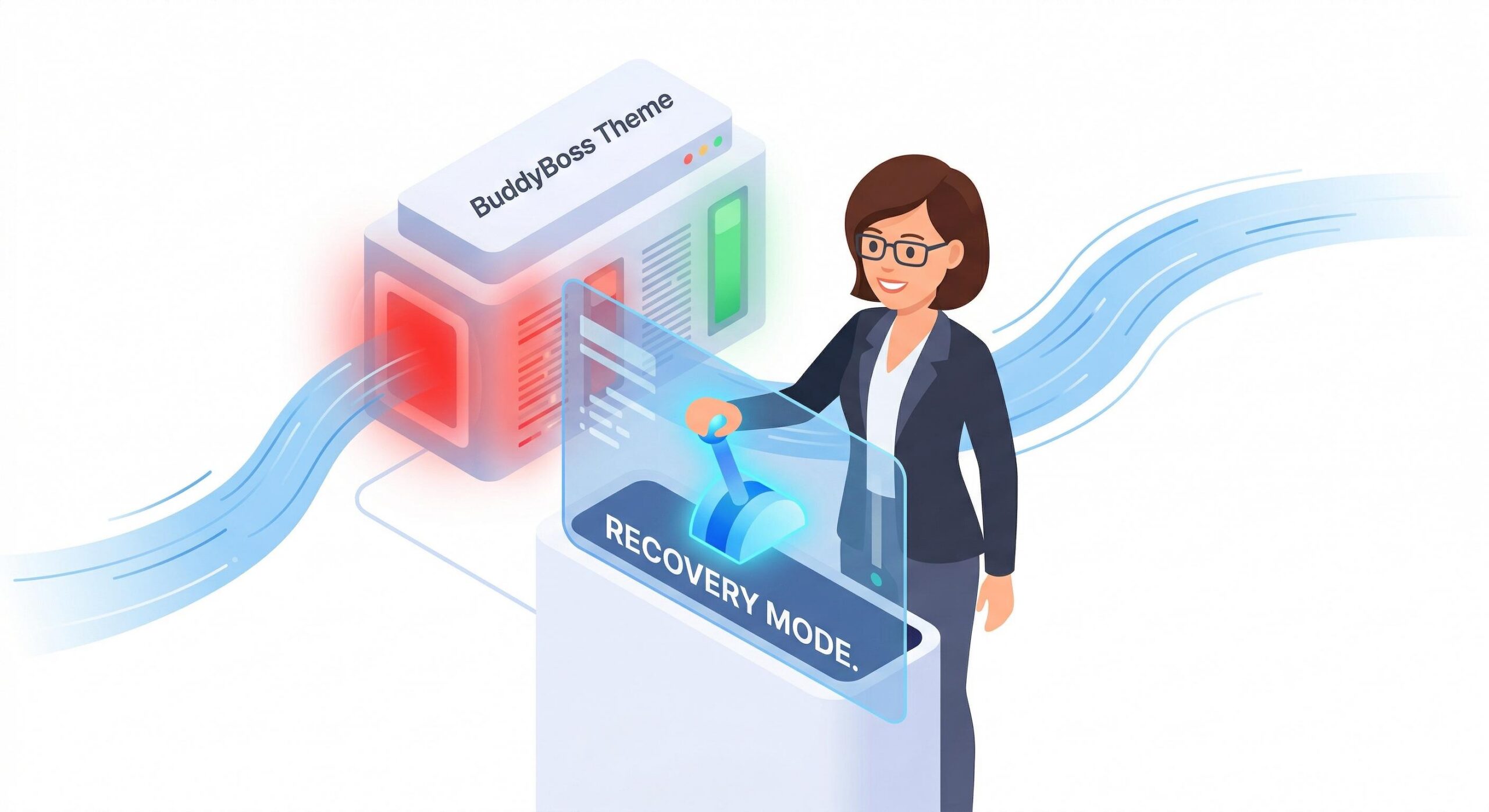
If you are locked out of your WordPress dashboard and only see a white screen, do not panic. WordPress has a built-in safety feature.
- Check Your Email: Look for an automated email from WordPress with the subject line, “Your Site is Experiencing a Technical Issue.”
- Click the Recovery Link: Inside that email is a unique link that allows you to log into your site safely in “Recovery Mode.”
- Deactivate the Theme: Once inside, navigate to Appearance > Themes and temporarily activate a default theme like Twenty Twenty-Four. This will instantly bring your website back online for your visitors while we troubleshoot the underlying limits preventing the buddy boss theme from working.
If you did not receive the email, you will need to log into your hosting provider’s File Manager, navigate to wp-content/themes/, and simply rename the buddyboss-theme folder to buddyboss-theme-disabled. This forces WordPress to revert to a default theme.
Step 2: Increase Your PHP Memory Limit
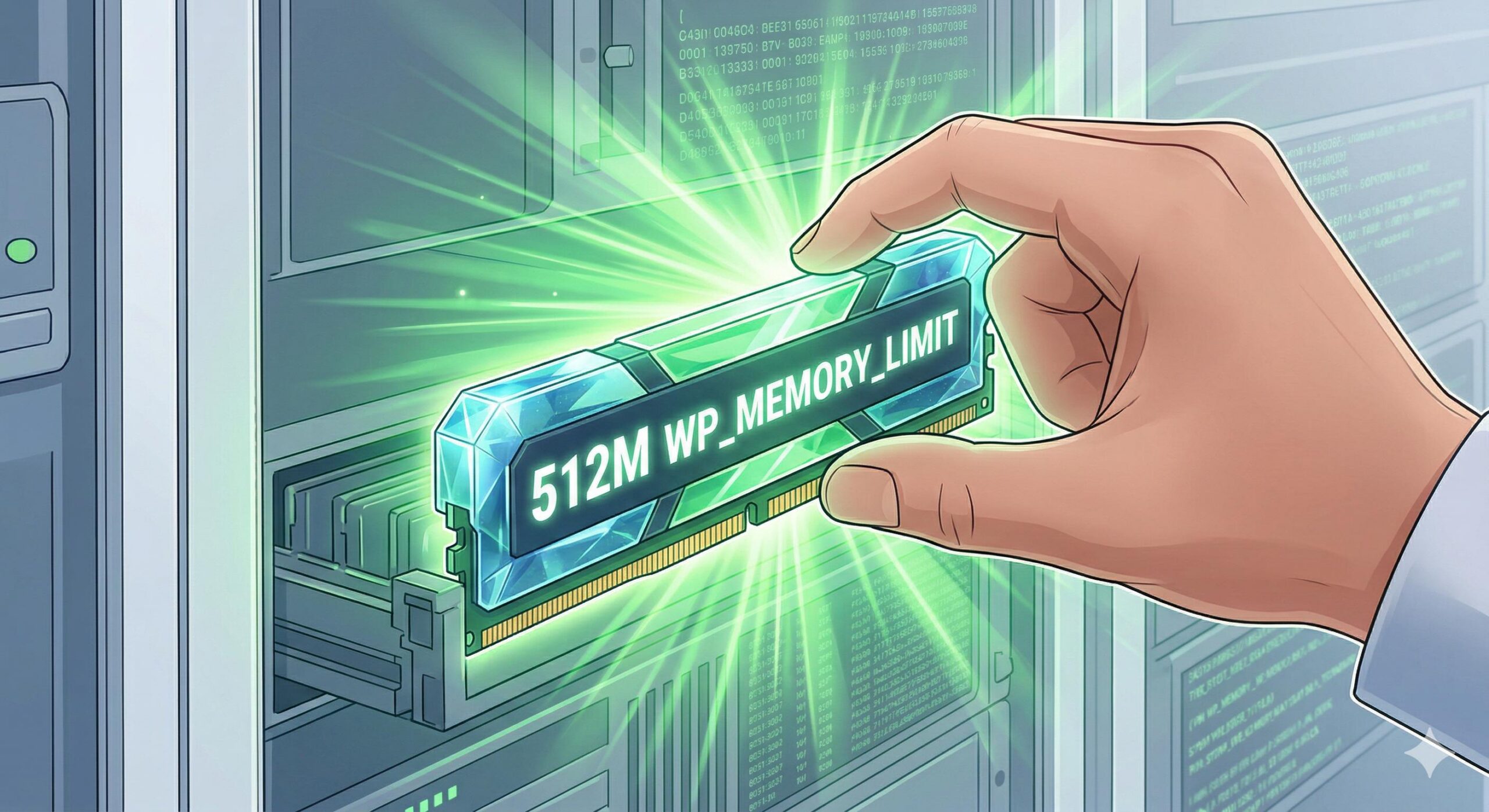
The most direct fix for a buddy boss theme crash is increasing your site’s PHP memory limit to a minimum of 256MB (though 512MB is highly recommended for this specific framework).
You can do this by editing your site’s core configuration file.
- Log into your web hosting control panel (like cPanel) and open the File Manager.
- Locate the
wp-config.phpfile in the root directory of your website. - Right-click and select Edit.
- Scroll down until you find the line that says:
/* That's all, stop editing! Happy publishing. */ - Just above that line, carefully paste the following code:
define( 'WP_MEMORY_LIMIT', '512M' ); - Save your changes.
This tells your server to allow WordPress to use up to 512 megabytes of memory, which is usually enough to let the buddy boss theme activate without triggering a fatal timeout error.
Step 3: Adjust the Max Execution Time
If you increased the memory limit but still receive an error like “The link you followed has expired” when uploading the buddy boss theme zip file, the issue is your server’s upload time limit. The zip file is large, and your server is giving up before the upload finishes.
To fix this, we need to adjust the .htaccess file.
- In your File Manager, look for the
.htaccessfile (ensure “Show Hidden Files” is enabled in your settings). - Right-click and choose Edit.
- Paste the following lines of code at the very bottom of the file:
php_value max_execution_time 300php_value memory_limit 512Mphp_value post_max_size 128Mphp_value upload_max_filesize 128M - Save the file. This extends the time your server will wait for the buddy boss theme to upload and extract, entirely preventing the timeout error.
Step 4: Synchronize the Platform Plugin
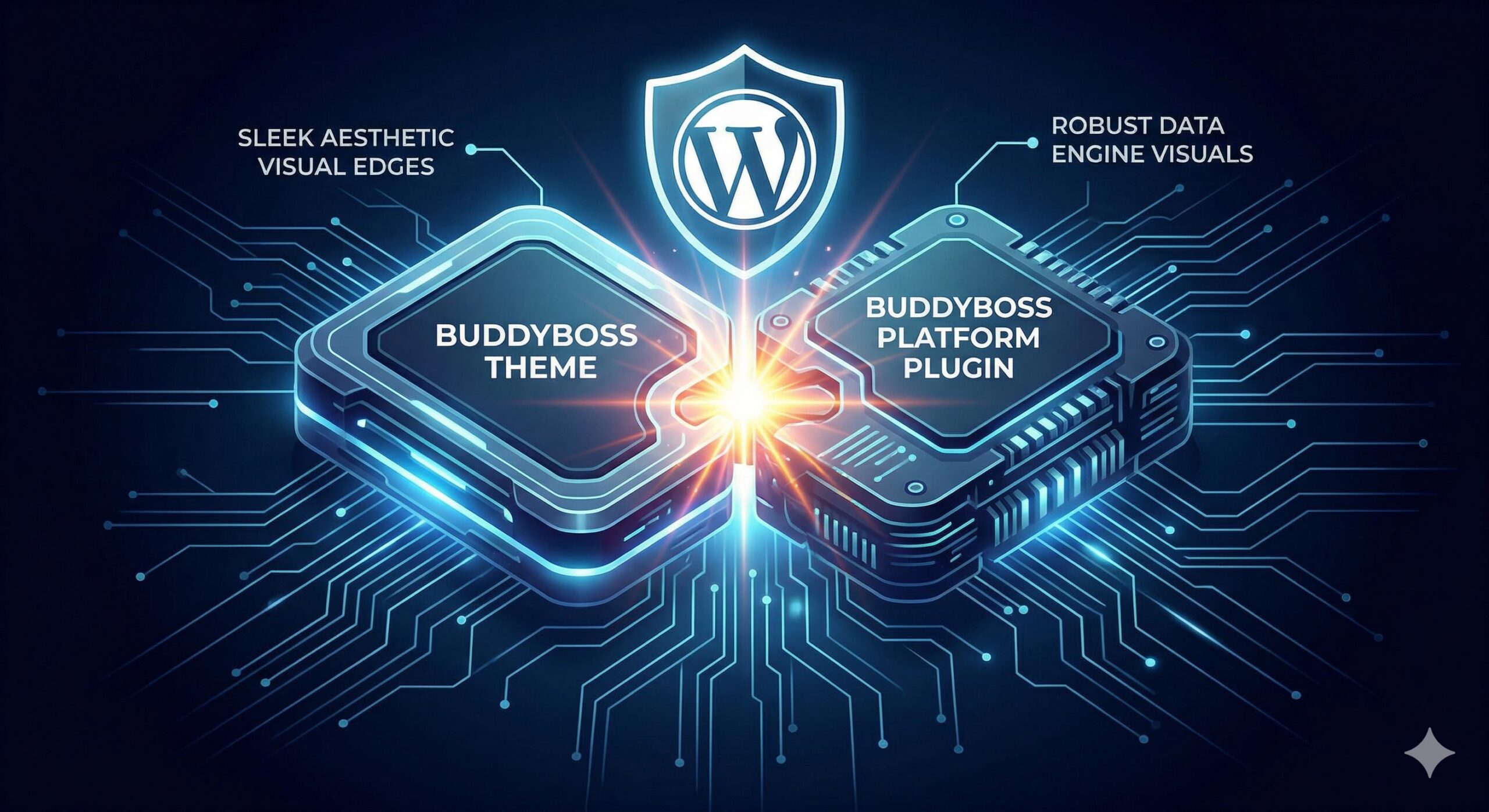
The buddy boss theme is unique because it is heavily reliant on a companion plugin called the “BuddyBoss Platform.” If you try to run the theme without the plugin, or if the versions do not match perfectly, it will trigger a fatal PHP error causing your site to break.
To ensure safe activation:
- Go to Plugins > Add New and ensure the BuddyBoss Platform plugin is installed and activated first.
- Verify that the plugin is updated to the absolute latest version.
- Once the platform plugin is active and updated, go to Appearance > Themes and activate the buddy boss theme.
By activating the foundation first, the theme can successfully locate the data structures it needs without crashing.
Preventive Guidance: Maintaining a Stable Community
Once you have successfully bypassed the errors and activated the buddy boss theme, you need to take steps to ensure your site remains stable.
Because this setup is essentially a web application, standard entry-level shared hosting will eventually cause your site to slow down as your user base grows. If you continue to see database connection errors or high CPU usage warnings, you must consider upgrading your hosting environment to a Managed WordPress VPS or a dedicated cloud server that is specifically optimized for heavy dynamic queries.
Always test major updates for both the platform plugin and the buddy boss theme on a private staging site before updating your live community.
How to Fix the “Best WordPress Themes” Spam Link Injection Error
Frequently Asked Questions (FAQ)
Why does the buddy boss theme say “stylesheet is missing” during installation?
This error happens when you upload the wrong zip folder. When you download the package from the developer, it is often a “master” zip file that contains documentation, plugins, and the theme itself. You must unzip the master folder on your computer first, find the specific buddyboss-theme.zip file inside, and upload only that file to WordPress.
Can I run this theme on basic shared hosting?
While you might be able to force the buddy boss theme to install on a basic shared hosting plan by altering your wp-config.php file, it is highly discouraged. As soon as a few members log in and start chatting or posting in forums simultaneously, the server will crash.
What happens if increasing the memory limit does not fix the white screen?
If you have increased the memory limit to 512M and the buddy boss theme still causes a white screen, you may have a severe plugin conflict. Deactivate all other plugins (except the BuddyBoss Platform) and try activating the theme again. If it works, reactivate your other plugins one by one until the site crashes again to identify the conflicting software.
Conclusion
Fixing a buddy boss theme activation crash can feel intimidating, especially when you are suddenly locked out of your site by a white screen of death. However, as we have covered in this guide, this is usually just a server resource bottleneck, not a permanent break.
By utilizing WordPress Recovery Mode, increasing your PHP memory limit to at least 512MB, and ensuring the core platform plugin is synchronized before activation, you give this powerful framework the exact technical environment it needs to install correctly. Keep in mind that running a dynamic, user-heavy community requires robust server resources. Keep your hosting limits optimized, always test updates safely, and your WordPress site will remain a stable, fast, and secure home for all your members.








