

Introduction
Nothing stops your momentum faster than a website that won’t load. When you search for a way to fix my web site, you are likely staring at a blank screen, a “White Screen of Death,” or a frustrating error message that has locked you out of your own dashboard. This usually happens when a recent change—like a plugin update, a theme switch, or a server-side PHP conflict—causes the WordPress engine to stall.
Understanding how to fix my web site is about more than just getting the pages to show up; it’s about identifying which specific piece of code is preventing your site from communicating with the server. This guide is for educational troubleshooting purposes, designed to walk you through a step-by-step “Process of Elimination” to help you fix my web site safely and efficiently without losing your precious data.
Table of Contents
Why Do I Need to Fix My Web Site? (Common Causes)
Before we jump into the technical steps, it is important to understand why your site stopped working. Usually, the need to fix my web site stems from one of the following:
- Plugin Conflicts: Two plugins are trying to do the same thing at the same time, causing a “fatal error.”
- Theme Incompatibility: Your theme might not be compatible with the latest version of WordPress or your server’s PHP version.
- Memory Exhaustion: Your website has run out of the “RAM” allocated to it by your hosting provider.
- Syntax Errors: A small typo in a code file (like
functions.php) has broken the site.
Step 1: Check for the “White Screen of Death”
If you are trying to fix my web site because you see nothing but a white screen, you are likely dealing with a PHP error that is being hidden for security reasons.
To see what is actually wrong, you should check your email. WordPress often sends an “Administrative Email” containing a link to enter “Recovery Mode.” If you didn’t get an email, don’t worry—we can still fix my web site using FTP or cPanel.
Step 2: Use “Process of Elimination” to Fix My Web Site
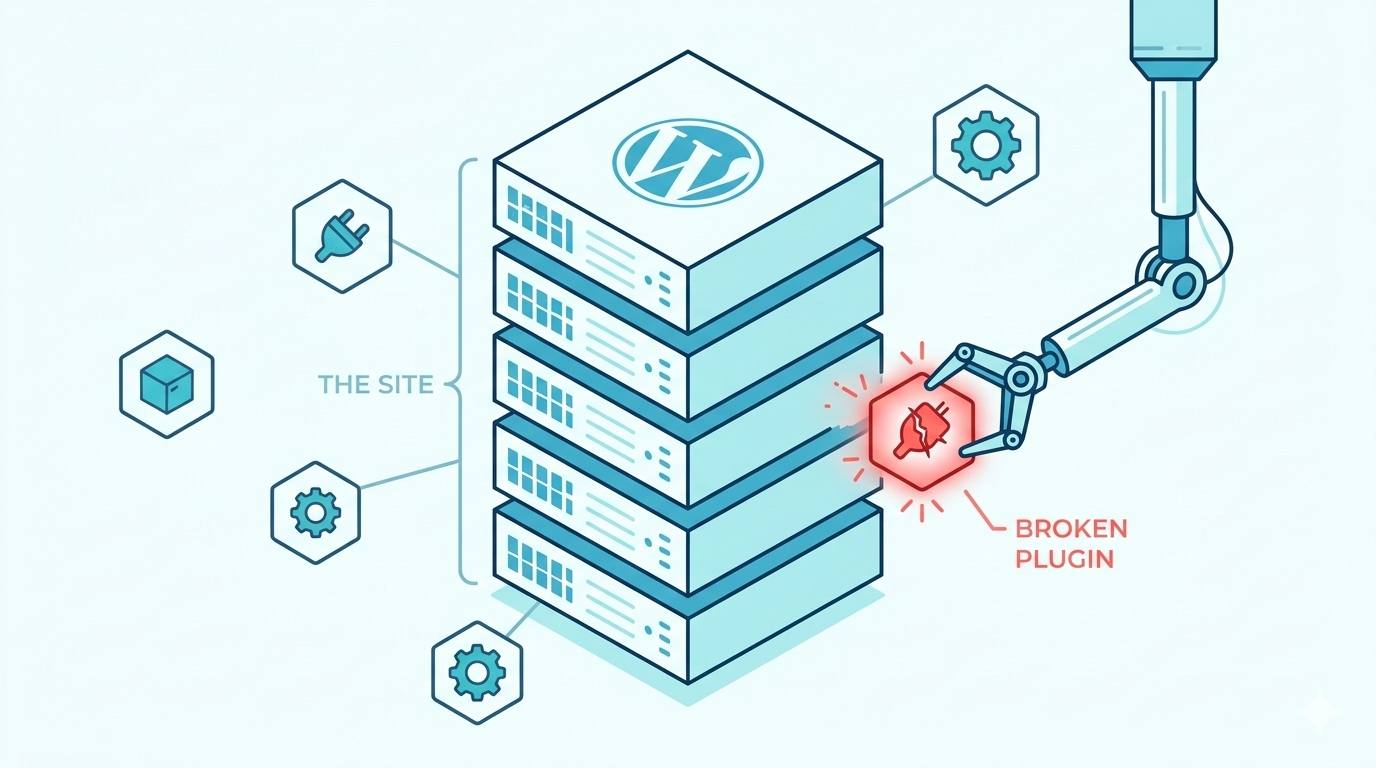
Since 90% of WordPress outages are caused by plugins, the fastest way to fix my web site is to disable all plugins and see if the site returns.
Disabling Plugins via FTP/File Manager
- Log in to your hosting account and open File Manager (or use an FTP client like FileZilla).
- Navigate to
/public_html/wp-content/. - Find the folder named
plugins. - Rename it to
plugins_old.
By renaming the folder, WordPress can no longer find the plugins, and it will deactivate them all. Check your site. If it loads, you have successfully started to fix my web site. You can then rename the folder back to plugins and reactivate them one by one to find the “broken” one.
Step 3: Resolving Theme Issues
If the plugin trick didn’t fix my web site, the issue might be your active theme. WordPress requires at least one theme to function.
- In your File Manager, go to
/wp-content/themes/. - Find your active theme folder and rename it (e.g.,
mytheme_old). - WordPress will automatically try to load a default theme (like Twenty Twenty-Four).
If your site comes back online, you know the problem was in your theme’s code, and you can focus your efforts there to permanently fix my web site.
Step 4: Increasing Memory Limits
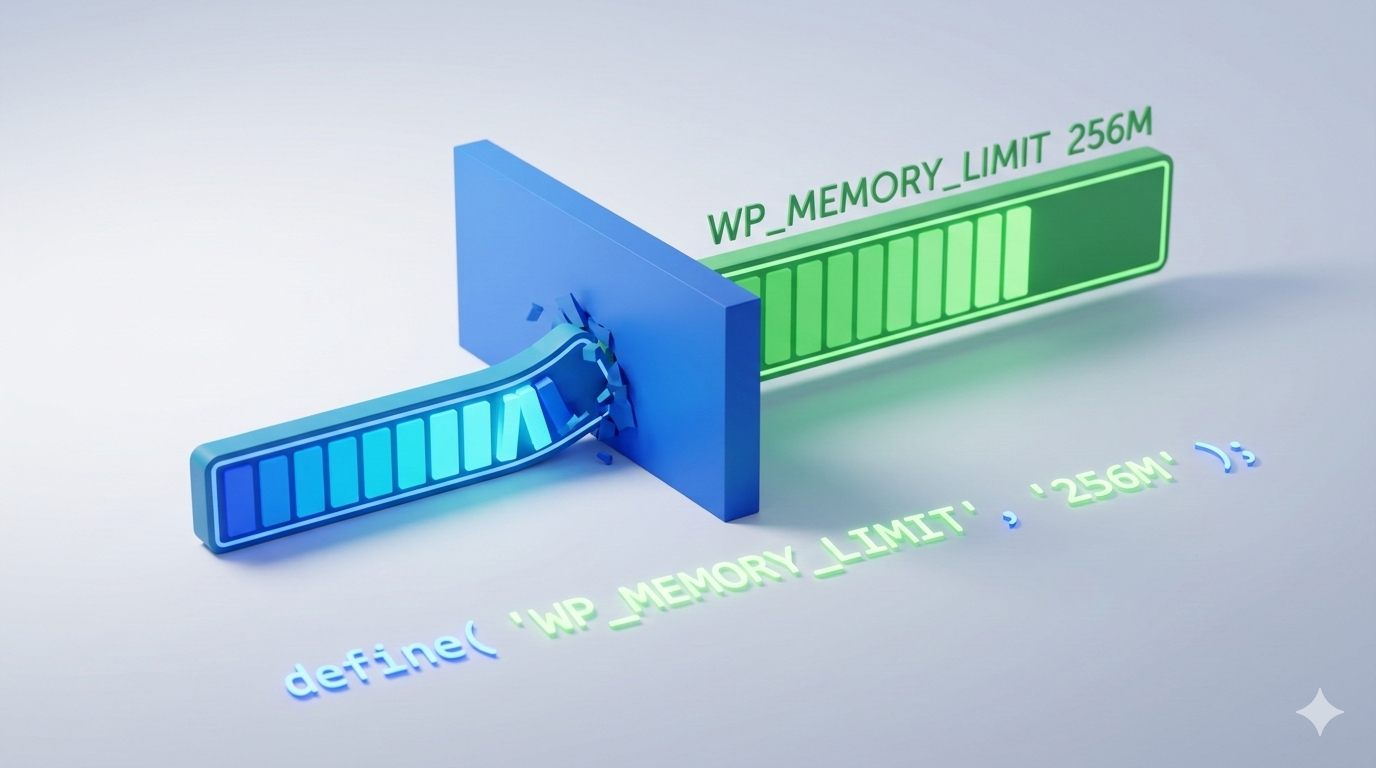
Sometimes, you need to fix my web site because the server simply doesn’t have enough power to run your heavy plugins. This results in a “Memory Exhausted” error.
To fix this, you need to edit your wp-config.php file:
- Open your
wp-config.phpfile in the root directory. - Add this line of code before the “That’s all, stop editing!” message:
define( 'WP_MEMORY_LIMIT', '256M' );
This gives your site more “breathing room” and can often immediately fix my web site when it’s crashing due to resource heavy tools.
Step 5: Enabling Debug Mode
If you still haven’t managed to fix my web site, you need to see the specific error message. You can do this by turning on “Debug Mode.”
In your wp-config.php file, find the line that says:
define( 'WP_DEBUG', false );
Change it to:
define( 'WP_DEBUG', true );
Now, when you refresh your site, instead of a white screen, you will see a specific error message telling you exactly which file and which line of code is broken. This is the most professional way to fix my web site.
Common Issues When Attempting to Fix My Web Site
| Issue | Potential Cause | Quick Fix |
| 404 Not Found | Broken Permalinks | Go to Settings > Permalinks and click “Save.” |
| Error Establishing Database Connection | Wrong Credentials | Check your DB name and password in wp-config.php. |
| 500 Internal Server Error | Corrupt .htaccess | Rename your .htaccess file to .htaccess_old. |
How to Find the WP Error Log Location: A Complete Beginner’s Guide
FAQ: Frequently Asked Questions
Why did my site suddenly break?
Most people need to fix my web site after an automatic update. WordPress or your plugins may have updated themselves overnight, causing a conflict with your older theme or server settings.
Will I lose my data if I try to fix my web site?
No. Troubleshooting the “fix my web site” error involves deactivating software, not deleting your database. Your posts, images, and pages remain safe in your database even if the site isn’t “rendering” them.
Can my hosting provider fix my web site for me?
Sometimes. If the issue is server-related (like a PHP version mismatch), they can help. However, if a plugin you installed is broken, they will usually tell you to fix my web site yourself using the steps listed in this guide.
How do I prevent needing to fix my web site in the future?
The best way to avoid the need to fix my web site is to maintain a “Staging Site” where you test updates before pushing them to your live site, and always keeping a fresh backup.
Conclusion
Successfully learning how to fix my web site is a vital skill for any WordPress site owner. While a total site outage feels like a disaster, it is almost always caused by a single, identifiable conflict. By methodically testing your plugins, verifying your theme, and using tools like “Debug Mode,” you can take control of your technical environment.
The key to a stress-free “fix” is patience and a good backup strategy. Now that you know how to fix my web site, you can handle future errors with the confidence of a pro. Remember: your data is almost always safe; it’s usually just a matter of finding the one line of code that is standing in your way.








