

Introduction
Maintaining a healthy WordPress site requires constant vigilance, but few things are more alarming than seeing your hard work flagged as a computer virus website. This warning doesn’t just block your content; it damages your brand’s reputation and tanks your search engine rankings almost instantly. When Google or other security authorities label a domain as a “computer virus website,” they are essentially putting up a digital quarantine sign to protect unsuspecting users from malware, phishing attempts, or unauthorized downloads.
Understanding the root cause of this error is the first step toward recovery. Usually, this happens when a vulnerability in a plugin, theme, or server configuration allows a malicious actor to inject harmful scripts. In this guide, we will break down the technical reasons behind the computer virus website warning and provide a professional, step-by-step roadmap to cleaning your site and restoring your visitors’ trust.
In this guide, we will walk through exactly what this warning means, why it appeared on your site, and the educational troubleshooting steps you can take to restore your reputation and security.
Disclaimer: This guide is for educational troubleshooting purposes. If you are uncomfortable handling website files or databases, consider consulting a professional security service.
Table of Contents
What Does a “Computer Virus Website” Warning Actually Mean?
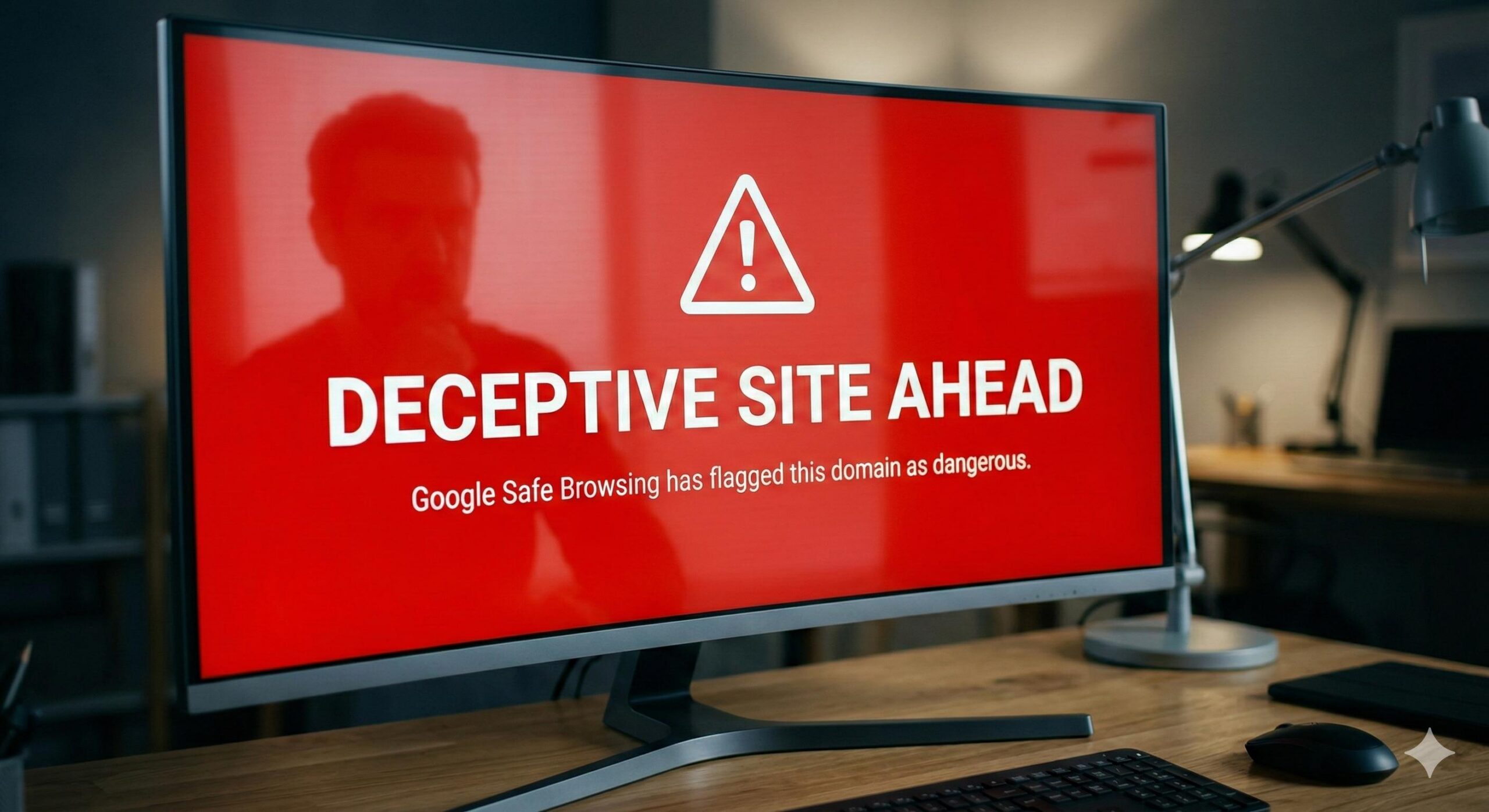
When a visitor (or you) sees a warning that your domain is a computer virus website, it means your site has been flagged by a “Safe Browsing” authority, such as Google, Norton, or McAfee.
This happens in three primary locations:
- Browser Warnings: A “Red Screen of Death” appearing in Chrome, Firefox, or Safari.
- Search Results: A snippet under your Google listing saying, “This site may be hacked.”
- Hosting Notifications: An automated email from your hosting provider stating your account has been suspended due to malicious files.
The reason it appears is simple: your website’s server is hosting files that perform unauthorized actions. This could be anything from redirecting users to shady advertisements to attempting to download “trojan” software onto the visitor’s computer.
Common Symptoms of a Compromised WordPress Site
Before diving into the fix, it is important to confirm the signs of a computer virus website. Beyond the obvious browser warning, look for these “silent” red flags:
- The “Deceptive Site Ahead” Screen: The most common visual indicator.
- Unfamiliar Admin Users: You notice new administrator accounts in your WordPress dashboard that you didn’t create.
- Search Engine Redirects: When you click your site from Google, it takes you to a different, unrelated website, but typing the URL directly works fine.
- Sudden Traffic Drops: A massive dip in your Google Analytics because search engines have blacklisted the site.
- Exhausted Server Resources: Your hosting provider complains about high CPU usage because a virus is using your server to send spam emails.
Why Your Site Was Flagged as a Computer Virus Website
Understanding the why is the first step toward prevention. Hackers don’t usually target “you” specifically; they use automated bots to find “doors” left open on the web. The most common reasons a WordPress site becomes a computer virus website include:
1. Outdated Core, Plugins, or Themes
WordPress is constantly updated to patch security holes. If you are running an old version of a plugin, hackers can use known “exploits” to inject malware into your index.php or .htaccess files.
2. Nulled (Pirated) Themes
“Nulled” themes are premium themes offered for free on third-party sites. These almost always contain pre-installed malicious code. Using them is the fastest way to turn your domain into a computer virus website.
3. Weak Login Credentials
If your username is “admin” and your password is “password123,” a bot can “brute-force” its way into your dashboard in seconds.
How to Fix and Clean Your WordPress Site
If you are currently facing the computer virus website warning, follow these educational troubleshooting steps to identify and remove the threat.
Step 1: Perform a Full Site Backup
Even if the site is infected, back it up. You need a snapshot of the current state before you start deleting files, just in case something goes wrong during the cleaning process.
Step 2: Use a Security Scanner

Install a reputable WordPress security plugin like Wordfence or Sucuri.
- Run a “High Sensitivity” scan.
- The scanner will compare your core files (like those in
wp-includes) with the official WordPress versions. - If it finds a file that shouldn’t be there, it will highlight it as part of the computer virus website infection.
Step 3: Clean the Malware
Once the scan identifies infected files, you have two options:
- Replace Files: Delete the infected plugin or theme and reinstall a fresh, clean version from the official repository.
- Manual Cleaning: If you are tech-savvy, you can inspect files like
functions.phpfor strange, long strings of encrypted code (often starting witheval(base64_decode...).
Step 4: Check Your .htaccess and wp-config.php
These are the most sensitive files in a WordPress installation. Hackers often add code to the .htaccess file to create redirects. Ensure these files look standard and do not contain links to external, suspicious domains.
Removing the “Computer Virus Website” Blacklist
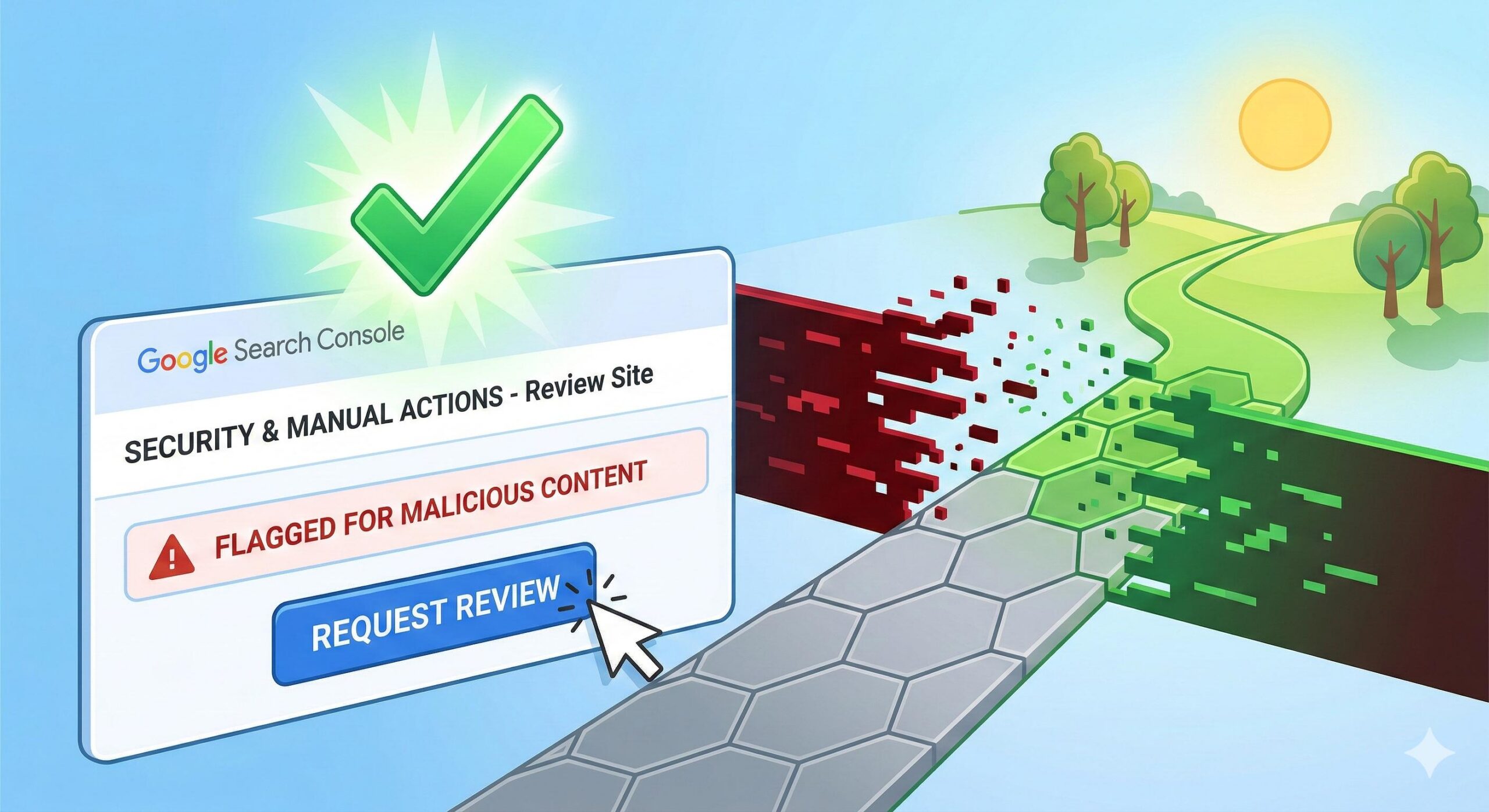
Cleaning the code is only half the battle. Even after the virus is gone, the red warning screen may persist because Google doesn’t know you’ve fixed it yet.
- Verify your site in Google Search Console: If you haven’t already, add your site to GSC.
- Navigate to “Security & Manual Actions”: Click on the “Security Issues” tab.
- Request a Review: Once you are 100% sure the malware is gone, click “Request Review.” Be honest and detailed—tell them you updated your plugins, scanned the site, and removed the malicious scripts.
It usually takes 24 to 72 hours for Google to verify the fix and remove the computer virus website warning from your URL.
Professional Tips for Future Prevention
To ensure your site never falls back into the computer virus website category, implement these “Hardening” techniques:
| Action | Why it helps |
| Enable 2FA | Two-Factor Authentication makes it nearly impossible for bots to guess your login. |
| Change Login URL | Move your login page from /wp-admin to a custom URL to hide from bots. |
| Limit Login Attempts | Automatically blocks IP addresses that fail to log in 3 times. |
| Auto-Updates | Set your plugins to “Auto-update” so security patches are applied immediately. |
Summary Table: Troubleshooting Checklist
- [ ] Identify: Check Google Search Console for specific malware locations.
- [ ] Scan: Run a deep scan using a WordPress security tool.
- [ ] Clean: Delete nulled themes and replace infected core files.
- [ ] Protect: Change all passwords (SFTP, Database, Admin).
- [ ] Verify: Submit a review request to Google/Bing to clear the blacklist.
Dealing with a computer virus website label is a rite of passage for many webmasters. While it feels overwhelming, following a systematic approach to cleaning and hardening your site will not only remove the warning but make your WordPress site stronger than it was before the attack.
WordPress Site Not Loading? Complete Step-by-Step Fix Guide (2026)
FAQ: Frequently Asked Questions about “Computer Virus Website” Warnings
Why is my site showing a “computer virus website” warning even after I deleted the malware?
Security authorities like Google and Norton do not scan your site in real-time. Even after the files are clean, the “computer virus website” label remains until you manually request a review through Google Search Console or the respective security provider. Once they verify the site is safe, the warning is usually removed within 24 to 72 hours.
Can a “computer virus website” infect my personal computer?
Yes. If you visit an infected site without proper antivirus protection, the malicious scripts (often called “drive-by downloads”) can attempt to install spyware or ransomware on your local machine. This is why browsers use the red warning screen to prevent access.
Will my SEO rankings recover after the warning is removed?
In most cases, yes. While you will see a significant drop in traffic while the computer virus website warning is active, rankings typically bounce back once the site is verified as safe. However, the longer the site remains infected, the more “trust” you lose with search engine algorithms.
Are free plugins responsible for making my site a computer virus website?
Not necessarily. Legitimate free plugins from the official WordPress.org repository are generally safe. The danger usually comes from “Nulled” or pirated versions of premium plugins, which are frequently pre-loaded with malware specifically designed to turn your domain into a computer virus website.
Conclusion
Falling victim to a computer virus website flag is a stressful experience, but it is a fixable problem. By identifying the entry point of the infection—whether it was an outdated plugin, a weak password, or a compromised theme—you can take the necessary steps to purge the malicious code and secure your environment.
The key to long-term success is moving from a reactive to a proactive mindset. Instead of waiting for another computer virus website warning to appear, implement “hardening” measures like Two-Factor Authentication (2FA), regular backups, and automated security scans. With a clean site and a solid security foundation, you can get back to what matters most: growing your WordPress blog and serving your audience.








