Introduction
Welcome to wordpressissuefix.com. Building a new website should be an exciting process, but getting stuck on a loading screen can quickly become frustrating. If you are experiencing errors while trying to load or install an Astra template, you are in the right place.
An Astra template is a complete, pre-built website design imported via the Starter Templates plugin to instantly style your site. Users typically encounter this specific issue inside their WordPress dashboard under Appearance > Starter Templates, where the import process freezes, shows an “Import Failed” error, or spins endlessly. Why does this happen? In most cases, your web hosting server simply lacks the required PHP memory to download the large design files, or a security plugin is actively blocking the connection.
Note: This guide is for educational troubleshooting purposes. Always back up your website before making technical changes.
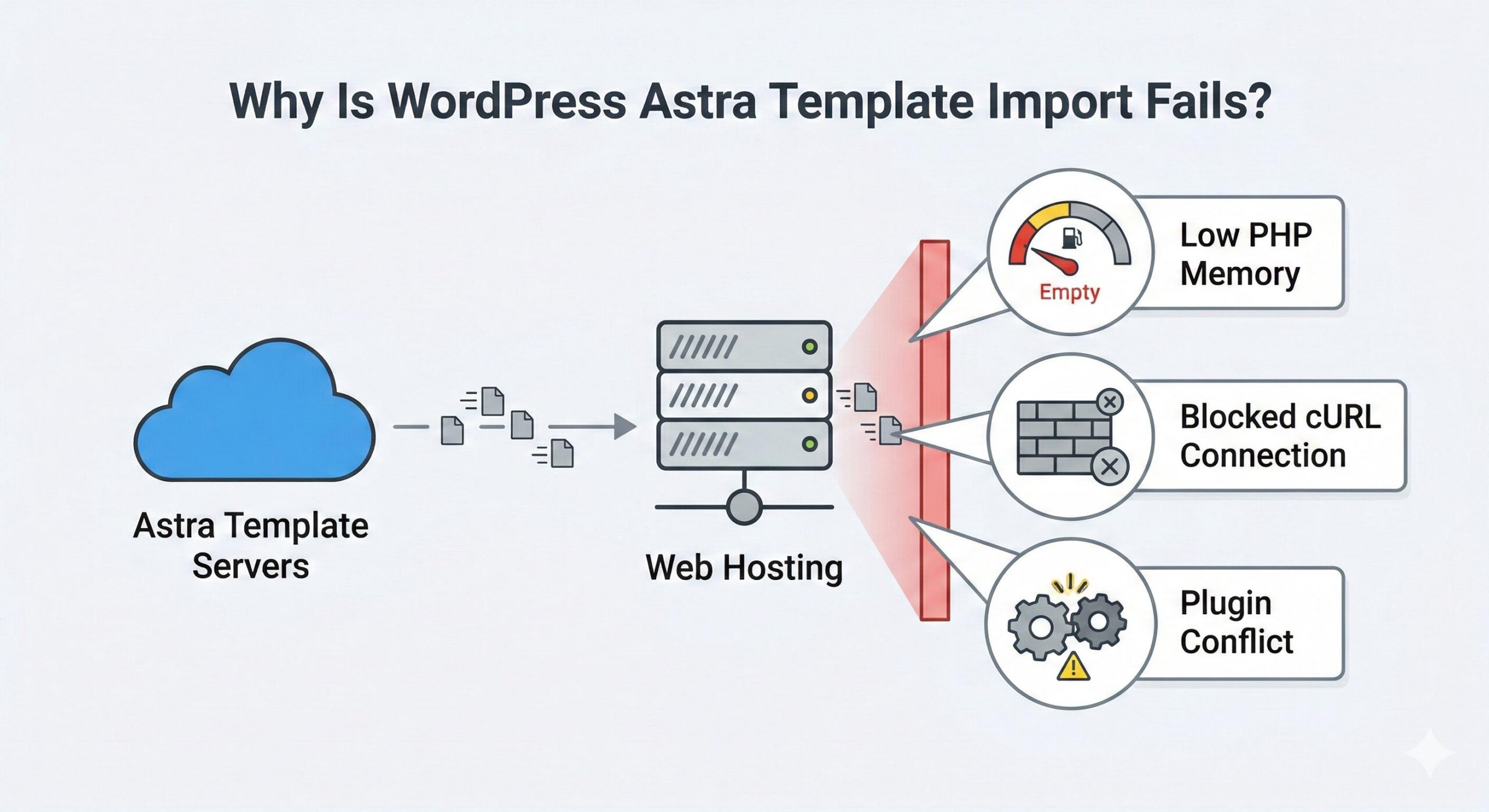
Before we jump into the fixes, it helps to understand what is happening behind the scenes. When you click “Import” on an Astra template, your WordPress site has to communicate with the developers’ external servers (Brainstorm Force). Your site then downloads images, text, customizer settings, and widgets, and writes them into your database.
If this process breaks down, it is almost always due to one of the following common culprits:
- Exhausted PHP Memory: The process of downloading and extracting an entire Astra template requires significant server resources. If your host restricts your PHP memory limit, the import will abruptly time out.
- cURL Errors: Your server uses a software tool called cURL to securely download the Astra template files. If your server’s firewall blocks this connection, the import cannot start.
- Third-Party Plugin Conflicts: Aggressive security plugins or caching plugins can mistakenly identify the sudden influx of template data as a threat or try to cache a page that is actively being built, causing the process to crash.
- Outdated Software: Using an older version of the Astra theme with a newly updated Starter Templates plugin can cause compatibility script errors.
Table of Contents
Step-by-Step Fixes for Astra Template Issues
If you are stuck on a loading screen or staring at a red error message, follow these beginner-friendly troubleshooting steps to resolve the issue and successfully import your Astra template.
Step 1: Increase Your WordPress PHP Memory Limit
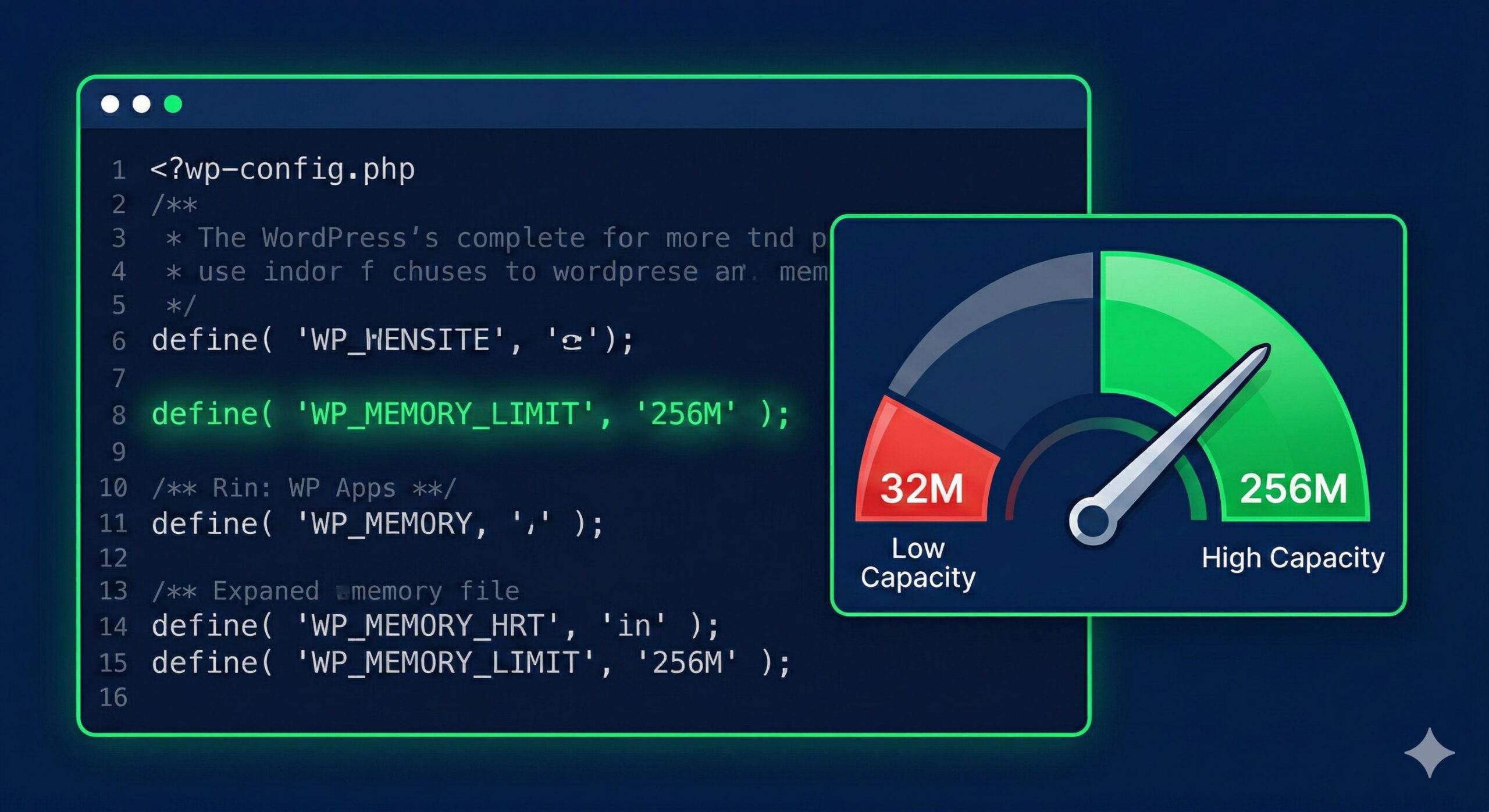
This is the most common solution for Astra template import failures. By default, many shared hosting providers set the WordPress PHP memory limit to a very low 32MB or 64MB. Importing a full website design requires at least 256MB.
How to safely fix it:
- Log into your web hosting account panel (like cPanel) and open the File Manager.
- Locate the root folder of your WordPress installation (usually named
public_html). - Find the file named
wp-config.php. - Right-click and select Edit.
- Scroll down until you see the line that says:
/* That's all, stop editing! Happy publishing. */ - Just above that line, paste the following code exactly:
define( 'WP_MEMORY_LIMIT', '256M' ); - Save the file and close it. Return to your dashboard and try importing the Astra template again.
Step 2: Temporarily Deactivate Conflicting Plugins
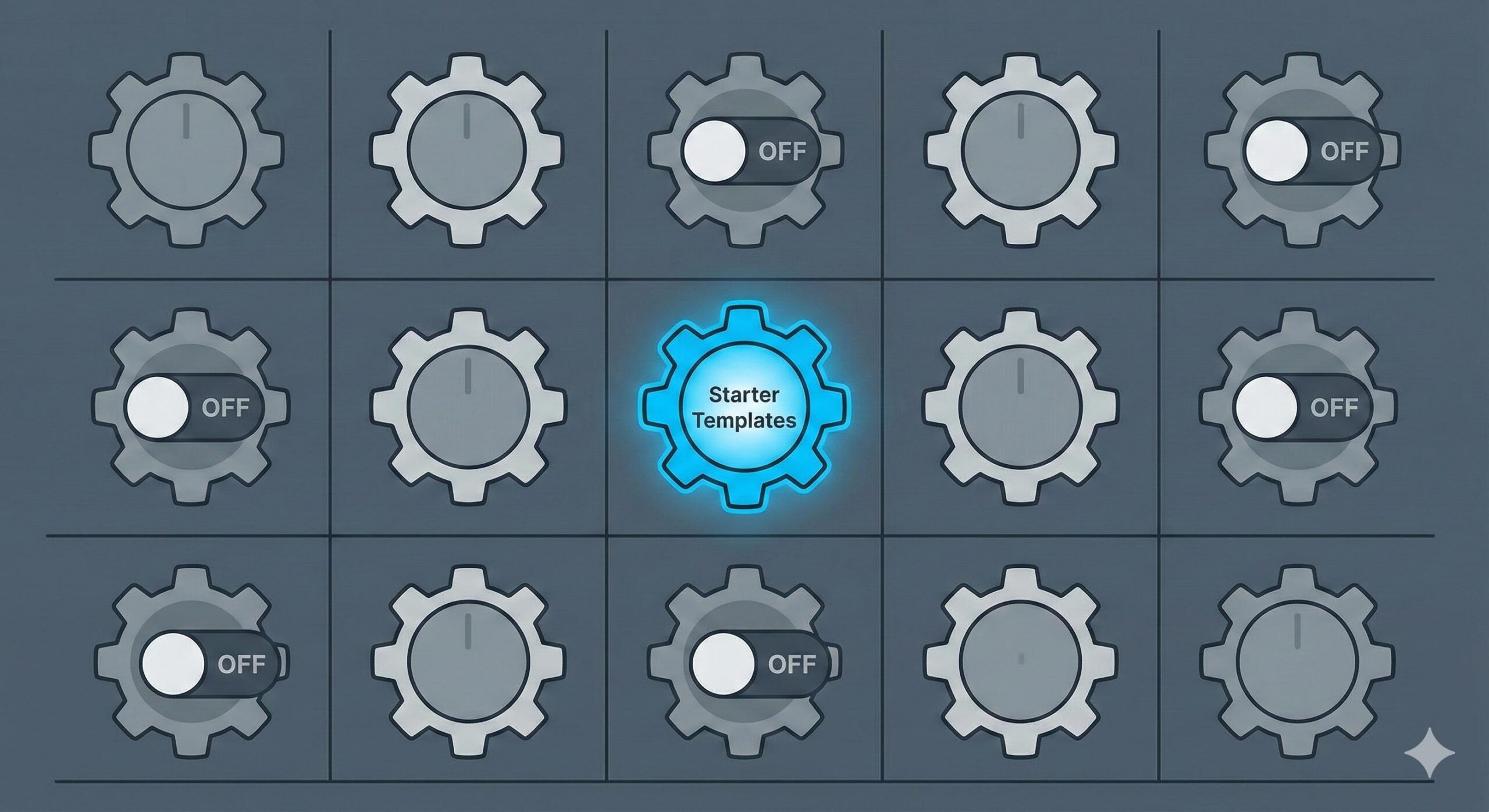
If increasing the memory limit did not work, a plugin currently active on your site is likely blocking the Astra template from connecting to the source library. Security plugins (like Wordfence) and caching tools are the usual suspects.
How to safely fix it:
- Navigate to Plugins > Installed Plugins in your WordPress dashboard.
- Select the checkbox next to all active plugins except for Starter Templates.
- From the Bulk Actions dropdown menu, select Deactivate and click Apply.
- Go back to Appearance > Starter Templates and attempt the import.
- If the Astra template imports successfully, return to your plugins list and reactivate your plugins one by one to find the original culprit.
Step 3: Update the Theme and Starter Templates Plugin
WordPress relies on all of its moving parts speaking the same language. If your core theme is outdated but the template plugin is new, the code required to render the Astra template will clash.
How to safely fix it:
- Go to Dashboard > Updates.
- Check if there is a new version available for the Astra theme. If so, update it.
- Scroll down to your plugins list and ensure the Starter Templates plugin is fully updated to the latest version.
- Clear your browser cache and attempt the import once more.
Step 4: Check Your Server’s cURL Status
Sometimes, the issue is not within WordPress itself, but in the way your web hosting server is configured to communicate with the outside internet. If your server is blocking cURL requests, the Astra template simply cannot be downloaded.
How to safely fix it:
- Go to Tools > Site Health in your WordPress dashboard.
- Click on the Info tab at the top.
- Scroll down and expand the Server section.
- Look for the PHP extensions list and ensure cURL is installed and enabled.
- If you see warnings about cURL error 28 (Connection timed out), you will need to open a support ticket with your web hosting provider and ask them to temporarily whitelist the Astra template servers or increase your server’s max execution time.
What to Do If the Astra Template Looks Broken After Import
Occasionally, an Astra template will successfully import, but when you view the live website, the layout is messy, images are missing, or the colors are entirely wrong. This is typically a CSS (Cascading Style Sheets) generation issue, not a failed import.
- If you are using Elementor with Astra: Go to Elementor > Tools in your WordPress dashboard. Click the button that says Regenerate Files and Data, then click Save Changes.
- If you are using the Block Editor (Spectra): Navigate to Settings > Spectra (or UAG), locate the asset generation settings, and click to clear and regenerate the assets.
- Reset Permalinks: Go to Settings > Permalinks, scroll to the bottom, and click Save Changes without modifying anything. This flushes the rewrite rules and often fixes broken navigation menus that occurred during the Astra template import.
Elementor Image Optimization Guide: How to Speed Up Your Site (2026)
Conclusion
Encountering an error while trying to import an Astra template can halt your website-building progress, but the root causes are highly fixable. By systematically ensuring your server has enough PHP memory, ruling out aggressive plugin conflicts, and verifying your server configurations, you can clear the path for the Starter Templates plugin to do its job.
Take these troubleshooting steps one at a time, and you will soon have your pre-built design successfully loaded and ready for your custom content.