

Introduction
WordPress Site Not Loading? For website owners, sitting and waiting as they type their website into the search bar, and seeing a blank screen, is the most stressful moment. The blank screen, the endless loading circle, and the website error screen are undoubtedly the most terrifying experiences. You lose website visitors, potential customers, and most importantly, money every second your website is experiencing downtime.
Do not panic, although in this situation it is understandable. The WordPress community has this unfortunate occurrence time and time again. WordPress, just to put it simply, is a multitude of moving parts such as themes, plugins, and hosting databases. Even the most experienced website builders using WordPress can encounter issues in these moving parts.
There are countless other reasons why your website could be experiencing downtime. This could be due to issues with your domain name, problems with your server, or even your local anti-virus software may be the culprit and is blocking your access to the site due to it being classified as unsafe.
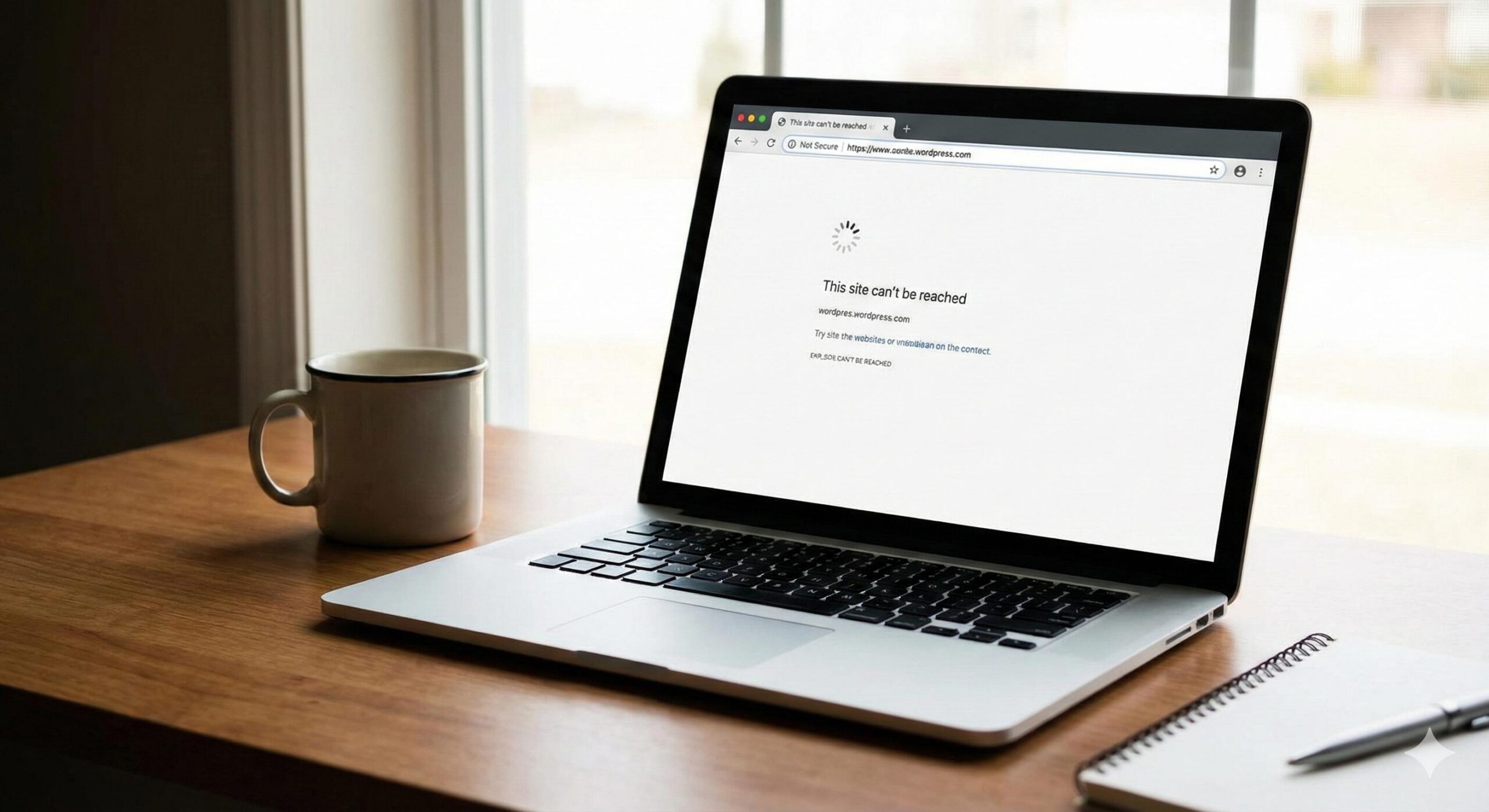
In some cases, a website can become permanently deleted or damaged, but most of the time this isn’t the case and instead it is just frozen or stuck. Treat this guide as your digital technician. We are going to methodically and logically guide you through the troubleshooting steps to identify the problem and get your website back online. We are going to cover issues that are as simple as problems that can be resolved on the browser, to complex issues that involve problems at the level of server files, and we will do it all in plain, everyday, simple, and non-technical English.
Table of Contents
What Does “WordPress Site Not Loading” Mean?
The first stage in solving a problem is identifying the symptoms. A specific problem has multiple dimensions and the phrase “not loading” is too generic. The better you diagnose the specifics of your website’s dysfunction, the better your chances of identifying a potential solution.
The White Screen of Death (WSoD) is the most notorious of WordPress screw ups. You go to your website and the screen is just plain white. No errors, no menu, no text, nothing. This is usually caused by a plugin’s code errors or a script that has run out of the memory limit.
A Connection Timed Out Error (522 / 524) In this case, your browser will be waiting to load your website for 30–60 seconds and will end up giving up. “Connection has timed out” or “This site cannot be reached” are the default messages. In most cases, this points to an issue with the server that is beyond control.
An Internal Server Error (500): This is, in the broadest of sense, technically a “catch all” error. What this is implying is that the the server encountered some challenge that it did not know what to do in order to alleviate the problem. In WordPress, this is caused by a corrupted (read: afflicted) .htaccess file.Infinite Loading Loop Your site could be caught in a redirect loop, which could cause your browser to give the error “The page isn’t redirecting properly.” This generally happens due to a misconfiguration in your site settings.
Common Reasons Why WordPress Is Not Loading
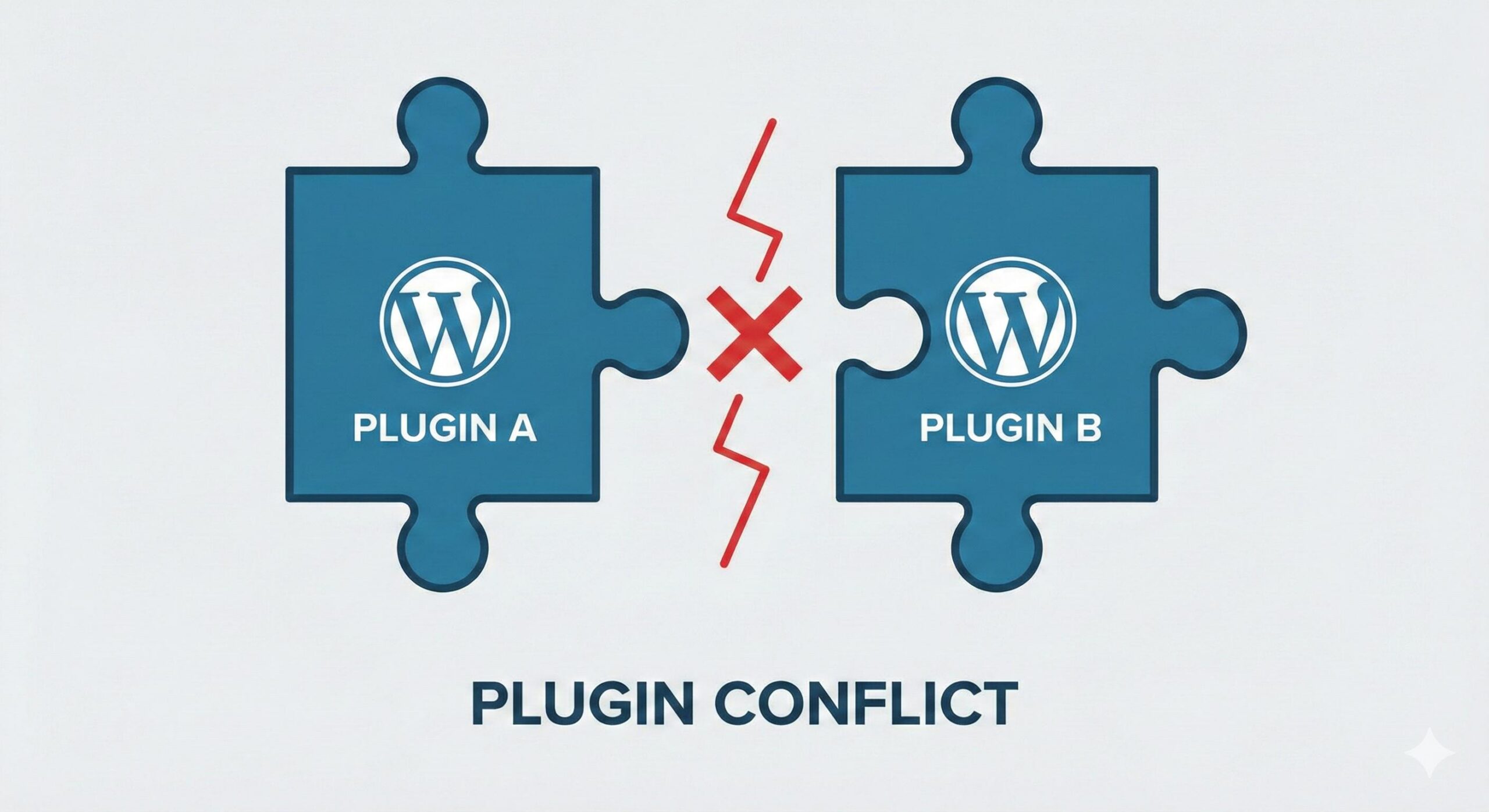
What is happening can become clearer with a little more inquiry into why it is happening. Here is a list of common reasons why WordPress sites fail to load.
- Plugin Issues: WordPress problems usually stem from issues with plugins. Since plugins are developed by different developers, it is possible for there to be incompatibility issues, causing WordPress to crash.
- Theme Issues: The site can crash if there was a direct modification to the theme by you to code that involved styling, or if a mistake was made in the functions.php file.
- PHP Memory Issues: Give WordPress the processing memory from the server to run all the scripts because it’s built on PHP. If a process such as a backup or building a complex page exceeds the memory the site is meant to run, it’ll cause the site to go blank.
- Corrupt .htacess File: This file is extremely important as it controls the site’s redirection and permalinks. Even a tiny mistake such as an extra dot could make your entire site go offline.
- SSL / HTTPS Problems: If your SSL certificate is expired or was incorrectly set up, your site could be blocked by the browser because it’s a security issue.Server Downtime: Every once in a while, the problem isn’t on your end. It could be your host, and in the case of your hosting provider, that could mean they are doing system maintenance, or it could be an issue with their hardware. Due to this, your site won’t load.
Step-by-Step Fixes
Here is an option for starting to troubleshoot issues if you can still get to the WordPress Admin Dashboard (wp-admin) while the website frontend is broken. The methods below are the safest to try first.
1. Clearing Browser and Site Cache Saved browser versions can cause issues and if you don’t clear browser and site cache, you can actually be looking at an “old” saved version of the error.
- To clear your browser cache, on Windows, press Ctrl + Shift + R. On a Mac, press Cmd + Shift + R.
- If you use cache plugins like WP Rocket, W3 Total Cache, or Autoptimize, go to your dashboard and look for a button that says “Purge All Caches” or “Clear Cache”.
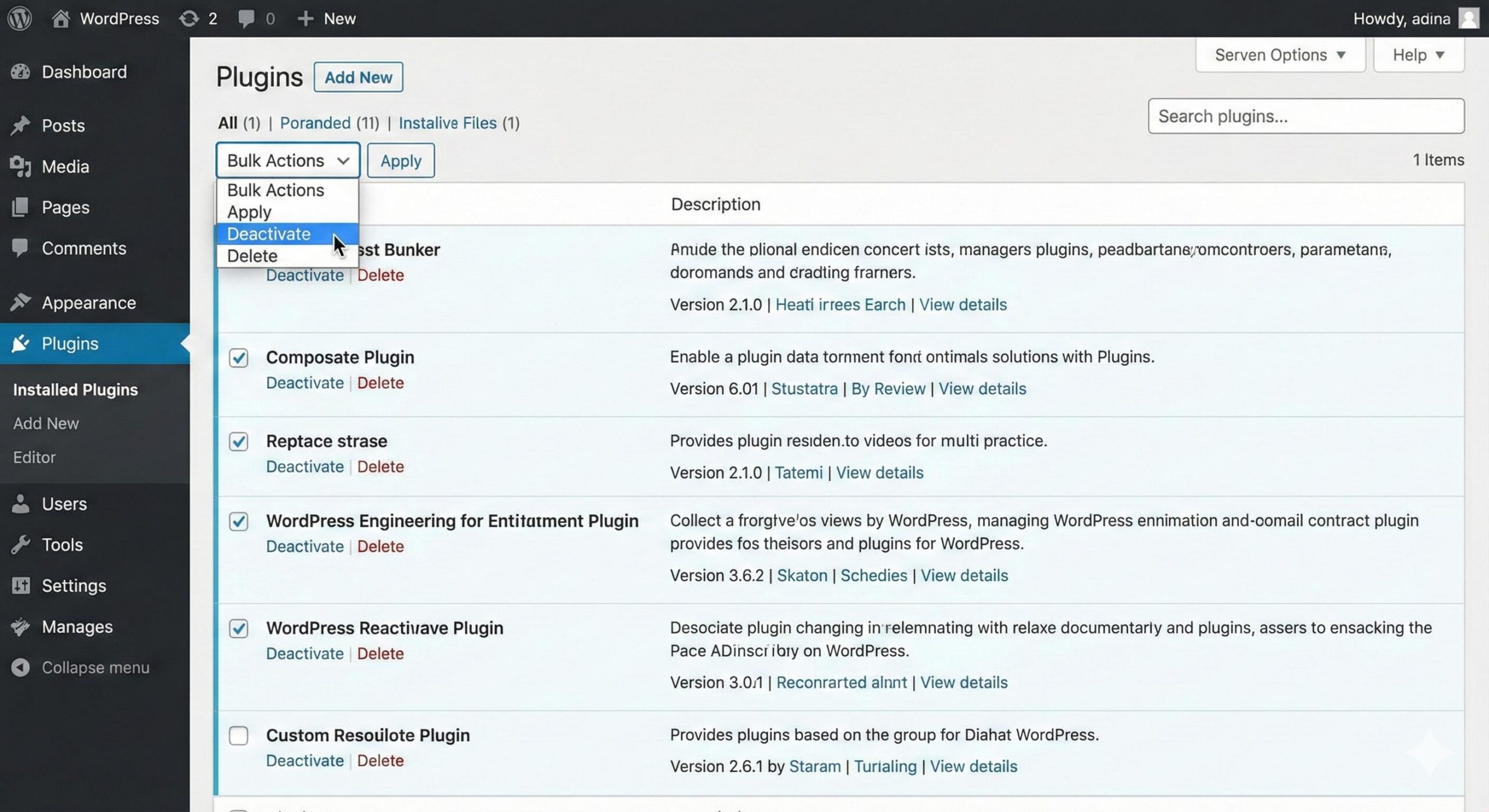
2. Turn Off All Plugins A lot of the time, conflicts in plugins are the cause of issues, and that is what we need to rule out first.
- Go to Plugins > Installed Plugins.
- Click the checkbox at the top of the list to select all plugins.
- In the “Bulk Actions” dropdown menu, select Deactivate and click Apply.
- Check your website. Does it load now?
- If Yes: One of your plugins is the culprit. Reactivate them one by one, checking your site after each activation. When the site breaks again, the last plugin you activated is the bad one.
- If No: The issue is not likely related to plugins. You can reactivate them and move to the next step.
3. Switch to a Default Theme Your theme might contain bad code or compatibility issues.
- Go to Appearance > Themes.
- Activate a default WordPress theme, such as Twenty Twenty-Four or Twenty Twenty-Three.
- If your site loads perfectly with the default theme, the issue lies with your premium or custom theme. You may need to contact the theme developer for support.
4. Check Site URLs Sometimes, the address of the site gets changed accidentally.
- Go to Settings > General.
- Ensure that the WordPress Address (URL) and Site Address (URL) match exactly (unless you have a specific reason for them to be different).
- Ensure both start with
https://if you have an SSL certificate.
Fix WordPress Site Not Loading Without Admin Access
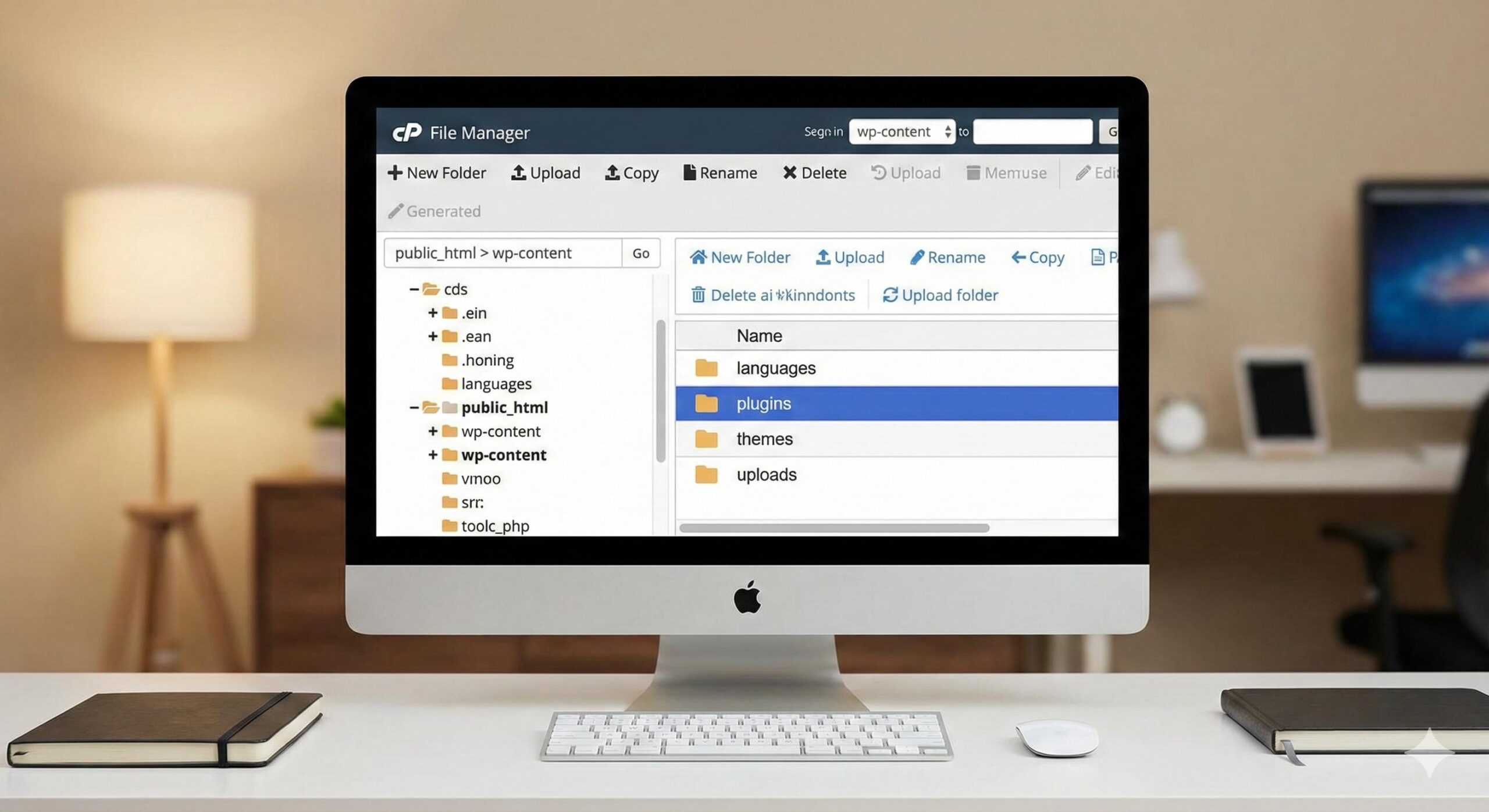
Don’t stress out if your site is displaying a Critical Error or a White Screen of Death. If you can’t even access your dashboard, that’s fine. You can repair this from the outside by utilizing an FTP client like FileZilla or the File Manager in the hosting control panel (cPanel).
Method 1: The “Rename” Trick for Plugins Since you can’t log in to deactivate the freakin’ plugins, we`’ll make WordPress ignore those plugins.
- Connect to your website via FTP or open your Hosting File Manager.
- Navigate to the
public_htmlfolder (orwww). - Open the
wp-contentfolder. - Find the folder named
plugins. - Right-click and Rename it to
plugins_old. - Try loading your website.
- If it works:That confirms it was a plugin. Rename the folder back to plugins. Go into the folder and rename individual plugin folders (e.g., contact-form-7 to contact-form-7_old) one at a time until you find the culprit.
Method 2: Increase PHP Memory Limit If your site is reaching a memory limit, you need to offer more room.
- In your File Manager, locate the wp-config.php file in the root folder.
- Right-click and choose Edit.
- Locate the line that says /* That’s all, stop editing! Happy publishing. */.
- Just before this line, add this code: define( ‘WP_MEMORY_LIMIT’, ‘256M’ );
- Save the file and then reload your site.
Method 3: Regenerate the .htaccess File An expired .htaccess file frequently results in Internal Server Error 500.
- In File Manager, locate the .htaccess file. (If you can’t see it, enable “Show Hidden Files” in your settings).
- Change the file name to .htaccess_backup.
- Attempt to load your site. If it works, WordPress has automatically skipped the corrupt file.
- To generate a new one, log into your dashboard (which should now be functional), navigate to Settings > Permalinks, and click Save Changes. This will prompt WordPress to create a new, error-free .htaccess file.
How to Find and Use the WordPress PHP Log to Fix Site Errors (2026 Guide)
How to Prevent This Issue in the Future
After you’ve gotten your site back online, you’ll want to make sure that it won’t happen again. Preventive maintenance is crucial for a stable WordPress site.
Automatic Backups Should Be Enabled Use a plugin such as UpdraftPlus or trust backup services that your hosting company provides. If your site goes down, you shouldn’t have to spend hours trying to fix it, you’ll just click “Restore” and it will go back to how it was the previous day.
Use a Staging Site for Updates This is important – you should never make changes to major plug-ins like WooCommerce or Elementor directly on your live website. Instead, utilize a “Staging” environment – it’s like a clone of your website for you to make the changes you want. If that site has issues, your business site will remain safe.
Be Strategic with Plugins The more plugins you have on your site, the more likely it is for there to be a coding conflict. If a plugin is deactivated, and you know you’ll never use it again – just delete it.
Monitor Uptime UptimeRobot is a great free option to track your website’s uptime. They monitor your website around the clock and send your website downtime alerts via email. This means you can respond to website issues before your audience sees and reports the problem.
Frequently Asked Questions (FAQ)
Why is my WordPress site showing a blank white page? It is known as the White Screen of Death (WSoD). It could happen caused by a number of reasons including errors in PHP code, memory exhaustion, or malfunctioning plugins. As a possible interim solution, you can try increasing the PHP memory limit as one of the options, or deactivate your plugins using FTP.
Am I going to lose all the content of my site? In a lot of cases the answer is no. Your content, such as posts, pages, and comments are all kept in the database, and are quite likely to be safe. The ‘Not Loading’ problem is usually a graphical display error or something to do with incorrect coding or a fault in the file. Your content is most likely safe.
Can website antivirus tools block my site? Yes, your site can end up in a false positive classification and be flagged as suspicious. This happens only at your local machine. To check if the issue is on your local machine, access the site on a different mobile device (with 4G/5G data to avoid local machine blocks) .
How do I resolve an “Error Establishing a Database Connection” message? The message indicates that your WordPress site cannot make a connection to the database. Navigate to your wp-config.php file, and check entries for the database name, database user, and database pass. If the issue is still unresolved, reach out to your database hosting service and check if the database server is down.
Could there be the issue with my hosting? It is a possibility. If you have completed all the mentioned tasks (disabling plugins, disabling themes, and editing .htaccess) and the site is still down, then you should contact your hosting support. It is quite possible that the server is down, or there is a firewall on their end that is blocking access.
Should I do another installation of WordPress? If you think this should be your last option, you are right. Most WordPress issues are correctable without having to do the installation, and it is better to leave the installation intact. It is worth noting that if you do this without taking a backup, you will lose everything.
Conclusion
Not being able to load your WordPress site is disconcerting, but it is almost always something that can be resolved. It just requires some troubleshooting. The likely causes can be resolved using a guided process by checking, for example, the plugins, your theme, and server settings—all without the need to hire a developer.
Be sure to stay calm, and work in order of your troubleshooting steps. Start with cache clearing. Move to more complex steps like FTP. Finally, always have a backup of your site. That backup may save you time from having to troubleshoot.
If you have read this guide and your site is up and running again, you have improved your skills at troubleshooting WordPress sites.
Call-To-Action (Soft CTA)
For more site specific site errors, or site optimization troubleshooting guides, visit wordpressissuefix.com for more guides and beginner friendly tutorials.ordpressissuefix.com.








