


Introduction
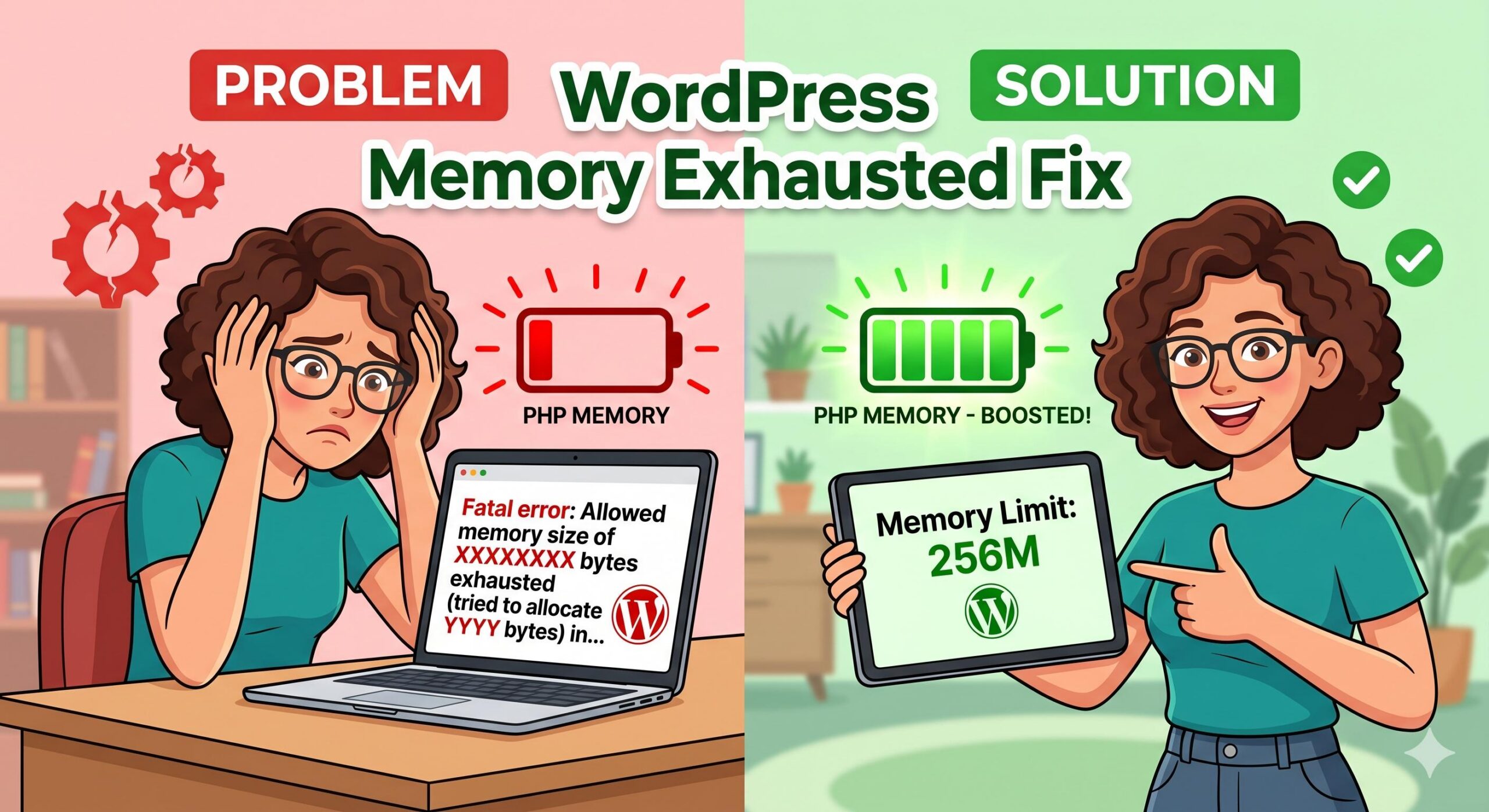
Have you suddenly encountered a white screen with a message saying, “Fatal error: Allowed memory size of XXXX bytes exhausted”? Don’t panic. You are looking for a reliable wordpress memory exhausted fix, and you are in the right place.
This error simply means your WordPress website has exceeded the default PHP memory limit set by your hosting server. You will typically see this error on a blank white page (often called the White Screen of Death) or right inside your WordPress dashboard. It usually happens when you try to activate a heavy plugin, upload a large high-resolution image, or run a major theme update. It appears because a specific script on your site requires more PHP memory to finish its task than your web host currently allows.
Welcome to WordPressIssueFix.com. In this calm, step-by-step guide, we will explain exactly how to safely resolve this issue and get your website back online.
Table of Contents
What Causes the “Memory Exhausted” Error in WordPress?
WordPress is a dynamic content management system built using the PHP programming language. To keep servers running smoothly and prevent any single website from crashing a shared server, web hosting companies allocate a specific amount of memory (RAM) to every PHP script.
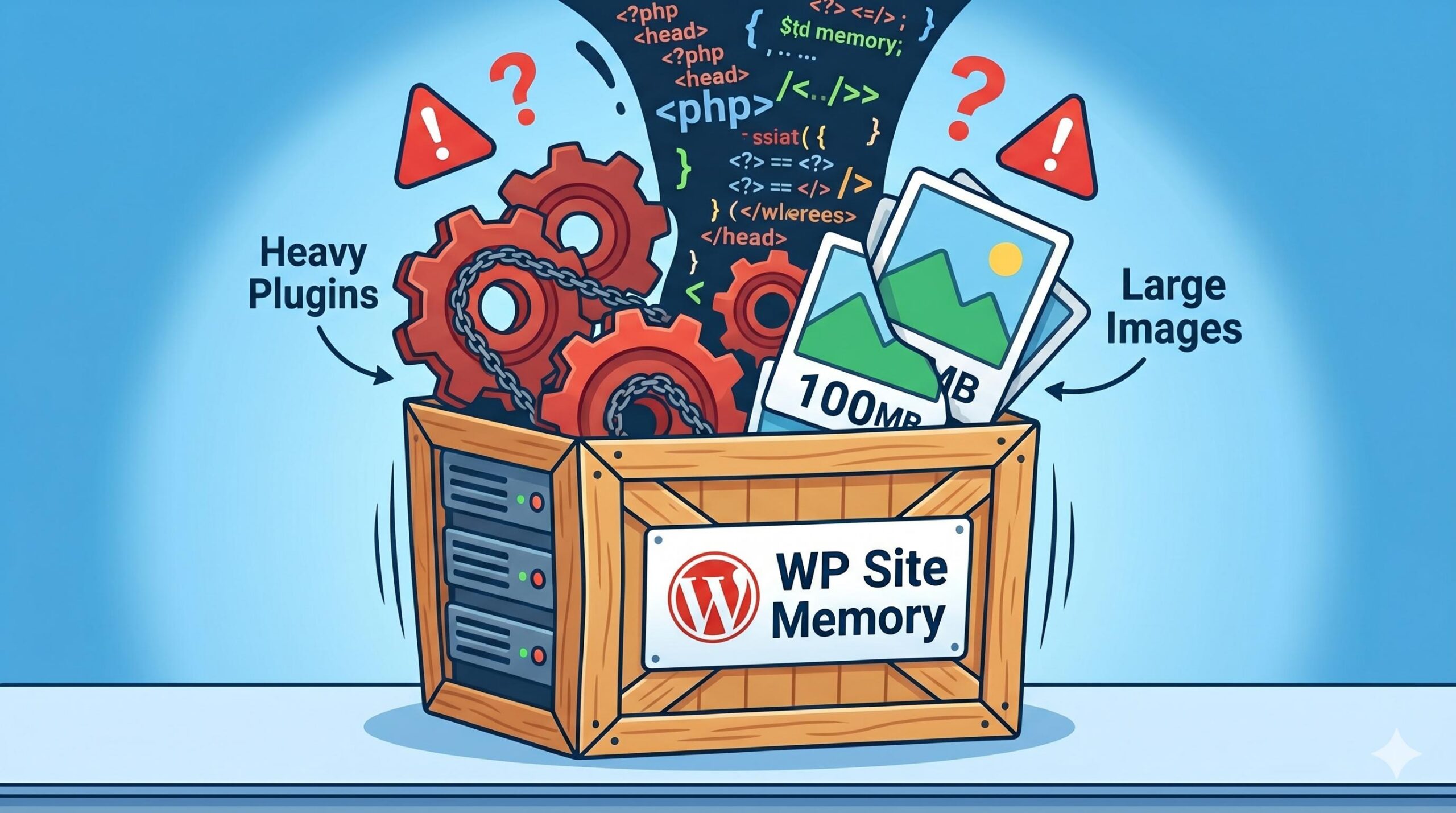
By default, WordPress attempts to increase this PHP memory limit to 64MB if it is set lower. However, 64MB is frequently not enough for modern WordPress websites.
When a script requires 128MB to process a large image upload, but your server only allows 64MB, the process abruptly stops. The server cuts the script off, resulting in the “memory exhausted” fatal error. The only way to solve this is by manually telling your server to give WordPress more memory.
How to Apply the WordPress Memory Exhausted Fix (Step-by-Step)
There are a few different ways to apply the wordpress memory exhausted fix. We will start with the easiest and most common method.
Before you begin, it is always a good idea to take a full backup of your website.
Method 1: Edit Your wp-config.php File (Recommended)
The wp-config.php file contains your website’s core configuration settings. Editing this file is the most direct way to increase your memory limit.
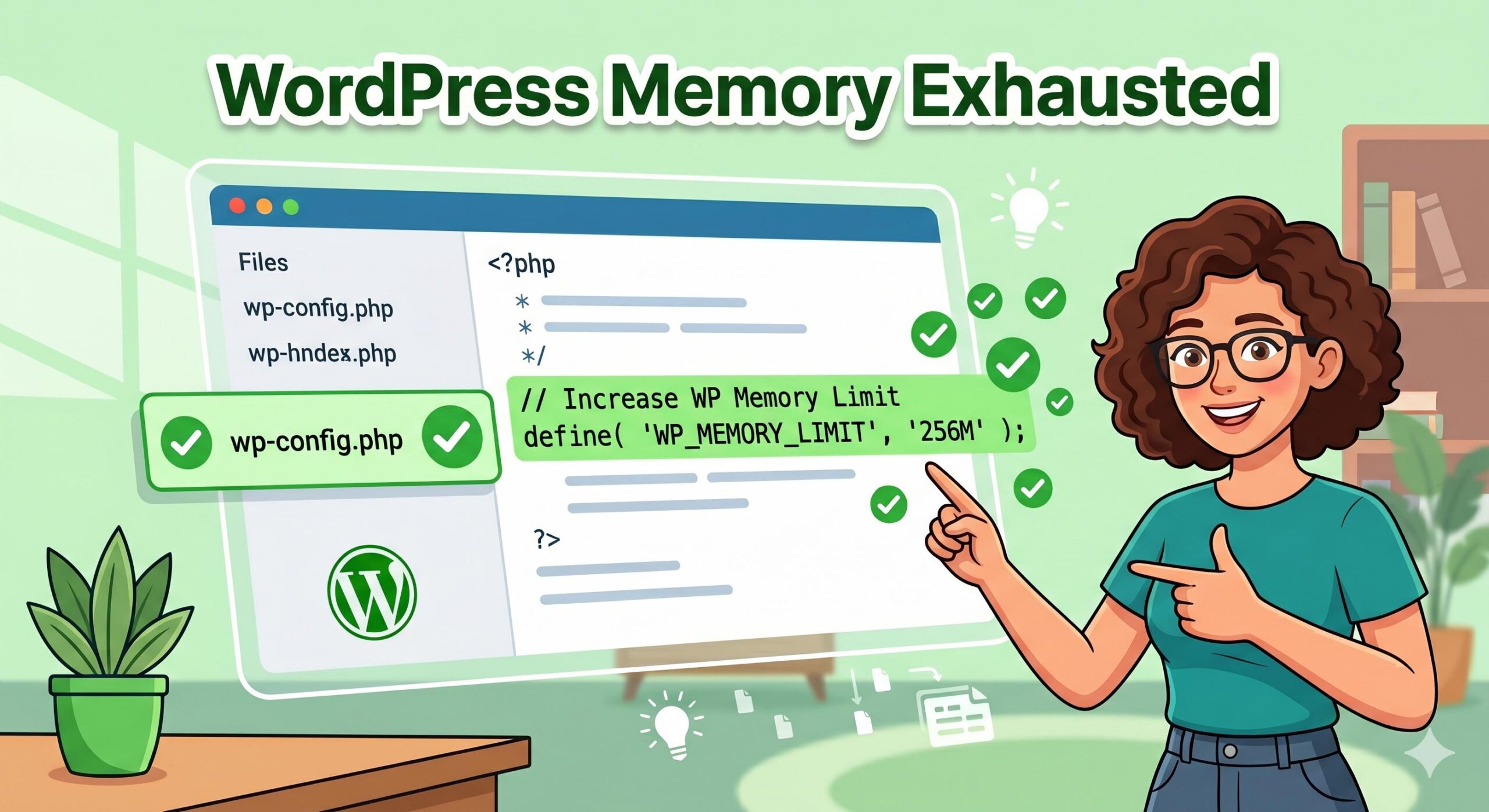
- Log in to your website’s files: You can do this using an FTP client (like FileZilla) or by using the File Manager app located in your web hosting control panel (cPanel).
- Locate the file: Open your root directory (usually named
public_html). Scroll down until you find thewp-config.phpfile. - Edit the file: Right-click on the file and select Edit.
- Find the right line: Scroll down the file until you see a line of text that says:
/* That's all, stop editing! Happy publishing. */ - Paste the code: Right before that line, paste the following piece of code:
define( 'WP_MEMORY_LIMIT', '256M' );6. **Save your changes:** Save the file and close the editor. If you are using FTP, ensure the updated file is uploaded back to the server.
Visit your website and refresh the page. The memory exhausted error should now be gone! If the error is still there, move on to the next method.
### Method 2: Update Your .htaccess File
If modifying the `wp-config.php` file did not work, your hosting environment might require you to change the PHP memory limit via the `.htaccess` file instead.
1. Open your File Manager or FTP client and navigate to your `public_html` folder.
2. Look for the `.htaccess` file. *(Note: This is a hidden file. If you cannot see it, look for a "Settings" button in your File Manager and check the box that says "Show Hidden Files".)*
3. Right-click the `.htaccess` file and select **Edit**.
4. Scroll to the very bottom of the file and paste this exact line of code:
php_value memory_limit 256M5. Save your changes and refresh your website.
### Method 3: Modify the php.ini File
For users on VPS (Virtual Private Server) hosting or specific shared hosting setups, the PHP configuration is controlled by a file called `php.ini`.
1. Go to your File Manager or use your FTP client.
2. Look for a file named `php.ini` or `php5.ini` in your root folder.
3. If you cannot find one, you can easily create a new blank text file and name it `php.ini`.
4. Open the file to edit it, and paste the following line of code inside:memory_limit = 256- Save the file. Check your website to see if the wordpress memory exhausted fix was successful.
Method 4: Contact Your Web Hosting Provider
If you are not comfortable editing server files, or if you have tried the steps above and the error persists, your web hosting provider likely has strict limits in place that prevent manual overrides.
In this case, the best course of action is to reach out to your hosting support team. Open a live chat or support ticket and say:
“Hello, I am encountering a WordPress memory exhausted error on my site. Could you please increase my PHP memory limit to 256MB?”
Most hosting companies will happily make this adjustment for you within a few minutes.
How to Prevent the PHP Memory Limit Error in the Future
Once your site is back online, it is important to ensure this error does not happen again. Here are a few preventive measures you can take:
- Audit Your Plugins: Not all plugins are coded well. If you have unnecessary plugins installed, deactivate and delete them. The fewer active scripts running on your site, the less memory it consumes.
- Optimize Your Images Before Uploading: Uploading a 10MB raw photo directly from your camera forces WordPress to use massive amounts of memory to resize it. Compress your images using free online tools before uploading them to your media library.
- Keep PHP Updated: Using an outdated version of PHP is highly inefficient. Check your hosting dashboard to ensure your site is running on a recent, stable version of PHP (such as PHP 8.0 or higher), which processes memory much more efficiently.
How to Fix When a Plugin Update Broke WordPress Site
Frequently Asked Questions (FAQ)
What is a good memory limit for a WordPress site?
For most standard blogs and small business websites, a memory limit of 128M or 256M is perfect. If you are running a heavy WooCommerce store or a complex membership site, you may need 512M.
Will increasing the memory limit break my site?
No, increasing the memory limit is a standard and safe troubleshooting step. However, you should never set the limit unnecessarily high (like 1024M or higher on a shared server), as this can mask deeper performance issues or cause your hosting provider to suspend your account for resource abuse.
Are there alternative solutions?
If you continually hit memory limits even after increasing them to 256M, you may have a rogue plugin causing a “memory leak.” In that case, deactivate all plugins and reactivate them one by one to find the culprit.
Disclaimer: This guide is for educational troubleshooting purposes. Always ensure you have a recent backup of your website files and database before making any manual changes to your core configuration files.







