

Introduction
If your website is acting strangely but you cannot pinpoint the cause, you are likely wondering how to detect hidden malware in WordPress. This specific issue refers to identifying malicious code, scripts, or backdoors secretly injected into your website’s files or database.
Users typically encounter the effects of this problem when their site suddenly redirects visitors to unfamiliar URLs, new admin accounts appear out of nowhere, or search engines display a bright red “Deceptive site ahead” warning. Why does this unseen code appear? It usually sneaks in through outdated plugins, abandoned themes, or weak passwords, allowing automated bots to embed stealthy scripts that evade casual observation.
This guide is for educational troubleshooting purposes to help you safely locate these unseen threats.
Table of Contents
Step 1: Recognize the Subtle Behavioral Symptoms
Before digging into code, you need to confirm that your suspicions are justified. Learning how to detect hidden malware in WordPress starts with observing your site’s behavior like a detective. Because this malware is designed to be invisible to the site owner while targeting the visitors, you must look for indirect clues.
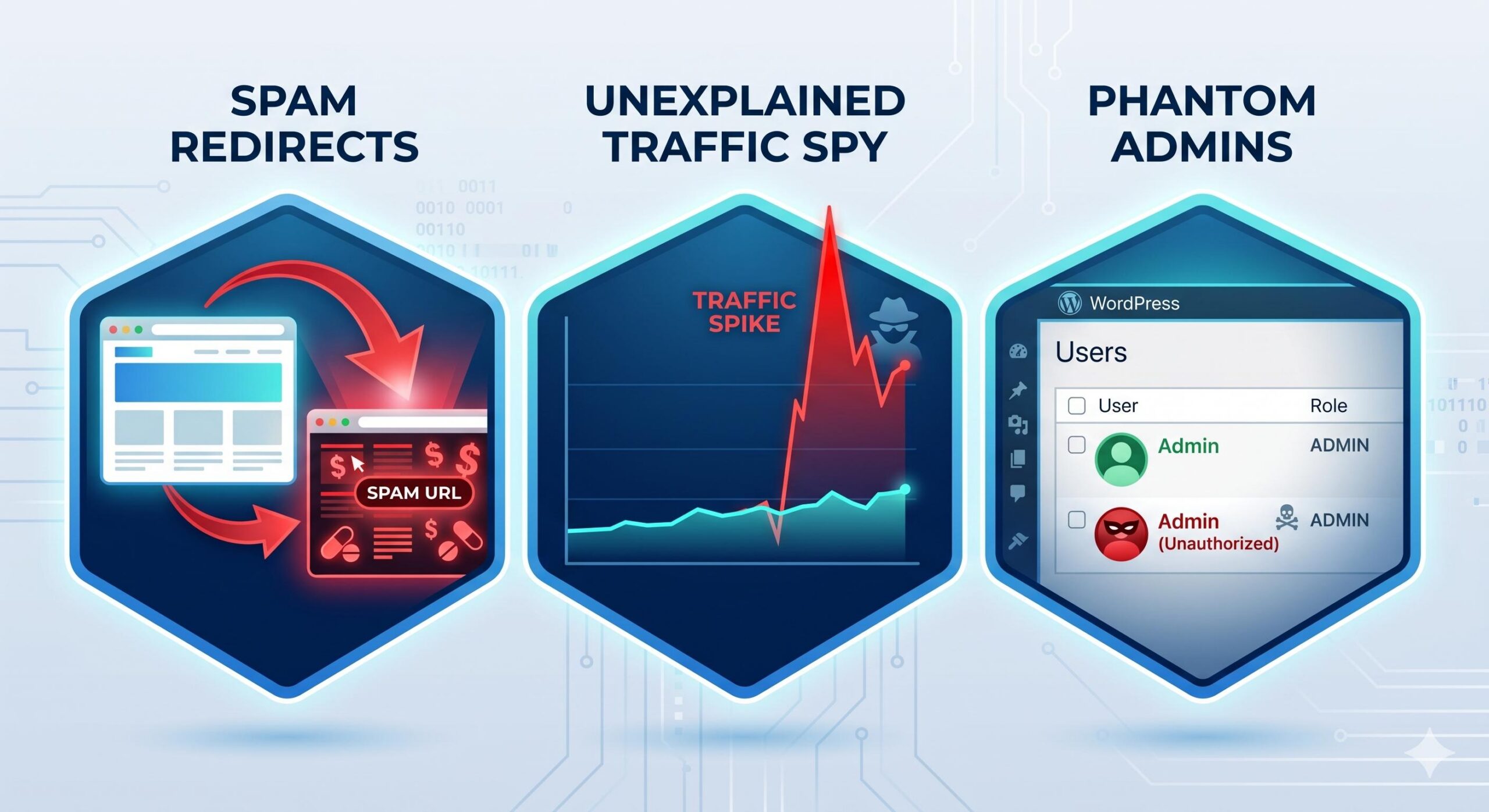
Common behavioral indicators include:
- Unexpected Redirects: When you or your visitors click a link on your site, you are bounced to an unrelated, spammy website.
- Unexplained Traffic Spikes or Drops: A sudden, massive drop in legitimate traffic could mean Google has blacklisted your site, while a bizarre spike might mean your site is being used to send spam.
- Phantom Admin Users: Check your Users > All Users dashboard. If you see administrator accounts you did not create, your site has a hidden backdoor.
- Modified Core Files: If your WordPress dashboard shows warnings that core files have been modified, this is a major red flag.
Step 2: Run a Deep Scan with a Security Plugin
The safest and most beginner-friendly way to detect hidden malware in WordPress is to use an automated security scanner. Because malicious scripts are often disguised as legitimate code (a technique called obfuscation), finding them manually by reading code is incredibly difficult for non-developers.
- Log in to your WordPress admin dashboard.
- Navigate to Plugins > Add New.
- Search for a reputable, industry-trusted security plugin like Wordfence Security, Sucuri Security, or Solid Security.
- Install and activate the plugin.
- Locate the plugin’s scanning feature and initiate a High Sensitivity or Deep Scan.
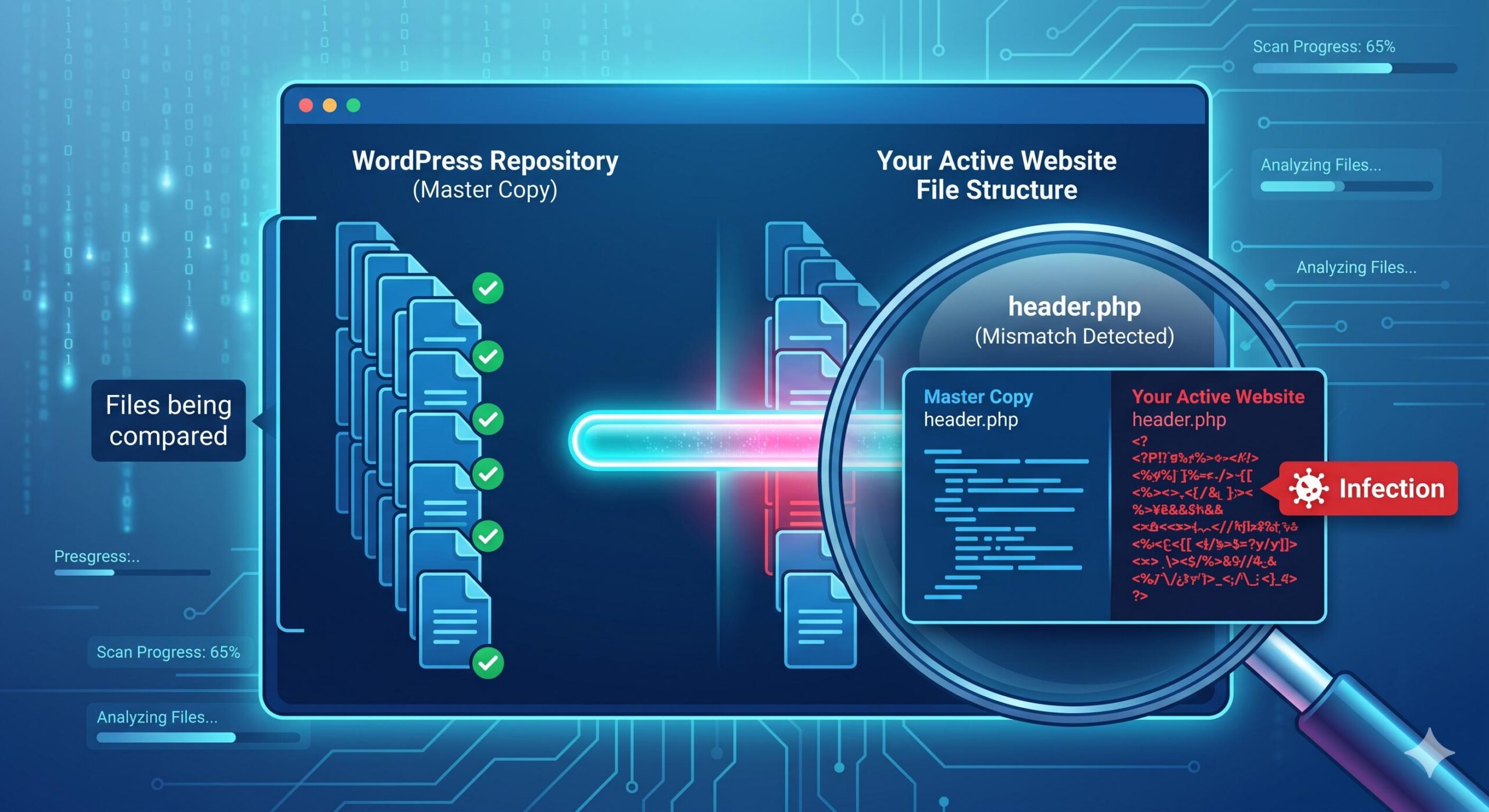
These tools compare your current website files against the official, clean versions in the WordPress repository. If the scanner finds files with extra, hidden code, it will flag them for your review.
Step 3: Verify WordPress Core File Integrity
WordPress is built on a specific structure of core files (folders like wp-admin and wp-includes). Unless you are actively updating the WordPress software, the files inside these folders should almost never change.
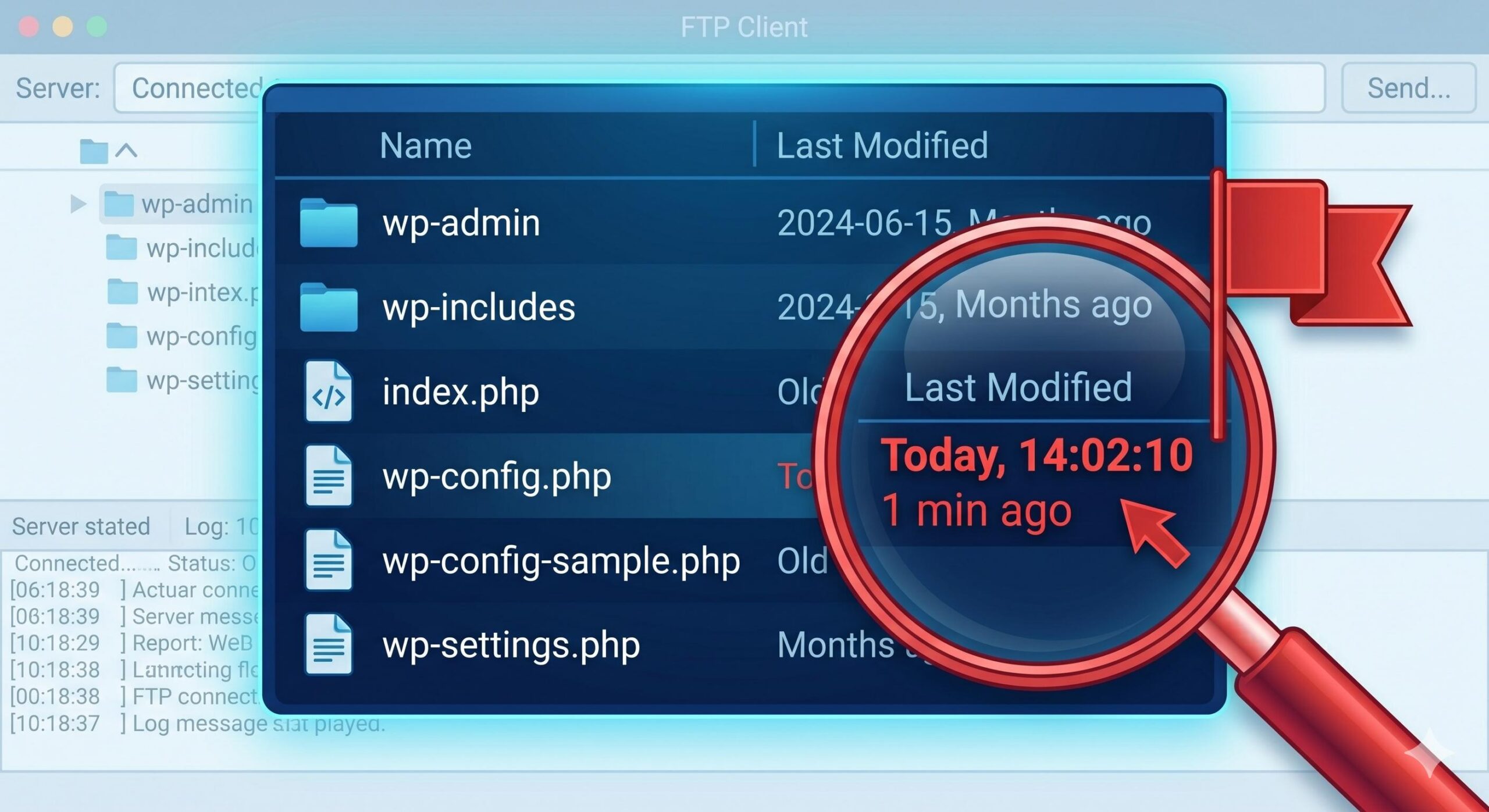
Understanding how to detect hidden malware in WordPress involves checking the “Last Modified” dates of these core files.
- Log into your web hosting control panel (like cPanel) or connect to your site via an FTP client like FileZilla.
- Open your File Manager and navigate to your
public_htmlor root directory. - Look at the core files, specifically
wp-config.php,.htaccess, andindex.php. - Check the Last Modified column. If these files were updated recently, but you haven’t made any site changes or software updates, there is a high probability that malware has hidden itself within them.
Note: Do not delete these files. If you suspect they are infected, replacing them requires a careful manual core update process.
Step 4: Audit the wp-content Directory
The wp-content folder is the most common hiding spot for malicious scripts. This directory houses your themes, plugins, and uploaded media. Because this folder naturally receives new files all the time, malware tries to blend in here.
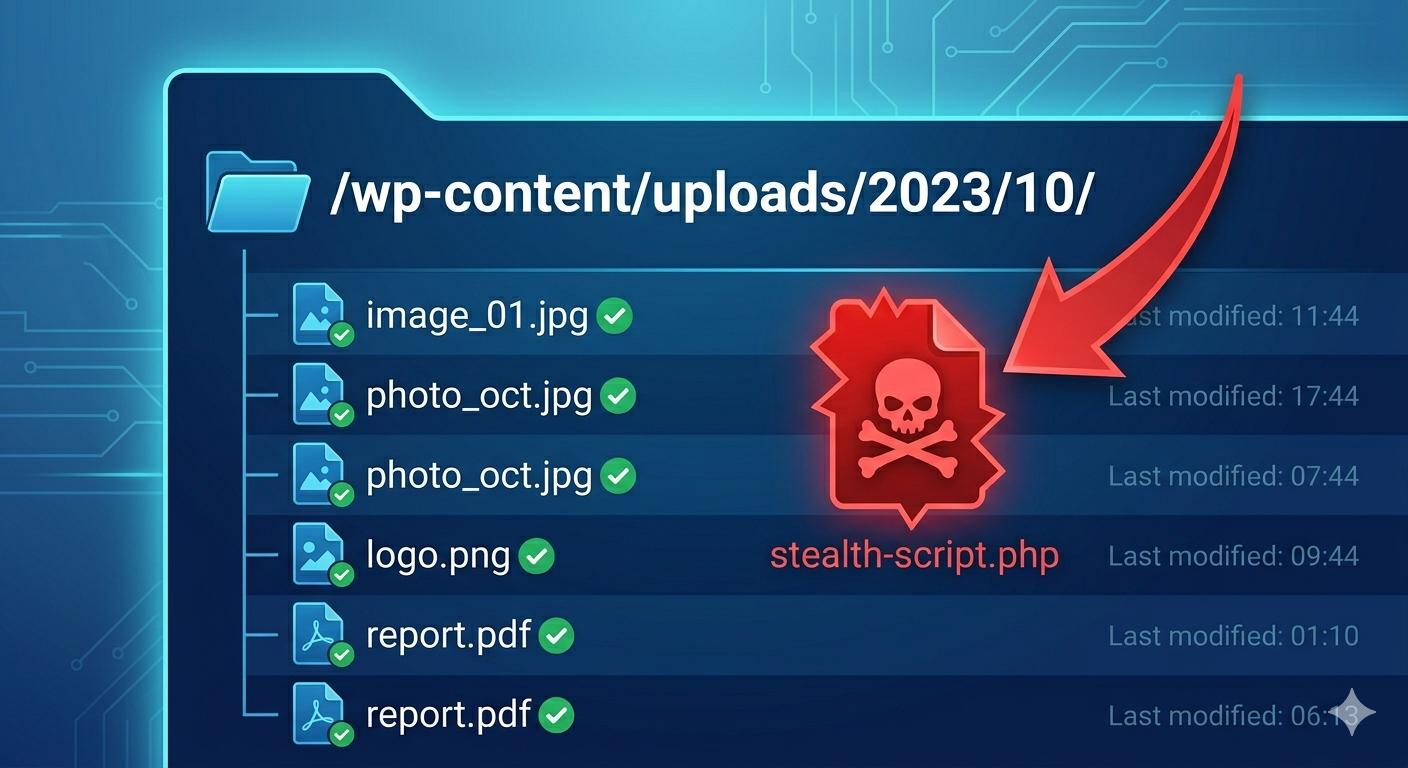
How to inspect this area:
- Check the
uploadsfolder: Navigate towp-content/uploads. This folder should only contain media files (like.jpg,.png,.pdf). If you find.phpfiles inside your uploads folder, it is almost certainly hidden malware acting as a backdoor. - Review abandoned plugins/themes: Check your
pluginsandthemesfolders. If you see folders for tools you deleted long ago, malicious scripts might be using those leftover directories to hide.
Step 5: Utilize External Diagnostic Tools
Sometimes, the best way to detect hidden malware in WordPress is to view your site from the outside. Search engines and external scanners can see things that your server might be hiding.
- Google Search Console (GSC): If you have GSC set up, navigate to the Security & Manual Actions tab, then click Security Issues. Google will explicitly tell you if its bots have detected deceptive pages, harmful downloads, or hidden URL injections on your site.
- SiteCheck by Sucuri: You can visit the free Sucuri SiteCheck website and enter your URL. This external tool scans the front end of your website for visible malware payloads, blocklist statuses, and outdated firewall headers.
How to Fix and Manage the Latest WordPress Plugin Vulnerabilities 2026
Next Steps After Detection
Once you have successfully learned how to detect hidden malware in WordPress and have located the infected files, the next phase is removal. If your security plugin cannot automatically quarantine and clean the files, you may need to restore your website from a known clean backup taken prior to the infection.
Maintaining a calm, systematic approach to scanning your files, verifying core integrity, and utilizing trusted security tools will help you identify these hidden issues safely and effectively. Ensure you keep your plugins updated and use strong passwords to prevent these unseen threats from returning.
Frequently Asked Questions (FAQ)
To help you better understand the nuances of website security, here are the most common questions users ask when learning how to detect hidden malware in WordPress.
1. Can I find hidden malware without using a security plugin?
While it is technically possible, it is very difficult for beginners. You can manually check your core WordPress files for recent modifications or look for suspicious .php files hiding inside your wp-content/uploads folder. However, because hackers intentionally obfuscate (scramble) their code to make it look harmless, using an established security scanner is the safest and most reliable method.
2. Will the process of detecting hidden malware break my WordPress site?
Simply scanning your files and learning how to detect hidden malware in WordPress will not break your site. Scanners only read your files; they do not alter them without your permission. However, carelessly deleting core files after detection can cause your site to crash, which is why creating a secure backup should always be your first step.
3. Why didn’t my hosting provider detect the malware for me?
Many basic shared hosting plans only scan for wide-scale server infections. They often miss application-level scripts that are injected directly into your specific WordPress database or theme files. As a site admin, it is your responsibility to proactively monitor your own website’s application security.
4. What is the most common physical sign that my site is infected?
Because the malware is “hidden,” site owners rarely see it themselves. The most common indicators are user-reported issues: visitors being redirected to spam websites when clicking your links, mysterious pop-ups, or Google throwing a red “Deceptive site ahead” warning before users can access your homepage.
This guide is for educational troubleshooting purposes. If you confirm your site is infected and feel uncomfortable removing the files yourself, we strongly recommend hiring a professional WordPress malware removal service to ensure your site is cleaned safely.








