


Introduction
Have you recently noticed your WordPress site taking forever to load, or perhaps you received a frustratingly low score on Google PageSpeed Insights? When you start searching for solutions, applying effective website performance optimization tips is exactly what you need to focus on.
But what does this phrase actually mean? In simple terms, website performance optimization refers to the actionable steps and technical adjustments you make to improve your site’s loading speed and overall responsiveness.
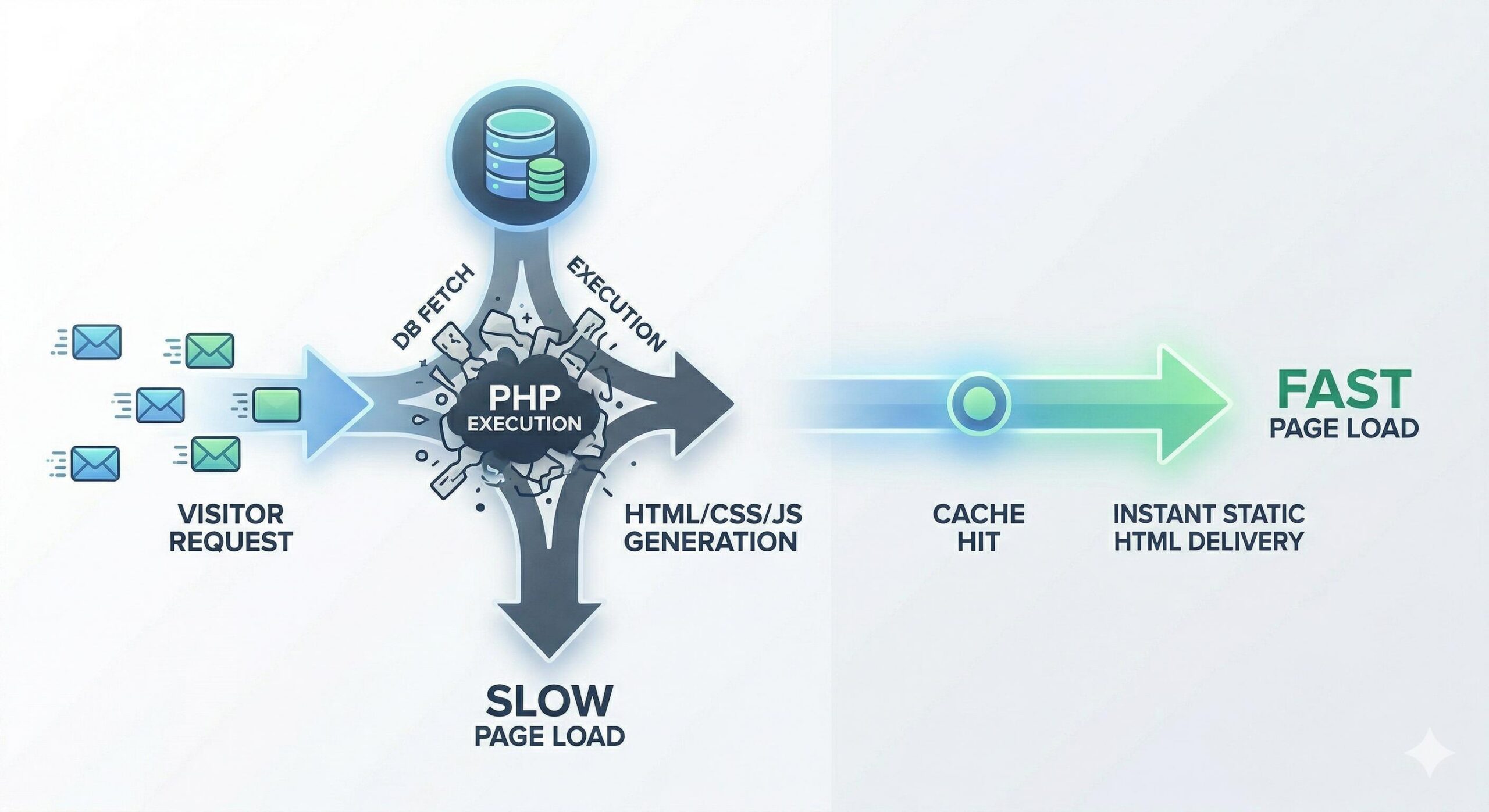
You usually encounter the need for these tips when your live site feels sluggish, your WordPress admin dashboard lags, or visitors bounce away before a page fully renders. This slowdown typically appears because of heavy unoptimized images, bloated code from too many plugins, or poor server response times.
This guide is for educational troubleshooting purposes to help you safely understand and fix the root causes of a slow WordPress website.
Table of Contents
What Does Website Performance Optimization Mean for WordPress?
When we talk about website performance optimization tips, we are addressing a very specific set of technical problems within the WordPress ecosystem. WordPress is a dynamic Content Management System (CMS). This means that every time a visitor clicks on your website, your server has to fetch data from a database, process PHP code, and stitch together HTML, CSS, and JavaScript before sending it to the user’s browser.
If your website is not optimized, this dynamic process takes too long. Implementing website performance optimization tips streamlines this entire sequence. By reducing the workload on your server and shrinking the size of the files being transferred, you directly resolve the issue of high page load times.
Why Your Site Needs Website Performance Optimization Tips Right Now
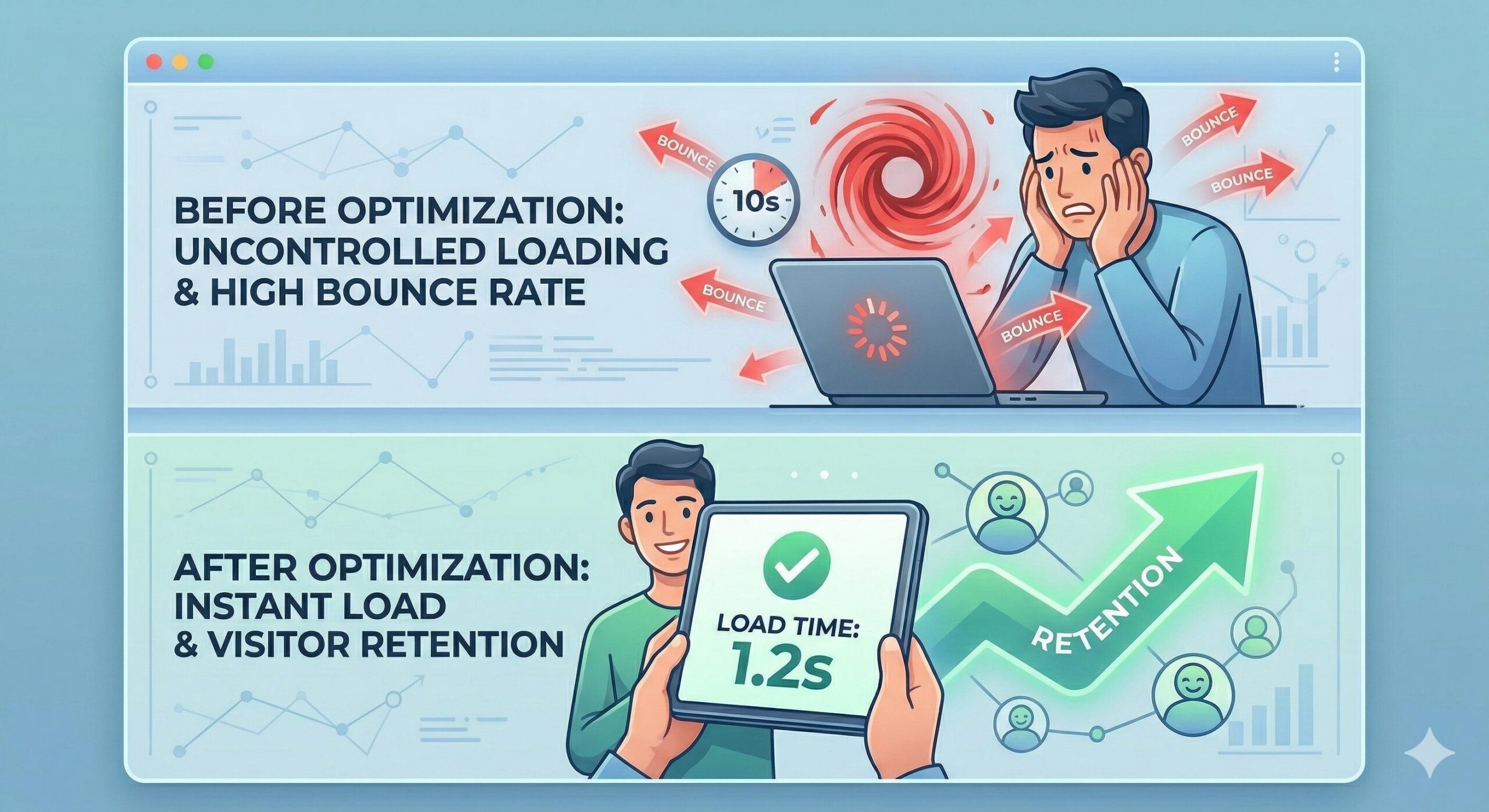
If you are reading this, you are likely experiencing the direct symptoms of poor website speed. A lack of optimization manifests in several frustrating ways:
- High Bounce Rates: Visitors simply will not wait more than two to three seconds for a page to load. If it takes longer, they leave.
- Poor Search Engine Rankings: Google explicitly uses page speed as a ranking factor. A slow site will struggle to rank, no matter how good the content is.
- Straining Server Resources: Unoptimized sites consume massive amounts of bandwidth and memory, which can lead to your hosting provider temporarily suspending your account due to resource overages.
By applying targeted website performance optimization tips, you are directly troubleshooting and resolving these core issues.
Actionable Website Performance Optimization Tips for Beginners
Resolving a slow WordPress site doesn’t require a degree in computer science. By following these specific website performance optimization tips, you can drastically improve your loading times safely and effectively.
1. Upgrade to Quality Managed WordPress Hosting
The foundation of all website performance optimization tips begins with your server. If you are on a cheap, overcrowded shared hosting plan, no amount of tweaking will fully fix a slow site. Your server acts as the engine of your website. Switching to a Managed WordPress host provides you with a server architecture specifically configured to handle WordPress databases and PHP execution efficiently.
2. Implement a Lightweight WordPress Theme
Many beginners install flashy themes packed with sliders, complex animations, and built-in page builders. Unfortunately, these themes are often bloated with excess code that slows down your site. A crucial website performance optimization tip is to switch to a highly optimized, lightweight theme (such as GeneratePress or Astra). These themes load only the scripts necessary for the page to function, immediately resolving front-end sluggishness.
3. Optimize and Compress Your Images

Uploading large, raw image files straight from a camera or stock photo site is the most common reason for poor page speed. An image that is 3MB takes significantly longer to download than one that is 30KB. To fix this, you must apply image-specific website performance optimization tips:
- Resize images to their maximum display width before uploading.
- Use an image compression plugin (like Smush or ShortPixel) to reduce file sizes without losing visual quality.
- Serve images in next-generation formats, such as WebP.
4. Utilize a Dedicated Caching Plugin
As mentioned earlier, WordPress dynamically generates pages. Caching bypasses this heavy processing. When you install a caching plugin (such as WP Rocket or W3 Total Cache), it creates a static HTML version of your pages. When a user visits, the server delivers this lightweight static page instantly instead of rebuilding it from scratch. Implementing caching is one of the most highly recommended website performance optimization tips because it yields immediate, noticeable improvements.
5. Minimize and Clean Up Your Plugins
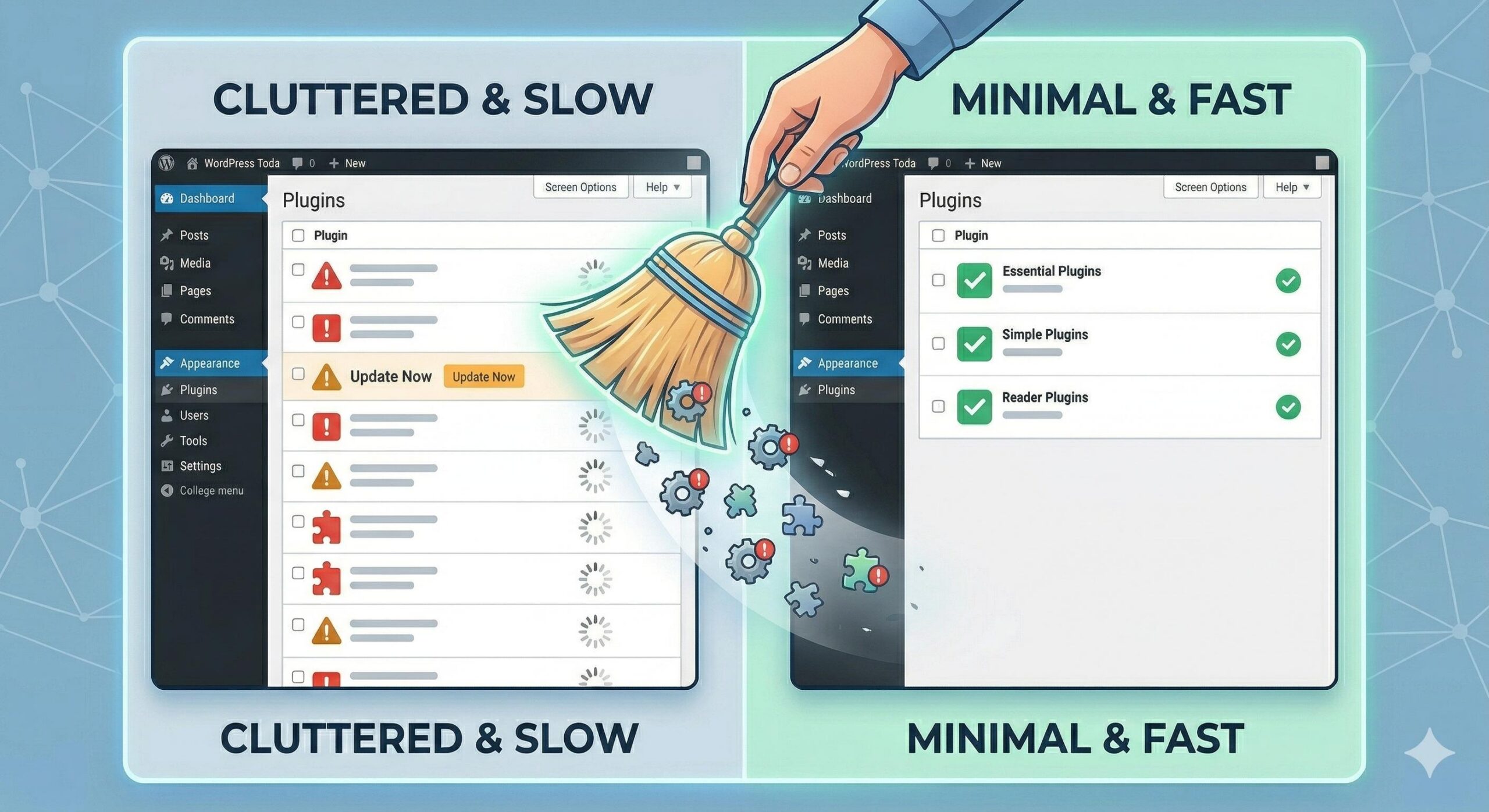
Every plugin you add to WordPress adds extra code. Even if a plugin is inactive, it sits in your database. If a plugin is poorly coded, it can cause severe conflicts and database queries that bottleneck your site’s performance. A practical website performance optimization tip is to audit your plugins. Deactivate and delete any plugins you do not strictly need. For the ones you keep, ensure they are updated to their latest, most efficient versions.
How to Optimise WordPress Website Performance: A Beginner’s Troubleshooting Guide
How to Test the Results of Your Optimization
You cannot fix what you cannot measure. Once you have applied these website performance optimization tips, you need to verify that the issue is resolved.
Avoid relying entirely on how fast the site feels on your own computer, as your browser likely has the site cached. Instead, use objective, external testing tools:
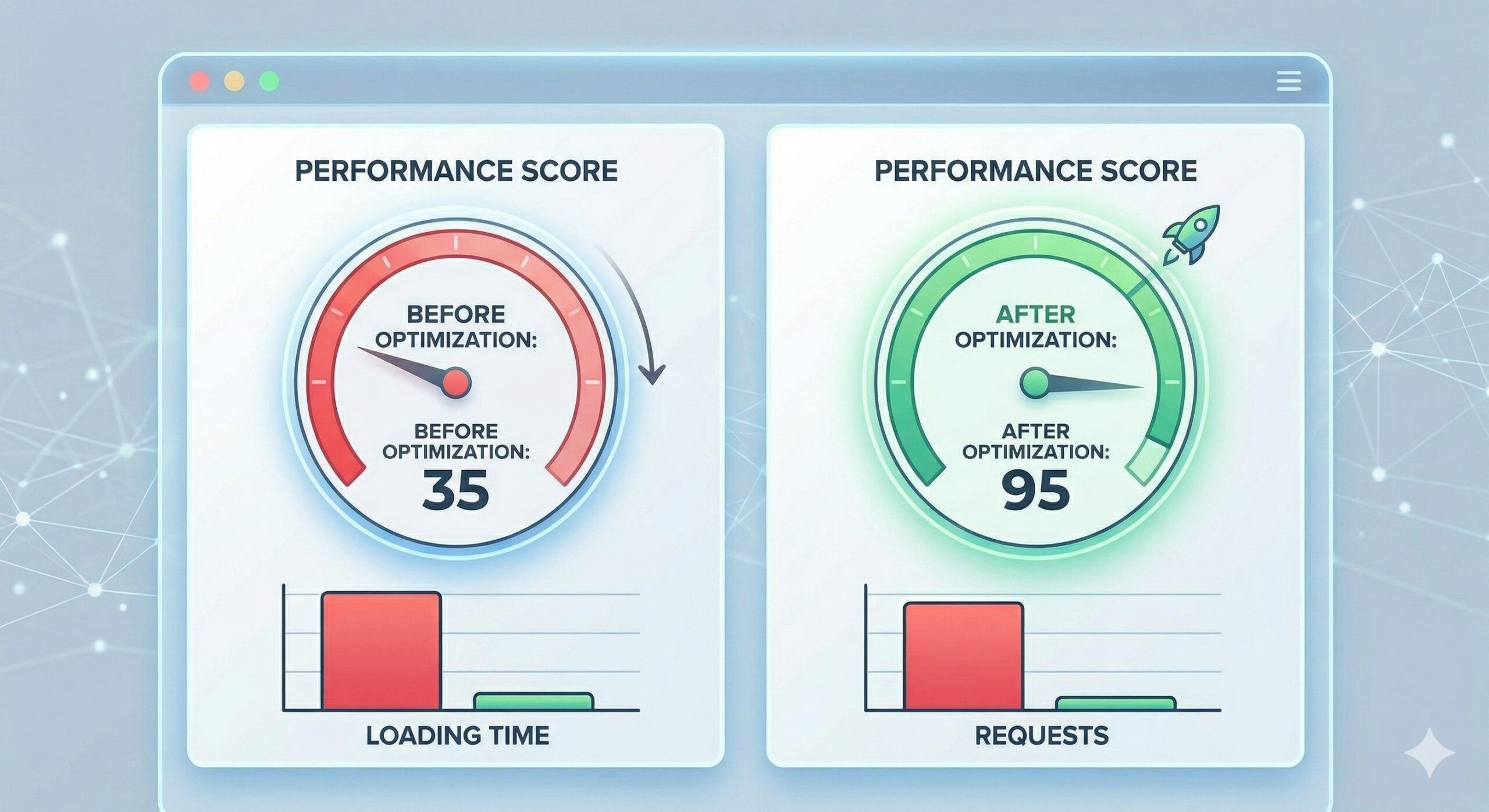
- Google PageSpeed Insights: This tool will analyze your site and provide specific diagnostics based on Core Web Vitals.
- GTmetrix: This offers a detailed waterfall chart, showing you exactly which files are taking the longest to load, allowing you to fine-tune your website performance optimization tips further.
Test your site before applying the fixes, and then test again afterward to see the tangible reduction in load times.
Preventive Guidance: Keeping Your Site Fast
Website performance optimization is not a one-time fix; it requires ongoing maintenance. To prevent your site from slowing down again in the future, integrate these habits into your workflow:
- Regularly Optimize Your Database: Over time, your WordPress database fills up with post revisions, spam comments, and transient options. Use a database optimization plugin once a month to sweep out this digital clutter.
- Keep Everything Updated: WordPress core, themes, and plugins frequently release updates that contain performance enhancements and security patches.
- Limit External Scripts: Be mindful of embedding too many external scripts, such as multiple tracking codes, external ad networks, or heavy social media widgets, as these require your site to wait on third-party servers to load.
By understanding the “why” and “how” behind these website performance optimization tips, you take back control of your WordPress site. You are now equipped to resolve sluggish loading times, provide a better experience for your visitors, and build a technically sound website.
Ready to Play? Experience the Ultimate Gaming Thrill Today
Frequently Asked Questions (FAQs)
Do website performance optimization tips actually improve my SEO? Yes. Search engines like Google use page speed and Core Web Vitals as direct ranking factors. Applying these optimization tips resolves slow loading times, which signals to search engines that your site provides a high-quality user experience, ultimately helping to protect and boost your search rankings.
Can I apply these website performance optimization tips without coding knowledge? Absolutely. Most beginner-friendly WordPress troubleshooting can be done entirely through reputable plugins. Tasks like image compression, page caching, and database cleanups require zero coding skills and can be safely managed directly from your WordPress admin dashboard.
Why is my WordPress site still slow after applying these fixes? If you have followed all the basic website performance optimization tips and your site is still lagging, the issue is likely rooted at the server level. Cheap shared hosting plans often restrict the CPU and memory your site can use. Troubleshooting at this stage usually requires upgrading to a quality Managed WordPress hosting provider.
Will optimization plugins break my website? While reputable caching and optimization plugins are safe, aggressively minimizing JavaScript or CSS can sometimes cause visual glitches on your site. As a best practice for educational troubleshooting, always create a full backup of your WordPress site before installing new optimization tools or changing caching settings.
Conclusion
Implementing these website performance optimization tips is one of the most impactful things you can do for your WordPress site’s overall health and usability. By addressing your hosting environment, compressing media files, using a lightweight theme, and setting up caching, you are directly troubleshooting the root causes of slow load times. Remember that website optimization is not a one-time fix, but an ongoing maintenance habit. By regularly monitoring your site’s speed and keeping your plugins organized, you ensure your site remains fast, stable, and ready to welcome visitors without delay.








