

Introduction: Understanding the Virus Detector Website Warning
If you are seeing a massive red warning screen blocking your WordPress site, it means a virus detector website has flagged your domain as unsafe. But what does this mean exactly? A virus detector website (such as Google Safe Browsing, VirusTotal, or Sucuri SiteCheck) is an automated online security tool designed to scan URLs for malware, deceptive phishing links, or compromised code.
You usually encounter this alarming warning when actively testing your site’s health, or when visitors complain they are being blocked from accessing your homepage. Why does it appear?
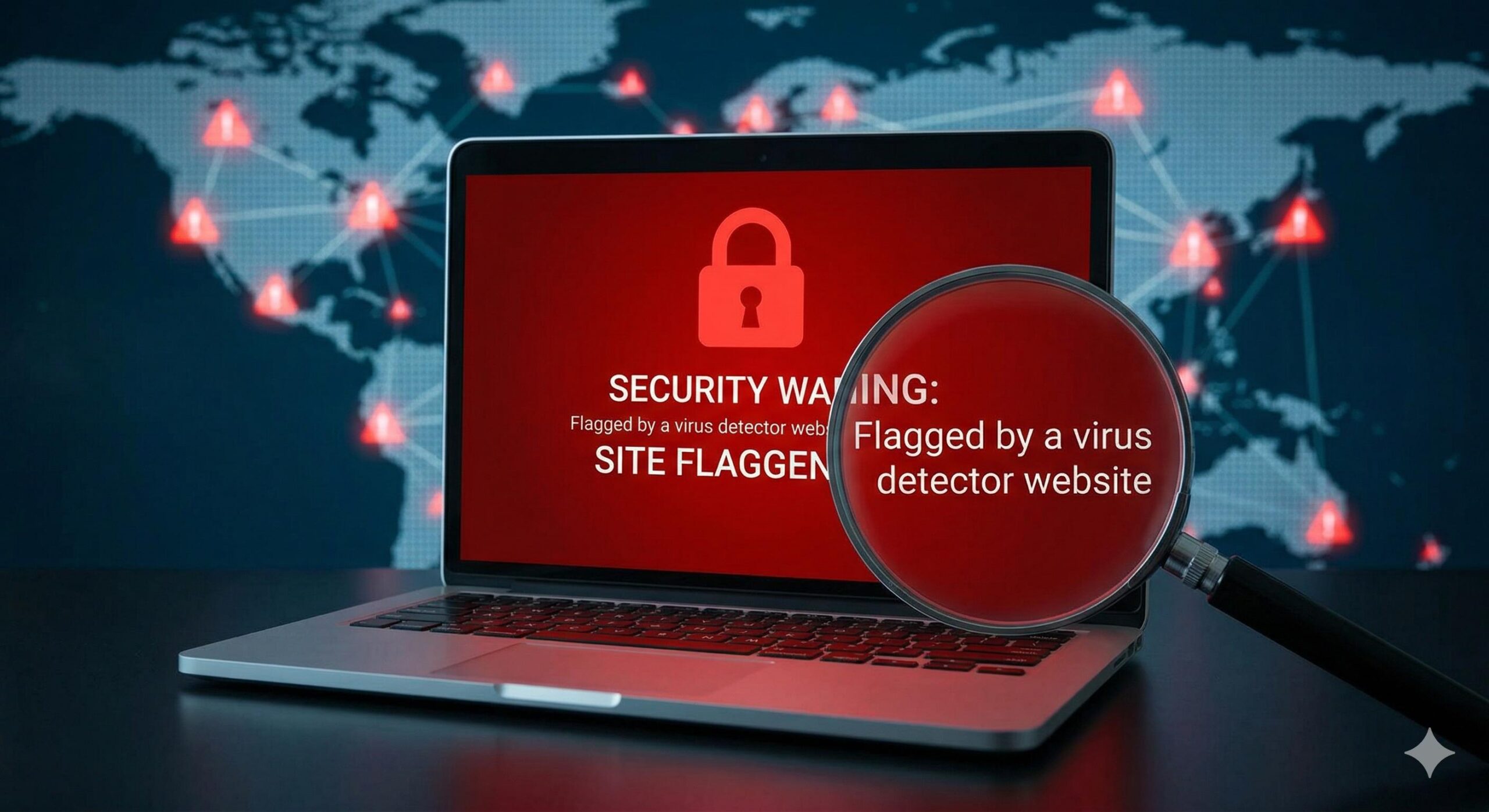
It triggers because the virus detector website found suspicious scripts, outdated plugin vulnerabilities, or unauthorized file changes on your server. Do not panic. This guide is written exactly for this error message and will explain how to safely fix your site and remove the warning.
Table of Contents
Why Did a Virus Detector Website Flag My WordPress Site?
When a virus detector website crawls your WordPress installation, it looks for specific signatures, abnormal behaviors, and blacklisted code fragments. If it flags your site, it is usually due to one of the following specific triggers:
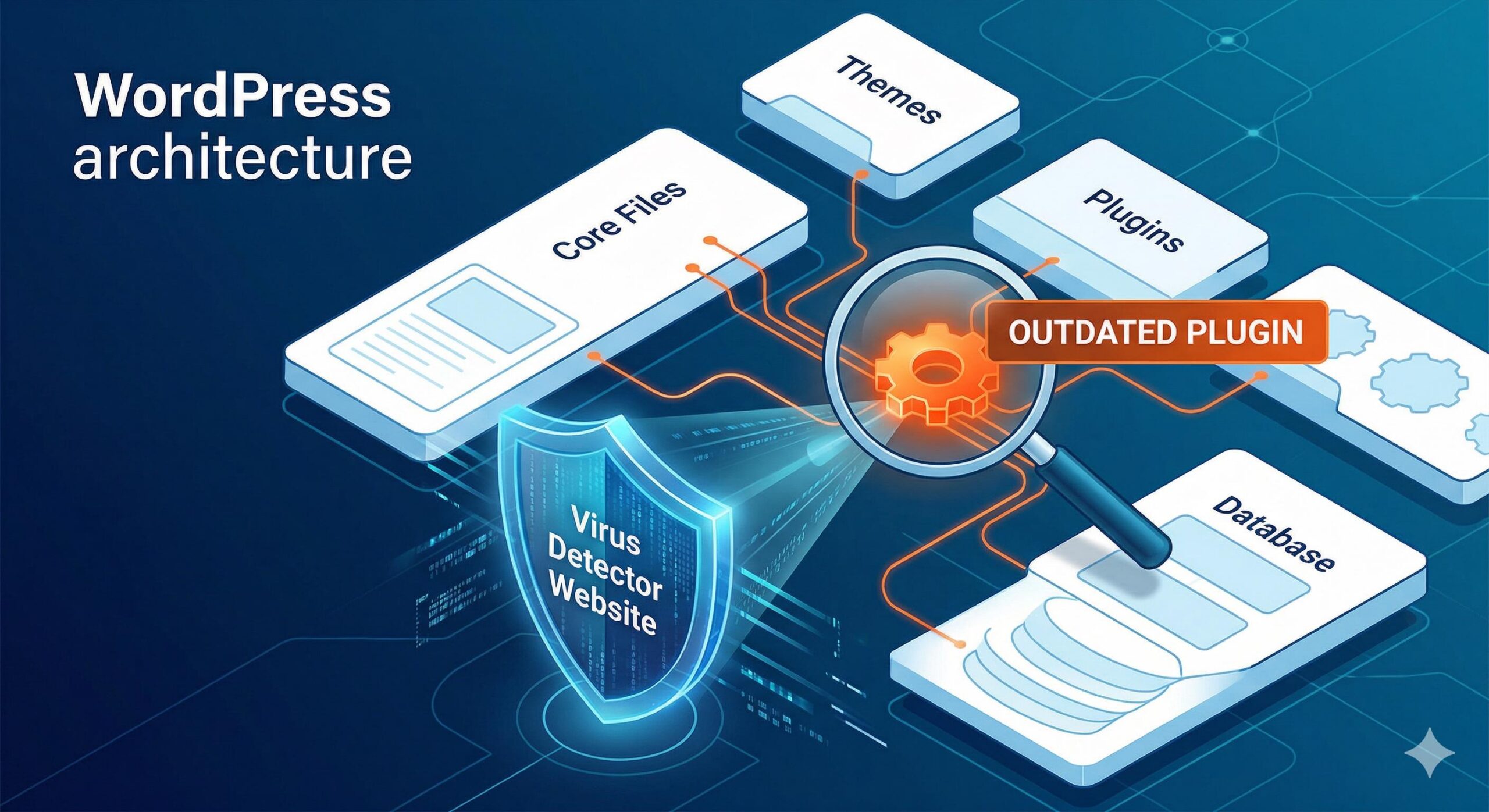
- Malicious Code Injection: Sometimes, vulnerabilities in outdated plugins allow unwanted code to be injected into your core files (like
wp-config.phporfunctions.php). The virus detector website spots this hidden code during its scan. - Deceptive Redirects: If your website is redirecting mobile users or search engine traffic to spam or inappropriate websites, a virus detector website will immediately categorize your domain as a security risk.
- False Positives: Not every alert means your site is compromised. Occasionally, a virus detector website might flag a poorly coded, legitimate plugin because its behavior resembles a known threat.
- Blacklisted Resources: If your theme loads external fonts, scripts, or images from a server that has been blacklisted, the virus detector website will flag your entire site by association.
Understanding that a virus detector website operates on automated rules helps you stay calm. It is simply a machine reading code, and fixing the underlying code will clear the alert.
Step 1: Verify the Virus Detector Website Warning
Before making any changes to your WordPress site, it is important to confirm the findings. Relying on a single source can sometimes lead you down the wrong path due to false positives.
- Cross-Check with Multiple Tools: If one virus detector website flags your domain, run your URL through two or three others. Tools like Google Transparency Report and VirusTotal can provide a broader consensus.
- Read the Specific Error Log: Most virus detector websites provide a detailed report. Look for the exact file path or the type of payload they identified. Did they flag a specific plugin folder? Did they point out an iframe injection? Noting this information is crucial for the cleanup phase.
Step 2: Safely Isolate and Backup Your Site
When dealing with warnings from a virus detector website, your first technical step is to protect your visitors and preserve your current site state.
- Enable Maintenance Mode: If the virus detector website indicates a severe issue, temporarily put your site in maintenance mode. This prevents visitors from interacting with potentially harmful elements while you work.
- Take a Complete Backup: This might sound counterintuitive—why backup a flagged site? If you make a mistake during the cleanup process that breaks your site completely, you will need a restore point. Use your hosting control panel to create a full backup of your files and your database. Label it clearly as “Pre-Cleanup Backup.”
Step 3: Run an Internal WordPress Security Scan
A public virus detector website can only scan the front end of your site (what the public sees). To find out what is happening on the back end (your server files), you need an internal scanner.
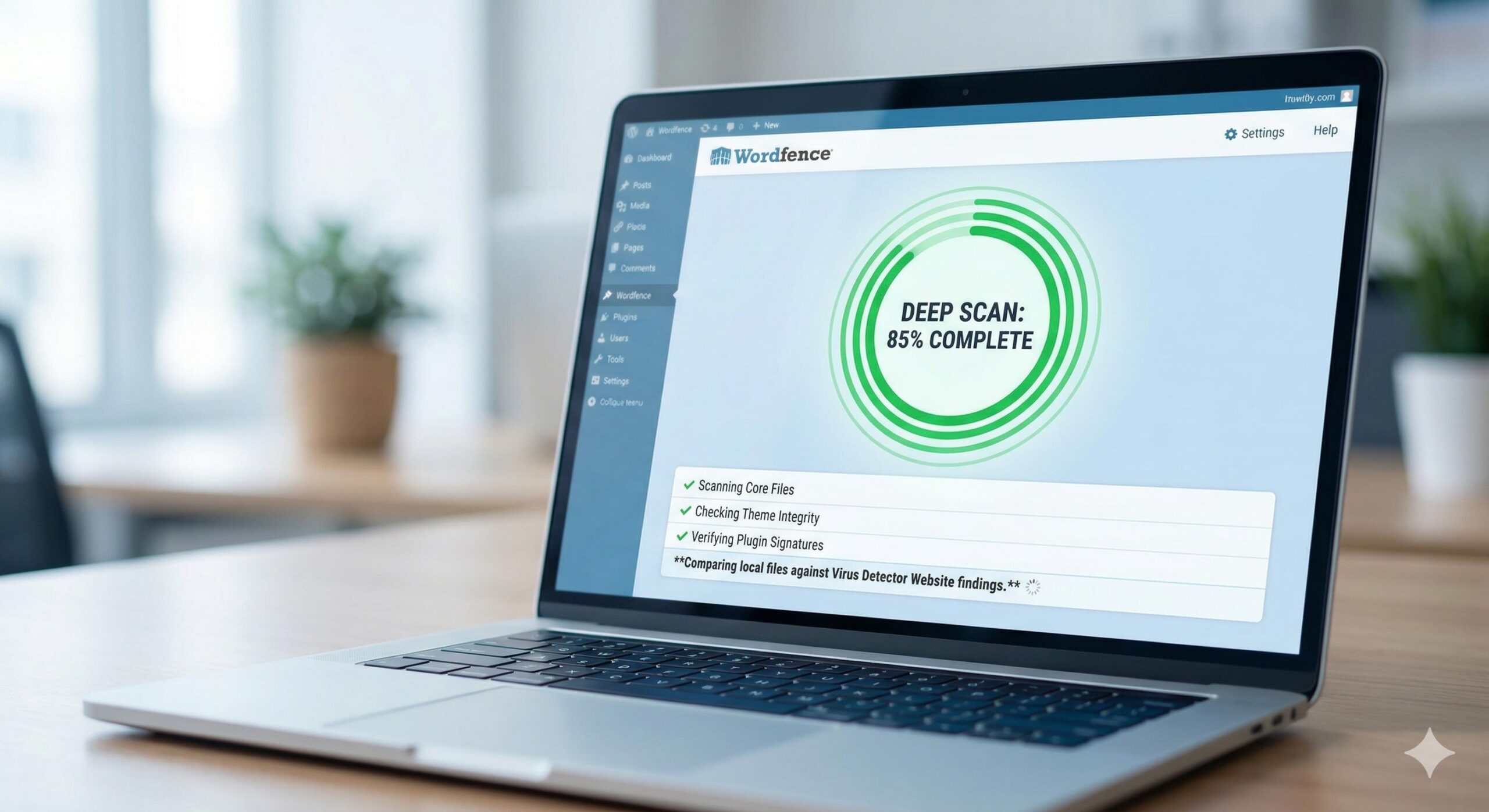
- Log into your WordPress admin dashboard.
- Install a reputable, beginner-friendly security plugin (such as Wordfence Security or Solid Security).
- Run a deep, comprehensive scan.
- Compare the internal scan results with the report provided by the external virus detector website. The internal tool will usually highlight the exact files that need to be deleted or repaired.
Step 4: Clean Up Core Files, Plugins, and Themes
Once you have identified the culprit that triggered the virus detector website, you can begin the cleanup process. We recommend a safe, replacement-based approach for beginners.
- Update Everything: Often, simply updating your WordPress core, plugins, and themes will overwrite the vulnerable files that caused the issue.
- Reinstall Core Files: If the internal scan shows that WordPress core files are affected, you can safely reinstall WordPress from the dashboard by going to Dashboard > Updates and clicking Re-install Now. This replaces core files without deleting your content.
- Remove Unused or Suspicious Plugins: If the virus detector website explicitly pointed to a specific plugin directory, deactivate and delete that plugin entirely. Find a safe, well-reviewed alternative in the official WordPress repository.
Step 5: Request a Review from the Virus Detector Website
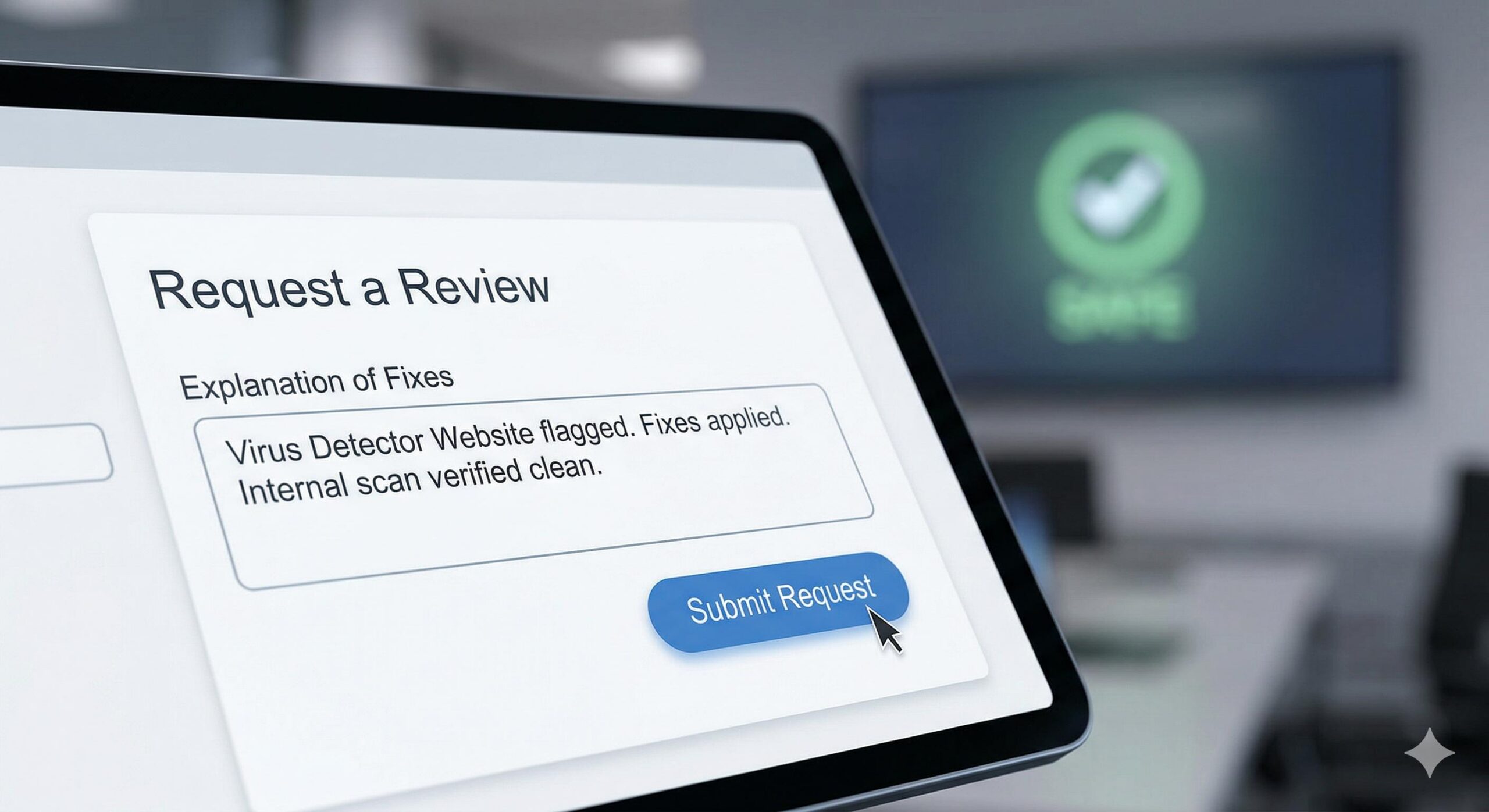
After you have cleaned your site, updated your software, and verified through your internal security plugin that the site is clean, you must tell the virus detector website to scan your site again. This is known as requesting a review.
- Return to the specific virus detector website that originally flagged your domain.
- Look for a “Request Review,” “Report Incorrect Phishing Warning,” or “Force Re-scan” option.
- If you are using Google Search Console, navigate to the Security Issues tab and click Request Review. Provide a brief, professional explanation of the steps you took to resolve the issue (e.g., “Updated all plugins, removed compromised theme files, and verified clean internal scan”).
It can take anywhere from a few hours to a few days for the virus detector website to update its database and remove the warning screen for your visitors.
How to Prevent Future Alerts
To ensure you never have to deal with a warning from a virus detector website again, practice basic WordPress hygiene:
- Enforce Strong Passwords: Ensure all administrator accounts use long, complex passwords.
- Limit Login Attempts: Install a tool that blocks users after too many failed password guesses.
- Stay Updated: Never leave plugins or themes out of date. Outdated software is the primary reason sites trigger a virus detector website.
- Use a Web Application Firewall (WAF): A firewall sits between your website and the internet, blocking malicious traffic before it can even reach your server and cause the issues that lead to blacklisting.
By understanding how a virus detector website works and following these calm, methodical steps, you can successfully restore your WordPress site’s reputation and keep your visitors safe.
How to Use a Malware Site Checker to Save Your WordPress Site
Frequently Asked Questions (FAQs)
How long does it take for a virus detector website to clear the warning? After you clean your site and submit a successful review request, it typically takes a virus detector website anywhere from 24 to 72 hours to rescan your domain, update their database, and remove the warning screen for your visitors.
Will a warning from a virus detector website hurt my Google SEO rankings? Yes, temporarily. Search engines prioritize user safety above all else. If a virus detector website flags your site as dangerous, search engines will often drop your rankings to protect searchers. Once you properly fix the issue and the warning is lifted, your SEO rankings usually recover over time.
Can a virus detector website be wrong about my WordPress site? Yes. This is known in the security world as a “false positive.” Sometimes, a poorly coded but entirely harmless plugin behaves in a way that mimics known malware. This can cause the virus detector website to mistakenly flag your safe site as dangerous.
Conclusion
Seeing your hard work blocked by a virus detector website is a highly stressful experience for any WordPress beginner, blogger, or business owner. However, it is important to remember that these tools exist solely to keep the internet safe for your visitors. By staying calm, verifying the specific files flagged by the virus detector website, and methodically cleaning your WordPress installation using the steps above, you can successfully resolve the issue. Always maintain strict security habits, keep your themes and plugins updated, and use strong passwords to ensure your website remains trusted and safe moving forward.








