

Introduction
Building a stunning WordPress website with Elegant Themes should be a smooth, creative process. However, nothing halts your design workflow faster than suddenly encountering the divi market error in your dashboard. If you are trying to update a premium layout, install a third-party module, or authenticate a child theme, only to be met with an “Update Failed” or “Unauthorized” message, you are not alone. This specific sync and connection issue is incredibly common for site administrators, and it simply means your website is struggling to communicate with the official marketplace servers.

Do not panic—your website is not broken, and your designs are safe. This guide is designed for educational troubleshooting purposes, walking you through calm, beginner-friendly, and highly effective steps to fix the divi market connection error so you can get back to building your site without frustration.
Table of Contents
Recognizing the Divi Market Connection Issue
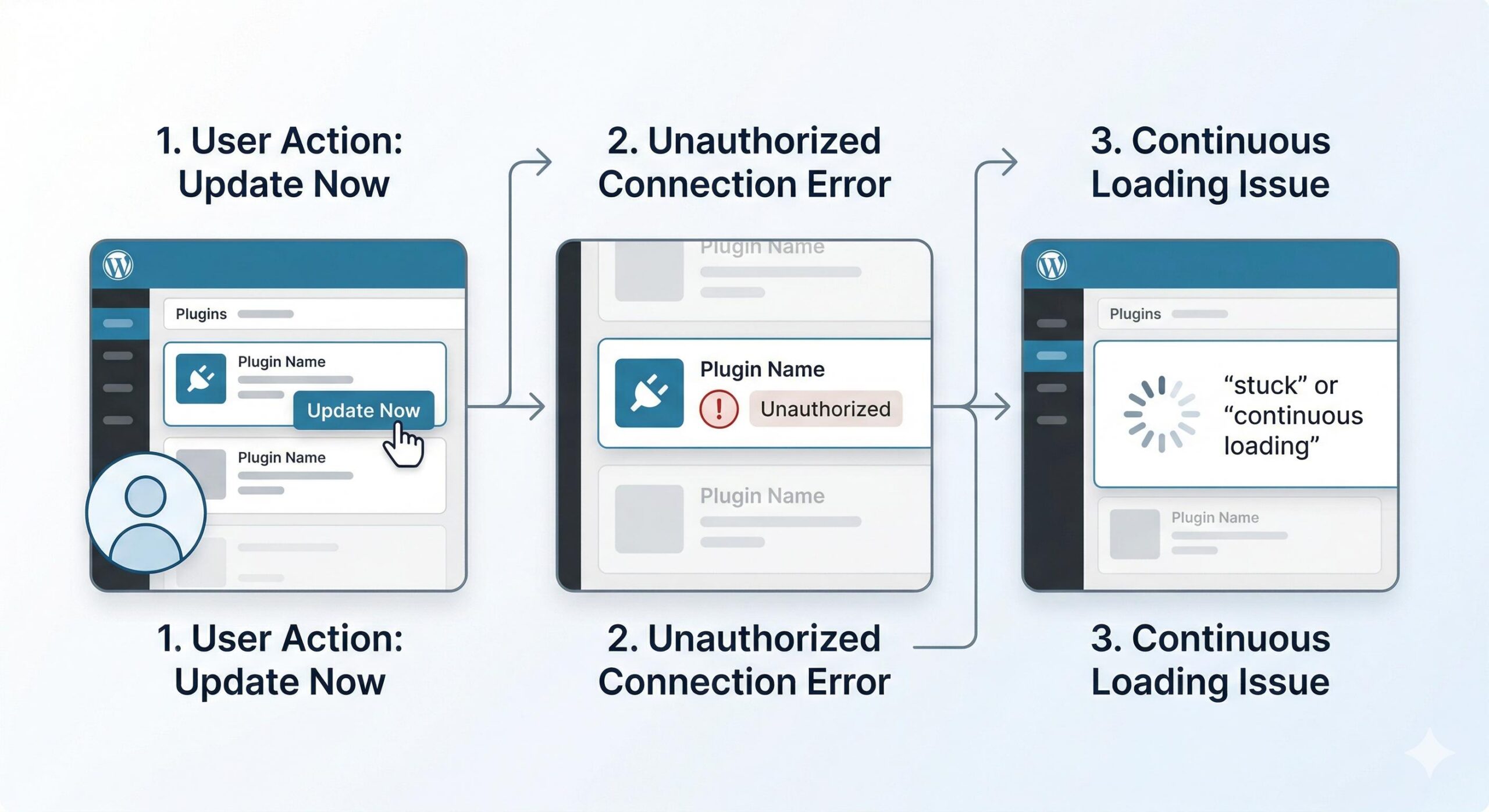
When the connection drops, it rarely triggers a massive, site-wide crash. Instead, you will notice highly specific, frustrating administrative errors when trying to manage your site.
You are dealing with a divi market problem if you experience these symptoms:
- “Update Failed: Unauthorized” Warnings: This is the most common symptom. When you click “Update Now” on a premium plugin purchased from the marketplace, the server rejects the request.
- Marketplace Layouts Failing to Import: When you are inside the visual builder, premade layouts from the marketplace get stuck on a continuous loading spinner and never render.
- Child Theme Authentication Failures: Premium child themes bought from the divi market fail to activate, prompting a recurring license verification loop.
If any of these scenarios sound familiar, the communication line between your WordPress installation and the marketplace server is officially broken.
Step-by-Step Fixes for the Divi Market Error
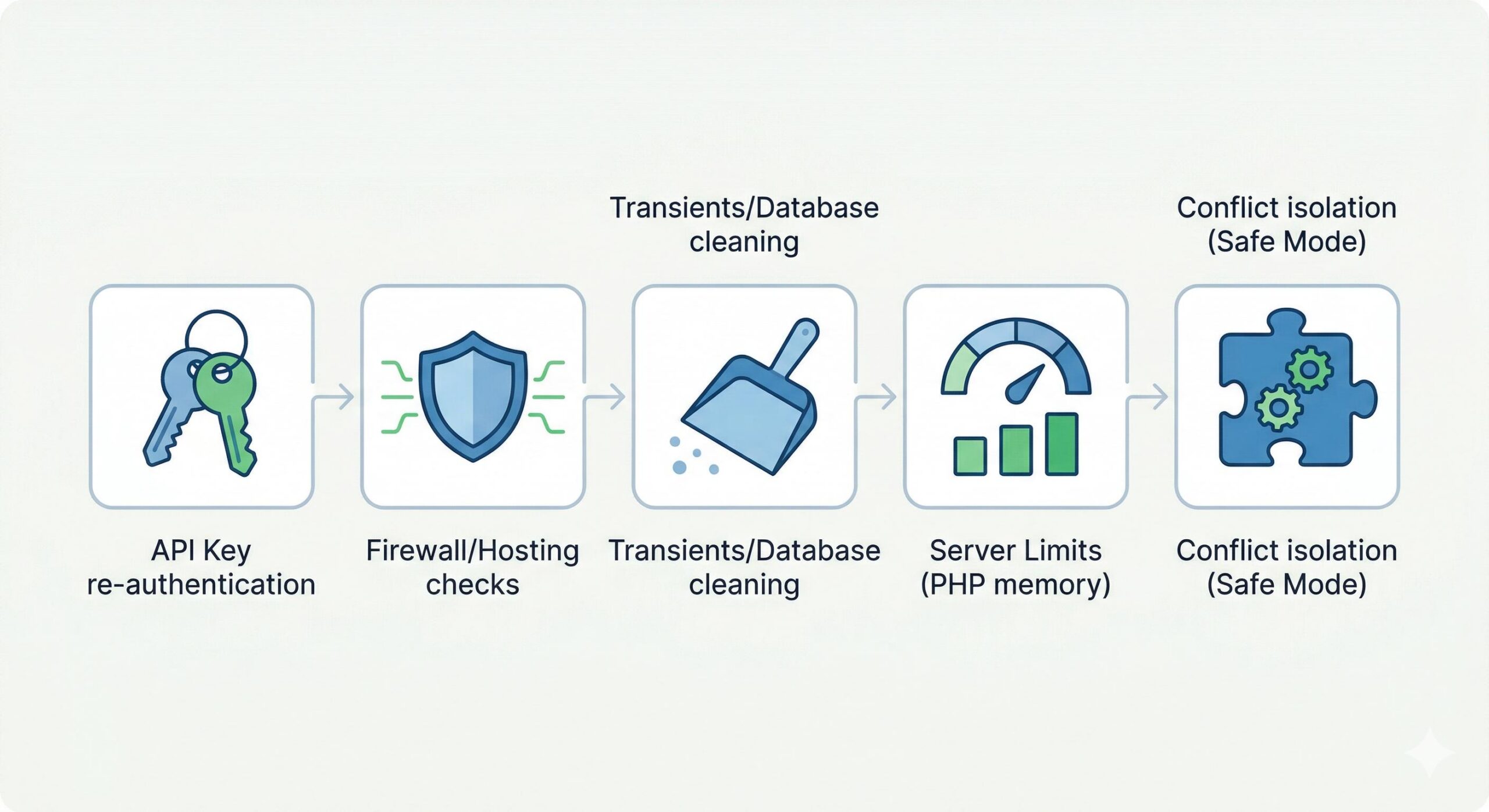
Because this is a communication error, resolving it requires verifying the bridge between your website and the marketplace. Follow these beginner-safe troubleshooting steps in order.
Step 1: Re-Authenticate Your Divi API Key
The Divi Marketplace relies on an API verification system to authorize your downloads. If you recently changed your Elegant Themes password, upgraded your account, or migrated your website to a new host, your API key connection to the divi market likely broke.
- Log into your Elegant Themes account on their official website.
- Navigate to Account > Username & API Key.
- Scroll down and generate a brand new API key. Do not simply copy the old one.
- Log back into your WordPress dashboard.
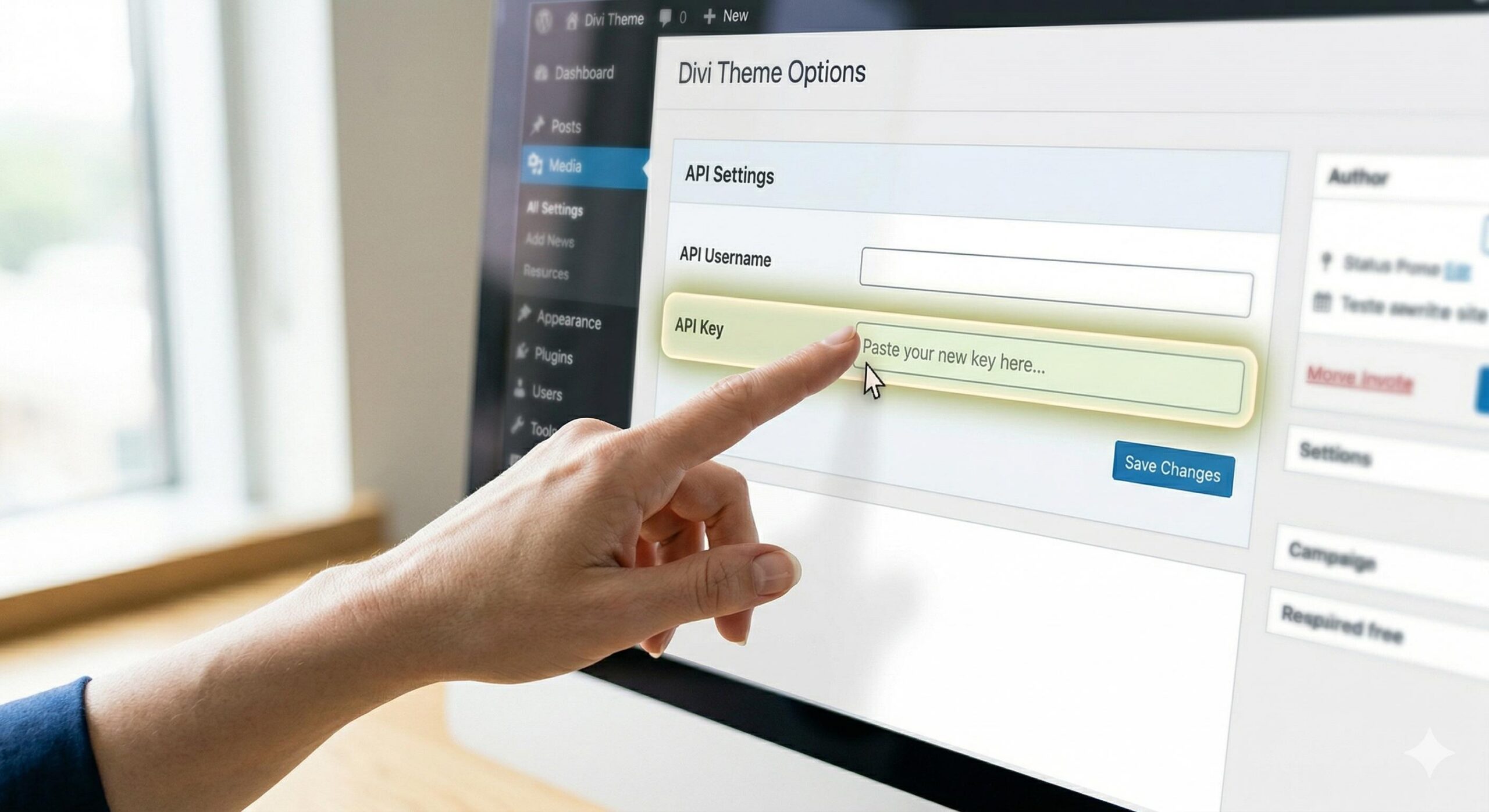
- Navigate to Divi > Theme Options > Updates.
- Delete your old credentials, enter your Username and the fresh API Key, and click Save Changes.
Try updating your divi market product again. In the vast majority of cases, this simple refresh fixes the unauthorized error immediately.
Step 2: Resolve Hosting Firewall (ModSecurity) Blockages
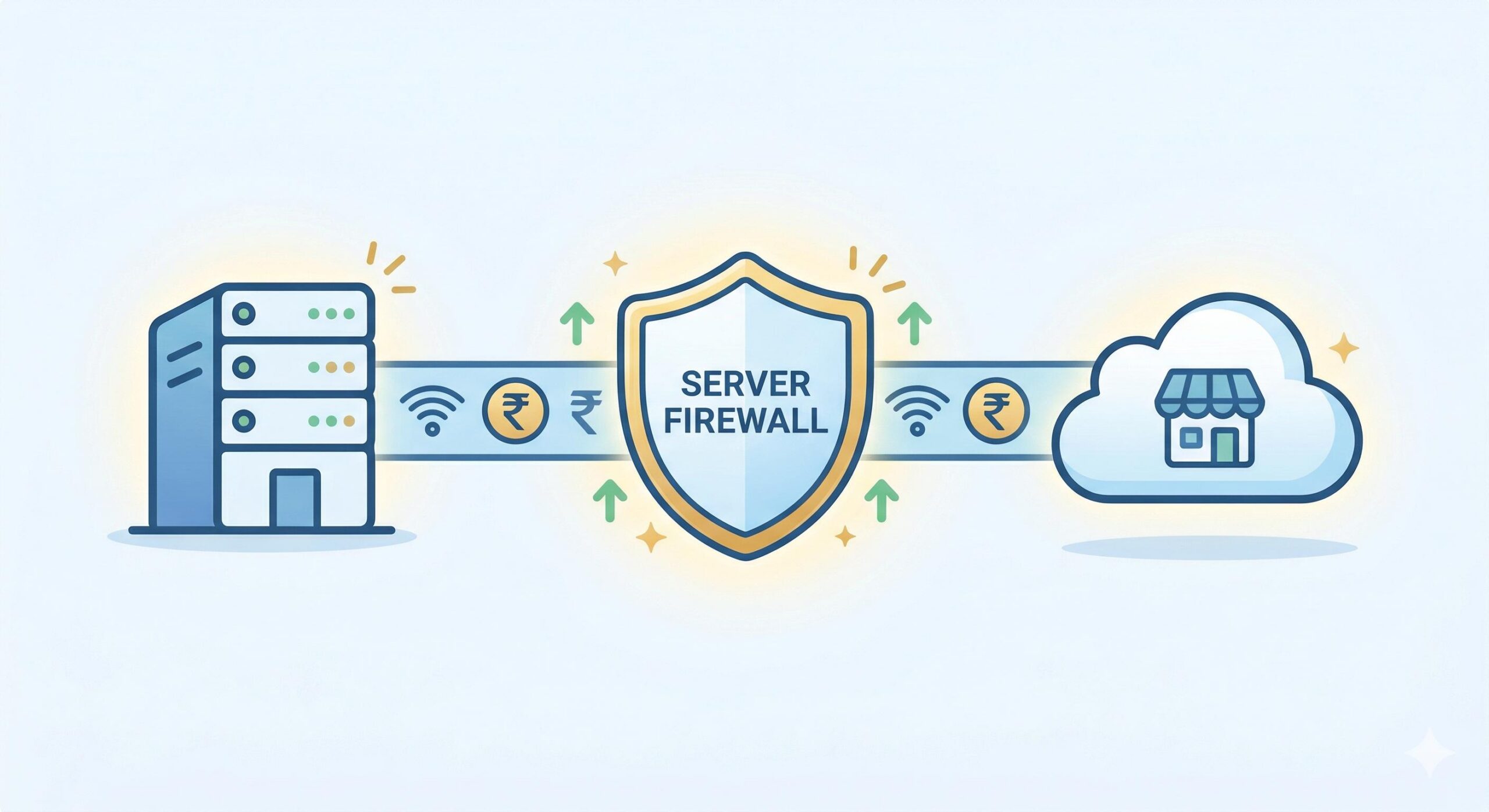
If your API key is correct but the divi market error persists, your web hosting firewall is likely the culprit. Security modules like ModSecurity are designed to block suspicious traffic. Sometimes, they misinterpret the data packets sent from the Divi Marketplace as a threat and block them at the server level.
To safely resolve this without bypassing your site’s overall security:
- Open a support ticket with your web hosting provider.
- Provide them with this exact technical explanation: “I am trying to authenticate a premium product from the divi market, but my site is failing to connect. Can you check if ModSecurity or the server firewall is blocking admin-ajax.php or API requests from Elegant Themes?”
- Your web host can review their firewall logs and whitelist the marketplace IP addresses, allowing your updates to flow through smoothly.
Step 3: Clear WordPress Transients to Force a Fresh Sync
WordPress relies on temporary database files called “transients” to store connection data. If a previous connection attempt to the divi market failed, WordPress might have cached that failure. As long as that transient exists, WordPress will not even attempt to connect to the marketplace again.
- To clear transients safely, you can use a free, beginner-safe plugin like Transient Cleaner. If you already use an optimization plugin like WP Rocket or LiteSpeed Cache, navigate to their database optimization tools.
- Select the option to “Clear Expired Transients” and “Clear All Transients.”
- Once the transients are wiped from your database, navigate back to Dashboard > Updates and click Check Again.
This action forces WordPress to forget the previous failure and request a brand-new connection to the divi market servers.
Step 4: Verify Your Server’s PHP Limits
Some divi market layouts and child themes contain massive file sizes. Even if your API connects successfully, the download will drop and throw an error if your server lacks the processing memory to handle it.
- Go to Divi > Support Center in your WordPress dashboard.
- Look at the System Status report at the top of the page.
- Check the metrics for
memory_limitandmax_execution_time. - If either metric has a red warning dot next to it, your server is timing out before the divi market download can finish processing.
You will need to contact your hosting provider and ask them to increase your PHP memory limit to at least 256M and your max execution time to 180 seconds to accommodate heavy marketplace files.
Step 5: Isolate Divi Market Plugin Conflicts Using Safe Mode
Sometimes the divi market issue is not an update failure, but a complete visual builder crash caused by a recently installed marketplace extension. Third-party modules from the marketplace can occasionally conflict with WordPress core updates, causing your builder to freeze.
To isolate this technical issue safely:
- Navigate to Divi > Support Center.
- Toggle on Safe Mode. This brilliant feature temporarily disables all third-party divi market plugins and child themes for your user session only (your live website visitors will not notice a thing).
- Open a page and launch the visual builder.
If the builder loads perfectly in Safe Mode, you have successfully confirmed that a specific divi market extension is causing the error. Turn off Safe Mode, go to your Plugins page, and deactivate your marketplace extensions one by one until you find the culprit. Once identified, contact the developer via the marketplace for a patch.
Preventive Guidance: Avoiding Future Marketplace Errors
Once your connection to the marketplace is restored, you want to keep your ecosystem stable. Adopt these preventive technical habits:
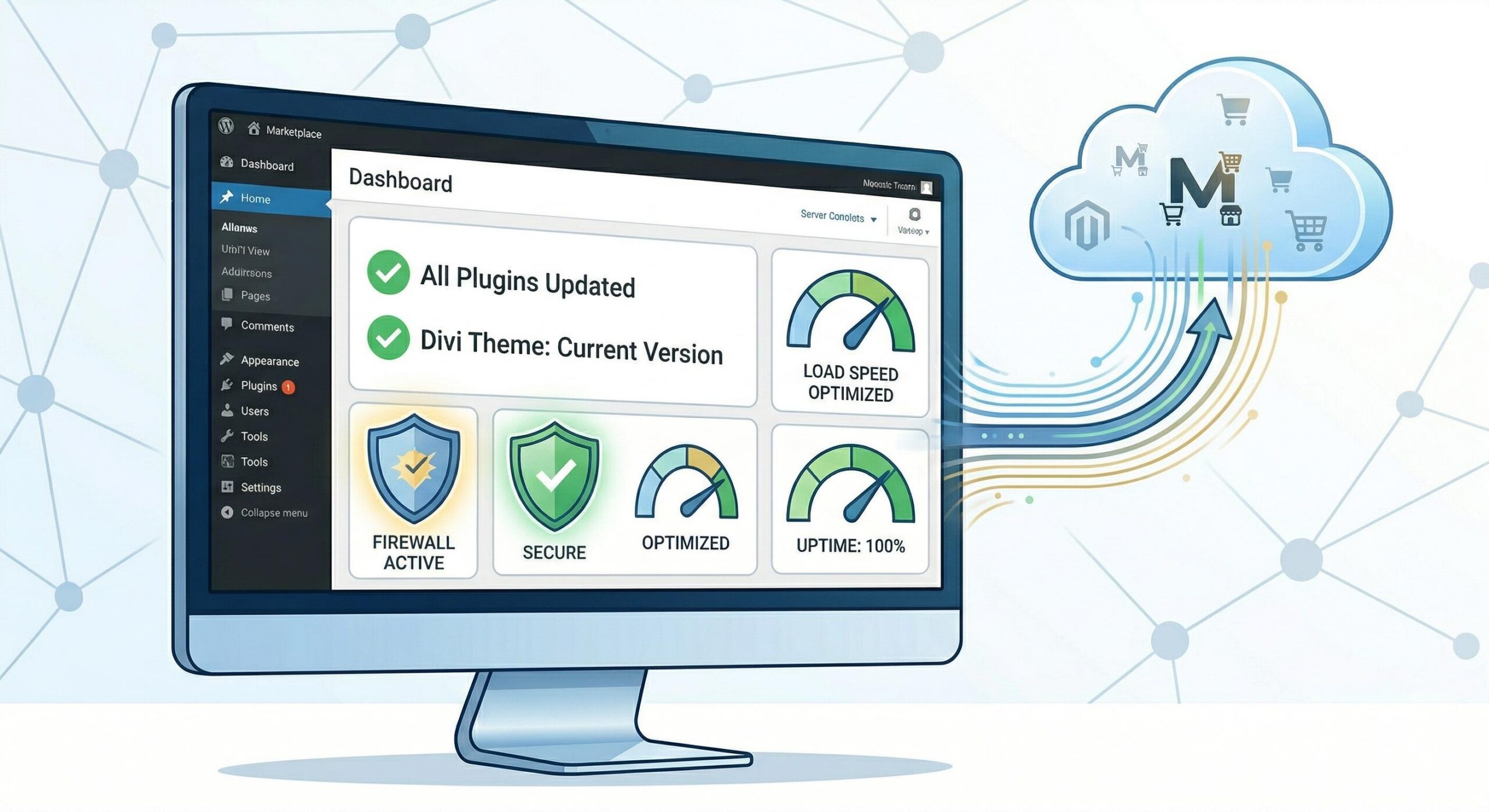
- Maintain an Active Subscription: The divi market requires an active license to deliver updates. If your Elegant Themes or marketplace developer subscription expires, your connection will instantly throw an unauthorized error. Keep your billing up to date.
- Never Use Nulled Themes: Avoid trying to bypass licensing by using pirated or “nulled” Divi plugins. Not only does this permanently break your divi market synchronization, but it also introduces severe malware vulnerabilities to your site.
- Update Products Individually: If you have purchased multiple tools from the marketplace, update them one at a time rather than using the WordPress bulk update feature. This puts significantly less strain on your server and ensures a stable, uninterrupted connection to the marketplace servers for each individual file.
By understanding exactly how the marketplace connection works, you can easily troubleshoot these authentication errors, securely download your premium layouts, and keep your website running flawlessly.
How to Fix the Buddy Boss Theme Activation Crash and White Screen
Frequently Asked Questions (FAQs)
1. Will I lose my current website design if the divi market connection drops? No, your live website and current designs are completely safe. The divi market error only affects your ability to download new updates, import new layouts from the cloud, or verify licenses. Your existing pages and frontend design will continue to display normally to your visitors.
2. Why does WordPress say my API key is invalid even though I just copied it? This usually happens due to caching issues or a temporary glitch on the Elegant Themes server. If pasting your current API key doesn’t work, the most reliable fix is to log into your Elegant Themes account, generate a brand-new API key, and enter the new one into your WordPress dashboard.
3. Do I need to buy a new license to fix the divi market error? You only need to purchase a new license if your current Elegant Themes or third-party developer subscription has actually expired. If your account is active and billing is up to date, the error is simply a communication block (like a firewall or transient issue) and does not require you to spend more money.
4. Can a standard caching plugin cause this marketplace sync issue? Yes. Sometimes caching plugins hold onto expired database data (transients). If a previous attempt to connect to the divi market failed, your caching plugin might remember that failure and prevent future attempts. Clearing your site cache and database transients usually resolves this instantly.
5. How do I know if a specific third-party plugin is causing the divi market error? The safest way to check for plugin conflicts is by enabling “Safe Mode” under Divi > Support Center. Safe Mode temporarily turns off all third-party marketplace plugins for you (the admin) without affecting your live visitors. If the error disappears in Safe Mode, you know a specific plugin is causing the conflict.
Conclusion
Encountering a divi market error can be stressful, especially when you are eager to update your website or import a new premium layout. However, as we have covered in this guide, it is rarely a catastrophic failure. By systematically checking your API key credentials, communicating with your hosting provider about firewall restrictions, clearing your site transients, and managing your server memory limits, you can easily restore the connection.
Remember, maintaining a healthy WordPress site involves keeping your licenses active and your server environment optimized. By following these safe, technical troubleshooting steps, you will resolve the divi market sync issue and ensure your website’s ecosystem remains secure, updated, and running smoothly for the long haul.








