

Introduction
Finding out that your domain has been flagged as a malware bytes website is a stressful experience for any site owner. This specific security warning occurs when the Malwarebytes security engine—whether through their desktop software or browser extension—detects suspicious activity, malicious scripts, or “riskware” hosted on your server. When this happens, a full-page block prevents visitors from accessing your content to protect them from potential identity theft or scam redirects.
An site is typically labeled a malware bytes website when attackers exploit a vulnerability in a theme or plugin to inject hidden malicious code. It can also happen due to “shared IP reputation,” where another site on your hosting server is behaving badly. This guide is for educational troubleshooting purposes. We will walk you through the exact steps to audit your code, purge the infection, and submit a formal request to the Malwarebytes research team to restore your site’s access.
Table of Contents
What Causes the “Malware Bytes Website” Block?
When a visitor tries to access your site, Malwarebytes acts as a digital bouncer. It cross-references your domain against a constantly updated database of known threats. If your URL is on that list, the connection is severed.
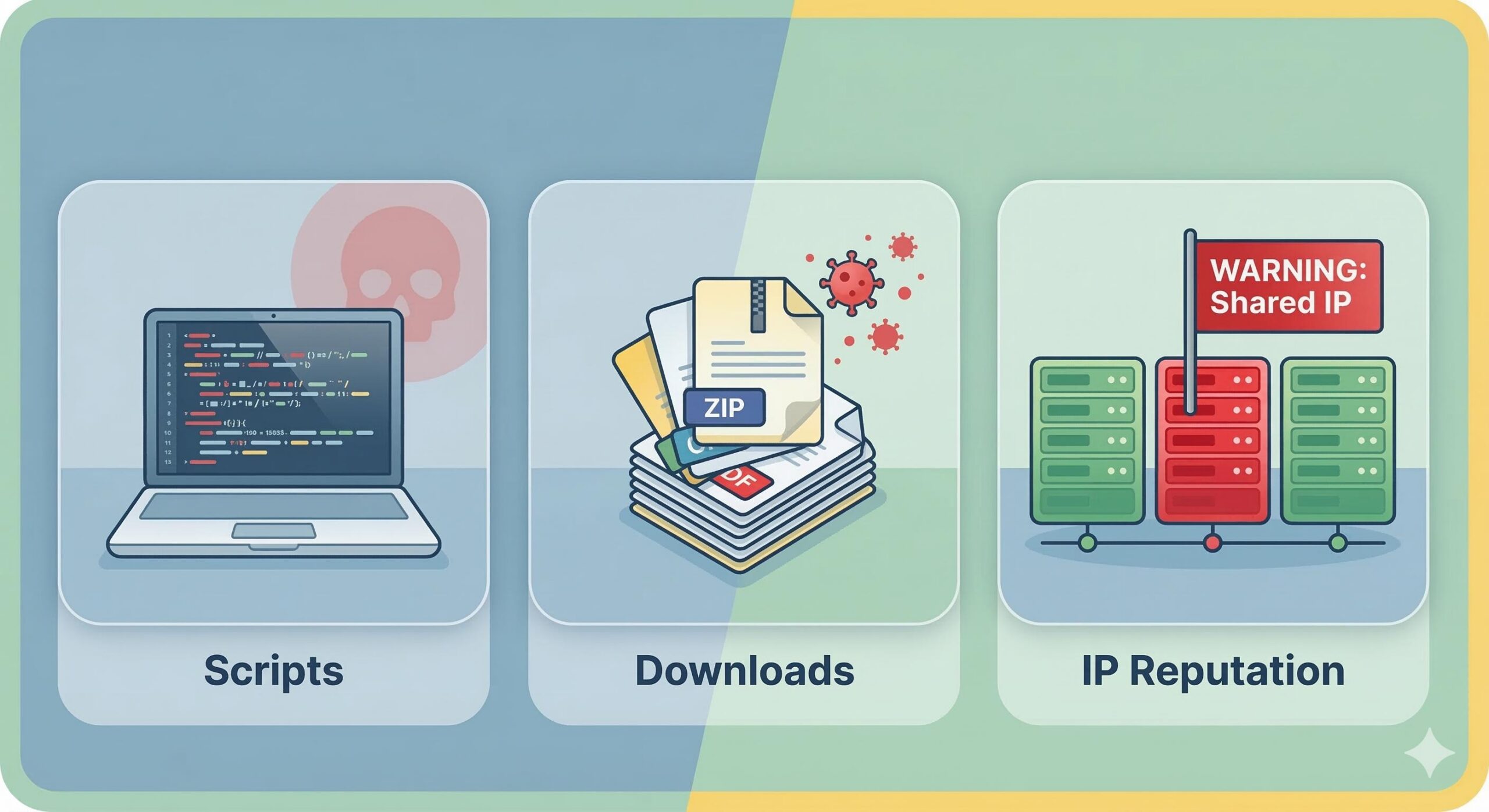
Your WordPress site usually becomes a flagged malware bytes website for one of three specific reasons:
- Injected Malicious Scripts: Attackers have exploited an outdated plugin to insert malicious JavaScript or hidden iframes into your site’s code. These scripts often try to redirect visitors to scam sites.
- Compromised Downloads: If your site hosts downloadable files (like PDFs or ZIPs) that have been infected with trojans or adware, Malwarebytes will flag the entire domain to protect its users.
- IP Reputation (False Positive): If you are on a cheap shared hosting plan, your website shares an IP address with hundreds of other sites. If one of those other sites is hosting malware, Malwarebytes might block the IP entirely, accidentally catching your innocent site in the crossfire.
Step-by-Step: Removing the “Malware Bytes Website” Warning
To get your site unblocked, you cannot simply ask Malwarebytes to remove the warning immediately. You must first prove that the website is completely clean and safe for visitors.
Step 1: Run a Deep WordPress Security Scan
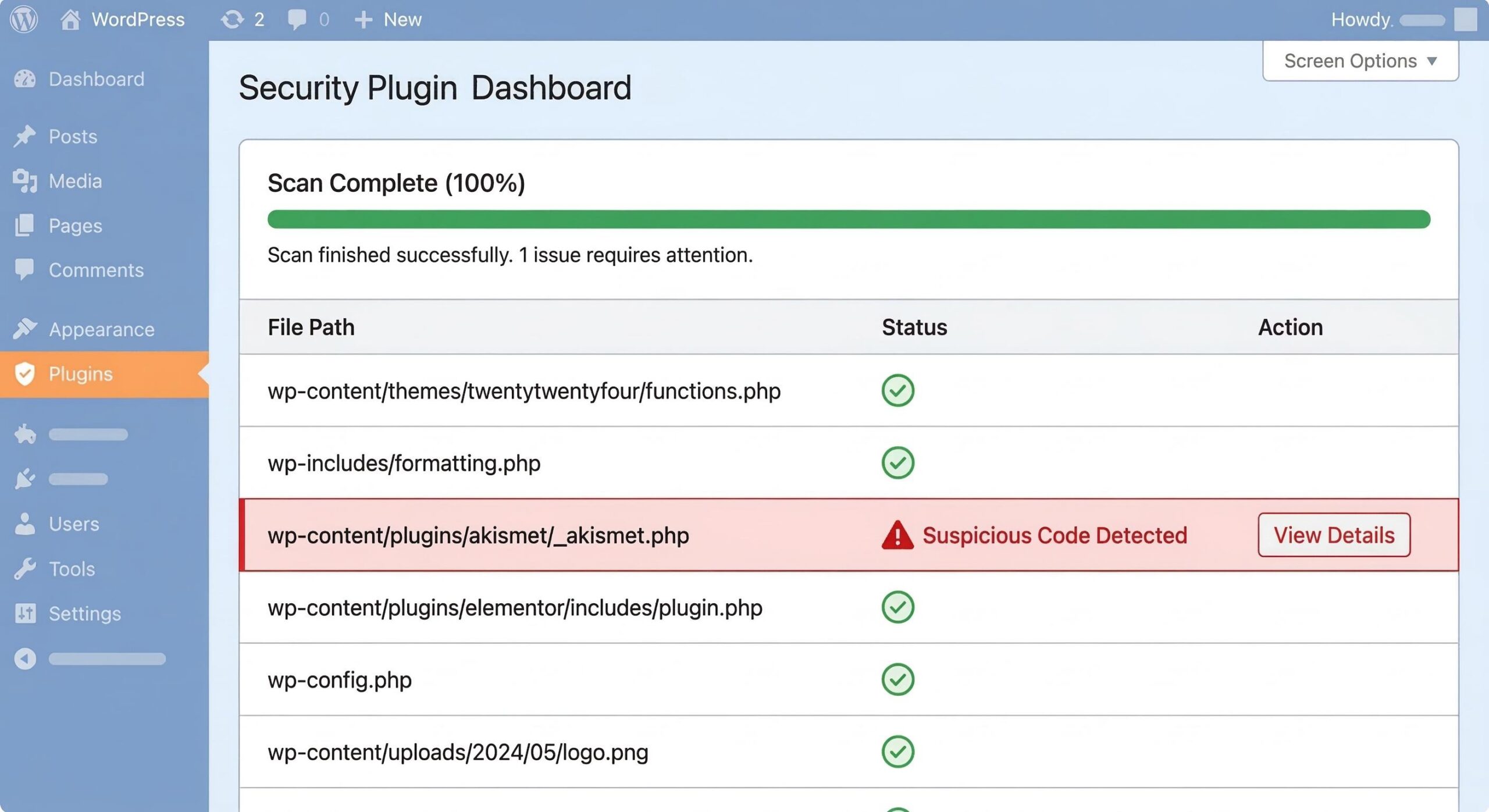
Before you can fix the issue, you need to find out exactly what triggered the malware bytes website flag.
- Log in to your WordPress dashboard (if you are blocked from the front end, you can often still access
yourdomain.com/wp-adminby temporarily disabling Malwarebytes on your own computer). - Install a reputable, free security plugin like Wordfence Security or Sucuri Security.
- Run a full, high-sensitivity scan.
- The scanner will compare your live files against the official WordPress repository and flag any injected code, hidden backdoors, or corrupted files.
Step 2: Clean the Infected Files
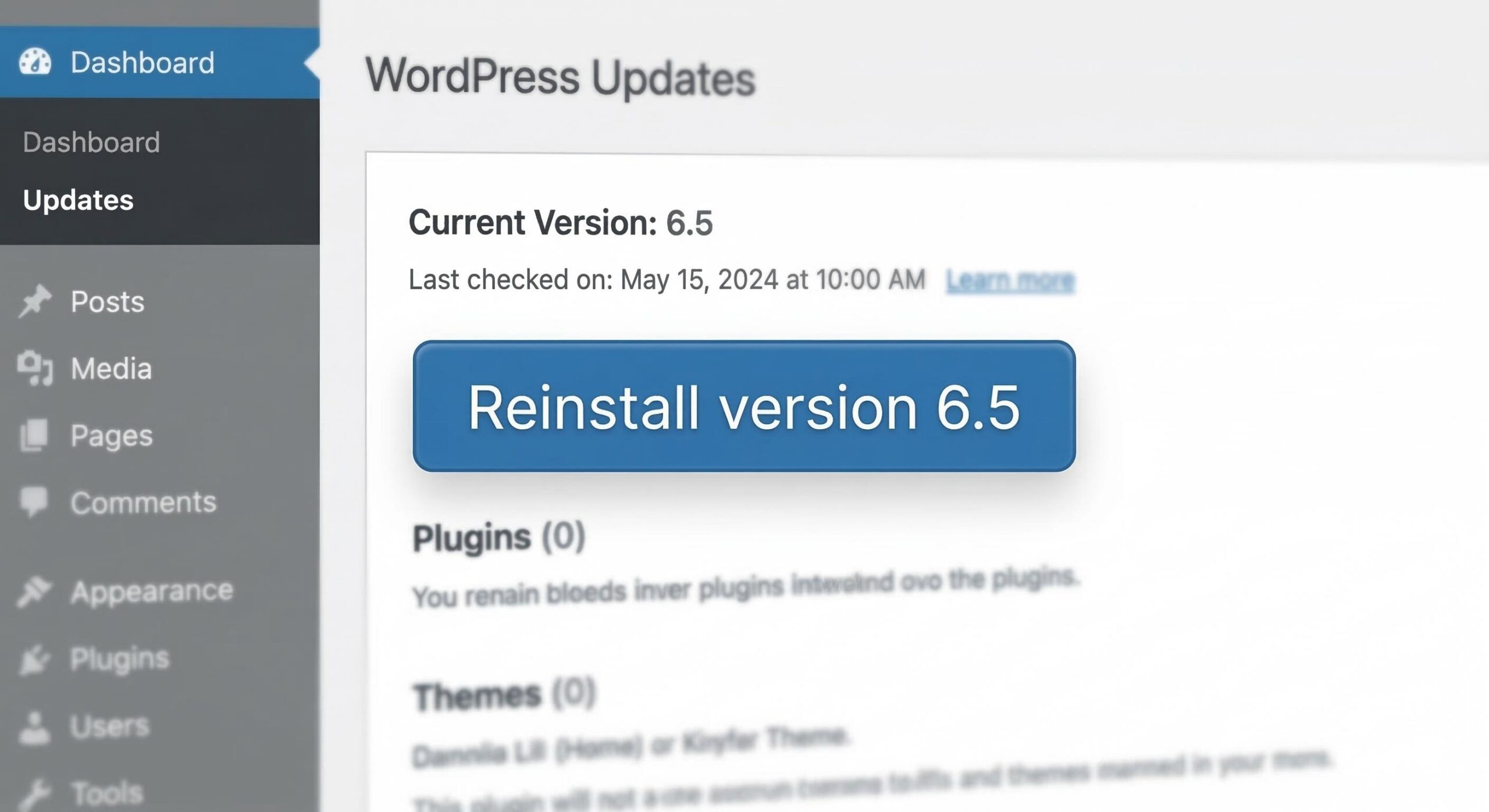
Once your scanner identifies the malicious code causing the malware bytes website error, you need to remove it safely.
- Delete Unrecognized Plugins: If the scan finds a strange plugin you don’t remember installing, delete it immediately.
- Reinstall Core Files: Go to Dashboard > Updates and click the button to Reinstall version. This safely replaces your core WordPress files with fresh, clean versions without altering your posts or pages.
- Restore from a Clean Backup: The absolute safest and most beginner-friendly way to clean a hacked site is to restore your website from a backup taken before the malware bytes website block started appearing. Check with your hosting provider if you do not have your own backups.
Step 3: Check External Blacklists
Sometimes, the malware is gone, but your domain is still listed on global databases. Use a free tool like Sucuri SiteCheck or VirusTotal. Enter your URL to see if other security vendors aside from Malwarebytes are also flagging your site. If the scanners come back completely green, you are ready for the final step.
Step 4: Submit a False Positive / Removal Request
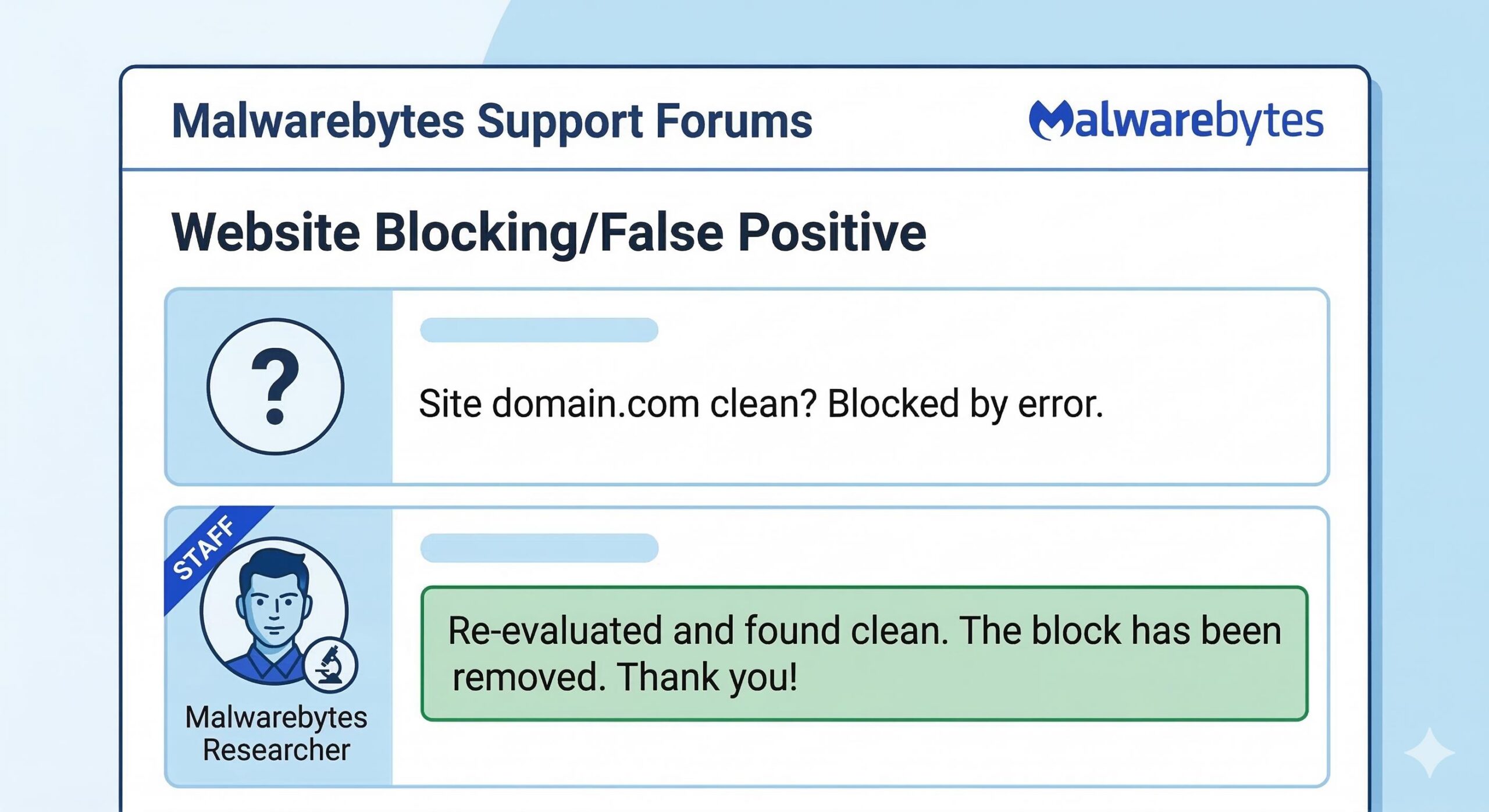
This is the most critical step. Once your site is 100% clean, you must actively notify the security team to remove the malware bytes website block.
- Navigate to the official Malwarebytes Forums.
- Scroll down to the File Detections or Website Blocking section.
- Create a free account.
- Open a new topic. Be polite and professional. State that your domain was previously compromised but has been completely cleaned, audited, and secured.
- Provide your website URL and ask them to re-evaluate the site to remove the block.
Malwarebytes researchers monitor these forums closely. They will manually rescan your site, usually within 24 to 48 hours. If they find it clean, they will remove the block in their next database update.
Post-Cleanup: Hardening Your Site
Getting the malware bytes website warning removed is a huge relief, but you must take steps to ensure it never happens again.
- Never Use Nulled Themes: Pirated “premium” themes and plugins are the number one source of malware infections in WordPress. Only download software from official developers.
- Enforce Strong Passwords: Ensure all Administrator accounts use complex, generated passwords and consider enforcing Two-Factor Authentication (2FA).
- Keep Everything Updated: Hackers rely on outdated software to break in. Turn on automatic updates for minor WordPress core releases and check your plugins weekly.
How to Fix a “Computer Virus Website” Warning on WordPress
FAQ: Frequently Asked Questions
Will the “malware bytes website” block hurt my Google rankings?
Yes, indirectly. If Malwarebytes has flagged your site, Google’s Safe Browsing bots will likely flag it soon after. When Google flags your site, it displays a massive red warning in Chrome and plummets your search rankings. This is why you must clean the site and request a review immediately.
What if Malwarebytes support says my site is still infected?
If the researchers reply to your forum thread stating the malware bytes website block will remain, they will usually provide a log or detail of where they still see the malware. Use their feedback to locate the stubborn file, delete it, and request another review.
Can a caching plugin cause the warning to stay?
Absolutely. Even after you clean your database and files, your caching plugin (like LiteSpeed Cache or WP Rocket) might be serving a saved, infected version of your site to visitors. Always clear your WordPress cache and your CDN (like Cloudflare) immediately after cleaning the malware.
Conclusion
Seeing your hard work blocked by a malware bytes website warning can induce panic, but it is a highly resolvable issue. The warning is simply a digital alarm system doing its job. By calmly running a security scan, cleaning the compromised files, and politely communicating with the Malwarebytes research team via their forums, you can restore your site’s reputation and regain your traffic. Remember that maintaining strict security habits going forward is the only way to keep the digital bouncers happy and your visitors safe.
Would you like me to draft a template message that you can copy and paste into the Malwarebytes forum to request your site’s removal from their blocklist?








