

Introduction
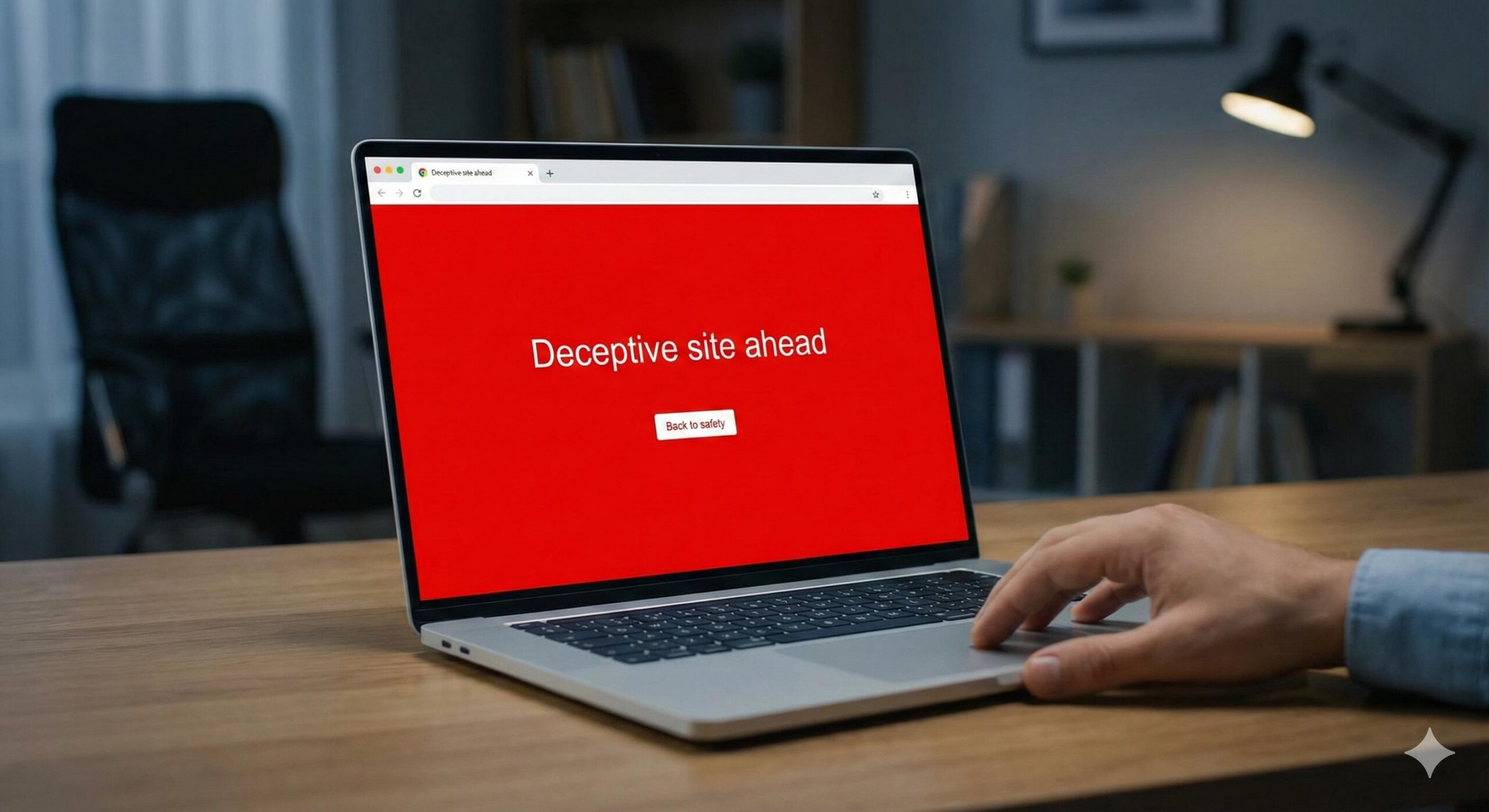
Welcome to wordpressissuefix.com. If visitors try accessing your page and see a terrifying red warning screen, your domain has been flagged as a computer virus site.
What does this keyword mean? It means authorities like Google Safe Browsing or desktop antivirus programs have labeled your WordPress installation as a dangerous malware distributor.
Where do users encounter it? You and your visitors usually see a full-page “The site ahead contains malware” alert blocking access to your homepage, or a red warning label attached directly to your links in Google Search results.
Why does it appear?Malicious scripts, hidden redirects, or infected files may have been inserted into your theme or database, most frequently via an outdated plugin.
Note: This guide is for educational troubleshooting purposes. We focus entirely on identifying the infection, cleaning your files, and safely removing this specific browser blacklist warning.
Table of Contents
Understanding the “Computer Virus Site” Blockade
When you are hit with a computer virus site warning, it is important to stay calm. The site warning may look scary, but it is in fact a TEMPORARY issue. Your site is not permanently gone. It is only temporarily blocked by browsers like Safari, Chrome, and Firefox. This is to protect the users’ devices from potential dangers.
When web crawlers identify suspicious activity like abuse of a site’s backend or a weak admin password, the site gets blocked. Hackers, for example, may add malicious scripts or links to the foundation of your site. When a web browser identifies foreign scripts on a visiting computer, it will show a warning sign and block users from entering the site. This will protect users from spreading the malicious infections on their devices.From the start, you will probably encounter a computer virus site warning, and you will most likely experience numerous symptoms, most of which will not be good. You temporarily lose website traffic, since people cannot visit the site, and there will be a significant decline in site traffic.
You will most likely be alerted by your email service provider regarding server error, abuse, and significant resource consumption, not to mention their email service provider’s malware detection. The search console’s critical issues come from the console’s security issues search console. You will probably get flagged by your antivirus, which can be McAfee or Norton, as you try to access your own wp-admin dashboard.
Step-by-Step Fix: Removing the “Computer Virus Site” Status
You will be able to get the site warning and red screen removed if you clean your WordPress section thoroughly, then you will be able to submit your site to search engines and get people back on the site. We cannot include subheadings, so as a result, please end and follow these steps.
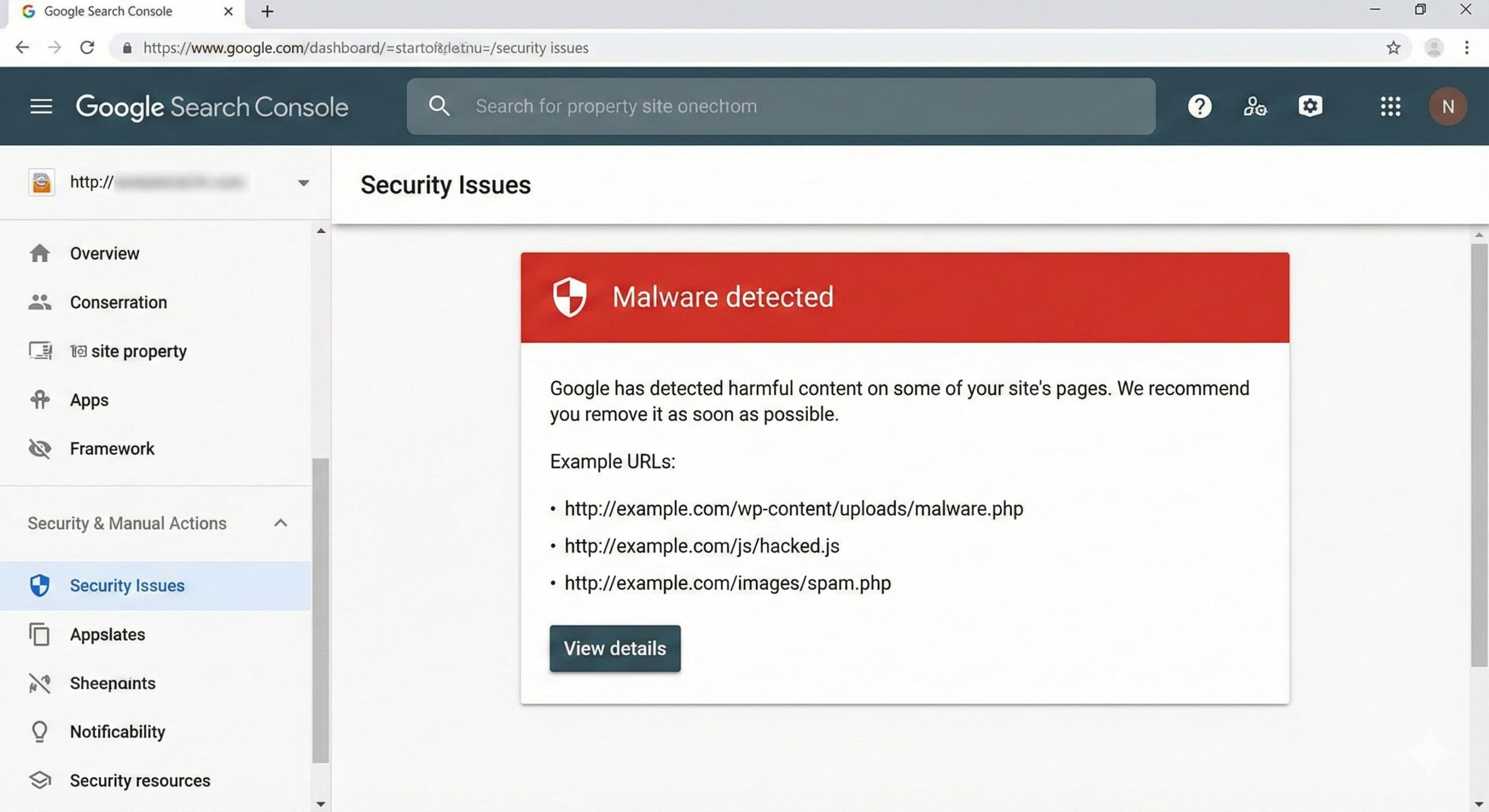
1. Determine the Origin of the Infection. There are ways to identify the computer virus site issue. One way to do that is figure out what the security scanners are seeing. To do this, go to the Google Search Console site and go to the menu “Security and Manual Actions,” then click on “Security Issues.”
Google usually provides a list of URLs that contain the code and Google even provides examples of the code that is causing the site to be blocked. You can also use a free malware scanner such as Sucuri SiteCheck to see what the code does and to see what files are causing the computer virus site warning. This will also help determine whether the malware is located within your theme files, your main WordPress files, or within your database.
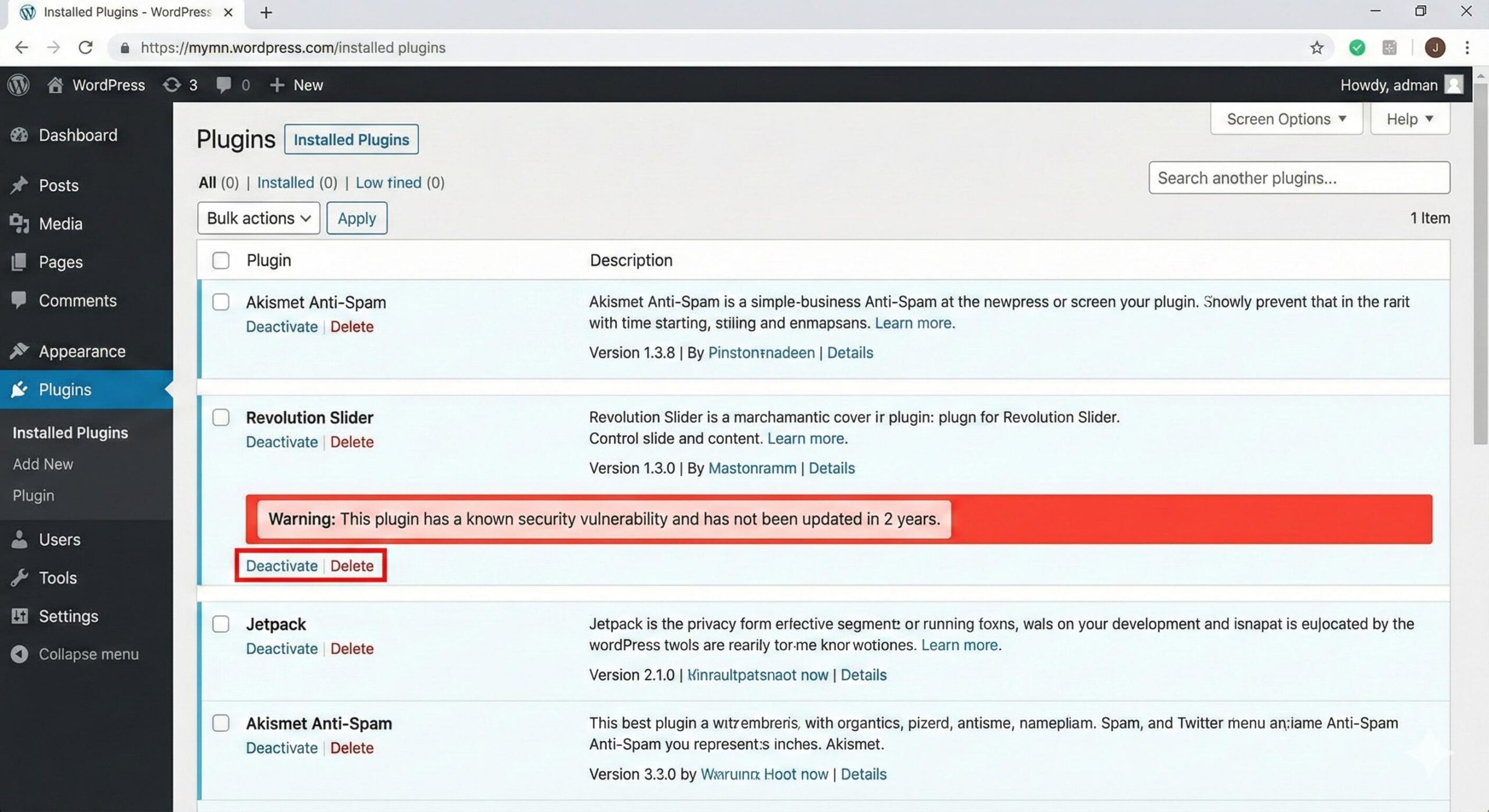
2. Audit and Isolate Outdated Plugins Abandoned, nulled, or outdated plugins represent the greatest vector of malware attacks on WordPress. A compromised plugin is the most likely reason your site is classified as a malware site. Log into your WordPress Dashboard (you may have to bypass the warning your browser shows, but do that at your own risk and do not open any downloads). Go to the Installed Plugins page. Deactivated and deleted plugins that haven’t been supported by developers for a long time, and any of the premium plugins you pirated from sketchy sites, should just gone. After you do that, update your remaining trusted plugins to the latest versions.
3. Clear WordPress Core and Theme Files If you have cleared your plugins and the computer virus site warning is still there, some sort of malicious code may have welded itself to the site’s structure. From the WordPress Dashboard, go to Updates and click the Re-install version. By doing this, WordPress will re-install core system files and remove core-level malware.
All of your blog posts and pictures will remain untouched. Afterwards, look at your active theme. Often, hackers put some malicious JavaScript code that raises the computer virus site warning inside your theme’s header or footer. To do this, go to Appearance and then Theme File Editor. From the site, look at the JavaScript files, header.php, and footer.php, especially those that are long, and blocky of crazy letters, and remove the lines that are malicious and do your best to look at the files carefully.
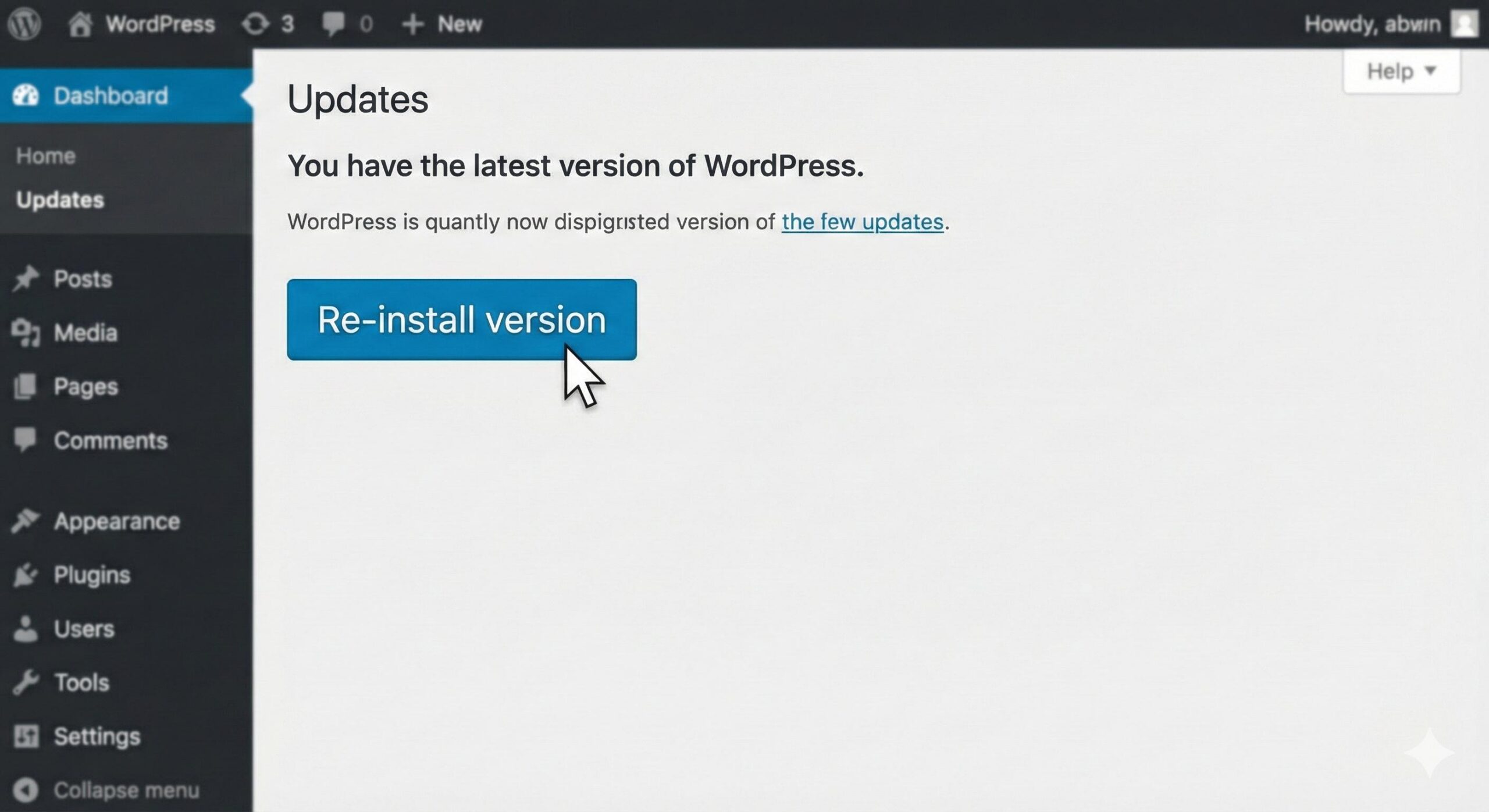
4. Cleaning Site Files from your site does not remove the red warning screen. Until the warning is taken down from your site, visitors’ browsers will still treat your domain as an infection site. Start the site review again using Google Search Console only when all malware, hidden codes, strange plugins, etc. are completely removed. You also have to remove all active infections.
When you are completely ready, go to the “Security Issues” tab and check the “I have fixed these issues” box and click on “Request a Review.”
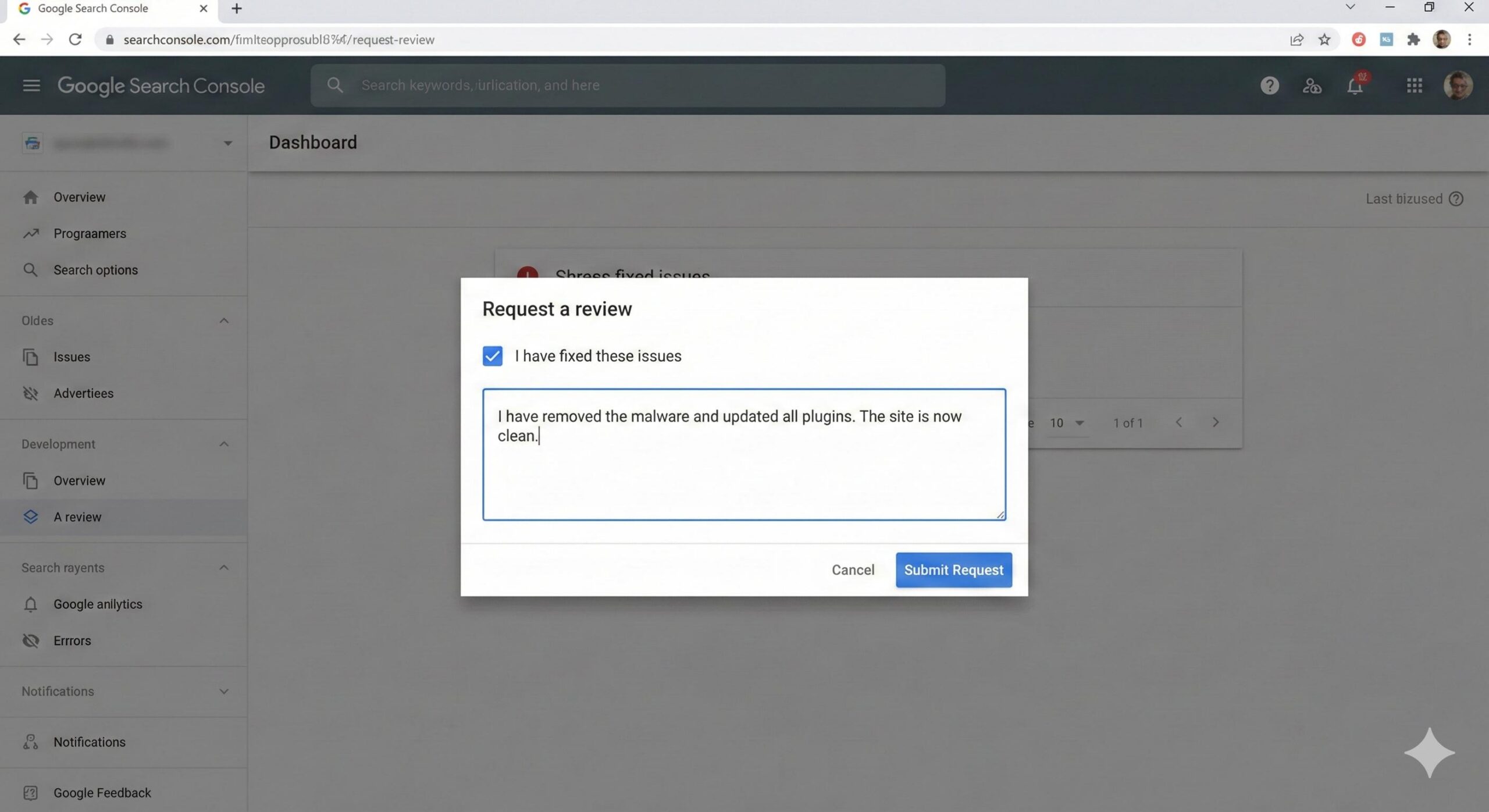
You will need to be honest and as detailed as possible with your explanation. For example, you can say, “I deleted an outdated slider plugin and reinstalled WordPress core files, removed obfuscated code from my header.php, and changed all the passwords.” Google will send their bots to your website again and if their bots check that the site is clean, the warning will be removed, and it will be free of restrictions and viruses. It could take Google from 24 to 72 hours to clear the warning.
Preventive Guidance: Keeping the Warning Away
Once you’ve removed the computer virus site label and your traffic returns, you need to further secure your WordPress environment to make sure automated scripts, bots, and hackers cannot reinfect your site next month.
The first step to further securing your site is to install a Web Application Firewall (WAF). Also, get yourself a good security plugin that monitors your traffic, and blocks malicious bots that scan the web. They are looking to exploit vulnerabilities. Another good security measure is to enforce strong passwords site-wide. Make sure your site Administrator accounts have complex, auto-generated passwords.
One of the most common methods used by hackers is a brute-force login attack. They gain access to completely legit and helpful blogs and turn them into malware hosts. As a security measure, install a backup plugin that will perform automated backups daily. If your site ever gets flagged as a virus site again, you will be able to restore a clean version with a single click.
By taking these targeted, simple steps, you will be able to clean your files, remove the browsing blockage, and get your site reputation back.
WordPress Site Not Loading? Complete Step-by-Step Fix Guide (2026)
Conclusion: Securing Your WordPress Journey
For any website owner, dealing with site warnings due to computer viruses is very stressful, but that problem, in fact, is fixable. By staying calm, and using a methodical approach, you can locate malicious coding, clean the files that were affected in the breach, and finally request a review from Google. If you are thorough enough to gain your website traffic back, you must make sure that every outdated plugin is deleted, and the core files are kept clean before you request the search engines to remove the blockade.
After the warning site screen with a computer virus is finally gone for good, you can install a security measure to be proactive like a daily backup system with a firewall to make sure your WordPress site stays clean and that your visitors can come back to the WordPress site without any interruptions.








