Choosing a platform for your website is a significant decision. Often, users ask themselves pourquoi choisir WordPress (why choose WordPress) when there are so many alternatives available. The answer usually lies in its flexibility, massive community support, and powerful CMS capabilities. However, even the best platforms encounter technical hurdles. One of the most frustrating experiences for a website owner is navigating to their URL only to find a blank screen, a spinning wheel, or a “site not found” error.
When your WordPress site is not loading, it can feel overwhelming. You might worry about lost traffic, SEO rankings, or data security. These feelings are valid, but rest assured that most loading issues are common and reversible. This guide is designed to bridge the gap between understanding why WordPress remains the top choice for millions and how to maintain it when things go wrong. Based on years of troubleshooting experience, we have compiled the most effective, beginner-friendly methods to get your site back online.
Table of Contents
What Does “WordPress Site Not Loading” Mean?
In the world of web development, “not loading” is a broad term that covers several specific technical symptoms. Understanding exactly what you are seeing is the first step toward a solution.
- The White Screen of Death (WSoD): You see a plain white page with no error message. This usually indicates a PHP error or a memory limit issue.
- The Loading Loop: The browser tab shows a spinning icon indefinitely, but the content never renders. This often points to a script conflict or a server-side bottleneck.
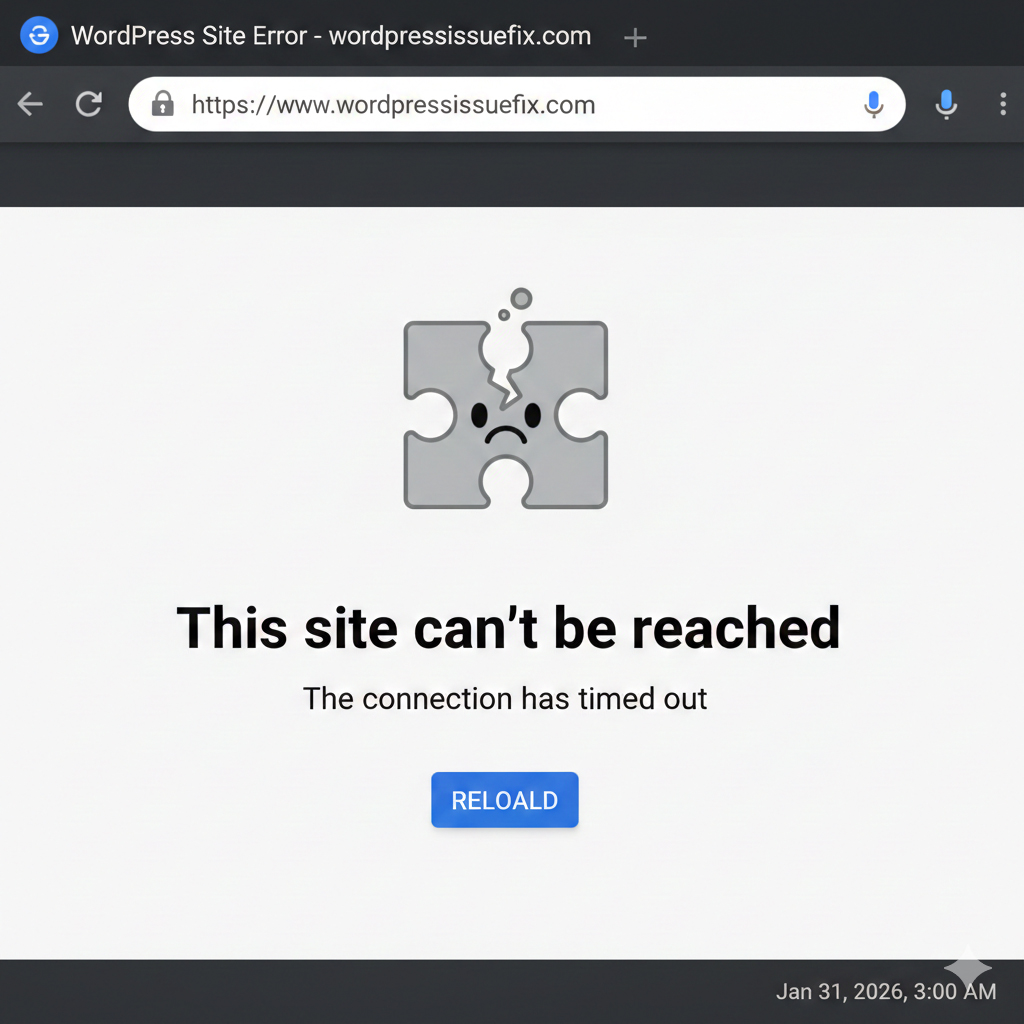
- Timeout Errors: Your browser displays a message saying “The connection has timed out.” This happens when the server takes too long to respond.
- Error Messages: Specific codes like 404 (Not Found), 500 (Internal Server Error), or 502 (Bad Gateway) provide direct clues about where the communication breakdown is occurring.
Common Reasons Why WordPress Is Not Loading
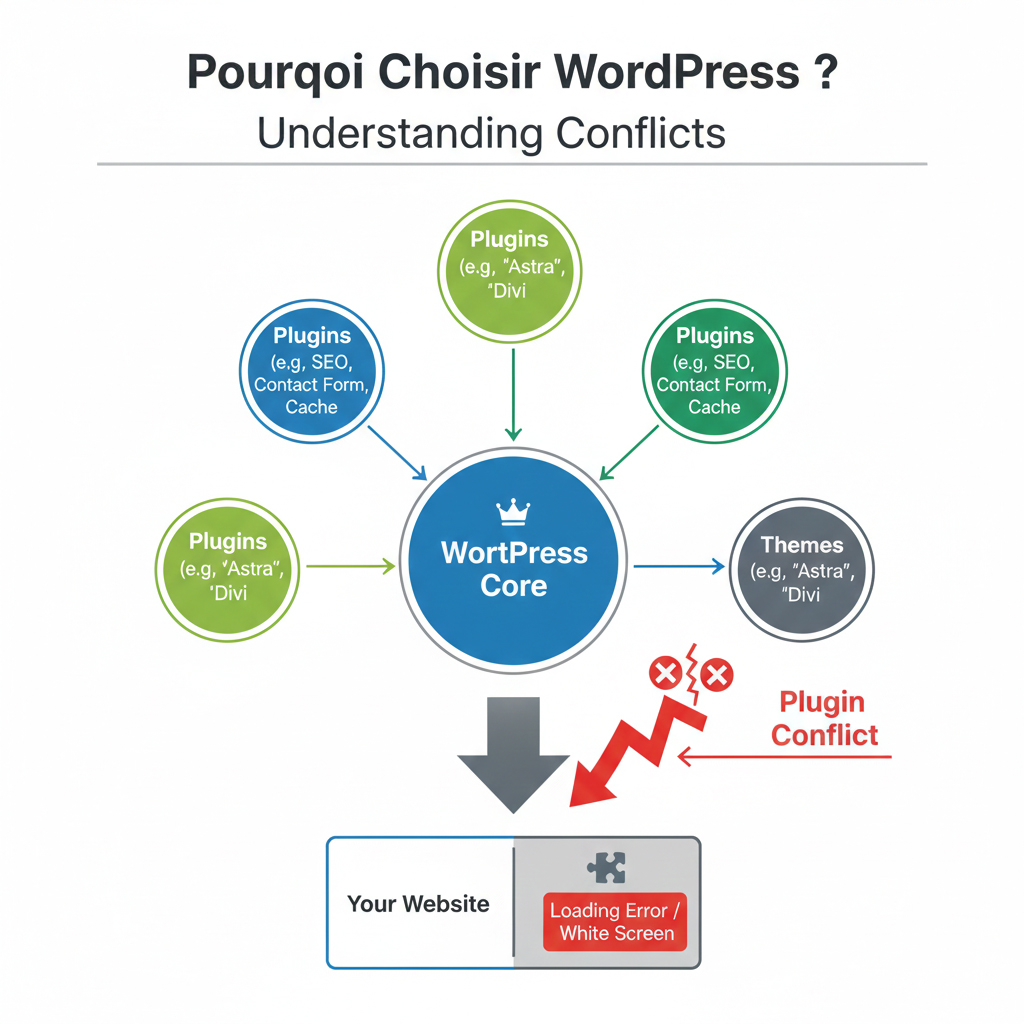
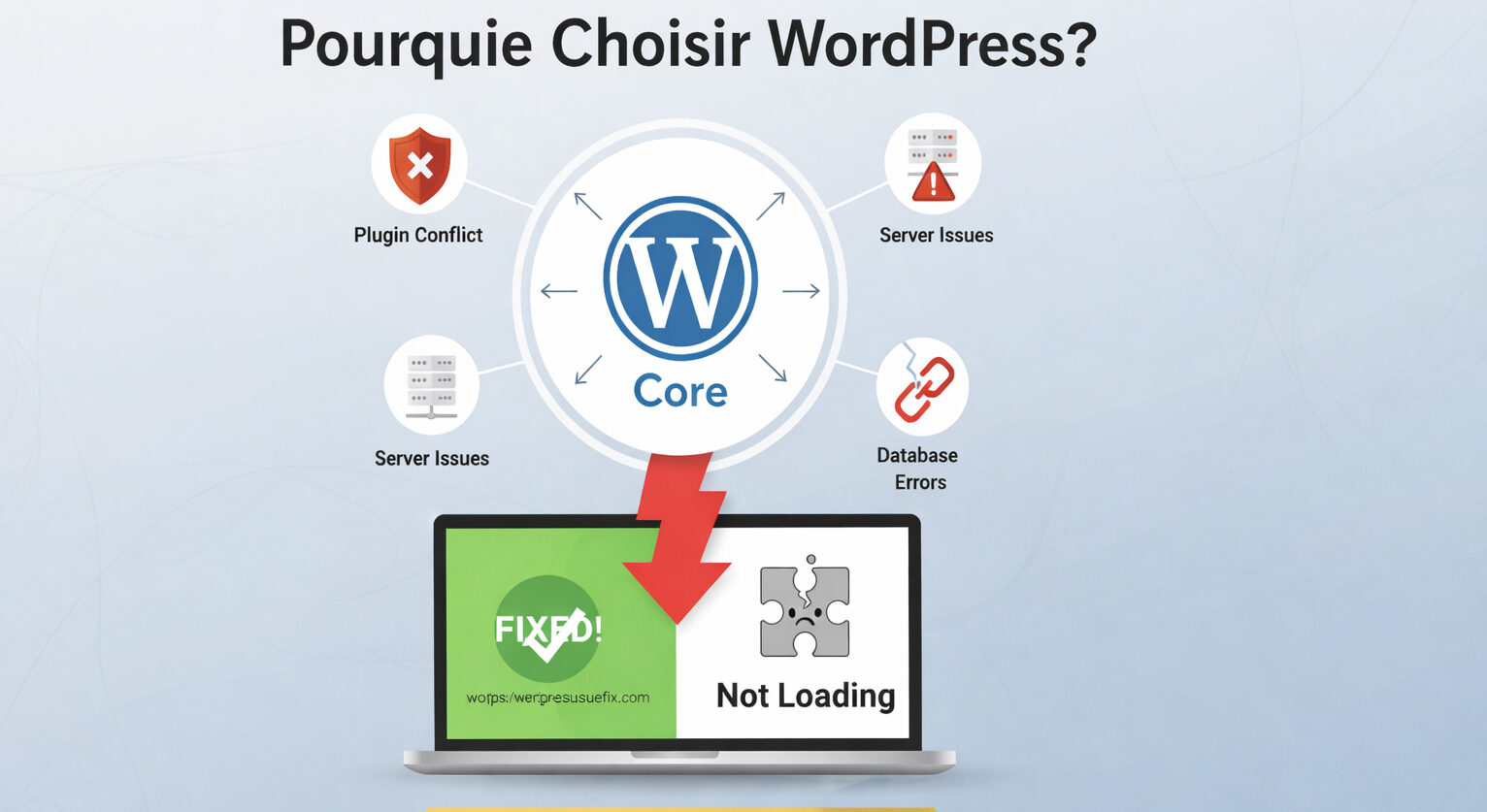
Before diving into fixes, it is essential to understand the “why.” While the question of pourquoi choisir WordPress is answered by its vast ecosystem, that same ecosystem (plugins, themes, and hosting) is often where conflicts arise.
- Plugin Conflicts: Since WordPress relies on third-party code, two plugins might “fight” over the same resources, causing the site to crash.
- Theme Errors: A recent update to a theme or a corrupted theme file can prevent the site from rendering correctly.
- PHP Memory Limits: WordPress requires a certain amount of memory to process scripts. If your site exceeds the limit set by your host, it will stop loading.
- Corrupted .htaccess File: This server configuration file controls how your URLs work. A single wrong character can take down the entire site.
- Database Issues: If WordPress cannot connect to your database, it cannot retrieve your posts, pages, or settings.
- SSL/HTTPS Conflicts: Incorrectly configured security certificates can lead to “Privacy Error” screens that block users from entering.
- Server Downtime: Sometimes the issue isn’t your site at all, but the physical server managed by your hosting provider.
Step-by-Step Fixes (MOST IMPORTANT)
Follow these steps in order. We recommend taking a full backup of your site (if possible) or at least your database before making significant changes.
1. Clear Your Browser Cache and Cookies
Sometimes the site is loading fine for everyone else, but your browser is showing you an older, broken version.
- What it does: Forces the browser to download the most recent version of your site files.
- How to do it: Go to your browser settings, find “Privacy and Security,” and select “Clear Browsing Data.”
2. Check for Server Status
Before changing your code, ensure your hosting provider isn’t experiencing an outage.
- What it does: Rules out external factors beyond your control.
- How to do it: Visit your host’s status page or use a tool like “Down For Everyone Or Just Me.”
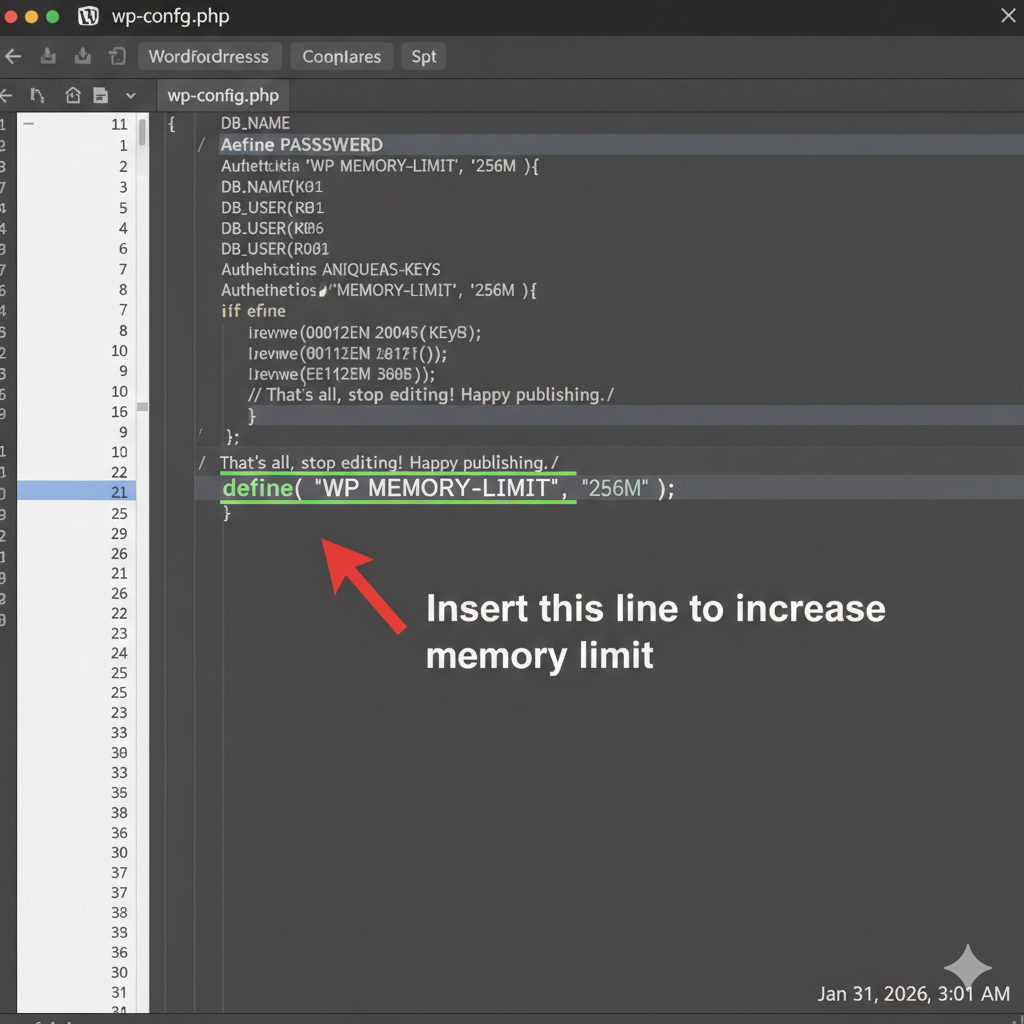
3. Increase the PHP Memory Limit
If you see a “Memory Exhausted” error or a White Screen of Death, your site might need more “room” to breathe.
- What it does: Allocates more RAM to your WordPress processes.
- How to do it: Edit your
wp-config.phpfile and add this line:define( 'WP_MEMORY_LIMIT', '256M' ); - Warning: Be careful when editing system files. A typo can cause further errors.
4. Deactivate All Plugins
A faulty plugin is the most common culprit for loading issues.
- What it does: Stops all third-party code from running, allowing you to see if the core WordPress software works.
- How to do it: In your dashboard, go to Plugins > Installed Plugins. Select all and choose “Deactivate.” If you cannot access the dashboard, see the FTP section below.
5. Switch to a Default Theme
If deactivating plugins doesn’t work, your theme might be the problem.
- What it does: Reverts the site to a standard, highly stable layout like “Twenty Twenty-Four.”
- How to do it: Navigate to Appearance > Themes and activate a default WordPress theme.
Fix WordPress Site Not Loading Without Admin Access
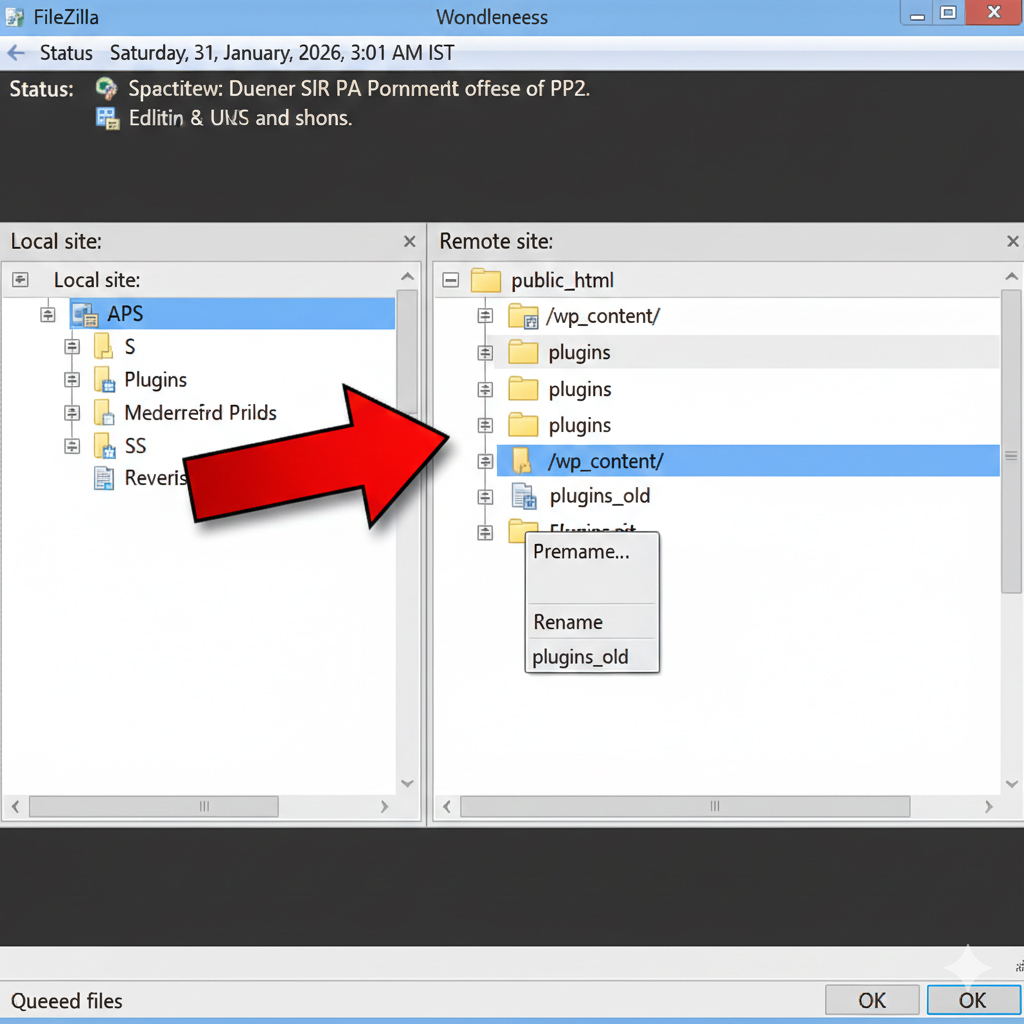
If you cannot reach the /wp-admin login page, you must use a “backdoor” method like FTP (File Transfer Protocol) or your Hosting Control Panel (cPanel).
Using FTP/File Manager to Disable Plugins
- Log in to your hosting account and open File Manager or connect via FileZilla.
- Navigate to the
/wp-content/folder. - Find the folder named
plugins. - Rename it to
plugins_old. - This automatically deactivates every plugin. Try loading your site. If it works, rename the folder back to
pluginsand reactivate them one by one in the dashboard to find the culprit.
Resetting the .htaccess File
- In your File Manager, find the
.htaccessfile in the root directory. - Rename it to
.htaccess_old. - Try refreshing your site. If it loads, go to Settings > Permalinks in your dashboard and click “Save Changes” to generate a new, clean file.
How to Prevent This Issue in the Future
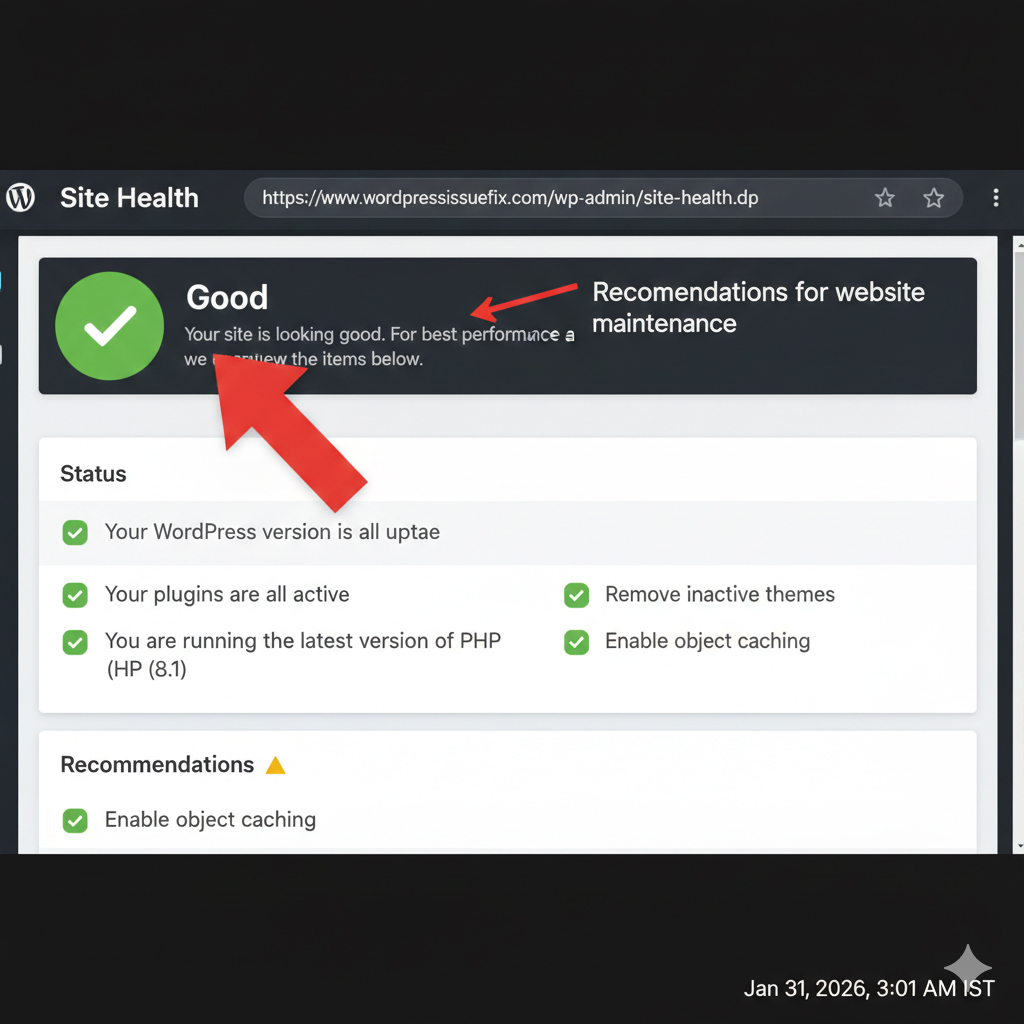
While the question of pourquoi choisir WordPress is often answered by its ease of use, maintaining that ease requires proactive care.
- Regular Backups: Always have a recent backup. If a fix goes wrong, you can revert to a working version in minutes.
- Staging Environments: Before updating a major plugin or theme, test it on a “staging” (copy) site to see if it breaks anything.
- Limit Plugin Usage: Only install plugins you absolutely need. The more code you add, the higher the risk of a conflict.
- Managed Hosting: Consider a managed WordPress host. They often handle memory limits, server optimization, and security updates for you.
- Keep Software Updated: Ensure WordPress core, your themes, and your plugins are always running the latest versions to avoid security vulnerabilities.
Frequently Asked Questions (FAQ)
1. Is WordPress a reliable platform for a business? Yes. When asking “pourquoi choisir WordPress,” the answer is that it powers over 40% of the web. Its reliability comes from its massive developer support and regular security updates.
2. Why is my WordPress site loading slowly but not completely down? Slow loading is often caused by unoptimized images, a lack of caching, or poor hosting. While the site technically “works,” the user experience suffers.
3. Will I lose my data if I deactivate my plugins? No. Deactivating a plugin simply stops it from running. Your settings and data associated with that plugin are stored in the database and will remain intact when you reactivate it.
4. What should I do if the White Screen of Death persists after deactivating plugins? If deactivating plugins and themes doesn’t work, the issue may lie in your wp-config.php file or your database. Check your error logs in your hosting dashboard for specific clues.
5. How do I know if my PHP version is out of date? You can check this in the WordPress dashboard under Tools > Site Health > Info. If your PHP version is below 7.4, you should update it via your hosting panel for better performance and security.
6. Can a broken link cause a site not to load? A broken link usually leads to a 404 error page. While it doesn’t “break” the whole site, too many broken links can negatively affect your SEO and user trust.
Conclusion
Understanding pourquoi choisir WordPress involves recognizing that while the platform is incredibly powerful, it requires basic maintenance to stay functional. If your site is not loading, do not panic. By systematically checking for plugin conflicts, memory issues, and server errors, you can resolve the majority of problems without needing a developer.
Always prioritize safety by keeping backups and making changes one step at a time. WordPress is designed to be resilient, and with the right troubleshooting steps, you can ensure your website remains a reliable asset for your brand or business.