

Introduction
Seeing your WordPress site suddenly blocked by a malware detection website is a stressful experience for any website owner. But what exactly does this mean? It means a security authority (like Google Safe Browsing, Sucuri, or Norton) has scanned your domain and placed it on a protective blacklist. You typically encounter this terrifying red warning screen directly in your web browser when trying to visit your URL, or as an urgent alert inside Google Search Console.
Why does it appear? A malware detection website triggers this alert because it found malicious scripts, hidden spam links, or unauthorized redirects inside your website’s files—usually caused by an outdated plugin or a weak password. Take a deep breath; this is a common issue, and we will walk through the exact steps to fix it.
Note: This guide is for educational troubleshooting purposes. Always ensure you have a backup before making structural changes to your website.
Table of Contents
What Does Being Flagged by a Malware Detection Website Mean?
When your WordPress site is flagged, it means a third-party security authority has placed your domain on a blacklist. Browsers like Google Chrome, Mozilla Firefox, and Safari use these blacklists to warn their users before they enter a potentially dangerous site.
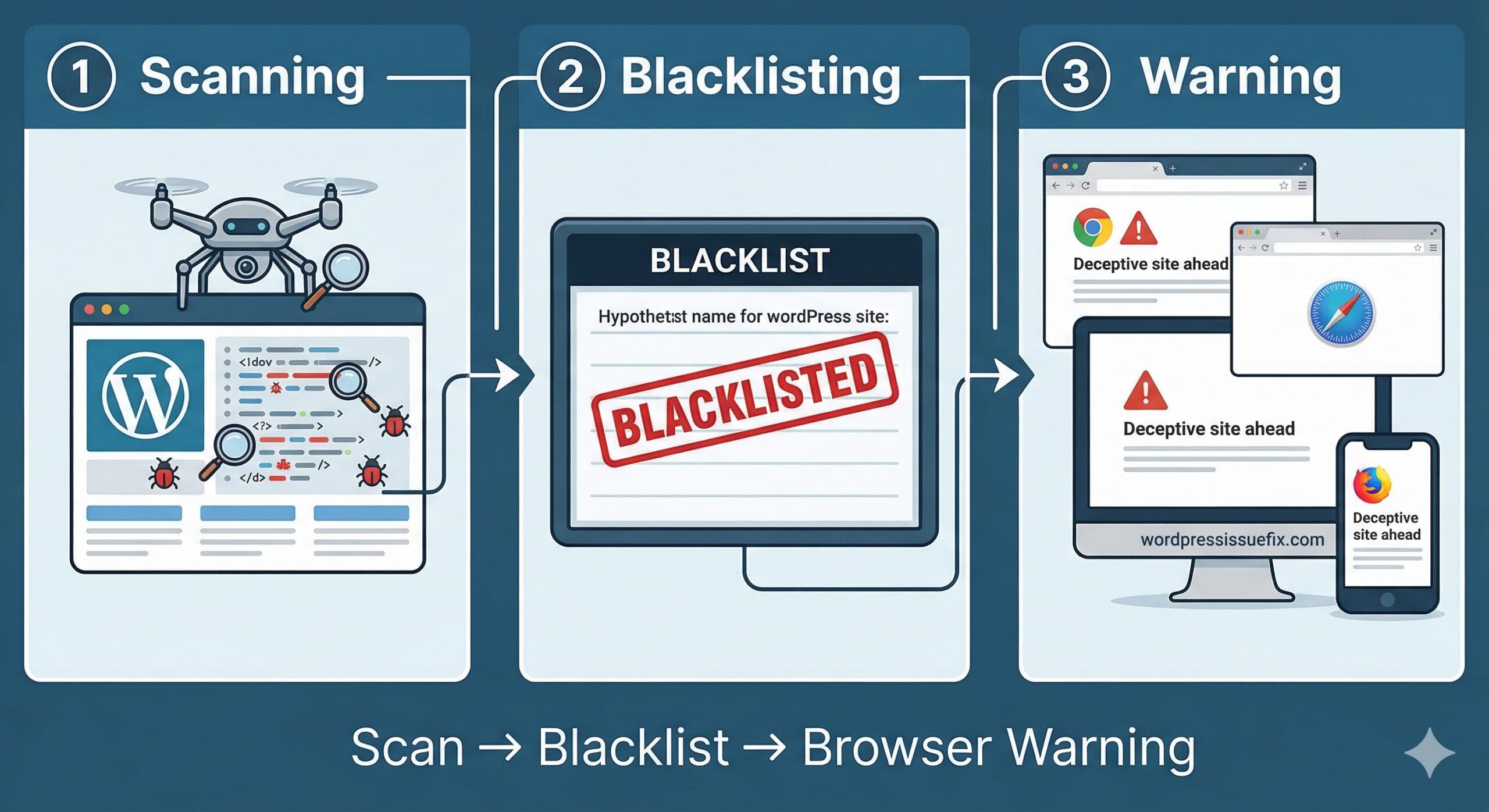
This issue is not a bug with WordPress itself. Instead, it is an external protective measure. The malware detection website has crawled your pages and found something that violates safe browsing policies. This could be:
- Unwanted software downloads triggered automatically.
- Phishing pages disguised as legitimate login forms.
- Spam links hidden within your posts or footer.
- Malicious redirects sending your visitors to unsafe external pages.
Understanding that this is an external block is the first step. You must clean the site first, and then ask the malware detection website to rescan and clear your domain.
Common Causes Behind This WordPress Issue
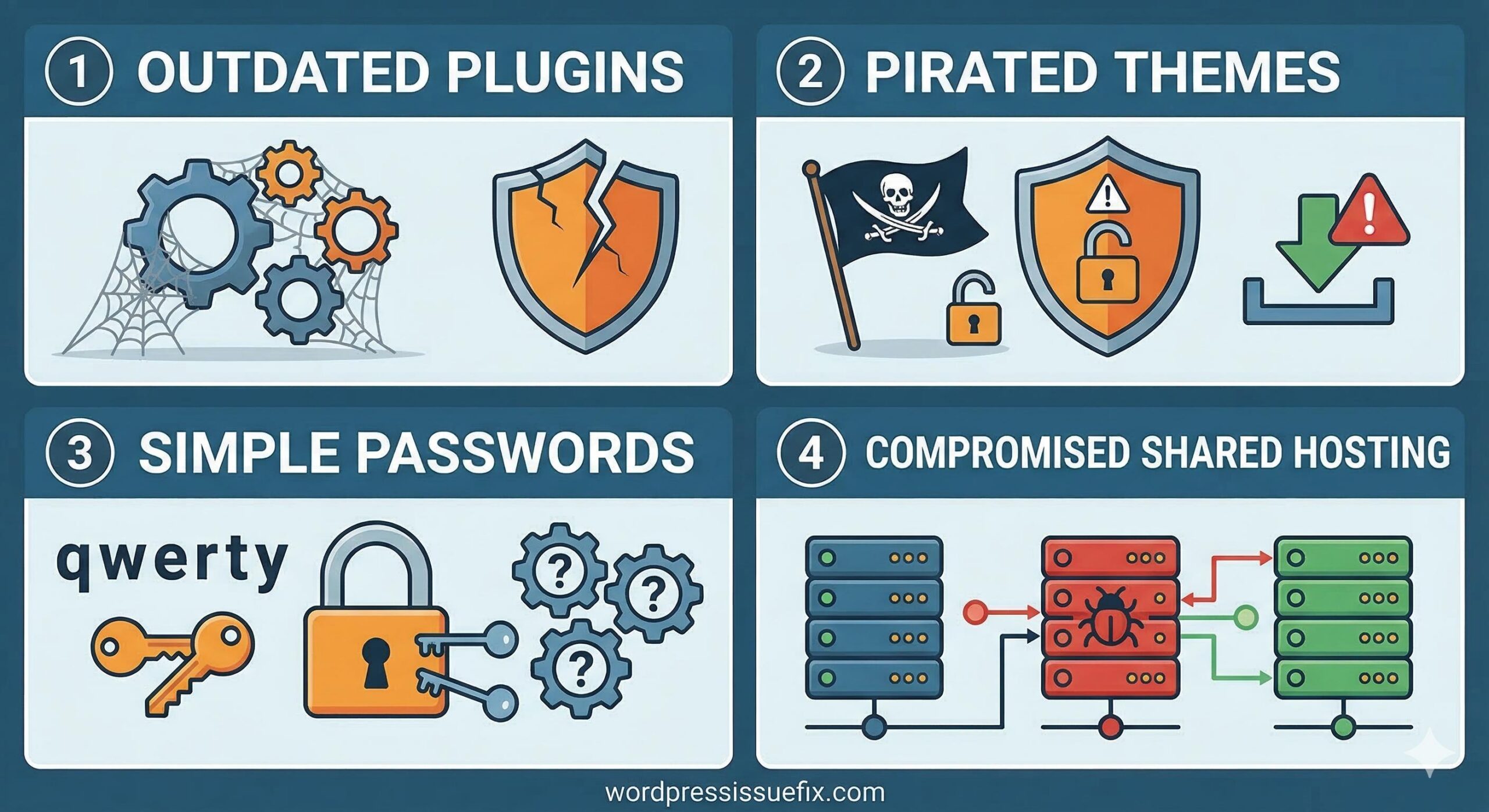
To fix the warning, it helps to understand how the suspicious code got there in the first place. For most beginners and small business owners, the root cause falls into one of these categories:
- Outdated Plugins or Themes: Developers regularly release updates to patch security vulnerabilities. If you are using an old, unsupported plugin, it can act as an open back door.
- Nulled (Pirated) Premium Themes: Downloading paid themes from unauthorized, free sources often results in pre-installed malicious code that alerts a malware detection website immediately.
- Weak Administrator Passwords: Simple passwords allow automated bots to guess your login credentials and inject bad code directly into your site’s files.
- Compromised Hosting Environment: Occasionally, if your website shares a server with an infected site (on cheap, unsecured shared hosting), the infection can cross over.
Step-by-Step Educational Troubleshooting Fixes
Resolving a flag from a malware detection website requires a methodical approach. Do not rush to simply ask for a review before cleaning your site, as repeated failures can make it harder to get your site unblocked.
1. Scan Your Site to Locate the Problem
Before changing anything, you need to know exactly what the malware detection website saw. You can use free, web-based scanners designed specifically for WordPress:
- Sucuri SiteCheck: Enter your URL to see if it detects hidden spam or malicious scripts.
- Google Search Console: Navigate to the “Security & Manual Actions” tab, then click “Security Issues.” Google will often provide exact URLs or file paths where the malicious code is hiding.
2. Restore a Clean Backup (The Beginner-Safe Fix)
If you have a daily backup system in place (via your web host or a plugin like UpdraftPlus), the safest and fastest way to clear the error is to restore your site to a date before the malware detection website flagged it.
- Check your backup logs.
- Restore the database and the files to a known safe date.
- Immediately update all plugins, themes, and WordPress core after the restore to close the vulnerability.
3. Use a WordPress Security Plugin
If you do not have a clean backup, you will need to scan your internal files.
- Install a reputable security plugin like Wordfence, Solid Security, or MalCare.
- Run a comprehensive scan of your entire WordPress directory.
- These plugins will compare your site’s files against the official WordPress repository and flag anything that has been altered. They often provide a one-click option to repair or delete the infected files.
4. Reset All Credentials
Once the site is cleaned, you must ensure the unauthorized user cannot get back in.
- Force a password reset for all WordPress administrators.
- Change your database password in your hosting control panel (cPanel) and update your
wp-config.phpfile accordingly. - Change your FTP/SFTP passwords.
How to Request a Review from the Malware Detection Website
Once you are 100% confident that your WordPress site is clean, you must proactively tell the malware detection website to remove the warning. It will not disappear on its own immediately.
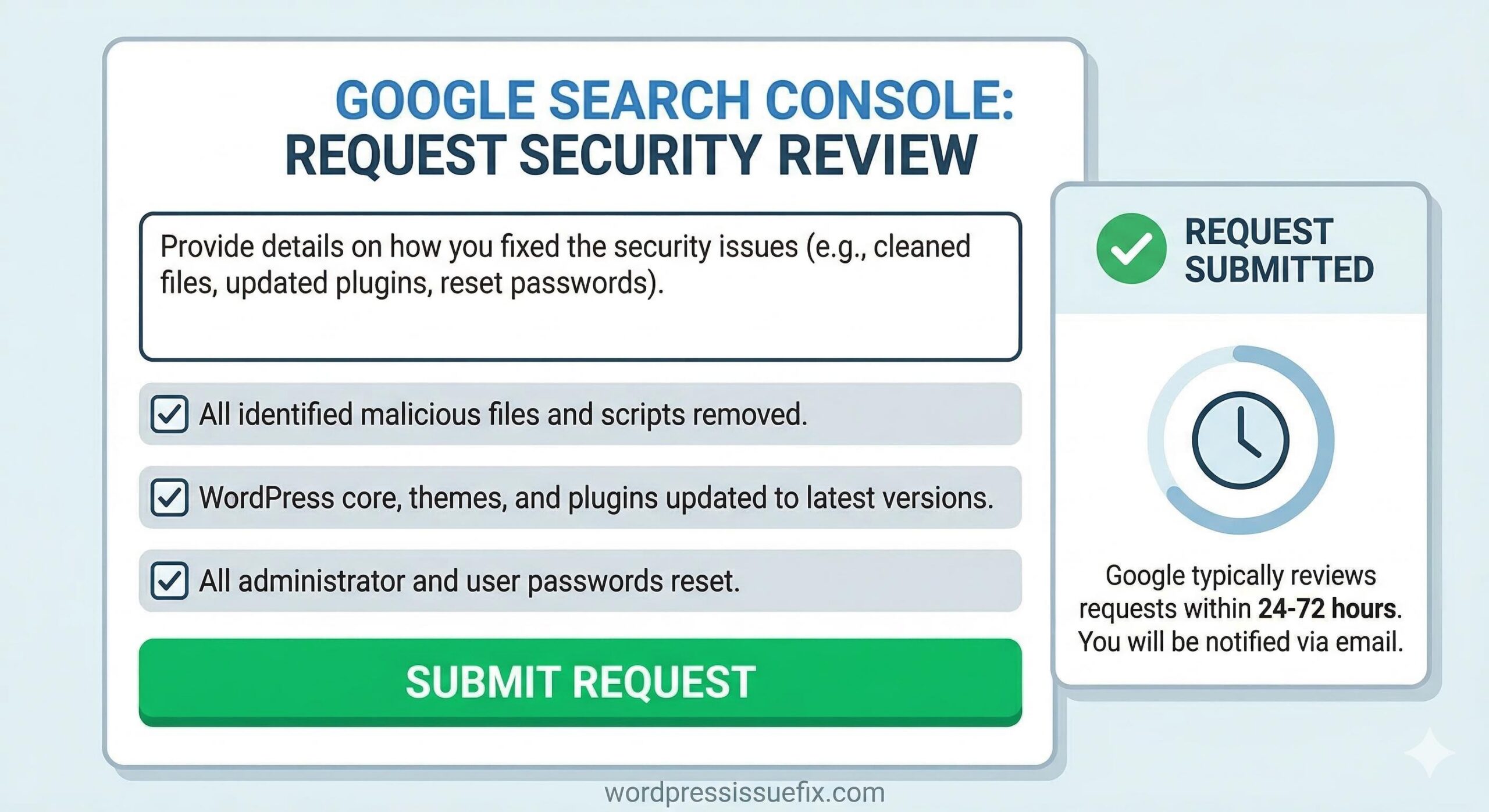
If flagged by Google Safe Browsing:
- Log in to Google Search Console.
- Go to Security Issues.
- Click the button that says Request Review.
- Fill out the form honestly. Explain exactly what you did to fix the issue (e.g., “I updated outdated plugins, restored a clean backup, and changed all passwords”).
- Submit the request. It typically takes 24 to 72 hours for Google to rescan and remove the red warning screen.
If flagged by desktop Antivirus (Norton, McAfee, etc.):
You will need to visit the respective vendor’s website and look for their “false positive” or “site review” submission forms. Enter your domain name and request a re-evaluation.
Preventing Future Malware Flags
Once your site is clean and the warning is gone, taking preventive measures will keep your site off malware detection website lists in the future.
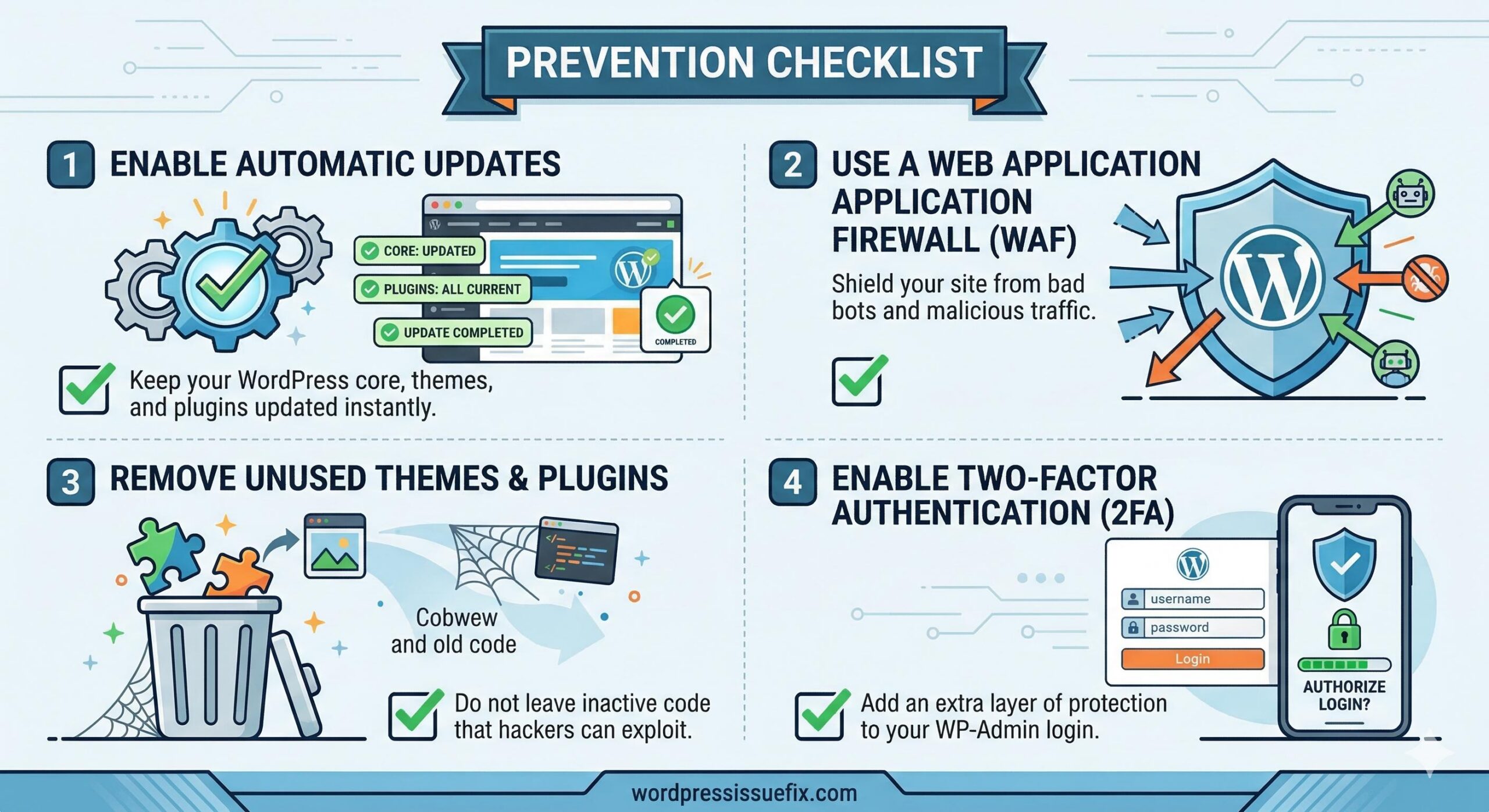
- Enable Automatic Updates: Keep your WordPress core, themes, and plugins updated at all times.
- Use a Web Application Firewall (WAF): Tools like Wordfence or Cloudflare act as a shield, blocking malicious traffic before it reaches your WordPress files.
- Delete Unused Plugins: If you aren’t using a theme or plugin, delete it. Inactive files can still be exploited.
- Implement Two-Factor Authentication (2FA): Adding an extra layer of security to your WP-Admin login page prevents unauthorized access even if your password is compromised.
By understanding how a malware detection website operates and following calm, systematic troubleshooting steps, you can restore your website’s safety and reputation.
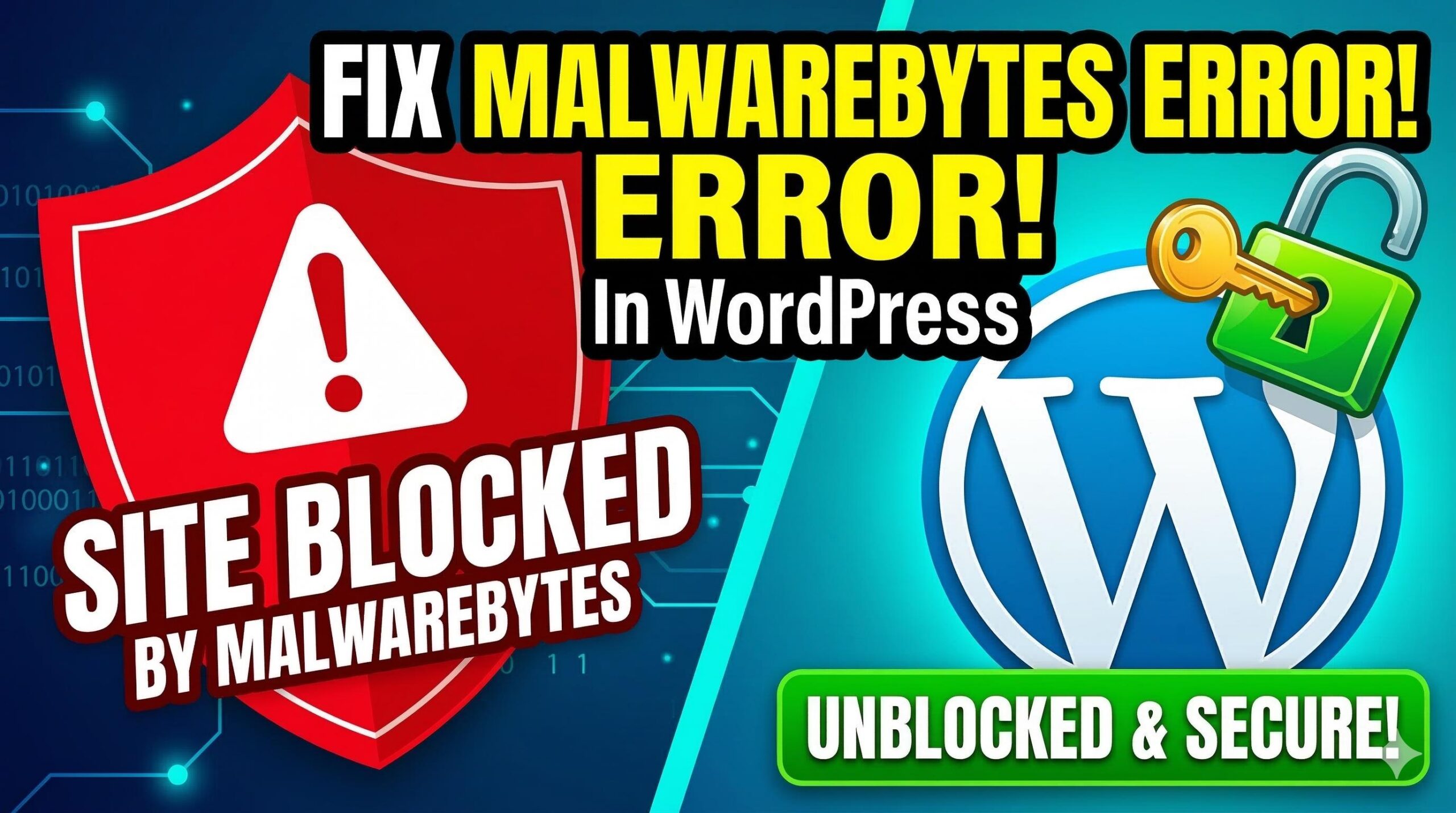
How to Fix the Blocked “Malware Bytes Website” Error in WordPress
Frequently Asked Questions (FAQs)
How long does it take for a malware detection website to remove the warning? After you have completely cleaned your WordPress site and submitted a formal review request, it typically takes a malware detection website (like Google Safe Browsing) between 24 to 72 hours to rescan your domain. Once they verify the malicious code is gone, the red warning screen will be removed automatically.
Can a malware detection website block my site if it hasn’t actually been hacked? Yes, false positives can occasionally happen. A malware detection website might flag your site if a newly installed, poorly coded plugin behaves suspiciously, or if your site shares a server IP address with a heavily infected website (common on cheap shared hosting). However, you should always run a thorough security scan to be absolutely sure your files are safe before assuming it is a mistake.
Will fixing this warning recover my SEO rankings? Yes. Search engines drop flagged sites to protect their users. Once the malware detection website confirms your site is clean and lifts the block, your pages will become accessible again, and search engines will gradually restore your previous rankings. Quick action is the best way to minimize any long-term SEO damage.
Conclusion
Recovering from a block by a malware detection website might seem daunting at first glance, but it is entirely manageable with a calm, methodical approach. By carefully scanning your files, restoring a clean backup, and updating your administrator credentials, you can successfully remove the underlying infection.
Please remember that this guide is for educational troubleshooting purposes—always back up your site’s data before making structural changes to your database or core files. Once your WordPress site is secure and you have submitted a review request, the warning will be lifted, and your hard-earned traffic will return. Stay proactive with automatic updates and a reliable security plugin to ensure your site remains safe, fast, and trusted by your visitors.




How to Fix the “Best Search Engine Optimization Company” Spam in WordPress
Rajib Das
-
March 14, 2026