

Introduction
Welcome to wordpressissuefix.com. If you are managing a website and feeling frustrated by slow loading times, you are likely looking for a straightforward guide on improving page speed. In the WordPress environment, this term refers to the essential process of reducing the time it takes for your website to fully display its content to a visitor.
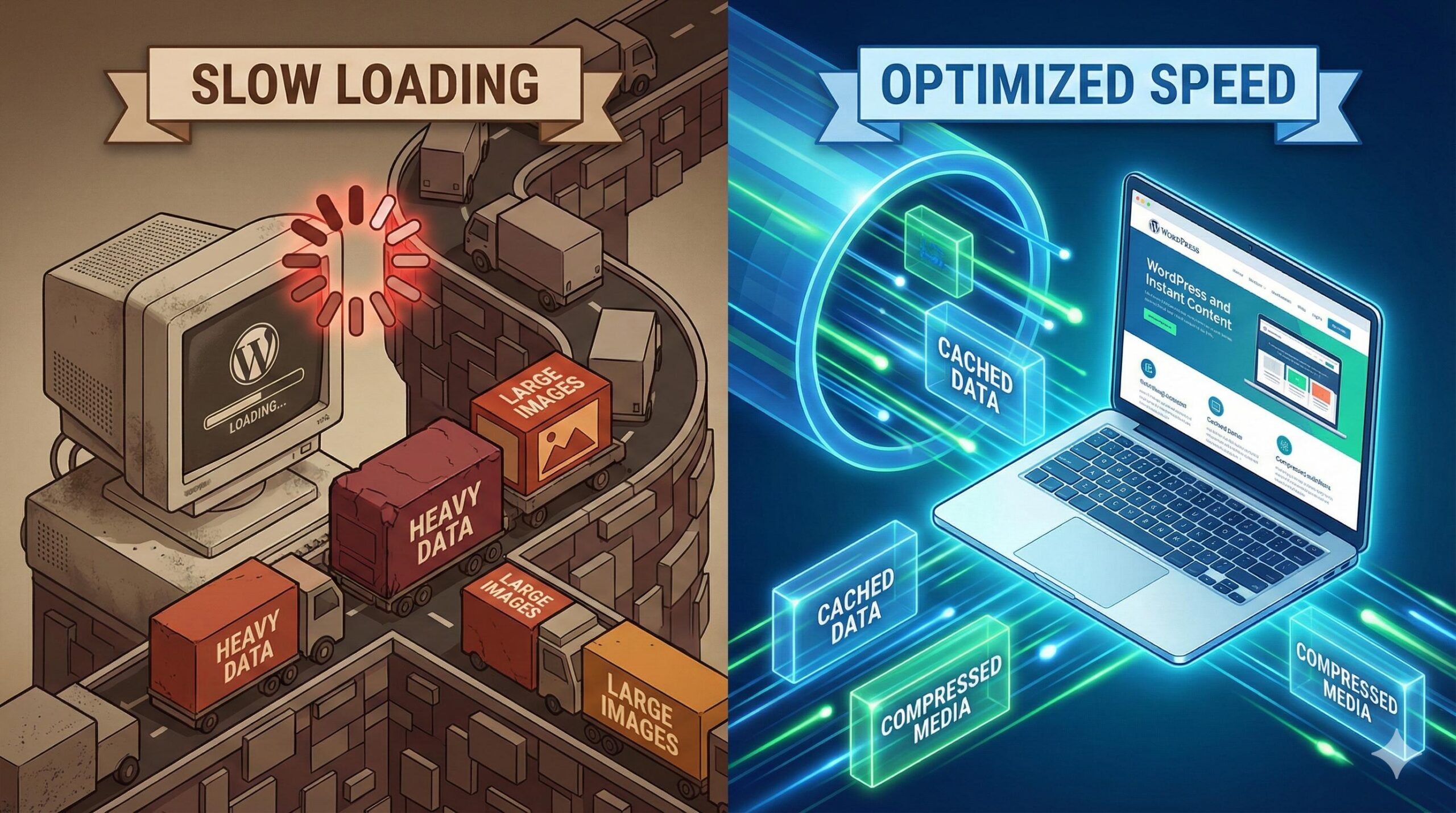
You typically encounter this issue when checking your site on diagnostic tools like Google PageSpeed Insights, or when you notice your own dashboard and live pages lagging. Why does this problem appear? WordPress is a dynamic, database-driven platform. Without proper optimization, heavy media files, bloated plugins, and a lack of server caching will force your site to work harder than necessary, causing massive delays.
This guide is for educational troubleshooting purposes. Below, we will walk through the safest, most effective ways to resolve these bottlenecks so you can provide a smooth, fast experience for your readers.
Note: This guide is for educational troubleshooting purposes. Following these beginner-safe steps will help you optimize your site, though exact loading times will vary based on your specific web hosting environment and website size.
Table of Contents
Why Improving Page Speed is Crucial for Your Site

Before diving into the fixes, it is important to understand why dedicating time to improving page speed is not just a technical chore, but a vital part of running a successful WordPress site.
- Better User Experience: Visitors expect a site to load in under three seconds. If it takes longer, they will likely hit the “back” button (a metric known as bounce rate).
- Higher Search Engine Rankings: Google uses page speed as a direct ranking factor. Improving page speed signals to search engines that your website provides a high-quality experience, helping you rank higher in search results.
- Increased Conversions: Whether you are selling a product, capturing email leads, or running Google AdSense, a faster site ensures users stay long enough to interact with your content and advertisements.
Common Culprits Slowing Down Your WordPress Site
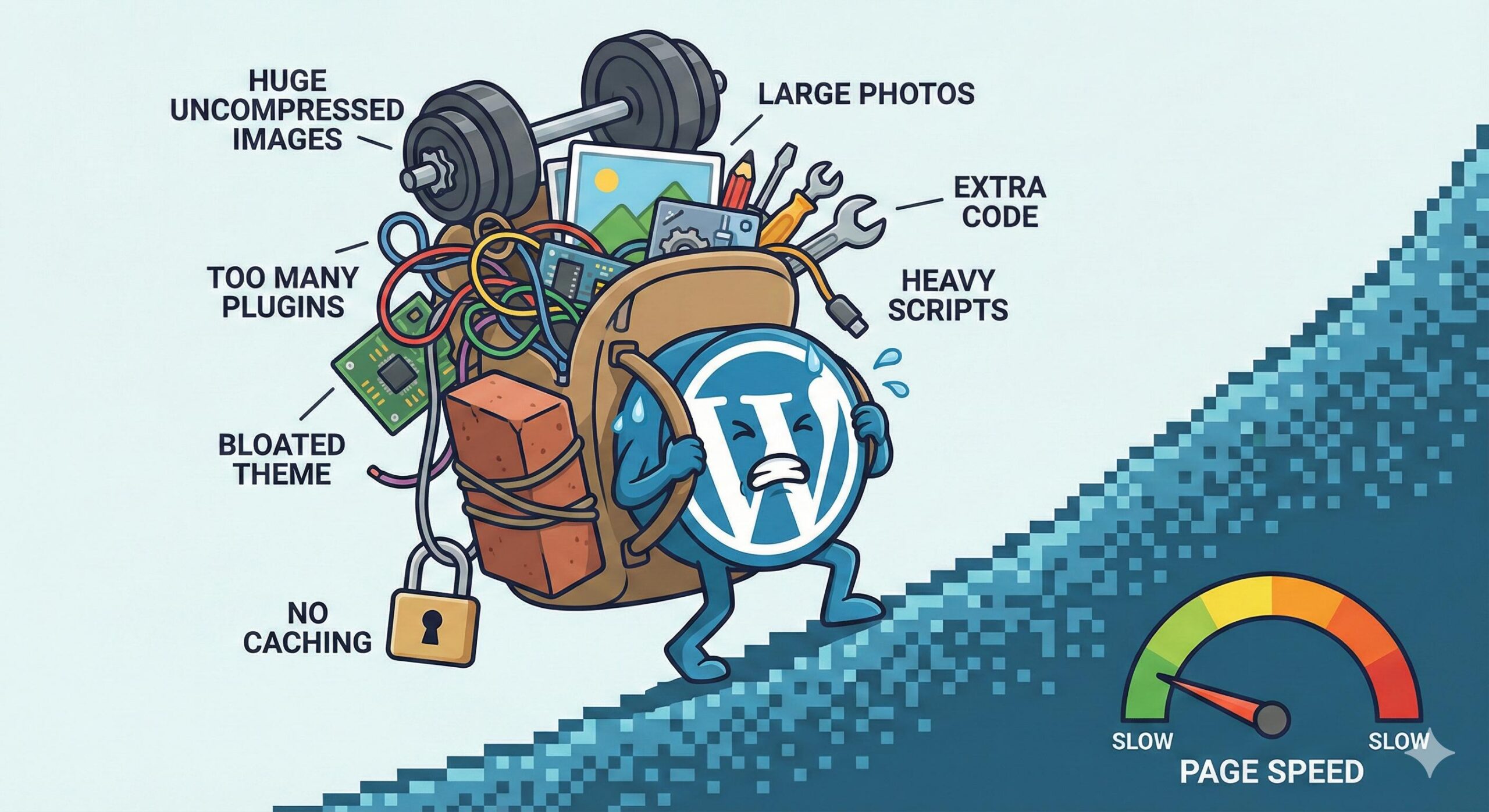
To successfully tackle improving page speed, we must first identify what is dragging your loading times down. If you are experiencing slow performance, the root causes almost always fall into one of these four categories:
- Unoptimized Media Files: Uploading massive, high-resolution images directly from your camera or phone without compressing them.
- Lack of Page Caching: Forcing your server to build every single page from scratch every time a new visitor arrives.
- Plugin Bloat: Running too many active plugins, or using poorly coded plugins that load unnecessary scripts on every page.
- Heavy WordPress Themes: Using themes packed with excessive animations, complex sliders, and unnecessary features.
Step-by-Step Fixes for Improving Page Speed
Now that we know what causes the issue, let’s walk through the exact steps for improving page speed on your WordPress site. These fixes are beginner-friendly and do not require you to write any code.
Step 1: Install a WordPress Caching Plugin
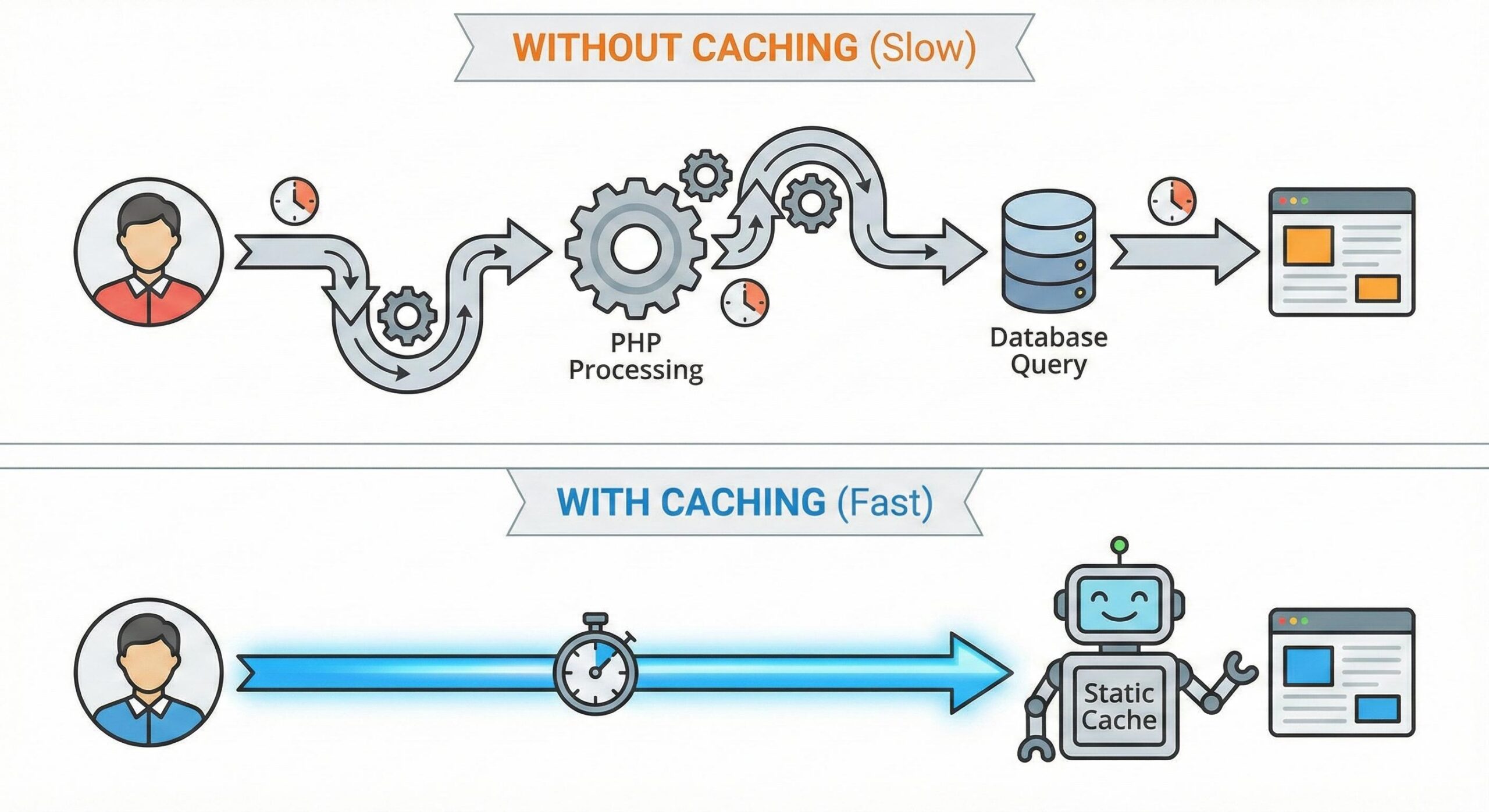
Caching is the single most effective method for improving page speed. Normally, when a user visits your site, WordPress fetches data from your database and uses PHP to generate the page. This takes time.
A caching plugin creates a static HTML version of your page and saves it. When the next user visits, they are served the lightweight static page instantly, bypassing the heavy database lifting.
How to fix it:
- Go to your WordPress dashboard.
- Navigate to Plugins > Add New.
- Search for a reputable, beginner-friendly caching plugin like WP Super Cache or LiteSpeed Cache (if your host supports LiteSpeed).
- Install, activate, and turn on the basic caching features in the plugin’s settings.
Step 2: Optimize and Compress Your Images
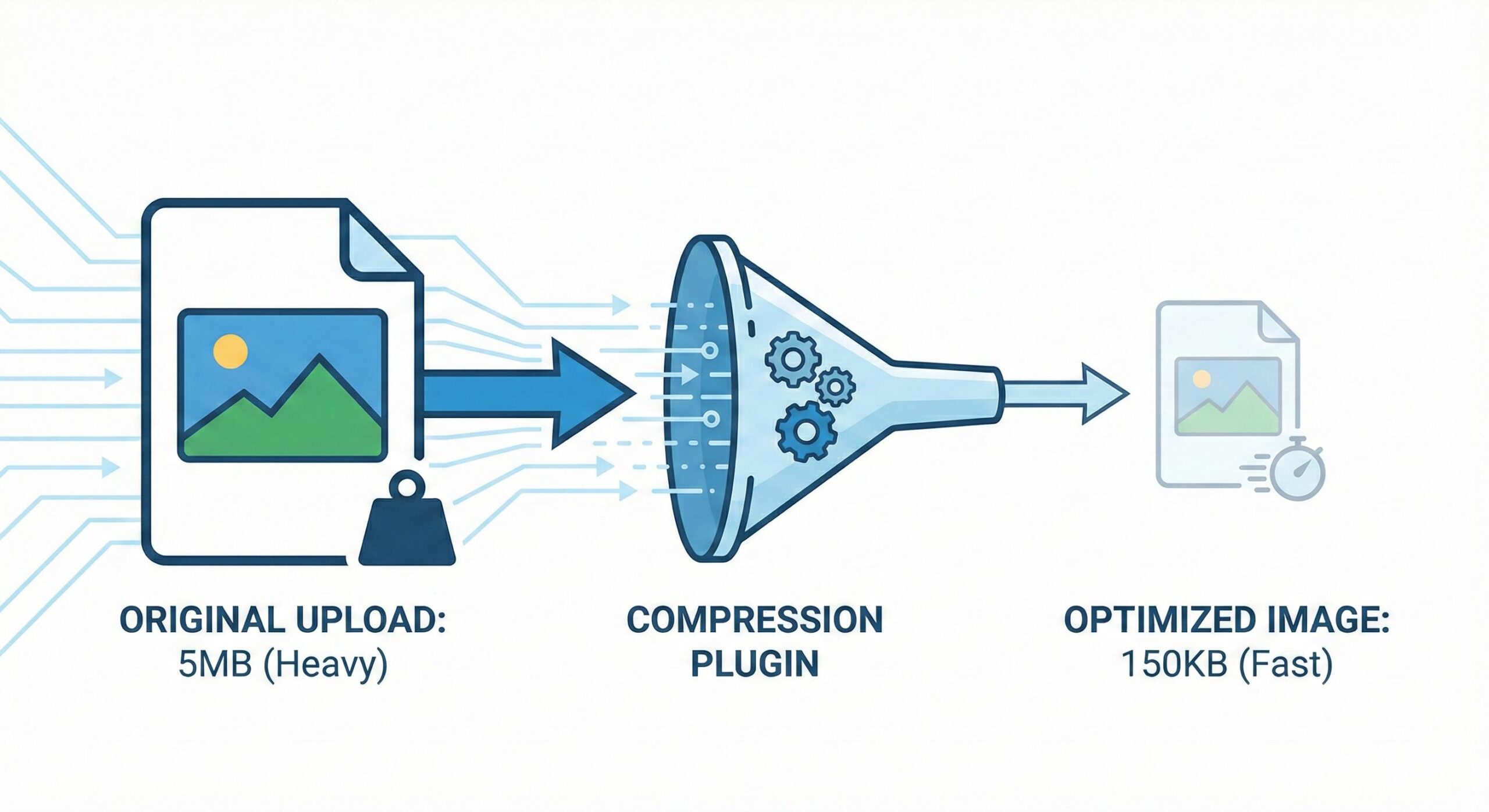
Images usually account for the majority of a web page’s downloadable size. Improving page speed is impossible if you are forcing visitors to download 5MB image files on a mobile connection.
How to fix it:
- Resize before uploading: Never upload an image wider than you need (usually a maximum of 1200 to 2000 pixels wide is sufficient for most blogs).
- Use compression plugins: Install a plugin like Smush or ShortPixel. These tools automatically compress images as you upload them, reducing file sizes by up to 70% without losing visual quality.
- Enable Lazy Loading: This ensures that images only load when the user scrolls down to them, rather than loading all images on the page at once. Most modern caching and image optimization plugins include a simple toggle for lazy loading.
Step 3: Audit and Clean Up Your Plugins
Every plugin you install adds code to your website. While plugins are great for adding features, too many will severely impact your performance. Improving page speed requires a lean, efficient environment.
How to fix it:
- Go to your Plugins list.
- Ask yourself: Do I absolutely need this plugin for my site to function?
- If the answer is no, Deactivate and Delete the plugin.
- Look out for plugins that run constant background scans (like heavy analytics plugins or complex visual page builders) and consider replacing them with lighter alternatives.
Step 4: Use a Content Delivery Network (CDN)
If your website server is located in New York, a visitor from London will naturally experience a slight delay because the data has to travel across the ocean. A CDN solves this by storing copies of your website’s static files (like images and stylesheets) on a network of servers around the world.
How to fix it:
- Sign up for a free CDN service like Cloudflare.
- Follow their beginner-friendly setup wizard to connect your WordPress site to their network. Cloudflare will serve your files from the server closest to your visitor, drastically improving page speed for a global audience.
Testing Your Page Speed Results
After applying these fixes, you need to verify that your efforts in improving page speed were successful.
- Go to Google PageSpeed Insights or GTmetrix.
- Enter your website URL and run the test.
- Compare your new score and loading times to how your site felt previously.
Don’t panic if you don’t score a perfect 100/100. The goal of improving page speed is to achieve a fast, smooth experience for real human visitors, typically aiming for a load time of under 3 seconds and green Core Web Vitals scores.
Elementor Image Optimization Guide: How to Speed Up Your Site (2026)
Conclusion
Tackling the technical side of WordPress can feel overwhelming, but improving page speed does not have to be a complicated process. By understanding why your website slows down and taking a systematic approach to fixing it, you can drastically enhance your site’s performance without writing a single line of code.
To recap, the most effective steps you can take today include setting up a reliable caching plugin, compressing your heavy image files, removing unnecessary or bloated plugins, and routing your traffic through a Content Delivery Network (CDN). Implementing even just one or two of these beginner-safe fixes will often result in a noticeably faster website.
Remember, optimization is an ongoing habit, not a one-time task. Keep your site lean, test your speeds regularly, and your visitors—and search engines—will thank you for the smooth experience.







How to Fix the “Best Search Engine Optimization Company” Spam in WordPress
Rajib Das
-
March 14, 2026