Introduction
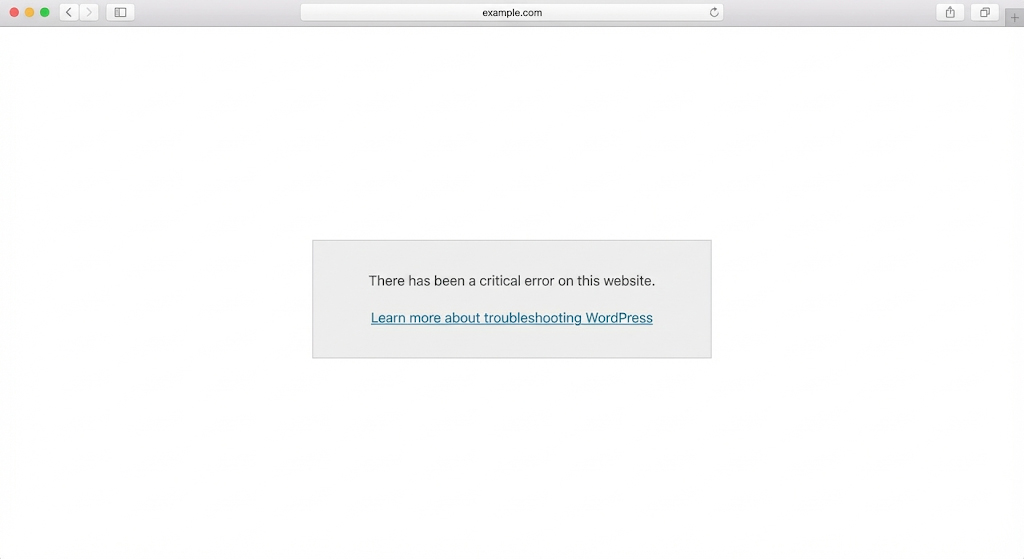
It is the nightmare scenario for every website owner: you open your site to check a new post or a product page, and instead of your content, you see a stark white screen with a terrifying message: “There has been a critical error on this website.”
If you are seeing this, your pulse has probably quickened. For small business owners and bloggers, website downtime means lost traffic and potential revenue. The generic nature of this error message is what makes it so frustrating—it doesn’t tell you what is wrong, only that something is broken.
The good news is that your website is not gone forever. This error is simply a safety mechanism WordPress uses to prevent a specific script from crashing your entire server. In the past, this was known as the “White Screen of Death” (WSOD). Today, WordPress handles it more gracefully, often sending you an email with details on how to fix it.
In this guide, we will break down exactly how to fix wordpress critical error messages. We will walk you through the recovery email process, how to debug manually if you didn’t get an email, and how to get your site back online using safe, proven methods.
Table of Contents
What Does the “Critical Error” Message Mean?
Before we start fixing, it helps to understand what is happening under the hood.
In technical terms, the “Critical Error” is usually a PHP Fatal Error. WordPress is built on a programming language called PHP. When a plugin, theme, or core file contains code that has a mistake, conflicts with another piece of code, or tries to use more memory than your server allows, PHP stops running to protect the server.
In older versions of WordPress, this resulted in a blank white screen. Since WordPress version 5.2, the system now catches these fatal errors and displays the user-friendly message: “There has been a critical error on this website. Please check your site admin email inbox for instructions.”
Essentially, it is your website’s “Check Engine” light. The car is still there, but the engine has stopped to prevent further damage.
Common Reasons Behind the Critical Error
Why did this happen? While the specific cause varies, the culprit is almost always one of the following:
- Plugin Conflicts: This is the #1 cause. Two plugins may be fighting for the same resource, or a newly updated plugin might have a bug.
- Theme Issues: A corrupted theme file or a theme that is incompatible with your version of WordPress.
- PHP Memory Limit Exceeded: Your site tried to process a task (like resizing a large image) but ran out of the allocated memory (RAM) provided by your hosting.
- Corrupted Database: Occasionally, the database that stores your content gets damaged.
- Outdated PHP Version: Your hosting server is running an old version of PHP that your new plugins don’t support.
- Malware: Though less common for this specific error, malicious code can break site functionality.
Step-by-Step Fixes (Most Important)
We will start with the easiest solutions and move to more advanced troubleshooting. Note: Before attempting advanced fixes (Steps 3-6), we strongly recommend backing up your website if possible.
Step 1: Check Your Admin Email (The Easy Fix)
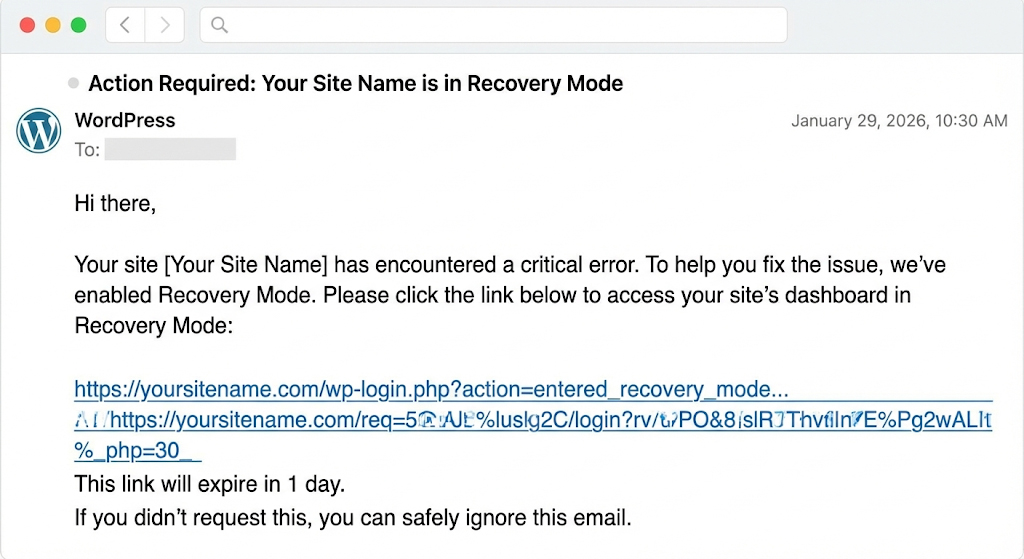
When the critical error occurs, WordPress attempts to send an automated email to the address listed in your General Settings.
- Open the email inbox associated with your website administrator account.
- Look for a subject line like “Your Site is Experiencing a Technical Issue”.
- Inside, you will find specific details about which plugin or theme caused the crash.
- Most importantly, the email includes a Recovery Mode Link.
Clicking this link logs you into a special version of your Dashboard where the broken plugin is “paused.” You can then safely deactivate or delete the problematic plugin. If you received this email, your problem is likely solved! If you did not receive the email, proceed to Step 2.
Step 2: Enable WordPress Debug Mode
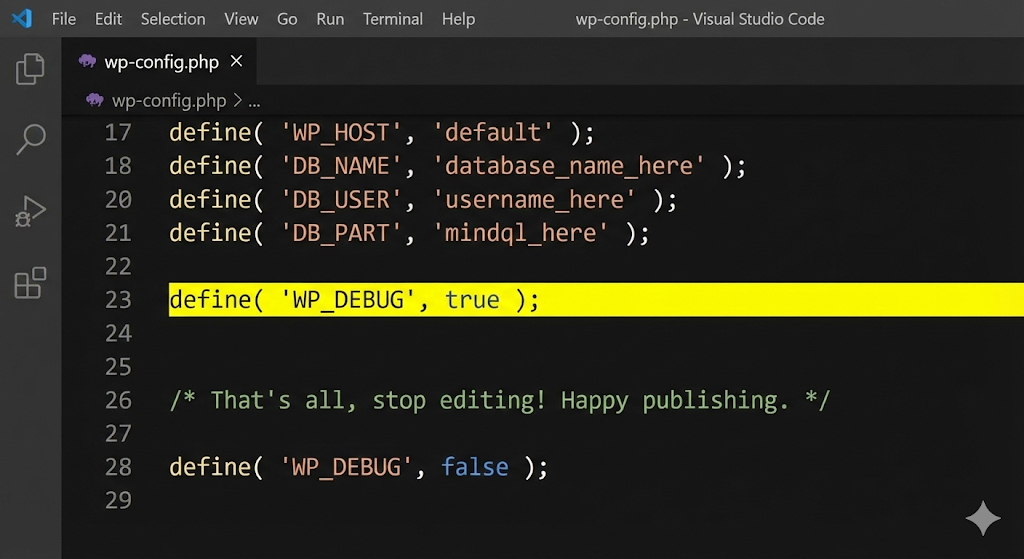
If you don’t know what is causing the error, you are flying blind. We need to turn on the lights. WordPress has a built-in debugging tool that is usually hidden.
To enable it, you will need to edit a file called wp-config.php.
- Access Your Files: Log in to your hosting control panel (like cPanel or IONOS) and open the File Manager. Alternatively, use an FTP client like FileZilla.
- Locate wp-config.php: It is usually in the main folder (often called
public_html). - Edit the File: Download a backup, then right-click and select “Edit.”
- Find the Code: Look for the line that says:
define( 'WP_DEBUG', false );. - Change it: Replace “false” with “true”. If the line doesn’t exist, add this code above the “That’s all, stop editing” line:
PHP
define( 'WP_DEBUG', true );
define( 'WP_DEBUG_LOG', true );
define( 'WP_DEBUG_DISPLAY', false );
- Check the Log: Save the file. Now, check the
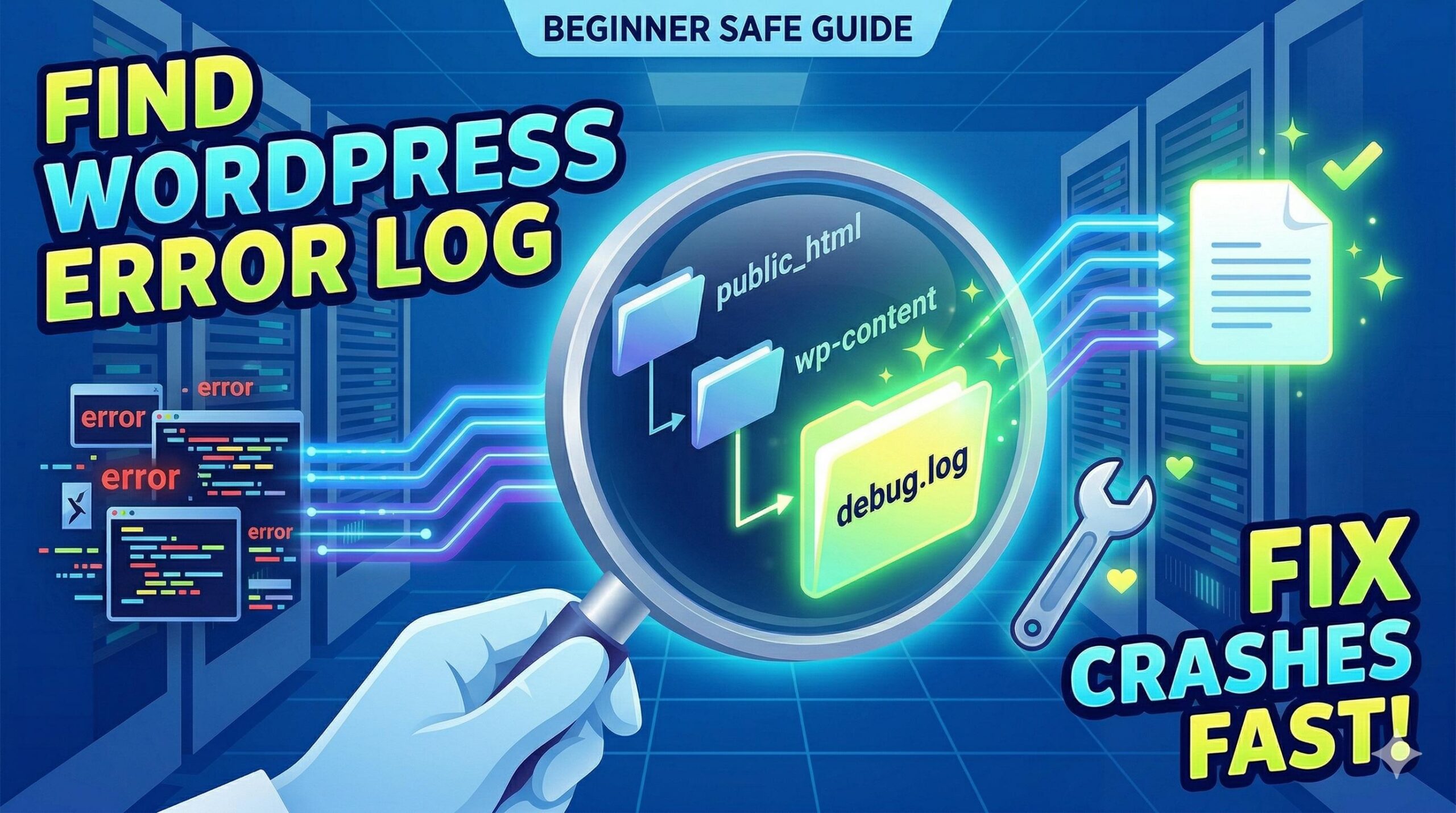
wp-contentfolder for a file nameddebug.log. Open it, and it will list exactly which file is causing the fatal error.
Step 3: Increase PHP Memory Limit
If the debug log mentions “Allowed memory size of X bytes exhausted,” your site simply needs more fuel.
- Open your
wp-config.phpfile again (using the method in Step 2). - Paste the following code just before the “That’s all, stop editing” line:
PHP
define( 'WP_MEMORY_LIMIT', '256M' );
- Save the changes and refresh your website. If the memory limit was the issue, your site should load immediately.
Fix WordPress Site Not Loading Without Admin Access
If the error locks you out of your dashboard entirely (“wp-admin”), you cannot simply click “Deactivate” on a plugin. You must disable them manually using the File Manager or FTP.
Step 4: Disable All Plugins (The Manual Way)
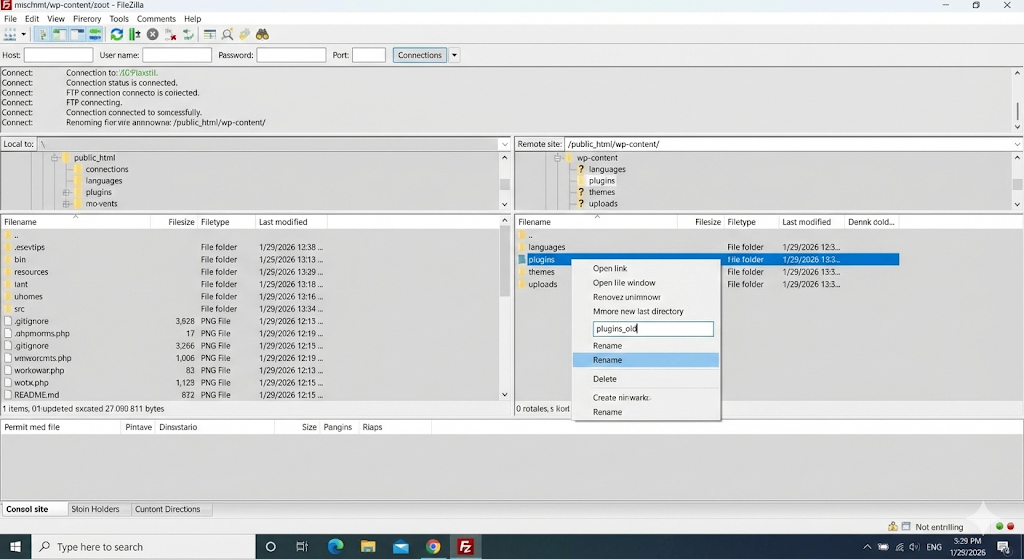
Since plugins are the most common cause, turning them all off usually forces the site to load.
- Connect via FTP/File Manager: Navigate to your
wp-contentfolder. - Find the Plugins Folder: You will see a folder named
plugins. - Rename the Folder: Right-click and rename it to
plugins_old. - Check Your Site: Try to load your website.
- If it loads: One of your plugins was the issue.
- Next Step: Rename the folder back to
plugins. Go into the folder and rename individual plugin folders (e.g.,contact-form-7_off) one by one until you find the culprit.
Step 5: Revert to a Default Theme
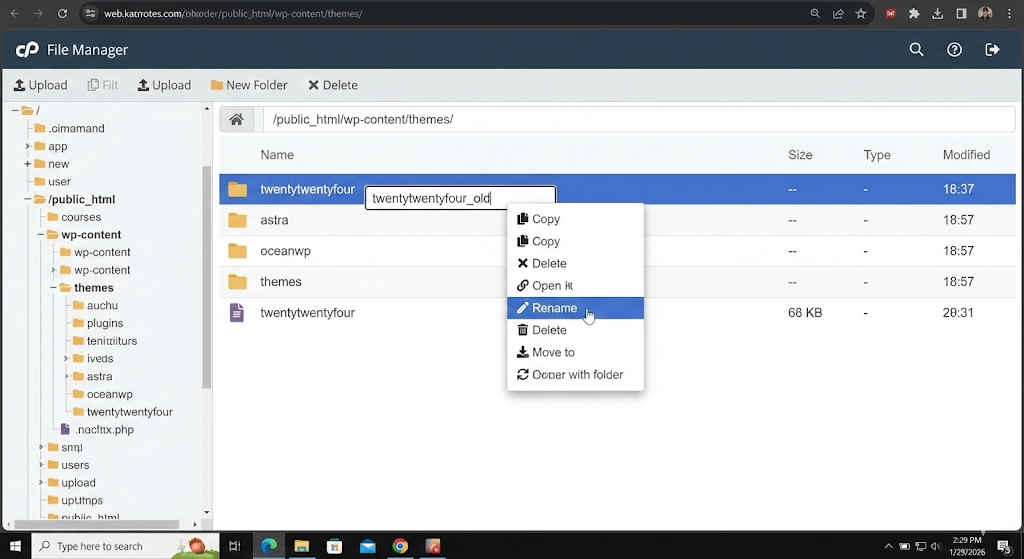
If disabling plugins didn’t work, your active theme might be broken.
- Navigate to
wp-content/themes/using your File Manager. - Find your active theme folder (e.g.,
astraordivi). - Rename it to something like
astra_broken. - WordPress will automatically search for a default theme (like Twenty Twenty-Four) to use instead.
- Reload your site. If it comes back, your premium theme needs to be reinstalled or updated.
How to Prevent This Issue in the Future
Once you have learned how to fix the WordPress critical error, you want to ensure it doesn’t return.
- Keep Backups: This is non-negotiable. Use a plugin like UpdraftPlus or your hosting provider’s backup tool. If an update breaks your site, you can restore a working version in minutes.
- Test Updates on a Staging Site: Never update major plugins or themes on your live site without testing. Many hosts offer a “Staging” environment where you can clone your site and test updates safely.
- Use Trusted Plugins: Stick to plugins with high ratings and regular updates from the WordPress repository. Avoid “nulled” (pirated) premium plugins, as they often contain bad code or malware.
- Manage PHP Versions: Check your hosting dashboard to ensure you are running a stable, supported version of PHP (currently PHP 8.0 or higher is recommended).
Frequently Asked Questions (FAQ)
Q: Can a critical error fix itself? A: No. A critical error is a server-side stop command. It will persist until the conflicting code is removed or the resource limit is increased.
Q: Will reinstalling WordPress fix the critical error? A: Sometimes, but it is a drastic measure. If the issue is a plugin (which is most likely), reinstalling the core software won’t help. Try the plugin troubleshooting steps first.
Q: I didn’t get the recovery email. What do I do? A: This happens if your site has trouble sending emails. Skip straight to Step 2 (Enable Debug Mode) or Step 4 (Disable Plugins via FTP) in this guide.
Q: Is “Critical Error” the same as the “White Screen of Death”? A: Yes. “Critical Error” is simply the modern, more user-friendly replacement for the old blank white screen. The underlying causes are identical.
Q: Does fixing this error require coding skills? A: Not necessarily. While editing wp-config.php involves code, you are simply copying and pasting lines. Most issues are resolved by renaming folders, which requires no coding knowledge.
Conclusion
Seeing the “There has been a critical error on this website” message is stressful, but it is rarely fatal for your business. It is almost always a small conflict between software components.
By following the steps to check your email, enable debugging, and isolate plugin conflicts, you can resolve the issue quickly. Remember, the key to handling WordPress errors is patience and a methodical approach. Start with the easiest fix (the email link) and work your way down.
If you found this guide helpful or if you are facing a different type of error, check out our other troubleshooting tutorials on wordpressissuefix.com.