Introduction
Seeing a “Not Secure” warning on your WordPress website can be alarming. For website owners using IONOS (formerly 1&1) hosting, setting up a secure connection is usually straightforward, but technical glitches can occur. If your padlock icon is missing or your site refuses to load over HTTPS, you are not alone.
This is a common issue faced by many beginners and small business owners. The problem often lies in the communication gap between the hosting provider’s security settings and the WordPress dashboard configuration. When these two don’t match, your site remains insecure, which can hurt your Google rankings and scare away visitors.
In this guide, we will walk you through exactly how to fix an ssl certificate between ionos and wordpress. We will cover everything from activating the certificate in your hosting dashboard to forcing HTTPS within your WordPress settings. These steps are safe, beginner-friendly, and designed to get your site secure again.
Let’s troubleshoot this issue and get that green padlock back on your browser bar.
Table of Contents
What Does “SSL Connection Error” Mean?
Before diving into the technical fixes, it is helpful to understand what is happening behind the scenes. SSL stands for Secure Sockets Layer. It is a technology that encrypts the data transferred between a user’s web browser and your website’s server.
When an SSL certificate is working correctly:
- Your URL starts with
https://instead ofhttp://. - A padlock icon appears next to your domain name in the browser address bar.
- Data (like credit card numbers or passwords) is encrypted and safe.
When there is a disconnect between IONOS and WordPress, the browser cannot verify the security of the website. As a result, browsers like Chrome or Safari will display a “Not Secure” warning. This does not necessarily mean your site has been hacked, but rather that the secure “handshake” between the server and the browser has failed.
Why Your IONOS SSL Might Not Be Working
There are several reasons why your SSL certificate might not be reflecting correctly on your WordPress site, even if you have purchased or activated it.
- Propagation Delay: If you just activated the SSL in IONOS, it can take anywhere from a few minutes to 48 hours to propagate globally.
- Certificate Not Assigned: You may have the SSL credit in your account, but it hasn’t been manually assigned to your specific domain.
- WordPress URL Mismatch: Your hosting has SSL ready, but WordPress is still told to load the site via the old
http://address. - Mixed Content: Your site loads securely, but specific images or scripts are still being pulled from insecure
httpsources, breaking the padlock. - Cache Issues: Your browser or a caching plugin is remembering the old, insecure version of the site.
Step-by-Step Fixes
Follow these methods in order. We start with the hosting side to ensure the foundation is correct before changing WordPress settings.
Step 1: Verify SSL Activation in the IONOS Dashboard
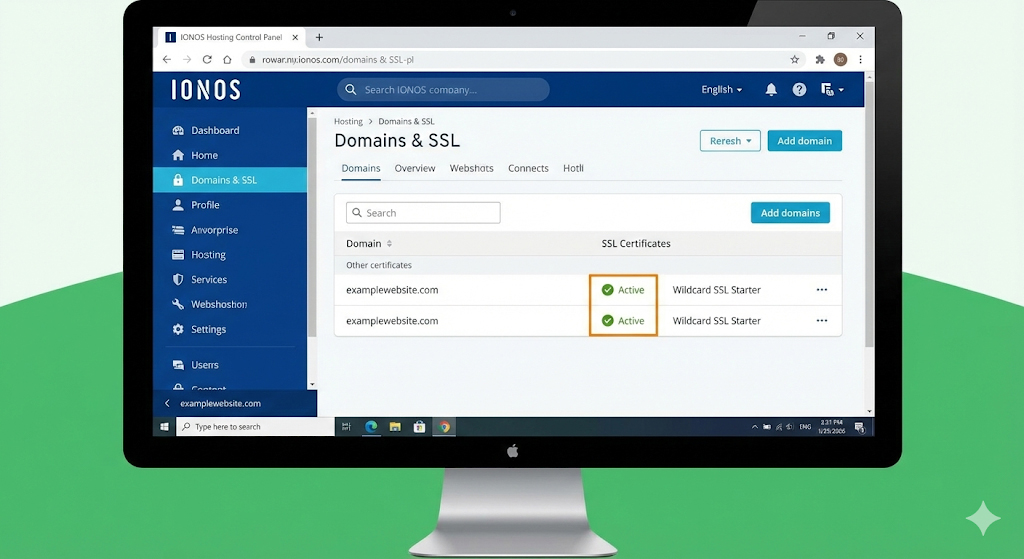
You cannot force WordPress to use HTTPS if the certificate isn’t active on the server level.
- Log in to your IONOS Control Panel.
- Navigate to the Domains & SSL section.
- Look for the SSL Certificates tab.
- Find your domain name in the list.
- Check the Status column.
- If it says Active, you are ready for Step 2.
- If it says Setting up, wait a few hours.
- If it says Available or isn’t listed, you need to click “Activate Now” or “Assign to Domain.”
Note: IONOS offers a free Wildcard SSL with many hosting packages. Ensure this is the one applied to your domain.
Step 2: Update WordPress General Settings
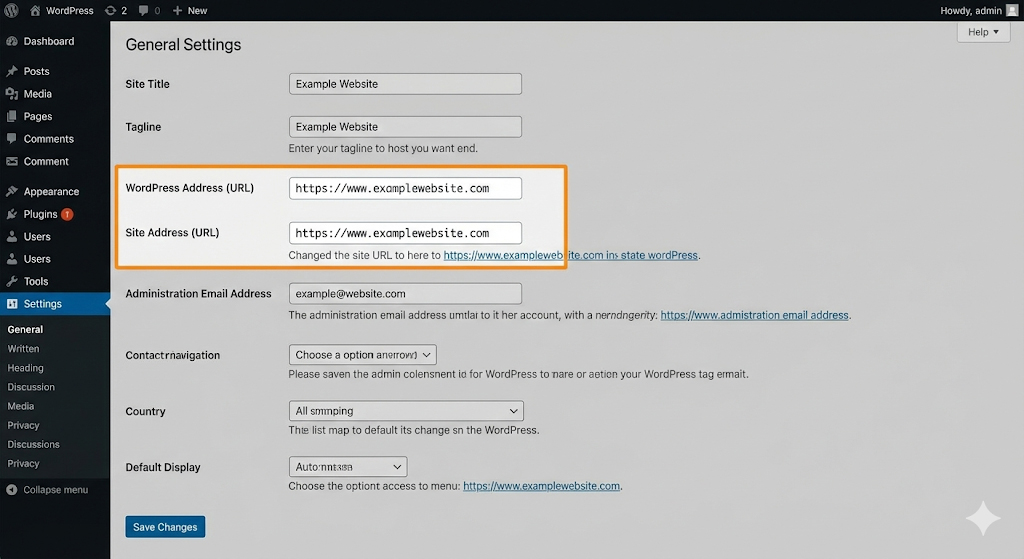
Once IONOS confirms the certificate is active, you must tell WordPress to use it.
- Log in to your WordPress Dashboard (
yourdomain.com/wp-admin). - Go to Settings > General in the left-hand menu.
- Look for two fields:
- WordPress Address (URL)
- Site Address (URL)
- Change the prefix from
http://tohttps://. - Scroll down and click Save Changes.
Warning: Once you click save, WordPress will log you out. This is normal. Simply log back in using your credentials. Your dashboard should now show the secure padlock.
Step 3: Force HTTPS Using a Plugin (The Easiest Method)
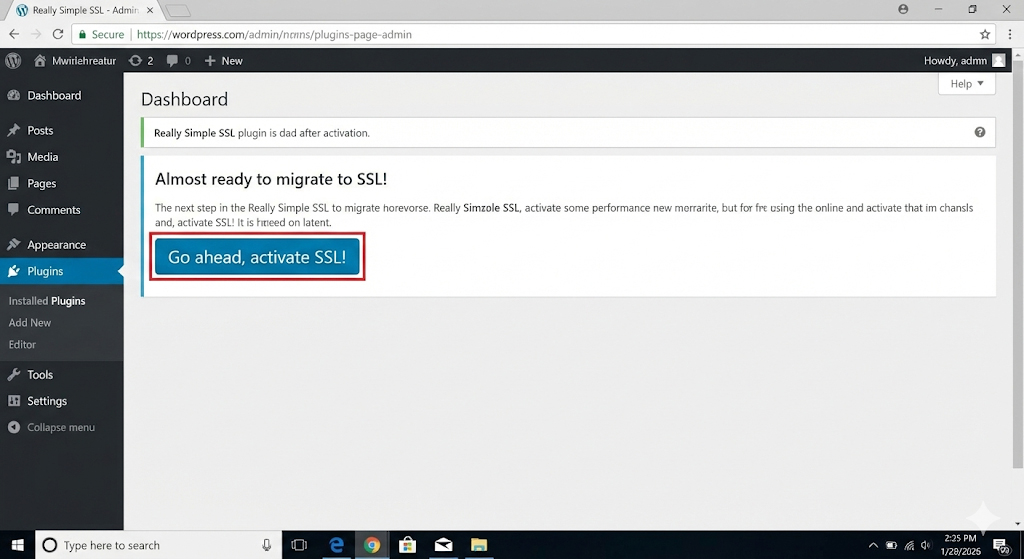
Sometimes, changing the settings isn’t enough to redirect all traffic. Beginners often find using a dedicated plugin to be the safest and fastest way to fix SSL issues between IONOS and WordPress.
We recommend using a plugin like Really Simple SSL.
- Go to Plugins > Add New.
- Search for “Really Simple SSL.”
- Click Install Now, then Activate.
- Once activated, you will see a prompt on your dashboard.
- Click the button that says “Activate SSL”.
The plugin automatically detects your active IONOS certificate and configures your website to use HTTPS for all incoming traffic. It handles the redirects for you, reducing the risk of errors.
Step 4: Fix “Mixed Content” Warnings
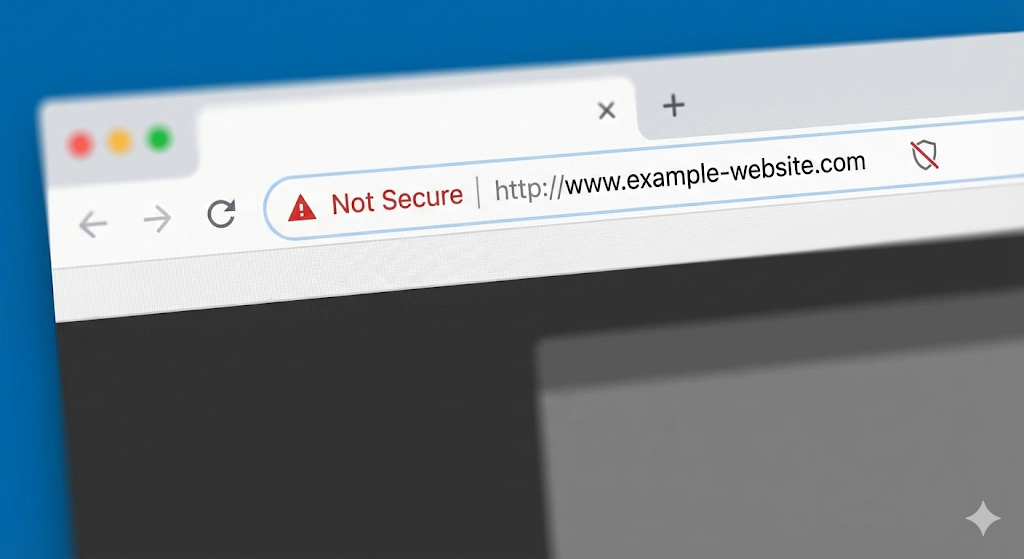
If you have followed the steps above but the padlock bar still doesn’t look completely green (or says “Partially Secure”), you likely have a Mixed Content issue.
This happens when your site is secure, but an image or a script on your homepage is hard-coded to load via http.
How to Fix Mixed Content:
- Install the Better Search Replace plugin.
- Go to Tools > Better Search Replace.
- In the “Search for” box, type your insecure URL:
http://yourdomain.com. - In the “Replace with” box, type your secure URL:
https://yourdomain.com. - Select all tables in the list.
- Check the box for “Run as dry run” first to see what will be changed.
- Uncheck the dry run box and click Run Search/Replace.
This will update your database to ensure every link and image loads securely.
Step 5: Manually Enforce SSL via .htaccess (Advanced)
If you prefer not to use plugins, you can set up a redirect at the server level. This is done by editing the .htaccess file. This file resides in your website’s root folder.
Note: Always backup your website before editing code files.
- Connect to your site using an FTP Client (like FileZilla) or use the Webspace Explorer in your IONOS dashboard.
- Locate the
.htaccessfile in your root directory (usually/public_html/or/clickandbuilds/). - Download a backup copy to your computer.
- Edit the file and add the following code at the very top:
Apache
<IfModule mod_rewrite.c>
RewriteEngine On
RewriteCond %{HTTPS} off
RewriteRule ^(.*)$ https://%{HTTP_HOST}%{REQUEST_URI} [L,R=301]
</IfModule>
- Save the file and upload it back to the server. This forces every visitor to the secure version of your site.
How to Fix SSL Issues If You Are Locked Out of WP Admin
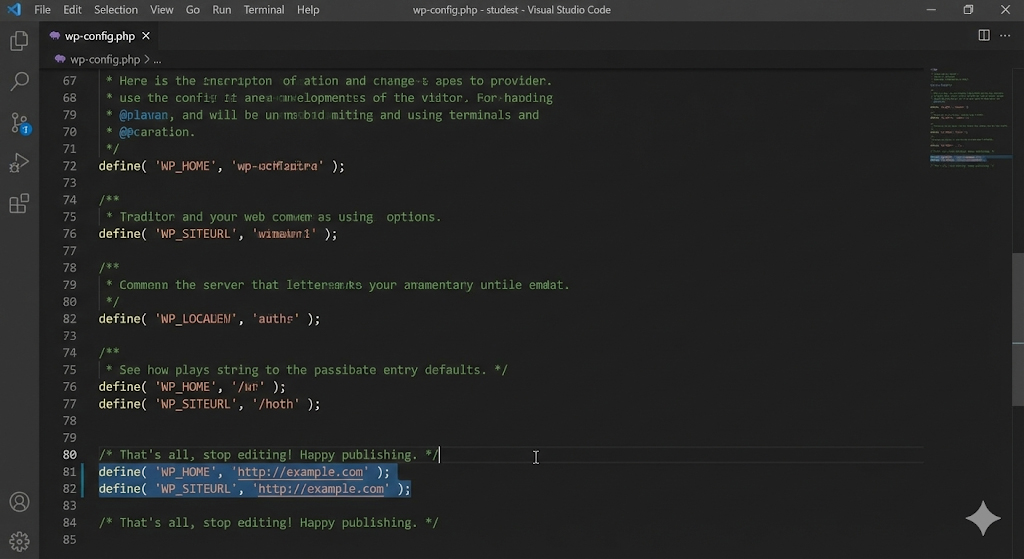
A common panic moment occurs when a user changes the URLs in “Settings > General” (Step 2) to HTTPS before the IONOS certificate is fully ready.
If you do this, your site may crash, and you won’t be able to access the admin page to change it back. Do not worry; this is fixable without technical support.
Method: Edit wp-config.php
- Log in to your IONOS hosting dashboard.
- Open the Webspace Explorer (File Manager) or use FTP.
- Locate the
wp-config.phpfile in your main folder. - Right-click to Edit.
- Add these two lines of code just above the line that says “That’s all, stop editing”:
PHP
define('WP_HOME', 'http://yourdomain.com');
define('WP_SITEURL', 'http://yourdomain.com');
(Make sure to use your actual domain name and use ‘http’ to revert the change).
- Save the file.
- Your site should now load. Once the SSL is confirmed active in IONOS, you can go back and change these to
httpsor remove the code lines and update via the dashboard.
How to Prevent This Issue in the Future
Once you have learned how to fix an SSL certificate between IONOS and WordPress, you want to ensure it stays fixed.
- Enable Auto-Renewal: In your IONOS dashboard, ensure your SSL certificate is set to auto-renew. Most free SSLs renew every 90 days automatically, but paid ones might require manual payment.
- Monitor Plugin Updates: Sometimes security plugins update and change settings. Review your SSL plugin settings after major updates.
- Check Media Libraries: When uploading new images, WordPress should automatically use HTTPS. However, if you copy-paste code or widgets from other sites, ensure the links are secure.
- Use Reliable Hosting: IONOS is robust, but ensure you are on a plan that supports the latest PHP versions and security protocols.
Frequently Asked Questions (FAQ)
Q: Is the SSL certificate from IONOS free? A: Yes, IONOS typically includes a free “Wildcard SSL Starter” certificate with most of their WordPress hosting packages. However, they also sell premium SSLs for businesses requiring higher validation levels.
Q: How long does it take for the SSL to work? A: After activation in the IONOS dashboard, it usually takes a few minutes. However, global propagation can take up to 24-48 hours. If it isn’t working immediately, clear your browser cache and try again in an hour.
Q: Can I use a third-party SSL (like Cloudflare) with IONOS? A: Yes, you can use Cloudflare’s Flexible or Full SSL with IONOS. However, managing the certificate directly through IONOS is often simpler for beginners as it reduces DNS configuration complexity.
Q: Why does my site say “Connection is not private”? A: This usually means the domain points to the server, but the certificate is either expired, not yet issued, or the domain name in the certificate doesn’t match the URL you are typing.
Q: Will switching to HTTPS affect my Google ranking? A: Yes, in a positive way. Google uses HTTPS as a ranking signal. A secure site is more likely to rank higher than an insecure one.
Q: Do I need to buy a plugin to fix SSL? A: No. The free version of plugins like Really Simple SSL is sufficient for most standard WordPress sites.
Conclusion
Dealing with security warnings can be stressful, but the connection between IONOS and WordPress is usually easy to repair. By verifying your certificate in the hosting panel and ensuring your WordPress settings match, you can resolve the “Not Secure” error quickly.
Remember, the goal is to protect your visitors and build trust. Whether you choose to use a plugin or edit your .htaccess file manually, the result is a safer, more professional website.
Always remember to back up your site before making major changes. If you are still stuck after trying these steps, reaching out to IONOS support is a good final option.
If you are facing other technical difficulties or plugin conflicts, feel free to explore more troubleshooting guides on wordpressissuefix.com.