Introduction
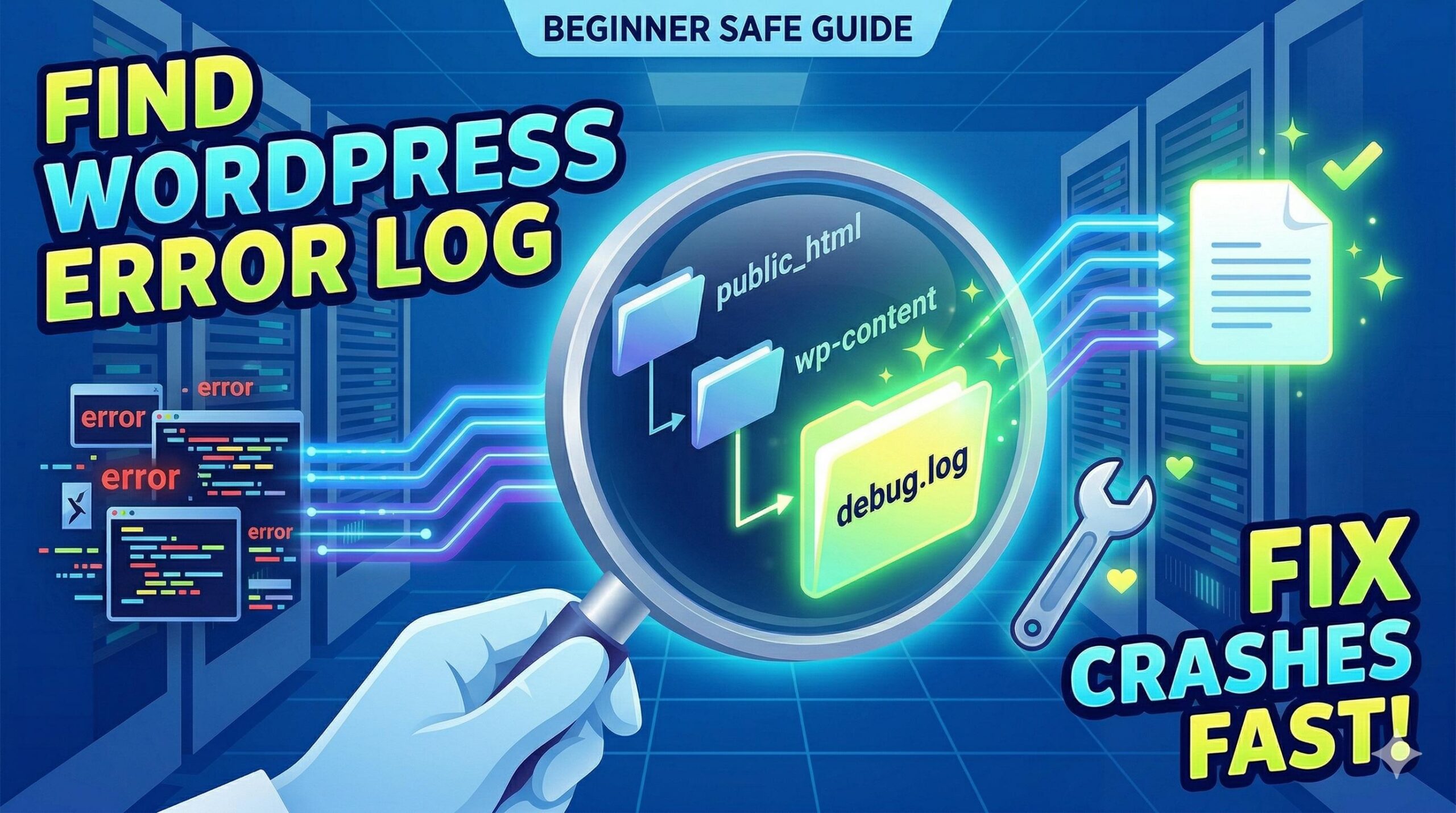
Are you staring at a broken website, and a support tutorial told you to check your wordpress error log location? You are in the right place.
The wordpress error log location is the specific file path on your web server where your site records behind-the-scenes PHP errors, plugin conflicts, and database warnings. You usually need to find this file when your site crashes (like seeing a critical error message) and you need to identify exactly which code caused the meltdown. WordPress hides these technical errors from your visitors and safely writes them into this log file instead.
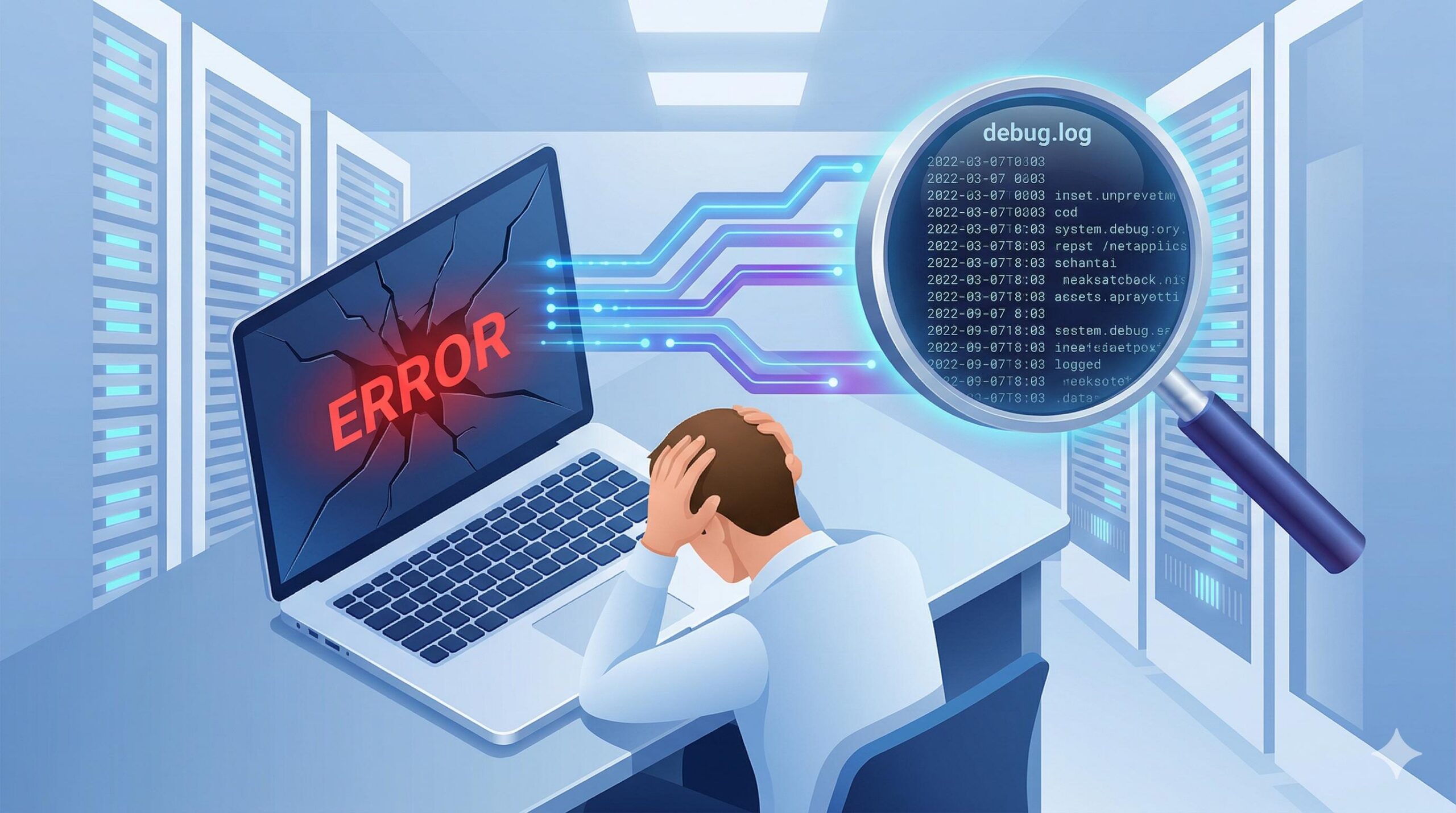
This guide is for educational troubleshooting purposes to help you safely find this file.
Table of Contents
Why You Might Not See the Log File Immediately
Before we navigate your server, it is important to understand a common beginner frustration. Many users frantically search their hosting files for the wordpress error log location, only to find nothing there.
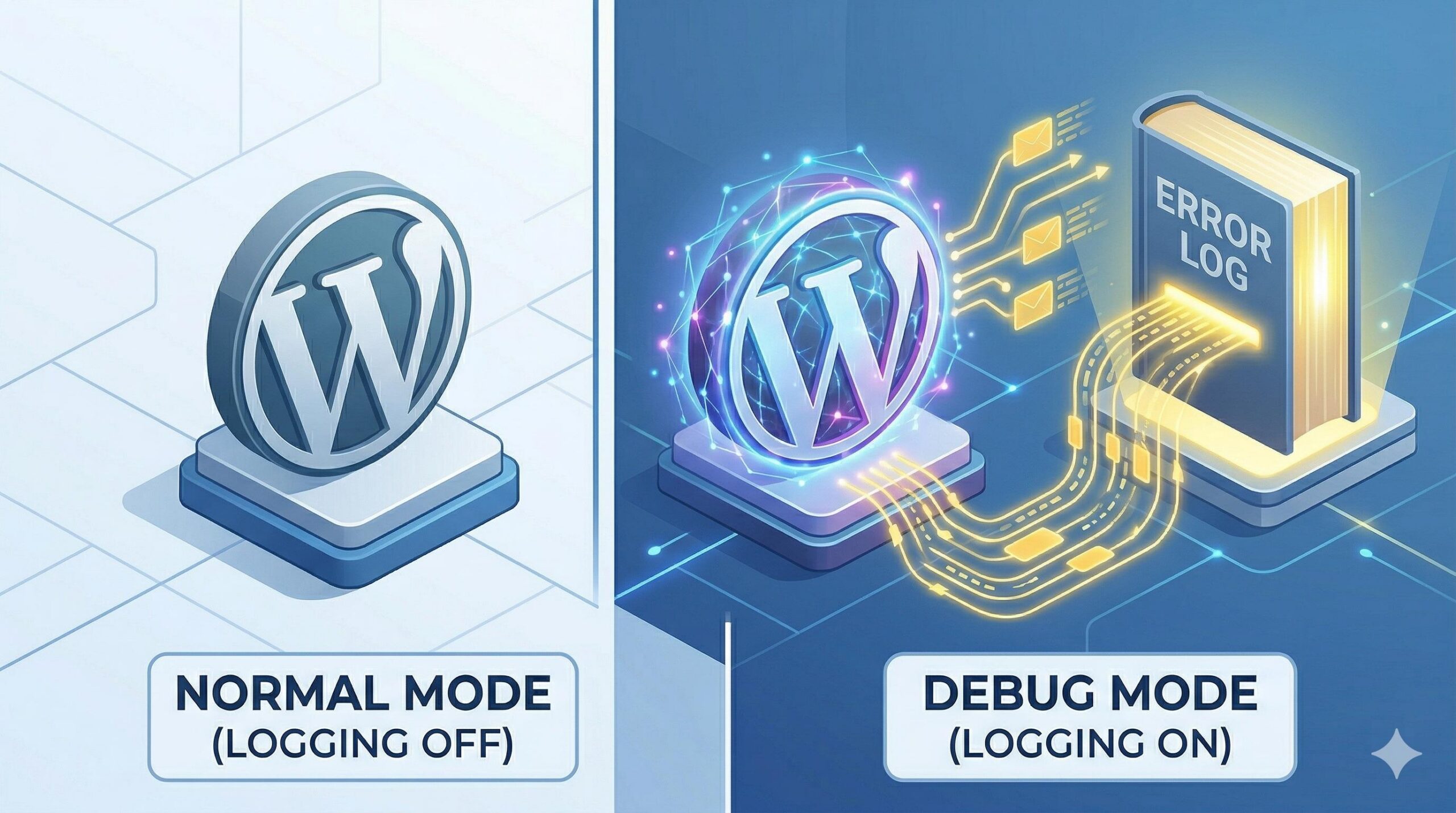
This happens because, by default, WordPress does not actively generate an error log file. To protect your server storage space and maintain security, the core software keeps its debugging features turned off. Before you can actually find the log at its designated location, you must instruct WordPress to start recording errors.
Step 1: Generating the File to Reveal the WordPress Error Log Location
To force WordPress to create the log file, you need to make a small, safe adjustment to your core configuration file.
- Log in to your web hosting dashboard.
- Open your File Manager (usually found in cPanel).
- Open the
public_htmlfolder (or the root folder where your site is installed). - Locate the file named
wp-config.php. - Right-click the file and select Edit.
- Scroll down until you find the line that says:
/* That's all, stop editing! Happy publishing. */ - Just above that line, you will likely see
define( 'WP_DEBUG', false );. Change the wordfalsetotrue. - Immediately below that line, paste the following code to specify the wordpress error log location and prevent errors from showing on your live site:
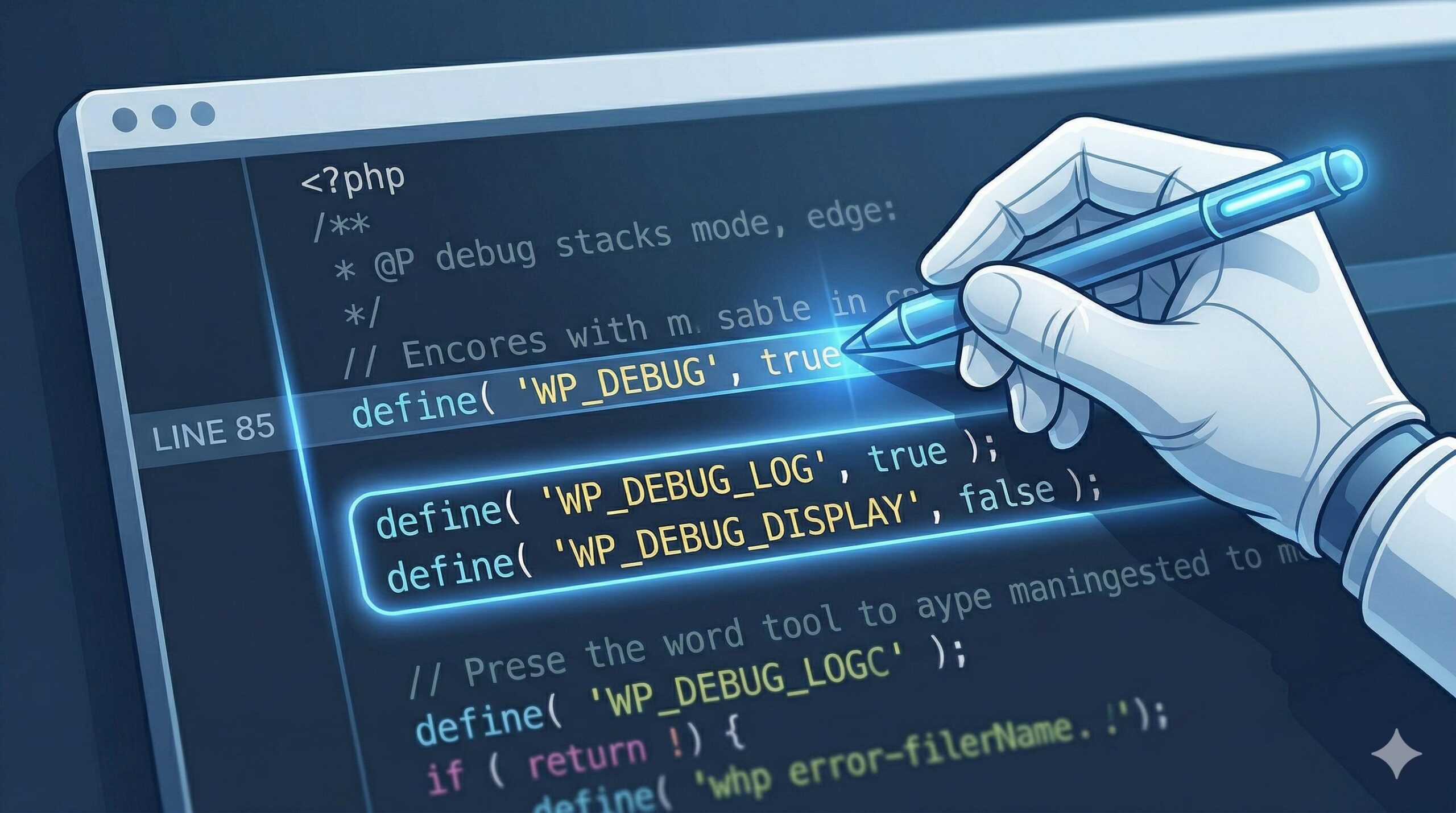
PHP
define( 'WP_DEBUG_LOG', true );
define( 'WP_DEBUG_DISPLAY', false );
Save your changes. Now, go back to your website and reload the broken page. This forces the site to trigger the error again, which will now be successfully recorded.
Step 2: Finding the Default WordPress Error Log Location via cPanel
Now that your site is actively logging errors, the file has been automatically generated. If you are using a standard shared hosting provider with a cPanel interface, finding the wordpress error log location takes just a few clicks.

- Return to your hosting File Manager.
- Make sure you are inside your root directory (typically
public_html). - Look for the folder named
wp-contentand double-click to open it. - Inside the
wp-contentfolder, look for a newly generated text file nameddebug.log.
This wp-content/debug.log path is the default wordpress error log location for 99% of standard WordPress installations. You can right-click this debug.log file and choose View or Edit to read the error messages inside.
Step 3: Accessing the WordPress Error Log Location via FTP
If you prefer using an FTP client like FileZilla instead of your host’s browser-based File Manager, the process of finding the wordpress error log location remains exactly the same.
- Open FileZilla and connect to your server using your FTP credentials.
- In the right-hand panel (Remote site), double-click your
public_htmlfolder. - Double-click the
wp-contentdirectory. - Scroll through the files until you locate
debug.log.
Right-click the file, download it to your local computer, and open it with a simple text editor like Notepad (Windows) or TextEdit (Mac) to begin your troubleshooting.
Step 4: Alternative WordPress Error Log Location Set by Managed Hosts
While wp-content/debug.log is the standard, some premium Managed WordPress hosting providers intentionally change the wordpress error log location for enhanced server security.
If you use a managed host, you will not find the debug.log file in your wp-content folder. Instead, these hosts extract the errors and display them safely inside their own custom dashboards.
To find the alternative wordpress error log location on a managed host:
- Log directly into your hosting provider’s portal (not your WordPress dashboard).
- Select your specific website environment.
- Look for a menu tab labeled Logs, Error Logs, or Analytics.
- Here, you will find a direct feed of your PHP errors, bypassing the need to search through server folders entirely.
What to Do Once You Find the File
Once you have successfully navigated to the wordpress error log location and opened the debug.log file, you will likely see a wall of text. Do not be intimidated.
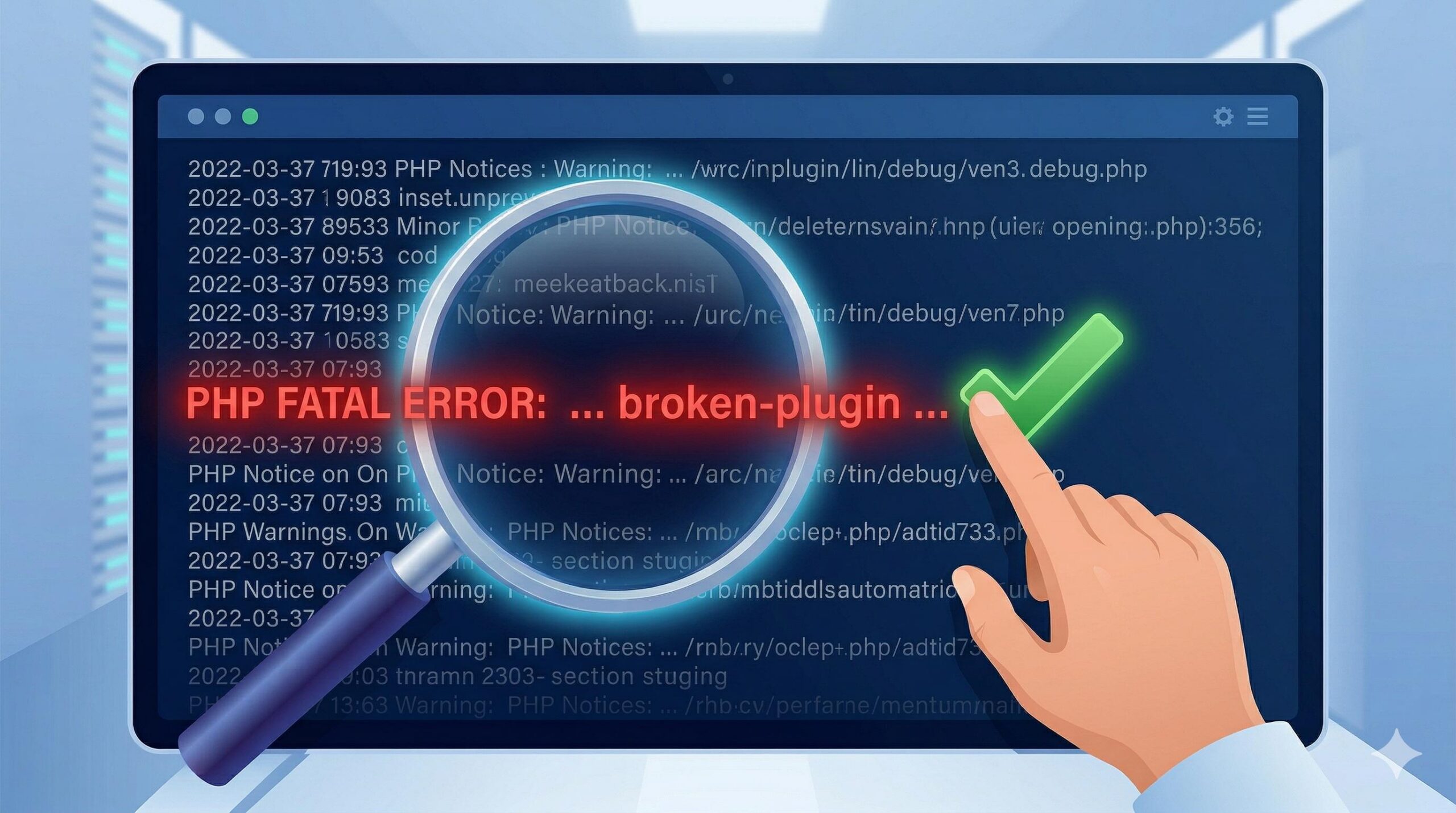
Scroll to the very bottom of the document to find the most recent errors. You are looking specifically for lines that begin with “PHP Fatal error” or “PHP Parse error.” Read the file path attached to that fatal error. It will usually point directly to a specific plugin (e.g., wp-content/plugins/broken-plugin-name/) or your active theme. Once you identify the culprit causing the crash, you can safely navigate to your plugins folder, rename the problematic plugin’s folder to deactivate it, and restore your website’s functionality.
How to Find and Read the Server Error Log in WordPress
Frequently Asked Questions (FAQ)
Why is my wordpress error log location empty? If you navigate to the correct folder but the debug.log file is completely empty, it means your website has not experienced any PHP errors since you turned on the debugging feature. You must recreate the error (by visiting the broken page on your site) for the server to write the data into the log.
Does finding the error log automatically fix my website? No. The error log is simply a diagnostic tool, like an X-ray. Finding the wordpress error log location allows you to read what is causing the crash (usually a faulty plugin or theme), but you still have to manually deactivate or fix the broken code to restore your site.
Is it safe to delete the debug.log file? Yes. Once you have resolved your website issues, you can safely delete the debug.log file from your server. In fact, it is recommended to delete it, as error logs can grow incredibly large over time and consume valuable server storage space.
Can I view the error log directly from my WordPress dashboard? By default, WordPress does not have a built-in dashboard viewer for the error log. However, if you are locked out of your File Manager, you can temporarily install a free plugin like “Error Log Monitor.” This plugin fetches the data from your wordpress error log location and displays it in a dashboard widget.
Conclusion
Knowing exactly how to find your wordpress error log location transforms you from a panicked website owner into a capable administrator. Remember that the log file does not exist until you activate the WP_DEBUG_LOG function in your configuration file. Once activated, the default wp-content/debug.log file will serve as your best diagnostic tool. Always remember to turn off the debug mode (by changing true back to false in your wp-config file) once your troubleshooting is complete to keep your server running lightly and securely.