Introduction
Are your contact forms, password resets, or store receipts failing to send? You likely need to check your wordpress email error log.
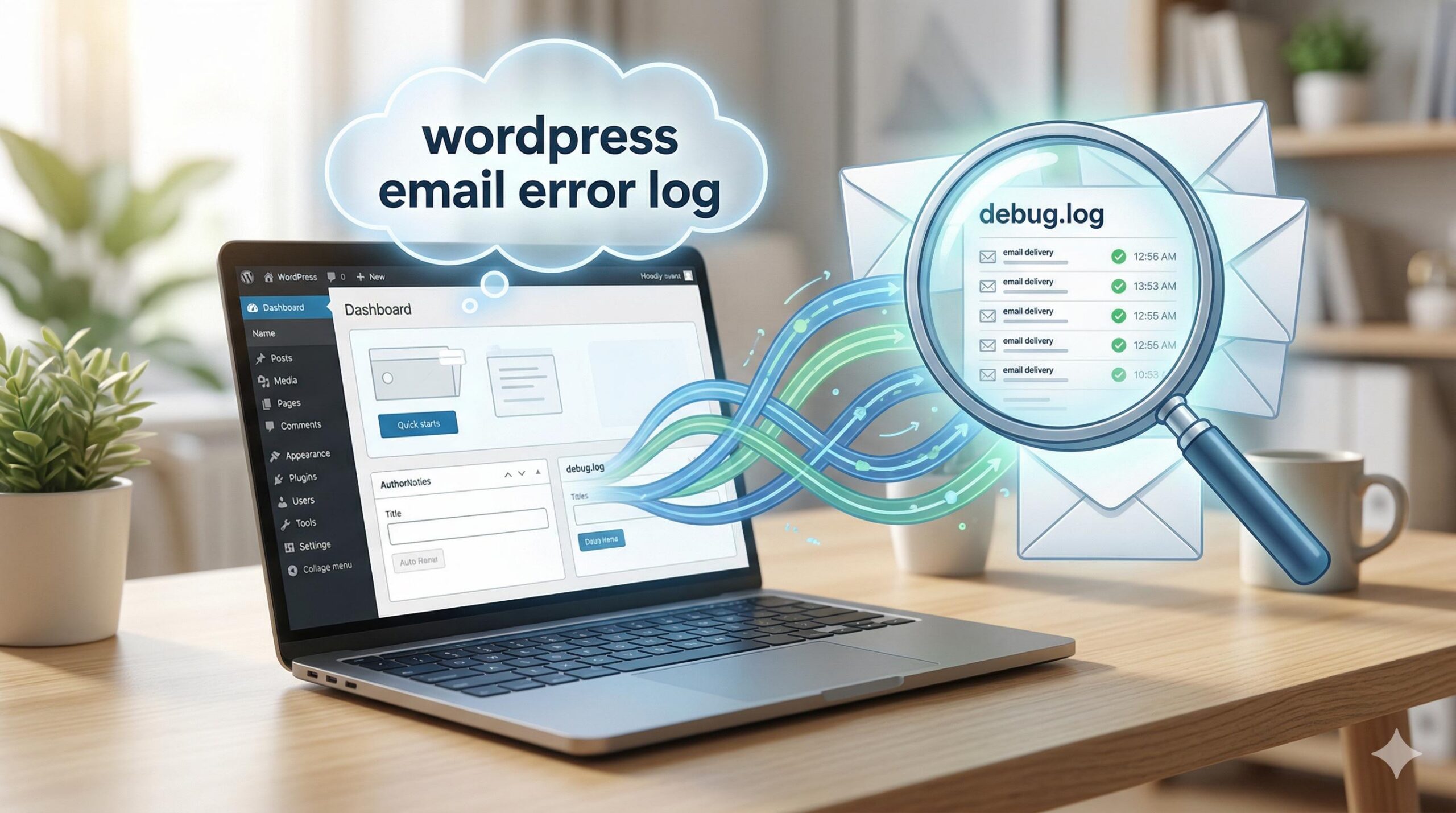
A wordpress email error log is a specific diagnostic record capturing the exact technical reasons why your website fails to deliver outbound messages. Site administrators typically encounter this log inside a dedicated SMTP plugin dashboard when actively investigating broken email functionality. Why does this need to be checked? Out of the box, WordPress sends emails using a basic PHP function that fails silently. Meaning, without an active log, you are left completely blind as to why your important emails bounce or vanish.
This guide is for educational troubleshooting purposes to help you safely uncover, read, and resolve these delivery errors.
Table of Contents
Why Default WordPress Doesn’t Show Email Errors
Before you go digging through your server files, it is crucial to understand a common beginner frustration. Many site owners frantically search their hosting control panel (like cPanel) for a native wordpress email error log, only to find absolutely nothing.
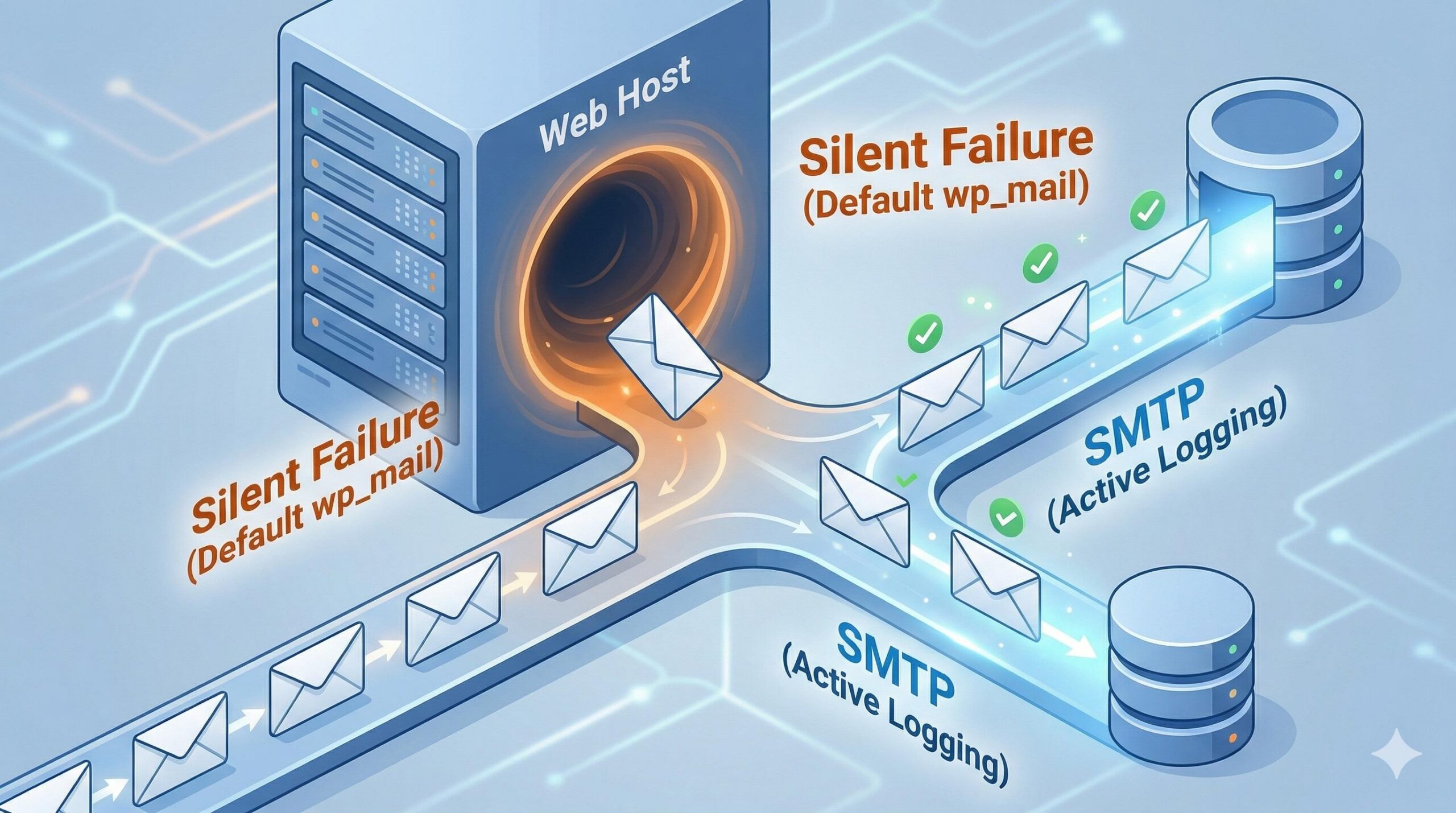
Unlike standard website code crashes (which are automatically written to a standard server debug.log file), WordPress does not natively track failed email deliveries. It uses a default background script called wp_mail(). If your web hosting provider blocks this function—which many budget hosts do to prevent server spam and protect their IP reputation—WordPress simply drops the email into the void without recording a single error message or alerting you.
To actually see and read a wordpress email error log, you must take control of your email routing by installing a dedicated logging tool.
Step 1: How to Generate Your WordPress Email Error Log
If you are currently facing email issues and do not have a log to look at, forcing the system to generate one is your very first troubleshooting step. You will do this using a safe, standard SMTP (Simple Mail Transfer Protocol) plugin.
- Log in to your WordPress Dashboard and navigate to Plugins > Add New.
- Search for a reputable SMTP plugin. Popular, beginner-friendly options include WP Mail SMTP, FluentSMTP, or Post SMTP.
- Install and activate your chosen plugin.
- Navigate to the new plugin’s settings menu and look for a tab labeled Email Log or Logging.
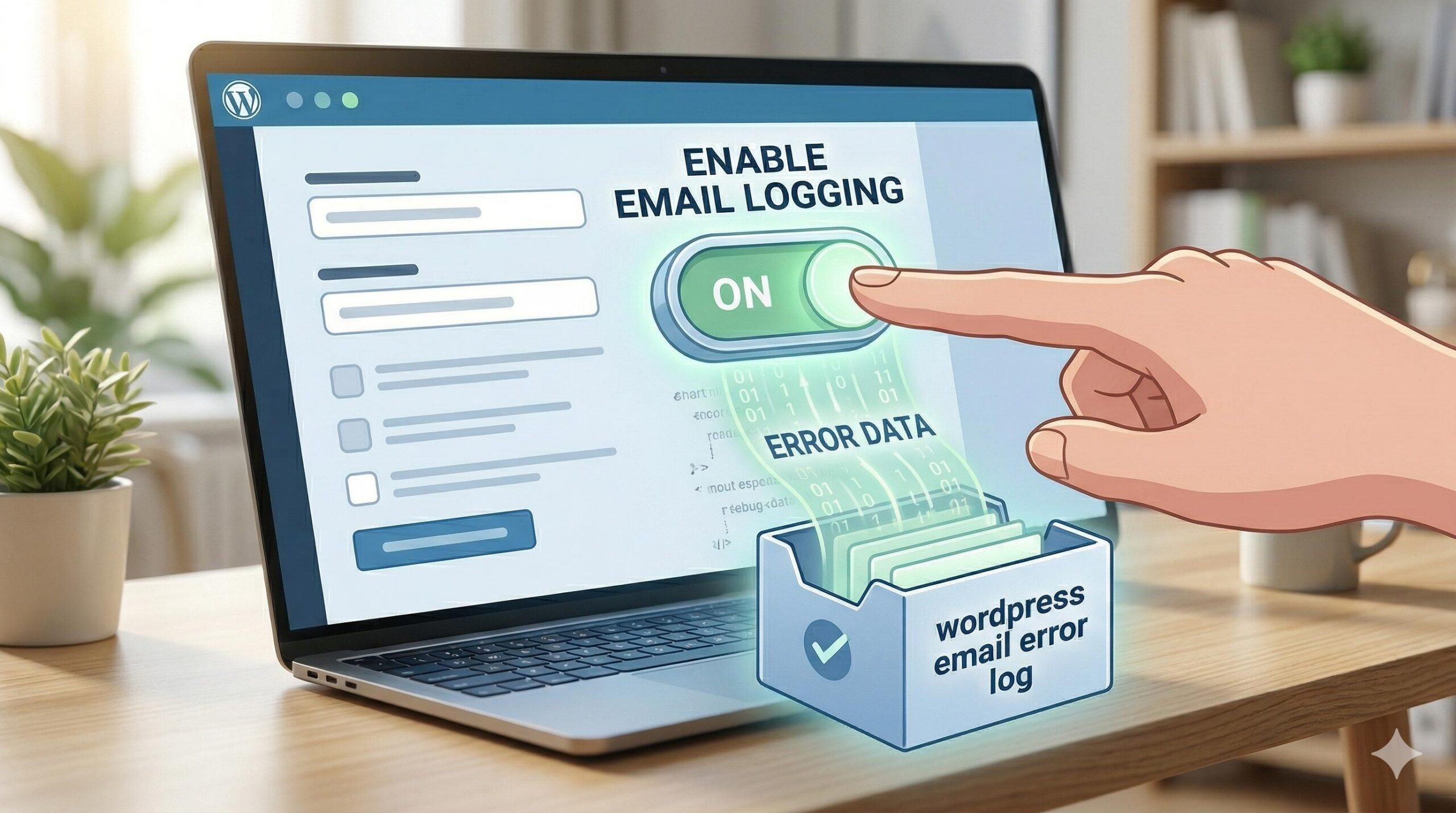
- Check the box to Enable Email Log. Specifically, ensure that the option to “Log Errors” or “Log Failed Emails” is checked so it captures the data you need.
- Save your settings.
Once this setting is saved, go to your live website and deliberately trigger an email. For example, fill out and submit a test entry to your own contact form, or request a password reset. Because the logging feature is now actively watching, the plugin will capture the exact point of technical failure.
Step 2: Locating the Log in Your Dashboard
Once you have forced the site to log the error, you need to know exactly where to find the data. In almost all modern SMTP plugins, the wordpress email error log is conveniently located directly inside your WordPress dashboard. This user-friendly design keeps you from having to dig through complex, intimidating server files.
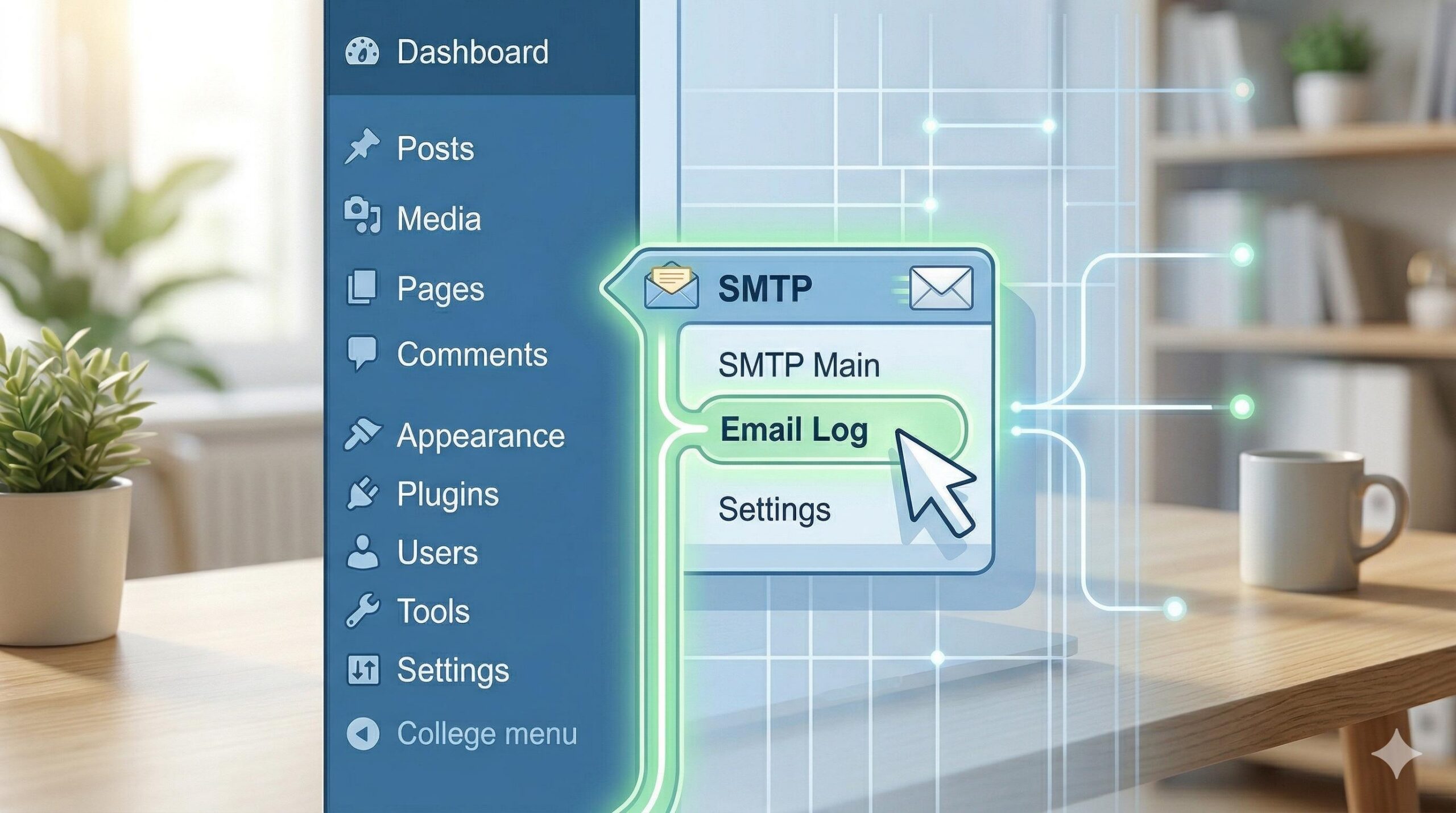
- If using WP Mail SMTP: Navigate to WP Mail SMTP > Email Log in your left-hand menu. If an email failed to send, you will see a red dot or a clear “Failed” status next to it. Click “View Log” on that specific entry to open the transcript.
- If using FluentSMTP: Go to Settings > FluentSMTP and click on the “Email Logs” tab. Failed attempts will be highlighted in red.
- If using Post SMTP: Navigate to Post SMTP > Email Log to view the specific server conversation and error codes.
Step 3: Diagnosing Common Issues in Your WordPress Email Error Log
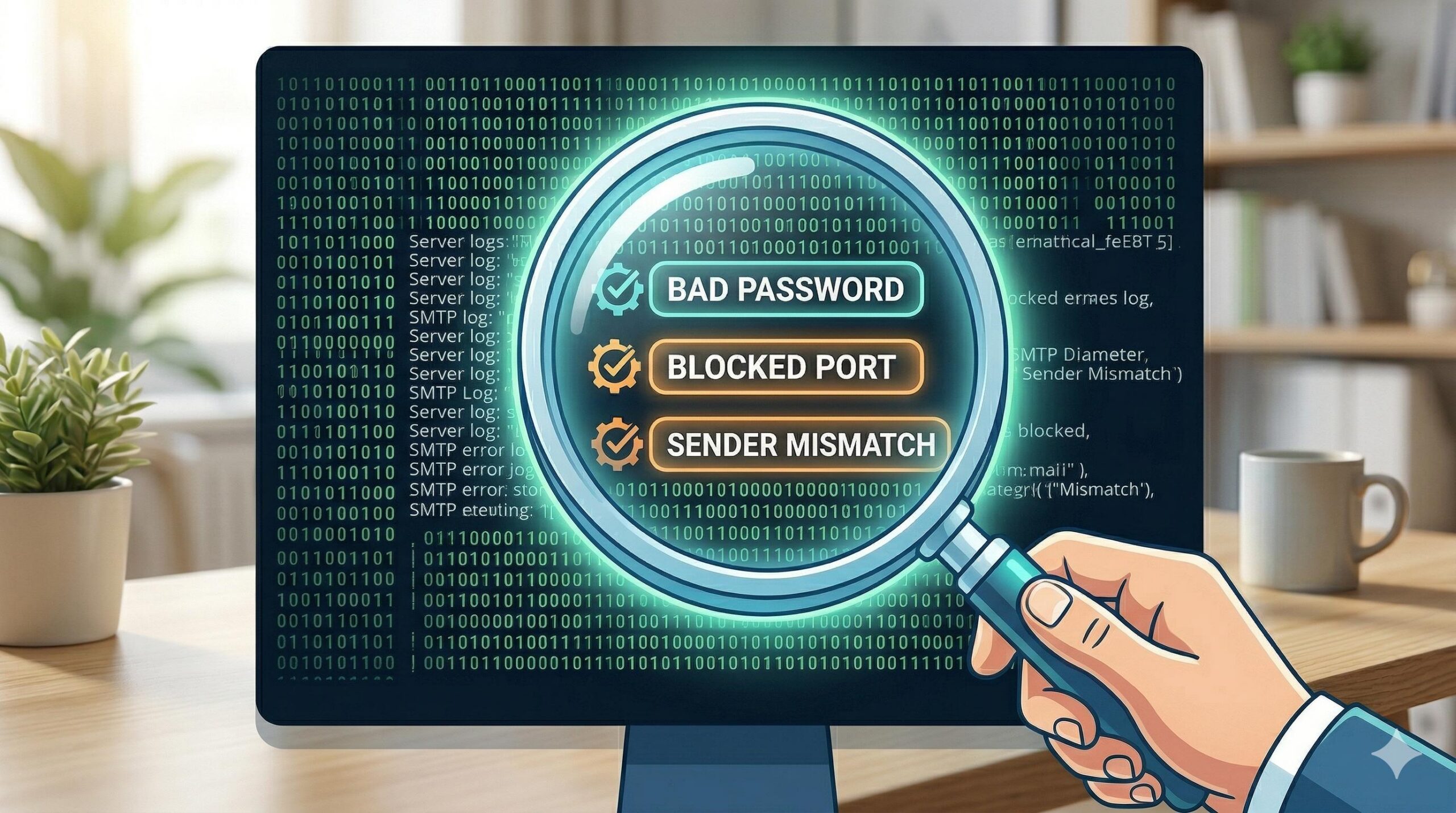
When you open your wordpress email error log, you will see a transcript of the automated conversation between your website and your email server. It might look highly technical and filled with code, but you only need to scan for a few specific error phrases.
Here are the most common problems revealed by the log and exactly what they mean:
Error: “SMTP Connect() failed” or “Connection Refused”
If your wordpress email error log displays a connection failure, it means your website cannot even reach the mail server. This is almost always caused by a blocked port. Web hosting companies frequently block standard, unsecured email ports (like port 25) to prevent automated spam scripts from abusing their servers.
- The Fix: Check your SMTP plugin settings and change the port number. If you are currently using port 25, switch to port 465 (if using SSL encryption) or port 587 (if using TLS encryption).
Error: “Authentication Failed” or “Invalid Credentials”
This is the most straightforward issue you will find in a wordpress email error log. It means your website successfully reached the mail server, but the server rejected the login attempt.
- The Fix: Double-check the email address and password you typed into your SMTP plugin. Note: If you are using Google Workspace or a free Gmail account to route your emails, you cannot use your normal account password. Due to modern Two-Factor Authentication rules, you must generate a special “App Password” within your Google account security settings and paste that into the WordPress plugin instead.
Error: “Sender Address Rejected: Not Owned By User”
If you see this warning in your wordpress email error log, there is a mismatch between the email account you logged in with and the “From” address your website is trying to use. Mail servers strictly enforce security rules to prevent phishing and spoofing.
- The Fix: Ensure the “From Email” address set in your WordPress general settings (and inside your specific contact form plugin’s settings) perfectly matches the email address you used to authenticate the SMTP plugin.
How to Find the Exact WordPress Error Log Location for Troubleshooting
Frequently Asked Questions (FAQ)
Why is my wordpress email error log completely empty? If you are using an SMTP plugin but the log remains empty after testing your forms, you likely have the specific logging feature disabled in the plugin’s settings. Alternatively, if a user clicks “submit” on a contact form and the log is empty, the contact form plugin itself might be broken, meaning it is failing to even attempt sending the data to the WordPress mail system.
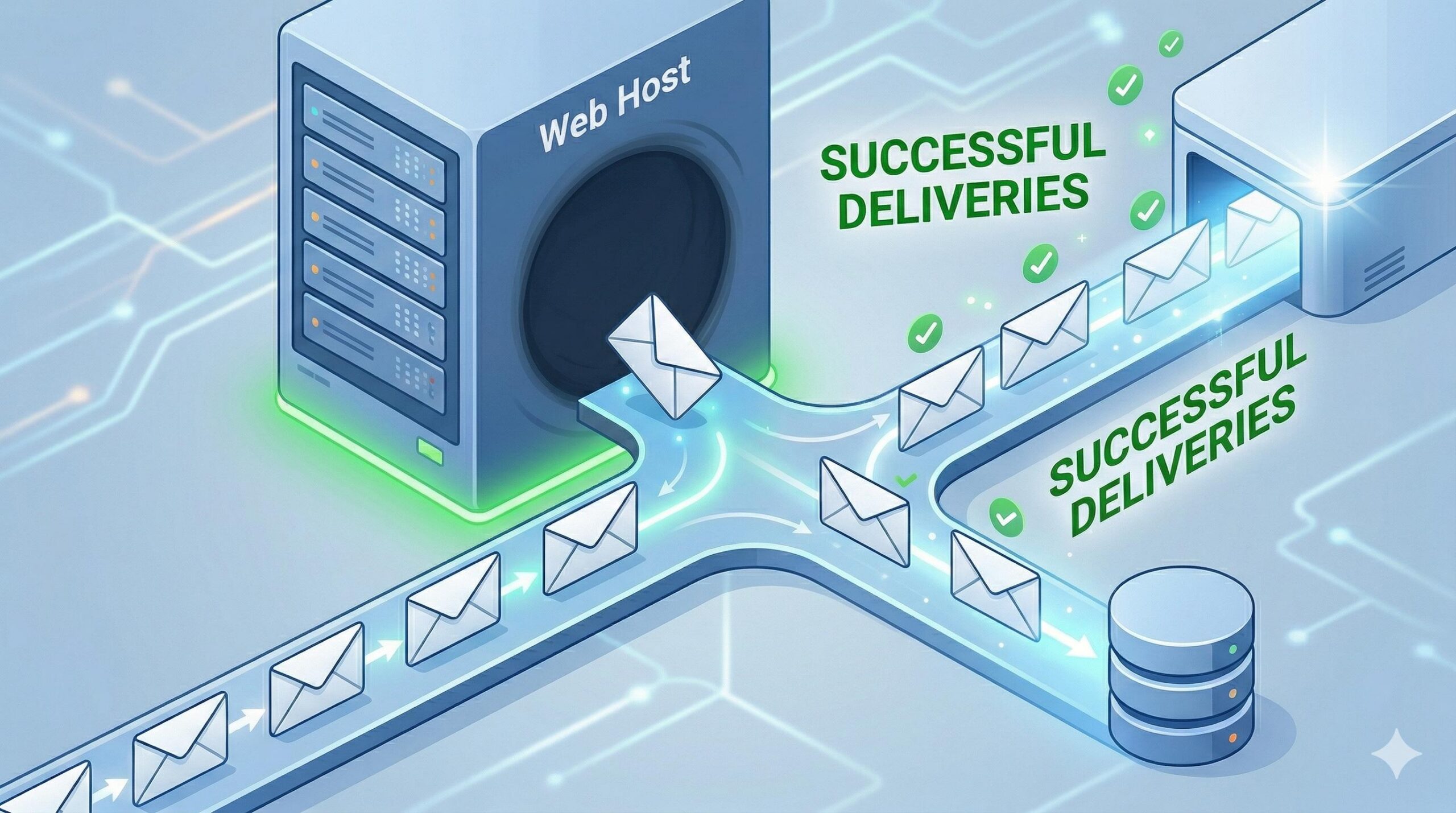
Does fixing the error in the log guarantee my emails won’t go to the spam folder? No. The wordpress email error log only tells you if the email successfully left your website’s server. Once the email is accepted by the receiving server (like a user’s Yahoo or Gmail inbox), the log considers it a success. If it lands in a spam folder after that, you need to optimize your domain authentication records (like SPF, DKIM, and DMARC) with your domain registrar.
Can I access the log via cPanel or FTP instead of the dashboard? Generally, no. Because most SMTP plugins store their logs cleanly in the WordPress MySQL database (rather than generating a raw text file on the server), the easiest and safest way to view your wordpress email error log is directly through the WordPress dashboard interface.
Will keeping an email log slow down my WordPress website? It can if left unchecked. If your site sends hundreds of emails a day (like WooCommerce receipts), the log can bloat your database over time. To prevent this, go into your SMTP plugin settings and configure the log to automatically delete records older than 7 or 14 days. This keeps your site fast while preserving recent troubleshooting data.
Conclusion
Troubleshooting broken contact forms and missing notifications does not have to be a guessing game. By understanding that default WordPress hides these failures, you can take proactive steps to reveal them. Setting up an SMTP plugin to generate a reliable wordpress email error log is the single most effective way to identify blocked ports, bad passwords, and sender mismatches. Once you have diagnosed and fixed the error using the log, leave your SMTP plugin active. It will ensure your website’s emails continue to reach your users’ inboxes safely and reliably moving forward.