Introduction
Few things are more frustrating for a website owner than seeing a security warning instead of their homepage. If you have encountered the err_ssl_protocol_error, you are not alone. This error indicates that there is a breakdown in the secure communication between a user’s browser and your web server. It can suddenly block access to your site, potentially damaging your search engine rankings and scaring away visitors who fear their data is at risk.
As a website administrator, encountering this issue is a common part of managing a digital presence. This guide is based on common WordPress issues faced by site owners worldwide and is designed to help you navigate the technical hurdles of Secure Sockets Layer (SSL) configurations. Whether the problem stems from a local browser setting or a server-side misconfiguration, we will walk you through the most effective solutions. Our goal is to provide a calm, structured approach to troubleshooting so you can regain your site’s accessibility and maintain a professional environment for your audience.
Table of Contents
What Does “WordPress Site Not Loading” Mean?
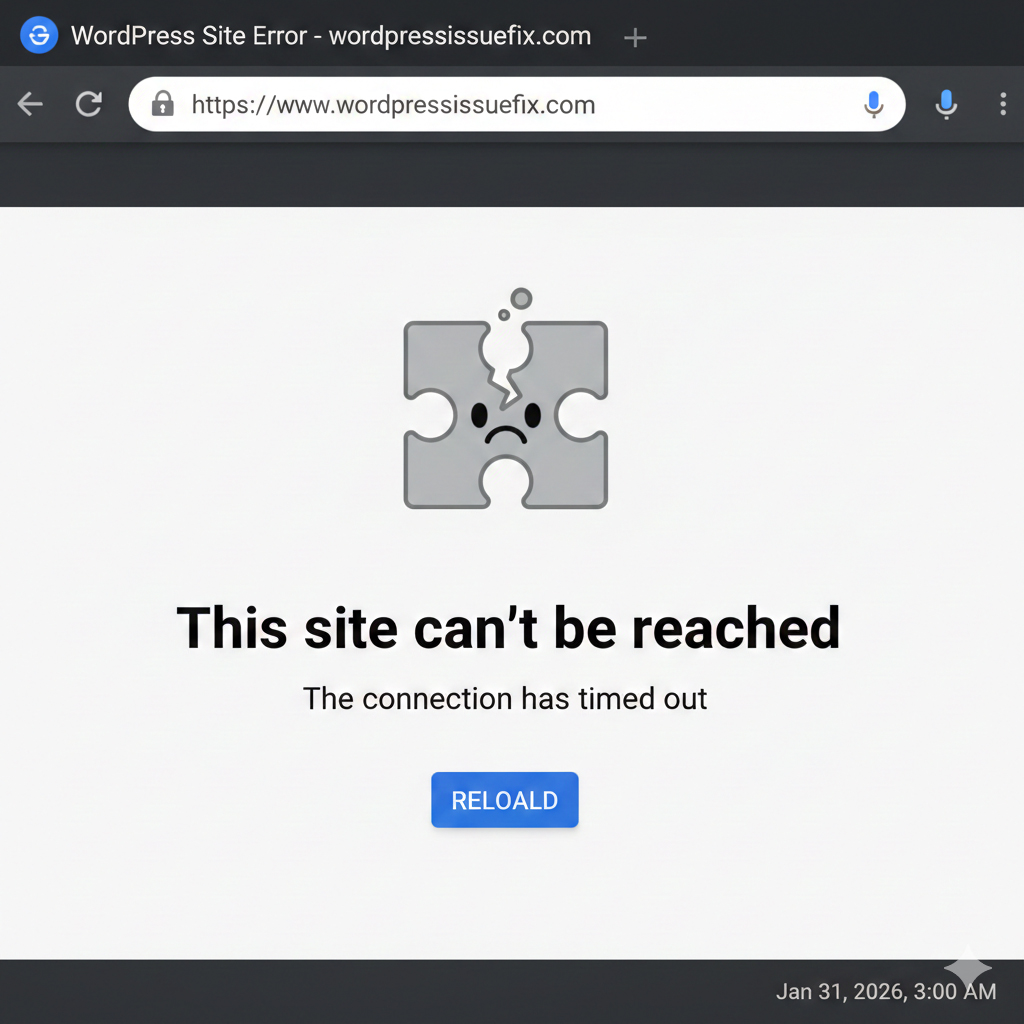
When we say a WordPress site is “not loading,” it generally refers to a state where the browser cannot render the website’s content. This manifest in several ways:
- The Blank Page: Also known as the White Screen of Death (WSoD), where no information is displayed at all.
- The Loading Loop: The browser attempts to connect indefinitely without ever reaching the server.
- Protocol Errors: Errors like err_ssl_protocol_error specifically mean the “handshake” between the visitor and the server failed.
- Browser Warnings: Chrome, Firefox, or Safari may display a “Your connection is not private” message, preventing users from entering the site unless they click through advanced warnings.
In simple terms, the “bridge” that connects your website files to the visitor’s screen is broken.
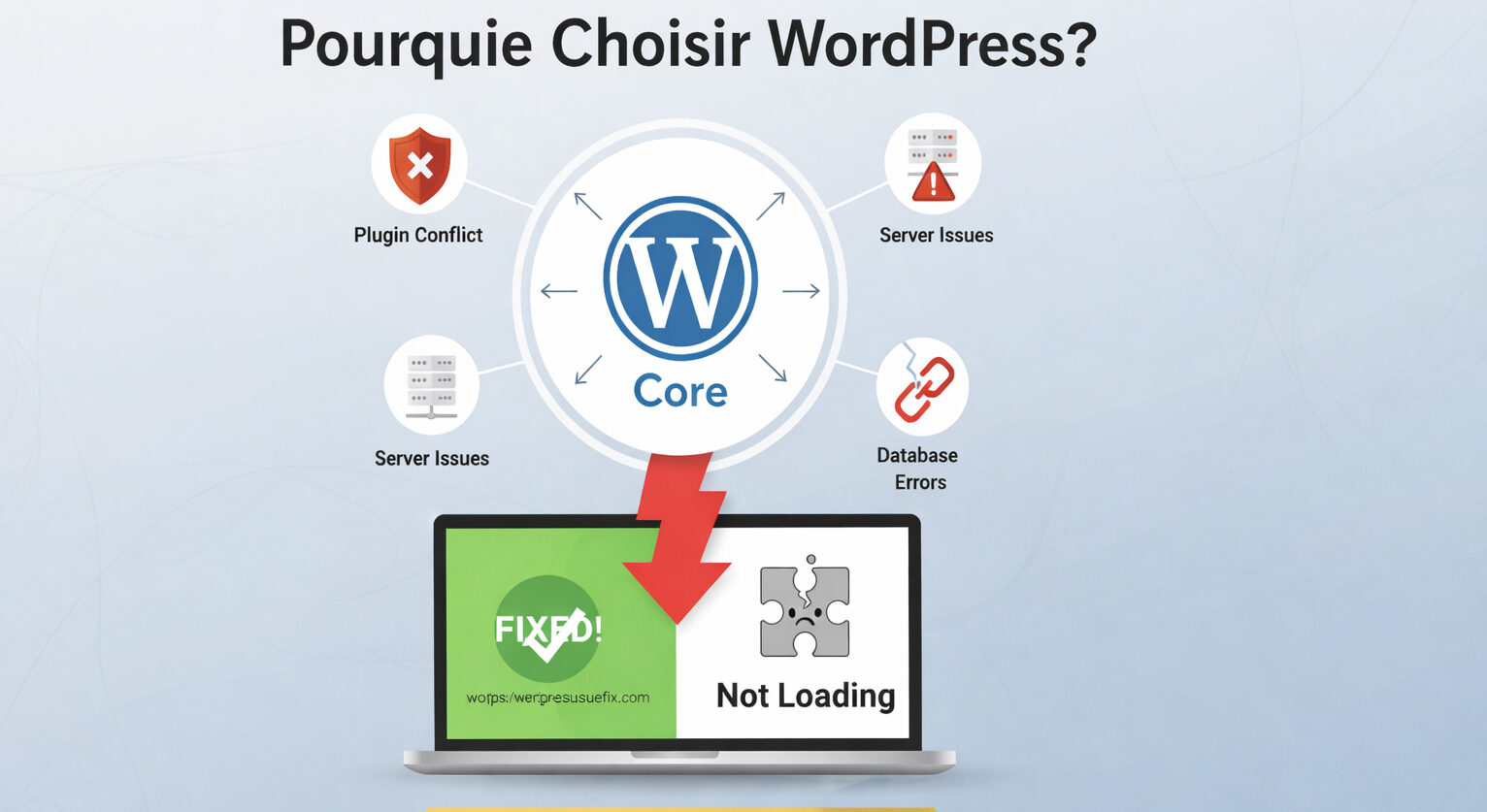
Common Reasons Why WordPress Is Not Loading
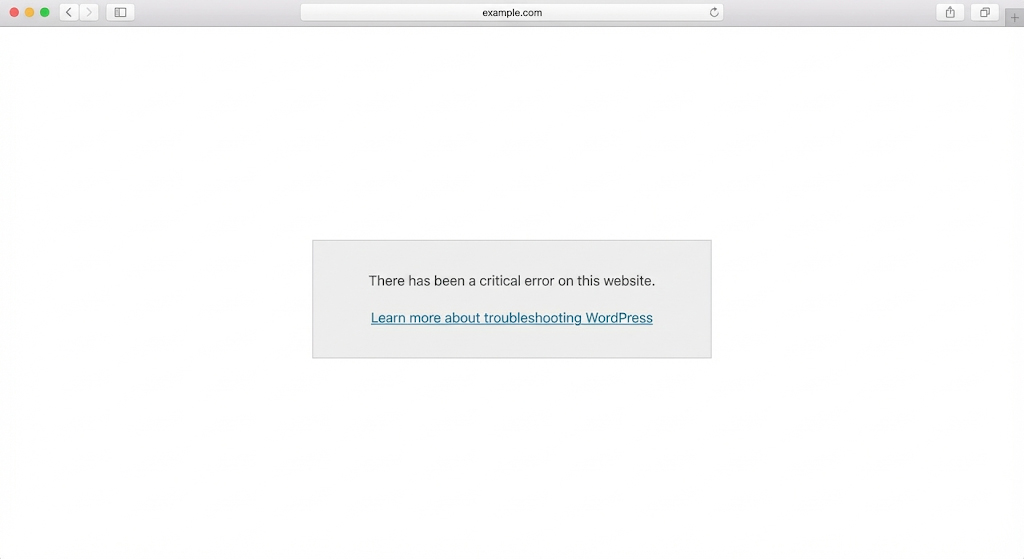
Before diving into specific SSL fixes, it is helpful to understand the broader landscape of why WordPress sites fail to load.
- Hosting Issues: Your server might be down, or the hosting provider might be undergoing maintenance.
- Plugin Conflicts: A recently updated or poorly coded plugin can interfere with site scripts.
- Theme Errors: If your theme files are corrupted or incompatible with a new version of WordPress, the site may crash.
- PHP Memory Limits: If a script requires more memory than the server allows, the site will stop responding.
- SSL / HTTPS Issues: This is the primary cause of the err_ssl_protocol_error. It happens when the SSL certificate is expired, missing, or improperly configured.
- Local System Issues: Incorrect date and time settings on your computer or a cluttered browser cache can trick your system into thinking a site is insecure.
Step-by-Step Fixes (MOST IMPORTANT)
1. Verify Your System Date and Time
One of the most common—yet overlooked—causes of the err_ssl_protocol_error is an incorrect date and time on your local computer. SSL certificates have a specific validity period; if your computer thinks it is 2015 or 2030, it will view the certificate as invalid.
- The Fix: Check your taskbar (Windows) or menu bar (Mac). Ensure the time is set to “Set time automatically.”
- Why it works: It aligns your local clock with the global servers, allowing the SSL validation check to pass.
2. Clear Your Browser Cache and SSL State
Browsers store versions of websites to load them faster. If the browser cached a faulty SSL configuration, it might keep showing the error even after you have fixed it on the server.
- The Fix: Go to your browser settings and clear “Cookies and other site data.” In Windows, you can also go to “Internet Options” in the Control Panel, select the “Content” tab, and click “Clear SSL State.”
- Why it works: It forces the browser to initiate a completely new connection attempt with the server.
3. Check for Plugin Conflicts
Sometimes, security plugins or “Really Simple SSL” configurations can conflict with your server’s settings.
- The Fix: Log in to your WordPress dashboard. Navigate to Plugins and deactivate your security or SSL-related plugins one by one.
- Warning: Always ensure you have a fresh backup before deactivating essential security software.
4. Update Your PHP Version
Running an outdated version of PHP can lead to compatibility issues with modern SSL protocols (like TLS 1.3).
- The Fix: Access your hosting control panel (cPanel or similar) and look for “Select PHP Version.” Ensure you are running a stable, supported version (such as PHP 8.1 or 8.2).
- Why it works: Newer PHP versions support the latest encryption standards required by modern browsers.
5. Verify SSL Certificate Validity
If your certificate has expired, browsers will trigger the err_ssl_protocol_error.
- The Fix: Use an online SSL checker tool to see if your certificate is still active. If it has expired, you will need to renew it through your hosting provider or Let’s Encrypt.
Fix WordPress Site Not Loading Without Admin Access
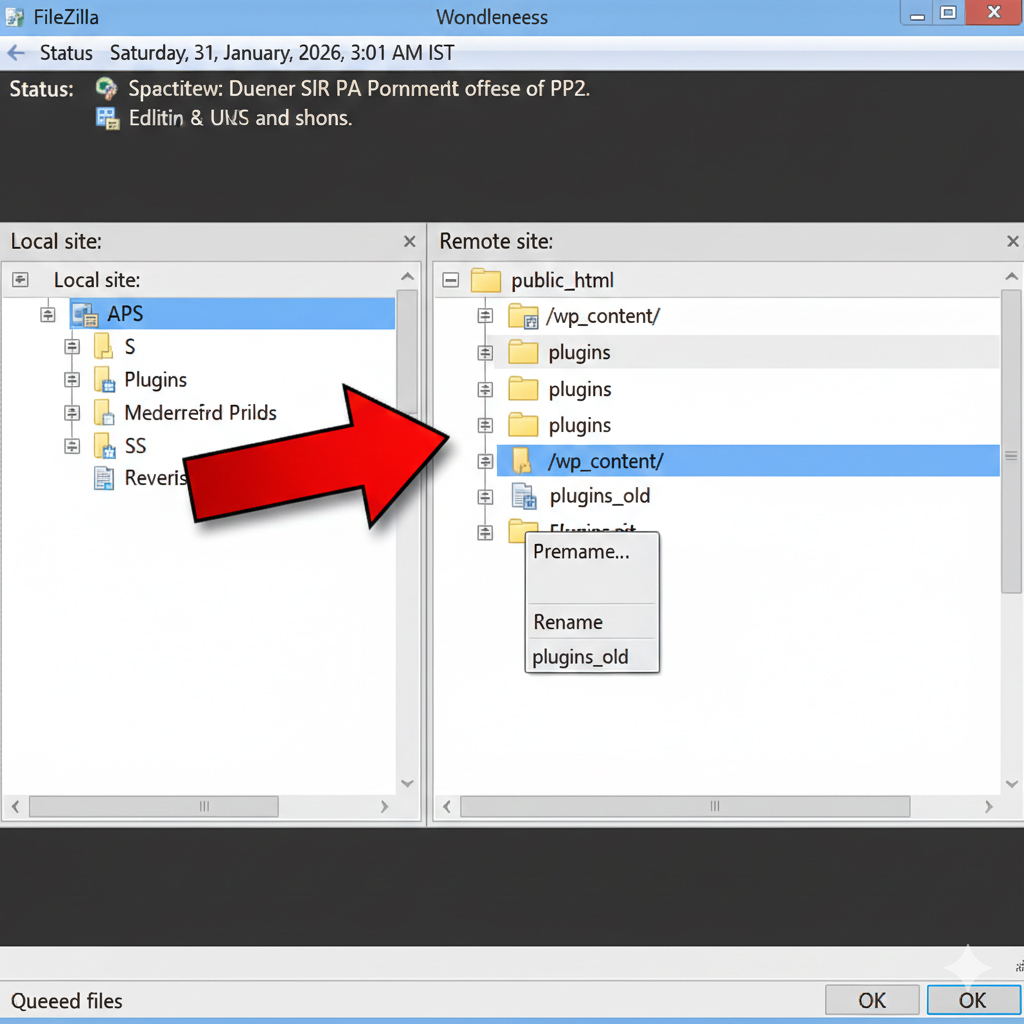
If the err_ssl_protocol_error is preventing you from even seeing the login screen, you must use alternative methods to troubleshoot.
Using FTP to Deactivate Plugins
- Connect to your site using an FTP client like FileZilla.
- Navigate to the
/wp-content/folder. - Rename the
pluginsfolder toplugins_old. - Try to load your site. If it loads, you know a plugin was causing the protocol error. Rename the folder back to
pluginsand then rename individual plugin folders inside to find the specific culprit.
Editing the .htaccess File via File Manager
The .htaccess file controls how your server handles HTTPS redirects. A misconfiguration here can cause a “Too many redirects” error or protocol failures.
- Log into your hosting Control Panel and open File Manager.
- Locate the
.htaccessfile in your root directory. - Right-click and “Rename” it to
.htaccess_backup. - Try loading your site. If it works, go to your WordPress dashboard under Settings > Permalinks and click “Save” to generate a fresh, clean
.htaccessfile.
How to Prevent This Issue in the Future
Maintaining a healthy WordPress site is an ongoing process. To avoid seeing the err_ssl_protocol_error again, follow these best practices:
- Enable Auto-Renewal: Ensure your SSL certificate is set to auto-renew through your host. Most modern hosts provide this for free via Let’s Encrypt.
- Regular Maintenance: Dedicate time each month to update WordPress core, themes, and plugins. Outdated software is the leading cause of site failures.
- Use a Reliable Hosting Provider: Cheap hosting often comes with poorly configured servers. Investing in quality hosting reduces the chance of server-side SSL handshake failures.
- Implement a Backup Strategy: Use tools like UpdraftPlus or Jetpack to keep daily backups. If a fix fails, you can always revert to a working version.
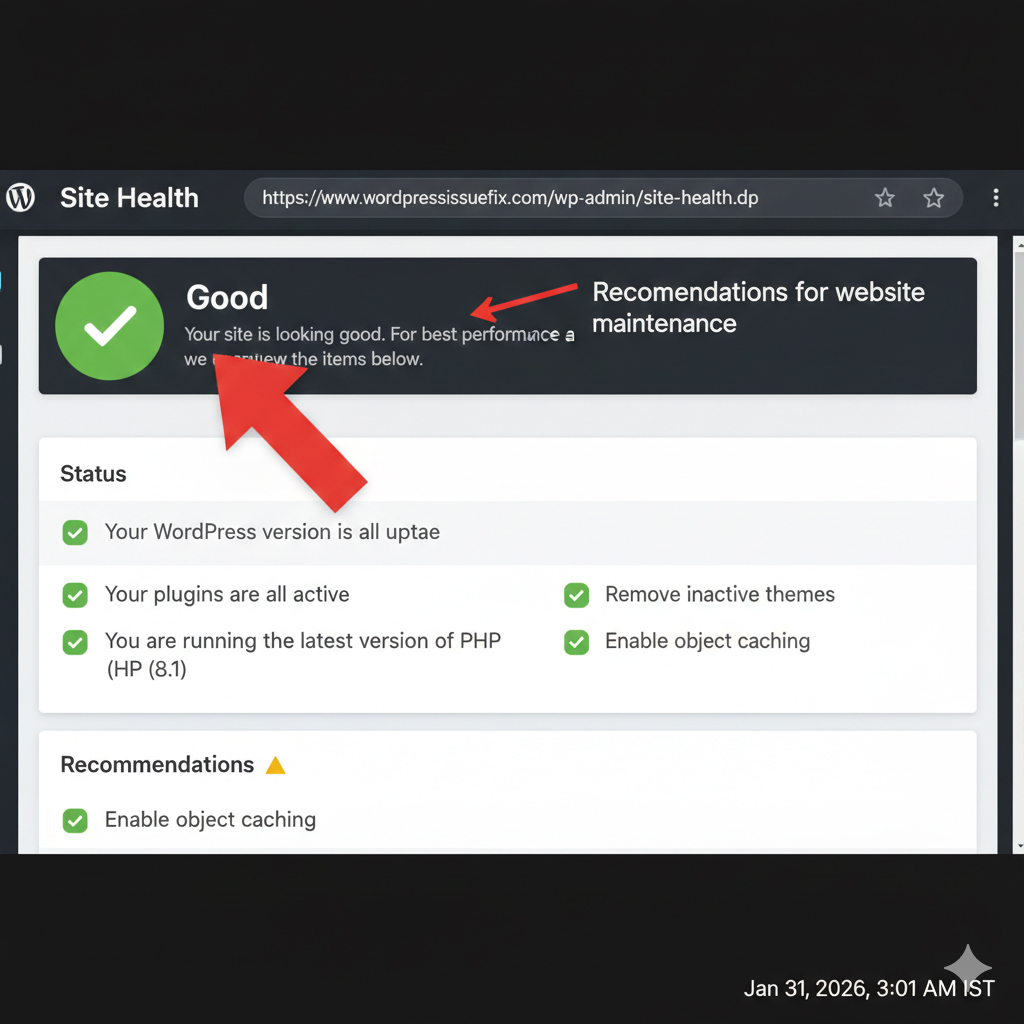
- Monitor Site Health: Frequently check the “Site Health” tool within your WordPress dashboard (Tools > Site Health) for warnings about your SSL or PHP configuration.
Frequently Asked Questions (FAQ)
1. Is the err_ssl_protocol_error dangerous for my site visitors? No, the error itself is not a virus or malware. It is a communication failure. However, it prevents visitors from accessing your site, which can lead them to believe the site is unsafe.
2. Can I fix this error by just refreshing the page? Occasionally, a temporary server glitch might cause this, and a refresh may work. However, if the error persists, it usually indicates a configuration issue that requires the steps mentioned above.
3. Why does my site work on my phone but not on my computer? This usually indicates a local issue. Check your computer’s date/time settings or your browser’s SSL state and cache.
4. Do I need to pay for an SSL certificate to avoid this? Not necessarily. Many hosting providers offer free SSL certificates via Let’s Encrypt. Paid certificates offer higher insurance and validation levels, but for most bloggers, a free SSL is perfectly sufficient.
5. Can a CDN like Cloudflare cause this error? Yes. If your Cloudflare SSL settings (Flexible, Full, or Strict) do not match the certificate settings on your actual server, a protocol error can occur. Ensure both ends are synchronized.
6. Will fixing this error affect my SEO? Fixing it will definitely help your SEO. Google prioritizes secure (HTTPS) websites. Leaving your site in a “not loading” state will eventually lead to a drop in rankings.
Conclusion
The err_ssl_protocol_error can be an intimidating hurdle, but it is almost always solvable with a systematic approach. By checking your local settings first, then moving to server-side configurations like PHP versions and certificate validity, you can restore your WordPress site to its full functionality.
Always remember to troubleshoot safely. Start with the simplest fixes—like clearing your cache—before moving on to editing files via FTP. WordPress is a robust platform, and with the right maintenance, it will serve as a secure home for your content for years to come.
Call-To-Action: If you are facing another WordPress issue, such as a white screen or a broken theme, explore more guides on wordpressissuefix.com.