

Introduction
Having a great-looking site means nothing if users are leaving before the site loads. Elementor users on WordPress are likely prioritizing aesthetics, but there is a potential downside in functionality. With large files, a site can become increasingly less user friendly, slowing increases in SEO rankings.
If your editor is moving sluggishly or your Google PageSpeed scores are low, the elementor image optimization is your solution. A lot of people starting out with Elementor image optimization are uploading images in their raw form as they came out of the camera or the stock site, completely unaware of the fact that such large images can bring a server to a crawl. This guide is a culmination of the performance complaints received from Elementor users and site owners in all corners of the globe.

This guide is long but it can be broken down into sections so that when you complete a section you can feel as if you are a step closer to gathering all of the information you need to complete at least one section. You will learn how to select appropriate file sizes, use WebP, and adjust Elementor settings to visibly to your users, maintain quality while keeping your site fast.
Table of Contents
Why Elementor Image Optimization Matters
Before getting into the solutions, it is important to consider how optimization applies to a page builder. Image optimization with Elementor is important because it means the added code (CSS, JavaScript) of a page builder means that your site will take longer to load without unoptimized images.
Image optimization means that the quality of your graphics is reduced with unnoticeable quality degradation. There are three aspects of optimization that are important:
- User Experience (UX): Modern users are impatient. Pages with images that take longer than three seconds to load risk losing more than 50% of users. Optimized images make sure that users remain engaged.
- SEO Rankings and Core Web Vitals: Google penalizes sites that load slowly. The speed at which images load directly correlates to the values measures by Google (Largest Contentful Paint – LCP).
- Your Server: Image files take up a lot of room in your bandwith which can lead to crashes. The smaller the files, the more strain is taken off of your servers and the less crashes occurs.
Common Image Mistakes That Slow Down Elementor
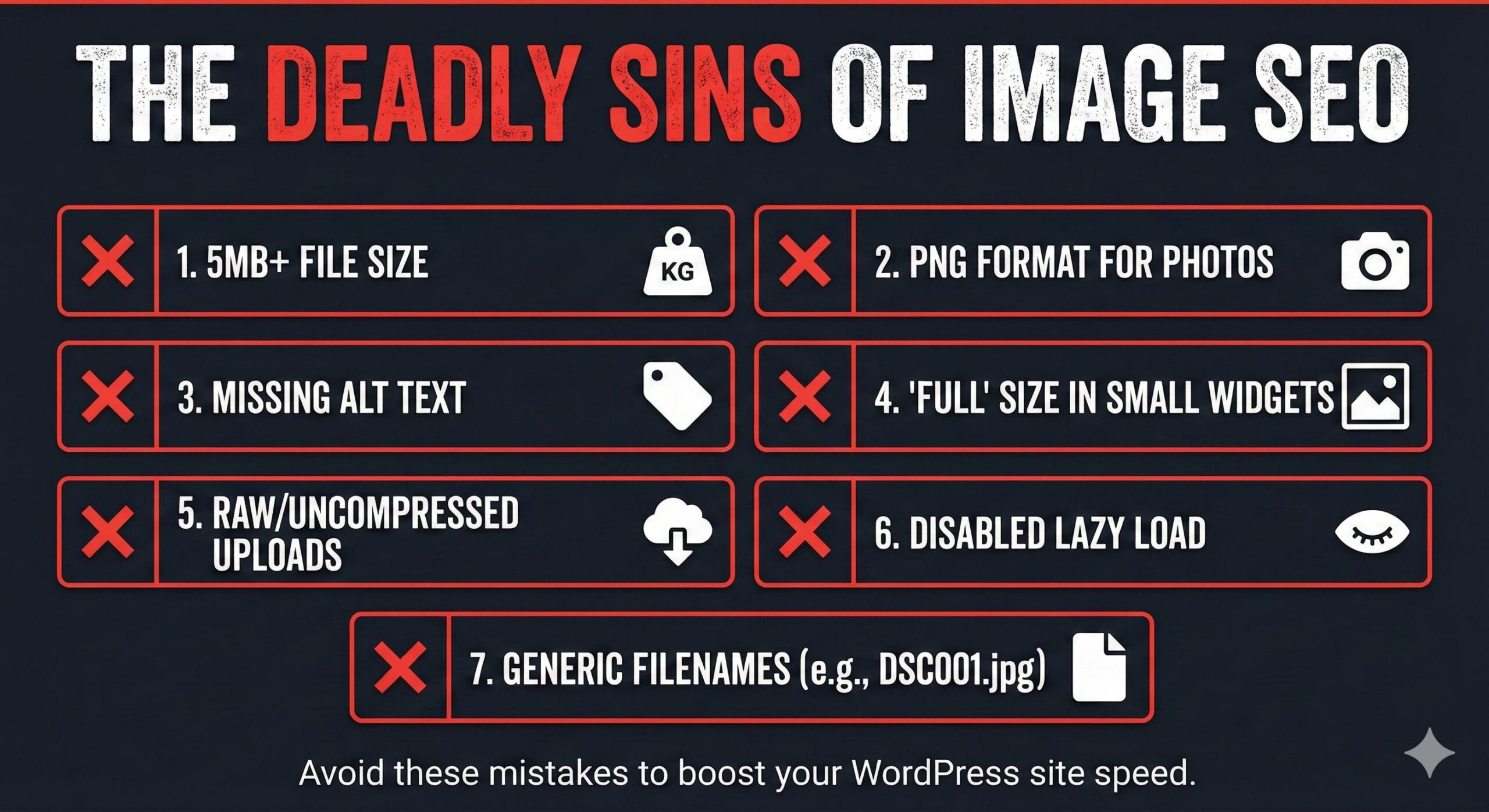
Your website may feel slow because of several reasons. Knowing the mistakes that you may have made can make your website faster.
Uploading “Full” Size Images Pitfalls of using ‘full size’ images are especially true for WordPress. With each image you upload, WordPress generates multiple image sizes. When you upload an image in ‘full size’, the browser needs to download the largest version of the image, even if the browser display setting is for a much smaller version. This creates a huge data problem because of the large images that may be uploaded to WordPress.
Wrong File Formats Using the right image formats makes a huge difference in the size of your images and the speed of your website.
- PNGs: PNG images are better for logos and other things that require transparency. They should not be used for images that are complex. The file size of a PNG image of a complex image is huge.
- JPEGs:JPEG images are the best type of image to use for a website because they have a good compromise of image quality to file size.
- WebP: WebP images are going to be the best type of image to use in most situations because they have better file size to image quality than any of the other three image formats.
Ignoring Compression If you upload a large image that was taken directly from a stock website, it is going to be an image that is going to slow your website down because of the large 5MB image, you could have a 5MB image that could slow your website down.
Missing Alt Text The absence of Alt Text is usually a sign that the image in question has not been properly managed, and while this is an accessibility and SEO issue, search engines will not be able to ‘see’ an image and will rely on this text to explain the image to them.
Disabling Lazy Load ‘Lazy Loading’ is a technique where images load only when the user scrolls down to them. If this is turned off, your website will attempt to load every image on the page the moment the user arrives, which causes a traffic jam in the user’s browser.
Step-by-Step Fixes: How to Optimize Images in Elementor
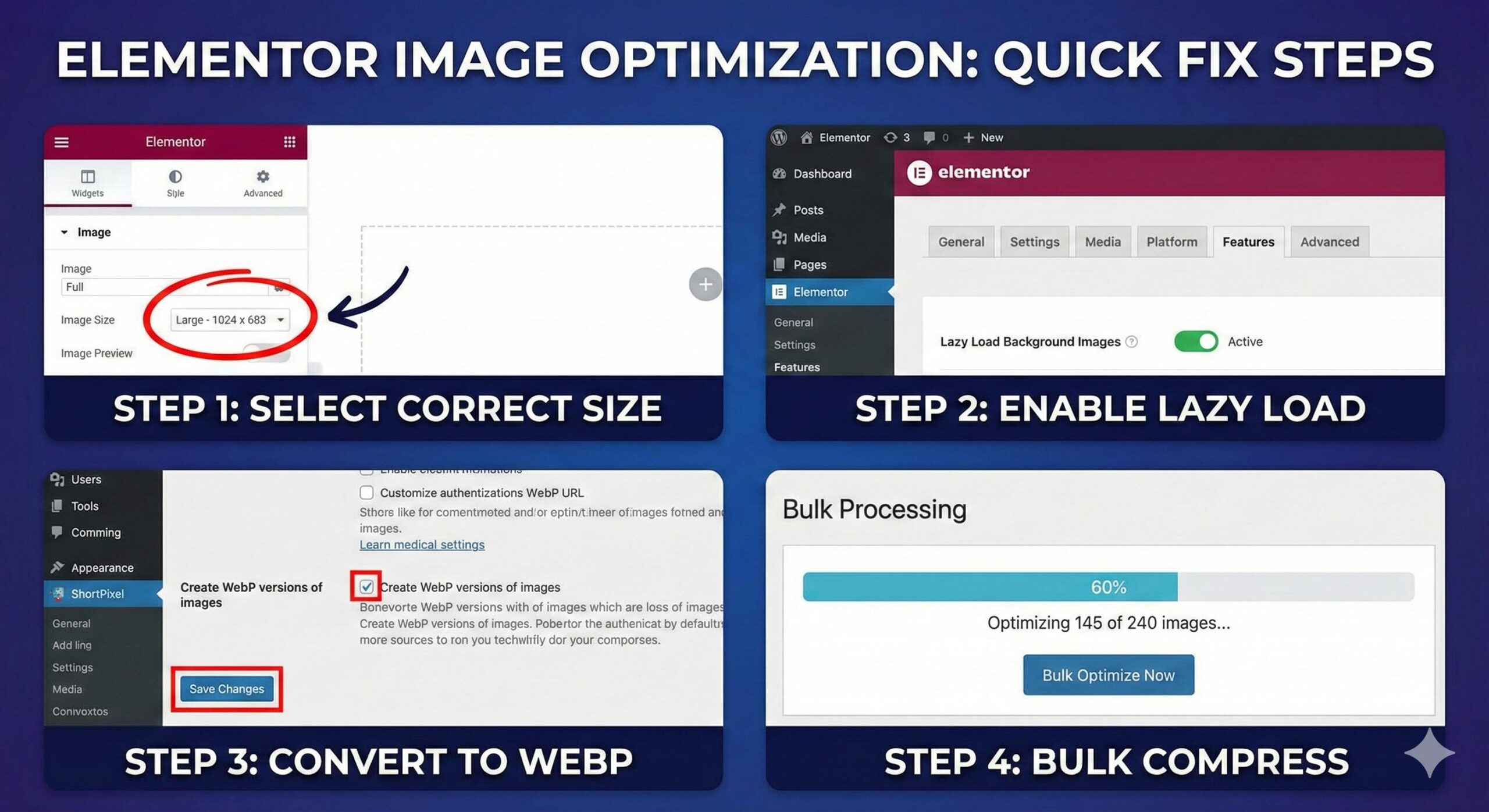
Below are some tips to resolve the issues with images inside the WordPress and Elementor platforms.
Choosing the Right Image Size per Elementor Widget For each “Image” widget you add to Elementor, check the left sidebar, and you will find a field called “Image Size.”
- Solution: Do not leave it at “Full” unless it is a hero background and lightbox image.
- Solution: For standard blog images or images in a column, set it to, “Large” (1024px) or “Medium_Large” (768px). This will help WordPress to deliver a smaller version of the image relative to the container and save some bandwidth.
Lazy Load Option Is Available in Elementor Settings Element is equipped with some options to enhance performance.
- Solution: Go to WordPress Dashboard > Elementor > Settings > Features
- Solution: Enable “Lazy Load Background Images” and other Image loading” features
Make sure these are set to Active. This option allows parts of background images used in sections to be loaded only when necessary.
Convert Images to WebP Format A new type of image file type that was created by Google called WebP, images that are in WebP format are usually around 30% smaller than similar images that are less than 30% in quality and are usually smaller than images that are in JPEG or PNG format.
- The Fix: Doing this manually is not necessary. A plugin such as Performance Lab (by the WordPress Performance Team) or ShortPixel can do this.
- Action: Set up the plugin to do this and then Elementor will serve the WebP file to new enough browsers and will leave the JPEG for old enough browsers. This means that as long as the plugin is enabled, the WebP version will be the only one shown to the end user.
Compress Existing Images Most probably, you have a collection of existing images that have not been optimized and you have been operating your site for quite some time.
- The Fix: Simply installing an image optimizer plugin such as EWWW Image Optimizer, Imagify, or TinyPNG will allow you to do this.
- Action: Execute a process called “Bulk Optimize”. It will scan your whole Media Library, compressing each image, removing unneeded metadata, and reducing file sizes by as much as 80% all at once.
How to Overlap a Blurb Over an Image in Divi: Step-by-Step Guide (2026)
How to Optimize Images Without WordPress Access (Pre-Upload)
Only upload images to your site after you have taken measures to make them as small as possible in file size. By minimizing file size before uploading images to your site, you minimize costs of storage and bandwidth.
For images, keep the width to a maximum of 1920px and a proportionate value to that for the height. This will mean that images will likely be less than 5MB, and possibly less than 500KB. This can be done in the built-in image viewer and editor.
Step 1: Open your image in the photo viewer of your computer (Preview on a Mac or Photos on Windows). Set the width to a maximum of 1920px (for full-width backgrounds) or 1200px (for blog posts). This will likely be all that is needed to reduce a 5MB file to 500KB.
Use Online Compression Tools images before upload your images to any site. Do not upload images that haven’t been through a compression tool.
TinyPNG / TinyJPG: Simply drag your files to the site and it will compress to about 50 to 70% the original size using smart lossy compression that will not reduce the visible quality.
Squoosh.app: One of the great tools created by Google, allows you to compare the effects of different compression levels on images. It even allows you to save images in WebP format.
Rename Your Files Google won’t be able to understand DSC000192.jpg, but elementor-image-optimization-guide.jpg provides the context Google needs. This won’t directly improve speed, but it will help with organization and SEO.ly.
How to Prevent Slow Loading in the Future

A “performance-first” mentality will help your Elementor site stay fast.
Set a Max Upload Size You can use a plugin to limit how large of an image can be uploaded. This can be a form of protecting the site from large image files (6000px) being uploaded if you (or a client) forget to compress the image.
Regular Performance Audits You should always try to keep a regular check on the health of your site. Check your site on Google PageSpeed Insights or GTmetrix once a month. These sites will tell you specifically which image files are hindering the performance of your site so that you can compress or remove the images.
Analyze the Background Images Background images in some of the containers in Elementor tend to be a lot larger than the rest of the images on the site which makes the site slow. Some of the images may not be optimized so always check to ensure that they are. If the image is only a pattern or a texture, you can use some css code to create the image instead of using an image file to save space.
Reduce the Number of Slides in a Carousel Image carousels and sliders can be very large.
They often necessitate additional JavaScript to function and frequently cause the simultaneous loading of several large images. Consider limiting your sliders to between 3 and 5 images. Anything beyond that is likely to slow down your site for content that the majority of users won’t hang around to see.
Frequently Asked Questions (FAQ)
Does Elementor automatically compress images? No, Elementor does not automatically compress images. Elementor displays images in their original format, so when you upload images, Elementor displays them as uncompressed images. It is up to the upload to optimize and compress the image before hand.
Which image format is best for use with Elementor? Currently, the best standard format for web browsers is WebP, as it is typically 26% smaller than PNG and 25% to 34% smaller than JPEG. Because of this, it provides the best balance of quality and file size. Though AVIF is also becoming recognized as a better format, it currently has less support than WebP in browsers.
Why are the images in Elementor blurry? This is usually the result of choosing a file size too small for the container. For example, if a section is 500px wide and you choose Thumbnail (150px), the browser is going to stretch the image to fit the space and it will result in a blurry image. Choose an image that is larger than the container.
Should I use a CDN for hosting images on Elementor? Yes. An image CDN such as Bunny CDN works in conjunction with Cloudflare and KeyCDN and provides images for your visitors from locations geographically closer to them to improve loading speeds. This is especially important for visitors outside of your own country.
Can I still resize images after I upload them? Yes. You do not have to delete them from your Media Library. You can use a plugin such as Regenerate Thumbnails to change the image sizes in your Media Library to reflect the new size settings you have used in new theme settings or Elementor settings. Plugins used for image optimization can also be used in conjunction with this to compress images in your Media Library in bulk.
Is lazy load bad for SEO? Typically speaking lazy load is not bad for SEO and in fact is great for it since it improves the page speed. Page speed is a significant ranking factor for SEO. The exception is lazy loading the first image of a webpage. This is the Largest Contentful Paint (LCP) and can be the reason for a delayed visual rendering for users. Aim to lazy load everything except your logo and the hero image.
Conclusion
Optimizing images in Elementor means more than just a quicker website; it means saving your visitors’ time and precious data. Websites that load faster increase both visitor engagement and trust, and boost search engine rankings. As described above, steps like image resizing prior to upload, proper display size settings in Elementor widget, and using modern image formats like WebP will result in lower page load times.
Be sure to keep your page image optimization up to date. New images are added to every web page over time, and web page image optimization should be performed regularly as a set page optimization best practice. In search engine page rank as in a company’s reputation, it takes time to build credibility and respect, but reputation and credibility are quickly lost with one bad decision/poor web page optimization. Images are where most page load time is created, so image optimization will have the most immediate impact on your web page reputation/engine rank.
Call-To-Action: If you are facing other performance challenges or technical glitches, such as critical errors or plugin conflicts, explore more step-by-step troubleshooting guides on wordpressissuefix.com.






How to Fix the “Best Search Engine Optimization Company” Spam in WordPress
Rajib Das
-
March 14, 2026