

introduction
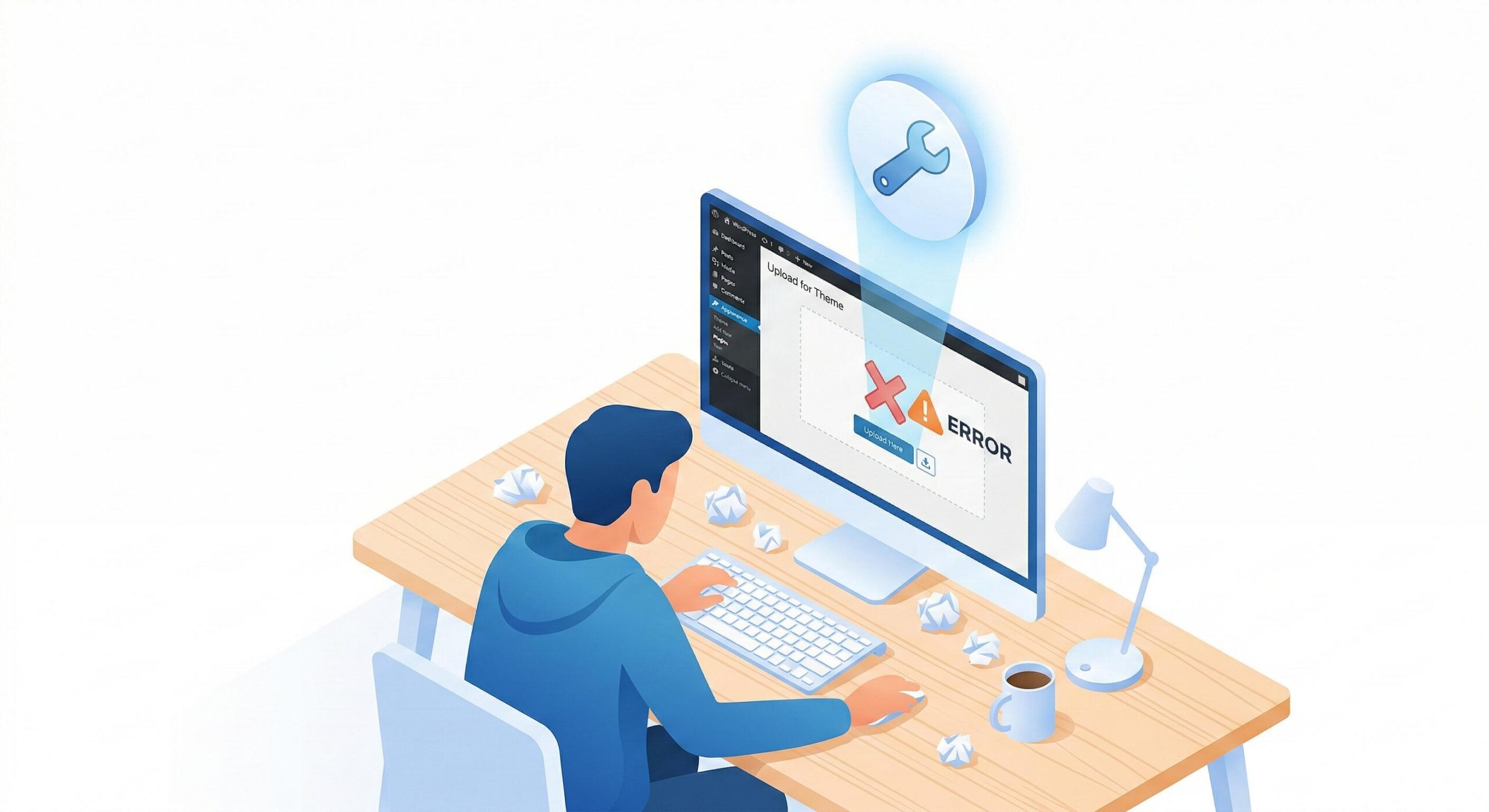
Welcome to wordpressissuefix.com. If you recently downloaded a new design for your website and encountered an installation failure, you are not alone. Many beginners search for the best wordpress templates online, purchase or download a bundle from a third-party marketplace, and immediately try to upload it to their site. However, when you navigate to your dashboard and upload the file, you are hit with a frustrating error: “The package could not be installed. The theme is missing the style.css stylesheet.“
In the context of troubleshooting, the best wordpress templates installation issue refers to the specific failure to upload, unpack, and activate these premium design bundles. You encounter this error in your dashboard under Appearance > Themes > Add New. It almost always appears because the file you downloaded is a “master” folder containing documentation, licensing, and plugins, rather than just the core installable template itself.
Note: This guide is for educational troubleshooting purposes. Always back up your website before making technical changes to your files.
Below, we will walk through the exact, beginner-safe steps to clear this roadblock and successfully install your new website design.
Table of Contents
Why Your “Best WordPress Templates” Package is Failing to Install
Before we jump into the fixes, it helps to understand what is happening behind the scenes. When you browse the internet for the best wordpress templates, you are often directed to massive digital marketplaces like ThemeForest, TemplateMonster, or Creative Market.
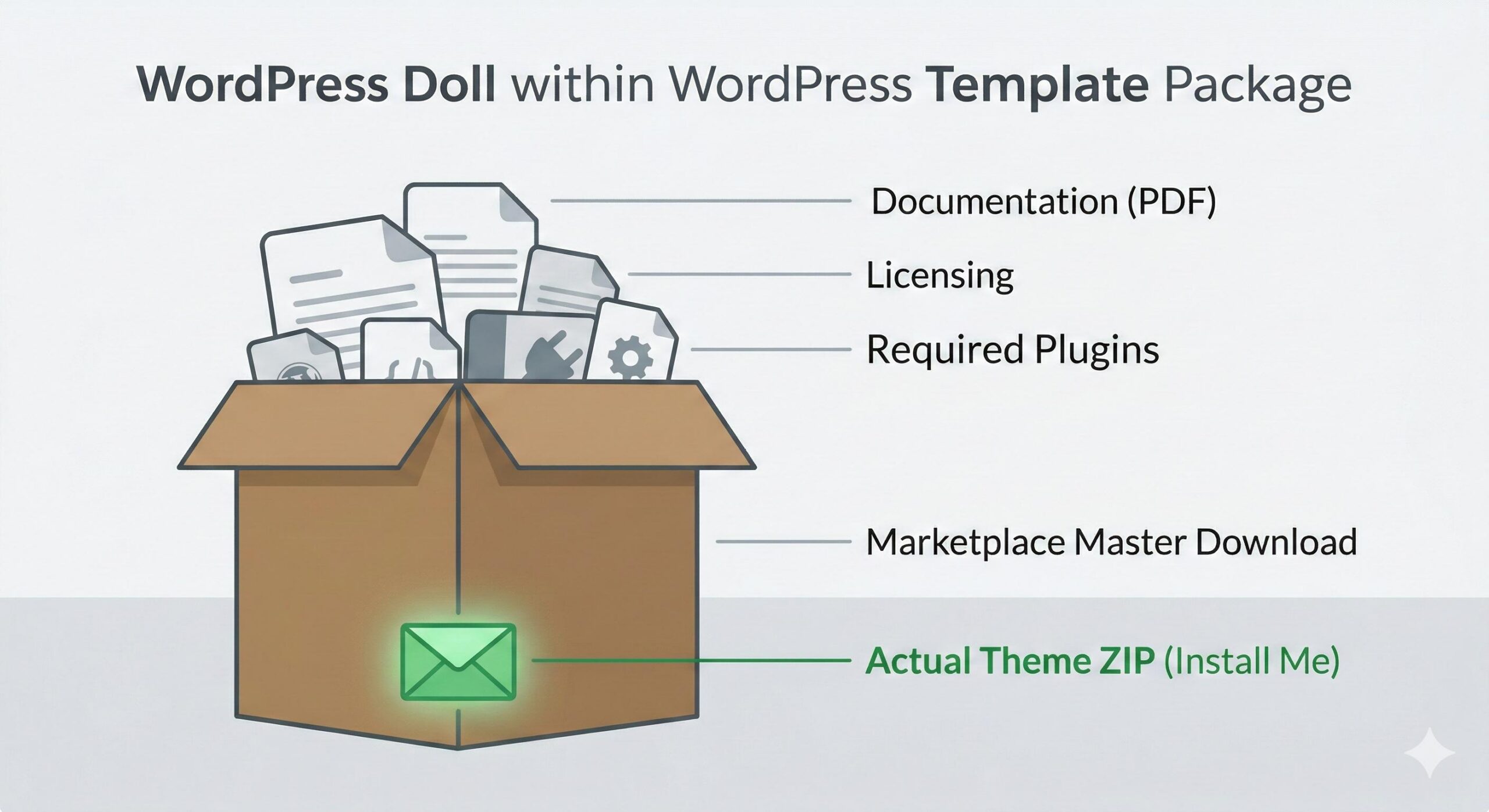
When you purchase and download a file from these platforms, you are not just downloading the WordPress template. You are downloading a comprehensive package. This master .zip file usually contains:
- The actual WordPress theme (another
.zipfile inside). - A child theme.
- PDF Documentation and user manuals.
- Licensing text files.
- Required premium plugins.
When you try to upload this entire master package directly into WordPress, the system’s installer looks for a specific file called style.css in the main folder. Because it only sees folders for documentation and licensing, the installer gets confused, fails the extraction process, and throws an error. The system cannot parse the master folder to find the template hidden inside.
Step-by-Step Fixes for “Best WordPress Templates” Errors
If you are stuck staring at an installation failure screen, follow these beginner-friendly troubleshooting steps to locate the correct files and resolve the issue.
Step 1: Extract the Correct Installable Zip File
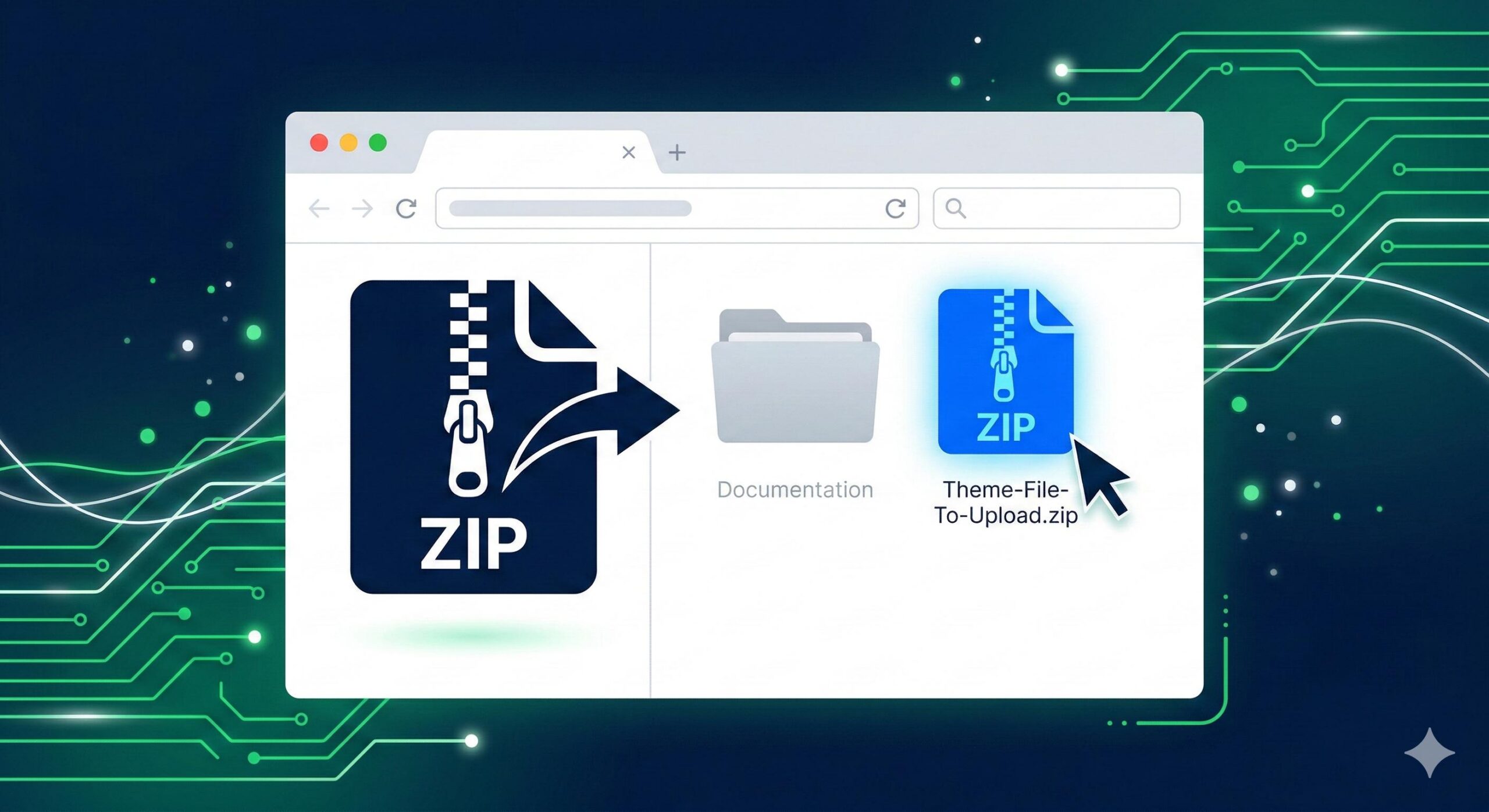
This is the absolute most common solution for “best wordpress templates” import failures. You simply need to extract the master folder to find the actual file WordPress needs.
How to safely fix it:
- Locate the master
.zipfile you downloaded from the template marketplace on your computer (usually in your Downloads folder). - For Windows users: Right-click the
.zipfile and select Extract All. - For Mac users: Double-click the
.zipfile to expand it into a standard folder. - Open the newly extracted folder. Look inside for a smaller
.zipfile that is usually named after the template itself (for example,avada.ziporastra-premium.zip). This is your actual installable theme file. - Return to your WordPress dashboard. Navigate to Appearance > Themes > Add New > Upload Theme.
- Select only the smaller, internal
.zipfile you just located. Click Install Now.
Step 2: Upload via File Manager for Large Templates
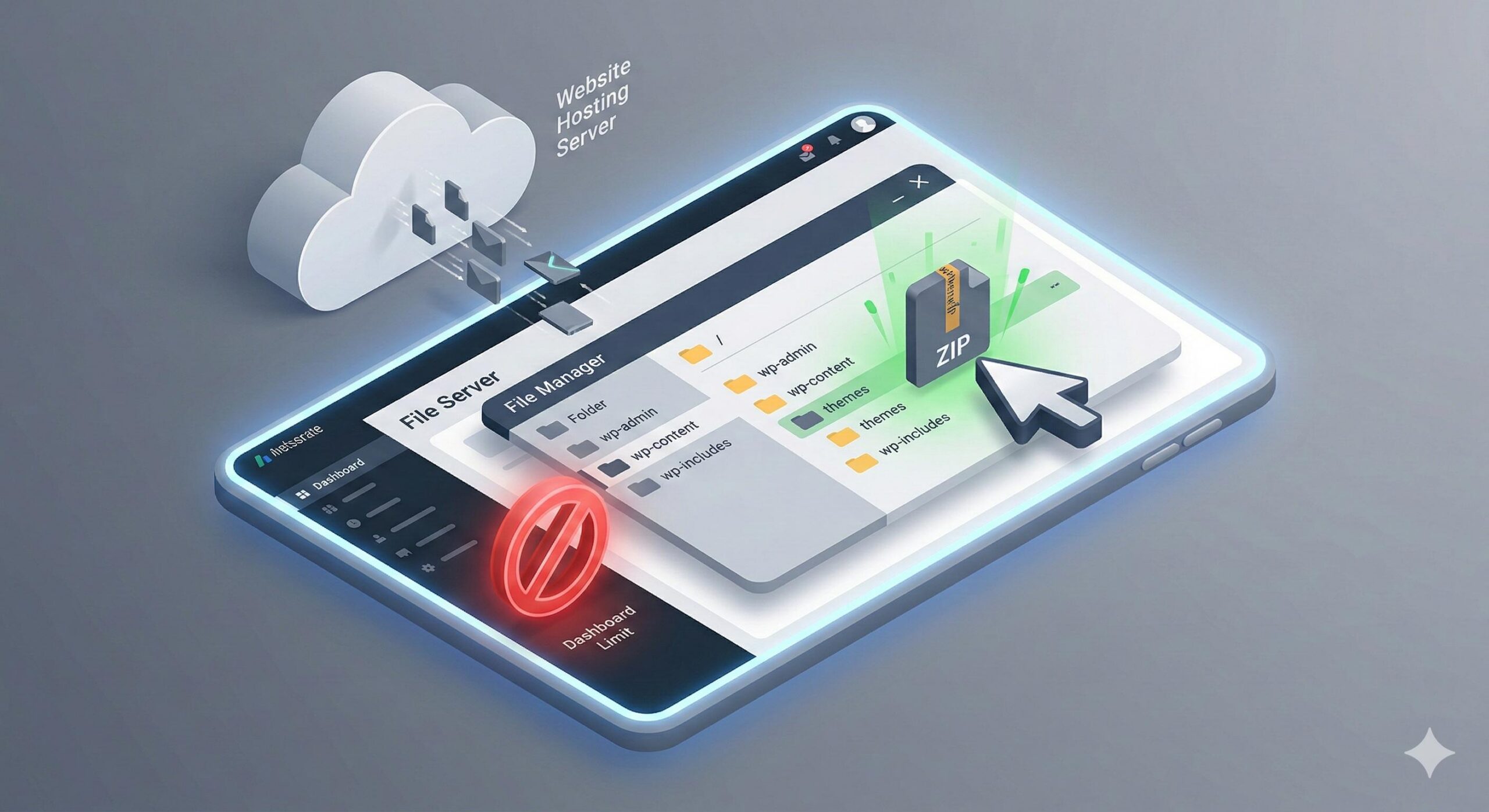
Sometimes, you extract the correct file, but the installation still fails, showing a “Link You Followed Has Expired” or “upload_max_filesize” error. The best wordpress templates often come packed with heavy features, high-quality images, and complex page builders. If the template file is 25MB, but your web host only allows 8MB file uploads, the process will crash.
How to safely fix it:
- Log into your web hosting account panel (like cPanel) and open the File Manager.
- Navigate to your website’s root folder (usually named
public_html). - Follow this path:
wp-content > themes. - Click the Upload button at the top of the File Manager.
- Upload the correct, smaller installable
.zipfile you identified in Step 1. - Once the upload reaches 100%, go back to the
themesfolder. - Right-click the
.zipfile you just uploaded and select Extract. - After extraction is complete, you can safely delete the
.zipfile from the server to save space. - Return to your WordPress dashboard and go to Appearance > Themes. Your new template should now be visible and ready to activate.
Step 3: Verify You Are Not Uploading a “Template Kit”
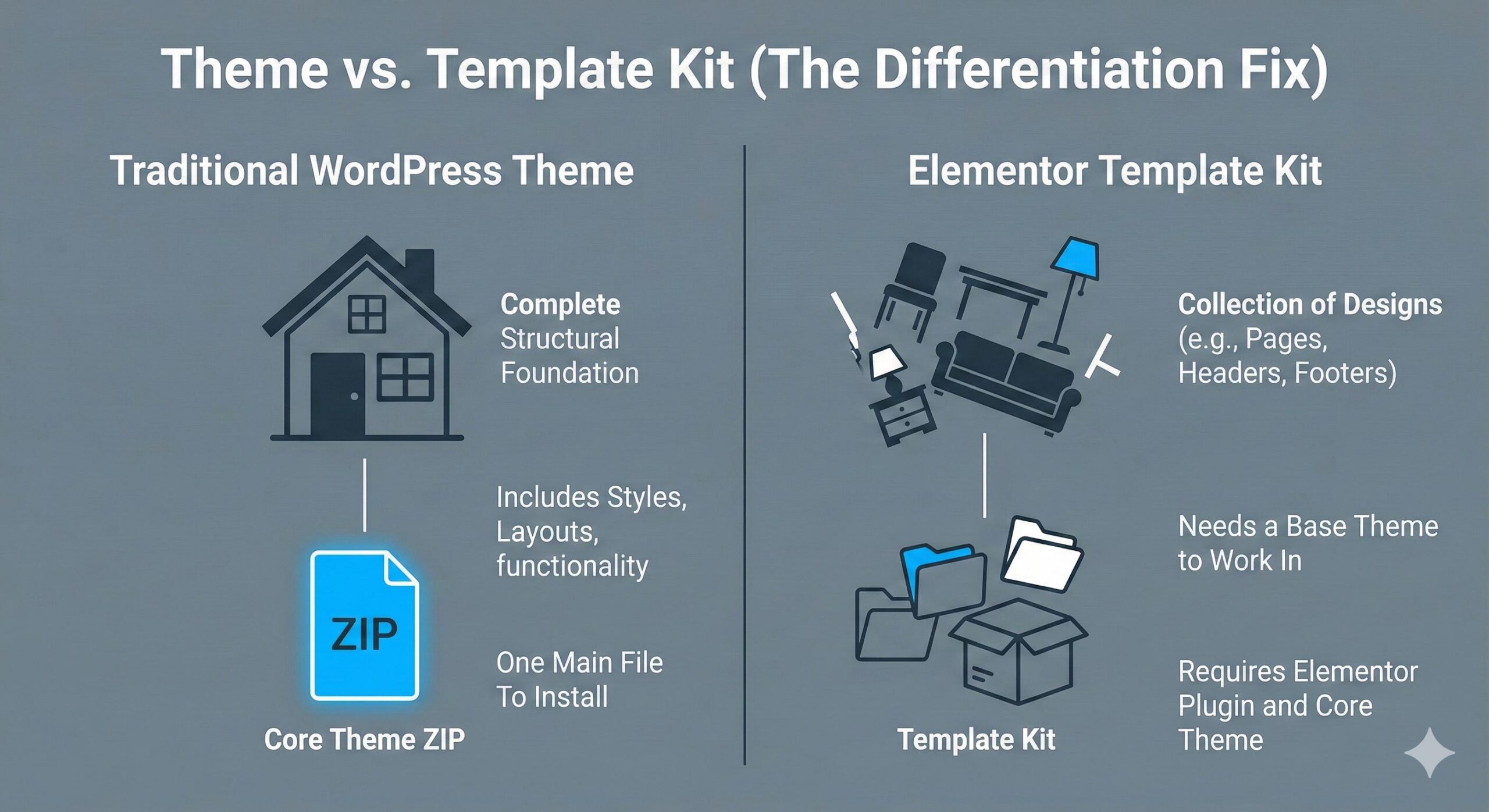
A major point of confusion for beginners searching for the best wordpress templates is the difference between a traditional WordPress Theme and an Elementor Template Kit.
If you downloaded a Template Kit, you will receive an error if you try to upload it under Appearance > Themes. A Template Kit is a collection of pre-designed page layouts, not a core theme.
How to safely fix it:
- Check the documentation or the sales page of the item you downloaded. Does it say “Elementor Template Kit”?
- If yes, you must install a basic, lightweight theme first (like the free Hello Elementor theme).
- Next, navigate to Plugins > Add New and install the Envato Elements plugin or the specific template kit importer recommended by the author.
- Go to Elements > Installed Kits in your dashboard.
- Upload your downloaded
.zipfile here. The system will successfully read the files and allow you to import the page designs one by one.
Frequently Asked Questions (FAQ)
Why am I getting the “missing style.css” error when installing my new template?
This happens when you try to upload the entire master .zip file downloaded from a marketplace directly into your WordPress dashboard. WordPress requires a specific file named style.css to recognize a theme. If the installer scans a folder full of PDF documentation and licensing text instead of the core theme files, the installation will immediately fail.
Do I need to unzip the “best wordpress templates” file I bought online?
Yes, almost always. When you purchase premium designs from third-party sites like ThemeForest, you must extract (unzip) the main downloaded folder on your computer first. Inside that extracted folder, you will find a smaller, separate .zip file containing only the core theme files. That smaller .zip file is the only thing you should upload to WordPress.
Why does my template upload stop at a “Link You Followed Has Expired” error?
This error means the .zip file for your WordPress template is larger than the maximum upload size allowed by your web hosting server. The best wordpress templates often include heavy features that exceed default 8MB or 32MB limits. You can safely fix this by uploading the file directly through your hosting account’s File Manager instead of the WordPress dashboard.
I downloaded an Elementor Template Kit. How do I install it?
Elementor Template Kits are not standalone themes; they are collections of pre-designed page layouts. You cannot install them via Appearance > Themes. To use them, you must install a basic, lightweight theme first (like Hello Elementor). Then, use a plugin like the Envato Elements importer to upload the kit and apply the designs to your pages.
How to Fix Astra Template Import Errors in WordPress
Conclusion
Encountering an error while trying to install what you hoped were the best wordpress templates can halt your website-building progress, but the root causes are highly fixable. The issue almost always comes down to file structure and ensuring WordPress is fed the exact .zip format it expects.
By systematically unzipping your marketplace bundles to find the core installable file, bypassing server upload limits via the File Manager, and understanding the difference between a theme and a template kit, you can clear the path for the installer to do its job.
Take these troubleshooting steps one at a time, and you will soon have your premium design successfully loaded and ready for your custom content.



How to Fix the “Best Search Engine Optimization Company” Spam in WordPress
Rajib Das
-
March 14, 2026