

Introduction
Are you seeing warnings from Google PageSpeed Insights or your hosting dashboard telling you to optimise wordpress website performance? You are in the right place.
To optimise a WordPress website means to fix the underlying technical bottlenecks that cause your web pages to load slowly. Site administrators usually encounter this specific recommendation when their site takes longer than three seconds to load, resulting in poor user experience and lower search engine rankings. Why does this issue appear? It happens because as your site grows, uncompressed image files, heavy unoptimized plugins, and accumulated database clutter overload your web server.
This guide is for educational troubleshooting purposes to help you understand and resolve these exact performance errors safely.
Table of Contents
Understanding the Server Overload Problem
When diagnostic tools flag your site, it is essentially a warning that your server is working much harder than it needs to. Every time a visitor clicks on a link, their browser sends a request to your web hosting server. If your website is heavy and unoptimized, the server has to gather massive amounts of data—images, scripts, stylesheets, and complex database queries—before it can display the page.
By taking targeted steps to resolve these bottlenecks, you reduce the workload on your server, allowing pages to load swiftly. Here is a step-by-step, beginner-safe approach to fixing this issue.
Step 1: Implement a WordPress Caching Solution
One of the most effective ways to resolve slow load times is by changing how pages are served to your visitors. By default, WordPress dynamically generates a page every single time someone visits it, which drains server resources.
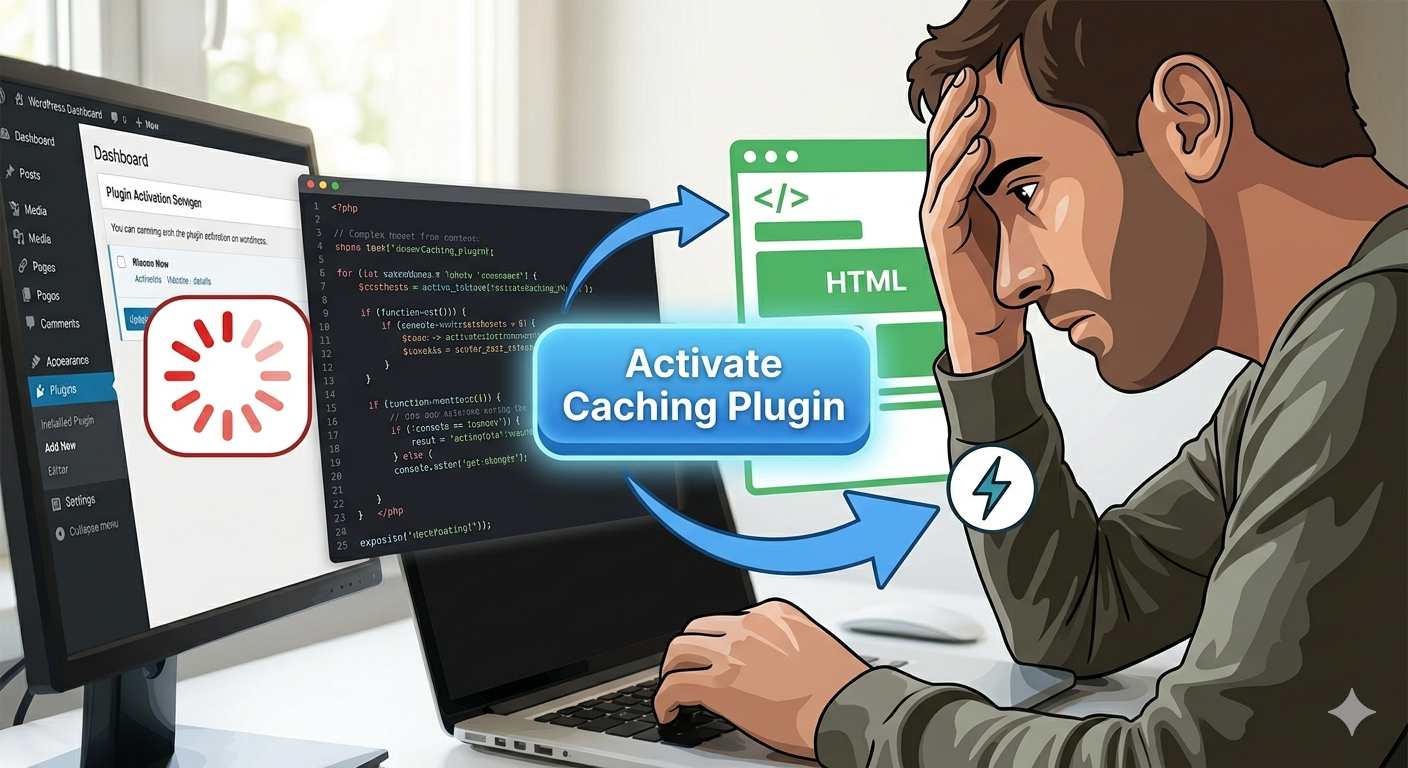
The Fix: Install a reliable caching plugin. Caching creates a static, lightweight HTML version of your website and serves that to visitors instead of processing heavy background scripts.
- Action: Look for reputable, beginner-friendly plugins like WP Super Cache, W3 Total Cache, or LiteSpeed Cache.
- Result: Once activated, these tools immediately reduce server response times and drastically improve how quickly your site appears.
Step 2: Compress and Resize Heavy Images
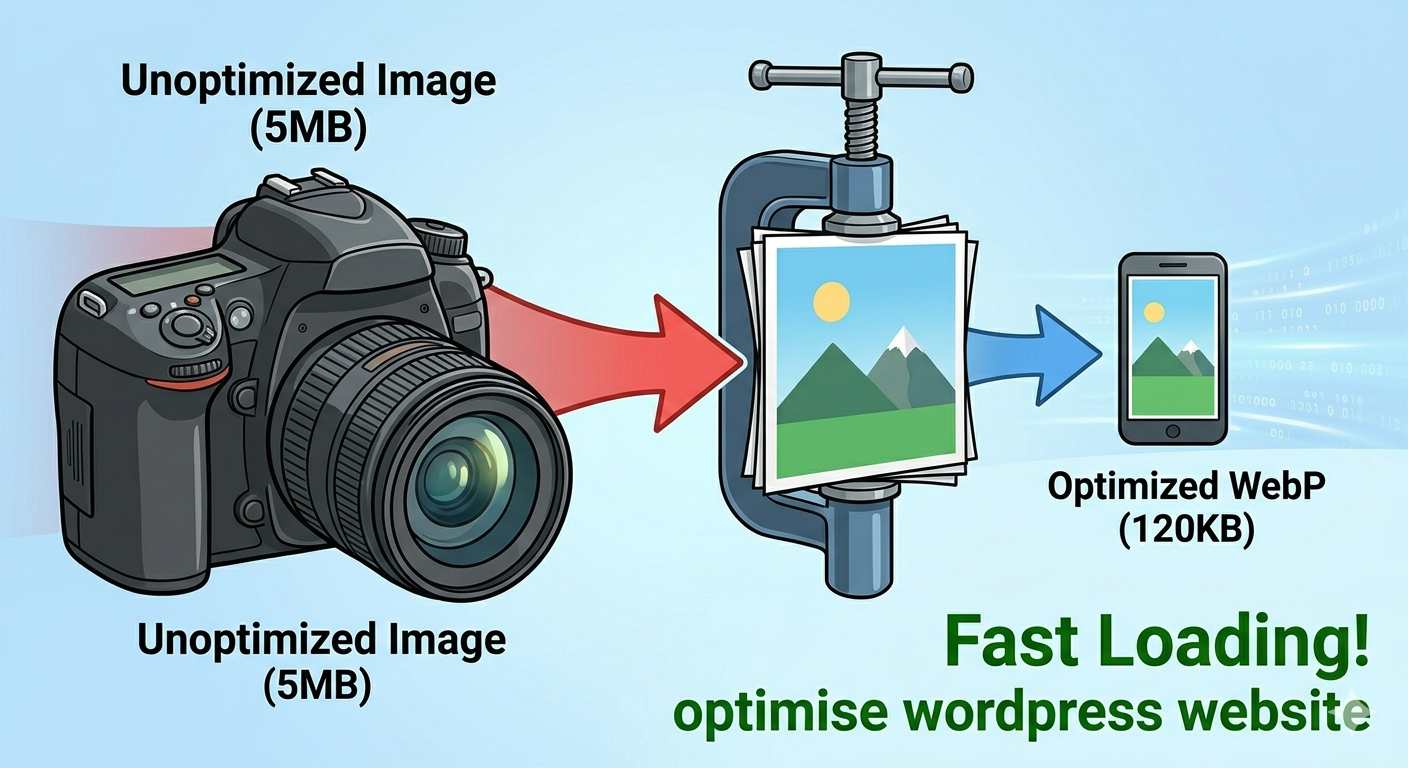
If a speed test tool is actively telling you to optimise your WordPress website, oversized images are usually the primary culprit. Uploading high-resolution images directly from your phone or stock photo sites forces visitors’ browsers to download massive files just to view a simple blog post.
The Fix: You must resize and compress your images before or during the upload process.
- Action: Ensure your images are no wider than your website’s maximum display width (usually around 1200px to 1920px).
- Action: Install an image optimization plugin like Smush or EWWW Image Optimizer. These tools automatically shrink the file size of your images without sacrificing visual quality.
Step 3: Remove Unused Plugins and Themes
Every plugin you install adds code to your website. Even if a plugin is deactivated, the files still exist on your server. Too many plugins can cause conflicts, bloat your site’s code, and trigger performance warnings.
The Fix: Conduct a thorough audit of your WordPress dashboard.
- Action: Navigate to your Plugins section. Deactivate and completely delete any plugin you do not actively use.
- Action: Go to Appearance > Themes. Keep your active theme and a default WordPress theme (like Twenty Twenty-Four) as a backup, and delete the rest. A cleaner dashboard results in a lighter server footprint.
Step 4: Keep WordPress Core, Themes, and Plugins Updated
Outdated software is not just a security vulnerability; it is a performance hazard. Developers regularly release updates that contain code optimizations and speed improvements. If you are running old versions of your theme or plugins, you are missing out on these built-in fixes.
The Fix: Make updating a regular part of your website maintenance routine.
- Action: Check your Dashboard > Updates page weekly.
- Action: Safely apply updates to your active plugins, themes, and the WordPress core. (Note: Always ensure you have a recent backup of your website before running major updates).
Step 5: Clean Up Your WordPress Database
Over time, your database accumulates unnecessary digital clutter. Every time you save a draft, WordPress creates a “post revision.” Deleted comments, spam, and leftover data from uninstalled plugins sit in your database, making it bloated and slow to read.
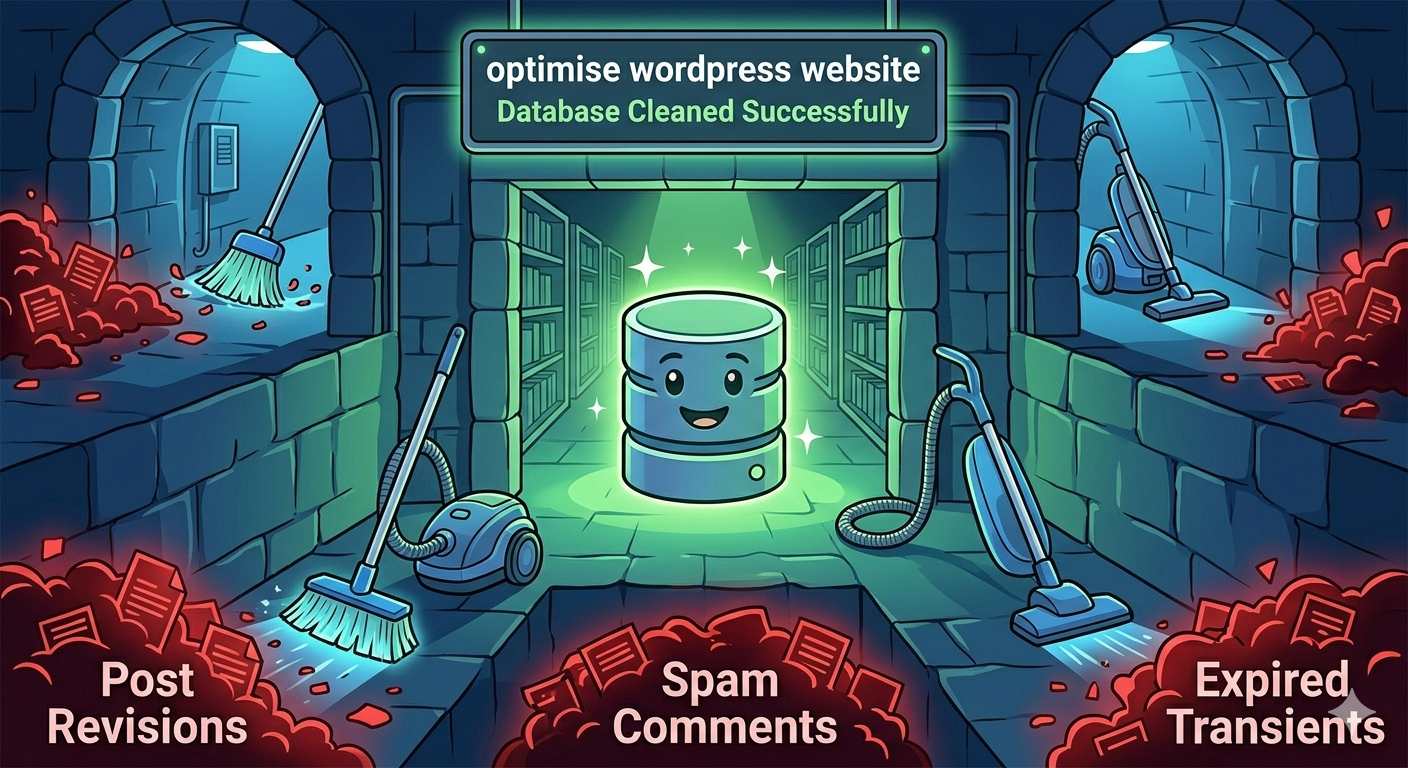
The Fix: You need to sweep your database to ensure it fetches information quickly.
- Action: Use a safe database optimization plugin like WP-Optimize.
- Action: Run a scan to remove spam comments, empty your trash folder, and delete hundreds of unnecessary post revisions in just a few clicks.
Frequently Asked Questions (FAQ)
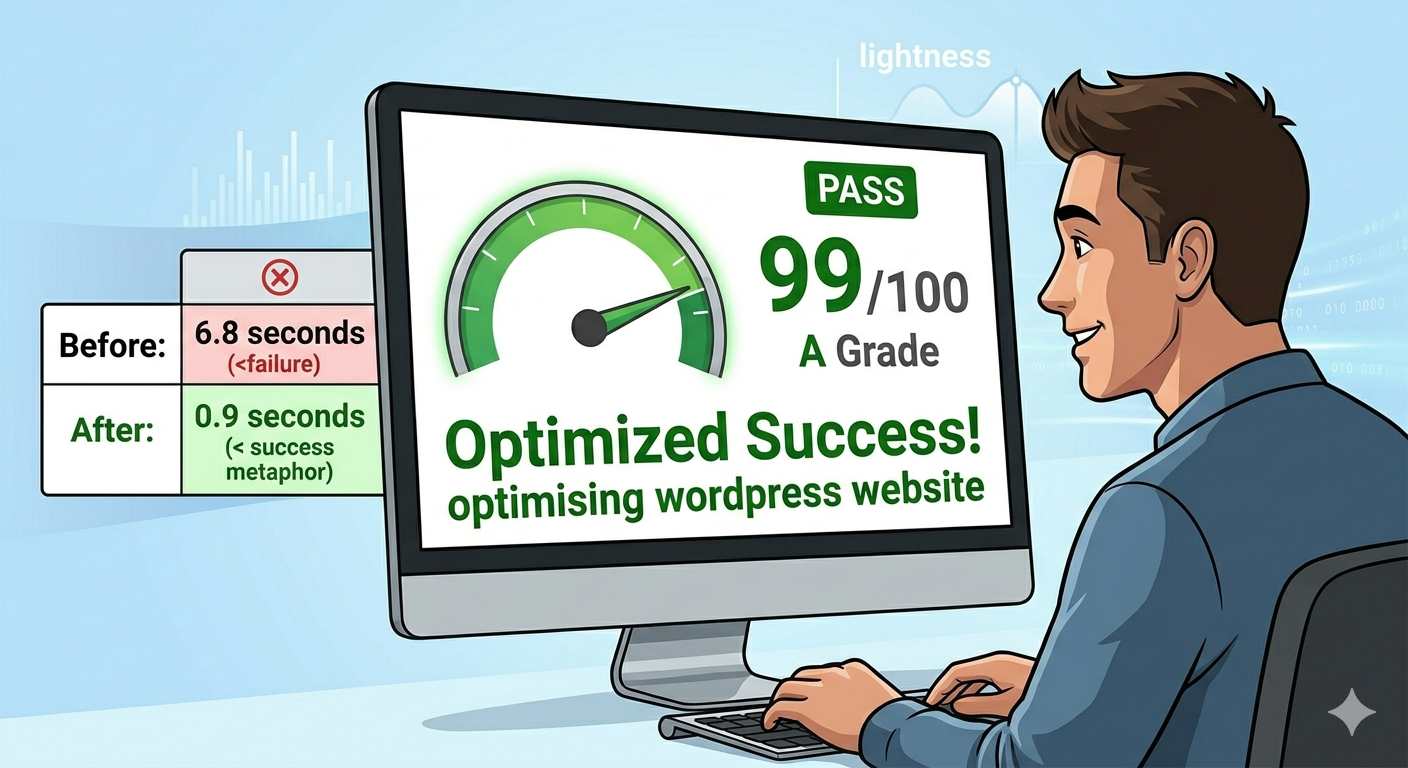
1. How long does it take to see results after I optimise my WordPress website? If you install a caching plugin and compress your existing images, you will typically see immediate improvements in your page load speed. When running a new test on diagnostic tools, be sure to run it twice to ensure the cache has successfully generated for the tool to read.
2. Do I need to know how to code to fix these performance issues? No, absolutely not. The troubleshooting steps outlined above rely entirely on reputable, beginner-friendly WordPress plugins and built-in dashboard settings. No manual coding, hacking, or server-level technical changes are required.
3. Can too many optimization plugins slow down my site instead? Yes. It is a common beginner mistake to install multiple caching or image compression plugins at the same time. This can cause code conflicts and actually worsen your performance. Choose exactly one high-quality plugin for caching and one for image optimization.
4. Why is my site still slow after following all the optimization steps? If you have cleaned your database, compressed images, and enabled caching but still face sluggish load times, the core issue is likely your web hosting environment. Budget shared hosting plans often severely limit your server resources (like RAM). Upgrading to a managed WordPress hosting plan is usually the final step to a lightning-fast site.
A Complete Beginner’s Guide to Improving Page Speed in WordPress
Conclusion
Taking the time to optimise wordpress website speed is not a one-time task, but rather an ongoing maintenance habit that ensures your site remains healthy. By systematically implementing a caching solution, compressing your media library, and keeping your plugins and database clean, you directly resolve the performance warnings that brought you here. Remember, you do not need to be a developer to maintain a fast site; these beginner-safe fixes are designed to give you total control over your website’s performance. Start with one step at a time, test your speeds, and watch your loading times improve.








