

Introduction
Welcome to WordPressIssueFix.com. If your website is suddenly acting strangely, loading incredibly slowly, or displaying a frightening red Google security warning, you are likely looking for a reliable malware site checker.
But what exactly does this keyword mean? A malware site checker is a specialized diagnostic tool that scans your website’s files, database, and front-end code to identify hidden malicious scripts, hacks, or vulnerabilities. You usually encounter the need for this tool when your hosting provider sends a suspension warning, search engines flag your domain, or your visitors complain about being redirected to strange, spammy web pages.
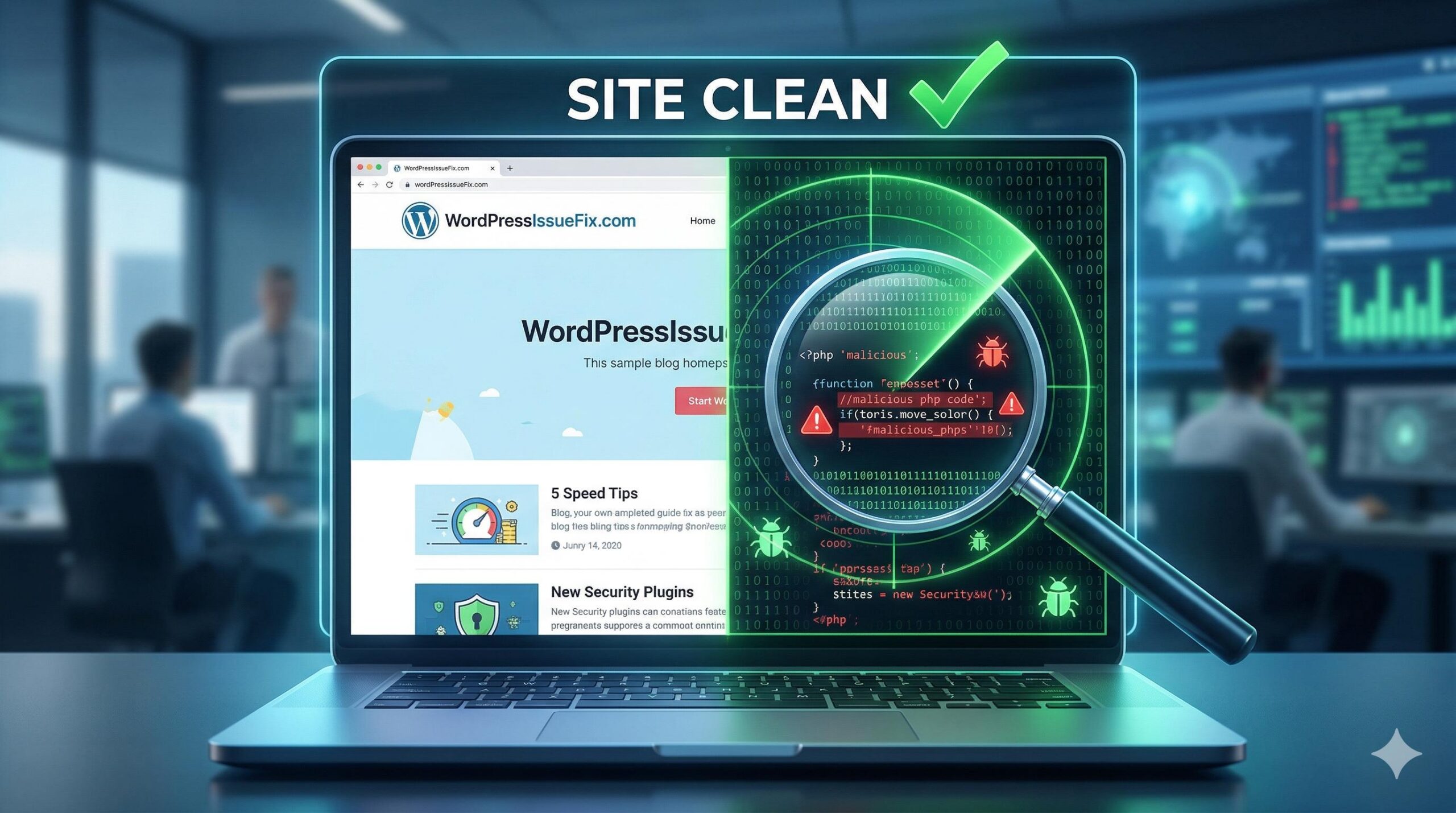
You need this tool because attackers often hide dangerous code deep inside your theme or plugin files where you cannot see it with the naked eye. This guide is for educational troubleshooting purposes to help you understand how these diagnostic tools work so you can safely identify issues on your WordPress site.
Note: This guide is for educational troubleshooting purposes to help you understand and use scanning tools safely. It does not guarantee the complete removal of all advanced security threats.
Table of Contents
Why You Need a Malware Site Checker
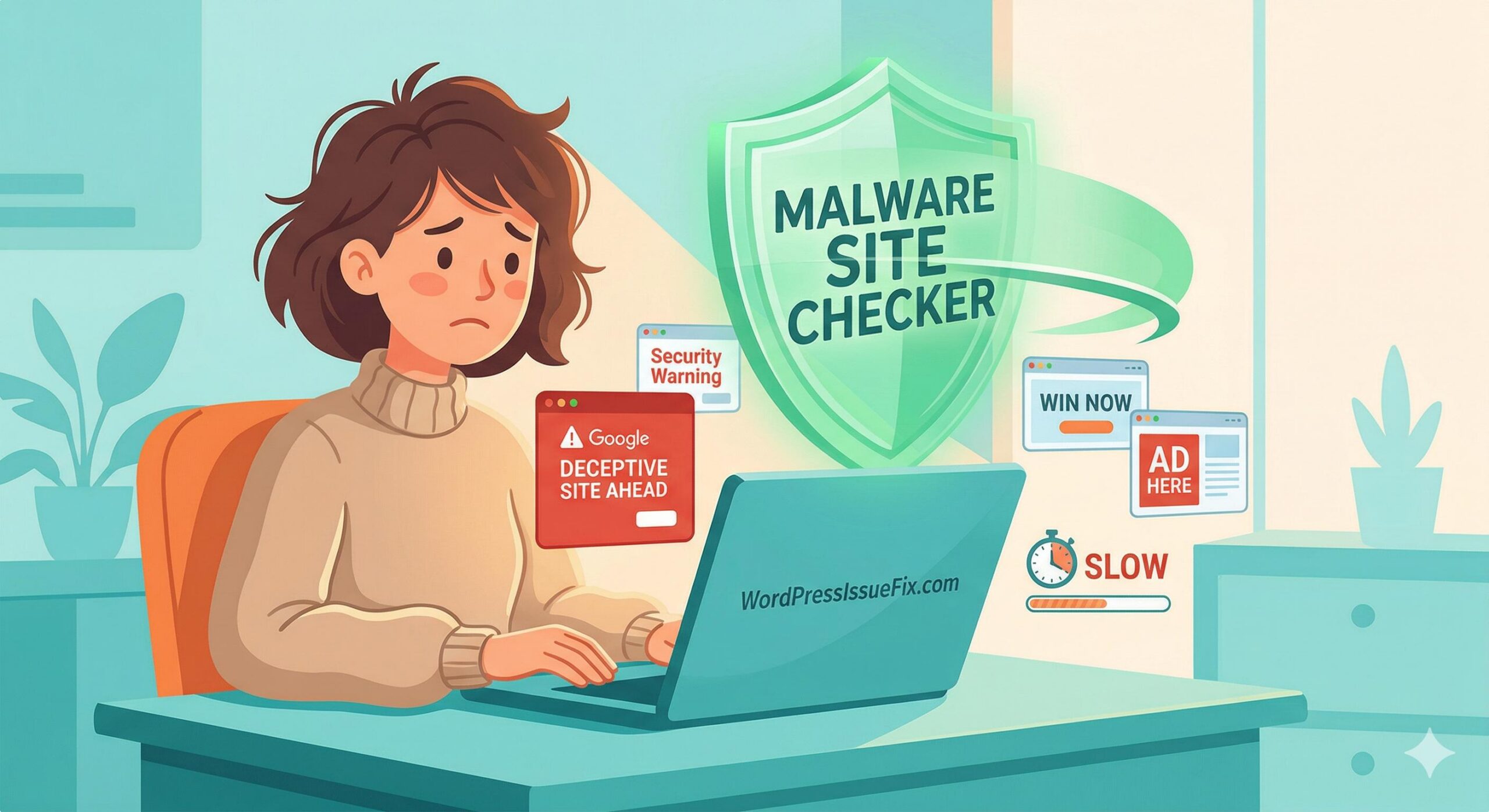
WordPress is a highly popular platform, which unfortunately makes it a common target for automated bots and malicious scripts. Often, website owners do not realize their site has been compromised until it is too late. A malware site checker acts as your first line of defense and diagnosis.
You should immediately run a scan if you notice any of the following symptoms on your website:
- Your website is loading significantly slower than usual.
- Visitors are being redirected to unknown or spam websites.
- Google displays a “Deceptive site ahead” or “This site may be hacked” warning.
- Your hosting provider suspends your account for suspicious server activity.
- You find new WordPress admin accounts that you did not create yourself.
Using a malware site checker helps you pinpoint the exact location of the malicious code so you can begin the cleanup process safely and efficiently.
How a Malware Site Checker Works
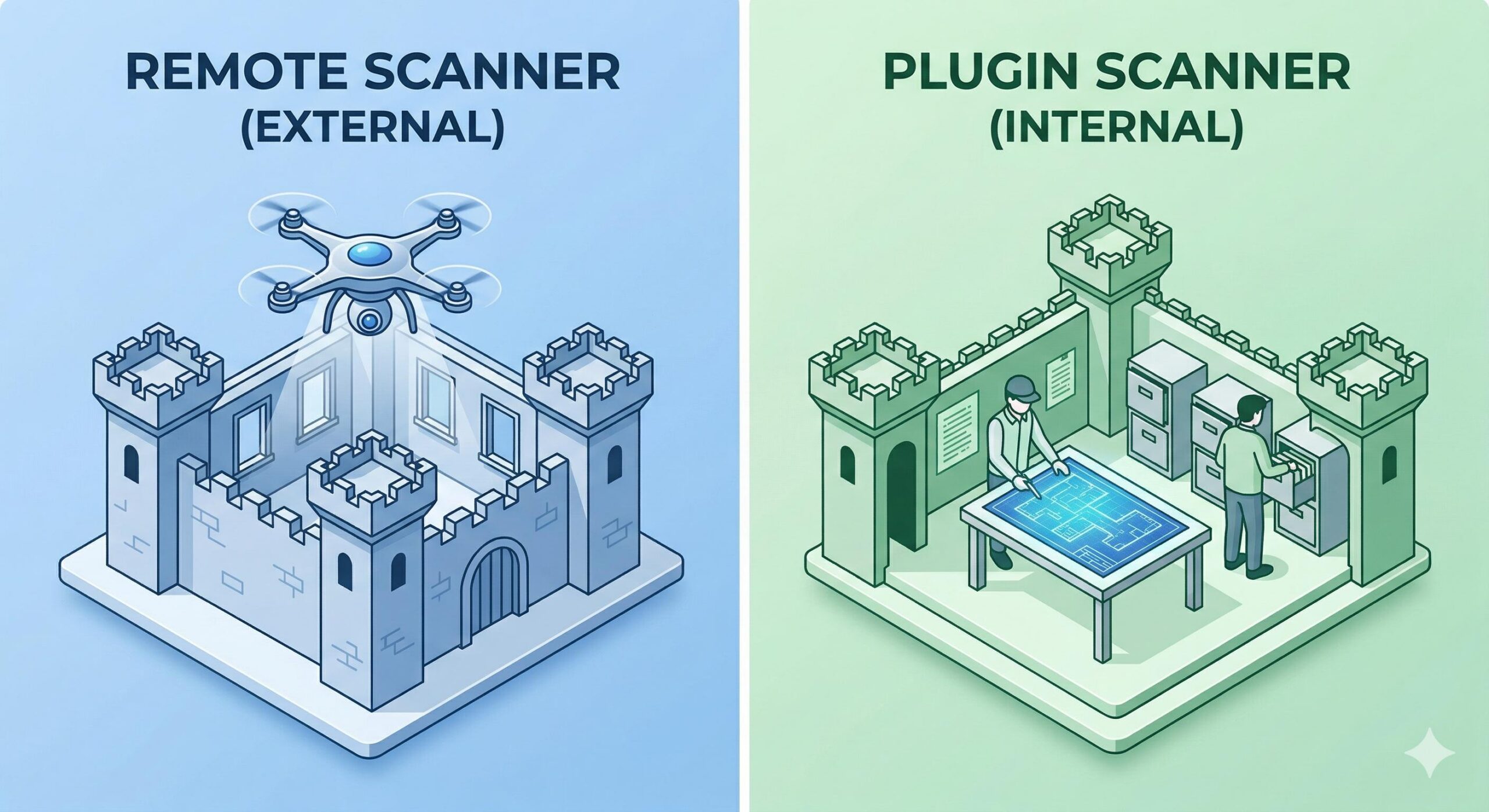
Understanding how these tools operate can help you choose the right one for your WordPress issue. Generally, there are two primary types of scanners you can use to protect your site.
Remote Web-Based Scanners
A remote malware site checker looks at your website from the outside, exactly like a regular visitor or a search engine bot would. You simply paste your website URL into the tool, and it scans the visible source code. It checks your pages for known malicious links, hidden spam text, and outdated software versions. While incredibly fast and beginner-friendly, remote scanners cannot see inside your server to check your core database or hidden PHP files.
Internal WordPress Plugin Scanners
An internal malware site checker is installed directly into your WordPress dashboard as a plugin. Because it lives on your server, it has deep access to your entire file system. It compares your current WordPress core files, themes, and plugins against the official WordPress repository to see if any original code has been altered or infected.
How to Run a Malware Site Checker
If you suspect an issue, you should scan your website immediately. Follow these simple steps to perform a thorough check.
Step 1: Start with a Remote Scan
Before making any changes to your site, use a free online scanner. Tools like Sucuri SiteCheck are industry standards. Simply visit their website, enter your WordPress URL, and click scan. The tool will generate a report telling you if it detected external malware, if your site is blacklisted by Google or Norton, and if your firewall is active.
Step 2: Install an Internal Scanner Plugin
If the remote scan comes back clean but your site is still acting strangely, you need a deeper internal scan. Log into your WordPress admin dashboard and navigate to your plugins area. Install a reputable security plugin that includes a malware site checker, such as Wordfence Security or Solid Security.
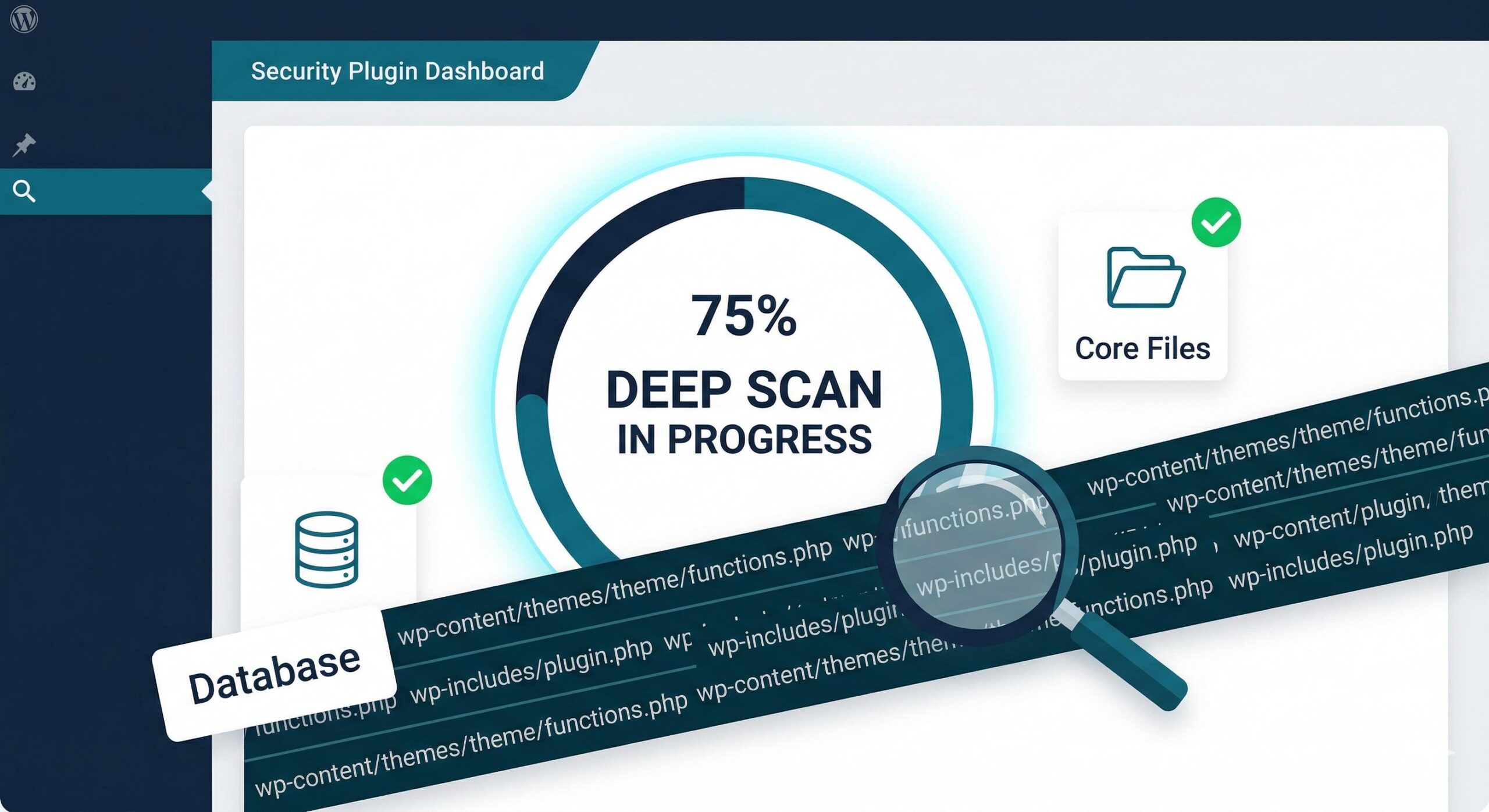
Step 3: Execute the Deep Scan
Once activated, navigate to the scanning section of your new security plugin. Choose the option for a comprehensive or deep scan. This process may take a few minutes as the tool reviews thousands of files on your server. Keep the page open until the scan is 100% complete.
What to Do If the Checker Finds Malware
It can be stressful to see a positive result on a malware site checker, but remaining calm is essential. Following a structured cleanup process will help restore your website safely.
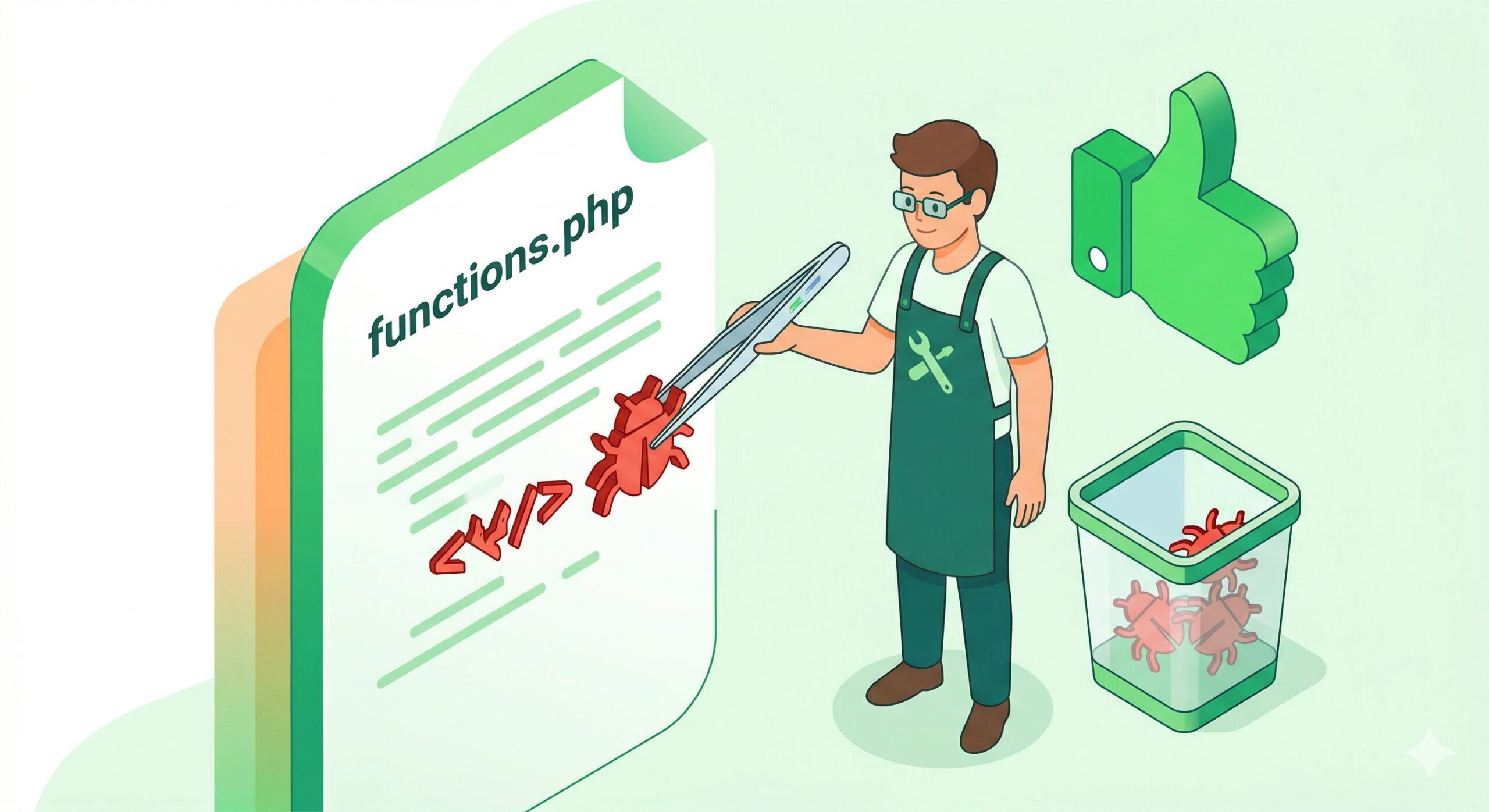
- Backup Your Website: Even though the site is infected, take a full backup of your database and files immediately. If a cleanup attempt breaks your site, you will need this starting point.
- Review the Scan Report: Look closely at the files the malware site checker flagged. Often, it will tell you exactly which plugin or theme contains the malicious code.
- Delete Infected Extensions: If the malware is isolated to a specific free plugin or theme, delete that extension entirely from your WordPress dashboard and replace it with a fresh, safe download.
- Update All Credentials: Malicious scripts often steal passwords. Immediately change your WordPress admin password, your hosting control panel password, and your database password.
- Contact Your Web Host: Many reputable hosting providers offer support for hacked sites. Provide them with the report from your malware site checker, and they may be able to run a server-level cleanup tool for you.
Preventing Future WordPress Security Issues
Once your site is clean, your goal is to ensure the malware site checker returns a clean result every time you run it in the future. Prevention is always easier than fixing a hacked site.
Always keep your WordPress core, themes, and plugins updated to their latest versions, as updates often patch known security holes. Remove any inactive themes or plugins from your server completely, as these are common entry points for hackers. Finally, leave your internal security plugin active so it can run automated daily checks and block malicious login attempts before they succeed.
Frequently Asked Questions (FAQ)
1. Is a free remote malware site checker enough to secure my WordPress site? A free online malware site checker is an excellent starting point for surface-level troubleshooting. It can quickly tell you if your site is blacklisted by search engines or if there are obvious malicious scripts on your visible pages. However, because remote scanners cannot see your internal server files or your WordPress database, it is highly recommended to also use an internal security plugin for a complete, deep scan.
2. Will a malware site checker automatically fix my hacked website? No, a standard malware site checker is primarily a diagnostic tool. Think of it like a medical X-ray: it shows you exactly where the problem is, but it does not perform the surgery. Once the checker identifies the infected files, you will need to manually remove the malicious code, delete the infected plugin, or use a dedicated malware removal service to clean the site.
3. How often should I run a malware site checker on my blog? For the best security, you should configure an internal security plugin to run an automated scan at least once a day. If you are using a manual remote scanner, it is a good habit to check your site URL once a week, or immediately after installing any new plugins or themes, to ensure no hidden vulnerabilities were introduced.
4. Why did my malware site checker find nothing, but my site is still redirecting visitors? If your scan comes back clean but your site is still exhibiting strange behavior, you might be dealing with a hidden database injection or an issue caused by your website’s cache. Clear your WordPress cache and your browser cache first. If the problem persists, the malicious code might be too new for the scanner to recognize (a “zero-day” threat), and you may need to reach out to your hosting provider’s technical support team for a deeper server-level investigation.
How to Resolve a “Malware Detection Website” Warning on Your WordPress Site
Conclusion
Dealing with a compromised WordPress website can feel overwhelming, but it is a highly common issue that many website owners face. By understanding what a malware site checker is and how to properly use one, you are taking the most important first step toward diagnosing the problem.
Remember that these checkers are diagnostic tools—they are meant to point you in the right direction so you can safely clean your files or seek professional assistance. Always keep your themes and plugins updated, maintain regular backups, and run periodic scans to catch potential vulnerabilities before they turn into full-blown security warnings. With the right tools and a calm troubleshooting approach, you can keep your WordPress website safe, fast, and secure for your visitors.








